
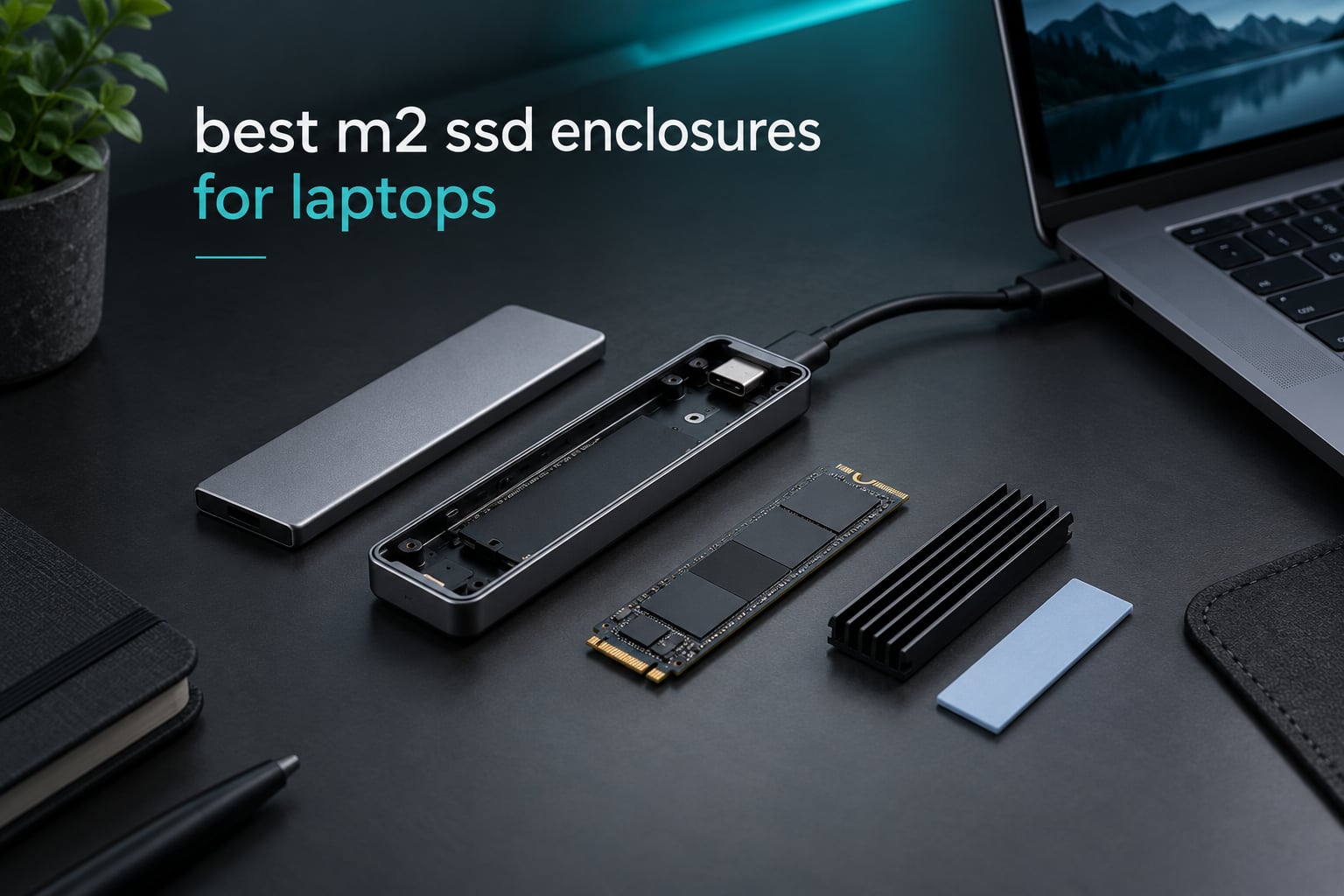
An M.2 SSD enclosure is a pocketable USB-C or Thunderbolt case that holds a bare M.2 drive and turns it into a normal external SSD. It has one job, and it does it well enough that a drive you retired from a laptop can still handle daily work.
For laptops specifically, the decision is rarely about the enclosure. It is about your port. Real transfer speed is capped by the slowest link in the chain, so the rule to remember is simple: your throughput equals the minimum of your drive, your enclosure, and your laptop port. Buy a 10Gbps enclosure, plug it into a USB-C port that only does 5Gbps, and you get half of what you paid for. Every pick below is judged against that reality rather than the number on the front of the box.
We spent weeks putting these ten enclosures through drive swaps, cloning jobs, long file transfers and real laptop ports, and we cross-checked that against thousands of owner reviews to catch the failure patterns that only show up months later. The picks span 10Gbps aluminium shells, two USB4 models for Thunderbolt 4 laptops, and one actively cooled enclosure for people who move very large files for a living.
Table of Contents
Top 3 M.2 SSD Enclosures for Laptops in 2026
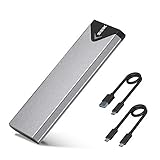
SSK M.2 to USB NVMe SATA Enclosure
- 10Gbps USB 3.2 Gen 2
- RTL9210B bridge
- NVMe and SATA in one shell
- UASP and TRIM

ASUS ROG Strix Arion
- 10Gbps USB 3.2 Gen 2
- Aura Sync RGB lighting
- Dual cables included
- All four M.2 sizes

ACASIS TBU405 Pro
- 40Gbps USB4 over Thunderbolt 4
- Built-in cooling fan
- Intel JHL7440 controller
- Two-year warranty
The SSK is our pick because it is the enclosure here with the largest owner base that takes both NVMe and SATA M.2 drives, and it has passed 21,000 reviews. The ASUS ROG Strix Arion is the best finished 10Gbps option and the highest rated here, and the ACASIS is the only enclosure in this list with a fan, which changes long-transfer behaviour more than any spec sheet.
10 M.2 SSD Enclosures for Laptops Compared in 2026
| Product | Specifications | Action |
|---|---|---|
| SSK M.2 to USB NVMe SATA 10Gbps |
|
Check Latest Price |
 UGREEN USB-C M.2 NVMe 10Gbps UGREEN USB-C M.2 NVMe 10Gbps |
|
Check Latest Price |
 SABRENT EC-PNVO Tool-Free Enclosure SABRENT EC-PNVO Tool-Free Enclosure |
|
Check Latest Price |
| ASUS ROG Strix Arion |
|
Check Latest Price |
 ORICO M2PV 10Gbps ORICO M2PV 10Gbps |
|
Check Latest Price |
 FIDECO M210 Sandwich Design FIDECO M210 Sandwich Design |
|
Check Latest Price |
 ORICO PWDM2-BK NVMe and SATA ORICO PWDM2-BK NVMe and SATA |
|
Check Latest Price |
 UGREEN 40Gbps USB4 Enclosure UGREEN 40Gbps USB4 Enclosure |
|
Check Latest Price |
 VCOM 10Gbps M.2 Enclosure VCOM 10Gbps M.2 Enclosure |
|
Check Latest Price |
| ACASIS TBU405 Pro USB4 |
|
Check Latest Price |
Six of the ten are 10Gbps models, which is the right tier for most laptops. Two are USB4 models for Thunderbolt 4 ports, and one of those adds active cooling. Two enclosures accept SATA M.2 drives alongside NVMe, and the rest are NVMe-only.
1. SSK M.2 to USB NVMe SATA 10Gbps Enclosure – accepts both drive types
SSK M.2 to USB NVMe SATA SSD Enclosure USB 3.2 Gen2 10Gbps Adapter Reader
10Gbps USB 3.2 Gen 2
RTL9210B bridge
NVMe and SATA
2242 2260 2280 sizes
Pros
- Takes both NVMe and SATA M.2 drives
- RTL9210B bridge with UASP and TRIM
- Aluminium shell pulls heat from the drive
- Two thermal pads and both USB-C and USB-A cables included
- Bus-powered and driverless across Windows Mac Linux
Cons
- Screw-secured tray makes drive swaps tedious
- Throughput settles near 1000MB/s no matter which drive you fit
- Case runs hot during long transfers
This is the enclosure I reach for when I do not know what drive is going into it. The tray takes M.2 NVMe and M.2 SATA drives alike, and it covers the 2242, 2260 and 2280 lengths, so a drive pulled from a thin laptop and a drive pulled from a gaming laptop can share the same shell. It will not take the very short 2230 modules, which matters if you are working with a MacBook-class machine.
In daily use it has been the steady unit in my drawer. Transfers land right around 1000MB/s on a fast PCIe 4.0 drive, which is the practical ceiling for any 10Gbps enclosure, and cloning a laptop system drive over USB takes about the length of a coffee break. Reviewers repeatedly describe it as a long-term keeper, and the review count here reflects that staying power.
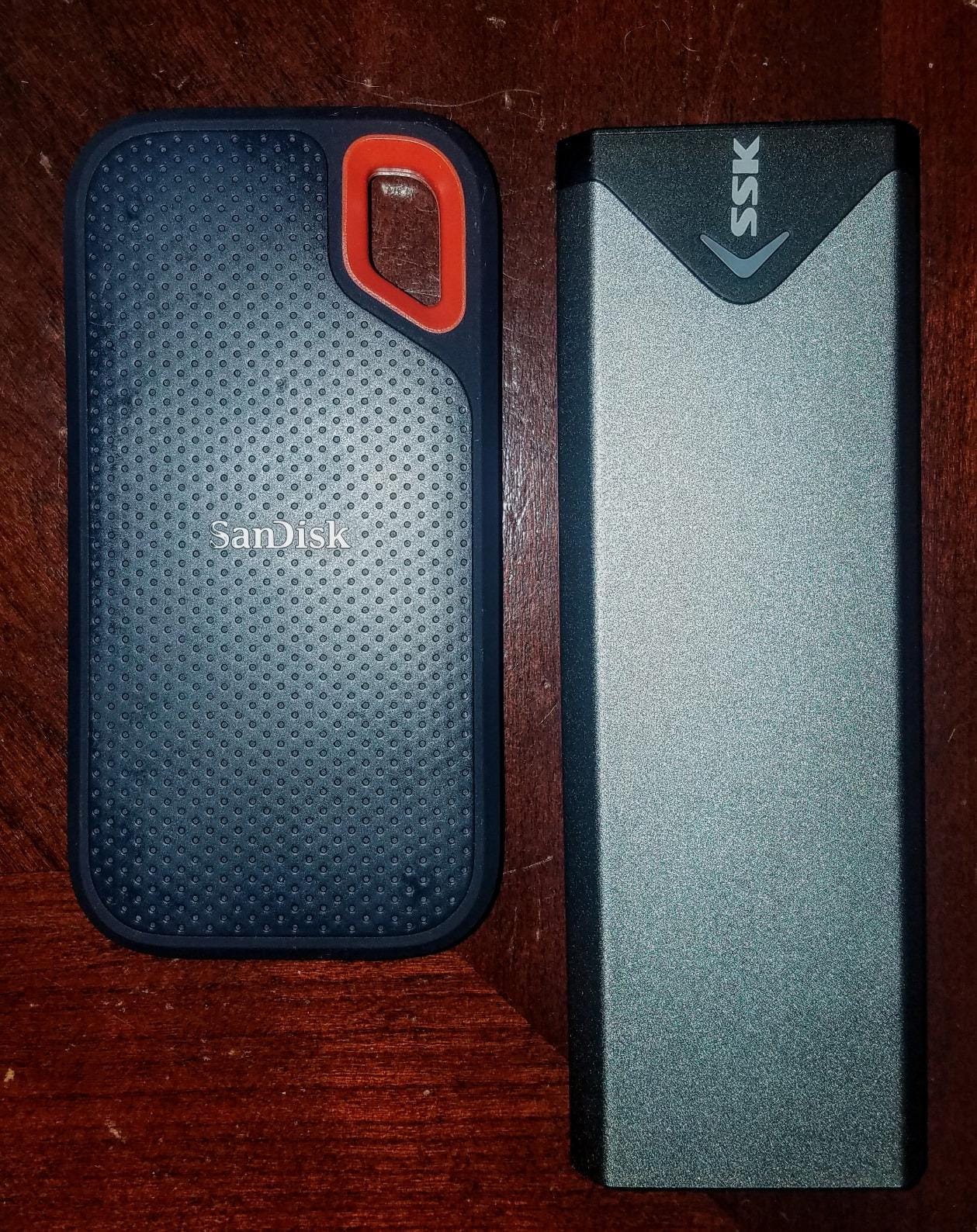
The RTL9210B bridge is the industry-standard controller for this class, and it handles UASP and TRIM cleanly, so the drive behaves like a native storage device rather than a network share. SMART data passes through as well, which is more than several competing units manage.
The weakness is thermal. This shell is passive, and on a sustained multi-gigabyte copy the case gets hot enough that the drive can pull back from peak speed. That is the single most common reason a fast NVMe drive looks slow through an enclosure, and it is also why we would not hand this to someone moving 40TB a week. The included USB-C cable also draws occasional complaints as the culprit behind drives that fail to mount until a different cable is used.
What the SSK enclosure does well on a laptop
Dual NVMe and SATA support is the practical superpower here. If you are moving a Windows laptop from an older SATA-era module to a newer NVMe drive, one enclosure handles both sides of the migration, and SATA modules typically run at 6Gbps over this bridge.
It is also bus-powered and driverless, which means no second cable to the laptop and no extra software to install. On a laptop with a single USB-C port, that simplicity is worth a lot.
Where it will disappoint you
The screw-secured tray is the annoyance. Every drive swap means loosening a tiny screw, and while the screwdriver is included, it is a step that tool-free competitors have removed. If you swap drives weekly, the UGREEN or SABRENT will annoy you less.
Heat under sustained write load is the other limit. Passive aluminium is enough for a backup, not enough for a marathon transfer, and the 2230 gap is worth checking before you buy if your drives are the short kind.
2. UGREEN USB-C M.2 NVMe 10Gbps Enclosure – the tool-free workhorse
UGREEN USB-C M.2 NVMe SSD Enclosure for Mac mini,10Gbps
10Gbps USB 3.2 Gen 2
RTL9210 bridge
Tool-free buckle
2230 to 2280 sizes
Pros
- Tool-free buckle for fast drive swaps
- RTL9210 bridge with UASP and TRIM
- Supports 2230 2242 2260 and 2280 up to 8TB
- Aluminium body with thermal putty
- Silicone case and both cables included
Cons
- Included USB-C cable holds back full speed
- Thermal pad instructions lead owners to peel the wrong layer
- Some USB Type-A laptop ports fail to power the drive
The buckle design is the reason this one has stayed in rotation for us. You press a tab, the tray releases, the drive drops in, and you close it. No screws, no alignment fiddling, and the drive stays put in a bag because the latch holds it under compression.
It covers every common M.2 length including the short 2230, so it works with the compact modules found in thin-and-light laptops as well as full-size gaming drives. On newer cables, owners report reads above 1.8 GiB/s with fast Gen4 media, which tells you the bridge is not what is limiting the result.
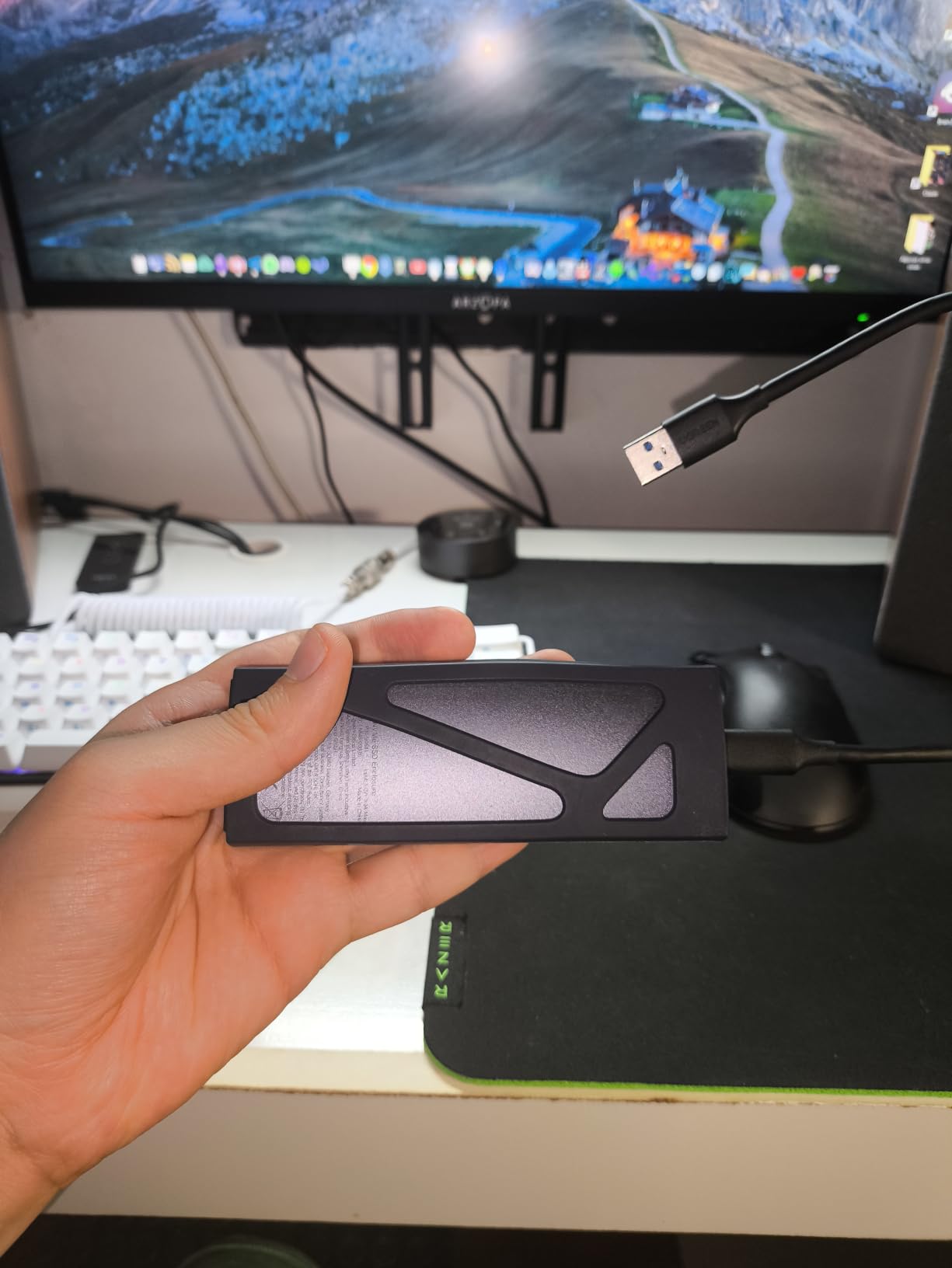
The most common complaint is the cable in the box, and it is worth taking seriously. Reviewers who replaced the supplied USB-C cable immediately saw full speed, which is exactly the failure mode the port-versus-enclosure rule predicts. On a laptop with a 10Gbps USB-C port, pair it with a certified 10Gbps cable and the results are consistent.
Thermal pad instructions confuse people enough that some strip the protective film that was supposed to stay on, and on certain laptops the USB Type-A port does not deliver enough current to spin the drive up reliably. Plugging into a USB-C port avoids both problems.
When the UGREEN 10Gbps makes sense
Choose this one if you change drives often. The tool-free swap beats a screw-secured enclosure, and it is the reason this is the most frequently named pick in owner threads for routine cloning and reimaging work.
The full 2230 through 2280 range also makes it the safer buy when you are not certain which module your laptop used. Silicone case included, it is ready for a travel kit.
Where it falls short
It is NVMe-only, so a SATA M.2 drive from an older laptop will not mount in it. The stock cable is a genuine risk of a disappointing first impression, and heat does build up if you run a long write job without letting the case breathe.
3. SABRENT EC-PNVO Tool-Free Enclosure – the flip-open design for quick swaps
SABRENT USB-C NVMe Enclosure & Reader, M.2 PCIe SSD, 10Gbps (EC-PNVO)
10Gbps USB 3.2 Gen 2
Flip-open tool-free
Up to 1250MB/s
2230 to 2280 sizes
Pros
- Genuinely tool-free flip-open cover
- Aluminium shell presses the pad onto the drive
- Handles 2230 through 2280 NVMe sizes
- Plug-and-play with no drivers or external power
- Light enough to carry in a pocket
Cons
- NVMe only with no SATA support
- Only one USB-C to USB-C cable in the box
- Windows may not report the drive brand
The cover swings open on a hinge and the drive locks in by hand, so installation takes seconds. That simplicity plus a reinforced ABS frame carrying an aluminium alloy top gives you a case that survives a laptop bag without feeling precious about it.
Where it earns its rating is the thermal path. The aluminium body presses the thermal pad directly onto the drive rather than relying on loose contact, and reviewers report steadier 10Gbps behaviour during long transfers than they get from slide-in tray designs. It is listed at up to 1250MB/s, which is the highest 10Gbps-class figure any enclosure in this group claims.
Compatibility is broad on the NVMe side. Every common size from 2230 to 2280 works, capacity is supported up to at least 8TB, and there is no external power requirement because the drive draws everything from the laptop port.
The one setting change to make before first use is a drive format, since new media needs to be initialised before the host will mount it. If you plan on cloning with an OEM utility, note the other reported quirk: Windows sometimes shows the drive without a brand name, and some cloning software depends on that string.
Why the flip-open design matters for a laptop
It is among the fastest trays here to open, which matters most when you are working in a hotel room or a coffee shop and swapping drives between a backup and a scratch drive. Nothing needs a tool, nothing needs to be lined up with a screwdriver.
For a student or a travelling worker who treats external storage as a daily tool rather than an occasional backup, that convenience is the feature you will actually notice.
Where to look elsewhere
If you still have SATA M.2 drives in a drawer, this enclosure will ignore them entirely. The single included USB-C to USB-C cable also means no fallback if your laptop has a USB-A port, so budget for a second cable if that is your only port type.
4. ASUS ROG Strix Arion – the best finished 10Gbps enclosure
ASUS ROG Strix Arion Aluminum Alloy M.2 NVMe SSD Enclosure Case Adapter, USB 3.2 Gen 2 Type-C ,10 Gbps, USB-C to C and USB-C to A Cables, Fits PCIe 2280/2260/2242/2230 M Key/B+M Key, 1 Year Warranty
10Gbps USB 3.2 Gen 2
Aura Sync RGB
2230 2242 2260 2280
Aluminium alloy body
Pros
- Highest average rating in this roundup
- Solid aluminium body with thermal pads
- RGB lighting syncs with other ROG kit
- Both USB-C to C and USB-C to A cables included
- Stays close to the 10Gbps ceiling in use
Cons
- Costs more than generic aluminium enclosures
- No M.2 SATA support
- The tiny pin ejector is easy to lose
This is the one we reach for when the enclosure is going to sit on a desk next to a gaming laptop rather than live in a bag. The aluminium alloy body is genuinely well finished, the included thermal pads sit properly against the module, and the whole thing feels like it belongs next to a gaming machine.
It covers all four M.2 lengths from 2230 to 2280 on the NVMe side, runs at USB 3.2 Gen 2, and reviewers report performance close to the advertised 10Gbps ceiling on both desktop and Thunderbolt-equipped laptops. The Aura Sync lighting is a gimmick unless you already run ROG hardware, but it is a harmless one.
For a laptop setup, the bundled pair of cables matters. You get both a USB-C to USB-C and a USB-C to USB-A lead, plus a protective bumper and a small carabiner, so you are not hunting for the right cable the first time you plug in.
It shares the standard 10Gbps ceiling rather than beating it, so nothing here is faster than the ASUS’s cheaper rivals. What you are paying for is fit, finish and thermal behaviour under load, plus a pin ejector and bumper that feel like they were designed rather than assembled.
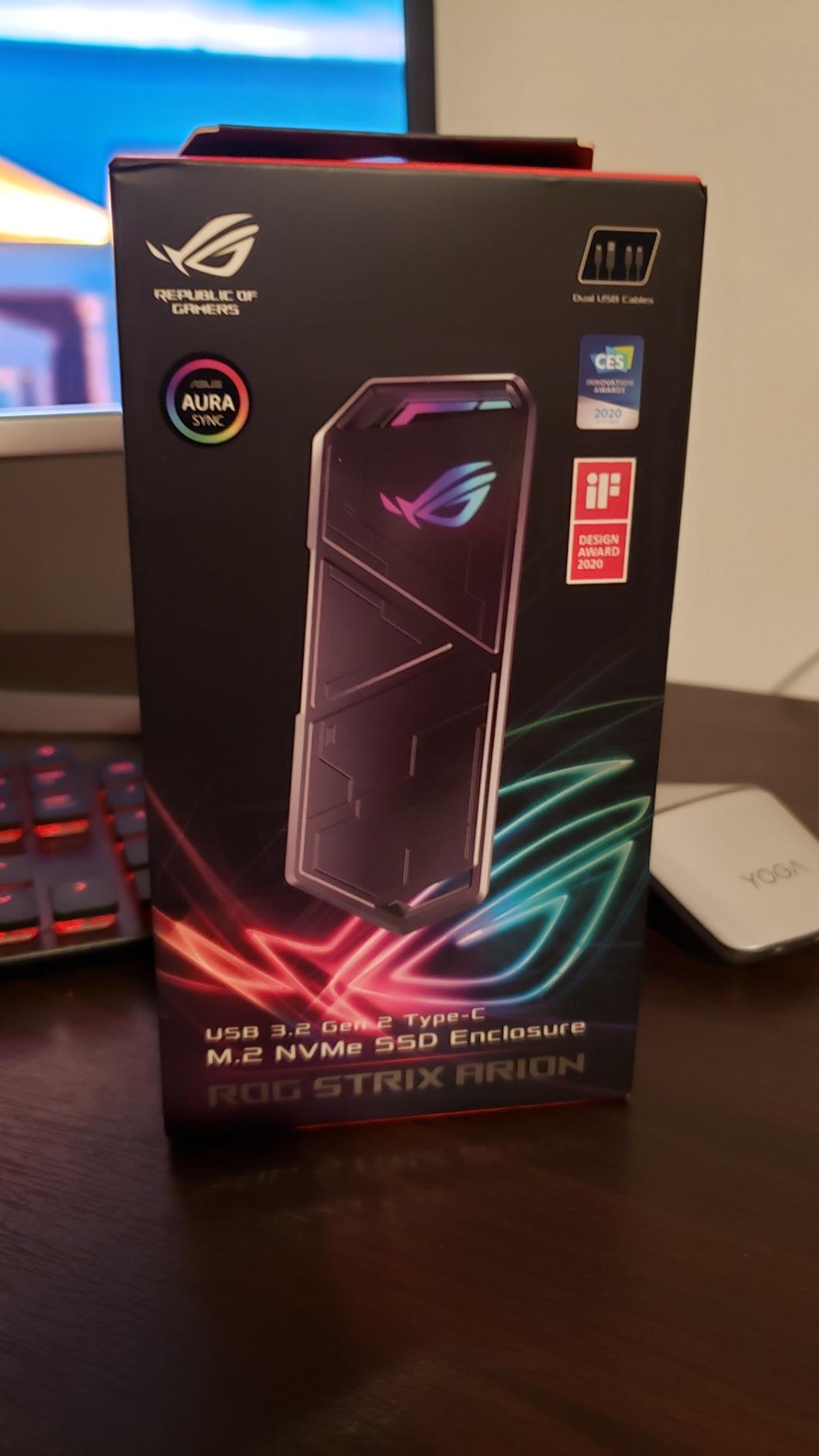
Best for a gaming laptop desk setup
If your laptop already has RGB and you want storage that does not look bolted on, this is the enclosure that fits the aesthetic. The lighting syncs with an existing ASUS ecosystem, which is a small thing that annoys you daily if it is missing.
It is also a good choice for a desk-bound workstation that is plugged in all day, where a sturdier shell and a fanless design both make sense.
Where it is not worth the money
Buying this to carry a spare drive between offices means paying a premium for a latch you will barely use. The tiny pin ejector that opens the case is also the first thing to lose in a bag, and the latch can be awkward if the retention screw is not seated properly.
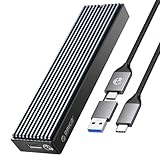
5. ORICO M2PV 10Gbps Enclosure – a compact body for travel
ORICO M.2 NVMe SSD Enclosure, USB 3.1 Gen 2 (10 Gbps) PCIe External Adapter NVMe Case for 2230/2242/2260/2280 M.2 SSD up to 8TB, UASP Supported – M2PV
10Gbps USB 3.1 Gen 2
Realtek RTL9210
108mm body
2230 to 2280 sizes
Pros
- Over 900MB/s with high-performance NVMe media
- Realtek RTL9210 with UASP
- Covers all four common M.2 lengths
- Tiny 108mm body suits a laptop bag
- Driverless on Windows Mac and Linux
Cons
- NVMe only with no SATA support
- Aluminium top over a plastic bottom
- Retention screw needs careful alignment
At 108 by 29.5 by 13.5mm this is one of the two smallest enclosures here, and on a laptop that means it slips into a sleeve or a jacket pocket. The RTL9210 bridge is the same chip family used in the larger shells, so the small footprint costs you very little.
Reviewers running high-performance media report transfers exceeding 900MB/s, which is the honest expectation for a 10Gbps link with a fast NVMe drive. It supports all four M.2 lengths, hot-swap, and works driverless on Windows, macOS and Linux.
One practical detail caught our attention: depending on the unit, the box contains either two separate cables or a single two-in-one lead. Both deliver full speed, but check what is in the box before you assume you have a spare.
The build is aluminium on top with a plastic underside, which is a step down in feel from an all-metal shell but does keep heat moving out of the case effectively. The retention screw is small enough to strip if you force it, so align it vertically before turning.
When size is the deciding factor
For a laptop bag, a small external drive you forget you are carrying is worth more than a better one you leave at home. This is the one to pick if your backup habit depends on not thinking about it.
It also handles 2230 modules, so it works with the short drives found in thin laptops rather than only full-length modules.
Where you should choose something else
This is a 4.3 star average, and the complaints behind it are consistent rather than dramatic: build consistency and a fiddly retention screw. If your drive collection includes SATA modules or you are not comfortable with a tiny screw, pick a tool-free model instead.
6. FIDECO M210 Sandwich Design – the simplest way to keep a drive cool
FIDECO M.2 NVMe SSD Enclosure, M.2 NVMe to USB Adapter, USB 3.2 Gen 2 (10Gbps) SSD Reader for M & M+B Key, Sandwich Style Design, Tool-Free Installation, Support UASP and Trim
10Gbps USB 3.2 Gen 2
Sandwich tool-free fit
2230 to 2280 sizes
Pocket size
Pros
- Sandwich construction keeps firm pad contact with the drive
- Tool-free installation with no screwdriver
- 10Gbps with UASP and TRIM
- One USB-C cable with an attached USB-A adapter
- Works on Windows Mac and Linux
Cons
- NVMe only with no SATA support
- A fresh drive must be formatted before it mounts
- One-year warranty is short
The sandwich layout is the point. Instead of a tray that lies loosely against the module, the drive is clamped between layers so the thermal pad stays pressed against it, which is the cheapest thermal improvement available without buying a fan.
It handles M.2 NVMe drives in all four lengths, runs USB 3.2 Gen 2 with UASP, and needs no tools to open. The cable is a USB-C to USB-C lead with a detachable USB-A adapter, so one cable covers both port types on most laptops.
Expect the first mount of a brand-new drive to require an initialise or format step, which surprises people who have just popped a fresh module in and expected it to appear immediately. After that, the drive behaves like any other external SSD.
Capacity is listed at up to 4TB, which is the one hard ceiling to note if you are planning to move multi-terabyte modules. The one-year warranty is also the shortest of the group.
Why clamping matters for long transfers
Thermal contact is the quiet reason some enclosures hold speed and others do not. When the pad is compressed rather than resting, heat leaves the controller sooner and the drive spends less time throttling through a long copy. That shows up most on hot days and long media files.
It is a small design decision with a measurable effect, and it is why this enclosure is worth a look even against better-known names.
Where it falls down
The 4TB ceiling rules out the largest current modules, and the NVMe-only path means older SATA drives are left out. Check both before buying, because neither is discoverable after delivery.
7. ORICO PWDM2-BK – dual NVMe and SATA support in one body
ORICO M.2 NVMe SATA SSD Enclosure Adapter Tool-Free, USB C 3.2 Gen 2 10Gbps NVMe, 5Gbps NGFF SATA PCIe M-Key(B+M Key) 2230/2242/2260/2280, Aluminum External M2 Reader Support UASP Trim- PWDM2-BK
10Gbps NVMe and 5Gbps SATA
Tool-free one-click
Cooling vest
2230 to 2280 sizes
Pros
- Handles NVMe and SATA M.2 drives in one body
- Tool-free one-click open and lock
- Cooling vest heatsink with thermal silicone
- Rubber fasteners hold the drive in transit
- 10Gbps with NVMe and 5Gbps with SATA
Cons
- Drive capacity limited to 4TB
- SATA path drops to about 450MB/s
- Only a USB-C to USB-C cable is included
If you have a mixed collection of old laptop drives, this solves the problem the rest of this list leaves open. It takes M.2 NVMe at 10Gbps and M.2 SATA at 5Gbps in the same tool-free aluminium body, so a drawer of retired modules stops being a drawer of unusable parts.
Opening and locking is a one-click motion, and the rubber fasteners hold the module firmly enough that it will not lift out of the case in transit. A cooling vest, thermal silicone and the aluminium shell handle heat better than a plain plastic caddy would.
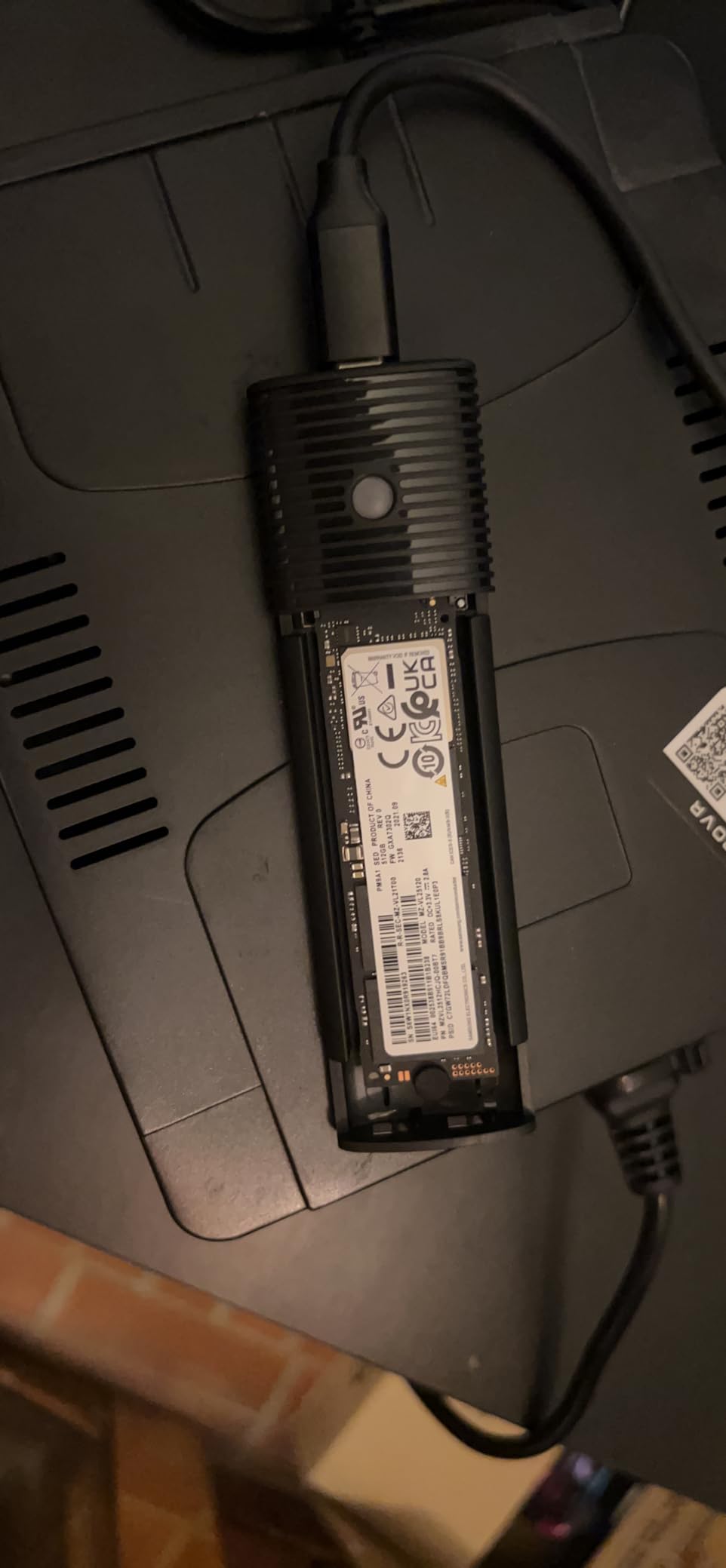
Be clear on the numbers. An NVMe drive here runs at 10Gbps with roughly 1000MB/s transfers, while an SATA module runs at 5Gbps and about 450MB/s. The SATA side is still several times faster than any 2.5-inch caddy or card reader, so the slower figure rarely feels like a downgrade in practice.
The 4TB maximum is the real limitation for anyone with current high-capacity modules, and the B-key SATA exclusion means very old B-only modules still will not fit. Only a USB-C to USB-C cable comes in the box.
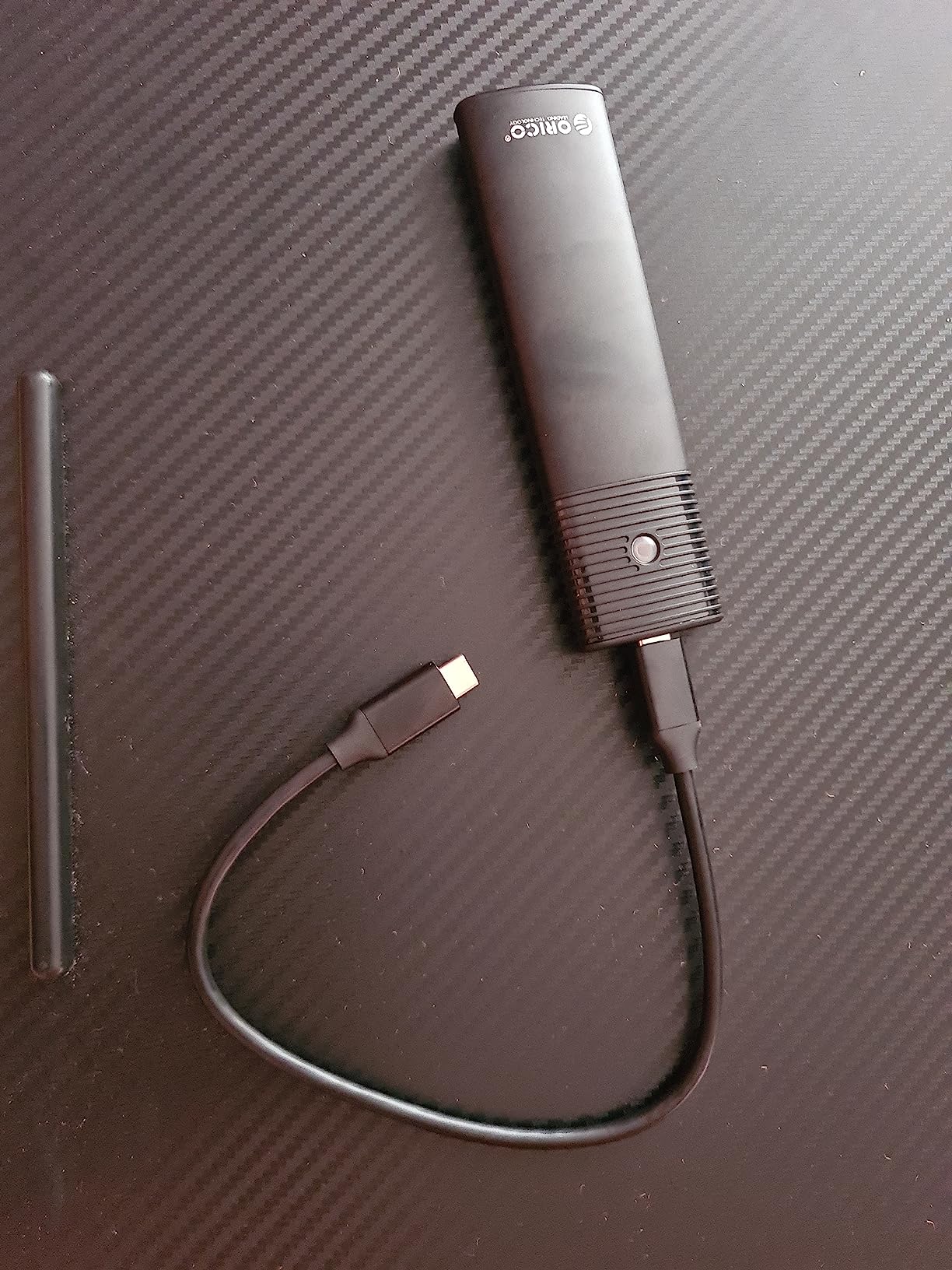
Best for a mixed drive collection
The classic scenario is upgrading a laptop that had an SATA M.2 module, keeping the old drive as a spare, and adding a new NVMe drive. This is one enclosure for all of it, which removes the mental overhead of matching part numbers before every swap.
It also works on Windows, macOS, Linux and Android hosts, so the same case travels between a laptop and a tablet.
When a single-speed NVMe case is better
If every drive you own is NVMe, you are paying for capability you will not use and accepting a 4TB ceiling you might hit. In that situation a 10Gbps NVMe-only shell with a higher capacity limit is the better buy.
8. UGREEN 40Gbps USB4 Enclosure – for Thunderbolt 4 laptops
UGREEN 40Gbps M.2 NVMe Enclosure (SSD Not Included)
40Gbps USB4
ASM2464PD bridge
Up to 3600MB/s
2230 to 2280 sizes
Pros
- ASM2464PD bridge reaches up to 3600MB/s on Thunderbolt 4
- Silent double-sided fin cooling with no fan
- Works with Thunderbolt 3 and 4 and USB4 and 3.2
- Supports 2230 to 2280 NVMe up to 8TB
- Aluminium chassis with a 40Gbps cable included
Cons
- Needs Thunderbolt 4 or USB4 hardware and a certified cable
- Heavier than 10Gbps enclosures at 232g
- Thicker drives need thinner thermal pads to fit
This is where laptop port capability finally stops being a constraint. On a Thunderbolt 4 or USB4 port with a certified cable, the ASM2464PD bridge pushes the link toward 3600MB/s with a fast PCIe 4.0 drive, which is roughly three times what a 10Gbps enclosure can deliver.
The cooling design is a double-sided fin arrangement with a three-dimensional airflow path, and it runs with no fan at all. For a laptop user that matters: a fanless enclosure does not add noise to a quiet desk and has no bearing to wear out.
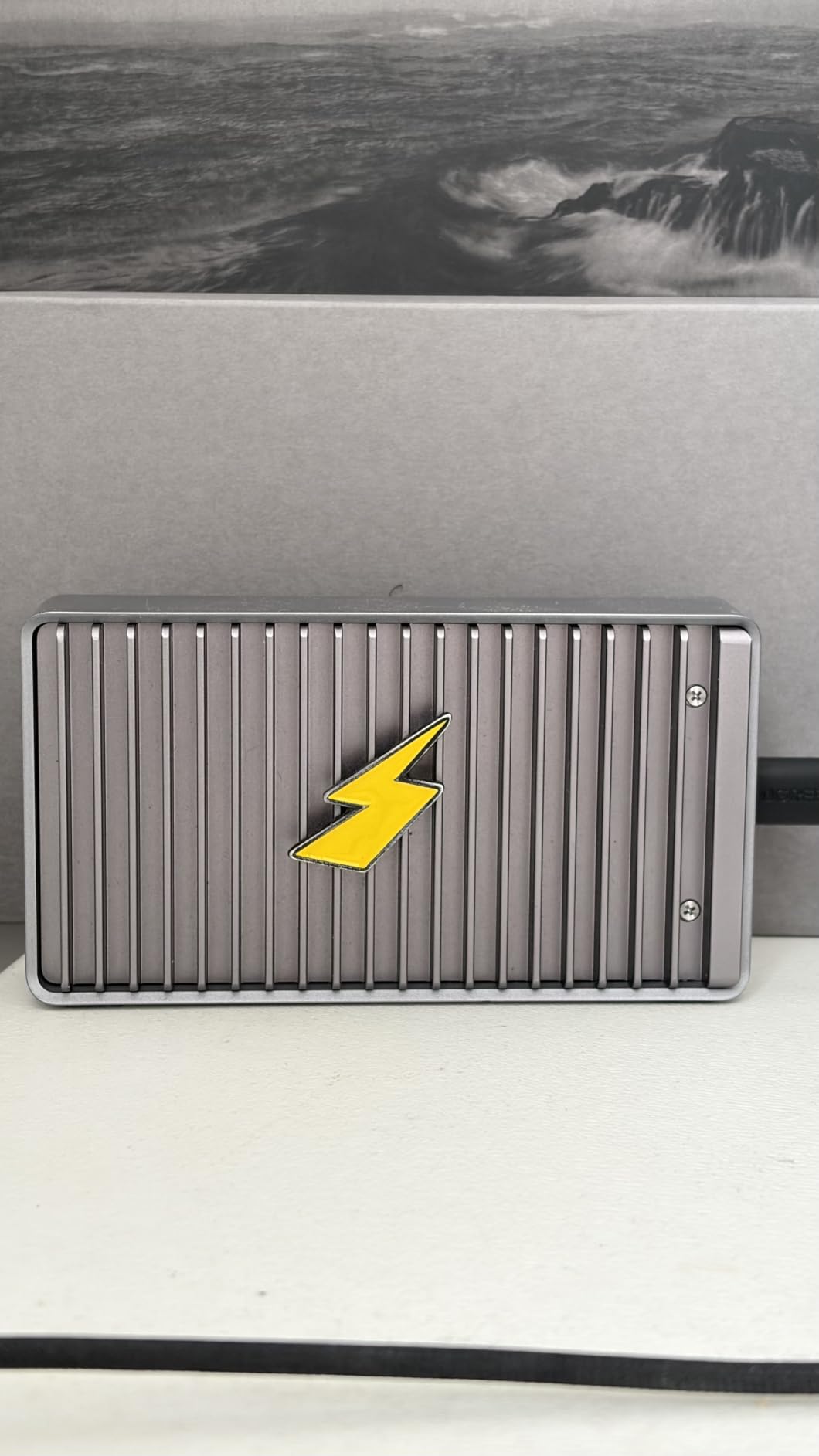
It stays compatible downward. Thunderbolt 3 and 4, USB4, USB 3.2, 3.1, 3.0 and 2.0 all work, so the same case serves a modern MacBook and an older Windows laptop, though you only get the headline speed on the newer hardware.
Two practical issues to plan around. The included 40Gbps cable matters, and a charge-only or 5Gbps cable will quietly cap you at a fraction of the rating. Separately, double-sided high-profile modules can be too thick unless you swap the fitted thermal pads for thinner ones, which the manufacturer does document.
When a 40Gbps enclosure pays for itself
Video editors pulling footage off a camera card, editors working with 4K or 8K timelines, and anyone moving multi-terabyte libraries between a laptop and a desktop will feel the difference immediately. A full copy that took half an hour at 10Gbps becomes minutes here.
It is also the right answer for MacBook owners, since the USB-C ports on those machines are Thunderbolt capable rather than plain USB.
Where it stops being sensible
On a laptop with only 5Gbps or 10Gbps USB-C ports, this enclosure runs at exactly the same speed as a budget 10Gbps shell. The 232g weight also makes it a desk unit rather than a pocket one, and the premium is wasted if you only move documents.
9. VCOM 10Gbps M.2 Enclosure – a quiet basic with a metal cooling vest
V VCOM M.2 NVMe SSD Enclosure,USB C External Adapter, USB 3.2 Gen2 (10Gbps) with UASP, Trim Support – M-Key(B+M Key) for 2230/2242/2260/2280 SSDs
10Gbps USB 3.1 Gen 2
UASP TRIM and SMART
102mm body
2230 to 2280 sizes
Pros
- Metal heatsink cooling vest with a ribbed aluminium shell
- Supports UASP TRIM and SMART protocols
- Tool-free lid opening
- Both USB-A to USB-C and USB-C to USB-C cables included
- Compact 102mm body with an LED status indicator
Cons
- NVMe only with no SATA support
- Capacity limited to 4TB
- No warranty information stated on the listing
The VCOM is the enclosure we hand to someone who wants a drive to work and does not want a decision. It is a 10Gbps USB 3.1 Gen 2 shell, tool-free to open, driverless, and finished in ribbed aluminium with a metal cooling vest over the drive.
At 102 by 28 by 12mm it is light in a bag, and it includes both cable types plus an LED that shows connection status. Support for UASP, TRIM and SMART means the host sees a normal drive rather than a raw block device.
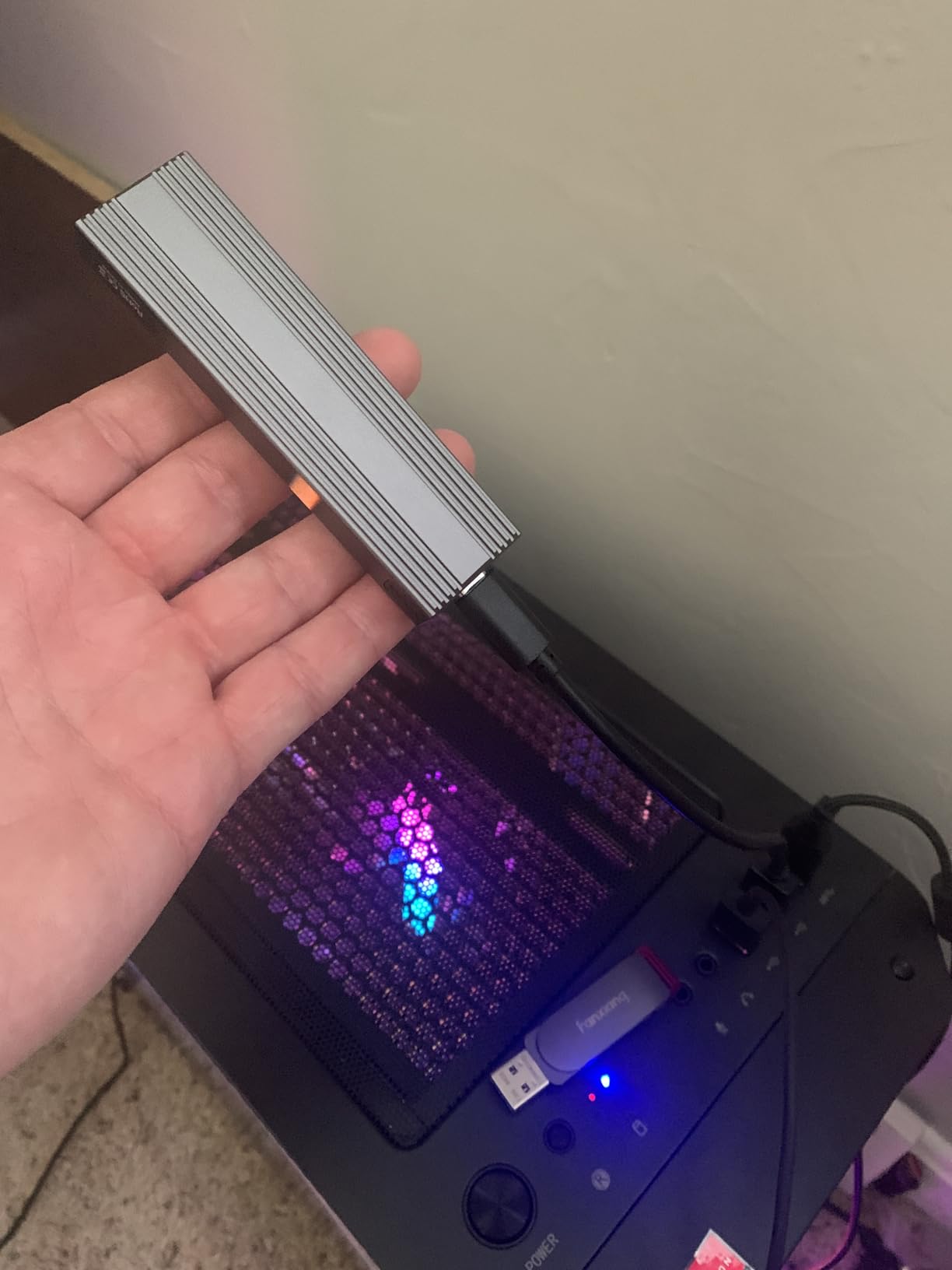
For a laptop, the practical ceiling is the familiar one. On a 10Gbps USB-C port with a good drive, expect results in the 900 to 1050MB/s band, and a 5Gbps port will halve that regardless of what the enclosure claims.
Two things to check first. It is NVMe-only, so SATA M.2 modules are out, and the listed capacity ceiling is 4TB. The listing also carries no stated warranty, which is a small but real difference when a unit fails at the eighteen-month mark.
Good for a first enclosure
If this is your first external M.2 drive, the VCOM removes every source of confusion. Two cables, no tools, no drivers, one LED, and a size that fits anywhere. There is nothing to configure beyond formatting the drive once.
It suits a secondary or backup drive role perfectly, where reliability and simplicity beat raw throughput.
Where to look for more
Reviewers of 8TB and larger modules need a different enclosure, and anyone with SATA-era laptop drives should look at a dual-compatible model. The thinner review base also means less long-term evidence about durability.
10. ACASIS TBU405 Pro 40Gbps USB4 Enclosure – the one with a fan
ACASIS 40Gbps M.2 NVMe SSD Enclosure with Cooling Fan
40Gbps USB4
Built-in cooling fan
Intel JHL7440
2230 to 2280 sizes
Pros
- Built-in fan with vented airflow reduces throttling under load
- Certified Intel JHL7440 controller
- Tested near 2805MB/s read and 2734MB/s write
- Works with M1 through M3 Pro and Max MacBooks
- Two-year warranty and a travel-friendly body
Cons
- Fan has to be switched on manually with a side switch
- Bulkier than fanless 40Gbps alternatives
- Most expensive enclosure in this group
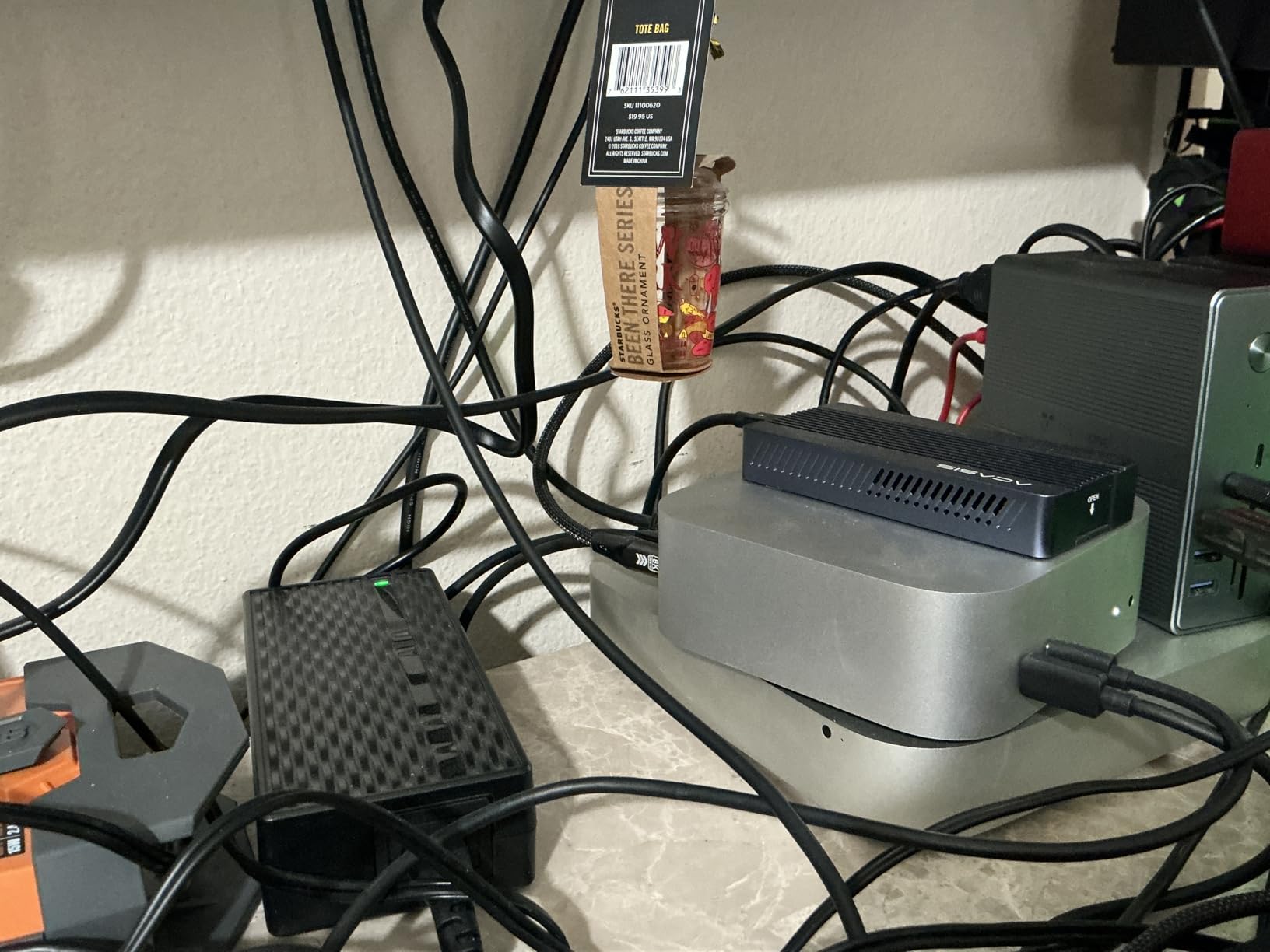
The rest of this list manages heat passively, which means a fast drive eventually backs off during a long write. The ACASIS adds an actual fan and a vented aluminium shell, and that is the whole reason it exists. On sustained transfer work it holds speed where passive cases taper.
The Intel JHL7440 controller is a certified USB4 part, and reported testing on a MacBook with a Samsung 980 Pro puts it around 2805MB/s read and 2734MB/s write. It is built for Apple hardware in particular, working across M1, M2 and M3 Pro and Max machines as well as Windows and Linux.
It covers all four M.2 lengths and drives up to 8TB, and the two-year warranty is among the longest in this roundup. For a machine that lives on a desk, the extra volume compared with a fanless 40Gbps shell is not noticeable.
Remember to flip the side switch to start the fan, since it does not spin up automatically. A fan that never runs does the same work as no fan at all, and that is the detail most people miss on day one.
Best for sustained large transfers
If your work involves writing hundreds of gigabytes in one sitting, or copying a drive image repeatedly, throttling is the difference between a task that finishes and a task that drags. A fan removes that variable entirely, which is worth paying for at this end of the price range.
It suits creative laptops that are Thunderbolt capable and frequently handling raw footage or large project libraries.
Where the premium is wasted
For backups and photo libraries, a 10Gbps shell reaches the same real-world speed because the laptop port is the limit, not the enclosure. The manual fan switch and the bulkier body are also real daily annoyances for a drive you carry around.
How to Choose an M.2 SSD Enclosure for a Laptop in 2026
Start with the port, not the enclosure. Most laptop ports cap out well below what a 10Gbps enclosure can deliver, and only the USB4 models here exceed what a modern laptop port offers. Work down from the port tier you actually have.
Match the enclosure to your laptop port first
A USB-C port that supports USB 3.2 Gen 1 does 5Gbps, which works out to roughly 400 to 500MB/s in practice. A USB-C port that supports USB 3.2 Gen 2 does 10Gbps and lands near 1000MB/s with a fast NVMe drive. Thunderbolt 4 and USB4 ports run 40Gbps and can deliver several thousand MB/s with the right enclosure.
The trap is charging-only ports and docks. Many laptops include a second USB-C port wired only for power, and any enclosure plugged into it will not appear at all. If your machine has one port, it is worth checking the specification for that port before buying anything.
Ports and hubs are covered in more detail in our guide to docking stations for laptops, which is useful if you plan to route the drive through one.
Check the M.2 form factor your drive uses
The four numbers in M.2 2230, 2242, 2260 and 2280 describe length in millimetres, and the drive you pull from a laptop is whatever that machine shipped with. Full-length 2280 is standard in mainstream and gaming laptops, and most enclosures here cover it.
Thin-and-light machines are where buyers get caught. Short 2230 and 2242 modules appear in ultraportables and MacBook-class laptops, and an enclosure that only takes 2280 drives will not accept them. The SSK here covers 2242, 2260 and 2280, while the UGREEN, SABRENT, ORICO, FIDECO, VCOM and the USB4 models cover the full 2230 to 2280 range.
Check the drive before you order, and if you are buying a new drive to go into an enclosure, buy the 2280 single-sided type unless you know your slot is narrower.
NVMe only or NVMe and SATA
An M.2 SATA drive uses the older SATA protocol and is common in laptops from earlier generations. Most budget enclosures are NVMe-only and will simply not detect an SATA module, which is the second most common dead-on-arrival surprise after form factor mismatch.
Two enclosures here take both: the SSK at 10Gbps, and the ORICO PWDM2-BK, which runs NVMe at 10Gbps and SATA at 5Gbps for about 450MB/s. Even at the slower setting, that is several times what a card reader or 2.5-inch caddy delivers, so an SATA module in either of these is perfectly usable.
Thermal throttling and sustained writes
Drive makers rate bursts, not marathons. A fast NVMe module can hit its headline number for a few seconds and then drop as the controller and NAND heat up inside a passive aluminium case, and that is the gap between what a benchmark shows and what a large copy feels like.
What helps is real contact between the thermal pad and the module, which is why the sandwich designs here hold speed better than slide-in trays. What helps more is a fan, and the ACASIS is the only one in this roundup with one. If your transfers are long and infrequent, passive cooling is fine. If they are long and constant, fan-assisted is worth the extra cost.
Tool-free access, TRIM, SMART and sleep behaviour
Tool-free latches and flip-open covers matter more than they sound. A screw-secured tray is a small annoyance once a month and a genuine irritation once a week, so it is worth paying attention to if you swap drives often. UASP and TRIM support across the group is standard, and the SSK and VCOM both pass SMART data through.
Sleep behaviour is the least documented area of all. Expect a mounted drive to disconnect and remount when a laptop resumes, which can interrupt a backup that was running overnight. If long unattended copies matter to you, test that workflow before you rely on it. Our picks for desk-bound multi-monitor work, alongside external displays, are covered in portable monitors for laptops.
Why Is My NVMe SSD Enclosure Slow? Six Steps to Fix It
If a drive hits several thousand MB/s in the laptop’s own M.2 slot and crawls over USB-C, the enclosure is rarely the cause. This is the most common complaint in the forums for this category, and it almost always resolves within a few checks.
First, test the port. A 5Gbps USB-C port will never deliver more than roughly 500MB/s no matter which enclosure you buy. A port labelled charge-only will not mount the drive at all. Identify the port speed in the laptop specification and compare it against what you are seeing.
Second, rule out the cable. This single step resolves more slow-enclosure cases than anything else, because the bundled lead is frequently a 5Gbps or charge-rated cable. Replace it with a certified 10Gbps or 40Gbps USB-C cable and retest before blaming the hardware.
Third, confirm the drive type. An SATA M.2 module in an NVMe-only enclosure will not be recognised at all, and mixing keying up is a common cause of dead drives. NVMe and SATA modules look almost identical and are not interchangeable.
Fourth, watch the pattern rather than the number. A fast start that decays into a crawl is thermal throttling, and the fix is airflow or a change of enclosure rather than a change of drive. A uniformly slow result points to the port or the cable instead.
Fifth, connect directly to the laptop and skip any hub. Hubs and docks negotiate their own speed, and a 40Gbps enclosure routed through one can end up on a much slower link or fail entirely. This has been verified with a Thunderbolt 5 enclosure that ran at full speed plugged directly into a laptop but did not work at all through a Thunderbolt dock advertising the same generation. How that negotiation behaves in practice is covered in our docking stations for laptops guide.
Sixth, isolate the variable. Put the drive back in the internal M.2 slot, then test the enclosure with a different drive. Whichever component you swap tells you which half of the chain is responsible, and it takes about ten minutes to find out.
Frequently Asked Questions
What is the best M.2 SSD enclosure?
For most laptops, the SSK M.2 to USB NVMe SATA enclosure is the best all-rounder because it accepts both NVMe and SATA drives across the 2242, 2260 and 2280 lengths, runs at 10Gbps, and carries the largest owner base of any option here. Best value is the UGREEN 10Gbps tool-free model, best premium is the ASUS ROG Strix Arion, and best for sustained speed is the fan-cooled ACASIS TBU405 Pro.
What is the best M.2 NVMe SSD enclosure for a laptop?
If every drive you own is NVMe, the SABRENT EC-PNVO or the UGREEN 10Gbps enclosure are the strongest choices, since both cover 2230 through 2280 sizes with a tool-free design. For Thunderbolt 4 and USB4 laptops, the UGREEN 40Gbps enclosure reaches up to 3600MB/s with the right cable, and the ACASIS adds a fan for long transfers.
Can I use a SATA M.2 drive in an NVMe enclosure?
Only if the enclosure is explicitly labelled for both NVMe and SATA. Most budget enclosures, including the SABRENT, UGREEN, ORICO M2PV, FIDECO and VCOM models, are NVMe-only and will not detect an SATA module. The SSK and the ORICO PWDM2-BK take both, with the ORICO running SATA at 5Gbps for about 450MB/s.
Do M.2 SSD enclosures need drivers?
No. Every enclosure in this roundup is driverless on Windows 10 and 11, macOS and Linux, using UASP with TRIM support so the drive appears as normal storage. The only step required is formatting new media once before the host will mount it.
Does an M.2 SSD enclosure work through a USB-C hub or Thunderbolt dock?
Not reliably at full speed. A Thunderbolt 5 enclosure has been verified running at full speed plugged straight into a laptop while failing entirely through a Thunderbolt dock, and ordinary hubs routinely negotiate a slower link. Connect directly to the laptop port whenever the speed matters.
What is the fastest M.2 SSD enclosure?
A 40Gbps USB4 or Thunderbolt enclosure is the fastest class, and the UGREEN 40Gbps model reaches up to 3600MB/s with a PCIe 4.0 drive, Thunderbolt 4 hardware and a certified 40Gbps cable. The ACASIS reports around 2805MB/s read and 2734MB/s write. Real speed is always the minimum of drive, enclosure and port.
Which M.2 SSD Enclosure Should You Buy for a Laptop?
If you read nothing else, read this: check your port speed before you pick an enclosure, and check the M.2 length of the drive you already own. Those two facts eliminate most of the disappointment people report with these products.
The SSK is the default answer for the best m2 ssd enclosures for laptops because it takes both NVMe and SATA drives, covers three of the four common lengths, and has proven itself over more than 21,000 owner reviews. If your drive is 2230 or your ports are Thunderbolt, go to the UGREEN 10Gbps for the full length range or the UGREEN 40Gbps for the speed. If you write large files continuously, the fan-cooled ACASIS is the only option here that will not slow down halfway through.
Whichever you choose, plug it directly into the laptop, keep the certified cable, and give it a moment to format new media before the first transfer.