
A RAID enclosure is a multi-bay box with a built-in controller that pools several hard drives into one volume with redundancy, then hands that volume to a computer as a single disk over USB or Thunderbolt. For a home media server it solves a specific problem: you have a mini-PC or an existing box already running Plex, Jellyfin or Emby, and you need more than two bays plus protection against a single drive dying at 3am.
It is not a NAS. A NAS is a computer with an operating system, a web interface and apps. A RAID enclosure is a disk shelf with a controller. If you already have a host machine and are comfortable setting an array yourself, the best raid enclosures for home media servers give you the storage for a lot less money than a comparable appliance. If you want mobile apps and a friendly dashboard, buy the appliance instead.
We compared eight enclosures across 4, 5 and 8 bays, reading the full review sets, spec sheets and owner complaints on each. Our picks below cover a budget four-bay, two Thunderbolt boxes, a five-bay that stays cool with 20TB drives, and a 20Gbps unit for hosts that can actually feed it.
One thing before the picks, because it matters more than which box you choose. RAID is not a backup. It keeps your library running when a drive fails. It does nothing about ransomware, accidental deletion, a burning power supply or a flooded shelf, and a delete on a mirrored array deletes on both copies. Every recommendation here assumes you still run a real backup somewhere else.
If you want a wider view of the hardware side first, our guide to network attached storage for home media covers the appliance route end to end, and it is worth a look before you commit to direct-attached storage.
Table of Contents
Top 3 RAID Enclosures for a Home Media Server in 2026


ORICO 4-Bay 20Gbps
- USB 3.2 Gen 2x2 at 20Gbps
- Six RAID modes
- Built-in 150W power supply
- Hot-swap bays

CENMATE 4-Bay Aluminum
- 8 RAID modes up to 80TB
- USB 3.0 plus eSATA
- Dual cooling fans
- Aluminum chassis
All 8 Best RAID Enclosures at a Glance
Every box below supports genuine hardware RAID levels and presents a single volume to the host. The right one depends less on the RAID spec sheet than on how many drives you are filling, whether your host has a fast port, and whether the box will sit in a room you listen to.
| Product | Specifications | Action |
|---|---|---|
| QNAP TR-004 4-Bay USB Type-C Hardware RAID |
|
Check Latest Price |
| CENMATE 4-Bay Aluminum RAID Enclosure |
|
Check Latest Price |
 OWC ThunderBay 4 Thunderbolt 40Gb/s OWC ThunderBay 4 Thunderbolt 40Gb/s |
|
Check Latest Price |
 MAIWO 4-Bay HDD RAID Enclosure MAIWO 4-Bay HDD RAID Enclosure |
|
Check Latest Price |
| ORICO 4-Bay 20Gbps RAID Enclosure |
|
Check Latest Price |
 ORICO 5-Bay RAID HDD Enclosure ORICO 5-Bay RAID HDD Enclosure |
|
Check Latest Price |
 OWC ThunderBay 8 Thunderbolt 40Gb/s OWC ThunderBay 8 Thunderbolt 40Gb/s |
|
Check Latest Price |
 Syba 5-Bay Tool-less Hot-swap RAID Enclosure Syba 5-Bay Tool-less Hot-swap RAID Enclosure |
|
Check Latest Price |
1. QNAP TR-004: Best Overall RAID Enclosure for a Media Server
QNAP TR-004 4 Bay USB Type-C Direct Attached Storage (DAS) with hardware RAID (Diskless)
4 x 3.5-inch SATA bays
Hardware RAID 0/1/5 and JBOD
USB Type-C to Type-A
4.1 pounds, metal chassis
Pros
- Hardware RAID 0 1 5 plus JBOD and individual disk modes
- Lockable drive bays with two keys included
- USB Type-C works across Windows macOS and Linux
- Two-year manufacturer warranty
- Slim metal chassis at 4.1 pounds
Cons
- Its storage pool cannot be merged into a connected QNAP NAS
- No NAS applications can be installed on the unit
- Drives migrate only between TR-004 units
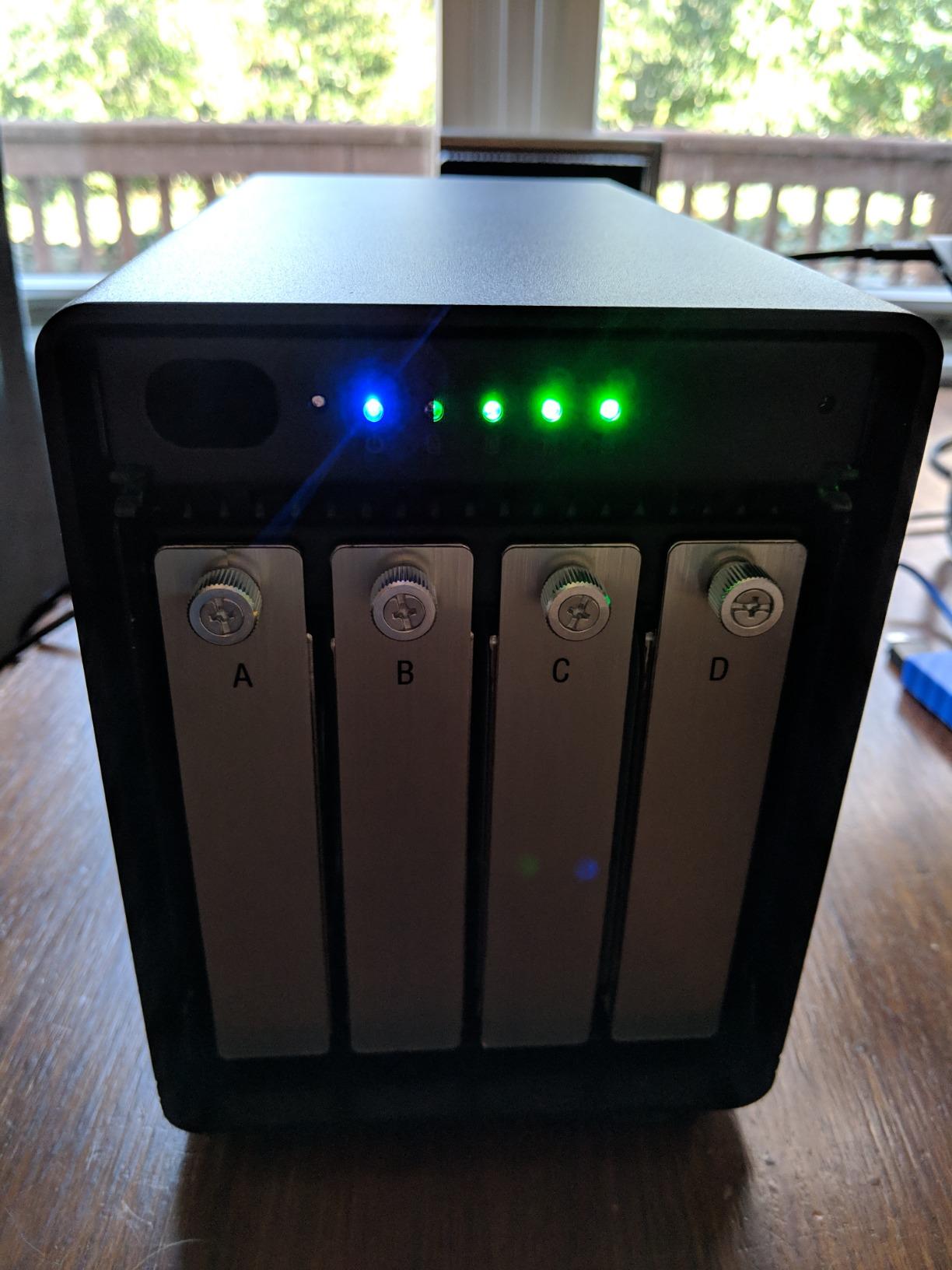
The TR-004 is the box we come back to. It carries 652 ratings at a 4.2-star average, one of the two largest evidence bases in this group, and it is the only one here that comes with a real management application rather than a dip switch and a prayer. You create the array in QNAP’s QTS utility on the host machine, which means no separate controller boot-up cycle and no guesswork about timing.
For a media server the four-bay layout is the sweet spot. Fill it with four CMR drives in RAID 5 and you get three drives worth of usable capacity from four drives worth of spend, and one disk failure is survivable without touching the data. Because the enclosure locks its bays and includes two keys, it also stops a curious household member from pulling a drive out of an array that is running. It enumerates cleanly on Windows, macOS and Linux without extra drivers, which matters because the usual home media host is whatever spare machine you had lying around rather than a purpose-built server. Your media server software sees a single volume and never learns that four disks are involved.
The USB Type-C connection is the other reason this one wins. It is a single-cable setup that suits a host tucked under a desk or inside a cupboard, and because the enclosure is bus-powered from the host side you are not hunting for a second cable when you move the machine. The same port also means the TR-004 travels between a desktop host and a laptop without a different accessory.
The catch is portability, and it is worth understanding before you buy. This enclosure’s array cannot be merged into a QNAP NAS storage pool, and it does not attach to several older QNAP models. Data moved to or from a NAS is not recognised. So treat it as storage for your own host, not as a NAS expansion shelf.
Why it works for a Plex or Jellyfin library
Because the array appears as a normal filesystem volume, Plex and Jellyfin scan it like any other folder. There is nothing special to configure beyond pointing the media library at the mount point and setting permissions so the service account can read it.
At the enclosure’s link rate, streaming is a non-issue. A single 4K remux stream pulls well under what this connection delivers, and even library maintenance like generating thumbnails or a full re-index stays inside its real-world throughput.
Where it falls short
If you plan to grow into a full NAS later, the QTS software will feel like a preview of an operating system you do not own. No applications can be installed on the enclosure itself, so anything beyond media serving has to happen on the host.
It also caps at four bays. If your library is heading toward 100TB of 4K remux, plan to add a second enclosure rather than expect this one to stretch. Our NAS comparison covers the cases where a single appliance handles the whole job.
2. CENMATE 4-Bay Aluminum RAID Enclosure: Best for Large Drives
CENMATE Aluminum 4 Bay Hard Drive RAID Enclosure with Cooling Fan for 2.5/3.5″ SATA HDD/SSD with USB A/C 3.0+eSATA Cable, 3.5 Hard Drive Reader Supports 80TB Capacity, 8 RAID Modes, DAS(NO NAS)
4 x 2.5 or 3.5-inch SATA
Up to 20TB per drive, 80TB total
8 RAID modes, dual cooling fans
USB 3.0 plus eSATA
Pros
- Widest RAID mode set in the group at eight modes including RAID 3 and Clone
- Aluminum-alloy chassis with two fans holds 20TB drives reliably
- Tool-less caddy design makes swapping whole disk sets quick
- eSATA port plus USB 3.0 with both cables in the box
- RAID 5 rebuild after a failed disk completed automatically for one buyer
Cons
- Bundled USB cable reported by multiple owners to cause disconnects
- Small non-replaceable fans run around 40-50 dB
- Reset button can wipe both disks if held while powered
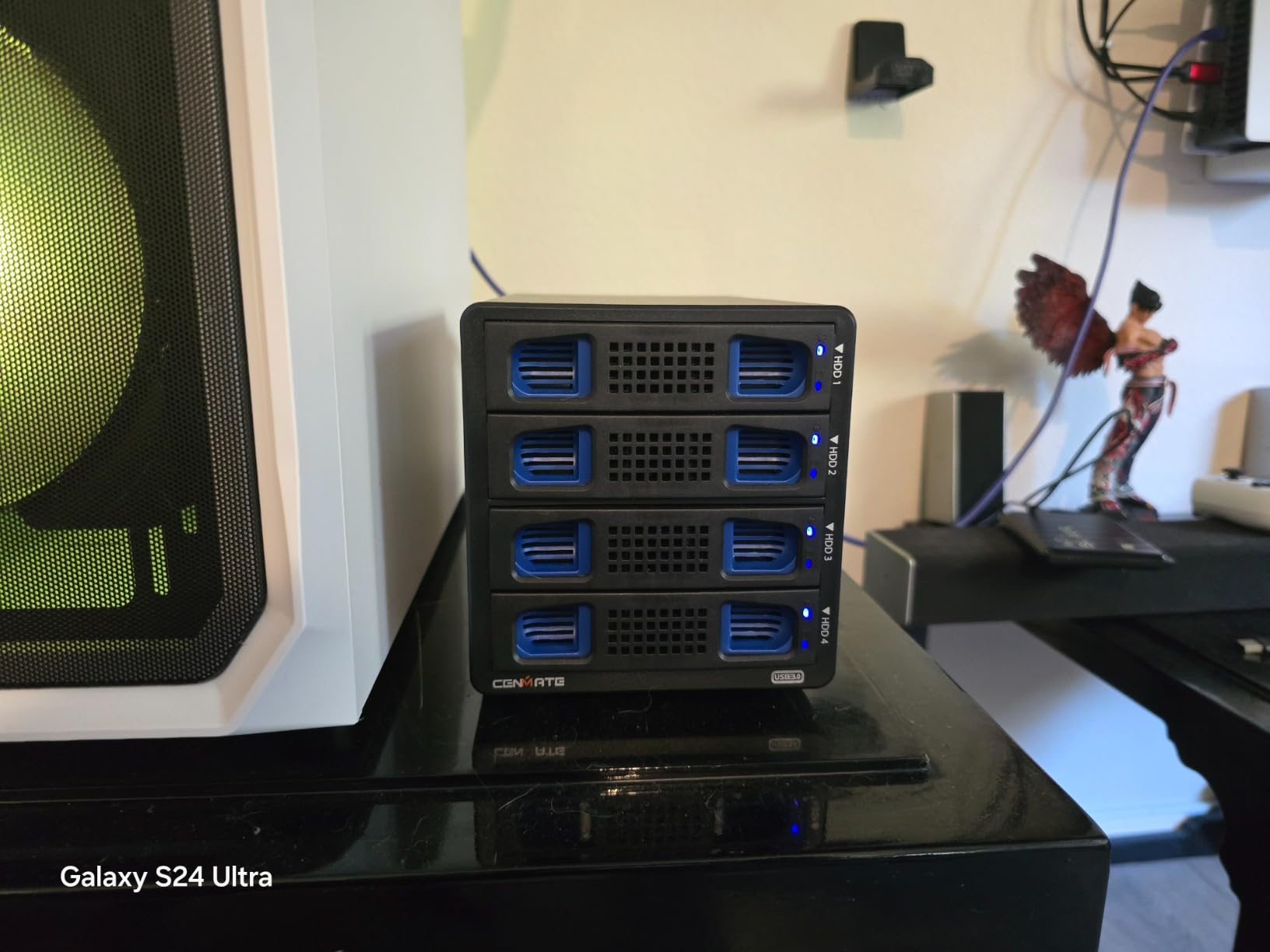
This is the enclosure to look at if your library has already outgrown 12TB disks. It accepts 2.5 and 3.5-inch SATA drives up to 20TB each and 80TB across four bays, and owners report running 20TB drives in it without thermal trouble. The aluminum-alloy case is the reason: it moves heat far better than the plastic boxes in this price range, and it has two cooling fans rather than one.
The RAID mode list is unusually broad for a box at this level. Alongside RAID 0, 1, 3, 5 and 10 you get Clone, which duplicates one drive to another, Large as a JBOD mode, and Normal, which passes all four disks through individually. That last one matters more than it sounds, because plenty of media servers run a mirror for the library and loose disks for a scratch download tier.
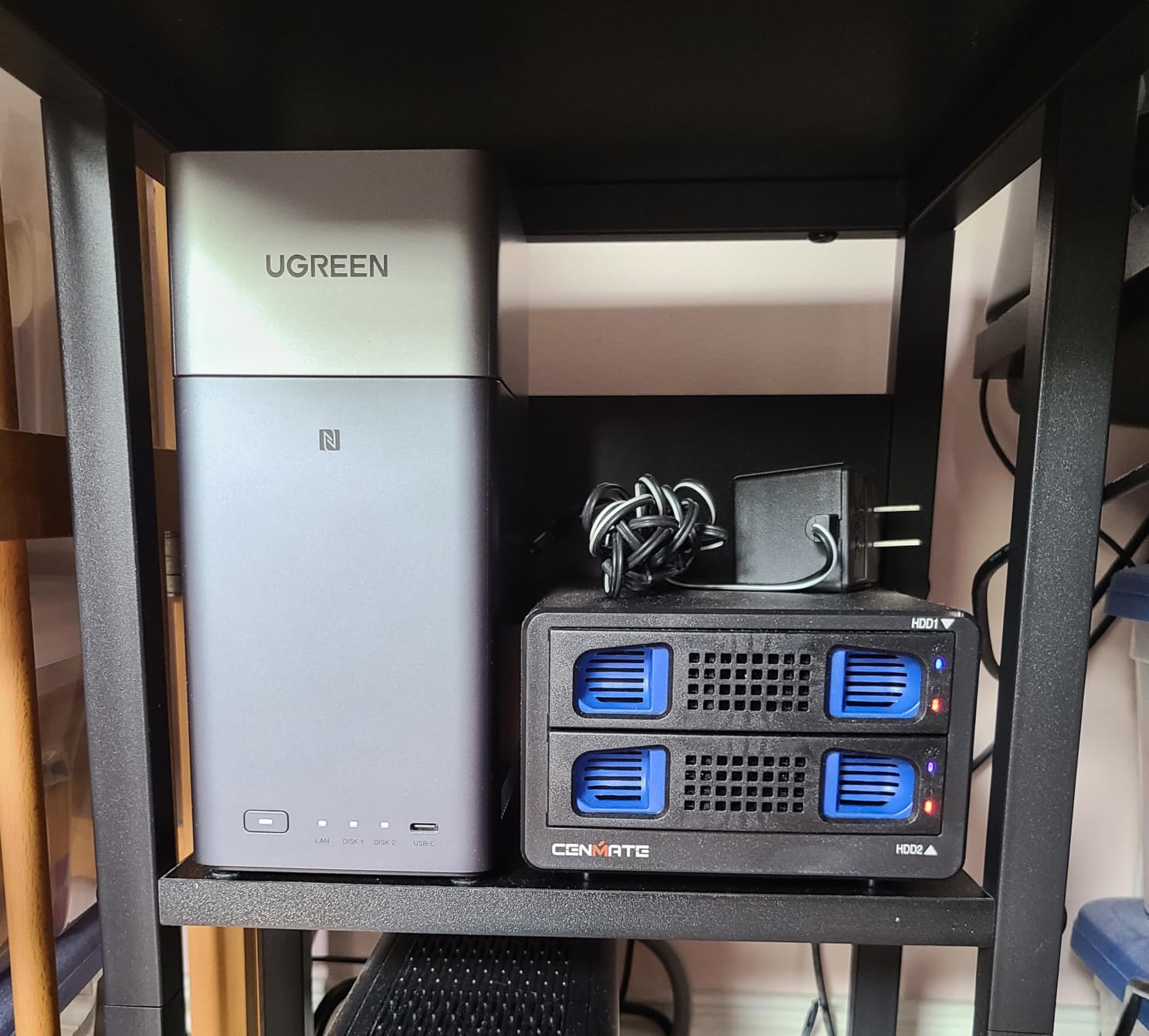
Sequential performance lands around 150 MB/s on RAID 5 with 20TB drives, per owner measurements. That is well above what 1 gigabit networking can consume and above what most 4K streams need. It is below SATA line rate, but you are reading whole video files, not doing random IO.
Two practical warnings from the review set. Several owners reported the bundled USB cable causing disconnects and fixed it by substituting a third-party cable, so buy a certified USB 3.0 cable with it. And the RAID reset button on the case is genuinely dangerous if you hold it around five seconds while powered, which wipes the set.
Why it works for a large media library
The 20TB per-drive ceiling means a four-bay RAID 5 gives you 60TB of usable space, which covers a serious 4K collection without a second box. One owner ran a RAID 5 rebuild after a disk failed and reported it completed automatically, which is the whole point of a hardware controller.
Two fans also mean more audible output, roughly 40-50 dB by owner report. In a cupboard or a rack next to the router that is nothing. In a living room it is a real consideration.
Where it falls short
Changing RAID mode means pulling drives out of the bays, and the set is wiped in the process. There is no macOS RAID configuration software, so Mac users configure from Windows or accept Normal mode.
The fans are small and not user-replaceable, which is a long-term reliability question for a box expected to run 24/7. Given the review base of 663 ratings and a 3.9-star average, this is a capable box with real rough edges.
3. OWC ThunderBay 4: Best Thunderbolt RAID Enclosure
OWC ThunderBay 4 Thunderbolt 40Gb/s Four-Bay SATA Enclosure w/ SoftRAID
4 x 2.5 or 3.5-inch SATA bays
Dual Thunderbolt 3 ports at 40Gb/s
Up to 1527 MB/s sustained
SoftRAID Premium included
Pros
- Up to 1527 MB/s sustained
- far beyond USB enclosures
- Dual Thunderbolt 3 ports allow daisy-chaining or adding other devices
- SoftRAID Premium bundled for creating and monitoring arrays
- Aluminum chassis with a hot-swap friendly four-bay layout
- Three-year limited warranty
Cons
- Requires a Thunderbolt host to be useful at all
- RAID is managed by host software rather than a hardware controller
- SoftRAID Premium is a subscription that expires after three years
Thunderbolt 3 moves 40 gigabits per second, and OWC rates this four-bay box at up to 1527 MB/s sustained. That number comes from fast enough drives, since individual SATA hard disks top out around 180 MB/s sequential, but the link will not be the bottleneck. For a media server the interesting part is scrubbing and editing rather than streaming.
Two Thunderbolt 3 ports mean you can daisy-chain another array or hang a display off the same port on a laptop. Owners who run a Mac Mini or Mac Studio use this to expand storage without giving up a port, and the bundled SoftRAID Premium handles creating, monitoring and rebuilding arrays in a normal desktop application.
The 4.0-star average across 102 reviews is thinner than most of this group, and it tells you something. Buyers with a Thunderbolt host are happy with the speed and the software. Buyers without one are stuck looking at a box that costs more than the storage inside it. That is a real fork in the road rather than a flaw.
Because RAID is handled in software, the array lives on the host computer. If the enclosure fails, the disks are ordinary disks and can be read by any machine. That is the opposite trade-off to a pure hardware controller, and for a home lab it is usually the better one.
Why it works for a media server
It is the pick if your library includes large 4K remux files that your server needs to seek through quickly, or if you edit directly off the array. Full library copies finish many times faster than over a 1 gigabit network, and a 20Gbps host would bottleneck at USB enclosures long before this one.
The three-year limited warranty is the longest here, which matters for a box with moving parts and active cooling.
Where it falls short
SoftRAID Premium is a subscription. It works for three years, and after that you are relying on the array continuing to run rather than on ongoing support for new operating systems.
On a host without Thunderbolt 3 or USB-C with Thunderbolt support, this enclosure is dead weight. Check your machine first, and read our storage type comparison if you are still weighing it.
4. MAIWO 4-Bay RAID Enclosure: Budget Pick
MAIWO 4 Bay RAID Enclosure for 3.5″ SATA HDD with Cooling Fan, 8 RAID Modes
4 x 3.5-inch SATA bays
Up to 96TB with four 24TB drives
Normal, 0, 3, 5, 1/10, Clone, JBOD
USB 3.1 up to 5Gbps
Pros
- Lowest cost four-bay RAID box in this group with the same eight-mode set as pricier rivals
- Full aluminum body that stays quiet even on the high fan setting
- USB-A to USB-C and USB-C to USB-C cables plus a screwdriver included
- All four drives enumerate on Linux
- macOS and Windows without extra software
- Both cooling fans can be switched off entirely
Cons
- Only 28 ratings
- so long-term reliability is unproven
- No printed or downloadable manual and slow support response
- Fan speed is fixed rather than thermally controlled
This is the cheapest route into hardware RAID in the group, and the mode list is the same eight you would find on boxes costing several times more: Normal, RAID 0, 3, 5, 1/10, Clone and Large as JBOD. The advertised ceiling is 96TB with four 24TB drives.
What makes it interesting for a quiet media server is the switchable fans. Owners report the aluminum body stays quiet even on the high setting, and you can turn the fans off completely if the drives stay cool. Several buyers simply run it in Normal mode as four independent disks and report it as solid.
Throughput measured in the reviews runs about 180 MB/s copying to a single drive and about 90 MB/s between two drives inside the same box. The second figure is the one to understand, because USB 3.1 at 5Gbps is a shared bus across all four bays.
The evidence base is the problem. A 4.2-star average sounds great until you see it sits on 28 ratings, the thinnest of any pick here. The negative reviews cluster on hardware oddities, two owners reporting a repeating four-beep alert with all drives reading healthy, and one who reported an electrical shock through the USB cable and returned the unit.
Why it works for a media server
For a download and scratch tier that you can rebuild from scratch, RAID 0 or Normal mode here is plenty, and the low cost leaves room for a real backup drive. r/selfhosted and r/PleX readers converge on the same idea: RAID 0 is acceptable for anything re-downloadable.
The included cables cover both USB-A to USB-C and USB-C to USB-C hosts, and a screwdriver is in the box for anyone mounting 2.5 and 3.5-inch drives.
Where it falls short
Drive trays are tight, and drives have to be aligned carefully against the backplane. Owners also report sharp edges on the case handle areas with four drives installed that needed sanding. Bay numbering on the labels does not match the caddies.
Fixed fan speed is the concern for anyone running this 24/7. There is no thermal curve, so it either runs or it does not.
5. ORICO 4-Bay 20Gbps RAID Enclosure: Best for Fast Host Ports
ORICO 4 Bay 20Gbps RAID Hard Drive Enclosure USB 3.2 Gen2X2
4 x 2.5 or 3.5-inch SATA bays
USB 3.2 Gen 2x2 at 20Gbps
Six RAID modes, hot-swappable bays
Built-in 150W power supply
Pros
- Highest star rating in the group with 74% five-star ratings
- JMS591 controller and 20Gbps link measured near 2000 MB/s on SSD arrays
- Built-in 150W power supply avoids an external brick
- Hot-swappable trays with per-drive status indicators
- Can adopt arrays built on older ORICO chipsets without rebuilding
Cons
- Needs a host port that actually supports 20Gbps or USB4 since Thunderbolt tunnels at 10Gbps
- The included USB cable managed only about 60 MB/s in one test
- macOS RAID management software is discontinued so arrays must be built on Windows
This box has the highest rating in the group at 4.4 stars across 49 reviews, with 74% of those at five stars. It uses a JMS591 controller and a USB 3.2 Gen 2×2 link at 20 gigabits per second, and owners measuring SSD arrays in RAID 0 and RAID 5 report roughly 2000 MB/s.
With spinning hard drives you will not hit that, obviously. The value is that the enclosure stops being the limit on your storage tier. If your media server ever grows an SSD tier for a transcode cache or a metadata database, this box will feed it at full speed rather than at USB 3.0 speed.
The built-in 150W power supply is a design decision more manufacturers should copy. No external brick to lose, and enough headroom for several high-capacity 3.5-inch drives that draw real spin-up current.
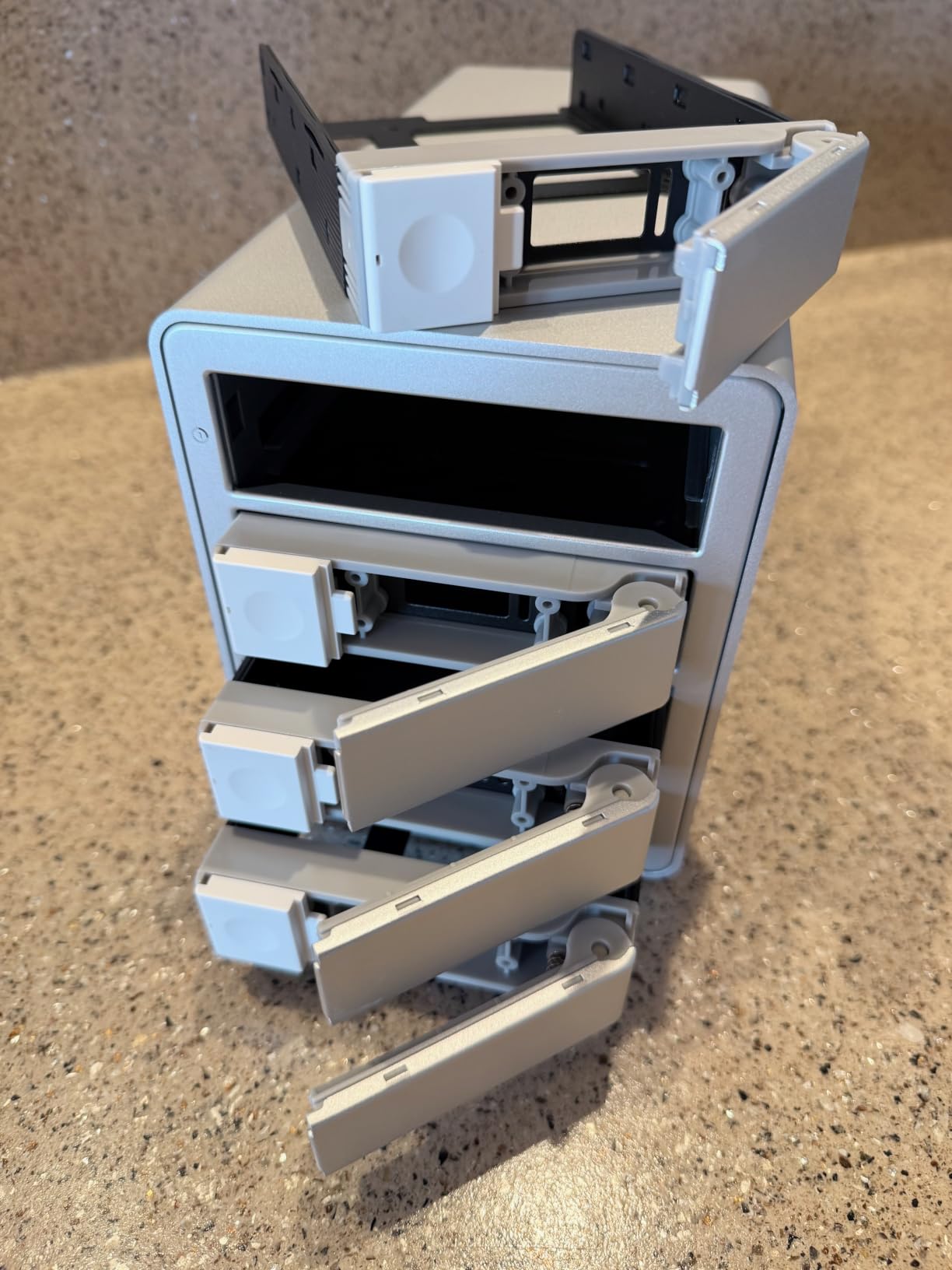
Capacity goes to 104TB raw with 26TB drives, and six RAID modes cover 0, 1, 5, 10, JBOD and Normal. The JMS591 can also adopt arrays created on older ORICO chipsets without a rebuild, which saves you if you are moving up from a previous four-bay box.
Owners report it running quietly and stably on Mac Mini, MacBook Pro, Mac Studio and Mac Pro machines. The cooling fan is rated at 45dB, which puts it among the quieter boxes in this group.
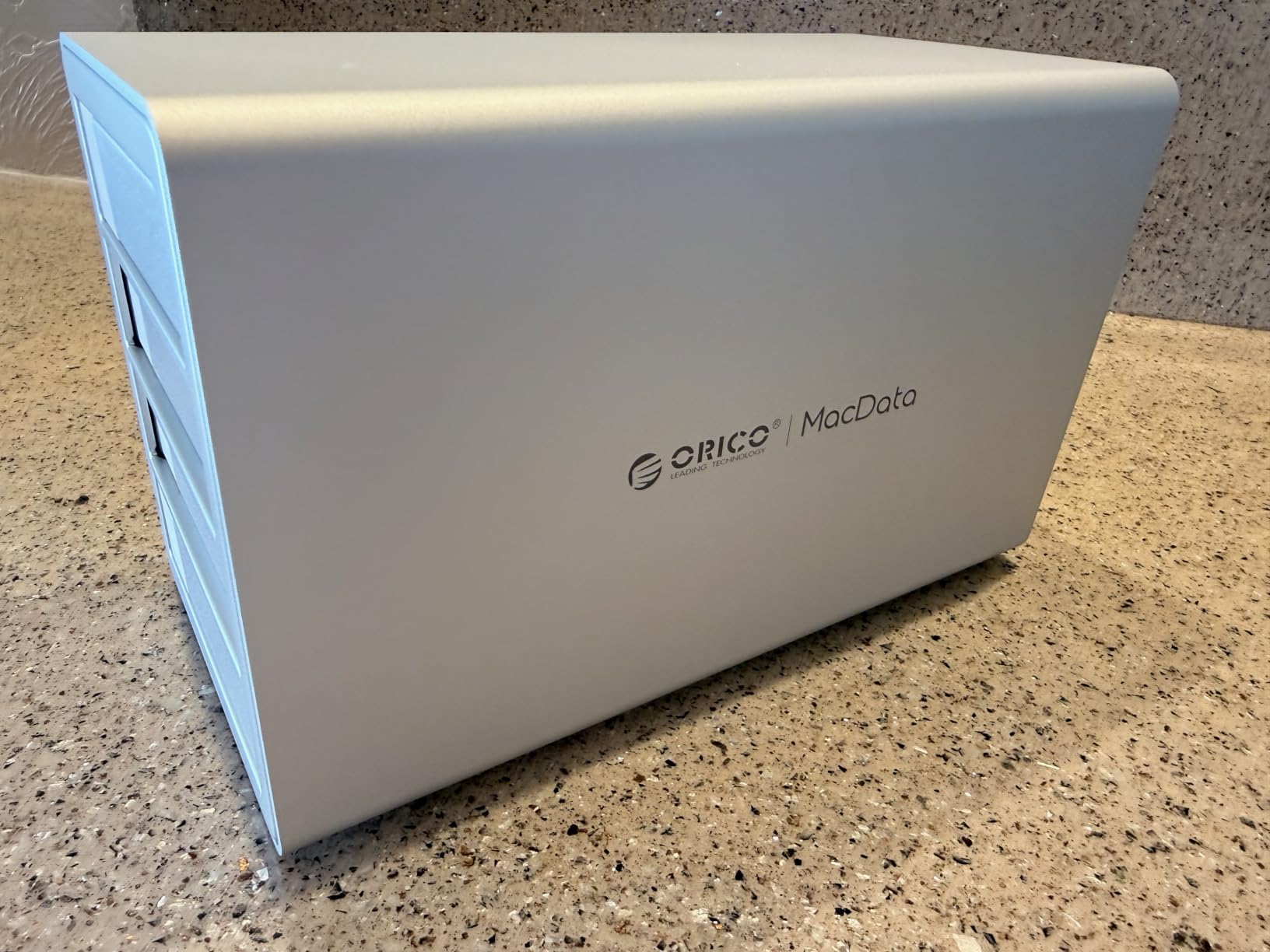
Why it works for a media server
The JMS591 chipset supports SATA 3.0 drives, hot-swappable bays let you replace a failed disk without shutting the server down, and per-drive status indicators make a failing bay obvious at a glance in a dark cupboard.
If your host is a recent Mac or a desktop with a USB4 port, this is the fastest route to a large media volume outside of Thunderbolt storage.
Where it falls short
Host-side limits are the real story. Thunderbolt 3, 4 and 5 tunnels at 10Gbps rather than 20Gbps, and without a genuine 20Gbps or USB4 port you get roughly half the advertised link. The front-panel USB-C port is internally extended and does not deliver full speed.
macOS RAID management software has been discontinued with no version covering newer macOS releases, so arrays have to be created on Windows. ORICO’s management software and drivers are also hard to locate on the vendor site. And changing RAID mode erases the drives.
6. ORICO 5-Bay USB 3.0 RAID Enclosure: Best Five-Bay Option
ORICO RAID 5 Bay RAID HDD Enclosures
5 x 3.5-inch SATA bays
Up to 22TB per disk and 110TB total
USB 3.0 at 5Gbps, up to 235 MB/s
Aluminum case, 80mm fan, built-in 150W PSU
Pros
- Five bays at a lower price than most four-bay RAID boxes
- Eight RAID modes including RAID 3 and Clone
- Aluminum chassis kept drives under 45C with 24TB
- 18TB and 12TB mixed
- Very quiet fan and it powers back on automatically with the host
- Sequential reads around 210 MB/s and writes around 192 MB/s
Cons
- Rear RAID dip switches are easy to flip accidentally when moving the enclosure
- Several owners report the array dropping out mid-transfer and needing a power cycle
- RAID Manager software is required and is awkward on macOS
Five bays is the awkward number that keeps coming up in home labs. A four-bay box in RAID 5 gives you three drives of usable capacity with one drive spare. A five-bay box in RAID 5 gives you four drives usable with one spare, which is the array most r/cordcutters readers describe as the expansion path for media storage.
This one takes 22TB per disk and 110TB raw across all five bays, and it runs USB 3.0 at up to 235 MB/s. One owner measured sequential reads around 210 MB/s and writes around 192 MB/s with four 8TB drives, which is about what the interface can do in practice.
Cooling is the quiet strength. Another owner filled all five bays with 24TB, 18TB and 12TB drives and kept everything below 45C, helped by an aluminum case with an 80mm silent fan plus front and rear vents. The fan is also quiet enough to live near a TV, and the box powers back on automatically with the host.
Eight RAID modes are available: 0, 1, 3, 5, 10, JBOD, CLONE and CLEAR. Tool-less bracket-free mounting means no screws per drive, and an independent safety lock keeps the array intact. Individual blue status LEDs per bay make a failed drive obvious.
The reliability picture is the weak spot, and it is worth weighing carefully for a box meant to hold a library. This product has the highest one-star share in the group at 17%. Several owners report the array dropping off the bus during large transfers and needing a power cycle, one reported a fan failure that left the case too hot to touch, and one saw existing drives disconnect when inserting a new disk despite the hot-swap claim.
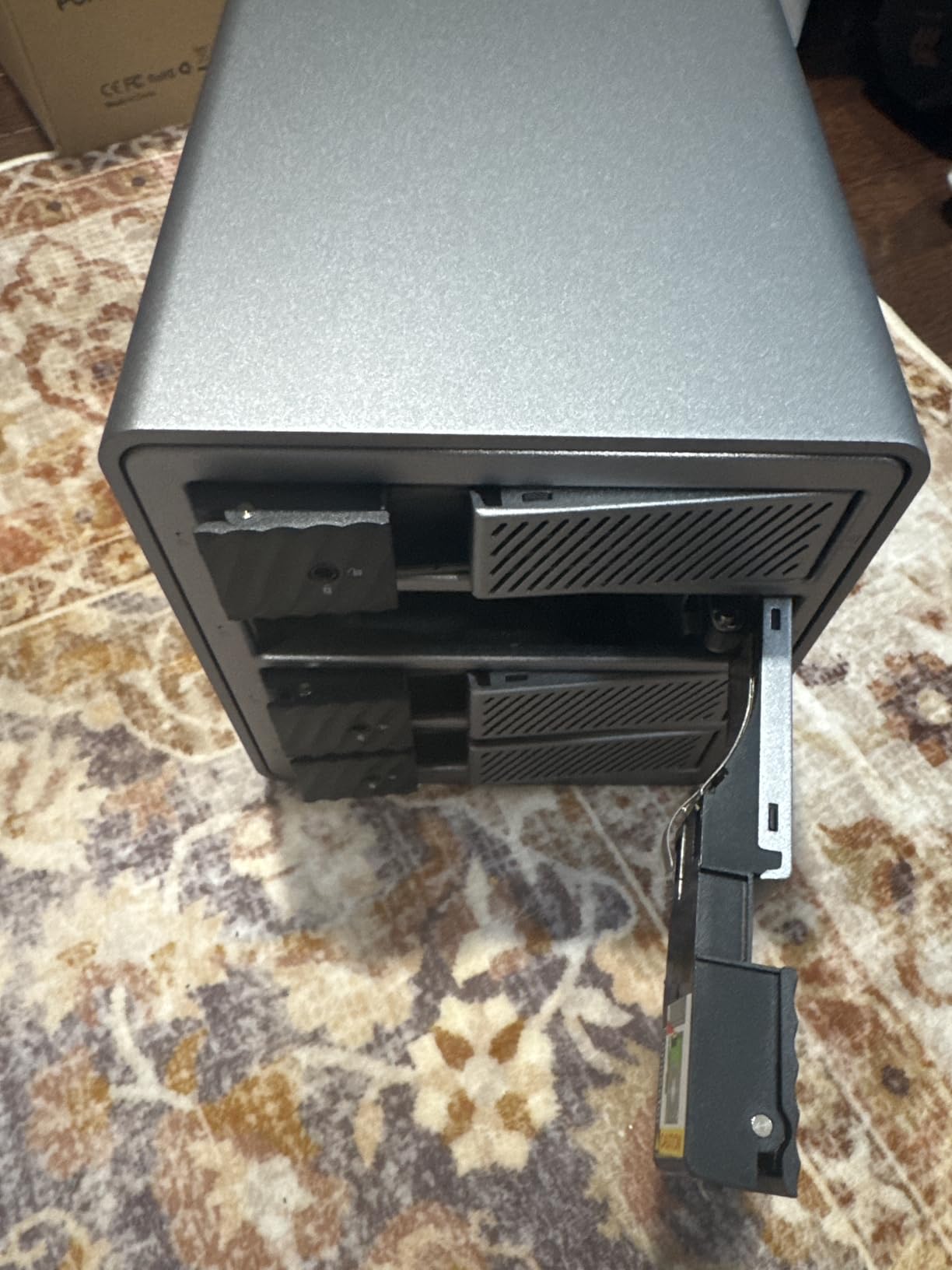
Why it works for a media server
Five bays plus a quiet fan plus a built-in power supply is exactly the combination a media server in an occupied room needs. If your library needs a spare bay, this box gives it to you without the sixth bay’s cost.
Measured sequential speeds clear anything a single 4K stream needs, and clear the ceiling of 1 gigabit networking with room to spare.
Where it falls short
The rear RAID dip switches are easy to flip by accident when you move the enclosure, and changing the mode wipes the drives. RAID Manager software is effectively required for proper configuration and is awkward on macOS.
If your array holds irreplaceable footage rather than re-downloadable media, put the second copy somewhere else. A box that drops off the bus mid-transfer is a warning sign worth respecting.
7. OWC ThunderBay 8: Best for Expansion and Very Large Libraries
OWC ThunderBay 8 Eight-Bay Thunderbolt 40Gb/s Storage Enclosure w/ SoftRAID
8 x 2.5 or 3.5-inch SATA bays
Dual Thunderbolt 3 ports, up to 2586 MB/s
Daisy-chain up to six enclosures
SoftRAID Premium included
Pros
- Eight bays in one Thunderbolt enclosure rated up to 2586 MB/s
- Dual Thunderbolt 3 ports for daisy-chaining six units or attaching other devices
- Thumb-screw release trays make drive swaps quick
- SoftRAID Premium bundled and it defers to Apple RAID and Windows Disk Management
- Plug-and-play with no driver installation required
Cons
- Requires a Thunderbolt host to justify the cost
- RAID management is host software rather than a hardware controller
- Only a one-year limited warranty despite the premium price
Eight bays in a single Thunderbolt box is the answer when a 4K library has outgrown two four-bay arrays and you would rather not juggle two devices. Rated throughput goes to 2586 MB/s, and the dual Thunderbolt 3 ports let you daisy-chain up to six enclosures for as much as 1,152TB, or attach five other Thunderbolt devices.
Daisy-chaining is the feature that makes this box interesting beyond raw size. One enclosure can carry your library, a second can be a scratch or download tier, and you can add a third later without hunting for a second Thunderbolt port on a laptop. OWC rates the chained configuration at up to six enclosures for as much as 1,152TB.
The trays use thumb-screw release rather than a tool-less lever, which reviewers describe as quick in practice. The unit is plug-and-play with no drivers, and SoftRAID Premium is bundled for RAID 0, 1, 4, 5 and 1+0.
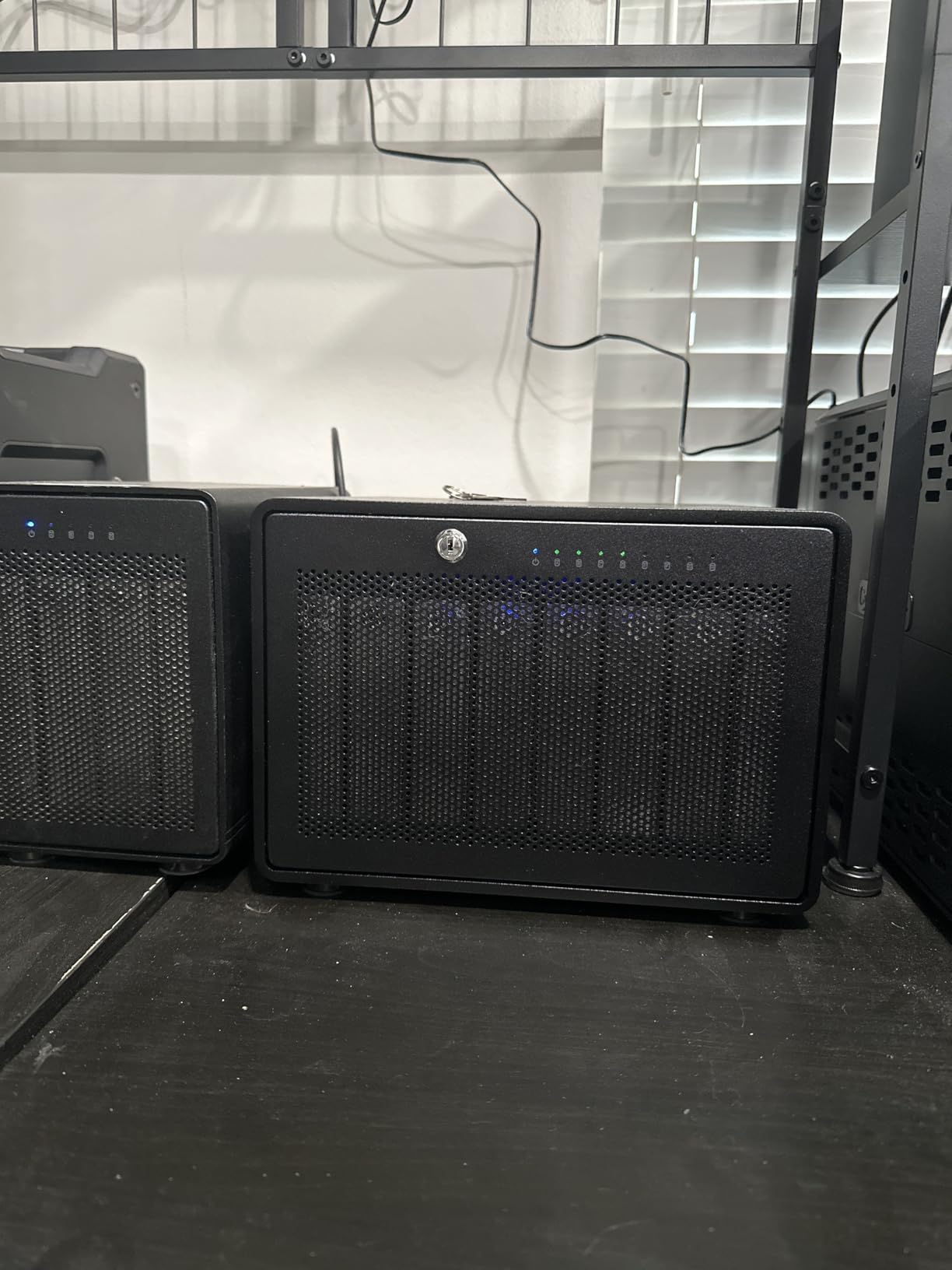
Two things temper the recommendation. The warranty is one year, the shortest among the picks, despite this being the most expensive unit in the group. And the review base of 58 ratings is thin for a box of this size, with an 11% two-star share pointing at a real minority of unhappy buyers.
As with the four-bay OWC, the array lives in host software. That is a genuine advantage over a pure hardware controller: if the box fails, your disks are normal disks and any computer can read them. It is a disadvantage if your host is a machine you plan to replace.
Why it works for a media server
Eight bays in RAID 6 with 20TB drives gives you 160TB usable and tolerates two simultaneous failures. For a home library that is close to a decade of 4K additions without another purchase decision.
Working off the array directly is fast. Library copies, thumbnail generation and any local editing all run at storage speed rather than network speed.
Where it falls short
Cost is the obvious hurdle. If your library fits in four bays, this box is paying for capacity you will not fill for years, and the one-year warranty adds risk on a unit that will run continuously.
The Thunderbolt requirement remains. On a host without it, none of the speed advantage is available.
8. Syba 5-Bay Tool-less Hot-swap RAID Enclosure: Best Value
Syba 5 Bay Tool Less Tray Hot Swappable 2.5″ 3.5″ SATA III RAID HDD External USB 3.0 Enclosure Windows MacOS SY-ENC50118
5 x 2.5 or 3.5-inch SATA III bays
RAID 0, 1, 3, 5, 10, Span and JBOD
Up to 24TB per drive
USB 3.0 and eSATA, 150W PSU
Pros
- Tool-less hot-swap trays take 2.5 and 3.5-inch drives without adapters
- RAID 5 on five 5TB drives sustained roughly 150-200 MB/s
- Interchangeable with Sans Digital arrays which were recognised after a move
- Aluminum chassis runs cool with a quiet fan
- One owner still running the same unit after five years has bought two more
Cons
- Setup software is unreliable and often fails to detect drives at first
- The enclosure randomly disappears from the host on both USB and eSATA
- No UASP support and no hot-spare option
The Syba sits at the value end of the five-bay options and has the third-largest review base in the group at 175 ratings. The tray-less hot-swap design is the feature people notice first: 2.5 and 3.5-inch drives drop in without adapters or screws, so replacing a failed disk in a server cupboard takes under a minute.
RAID 5 on five 5TB drives sustained roughly 150-200 MB/s in owner testing. Both USB 3.0 and eSATA cables are included, and the eSATA path needs a port multiplier with FIS-based switching on the host to reach multiple bays.
Long-term owner reports are the strongest part of the review set. One buyer still runs the same unit after five years and has bought two more. Others report the aluminum chassis running cool and the fan staying quiet.
Setup is the part worth planning for. There is no configuration path that owners describe as smooth, and the bundled utility is where first-time buyers get stuck. Allow an evening for the first array build rather than an afternoon, and have both the USB 3.0 and eSATA cables within reach before you start rather than after the drives are mounted.
The design choice that keeps paying off is 2.5-inch support. Media servers end up with an SSD-heavy tier sitting next to the spinning library, and trays that take 2.5-inch drives without adapters let one chassis cover both instead of adding a second box to the shelf.
One caution specific to long-running servers: the lack of UASP and the reported spin-down behaviour mean the box is tuned for periodic access rather than continuous streaming reads. If you leave a library mounted and idle overnight, know that the disks may park and return in a different order, which is worth factoring in before you rely on it for unattended playback.
Why it works for a media server
Five bays, hot-swap trays and a quiet chassis is a sensible media server shelf at the low end of the market. RAID 0, 1, 3, 5, 10, Span and JBOD cover the configurations most home libraries need, and per-drive support goes to 24TB.
Interchangeability with Sans Digital arrays is a quiet bonus for anyone who may have a legacy set to migrate.
Where it falls short
Three real limitations. The bundled setup software is unreliable and often fails to detect drives on the first attempts. The enclosure randomly disappears from the host on both USB and eSATA, and drives power down after roughly ten seconds of inactivity and return in a different order. And there is no UASP support, because it uses an older JMicron chipset limited to bulk transport.
There is also no hot-spare option, so the common advice of one extra drive for RAID 5 cannot be applied here. Disks may also spin down and fail to return without a power cycle.
What Is the Best RAID Configuration for a Media Server?
The best RAID configuration for a media library is RAID 5 with one hot spare while your drives are 12TB or 14TB and smaller. Past about 18TB, use RAID 6 or RAID 10 instead, because the rebuild window gets long enough that a second failure becomes likely. Keep a real backup running regardless of the level you pick.
Here is how the levels differ for a home media build, with usable capacity shown for four 18TB drives as a reference point.
RAID 0 stripes data across all drives with no redundancy. Four drives give 72TB and survive zero failures. Two drives give 36TB. Use it only for a download or scratch tier you can rebuild, which is the consensus in r/selfhosted and r/PleX discussions.
RAID 1 mirrors pairs. Two drives give 18TB usable and tolerate one failure. Four drives give 36TB. It is the simplest safe choice for a two-bay build and doubles the drive cost per terabyte.
RAID 5 spreads data plus one parity block across the set. Four drives give 54TB usable and tolerate one failure, at the cost of a full-array rebuild on every disk swap. Five drives give 72TB.
RAID 6 adds a second parity block. Four drives give 36TB usable and tolerate two simultaneous failures. It is the right call at 18TB and above, where the rebuild takes long enough for another disk to fail mid-rebuild.
RAID 10 mirrors pairs then stripes them. Four drives give 36TB usable and tolerate one failure per mirrored pair, with rebuilds limited to a single pair. Four 18TB drives cost you 50% of raw capacity, the same as RAID 6, but the rebuild is a quarter of the work.
JBOD is not RAID. Drives are concatenated into one large volume with no redundancy and no failure tolerance beyond the volume not appearing at all. It is useful for a large library of re-downloadable media where you accept wiping the volume to recover it.
Note the arithmetic people often miss. RAID 6 and RAID 10 look equivalent on four drives at 36TB usable, but RAID 10 rebuilds only one pair while RAID 6 rebuilds everything. With large drives that difference decides which one you want.
RAID 5 Rebuild Risk on 18TB and Larger Drives
RAID 5 is fine up to about 12TB to 14TB drives. Above roughly 18TB, the risk profile changes, and r/synology readers consistently recommend RAID 6 or at minimum RAID 5 with a hot spare at that size. SynoForum reports an actual array lost after a rebuild failure, which is the outcome nobody plans for.
Why the size matters comes down to how long you are exposed. A rebuild reads every remaining drive and writes a full replacement copy for the failed one. On 18TB drives that is tens of terabytes of read and write work, and every drive in the array is under sustained load for the duration. Uncorrected sector errors are the danger, because consumer and NAS drives ship with varying error correction reserves and a large drive may not have much left.
The practical rule is arithmetic: the longer the rebuild, the higher the chance a second drive develops an unrecoverable error while it is working. At smaller capacities that probability is low enough to ignore. At 18TB and above it is not.
So if you are filling four or five 18TB drives, choose RAID 6, RAID 10, or ZFS raidz2 if your host runs TrueNAS SCALE. Add a hot spare if the enclosure supports one, because a hot spare starts the rebuild the moment a drive fails rather than the moment you notice and order a replacement.
Check your enclosure supports a spare before you plan around it. The Syba five-bay has no hot-spare option, while the QNAP TR-004 and the ORICO boxes expose a spare bay alongside the array.
RAID Enclosure vs NAS Appliance: Which One Do You Actually Need?
Choose a RAID enclosure if you already have a host machine and want the storage. Choose a NAS appliance if you want a finished system with a web interface, mobile apps and support. That is the whole decision, and no competitor answers it plainly, so here is the honest version.
A RAID enclosure wins on cost and control. You plug it into a mini-PC or desktop you already own, the array appears as a volume, and your media server software runs on that host. One r/homelab owner describes the common pattern exactly: a BeeLink mini-PC with a four-bay enclosure attached, with no complaints after long service. You are responsible for the array, the rebuilds and the host OS.
A NAS appliance wins on turnkey setup and flexibility of expansion. A Synology or QNAP box gives you a dashboard, scheduled snapshots, mobile apps, and in the case of Synology, SHR, which lets you grow an array one drive at a time with mixed capacities rather than matching drives.
The important detail is what an enclosure cannot do. It is not a computer. No applications install on it, it does not run a scheduler, and if the host is a laptop you close, your library goes with it. That is why our network attached storage guide for home media is worth reading if you have never run a headless server.
One more consideration: enclosures with software-managed RAID, like the two OWC boxes, keep their disks readable by any machine. Pure hardware controllers present an array as one disk, which is simpler and more reliable in normal use but leaves you dependent on the vendor’s software to extract data if the controller dies.
Do Plex, Jellyfin and Emby Work With a RAID Enclosure?
Yes. Plex, Jellyfin and Emby run on your host operating system, not on the storage, so they see the enclosure as an ordinary mounted volume and scan it like any other folder. There is no special integration required beyond pointing the media library path at the mount and setting permissions for the service account.
What the enclosure does affect is throughput during library maintenance. Generating thumbnails for a new 4K library means reading across every file once. Over 1 gigabit networking that is slow; attached locally at USB 3.0 speeds in the range of 150 to 235 MB/s, it is manageable.
Direct play versus transcoding is a host question, not a storage question. If your client can direct play the file, storage only needs to deliver the stream rate. If the server must transcode, the CPU or GPU does the work and the storage needs to feed it without dropping frames. Our media server storage guide covers the transcoding side in more depth.
On the software half, one NASCompares reader reports Emby running noticeably faster than Plex on the same hardware for 1080p content. Worth testing both before you tune anything, because the storage layer is rarely the bottleneck on playback.
For metadata scrubbing and a fast library database, put an SSD cache or the database on the host’s internal storage rather than on the array. A spinning-disk library index is the slowest part of a media server, and no RAID enclosure fixes it.
Drive Choice: CMR, NAS-Rated Disks and Capacity Caps
Use CMR drives in any RAID array. SMR drives rewrite overlapping areas during normal operation, which turns a rebuild into a long sequence of write-amplified rewrites, and that is exactly the process where SMR drives have been reported to silently drop data. NAS-rated drives such as Seagate IronWolf and WD Red Plus are built for continuous multi-bay workloads with error correction suited to large rebuilds.
Check the per-drive ceiling before you buy. In this group the caps range from 20TB on the CENMATE to 22TB on the ORICO five-bay, 24TB on the Syba, 26TB on the ORICO 20Gbps box, and 96TB or 104TB raw totals on the MAIWO and ORICO four-bay units. Buying 30TB drives for a box that caps at 22TB wastes the drives.
Mixed capacities work in most hardware RAID controllers, but the parity maths works against you. In RAID 5, the usable capacity is governed by the smallest drive in the set, so one 2TB disk in a set of 18TB drives caps the entire array near that smaller size on some controllers. Check the manual, and prefer matched drives.
Match capacities within a RAID 1 pair at minimum. Mirrored pairs must be the same size or the larger drive is only partly used.
Network Speed Reality: Why 2.5Gbps Often Beats a 20Gbps Enclosure
A 1 gigabit network tops out at roughly 113 MB/s in practice. 2.5 gigabit reaches about 280 MB/s, 5 gigabit about 560 MB/s, and 10 gigabit about 1,130 MB/s. Those are the ceilings clients see, and they are what your enclosure has to beat to matter.
Against those numbers, most USB 3.0 enclosures measuring 150 to 235 MB/s already saturate a 1 gigabit link several times over. That is the reality check that stops people overbuying: a four-bay RAID box at 20Gbps is pointless if the only client is a laptop on Wi-Fi mesh, which is the exact argument raised in reader comments on nascompares.
The practical tier for a media server is 2.5GbE. It is fast enough that copying a 60TB library finishes in under a day rather than three, inexpensive adapters exist for most mini-PCs, and no consumer switch needs upgrading. 10GbE pays off only if you are moving whole libraries regularly or serving multiple 4K streams to wired clients at once.
Thunderbolt changes the equation only when the host is close. Attached to a Mac Studio or a workstation, an OWC ThunderBay at 1527 MB/s is a local storage tier, not a network tier. Over any network, that speed is never reachable.
Noise, Cooling and Living-Room Placement
Noise is a genuine deal breaker for a media server, and it is not documented consistently by vendors. What the owner reports here suggest roughly 40-50 dB for the CENMATE’s dual small fans, about 45 dB for the ORICO 20Gbps box, and quieter operation from the MAIWO, the ORICO five-bay and the Syba, all of which have owners describing them as quiet or needing the high fan setting turned down.
Drive noise dominates at low bay counts. Two 8TB WD Red Plus in a mirror were loud enough for a Synology owner to complain, and that is a NAS, not one of these enclosures. Adding a fourth spinning disk adds its own seek noise on top of the fan.
Placement matters more than the enclosure choice. A shelf, a closet or a spot behind the television will absorb spin-up noise that would be intrusive in a quiet room at midnight. Any of the enclosures here will run in an occupied space, but the eight-bay OWC and the dual-fan CENMATE are the two we would not put on a media console.
Watch cooling as well as noise. The one owner who reported a failed fan and a case too hot to touch was running the ORICO five-bay fully populated. Keeping drives under 45C is the number to hold to, and airflow matters more than any single fan specification.
What Happens When the Enclosure Dies
It depends entirely on where the RAID is implemented, and this is the objection that comes up most on storage forums. The recurring complaint, oldest and clearest on Ars Technica, is that enclosures which present an array as a single disk are more reliable in use but lock you into the vendor’s software permanently.
Hardware RAID enclosures are the risky case. The array metadata lives on the drives in a controller-specific format, and if the controller board dies you need the vendor’s utility to reassemble it. Ask yourself before buying: is there a documented escape path, and does the vendor still sell the unit in five years?
Software RAID enclosures, like the two OWC boxes using SoftRAID, have the opposite profile. The array is described in files on the drives, so if the enclosure fails you attach the disks to any computer and read them. Nothing is lost but the box.
And if you run ZFS raidz2 or mdadm on a Linux host, the recovery path is a bootable USB stick with mdadm assemble or zpool import. That is a well-trodden path that any home lab operator can follow.
The other lock-in to check is the array’s longevity. The QNAP TR-004’s pool cannot be merged into a connected QNAP NAS, and drives migrate only between TR-004 units. Know that before you fill it with a hundred terabytes.
7 Checks to Run Before You Buy an Enclosure
First, count your drives honestly and add one. If RAID 5 is the plan, the community rule of thumb is one more drive than you think you need, so a four-bay box holds three in RAID 5 with a spare on the shelf.
Second, check the per-drive capacity cap against the drives you intend to buy. Caps in this group run from 20TB to 26TB per drive.
Third, confirm the interface your host actually has. Thunderbolt boxes need Thunderbolt, and the ORICO 20Gbps unit needs a genuine 20Gbps or USB4 port because Thunderbolt tunnels at 10Gbps.
Fourth, look for a replaceable standard power supply or a built-in one. Owners on r/DataHoarder specifically value standard PSUs over proprietary bricks, and a brick that dies takes the box with it.
Fifth, verify the noise level is acceptable for where it will live. Fans are not user-replaceable on some of these units, so a noisy fan is a permanent condition.
Sixth, read the one-star reviews rather than the average. The recurring failures here are bundled cables causing disconnects, arrays dropping off the bus mid-transfer, and setup software failing to see drives on the first attempt.
Seventh, plan the backup before the drives arrive. Decide where the second copy lives and how it syncs, because a RAID array protects against exactly one failure mode.
Frequently Asked Questions
What is the best RAID configuration for a media server?
RAID 5 with a hot spare is the best configuration for a media library while your drives are 12TB to 14TB and smaller. At 18TB and above, the rebuild takes long enough that a second failure becomes likely, so use RAID 6 or RAID 10 instead. RAID 0 is acceptable only for a download or scratch tier you can rebuild from scratch.
What is the best type of storage for a home media server?
Most home media servers do best with three tiers: a hard drive NAS or RAID enclosure holding the library in RAID 5 or RAID 6, a direct-attached SSD tier for the media server database and transcode cache, and a separate off-site or offline backup. An enclosure plus an existing mini-PC is the value route, while a Synology or QNAP appliance is the turnkey route.
Which RAID is best for a home NAS or media server?
RAID 5 is the minimum sensible choice for a home NAS or media server, and RAID 6 is the better choice once drives reach 18TB. RAID 10 gives the same usable capacity as RAID 6 on four drives but rebuilds only one mirrored pair, which makes it faster to recover from a failure with large disks.
Is RAID 5 the best for NAS?
RAID 5 is fine up to about 12TB to 14TB drives. With 18TB and larger drives the rebuild window runs long enough that a second failure during rebuild becomes a realistic risk, and storage forum reports include arrays lost this way. Use RAID 6, RAID 10, or ZFS raidz2 at that size and add a hot spare.
Do I need a NAS or a RAID enclosure for a media server?
Choose a RAID enclosure if you already have a host machine and want storage for the lowest cost. Choose a NAS appliance if you want a web interface, mobile apps, scheduled snapshots and support. An enclosure is a disk shelf with a controller, not a computer, so anything beyond media serving has to happen on the host.
Which RAID Enclosure Should You Buy?
The QNAP TR-004 is our pick for most home media servers in 2026. It has one of the two largest review bases of any hardware RAID enclosure we compared, a metal chassis that stays out of the way, lockable bays, and the only real management software in the group. Fill it with four CMR drives in RAID 5 and you have a library that survives a single disk failure without anyone noticing.
Go further up the range for specific reasons. The ORICO 4-Bay 20Gbps is the choice when your host has a genuine 20Gbps or USB4 port. The ORICO five-bay is the one for a library that needs a spare bay and quiet operation in a room. The OWC ThunderBay 4 is the Thunderbolt option for fast local editing, and the ThunderBay 8 covers libraries heading past 100TB. The CENMATE and the Syba are the budget routes, with the CENMATE taking larger drives and the Syba taking hot-swap convenience.
Two decisions matter more than the model. Pick RAID 6 or RAID 10 rather than RAID 5 if your drives are 18TB and above, and set up a real backup regardless, because none of the best raid enclosures for home media servers will protect you from anything other than a disk failing.