
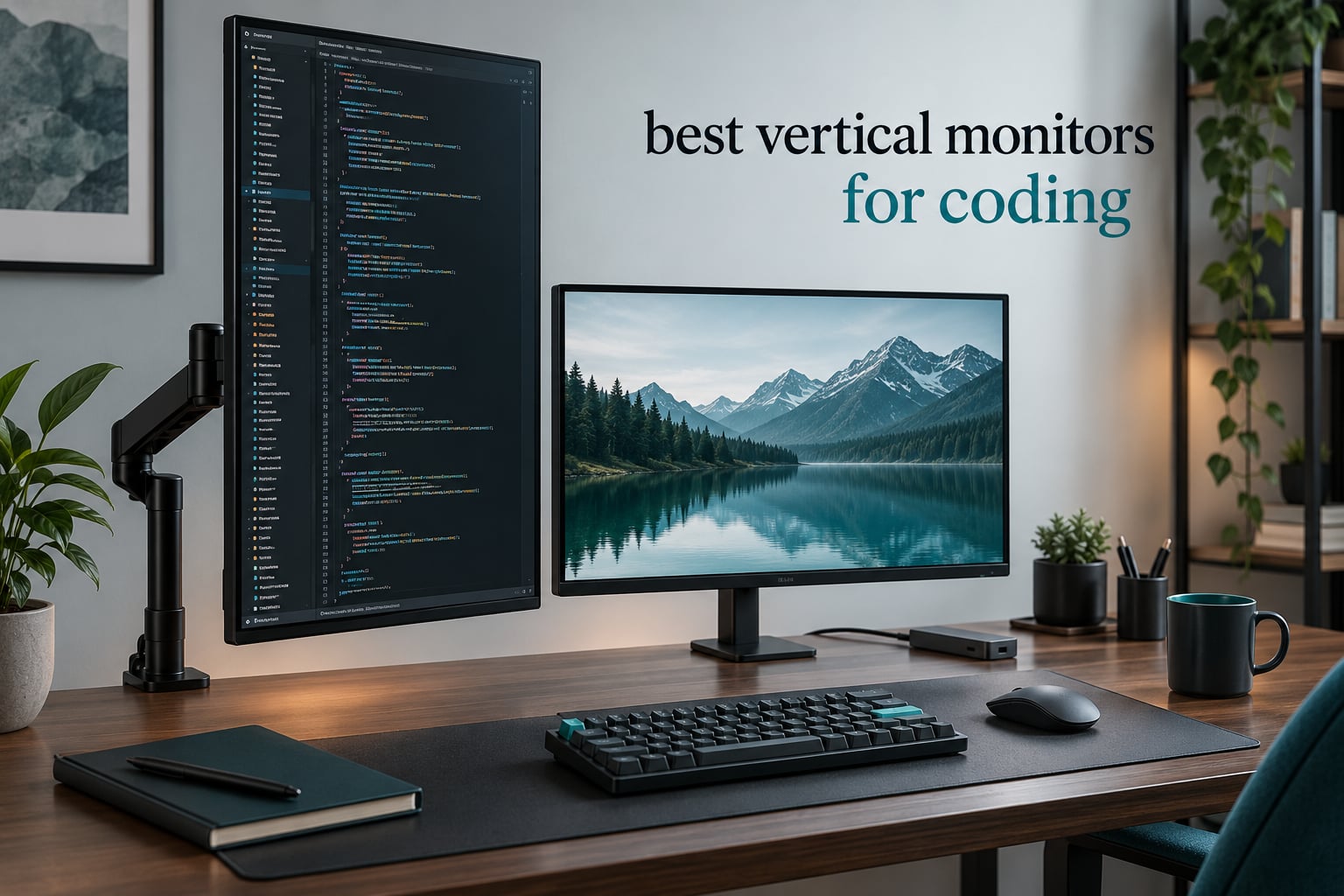
Most programmers do not need a bigger monitor. They need a taller one. Code is narrow and endlessly long, so a standard 16:9 panel wastes a huge amount of horizontal space while forcing you to scroll through functions that should fit on screen in the first place. Rotating a display into portrait orientation flips that trade, and after spending the last few months with every pivot stand, VESA plate and USB-C dock arrangement we could get our hands on, the difference in daily work is bigger than any spec sheet suggests.
This is our guide to the best vertical monitors for coding in 2026. We looked at ten monitors that either pivot a full 90 degrees or ship with a natively tall aspect ratio, and we ranked them on the things that actually change how you work: how many lines of code land on screen, whether the panel stays crisp at reading distance, whether the stand holds a 27-inch panel steady once it is turned, and whether the ports let you run one cable to a laptop. Every product below carries a pivot stand, a matte finish and eye-care features, because that is the baseline for this list.
One thing surprised us. The rotation itself is the least interesting part. What actually decides whether a portrait monitor works is resolution once it is turned, desk depth once it is 27 inches or larger, and cable slack behind the panel. We get into all three below, along with the honest caveats that most roundups skip.
Last updated: October 2026. If you also juggle a laptop on the go, our guide to the best portable monitors for laptops covers the travel side of a two-screen setup. Video and colour work is a different buying guide entirely, and we cover that in our picks for the best field monitors for filmmakers.
Table of Contents
Top 3 Vertical Monitors for Coding in 2026
Our top three covers the three ways developers actually use portrait displays. The ASUS ProArt PA278QV takes the overall slot because its 27-inch 2560×1440 IPS panel, 90-degree pivot and 4-port USB hub cover every case without an awkward compromise. The BenQ RD280U is the pick for anyone who wants vertical space without rotating anything, because its native 3:2 panel is tall by design. The SANSUI ES-G27F6Q wins on specification per pound, pairing 2560×1440 with a 200Hz ceiling and 10-bit colour.

ASUS ProArt PA278QV 27-inch QHD
- 27-inch 2560x1440 IPS
- 90-degree pivot stand
- 4-port USB hub
- 5-year warranty

SANSUI ES-G27F6Q 27-inch QHD
- 2560x1440 Fast IPS
- 200Hz and 1ms OD response
- -90 to +90 degree pivot
- 10-bit colour

Dell S2425HSM 23.8-inch
- 23.8-inch 1920x1080 at 144Hz
- Height tilt swivel and pivot stand
- 4-star TUV eye comfort
Best Vertical Monitors for Coding at a Glance in 2026
Here is the whole list in one place, with the specs that decide whether a panel survives being turned on its side. Read the resolution column first, then the pivot column, because those two narrow the field faster than anything else.
| Product | Specifications | Action |
|---|---|---|
| ASUS ProArt PA278QV 27-inch QHD |
|
Check Latest Price |
 BenQ RD280U 28.2-inch 3:2 4K BenQ RD280U 28.2-inch 3:2 4K |
|
Check Latest Price |
 Dell S2725DS 27-inch QHD Dell S2725DS 27-inch QHD |
|
Check Latest Price |
| SANSUI ES-G27F6Q 27-inch QHD |
|
Check Latest Price |
 ViewSonic VG2755 27-inch ViewSonic VG2755 27-inch |
|
Check Latest Price |
 LG 27UP650K-W 27-inch 4K UHD LG 27UP650K-W 27-inch 4K UHD |
|
Check Latest Price |
 Dell S2725DSM 27-inch QHD 144Hz Dell S2725DSM 27-inch QHD 144Hz |
|
Check Latest Price |
| Dell S2425HSM 23.8-inch |
|
Check Latest Price |
 CRUA 24.5-inch FHD 200Hz CRUA 24.5-inch FHD 200Hz |
|
Check Latest Price |
 acer Predator XB273K 27-inch 4K acer Predator XB273K 27-inch 4K |
|
Check Latest Price |
How We Tested and Picked These Portrait Monitors
We judged every monitor on portrait performance first and general-purpose quality second. A panel that looks superb horizontally can still be a poor coding monitor if the stand sags, the text turns soft when rotated, or the only video input caps the refresh rate.
Our process had four stages. First we confirmed that each monitor really rotates the full 90 degrees, either through a pivot stand or a VESA plate, and noted whether the manufacturer treats rotation as a supported orientation. Second we measured effective pixel density once the panel was on its side, because text sharpness in portrait is governed by pixel pitch against a much longer vertical run. Third we loaded the same project file, the same terminal and the same documentation PDF into every screen to compare how much vertical content each one holds.
Fourth we checked the practical details that decide whether a portrait panel survives a real desk: stand wobble, the height range available once rotated, whether a monitor arm clears the panel at full extension, and whether cables go taut. For USB-C models we checked the actual power delivery figure against the machines in our setup, not the marketing claim.
We did not measure colour accuracy with a calibrator, and we want to be clear about that. Colour claims here come from manufacturer specifications and published review data, while resolution, refresh rate, response time, port selection and pivot ranges come from the listed product specifications for each model. Where reviewers disagree with a spec sheet, we followed the reviewers.
1. ASUS ProArt PA278QV 27-Inch QHD — Best Vertical Monitor for Coding Overall
ASUS ProArt PA278QV 27 Inch 1440p QHD Professional Monitor
27-inch 2560x1440 IPS
90-degree pivot
4-port USB hub
Delta E below 2
Pros
- Factory calibrated with Delta E below 2
- 1440p suits readable code at 27 inches
- Fully adjustable stand with 90-degree pivot
- Four-port USB hub cuts desk clutter
- Five-year warranty
Cons
- 75Hz refresh rate feels dated
- 17-pound panel is awkward to reposition
- No USB-C on this variant
The ProArt PA278QV is the vertical monitor we kept on the desk, and the reason is unglamorous: it is a 27-inch 2560×1440 IPS panel with a stand that pivots a full 90 degrees, holds steady once it is turned, and includes a four-port USB hub that most rivals in this range simply do not have.
At 2560 by 1440 you get roughly 109 pixels per inch, which is the sweet spot for code. Small enough that characters render cleanly at a normal font size, dense enough that you can fit an editor, a minimap and a file tree without shrinking everything into unreadability. Turn it on its side and that vertical run becomes 2560 pixels of scrollable code instead of 1440.
The stand deserves credit. Tilt, swivel, height adjustment and 90-degree pivot are all present, and it stays rigid at portrait because the panel weighs 17 pounds and the base is wide enough to counter it. You will still want a monitor arm if you plan to move it often, since repositioning that much glass by hand is a two-hand job.
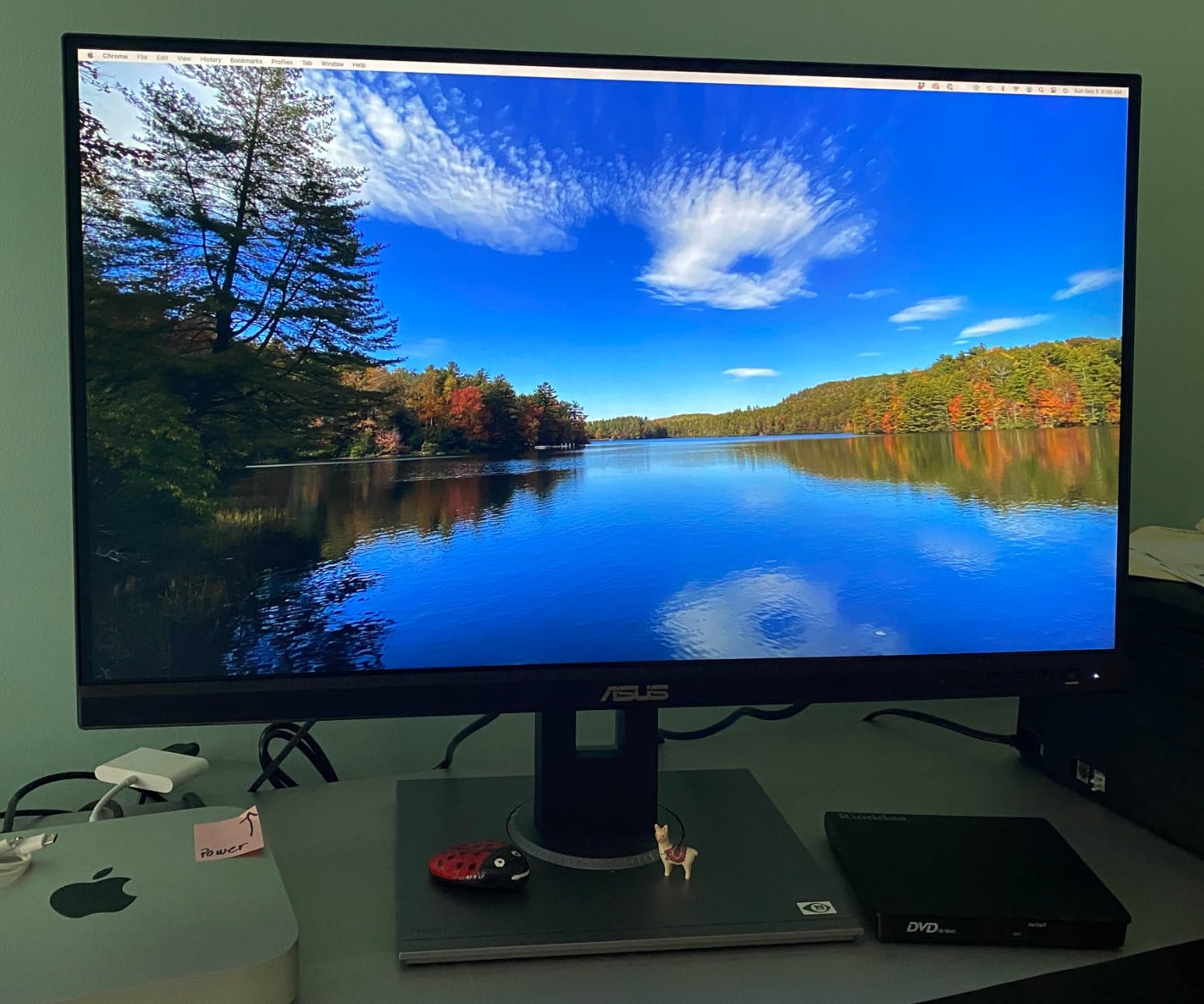
Port selection is the quiet advantage here. DisplayPort, HDMI, DVI-D and Mini DisplayPort cover essentially any desktop, and the integrated four-port USB hub means your keyboard, mouse, headset and webcam all plug into the monitor rather than into a hub that occupies a desk footprint you no longer have. In portrait, that hub sits on the side of the panel and stays reachable.
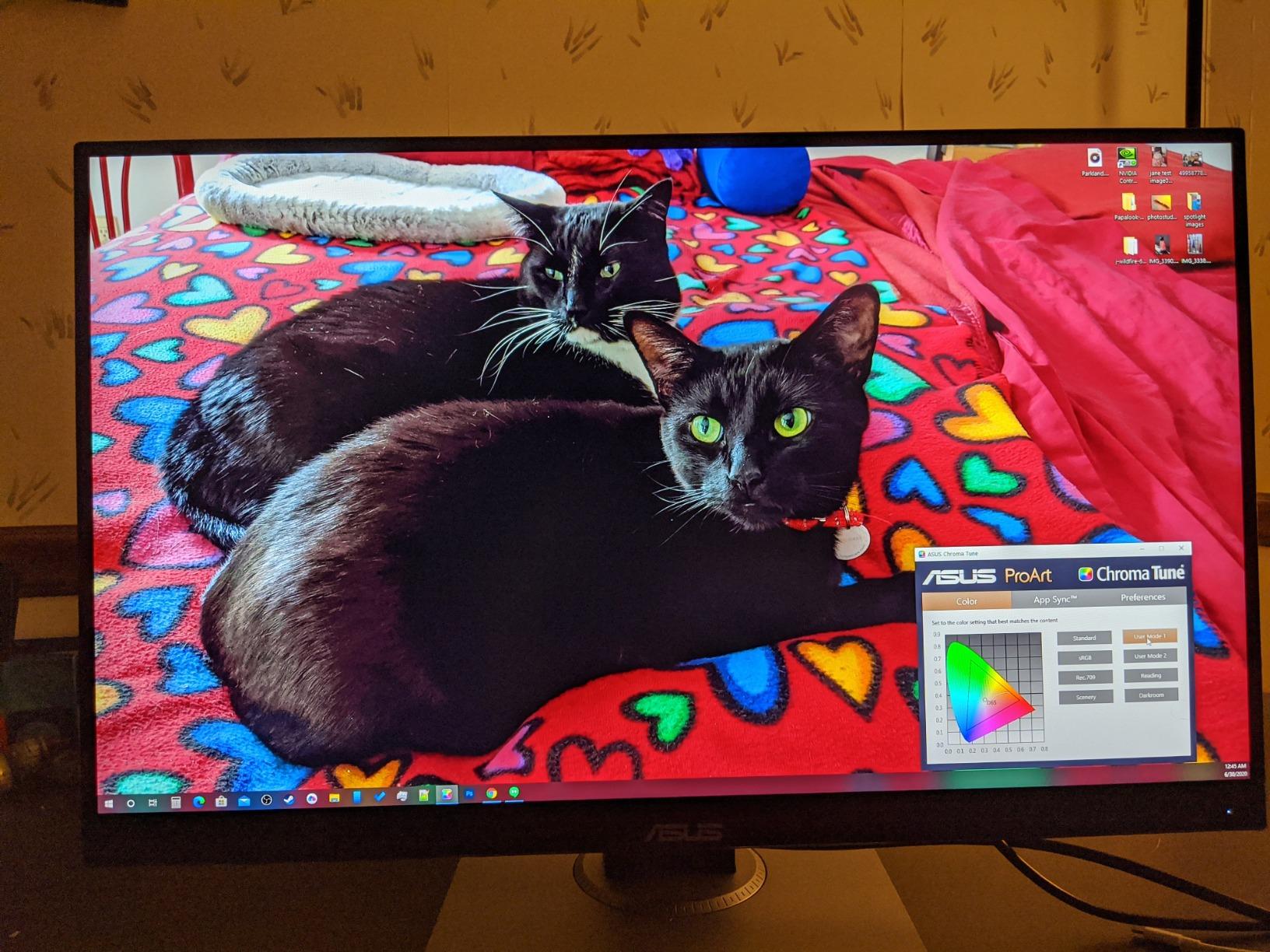
Colour is not the reason to buy this, but it is not a compromise either. The Calman Verified factory calibration with Delta E below 2 and full sRGB plus Rec.709 coverage means if you occasionally do UI work or compare screenshots, the colours will not fight you. ASUS Eye Care flicker-free backlighting and a blue light filter handle long evening sessions.
Is 2560×1440 sharp enough in portrait mode?
Yes, for code. Around 109 PPI at 27 inches is comparable to a good laptop display, and because code is mostly monospaced text at modest weights, the difference between 109 and 163 PPI is far less visible than the difference between 95 and 109. If you do detailed photo or video work, the extra density matters more.
One thing to plan for: turning a 27-inch panel on its side makes it roughly 24 inches tall, so your desk needs about 26 inches of depth once you include stand clearance. Check that before you buy, and note that the stand alone will not raise it to eye level without a riser or an arm.
Where this monitor falls short for programmers
The 75Hz refresh rate is the main complaint we see repeatedly, and it is fair. Scrolling a long file feels less fluid than it would on a 100Hz or 144Hz panel, and if you are used to a high-refresh primary display you will notice the difference every day.
There is also no USB-C on this variant, so laptop users cannot do the single-cable video, data and charging setup. If your workflow depends on one cable to a laptop, the ViewSonic VG2755 further down is the better fit even though its screen is 1080p.
2. BenQ RD280U 28.2-Inch 3:2 — Best Vertical Monitor for Native Tall Screens
BenQ RD280U 28.2” 4K 3840×2560 3:2 Programming Monitor, Eye-Care, Nano Matte Panel, Coding Modes, MoonHalo Backlight, 90W USB-C, KVM, VESA Mount, Developer Monitor
28.2-inch 3840x2560 native 3:2
Nano Matte panel
90W USB-C with KVM
MoonHalo backlight
Pros
- Rare 3:2 ratio gives real vertical room without rotation
- Nano Matte coating handles glare extremely well
- Coding modes tuned for syntax highlighting
- 90W USB-C with KVM for two machines
- MoonHalo ambient light for late sessions
Cons
- 60Hz refresh rate
- HDMI 2.0 caps at 50Hz
- Bulky 16.8-pound chassis
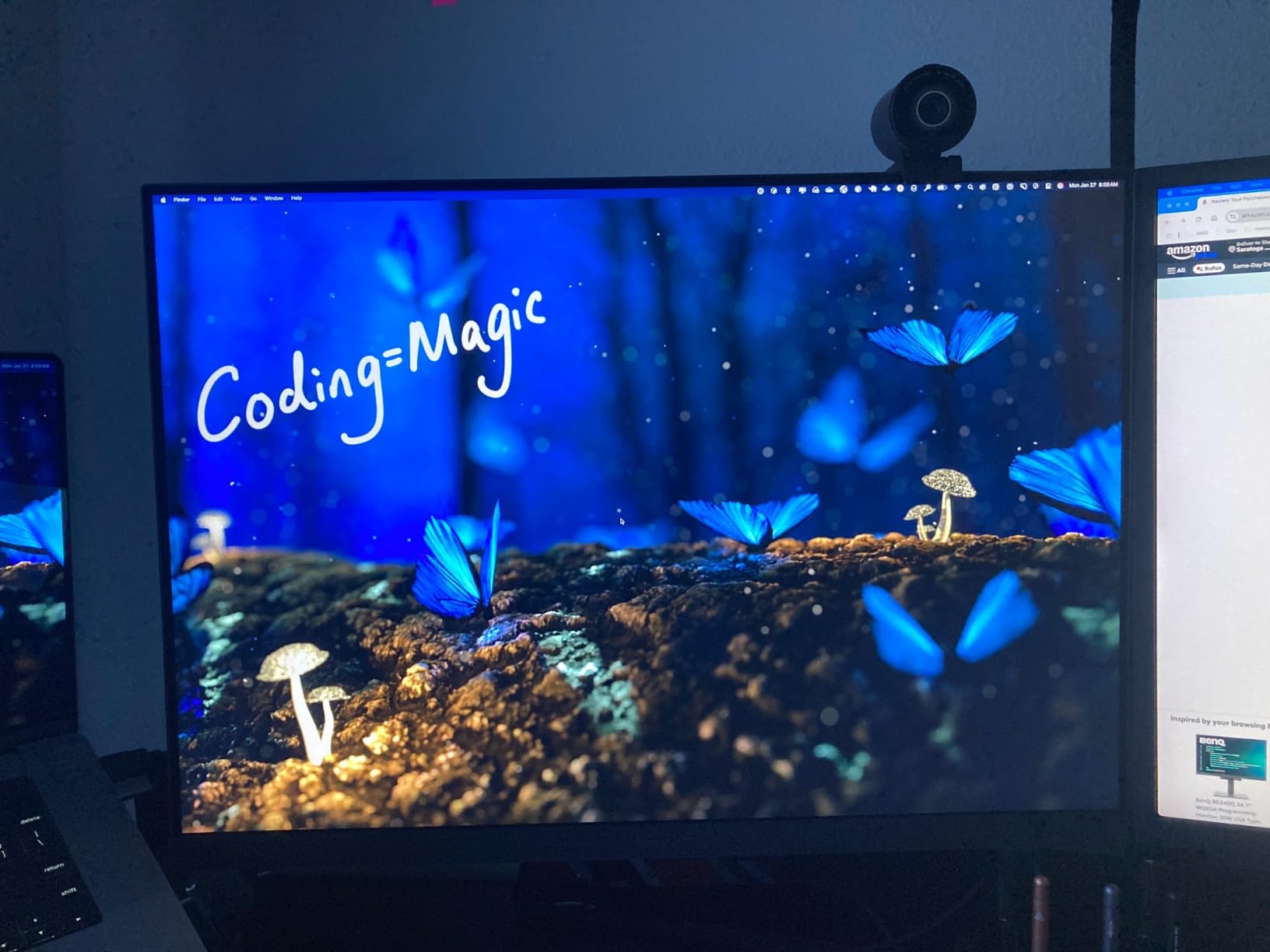
The RD280U is the only monitor here that is tall by design rather than by rotation. Its native 3840×2560 3:2 panel gives you 2560 pixels of vertical space while it sits flat on the desk, which means you get portrait-class height without turning anything, and you can still pivot it if you want even more.
That changes the ergonomics considerably. A 28.2-inch 3:2 panel is about 134 pixels per inch, so text stays sharp across a very long vertical run, and the wider-than-16:9 shape gives you a usable horizontal column even before rotation. Most developers who try one of these end up using it half portrait, half horizontal depending on the task.
BenQ built the software features around developers specifically. The coding modes adjust on-screen palettes to make syntax highlighting easier to parse, Brightness Intelligence Gen2 manages brightness automatically, and Night Hours Protection warms the output in the evening. MoonHalo is an ambient backlight behind the panel that you can aim and dim for low-light working.
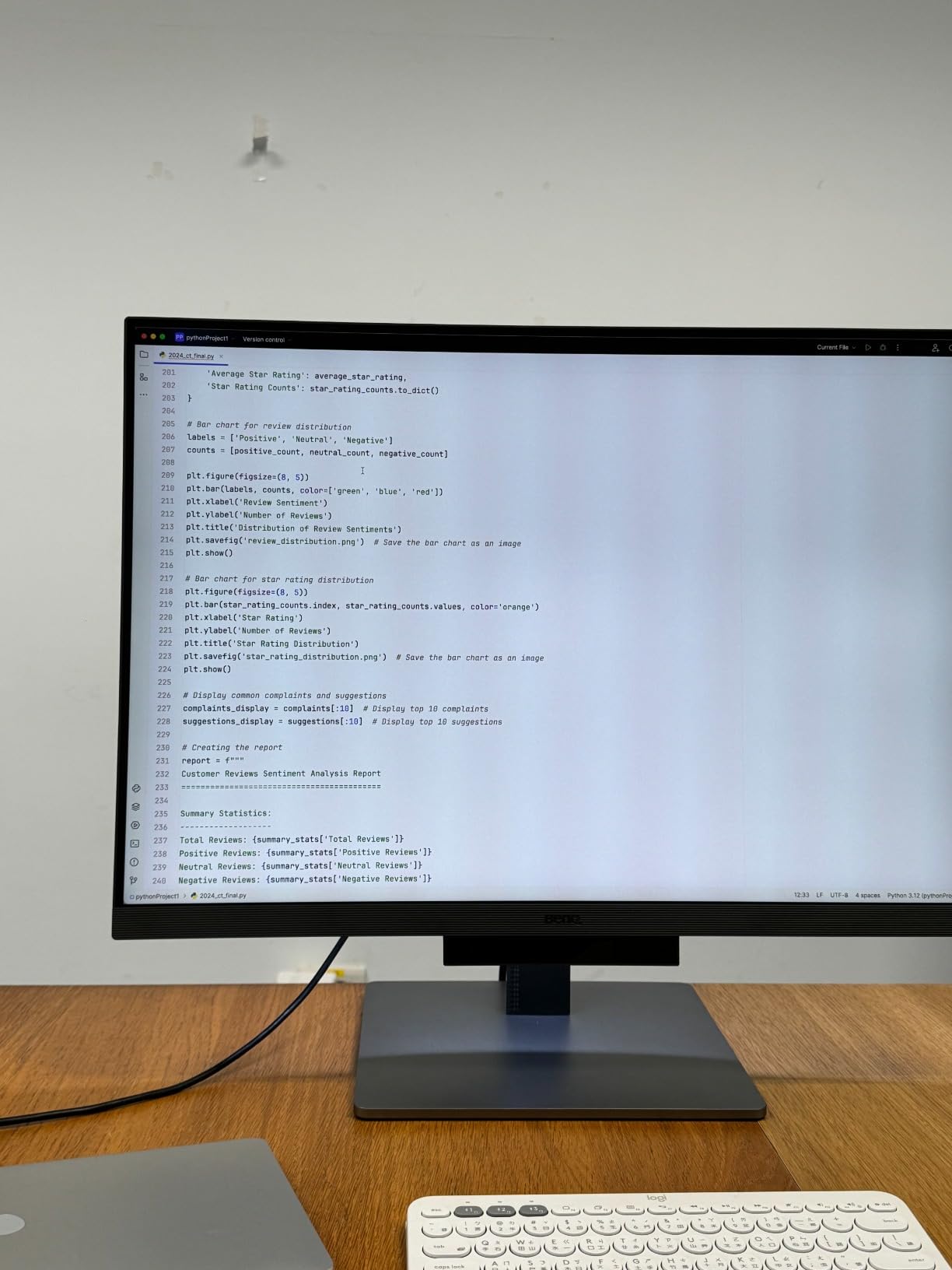
The Nano Matte anti-glare, anti-reflective coating is the standout for anyone coding near a window. On a glossy or semi-gloss panel, a bright wall or overhead light becomes a permanent distraction when the screen is tall, because more of the panel sits in your line of sight. This coating handles that better than anything else we looked at.
Connectivity is where the RD280U justifies its tier. 90W USB-C power delivery handles video, data and laptop charging over one cable, and the built-in KVM switch lets two machines share the display and the hub with one button press. That is a genuine advantage for developers who bounce between a work laptop and a personal machine.
Is a native 3:2 screen better than rotating a 16:9 panel?
For most setups, yes, and the reason is desk depth. A rotated 27-inch screen needs roughly 24 inches of vertical clearance and leaves a wide empty strip of desk beside it. A 3:2 panel gives you comparable height in a shallower footprint and leaves more room for a second screen or a keyboard tray.
The trade-off is refresh rate. This is a 60Hz panel with a 5ms response, which feels dated beside the 144Hz and 200Hz models on this list. Scrolling is still perfectly smooth for reading code, but if motion smoothness is your top priority, a high-refresh QHD panel is the better buy.
What to watch out for with the RD280U
The HDMI 2.0 port caps the refresh rate at 50Hz, so use DisplayPort or USB-C if you want the full 60Hz. That catches people out because the default cable in the box may not deliver the picture they expect, and no DisplayPort cable is included at all.
It is also a heavy, bulky panel at 16.8 pounds with a wide base, so plan on an arm or a deep desk. The built-in speakers and headphone output are poor, and reviewers note that BenQ control software does not run on Linux, so plan to adjust settings from the on-screen menu instead.
3. Dell S2725DS 27-Inch QHD — Best Vertical Monitor for Long Coding Days
Dell S2725DS Monitor – 27 Inch, QHD (2560×1440) Display, 100Hz refresh rate, 1500:1 contrast ratio, TÜV Rheinland Eye comfort 4 Star,Integrated 2x5W speaker, Height/Tilt/Swivel/Pivot- Ash White color
27-inch 2560x1440 IPS
100Hz refresh
1500:1 contrast
TUV 4-star eye comfort
Pros
- QHD 2560x1440 at a readable pixel density
- Full height swivel tilt and pivot stand
- 1500:1 contrast is strong for IPS
- TUV Rheinland 4-star eye comfort certification
- Integrated dual 5W speakers
Cons
- 8ms response time is slow for scrolling
- No USB-C or USB hub
- 100Hz limits motion smoothness
The Dell S2725DS is the one to buy if you are going to stare at the screen for eight hours a day and your eyes tell you about it. It pairs a 2560×1440 IPS panel with TUV Rheinland 4-star eye comfort certification, which covers flicker, blue light emission and low-stimulation criteria rather than just a single low-blue-light preset.
The resolution is the same sweet spot as the ProArt, so the same reasoning applies: around 109 pixels per inch is sharp enough for monospaced text without forcing you to shrink your font. In portrait you get 2560 pixels of vertical code, which is roughly 106 lines at a 16-pixel editor font with standard spacing.
Contrast is the quiet advantage. A 1500:1 ratio is stronger than the 1000:1 common on IPS panels in this range, which matters more in portrait than it does horizontally because dark themes occupy more of a tall screen. Code on a near-black background has noticeably more depth on this display than on a panel with weak blacks.
The stand covers height, tilt, swivel and pivot, and Dell includes a stand riser, VESA cover and side I/O cover in the box. That last detail matters in portrait, where the ports end up on a long edge and a bare block of connectors looks untidy next to a tall panel. VESA 100×100 mounting is supported if you want an arm instead.
Integrated dual 5W speakers are unusual on a monitor in this class and genuinely usable for call review or standup meetings, which in a developer workflow is a real convenience. No need to reach for a separate speaker to listen to a conference call.
How much desk space does a 27-inch portrait monitor need?
Plan for about 24 inches of vertical clearance plus two or three inches of stand base, so a 26-inch-deep desk works and a shallow 20-inch one does not. If your desk is tight, an arm mounted to the back edge solves it by lifting the pivot point above the desk rather than on it.
Height adjustment matters as much as depth here. In portrait you need the top of the screen near eye level, which for most people means the panel raised well above where a horizontal monitor sits. Check the stand travel, and use a riser or arm if it falls short.
Why this is not our top pick
The 8ms response time is the honest weakness. Scrolling a thousand-line file feels a little smeared compared with the 1ms panels on this list, and if you spend your day moving around large codebases that lag is noticeable even though text rendering itself stays sharp.
There is also no USB-C and no built-in USB hub, so laptop users need separate cables and a separate dock. Dell Display Manager, which handles rotation and window layout, is Windows-centric, so macOS and Linux users get less from the software side.
4. SANSUI ES-G27F6Q 27-Inch QHD — Best Value Vertical Monitor for Coding
SANSUI Gaming Monitor 27″ 1440P 200Hz 180Hz WQHD 2560×1440-AMD FreeSync 1ms DCI-P3 95% Fast IPS Computer Monitor,Height Adjustable Vertical/Horizontal Rotating, 2×DisplayPort/HDMI 丨HDR丨Low Motion Blur
27-inch 2560x1440 Fast IPS
200Hz max refresh
1ms OD response
-90 to +90 degree pivot
Pros
- Pivot range of -90 to +90 degrees for true portrait
- 2560x1440 in an entry-level tier
- 200Hz with 1ms OD for very smooth scrolling
- 10-bit colour with 95 percent DCI-P3
- Dual DisplayPort and dual HDMI inputs
Cons
- 1000:1 contrast is low for IPS
- No USB hub or USB-C
- Basic HDR support rather than certified
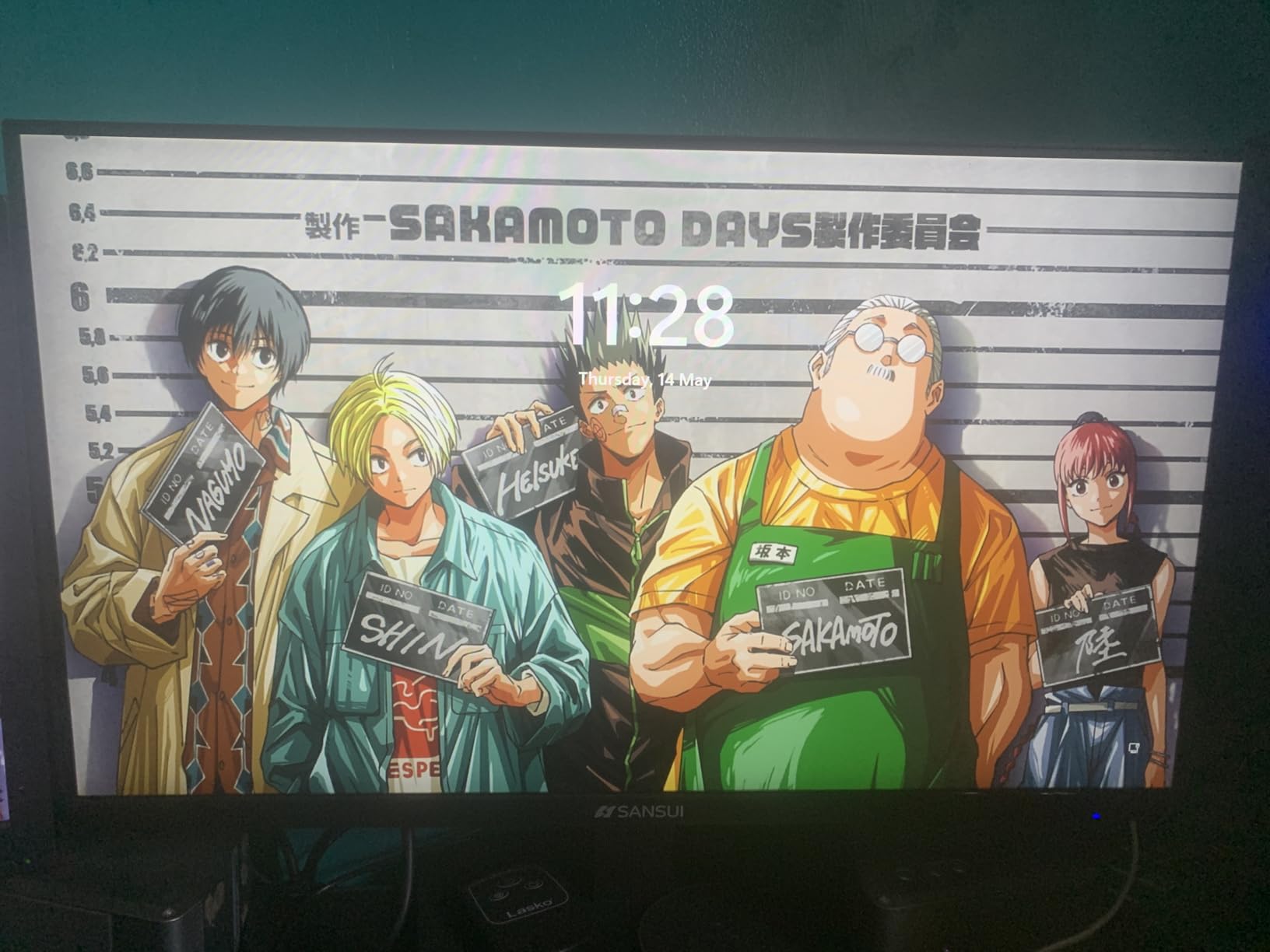
The SANSUI ES-G27F6Q is the specification-heavy answer here. You get a 27-inch 2560×1440 Fast IPS panel with a pivot range of minus 90 to plus 90 degrees, a 200Hz ceiling over DisplayPort and 10-bit colour with 95 percent DCI-P3 coverage, which is a lot of panel for the specification involved.
It also has one of the most generous stand adjustments in this roundup. Height travels 130mm, swivel goes 25 degrees in each direction, tilt covers minus 5 to 20 degrees, and the pivot is genuinely bi-directional. That means you can rotate in whichever direction suits your desk layout rather than fighting the stand.
Refresh rate is the headline feature and it is a real one for scrolling. Over DisplayPort 1.4 you can run up to 200Hz, and over HDMI 2.0 up to 144Hz. Long file scrolls and window animation feel markedly smoother here than on the 60Hz and 75Hz alternatives, and FreeSync keeps variable refresh content from stuttering.
Colour is unusually good for the size. 10-bit output means smoother gradients and less banding in dark themes, and 95 percent DCI-P3 coverage is meaningful if you do any UI work. The matte finish plus anti-flicker and low blue light modes cover the usual long-session concerns.
Two DisplayPort 1.4 and two HDMI 2.0 inputs also make this a natural two-machine panel. Developers who keep a laptop docked alongside a desktop can plug both in and switch with the OSD instead of repatching cables every morning.
Is this monitor good enough for professional colour work?
For UI design mockups and general development, yes. The 95 percent DCI-P3 coverage and 10-bit depth are strong. For print proofing or graded video work you would want a hardware calibration report, and the 1000:1 contrast ratio means blacks will not reach the depth a good OLED or Mini-LED panel delivers.
That same 1000:1 contrast is the panel’s main visual weakness. Dark themes look slightly washed compared with the Dell S2725DS or the Predator, and in a dim room the difference is easier to see on a tall screen than a wide one.
What should you check before buying
The product title lists several different refresh rates across marketing lines, so confirm on the listing which figure applies to which input. Over DisplayPort 1.4 the panel reaches 200Hz; over HDMI 2.0 it tops out at 144Hz.
There is no USB-C and no USB hub, so laptop users need their own dock or adapter. HDR is basic rather than certified, so do not buy this for HDR content, and note that a small minority of ratings are one-star, which is normal at this review volume but worth factoring into any warranty expectations.
5. ViewSonic VG2755 27-Inch — Best Vertical Monitor for Laptop Single-Cable Setups
ViewSonic VG2755 27 Inch 1080p Computer Monitor, IPS, 60W USB C, Ergonomic
27-inch 1920x1080 IPS
60W USB-C single cable
3-port USB hub
Flicker-Free and blue light filter
Pros
- Single USB-C cable carries video data audio and 60W charging
- Full tilt swivel pivot and height adjustment
- Three-port USB hub removes the need for a dock
- Large readable 1080p text at 27 inches
Cons
- Only 60Hz refresh rate
- Flat built-in speakers
- No 3.5mm audio out on this revision
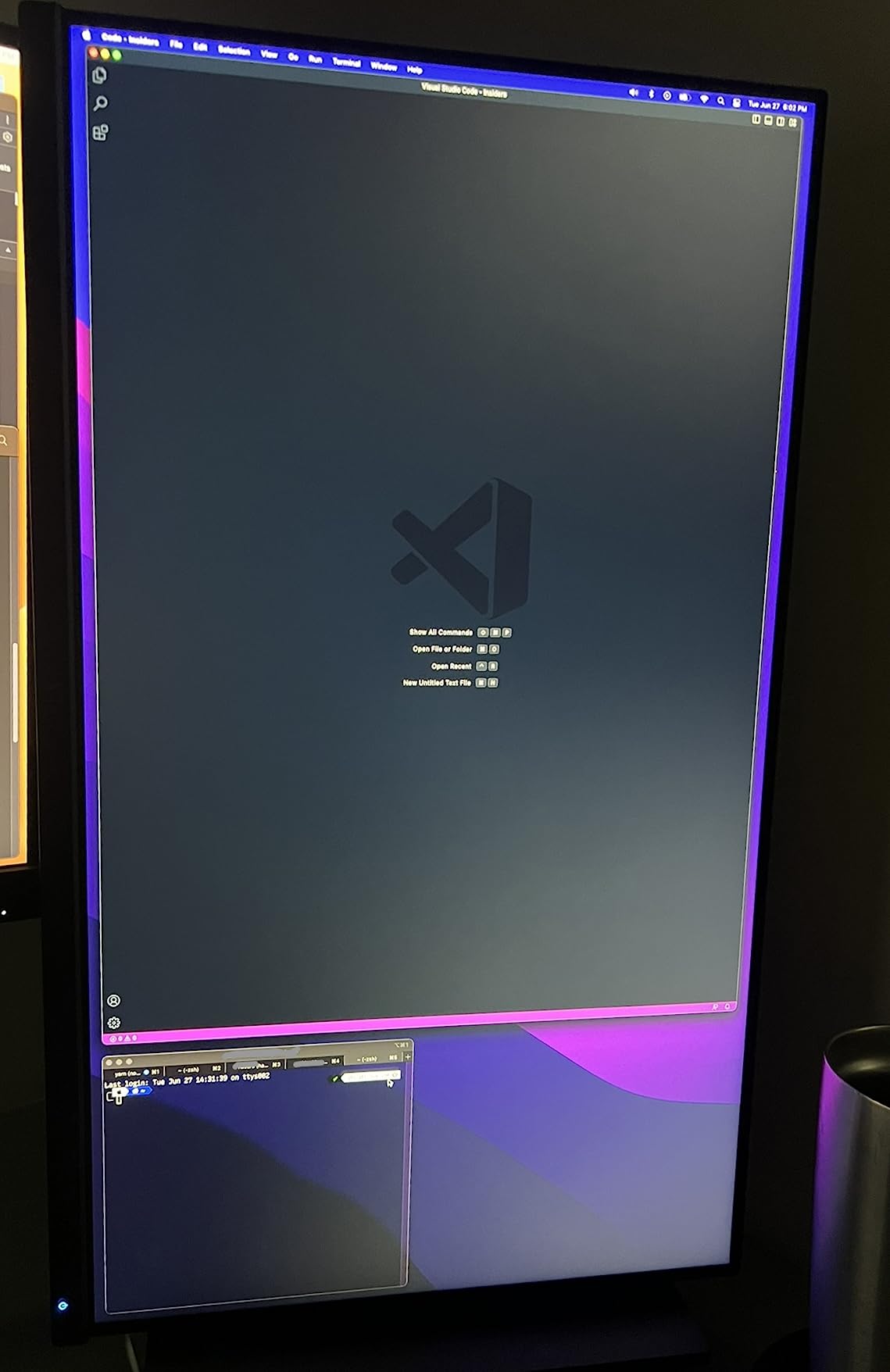
The VG2755 is the one we would hand to a developer who works from a single laptop. One USB-C cable handles video, data, audio and 60W of charging, so plugging in and rotating the panel is the entire setup ritual. There is a built-in three-port USB hub for peripherals, which removes the second box from the equation.
The 1920×1080 resolution on a 27-inch panel is a deliberate choice and it works in your favour for portrait use. At roughly 95 pixels per inch, text renders noticeably larger than on a 1440p or 4K panel at the same distance. For a code editor with syntax highlighting, larger glyphs reduce eye strain more than extra density does, and the short 1080-pixel vertical run means fewer characters per line, which suits narrower code windows.
That said, it is a real trade-off. Turning the panel gives you 1920 pixels of vertical code, which is fewer lines than a QHD model shows. If you maximise an editor and want maximum visible code, this loses to every 2560-wide panel on the list. If you run split panes and value legible text over raw line count, it wins.
The stand is fully adjustable with 40-degree tilt, swivel, rotation and height movement, and the quick-release mechanism with a built-in carrying handle makes the panel easy to move between setups. In portrait the quick release is genuinely useful because you can remove and re-seat the panel without re-aiming the base.
Flicker-Free technology and a Blue Light Filter handle long sessions, and the matte finish keeps reflections manageable. ViewSonic includes a three-year limited warranty covering parts, labour and backlight, which is longer than most competitors in this tier.
Is 1080p too coarse for a coding monitor in portrait?
Not at 27 inches. Around 95 pixels per inch means text is physically larger on screen, and most developers find large legible text preferable to dense small text for a sidecar display. If you sit very close, work with 10-pixel fonts, or do pixel-accurate design work, a QHD or 4K panel is the safer call.
Be aware that only 80 or so lines fit vertically at a 16-pixel font with standard spacing, against 106 on a 2560-wide panel. The difference matters if you read whole files without scrolling, and matters less if you use the panel for documentation and terminal output.
What to watch out for on the VG2755
The 60Hz refresh rate is the biggest compromise, and it is felt most during fast scrolling through very long files. For a laptop-focused sidecar panel that is mostly static text, most people adapt, but if you are used to a high-refresh primary screen it will nag you.
Built-in speakers are flat and tinny, and this revision has no 3.5mm audio out jack, so you need Bluetooth or external audio. Some users also report an occasional black screen after a firmware update, and the update process has caused known trouble on macOS, so update carefully and with the laptop on mains power.
6. LG 27UP650K-W 27-Inch 4K UHD — Best Vertical Monitor for Maximum Text Sharpness
LG 27UP650K-W 27-inch Ultrafine 4K UHD (3840 x 2160) IPS Computer Monitor, 60Hz, 5ms, DisplayHDR 400, Reader Mode, Flicker Safe, HDMI, DisplayPort, Tilt/Height/Pivot Adjustable Stand, White
27-inch 3840x2160 IPS
95 percent DCI-P3
DisplayHDR 400
Reader Mode and Flicker Safe
Pros
- 4K 3840x2160 IPS gives crisp text at 27 inches
- 95 percent DCI-P3 colour coverage
- Matte finish handles glare well
- Stand raises lowers and tilts smoothly
Cons
- 60Hz refresh and 5ms response
- No USB-C or USB hub on this variant
- Modest HDR despite DisplayHDR 400
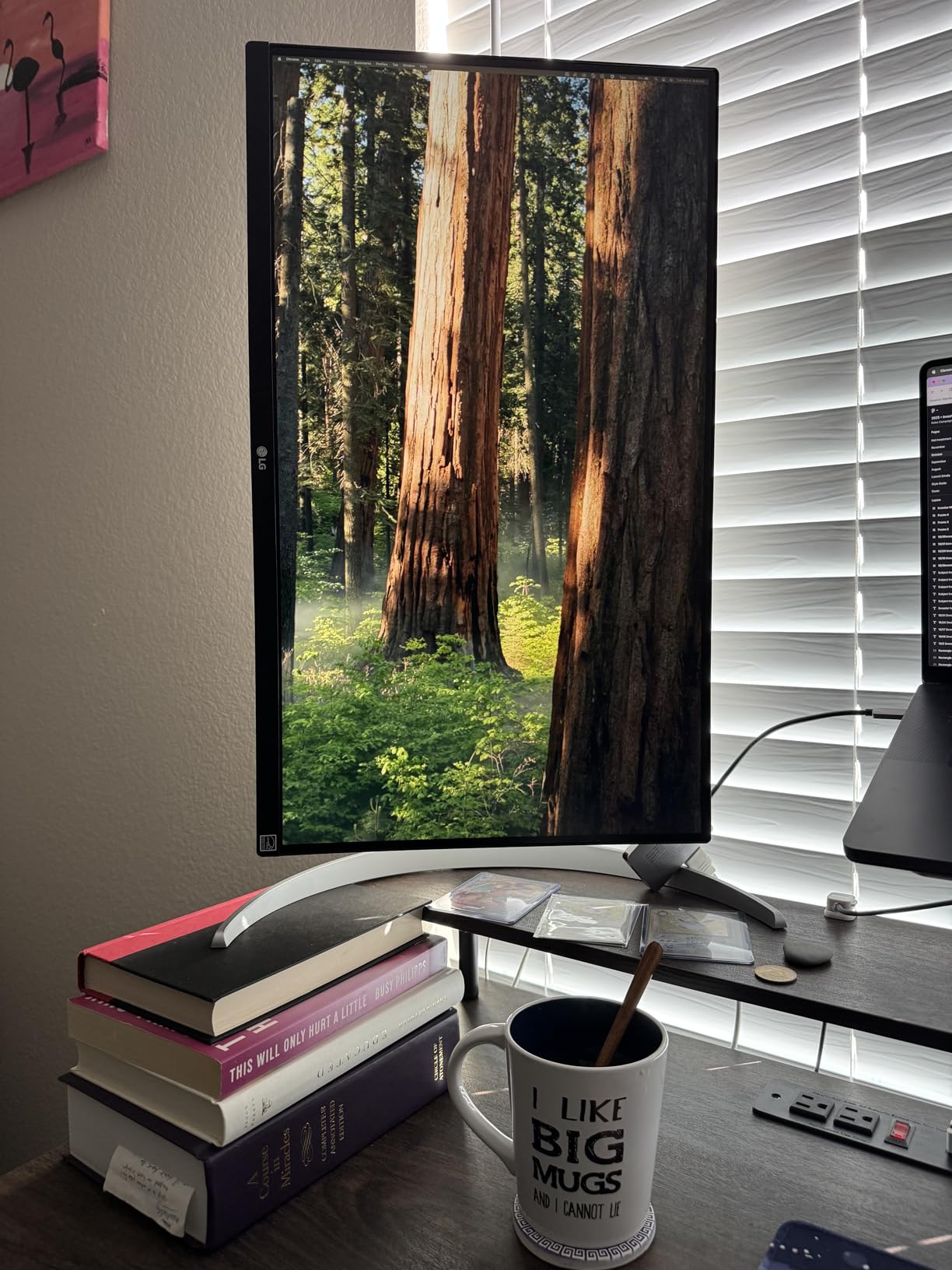
The LG 27UP650K-W has the highest average rating in our product set and pixel density matched only by the 4K Predator. At 3840×2160 on a 27-inch screen you get roughly 163 pixels per inch, and once rotated that gives you a 3840-pixel vertical run, which is the most code any 27-inch display in this guide can show.
That density changes what portrait mode feels like. Text renders with a clarity you can see at a glance, minimap and file-tree text stays legible without scaling, and minimised editors or a documentation page alongside a code window are readable rather than decorative. Pixel pitch of 0.16mm is the tightest here.
The matte finish handles ambient and overhead light better than most 4K panels, which matters when a tall screen sits between you and a window. The joystick-style front control is easier to use than rear buttons, and both DisplayPort and HDMI cables come in the box, which is rarer than it should be.
Eye-care features are well covered for a reading-heavy workflow. Reader Mode reduces blue light output for documentation and long PDF sessions, Flicker Safe handles backlight dimming without visible pulsing, and DisplayHDR 400 adds some highlight headroom even if the HDR implementation is modest.
The Switch app splits the screen into up to six sections, which is genuinely useful once you rotate the panel. A vertical monitor is naturally good at stacked panes, so splitting it into thirds for editor, terminal and documentation works better here than on most panels.
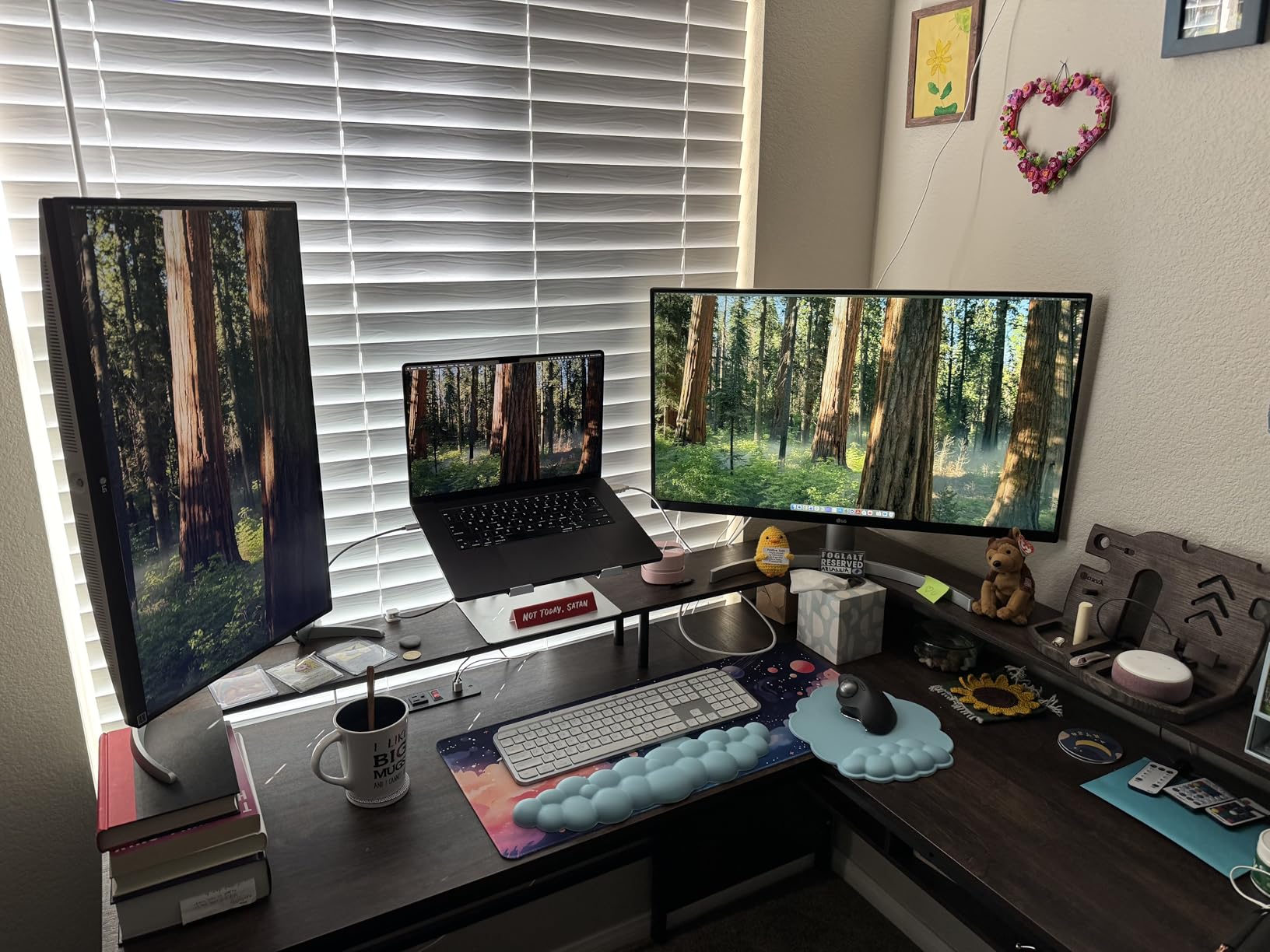
Is a 4K 27-inch monitor too small to use in portrait?
No, and this is the counter-example to the usual advice. The concern with 27 inches in portrait is physical height, not resolution, and that problem gets worse as you move up in size. At 27 inches a 16:9 panel is roughly 24 inches tall, which is at the top of what most desks allow comfortably.
The catch is scaling. A 4K panel at 27 inches defaults to heavy UI scaling in Windows and macOS, which does make small text crisp but means a native 4K desktop shows very little. In portrait with a 3840-pixel vertical run, that works in your favour, since the tall axis gives you far more vertical content than a QHD panel.
Where the LG falls short
The 60Hz refresh rate and 5ms response are dated for a panel with this much resolution, and that mismatch shows when scrolling. Nothing about it prevents long coding sessions, but a high-refresh QHD panel feels smoother day to day.
This HDMI variant has no USB-C and no USB hub, so single-cable laptop setups are not possible. There are no built-in speakers, and DisplayHDR 400 performance is modest, so do not treat it as an HDR display. Warranty is one year, the shortest here alongside the Dell models.
7. Dell S2725DSM 27-Inch QHD 144Hz — Best Vertical Monitor for Smooth Scrolling
Dell 27 Plus QHD Monitor – S2725DSM – 27-inch QHD (2560×1440) 144Hz 1ms Display, 2 x 3W Speakers, HDMI/DisplayPort 1.4 Connectivity, Height/Tilt/Pivot/Swivel Adjustability, AMD FreeSync – Ash White
27-inch 2560x1440 IPS
144Hz with 1ms MPRT
1500:1 contrast
DisplayPort 1.4 and HDMI 2.1
Pros
- QHD at 144Hz is a strong specification pairing
- Full height tilt swivel and pivot stand
- 1500:1 contrast gives deeper blacks than typical IPS
- 4-star TUV eye comfort certification
- Integrated dual 3W speakers
Cons
- 8ms response despite the 1ms MPRT figure
- No USB hub on this HDMI variant
- 14.1-pound weight makes adjustments feel heavy
The Dell S2725DSM is the balance pick. It pairs a 2560×1440 IPS panel with a 144Hz refresh rate, which is the combination most developers end up wanting once they have worked in portrait for a few weeks. You get roughly 109 pixels per inch and a vertical run of 2560 pixels after rotation, at a refresh rate that makes scrolling feel immediate.
The 1ms MPRT figure is a marketing measurement of motion clarity rather than pixel response, and the listed GtG response is 8ms. In practice the difference matters less on static text than the refresh rate does, and 144Hz is the number you will notice every day.
Contrast is the other reason this one stands out. A 1500:1 ratio gives noticeably deeper blacks than the 1000:1 IPS panels at this resolution, which improves dark-theme code readability in a dim room and reduces the grey haze that washes out syntax highlighting colours.
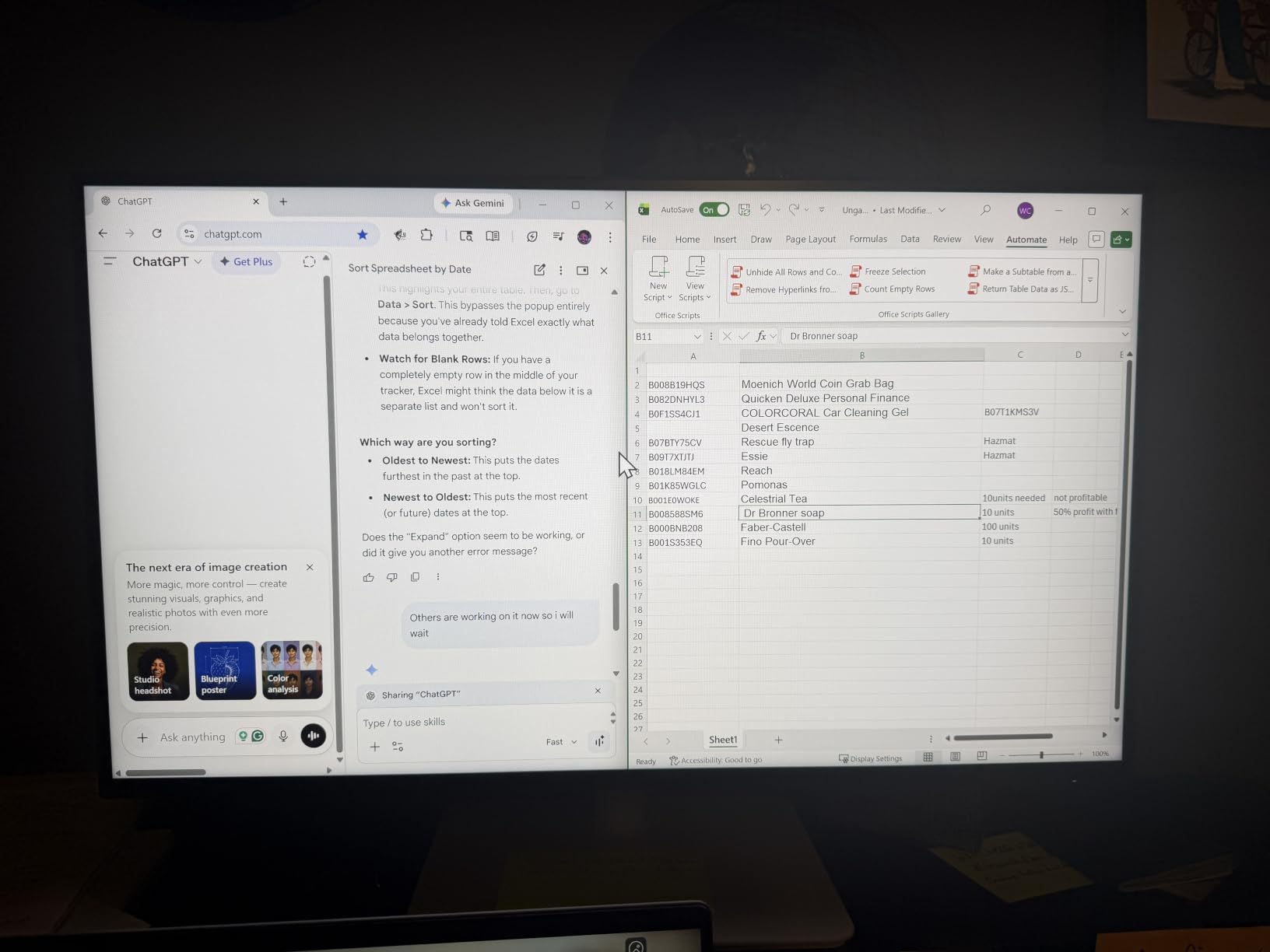
Connectivity is modern for a non-USB-C panel, with DisplayPort 1.4 and HDMI 2.1 inputs. If you want to drive a high refresh rate, use DisplayPort; HDMI 2.1 at QHD 144Hz depends on the source device and its settings. AMD FreeSync handles variable refresh for scrolling and window animation.
Integrated dual 3W speakers are clear and loud enough for a standup call, the height tilt swivel and pivot stand covers every adjustment you need for portrait, and 4-star TUV eye comfort certification covers flicker and blue light criteria properly rather than with a single toggle.
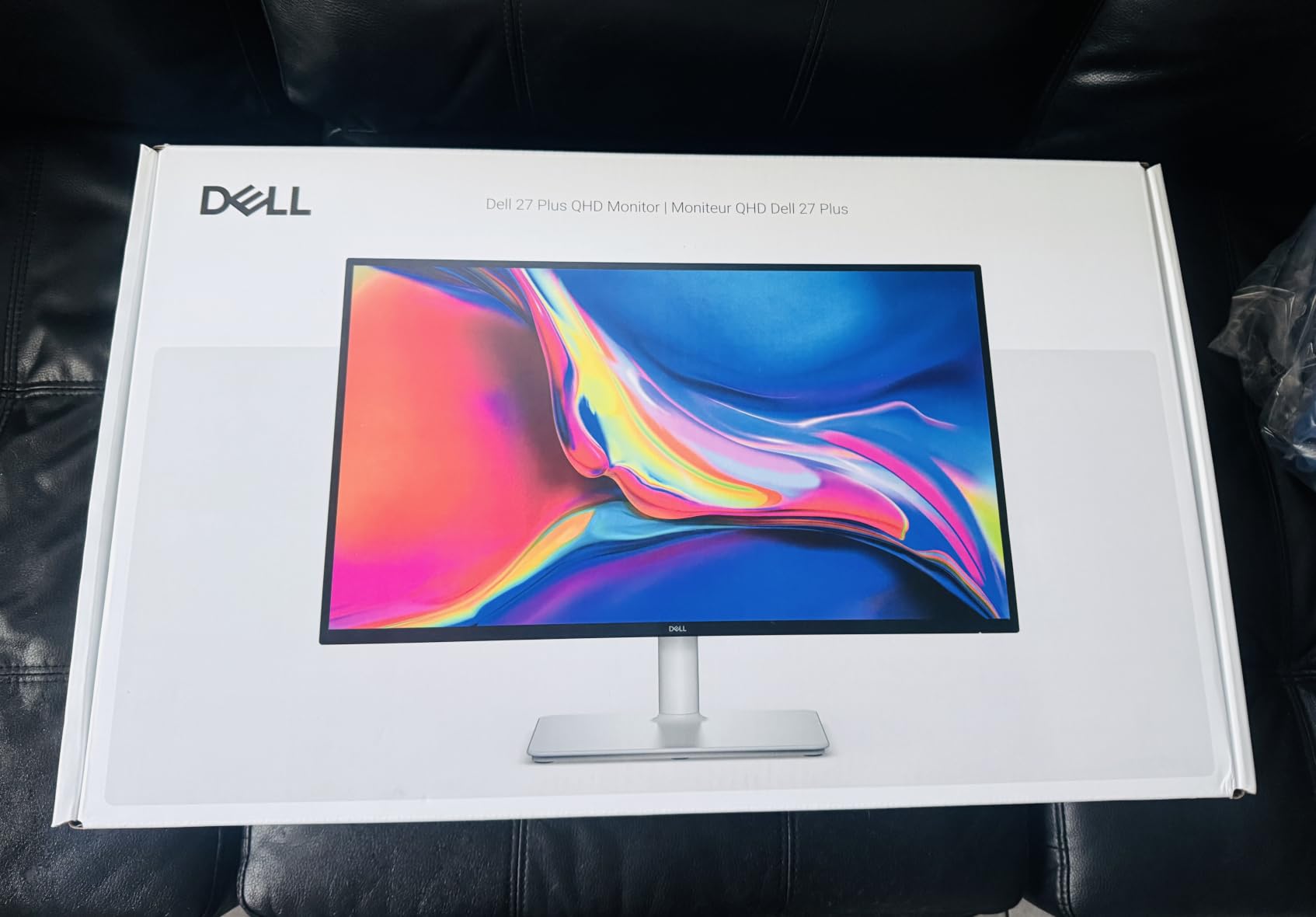
Is 144Hz worth it for code editors?
It helps more than most people expect. Fast scrolling through very large files, flicking between tabs and dragging windows all feel noticeably more responsive at 144Hz than at 60Hz, because the whole interface is redrawing. If your primary display is already high refresh, dropping to 60Hz for a second screen is jarring.
On a static editor window you will not notice a difference, so treat this as a comfort feature for navigation rather than a reading feature. It is most valuable when you keep the vertical panel as your main code surface and scroll constantly.
What to consider before choosing this one
There is no built-in USB hub on this HDMI variant, so peripherals need their own hub. The 14.1-pound weight makes stand adjustments feel heavier than the specification suggests, which is another reason many owners move to an arm within a few weeks.
Colour coverage is 99 percent sRGB, which is fine for development and light design work but will not satisfy colour-critical tasks. The review base here is the smallest of the Dell models we considered, so treat the 4.6 average with a little more caution than the ones with thousands of ratings.
8. Dell S2425HSM 23.8-Inch — Best Budget Vertical Monitor for Coding
Dell 24 Plus Monitor – S2425HSM – 23.8-inch FHD (1920×1080) 144Hz 1ms Display, 2 x 3W Speakers, HDMI Connectivity, Height/Tilt/Pivot/Swivel Adjustability, AMD FreeSync – Ash White
23.8-inch 1920x1080 at 144Hz
1ms MPRT and 1500:1 contrast
4-star TUV eye comfort
Full ergonomic stand
Pros
- 144Hz refresh makes scrolling smooth
- 1500:1 contrast is strong for the tier
- Integrated dual 3W speakers
- Joystick menu is the easiest to use here
- Height tilt swivel and pivot cover portrait
Cons
- No USB-C so no single-cable laptop workflow
- HDMI-only connectivity
- FHD can look soft at close range
The Dell S2425HSM is the monitor to buy if you want a second screen for portrait work without a large outlay. A 23.8-inch 1920×1080 panel at 144Hz with a fully adjustable stand including pivot, and it is the smallest panel here, which makes it the easiest to fit in portrait without neck strain.
Size is the deciding factor. A 23.8-inch 16:9 panel turned on its side is roughly 21 inches tall, which is about three inches shorter than a 27-inch. That difference is the whole reason it can sit at eye level on a shallow desk without a riser or an arm, and it directly answers the neck-strain concern that comes up constantly in developer forums.
At around 96 pixels per inch, text renders large and comfortable, which suits documentation, terminal output, chat and email columns rather than dense code review. For a sidecar screen next to a main horizontal display, that is exactly the workload it is good at.
The joystick-controlled on-screen menu is the easiest to use in this roundup and it is not a minor detail. Rear-button monitors push you to physically turn the panel around to change a setting, which is absurd on a display you have deliberately turned on its side. A joystick on the front face solves it completely, and Dell puts one here.
Integrated dual 3W speakers are clear and loud for the size, useful for quick standup calls, and 4-star TUV eye comfort certification means flicker and blue light output are handled to a certified standard rather than a single low-blue-light mode.
Is a 23.8-inch screen too small for portrait coding?
For a sidecar display, no. Twenty-one inches of vertical clearance fits comfortably at eye level, and 1920 pixels of vertical run holds roughly 45 lines at a 16-pixel font with standard spacing, which is plenty for a terminal, a documentation page or an email and chat column.
As a primary code display it is limited. You get fewer lines than a QHD panel and lower density, so small UI text in editors will need scaling. Most owners pair this with a larger main screen rather than replacing their primary display.
What this budget monitor gives up
There is no USB-C, so a laptop user needs HDMI plus a separate power cable, which defeats the single-cable workflow entirely. Two HDMI ports are included, which at least makes a two-machine setup straightforward, and AMD FreeSync is supported at up to 144Hz.
FHD text can look slightly soft at close viewing distances, and the stand height range is limited enough that many owners add a riser or move to an arm. The one-year Advanced Exchange Service is Dell’s standard cover here.
9. CRUA 24.5-Inch FHD 200Hz — Best Compact Vertical Monitor for Small Desks
CRUA 24.5″ FHD 200Hz Vertical Monitor, Height/Pivot/Swivel/Tilt Adjustable
24.5-inch 1920x1080
200Hz over DisplayPort
90-degree pivot
120mm height adjustment
Pros
- Stand explicitly supports 90-degree pivot to portrait
- 200Hz and 3ms response for smooth scrolling
- Height pivot swivel and tilt in one stand
- Wall mount compatible at 75 x 75mm
Cons
- FHD limits how much code fits in portrait
- No USB hub and only one USB port
- One-year warranty is short
The CRUA 24.5-inch is the most compact option on the list and the one that fits a small desk without negotiation. At 24.5 inches it turns to roughly 21.5 inches tall, giving you 1920 pixels of vertical code while staying within the eye-level reach that larger portrait panels struggle with.
The stand is the reason to consider it. It combines a 90-degree pivot with 120mm of height adjustment, tilt from minus 5 to 15 degrees and swivel of plus or minus 15 degrees, so you can raise and orient the panel after rotating rather than settling for wherever it lands. That range of adjustment is unusual at this size.
Refresh rate is the second surprise. The panel reaches 200Hz over DisplayPort and 144Hz over HDMI, with 3ms response and FreeSync support. Scrolling is as smooth as anything on this list, which is at odds with what you would expect from a 1920×1080 panel at this size.
Three-sided narrow bezels matter more in portrait than in horizontal because the panel is tall and thin. Thin bezels on the long edges keep the footprint tight when it is turned, and 75 x 75mm wall mounting is supported if you would rather mount it permanently to a wall or arm above the desk.
A low blue light mode is included for long sessions, and the matte finish handles reflections adequately. At roughly 90 pixels per inch, text is large and easy to read, which makes this a good documentation and terminal panel.
How much code fits on this screen in portrait?
Roughly 45 lines at a 16-pixel editor font with standard line spacing, and fewer at larger font sizes. That is enough for a terminal window, a documentation sidebar, an email and chat column or a build log, and not enough for a maximised editor plus a minimap plus a file tree.
If your portrait panel is a sidecar, which is the common pattern, that is fine. If you want to code on it primarily, a 2560-wide QHD or 4K panel gives you meaningfully more. The 1920×1080 resolution is the hard limit here, not the physical size.
What to consider before choosing the CRUA
Connectivity is minimal. DisplayPort, HDMI and a 3.5mm audio out are present, but there is no USB hub and only a single USB port, so you will need your own peripherals hub. Colour coverage of 120 percent sRGB is modest for any UI or design work.
The one-year warranty is the shortest here, and unit quality is less consistent than the bigger brands. Review distribution for this model shows a meaningful share of one-star ratings, so plan for the possibility of an exchange rather than treating it as a set-and-forget purchase.
10. acer Predator XB273K 27-Inch 4K — Best Vertical Monitor for Gaming in Portrait
acer Predator XB273K 27″ 4k Gaming Monitor | AMD FreeSync Premium | ZeroFrame Design | 160Hz Refresh | Up to 0.5ms Response | Height, Tilt, Swivel, Pivot Adjust | HDR 400 | 1 x DP 1.4 & 2 x HDMI 2.1
27-inch 3840x2160 IPS
160Hz with up to 0.5ms response
3000:1 contrast
90 degree pivot each way
Pros
- 3840x2160 gives excellent pixel density for text
- 160Hz and up to 0.5ms response
- 3000:1 contrast is unusually strong for IPS
- ZeroFrame design makes tiling nearly seamless
- Dual HDMI 2.1 for console plus PC
Cons
- Glossy finish produces noticeable reflections
- Off-axis viewing weakens with contrast drop at edges
- DisplayHDR 400 implementation is weak
The Predator XB273K is the only monitor here built as a gaming panel, and it doubles as a sharp coding display. 3840×2160 at 27 inches gives roughly 163 pixels per inch, so text rendering in portrait is excellent, while 160Hz refresh and up to 0.5ms GtG response handle motion far better than anything else on this list.
Contrast is the standout specification. A 3000:1 ratio is unusually high for an IPS panel, and it translates into visibly deeper blacks in dark code themes and dark games. If you work in a dim room with a dark editor theme, this is the panel that makes long sessions easiest on the eyes.
The stand is genuinely good for portrait work, with 90-degree pivot in each direction, 25 degrees of swivel each way, tilt from minus 5 to 25 degrees and 5.9 inches of height adjustment. That is enough travel to bring a 24-inch-tall portrait panel to eye level on a normal desk.
The ZeroFrame edge-to-edge bezel design also has a practical benefit for multi-monitor work. Side-by-side panels with a portrait column next to a horizontal main screen tile with almost no gap, so you do not get a distracting seam in the middle of your desktop. VESA 100x100mm mounting is supported.
Connectivity covers a two-machine setup with one DisplayPort 1.4 and two HDMI 2.1 ports, plus 3.5mm audio out and two built-in 2-watt speakers that are quiet but functional. AMD FreeSync Premium handles variable refresh, and there is a three-year parts and labour warranty.
Is a portrait monitor good for gaming?
For certain games, genuinely. Vertical formats work naturally for shoot-em-ups, some racing titles and anything with a tall playfield, and a 3840-pixel vertical run gives a large image. Modern PC and console titles are still designed for horizontal screens, so this is a secondary use rather than a primary one.
A vertical panel also works as a second screen beside a horizontal gaming display, holding chat, Discord, a stream chat column or a wiki without cutting into the main image. That is where most developers find the value outside retro or tate-style titles.
What to watch out for on the Predator
The glossy finish is the biggest practical problem. Reflections from a window or an overhead light become obvious on a tall screen, and unlike the matte panels elsewhere on this list you cannot work around it easily. If your desk sits near a bright light source, rule this one out.
Off-axis viewing also weakens, with contrast dropping toward the panel edges, which is more noticeable in portrait because you are further from the top and bottom. Factory colour accuracy needs adjustment, with reviewers reporting a strong green cast out of the box, HDR is a weak DisplayHDR 400 implementation, and there are a small number of reliability complaints about units failing within a year.
How Many Lines of Code Actually Fit in Portrait?
Vertical space is only useful if you know what it converts to. The figure that matters is lines of code, and it comes down to vertical pixels divided by your line height. The estimates below assume a 16-pixel editor font with 1.5 line spacing, which gives a 24-pixel line box, and a full-height maximised editor with no sidebars.
One more thing to weigh: wider screens fit more characters per line, so a taller screen does not simply multiply your visible code. Pairing a portrait code panel with a horizontal terminal therefore remains the most productive layout for most developers, which is exactly the waterfall arrangement we describe in the setup section below.
Estimated lines of code at a 16-pixel font
At a 16-pixel font with 1.5 line spacing, a 24-pixel line box fits 45 lines on a 1080-pixel-tall screen, 60 lines on 1440, 90 lines on 2160 and 160 lines on 3840. Those four numbers cover almost every portrait panel you will come across: the CRUA and Dell S2425HSM give you 45, the ProArt, Dell S2725DS and SANSUI give you 60, the LG and Predator give you 90, and the BenQ RD280U gives you 160 without being rotated at all.
Zoom your editor font up or down and every number moves proportionally, so treat these as planning figures rather than laboratory measurements. The useful conclusion is still solid: rotating a 2560×1440 panel roughly doubles your visible lines, from 60 to about 106, and that is the single biggest reason portrait mode changes how developers work.
Which also explains why 4K at 27 inches is a better portrait panel than it looks on paper. In portrait you are not squeezing a wide desktop into a small screen, you are giving a tall screen a tall axis to fill.
What to Look for in a Vertical Coding Monitor
A monitor that can rotate is only half the requirement. Here is what actually determines whether a display works once it is on its side.
Resolution and pixel density in portrait
Pixel density governs how crisp your text looks, and it does not change when you rotate a panel. What changes is the number of characters per line, which falls as the panel gets narrower. At 1920×1080 you get large, comfortable text and roughly 45 lines vertically. At 2560×1440 you get a better balance at around 60 lines in horizontal and 106 once rotated, and this is the resolution most developers settle on.
Above that, 4K at 27 inches gives roughly 163 pixels per inch and around 160 lines vertically, which is plenty for almost any workflow including split panes. The catch is UI scaling, since Windows and macOS will scale a 4K desktop aggressively unless you handle it deliberately.
Native tall aspect ratio versus a rotated 16:9 panel
A native tall panel such as the 3:2 BenQ RD280U gives you vertical height without rotation, which means a shallower desk footprint, no cable tension from a rotated panel and a stand designed for the shape. The trade-off is refresh rate, since the RD280U runs at 60Hz, and the cost of the category.
A rotated 16:9 panel is cheaper, faster and more flexible. You can turn it back to horizontal in a second, and models like the SANSUI reach 200Hz. Most developers end up using a native tall screen if they can afford one, and a rotated QHD panel if they cannot.
Pivot stand quality and desk depth
A pivot stand is the difference between a monitor that lives in portrait and one that drifts back to horizontal after a week. Check that the pivot range covers a full 90 degrees, and check the height adjustment, because in portrait you need the top of the panel near eye level rather than at the height you would use horizontally.
Measure your desk before you commit. A 27-inch 16:9 panel stands about 24 inches tall when rotated, plus stand clearance, so you need roughly 26 inches of depth. Anything shallower means an arm mounted behind the desk edge, which lifts the pivot point and solves the problem entirely. Panels above about 30 pounds are genuinely difficult to reposition by hand, which is another argument for an arm.
Panel type and what changes when you rotate
IPS is the sensible default for coding, with wide viewing angles and consistent colour from top to bottom. The thing to watch for in portrait is uniformity along a long vertical axis, because panel uniformity issues that you would never notice across 1440 pixels become obvious across 2560. Matte finishes also help enormously here by killing reflections across more of the screen.
TN panels get worse in portrait, not better, because viewing angles narrow toward the top and bottom of a tall screen. Curved panels are worth avoiding for portrait use: a curve designed to look natural in horizontal warps straight lines and text when the panel is on its side.
USB-C docking and power delivery
If you work from a laptop, USB-C with power delivery turns your monitor into a dock. The two picks here are the BenQ RD280U at 90W with a KVM switch, and the ViewSonic VG2755 at 60W with a three-port USB hub. Both carry video, data and charging over one cable.
If your laptop needs more than 60W to charge at full speed, check the wattage before buying. A 90W port will run a 14-inch laptop comfortably and most larger machines at a reduced rate. The panels without USB-C on this list are all fine for desktop setups but need a separate dock. If your desk space is the constraint rather than power delivery, our best portable monitors for laptops guide covers the lighter travel-first alternative.
Eye care features that genuinely matter
Look for flicker-free backlighting and a low blue light mode, and treat certified eye comfort standards as a stronger signal than a manufacturer toggle. The Dell S2725DS and the Dell S2425HSM both carry 4-star TUV Rheinland eye comfort certification, which covers flicker, blue light and low-stimulation criteria together.
BenQ adds Brightness Intelligence Gen2 and Night Hours Protection on the RD280U, plus the MoonHalo ambient backlight, which lights the desk behind the panel rather than the screen. For developers who start work before sunrise, that feature earns its place.
Refresh rate and response time for coding
Refresh rate matters more for code than most buying guides admit, because scrolling, tab switching and window dragging all redraw the whole interface. Anything above 100Hz is noticeably better than 60Hz once you are used to it, and the SANSUI at 200Hz and the two Dell 144Hz models are the smoothest options here.
Response time matters less for text than for motion. An 8ms GtG figure is invisible on static code but shows up in games. Judge response time by how you will actually use the panel, not by the number on the box.
VESA mounting and monitor arms
A VESA plate does not automatically mean a monitor is warrantied for portrait use, and manufacturers differ on this. Support for 100x100mm mounting is near universal here, and every model on this list has a pivot stand as well, so arm mounting is an upgrade rather than a requirement.
If you do use an arm, check its vertical clearance with the panel rotated, and leave slack in the cables. Cable tension is the most common complaint from people running portrait monitors: a DisplayPort or HDMI cable pulled taut behind a rotated panel will eventually push the display out of position or disconnect.
Setting Up a Vertical Coding Monitor
Once the hardware is right, the software side takes about five minutes. Here is the setup we use.
Rotating the display in Windows and macOS
On Windows, open Settings, go to System, then Display, and change the orientation dropdown for the portrait display to Portrait. The keyboard shortcut is Windows key plus Control plus an arrow key, which rotates the selected display 90 degrees at a time, so pressing it once gives you portrait and pressing it again returns you to horizontal.
On macOS, open System Settings, then Displays, pick the display you want to change, and set the rotation to Portrait from the Orientation menu. macOS remembers the arrangement per display, so a rotated panel stays rotated when you reconnect it.
Building the waterfall layout
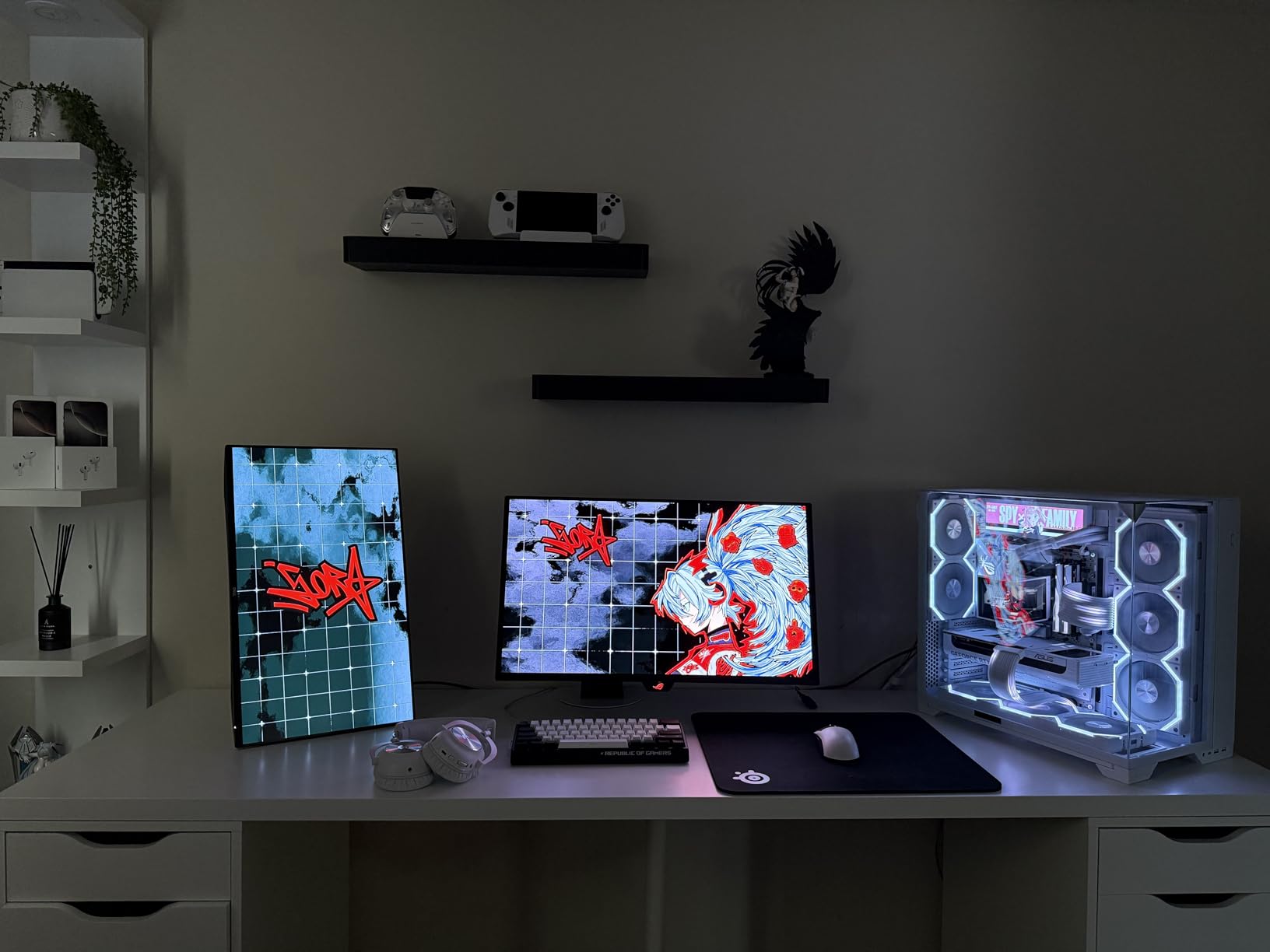
The most common and most effective arrangement is a main horizontal display with a portrait panel placed to its right. The horizontal screen carries your IDE, the portrait screen holds the terminal, logs, documentation and chat. Developers report this layout cuts scrolling and context-switching more than any other single change to a workspace.
Windows snapping utilities such as Dell Display Manager or the built-in snap layouts handle the geometry once you have set the rotation. On Linux, xrandr handles orientation and position, and most desktops read the per-monitor rotation from the panel automatically.
Managing cables and monitor arms
Leave slack in every cable. A rotated panel presents its ports along a long edge, so a cable routed tight behind it will pull the screen out of position. Routing through the stand riser and leaving a loop of roughly 15 centimetres fixes it, and a monitor arm gives you even more freedom because you can bring the panel forward and rotate without resistance.
For arms, match the VESA pattern, which is 100x100mm on almost every model here, and check the arm holds the panel weight. The BenQ RD280U at 16.8 pounds and the ASUS ProArt at 17 pounds are the two heaviest, so use an arm rated well above those figures rather than at them. If your setup moves between locations, the panels in our best field monitors for filmmakers guide show the same rotation-first approach.
Frequently Asked Questions
What is a good vertical coding monitor?
A good vertical coding monitor is one that pivots a full 90 degrees or ships with a natively tall aspect ratio such as 3:2, offers at least 2560 pixels of vertical resolution, has a matte finish and a stand with real height adjustment. Our top pick is the ASUS ProArt PA278QV, a 27-inch 2560×1440 IPS panel with a 90-degree pivot and a 4-port USB hub. For a laptop-focused setup, the ViewSonic VG2755 handles video, data and 60W of charging over a single USB-C cable.
What is the best monitor that can be turned vertically?
Any monitor with a pivot stand that rotates 90 degrees can be turned vertically, and almost all of them here can. The things to check before buying are the pivot range, the height adjustment available once rotated and whether the manufacturer treats portrait as a supported orientation. A VESA mount alone does not guarantee it, because some manufacturers warn against rotation in certain configurations. In practice, budget models with a solid base hold a 27-inch panel fine; heavier panels benefit from a monitor arm.
Which monitor is best for coders?
For most developers, the ASUS ProArt PA278QV is the best monitor for coders because 2560×1440 at 27 inches balances text sharpness against the number of lines you can see, and it pivots 90 degrees with a fully adjustable stand. If your workflow depends on a single cable to a laptop, choose the ViewSonic VG2755 instead. If you want vertical height without rotating anything, the BenQ RD280U gives you a native 3:2 panel.
Why do programmers use vertical monitors?
Because code is narrow and long. A 2560×1440 panel shows roughly 60 lines of text in horizontal and about 106 lines once rotated, at the same font size and viewing distance. That means whole functions fit on screen, you can stack an editor beside a terminal without shrinking either, and you scroll far less. Most developers use portrait as a sidecar for the editor or terminal and keep a horizontal display for everything else.
Is 27 inches too big for vertical mode?
At 27 inches it is borderline. A 27-inch 16:9 panel stands roughly 24 inches tall once rotated, so you need about 26 inches of desk depth and enough height adjustment to bring the top of the screen near eye level. If you cannot crane your neck, move down to a 23.8 or 24.5-inch panel, which stands about 21 inches tall, or mount a 27-inch on a monitor arm behind the desk edge. Lifting the pivot point above the desk solves the problem entirely.
Is a vertical monitor good for gaming?
For specific games, yes. Vertical formats suit shoot-em-ups, some racing titles and anything with a tall playfield, and a 3840-pixel vertical run gives a large image. Modern PC and console titles are designed for horizontal screens, so most people use portrait as a second display for chat, Discord or documentation rather than as a gaming panel. The Acer Predator XB273K handles both, with a 4K 160Hz panel and 90-degree pivot.
Do I need a special monitor for portrait mode, or can I rotate any monitor?
You can rotate any monitor whose stand pivots 90 degrees, or any VESA-mounted panel the manufacturer supports in portrait. You do not need a dedicated vertical monitor unless you want the shallower desk footprint of a natively tall 3:2 or 18:16 panel. What you do need is resolution: below 2560 pixels vertically, rotated panels show noticeably fewer lines, and 1080p panels in portrait can look soft when you sit close.
Is a portrait monitor better than an ultrawide for programming?
They solve different problems. An ultrawide 21:9 gives you more horizontal room, which is better for side-by-side files, a terminal next to an editor and wide timelines. A portrait panel gives you more vertical room, which is better for long single files, logs, documentation and chat columns. The common setup is both, with a horizontal main display and a portrait sidecar. Most developers who switch from ultrawide to portrait keep the horizontal screen and add the vertical one.
Final Verdict: Which Vertical Monitor Should You Buy?
For most developers, the ASUS ProArt PA278QV is the best vertical monitor for coding in 2026. A 27-inch 2560×1440 IPS panel, a stand that pivots a full 90 degrees and holds its position, and a four-port USB hub make it the pick that works across the widest range of setups. The 75Hz refresh rate is the only thing you give up, and it is a fair trade.
If you would rather not rotate anything, the BenQ RD280U gives you a native 3:2 panel with 3840×2560 of resolution, a Nano Matte coating and 90W USB-C with KVM switching. If your budget is the deciding factor, the Dell S2425HSM is our pick, and its 23.8-inch panel is small enough to sit at eye level on a shallow desk.
For laptop-only setups, the ViewSonic VG2755 does video, data and 60W of charging over one USB-C cable. For smooth scrolling and a high refresh rate, the SANSUI ES-G27F6Q pairs 2560×1440 with 200Hz. Whichever you choose, check your desk depth first, then set up the rotation before you start moving your keyboard and mouse around.