
Last updated: October 2026
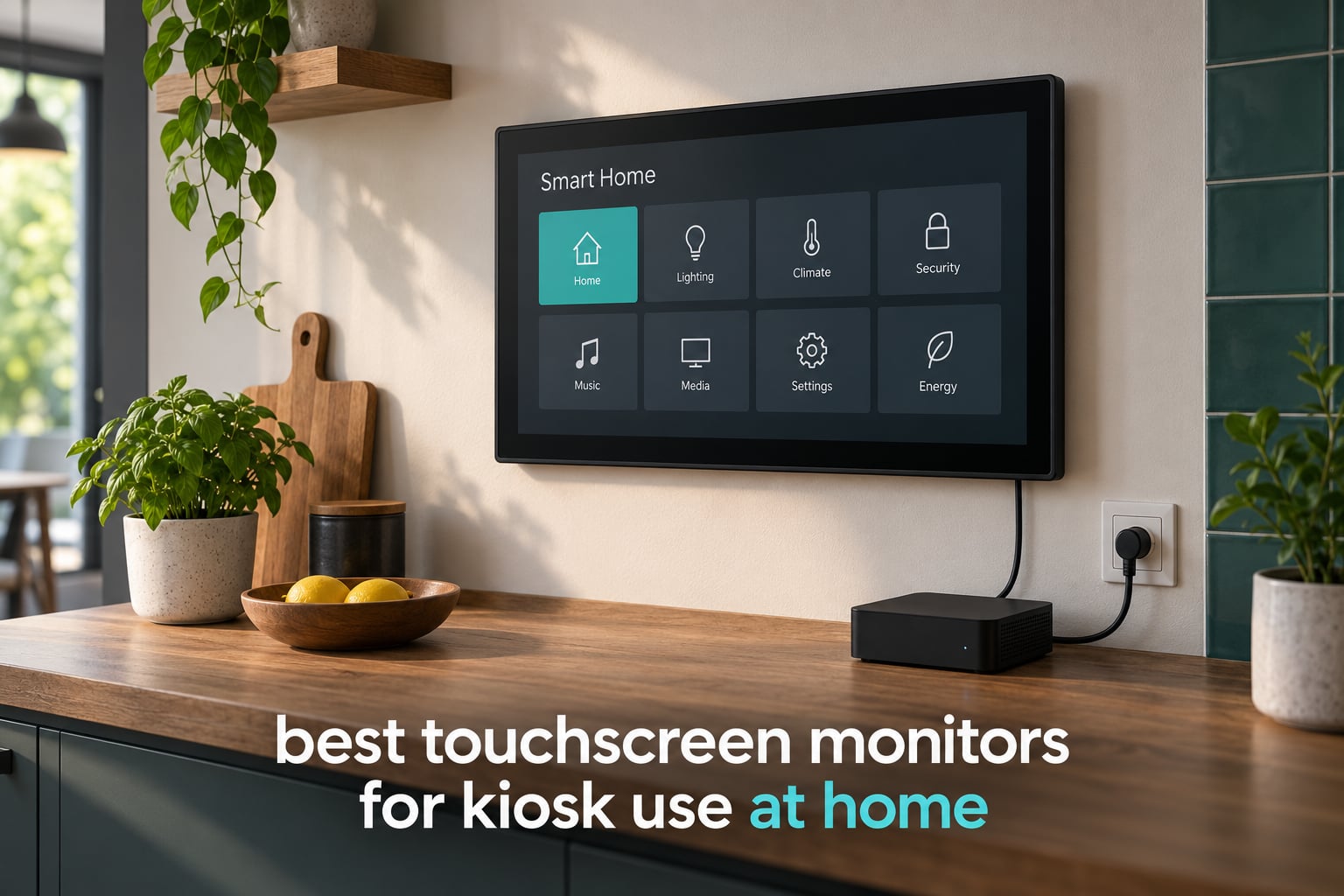
The best touchscreen monitors for kiosk use at home are 21.5-inch and 24-inch panels with 10-point capacitive touch, Full HD resolution, and a rear VESA mount. That combination gives you a wall-hung dashboard you can tap with wet or greasy fingers, run from a Raspberry Pi or a mini PC, and keep it powered on for most of the day without babysitting it.
That is the honest answer, because a home kiosk is not a retail counter. You are not ringing up customers at an airport. You are building a kitchen hub, a hallway control panel, a family calendar board, a recipe display, or a self-built smart home dashboard that anyone in the house can walk up to and use without a keyboard.
The failure mode that kills most of these builds is not a bad panel. It is a screen that sleeps, a screensaver that swallows the dashboard, or a touch layer that needs a driver you cannot find.
We went through seven touch monitors that actually hold up in that kind of setup, checking the details that matter once a display is bolted to a wall instead of sitting on a desk: native resolution, brightness in real room light, whether touch actually works over the cables included in the box, and whether there is a mounting pattern on the back. We also pulled in the recurring complaints from Home Assistant and home-automation forum threads, because those threads are where people find out that a monitor cannot be woken by touch, or that multi-touch zoom can break a locked-down screen.
If you are also fitting out the rest of the house, our guide to blood pressure monitors for home use covers another device that tends to live on a kitchen counter rather than in a cupboard.
Table of Contents
Top 3 Touchscreen Monitors for a Home Kiosk in 2026
These three cover most home builds. The ASUS is the one we would mount. The LG is for anyone who wants a big panel with no separate computer. The CUNPU is the budget route into a smart home dashboard.

ASUS VT229H 22-Inch Touch Monitor
- 10-point multi-touch
- 1080p IPS at 250 cd/m2
- VESA 75 x 75 mm mount
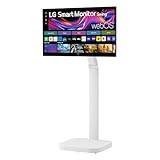
LG Smart Monitor Swing 32U889SA-W
- 32-inch 4K UHD IPS touch
- 350 cd/m2 with HDR10
- webOS with no PC needed

CUNPU 24-Inch 10-Point Touch Monitor
- 10-point capacitive touch
- 1080p IPS at 220 cd
- 100 x 100 mm VESA mount
Every Touchscreen Monitor in This Roundup Compared
Seven panels, side by side. The two columns that decide most home builds are resolution and mounting, because a 1366 x 768 panel looks soft from standing distance and a monitor with no rear VESA pattern will end up perched on a shelf.
| Product | Specifications | Action |
|---|---|---|
| ASUS VT229H 22-Inch Touch Monitor |
|
Check Latest Price |
| LG Smart Monitor Swing 32U889SA-W |
|
Check Latest Price |
 ViewSonic TD2423D 24-Inch Touch Monitor ViewSonic TD2423D 24-Inch Touch Monitor |
|
Check Latest Price |
| CUNPU 24-Inch 10-Point Touch Monitor |
|
Check Latest Price |
 ANGEL POS 17-Inch Touch Monitor ANGEL POS 17-Inch Touch Monitor |
|
Check Latest Price |
 GreenTouch 18.5-Inch Open Frame Monitor GreenTouch 18.5-Inch Open Frame Monitor |
|
Check Latest Price |
 Dragolftie 21.5-Inch Touch Monitor Dragolftie 21.5-Inch Touch Monitor |
|
Check Latest Price |
What Actually Makes a Touch Monitor Work as an Always-On Home Kiosk
Six factors decide whether a touchscreen monitor survives being a home kiosk. Here they are in the order you should think about them.
1. Touch technology: PCAP and infrared are the two you want
PCAP, short for Projected Capacitive, is the technology in every phone and tablet. It senses the electrical charge of a fingertip through the glass, which means it feels like a normal screen and supports up to ten simultaneous touch points.
Infrared touch works differently: an invisible grid of light beams crosses the surface, and a controller detects where a finger breaks them. Infrared panels also handle gloves and styluses well and are usually easier to seal behind glass.
Resistive touch, the third option, needs pressure to register and is usually single-touch. It survives anything but feels dated, and Home Assistant users consistently ask for multi-touch rather than settling for a single-finger panel. Every monitor in this roundup is 10-point capacitive or 10-point infrared.
2. Whether the screen can stay awake
This is the number one complaint in home automation forums. The display sleeps, the screensaver takes over, or the host computer drops the second monitor, and suddenly your dashboard is a black rectangle on the wall.
Several panels here are not rated for continuous operation in a commercial sense, so the software side matters as much as the hardware.
Before you buy, check whether the monitor can be woken by touch. One of the panels below cannot wake a sleeping host with a finger, which limits some always-on setups.
Plan on pairing the display with a motion or presence sensor so the screen only wakes when someone walks up to it, and lock the interface with kiosk-mode software so there is no desktop to fall back to.
3. A real mounting pattern on the back
Mountability is a hard requirement, not a nice-to-have. A kiosk that sits on a shelf is a monitor; a kiosk on a wall is a fixture. Look for a VESA pattern, and note the size: 75 x 75 mm and 100 x 100 mm are the two you will find most often.
The pattern also has to match your arm or bracket.
If you are building furniture around the screen, an open-frame panel is the better answer. It has no bezel housing at all, so it drops into a cutout in a cabinet door or wall recess and sits flush, which also makes it far harder for a curious child to pry open.
4. Brightness matched to the room, not the spec sheet
Brightness is quoted in nits, or cd/m2, and the number on the box is measured in a dark lab. A dim hallway at night wants a dimmable panel. A kitchen with overhead lighting or a hallway that catches afternoon sun needs considerably more.
Panels in this group sit between 220 and 350 cd/m2, and the honest read is that anything in that range handles normal indoor home lighting but will not compete with direct sunlight.
A matte or anti-glare surface helps more than a brightness number you cannot change. Glossier panels throw reflections back at whoever is standing in front of them, which is exactly the person trying to tap a button.
5. Ports that accept what you actually own
Here is a detail that catches people constantly: on most of these monitors, touch does not travel over HDMI. HDMI carries the picture, and a separate USB cable carries the touch input back to the computer.
Several of these products include that USB cable, and several include it without explaining what it is for.
Check for DisplayPort and USB-C as well, particularly if you plan to run the panel from a laptop or a modern mini PC over a single cable. Legacy VGA and DVI are still common on cheaper panels and are useful if your host device has nothing else.
6. Resolution matched to viewing distance
Nobody stands one foot from a wall-mounted dashboard. For a 21-inch to 24-inch panel, 1920 x 1080 is genuinely enough and keeps text crisp.
4K starts to matter above about 27 inches, or if you plan to show dense dashboards with small labels. Below that, a 1366 x 768 panel starts to look soft from standing distance, and you feel it on a screen people actually read.
Commercial grade versus consumer grade for a home build
Commercial touch panels are built for the harsh stuff: sealed fronts, IK08 impact glass, IP65 dust and water resistance, chassis cooling designed for years of continuous duty, and three-year warranties with parts and backlight coverage. Consumer monitors are built for eight hours a day on a desk, and they are cheaper because of it.
For a home kitchen panel that gets touched with wet hands, the sealed-front commercial options make a real difference. For a bedroom wall display showing a calendar, a well-reviewed consumer panel with a three-year warranty is the sensible buy. The gap is durability, not touch quality.
1. ASUS VT229H 22-Inch Touch Monitor – The Easiest Wall Panel to Build Around
ASUS VT229H 22 Inch 1080P FHD IPS Touchscreen Monitor, HDMI, VGA
21.5 inch IPS
1920 x 1080 at 250 cd/m2
10-point touch
VESA 75 x 75 mm
Pros
- Most reviews in the group at 959
- 10-point touch works on Windows 10 and 11178-degree IPS viewing angles
- VESA 75 x 75 mm mount takes an articulating arm
- Three-year warranty with advance replacement
Cons
- Only HDMI and VGA with no DisplayPort or USB-C
- Included cables run about 3 ft
- Very quiet onboard speakers
The VT229H has more owner reviews behind it than anything else we looked at, and that matters for a screen you plan to leave on a wall. Nearly a thousand ratings at 4.4 is the kind of track record you want when nobody is going to notice a blank panel until the morning you need it.
In use, the 21.5-inch Full HD IPS panel is sharp enough to read small text on a Home Assistant dashboard from across a kitchen, and the 178-degree viewing angles mean a wall-mounted panel does not wash out when someone stands off to the side. The 10-point touch layer behaves like a normal screen, with no calibration drift after weeks of tapping.
The rear VESA 75 x 75 mm pattern is the reason this is our first pick. It is one of the most common arm and bracket standards in the category, so an articulating mount is easy to source, and the monitor can be pulled down and swung out when you want to plug something into the back.
Buyers running these as machine interfaces and control panels call the build quality solid, with no creaks or flex.
The Eye Care flicker-free backlighting and blue light filter are a quiet bonus on a display that stays lit through the evening. ASUS also backs it with a three-year warranty that includes advance replacement, matching the longest coverage in this roundup.
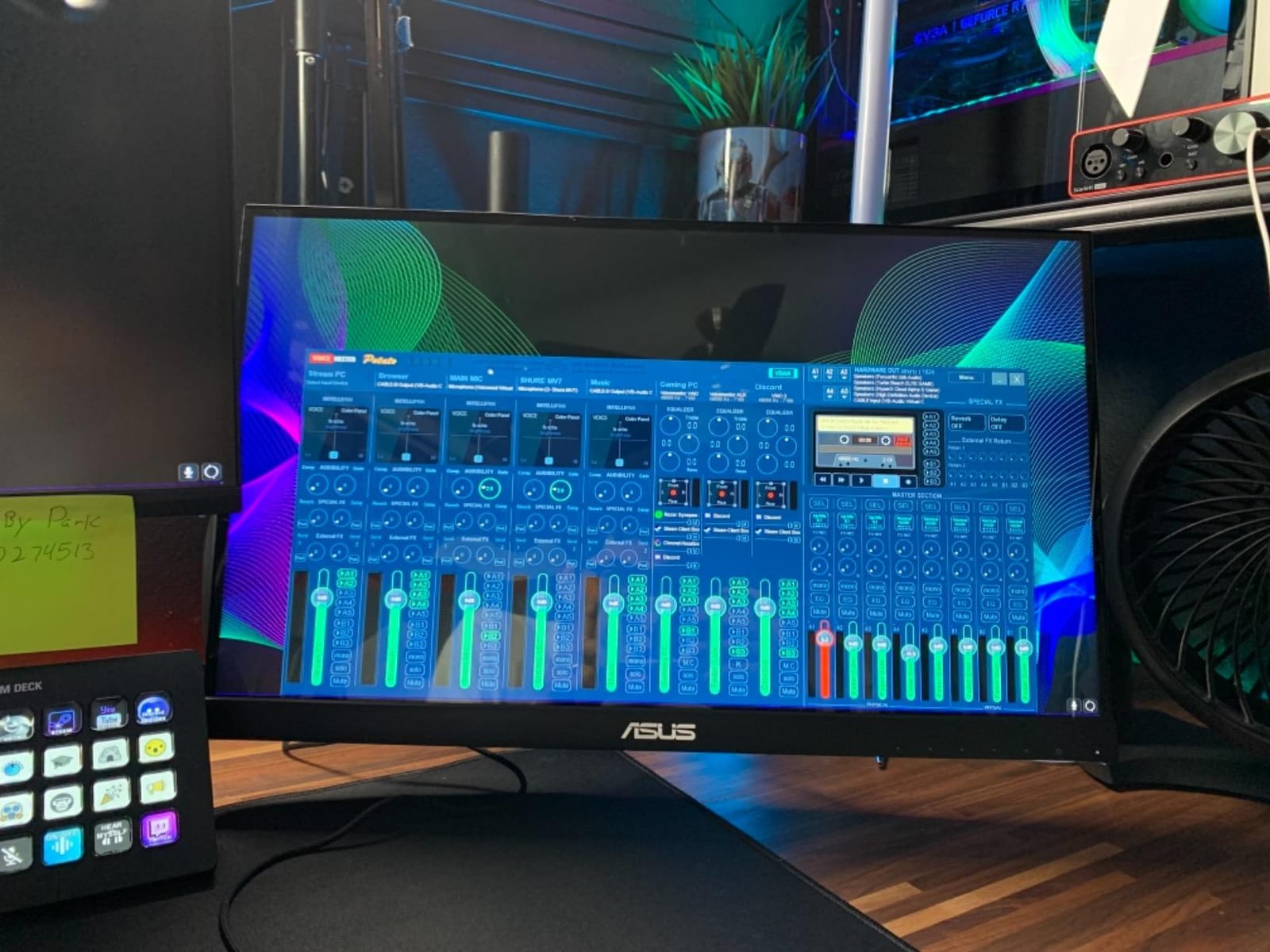
Now the compromises. Connectivity is limited to HDMI and VGA, so there is no DisplayPort and no USB-C video. That rules out a single-cable setup from a modern laptop, and it means you are using HDMI plus a USB cable for touch regardless.
The included cables are roughly three feet, which is short for an arm-mounted panel, so budget for a longer run.
A small number of buyers found touch did not register until drivers were installed, or traced it to a faulty USB cable. The onboard speakers are very quiet even at maximum, so plan on routing audio elsewhere if your kiosk plays anything.
There is no anti-fingerprint coating, which makes long swipes feel less certain on a screen people touch constantly.
Who this suits for a home kiosk
This is the monitor to buy if you are mounting on a wall behind an arm, running a smart home dashboard, or building a control panel for something like a 3D printer or a CNC-style machine at home. The 21.5-inch size is large enough to read from a doorway and small enough not to dominate a room.
It is also the safest pick for anyone nervous about a first build. Three years of warranty, a widely available mount standard, and a long record of owner feedback mean the failure modes are well documented rather than mysterious.
Where it will frustrate you
If you are hoping for one-cable operation from a modern mini PC or a laptop with USB-C only, this is the wrong panel. It is also too small for a shared living-room display where several people need to read a calendar from the sofa.
And if you plan to wall-mount it permanently, buy a longer HDMI and USB cable on day one. The included three-foot leads are fine on a desk and useless on an arm.
2. LG Smart Monitor Swing 32U889SA-W – The Largest Panel and No PC Required
LG Smart Monitor Swing 32U889SA-W 32-Inch 4K UHD (3840×2160) IPS Touchscreen on a Fully Adjustable Wheeled Base HDR10, webOS, Built-in Speaker, HDMI, USB Type-C, Tilt/Height/Swivel/Pivot Stand, White
32 inch IPS
3840 x 2160 at 350 cd/m2
HDR10 and 95 percent DCI-P3
webOS with no PC
Pros
- Largest panel in the group at 32 inches
- 4K resolution holds up from a distance
- Works with no PC thanks to built-in webOS
- Wheeled base with tilt swivel height and pivot
- Three USB-C ports with up to 65W power delivery
Cons
- 46.7 lb and awkward two-person stand assembly
- webOS interface can feel laggy
- Text can look soft up close for the tier
- One-year manufacturer warranty
The webOS platform is the one thing here that lets a kiosk run with no computer behind it. You can load dashboards and streaming apps directly, which removes the Raspberry Pi, the mini PC, and the SD card failure point from the whole project. If you want a display that works when the rest of your network does not, that is worth a lot.
At 32 inches and 4K with 350 cd/m2 brightness, it is also the largest and brightest panel in the group.
Owners using it as a movable smart display rather than a desk monitor highlight how genuinely mobile the setup is: a rolling base plus tilt, swivel, height, and pivot adjustment means you can pull a large touch screen around the house and re-angle it for whoever is standing in front of it.
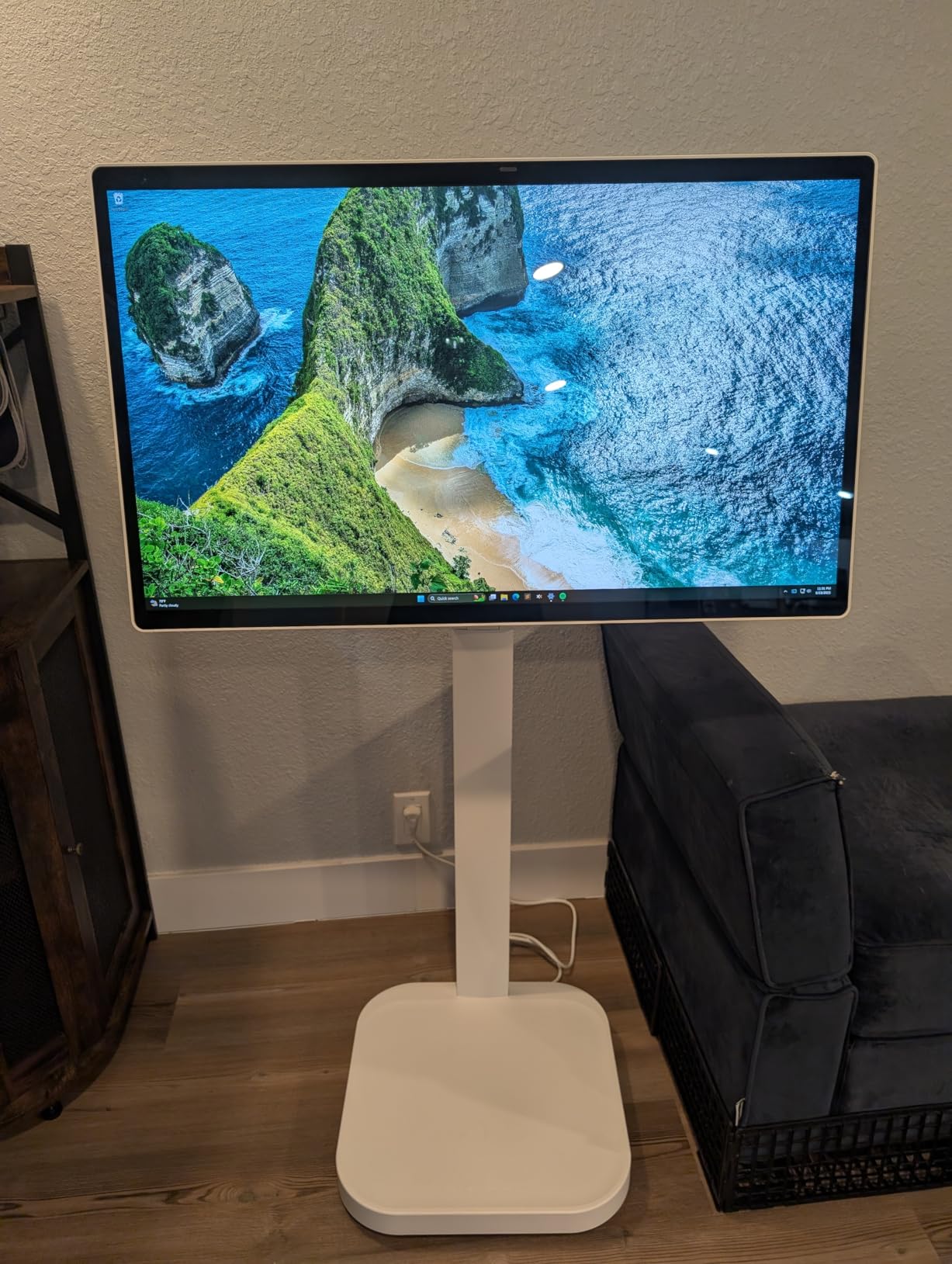
There is real attention to detail for a kiosk build. A hidden adapter compartment keeps the cables concealed so the display still looks tidy when it is rolled into a hallway, and the Switch app splits the screen into up to six sections if you want a dashboard on one side and a calendar on the other.
Three USB-C ports with up to 65W power delivery mean a single cable can carry video, data, and charging to a laptop.
Colour is unusually strong for a touch panel, with up to 95% DCI-P3 coverage and HDR10 support. If your kiosk shows photos, that matters more than it would on a utility dashboard.
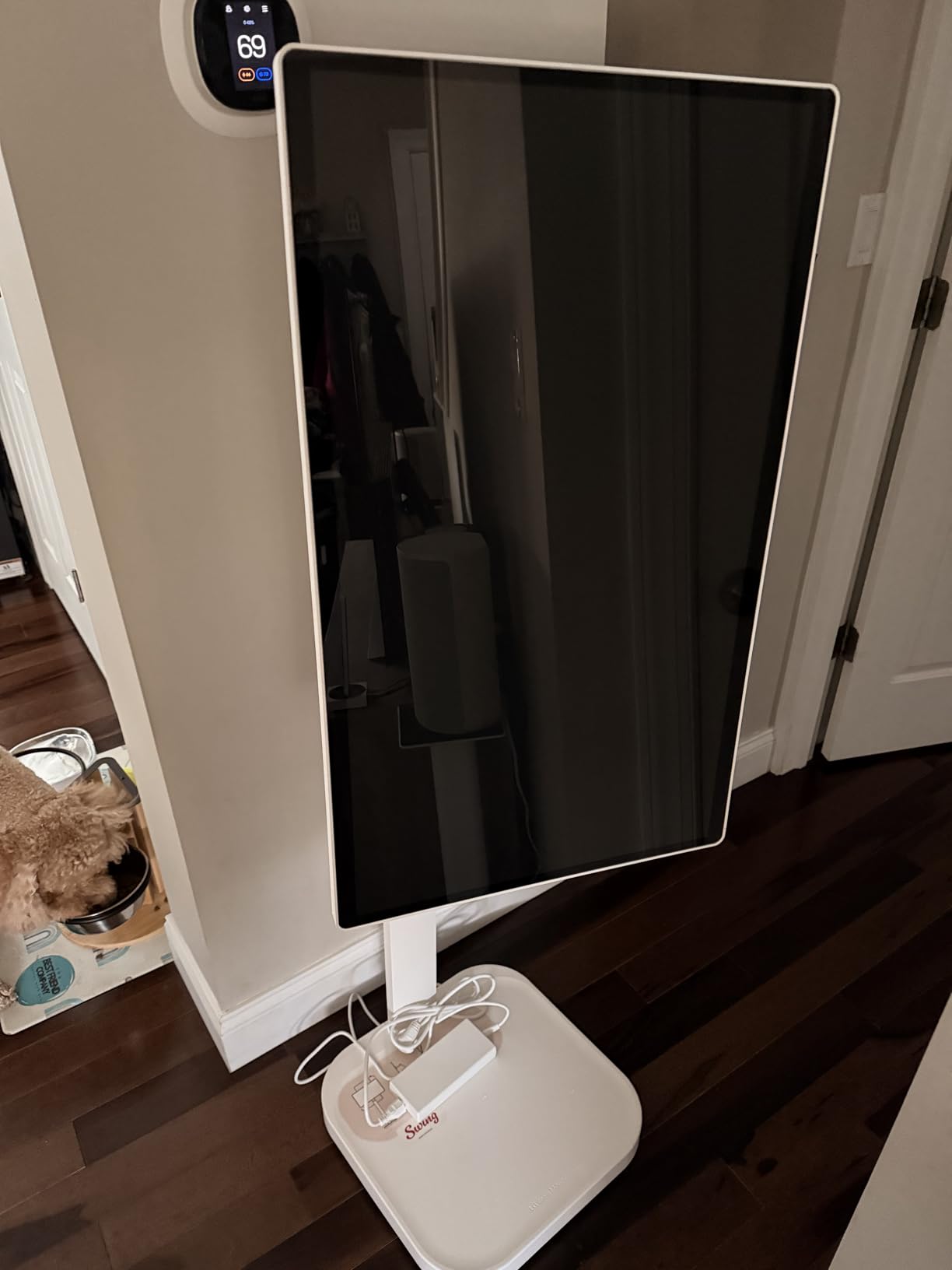
The honest problems are weight and software. At 46.7 pounds, owners describe the stand assembly as a two-person job, and that is a bad start if the panel is going up high on a wall.
The webOS interface can feel sluggish, and it has limited memory for heavy interactive dashboard use, so an extremely busy Home Assistant view may not be its best moment.
There is also a firmware detail worth checking before you commit. One detailed review documents regional models being locked to a non-US content store, so confirm the model code ends in the US .AUS variant. Warranty coverage is one year, the shortest here.
Who this suits for a home kiosk
Pick this one for a large shared display: a living room dashboard, a large digital menu or family calendar, or a movable panel you roll between rooms. The adjustable wheeled base genuinely changes how you use a 32-inch screen, because you are not committed to one wall position.
It also suits anyone who does not want to run a computer. If the idea of maintaining a Raspberry Pi SD card, a kiosk browser, and an auto-start script sounds like more than this project needs, webOS removes the whole layer.
Where it will frustrate you
Do not plan on wall-mounting this without a serious bracket and a second person. The mass is not casual, and the wheeled base is designed for a hard floor, not a countertop or a shelf.
If your dashboard has lots of live-updating tiles, test the webOS performance before you commit. And if you are mounting high or reaching for it repeatedly, a 32-inch panel at that weight becomes an awkward reach every single time.
3. ViewSonic TD2423D 24-Inch Touch Monitor – Built for Constant Touching
ViewSonic TD2423D 24 Inch 1080p Touch Screen Monitor, 10-Point, USB Hub
24 inch LED
1920 x 1080 at 250 cd/m2
10-point infrared touch
7H scratch-resistant glass
Pros
- Infrared touch with no lag drift or recalibration
- 7H glass rated for heavy daily touching
- Built-in USB hub plus HDMI DisplayPort and VGA
- Stable adjustable stand that does not rock
- Three-year parts labour and backlight warranty
Cons
- A few owners received panels with dead touch input
- Some ghost touch reports in high-use settings
- Price often feels high for a home build
- Wide chassis is bulky to carry
The TD2423D uses infrared touch rather than capacitive, and for a home kiosk that gets touched constantly that is arguably the right call.
Infrared panels are not affected by moisture on the surface the way some capacitive panels can be, and multiple owners running kiosks, shipping stations, and machine controls report no lag, no drift, and no recalibration prompts.
The 7H scratch-resistant glass is the other reason this panel has a reputation for surviving. It is designed for a device that people lean on and swipe constantly, which is exactly the category of use most home displays never get tested in.
The stand is stable enough that pressing firmly on the screen does not rock it, and the 178-degree viewing angles hold up in a bright kitchen.
Connectivity is broad for a panel in this group. A built-in USB hub plus HDMI, DisplayPort, and VGA means you can connect a laptop, a desktop, a Mac, or a point-of-sale system without adapters.
It also works out of the box with Linux and Raspberry Pi touch input, which matters if you are driving it from a Pi.
Who this suits for a home kiosk
This is the one for a busy panel. A kitchen hub where the screen gets hit with wet hands, a workshop terminal, or a display that children will touch. Infrared touch plus 7H glass is the most abuse-tolerant pairing here.
It is also a strong choice for Raspberry Pi builds, since owners confirm it recognises touch input on Linux without extra configuration, and the three-year warranty covers parts, labour, and the backlight.
Where it will frustrate you
The recurring negative is a small number of panels arriving with touch that does not work at all, plus scattered ghost touch reports in high-use settings.
That is a minority pattern rather than a systemic one, but it is the reason to buy from a seller with straightforward returns.
For a home build, the price often feels high compared with what you are getting, and the wide chassis is genuinely bulky if you ever need to move it. Screen quality is also reported as poor by a minority of buyers, so if picture quality matters to you, check the panel before committing to a wall.
4. CUNPU 24-Inch 10-Point Touch Monitor – The Smart Home Dashboard Favourite
CUNPU 24″ 10-Point Touchscreen Monitor 1080P IPS Office Business Warehouse
23.8 inch IPS
1920 x 1080 at 220 cd/m2
10-point capacitive touch
100 x 100 mm VESA
Pros
- Accurate multi-touch with no calibration drift
- Bright anti-glare panel under overhead lighting
- Windows plug-and-play with no driver install
- 100 percent sRGB at 75 Hz
- Light enough for a wall arm at 4.15 kg
Cons
- Touch needs the bundled USB-B cable as well as HDMI
- Some panels sleep deeply and will not wake from the button
- Cannot wake a sleeping host by touch
- No built-in speakers and a slightly wobbly stand
This is the panel that shows up again and again in home automation threads, and it is not hard to see why. The 24-inch 1080p IPS screen is the sweet spot size for a dashboard: large enough to read tile labels from across a room, small enough that the whole panel weighs 4.15 kg and can go on a basic wall arm without drama.
Touch accuracy holds up. Owners running these as Home Assistant dashboards and small retail systems report smooth multi-touch with no calibration drift after weeks of use, no dead zones, and no wobble under heavy tapping.
On Windows the touch layer is recognised straight from the box with no driver installation, which removes one of the most common frustrations in this whole category.
The anti-glare finish is the quiet hero for home use. It is the panel that stays readable under harsh overhead lighting, which is the normal condition in a kitchen or a workshop at night. Colour is 100% sRGB at a 75 Hz refresh rate, and a 100 x 100 mm VESA pattern on the back gives you more mounting options than the 75 x 75 mm panels.
For a Raspberry Pi build, the HDMI plus USB-B arrangement is exactly what a Pi expects, and the box includes the power supply, the HDMI cable, and the USB-B cable that carries the touch input.
Now the thing that catches nearly everyone: touch does not work over HDMI alone. The bundled USB-B cable must also be connected, and the documentation does not say so clearly, so a lot of first-time owners conclude the panel is broken. Connect both cables before you judge it.
There is a second, more serious caveat for an always-on build. A number of owners report the panel entering a deep sleep state after a few idle minutes and not waking from the power button, and it cannot wake a sleeping host computer with a touch.
On a dashboard that sits on a wall running Home Assistant all evening, that is a real limitation, and it is worth planning around with a presence sensor that keeps the host awake. There are no built-in speakers, the stand is described by some owners as slightly wobbly, and macOS is not supported for touch.
Who this suits for a home kiosk
This is the pick for a first home kiosk build, especially a Home Assistant dashboard or a wall-mounted control panel where the anti-glare panel earns its keep under kitchen lighting. It is the lightest of the 24-inch options here, which makes arm mounting straightforward.
It is also the one to buy if you want 1080p touch at the lower end of the range without dropping to a 1366 x 768 panel or jumping to a 4K screen. The 75 Hz refresh rate and 100% sRGB also make it a reasonable secondary desktop display if you ever want to type on it.
Where it will frustrate you
If your plan is a wall panel that wakes the moment a finger lands on it, this is the wrong choice. It will not wake a sleeping host, and some examples will not come back from deep sleep at all without a power cycle.
Plan on running the USB-B cable, and skip it if you need audio, since there are no speakers. Mac users should look elsewhere for touch entirely.
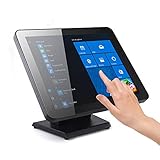
5. ANGEL POS 17-Inch Touch Monitor – The Flush-Glass Countertop Unit
Angel POS 17-Inch Capacitive LED Backlit Multi-Touch Monitor, True Flat Seamless Design Touchscreen, VGA
17 inch LED
1280 x 1024 SXGA
10-point capacitive touch
True flat seamless glass
Pros
- Seamless edge-to-edge glass with no crevices to collect grime
- Plug-and-play touch on Windows with no driver install
- Metal stand stays stable under firm pressing
- 300 cd/m2 suits well-lit rooms
- Compact footprint for a counter or shelf
Cons
- 1280 x 1024 at 17 inches is visibly grainier than Full HD
- Multi-touch zoom cannot be disabled in Windows 10 settings
- Some examples lose touch or power off mid-session
- Stand hardware can fail to thread into the housing
The reason to look at this panel is the glass. It is a true flat, seamless edge-to-edge design with no bezel gap, which means there is nowhere for water, crumbs, or dust to collect. For a kitchen counter display that gets wiped down, that is a genuine practical advantage over every consumer monitor in this roundup.
Brightness is 300 cd/m2, and viewing angles are wide enough for a panel that sits on a counter rather than flat against a wall.
The 10-point capacitive layer is plug-and-play on Windows with no driver install, and the solid metal stand does not tip when you press firmly on the screen, which a lot of lighter stands do.
At 17 inches it is among the most compact options in the group. That makes it a good fit for a shelf, a reception-style nook, or a small wall mounting where a 24-inch panel would crowd the space, and owners in hospitality settings use similar panels for order and menu screens.
Who this suits for a home kiosk
Choose this for a countertop unit that lives near food, steam, or pets. The flush sealed glass is easier to keep clean than any other panel here, and the 300 cd/m2 brightness holds up in a well-lit room.
It is also the right size for a small wall mounting or a shelf-mounted panel where a 24-inch screen would look oversized. If you are building a self-service style check-in or order screen at home, the compact footprint is an advantage.
Where it will frustrate you
Picture quality is the first thing you will notice. SXGA 1280 x 1024 at 17 inches is noticeably grainier than a Full HD panel, and for a dashboard full of small text labels that difference is real rather than cosmetic.
There is a Windows 10 quirk that matters specifically for unattended kiosks: multi-touch cannot be disabled through device settings, so accidental two-finger zoom can break a locked-down display without a Group Policy edit. Some owners also report examples that lose touch function or power off mid-session, and stand hardware that does not thread into the housing without a washer or a tap. Check the mounting fixings before you assume a bracket will fit.
6. GreenTouch 18.5-Inch Open Frame Monitor – For a Built-In, Flush-Mounted Kiosk
GreenTouch 18.5 Industrial Touch Monitor Open Frame, HDMI/VGA/DVI Interface, Muliti Touch Capacitive Touch Screen Technology
18.5 inch open frame
1366 x 768
10-point projected capacitive
IP65 front with IK08 glass
Pros
- Open frame mounts flush into cabinetry or a wall recess
- IK08 vandal-resistant tempered glass behind the touch layer
- IP65 sealed front keeps dust and liquid out
- Highest average rating in the roundup at 4.7
- HDMI VGA and DVI plus audio covers most installs
Cons
- 1366 x 768 looks soft from standing distance
- Needs an accurate cutout and some assembly skill
- No built-in speakers and basic connectivity
- Glossy surface catches reflections in bright rooms
If your home kiosk is going into furniture rather than onto a wall bracket, this is the only genuinely open-frame panel in the group. There is no bezel housing. The panel drops into a cutout in a cabinet door, a wall recess, or a custom enclosure and sits flush, so the touchscreen looks like part of the joinery rather than a monitor screwed to it.
It also has the highest average rating here at 4.7, with a large share of five-star ratings, which tells you the build and touch quality are consistent rather than hit-or-miss.
The touch layer is 10-point projected capacitive in a G+G stack behind 3 mm tempered glass rated IK08, and the front is sealed to an IP65 water-resistant standard. In plain terms: dust cannot get in, splashes will not reach the electronics, and the surface shrugs off impacts.
GreenTouch also rates it to a 50000 MTBF figure after more than 20 reliability tests, and backs it with a two-year manufacturer warranty. Interfaces cover HDMI, VGA, DVI, and audio, which is more than most open-frame panels offer.
Who this suits for a home kiosk
This is for the builder. If you are making a cabinet for a hallway, a recessed niche, or a kitchen unit and you want the screen to look built-in, an open frame is the only honest way to do that. The IK08 glass and IP65 seal also make it the right choice if the panel is near a sink, a workshop, or somewhere a child might hit it.
It is the natural partner for a recessed display in an entryway showing a camera feed or a doorbell status, where a protruding bezel would catch elbows.
Where it will frustrate you
You need to measure your cutout carefully and be prepared to assemble something. An open frame is a component, not a finished monitor, and getting it flush takes accurate cutting and some patience.
Resolution is the other limit. 1366 x 768 on an 18.5-inch panel looks soft from standing distance, which is exactly where a wall kiosk gets read. The glossy surface picks up reflections in bright rooms, and there are no built-in speakers, so any audio has to come from somewhere else.
If you need a finished display today with no fabrication, this is not it.
7. Dragolftie 21.5-Inch Touch Monitor – Full HD With Speakers and a Full Height Stand
21.5 Inch Touchscreen Monitor VA 3000:1 Contrast PC Touch Screen 100% sRGB
21.5 inch VA
1920 x 1080 at 250 cd/m2
10-point multi-touch
Dual 5W built-in speakers
Pros
- Full HD VA panel with 3000:1 contrast and 100 percent sRGB
- Height pivot swivel and tilt adjustment
- Two 5W speakers built in
- 75 x 75 mm VESA with cable management
- Portrait rotation supported
Cons
- Only 39 ratings so the track record is thin
- Touch needs the Type-A to Type-B cable in addition to video
- Touch unsupported on Apple devices gaming devices Linux and XP
- Portrait mode must be set manually
This one stands out for the combination of Full HD resolution and a genuinely adjustable stand. Height, pivot, swivel, and tilt all adjust, so the panel can be set for different users, desk heights, and standing angles, which matters if your kiosk serves a kitchen counter where people approach at different heights.
The VA panel gives 3000:1 contrast and 100% sRGB at 250 cd/m2, which is a higher contrast figure than most panels here. On a dashboard full of dark tiles on a black background, that shows up as crisper separation between elements. There are also two 5W built-in speakers, which mean the panel can play alert sounds or video audio without extra hardware.
On the mounting and tidy-up side you get a 75 x 75 mm VESA pattern plus built-in cable management, and the display supports portrait as well as horizontal mounting. Portrait is genuinely useful for a door list, a floor plan, or a vertically scrolling menu.
The 75 Hz refresh rate keeps scrolling smooth, and the low blue light and flicker-free handling are welcome on a panel that stays lit all evening.
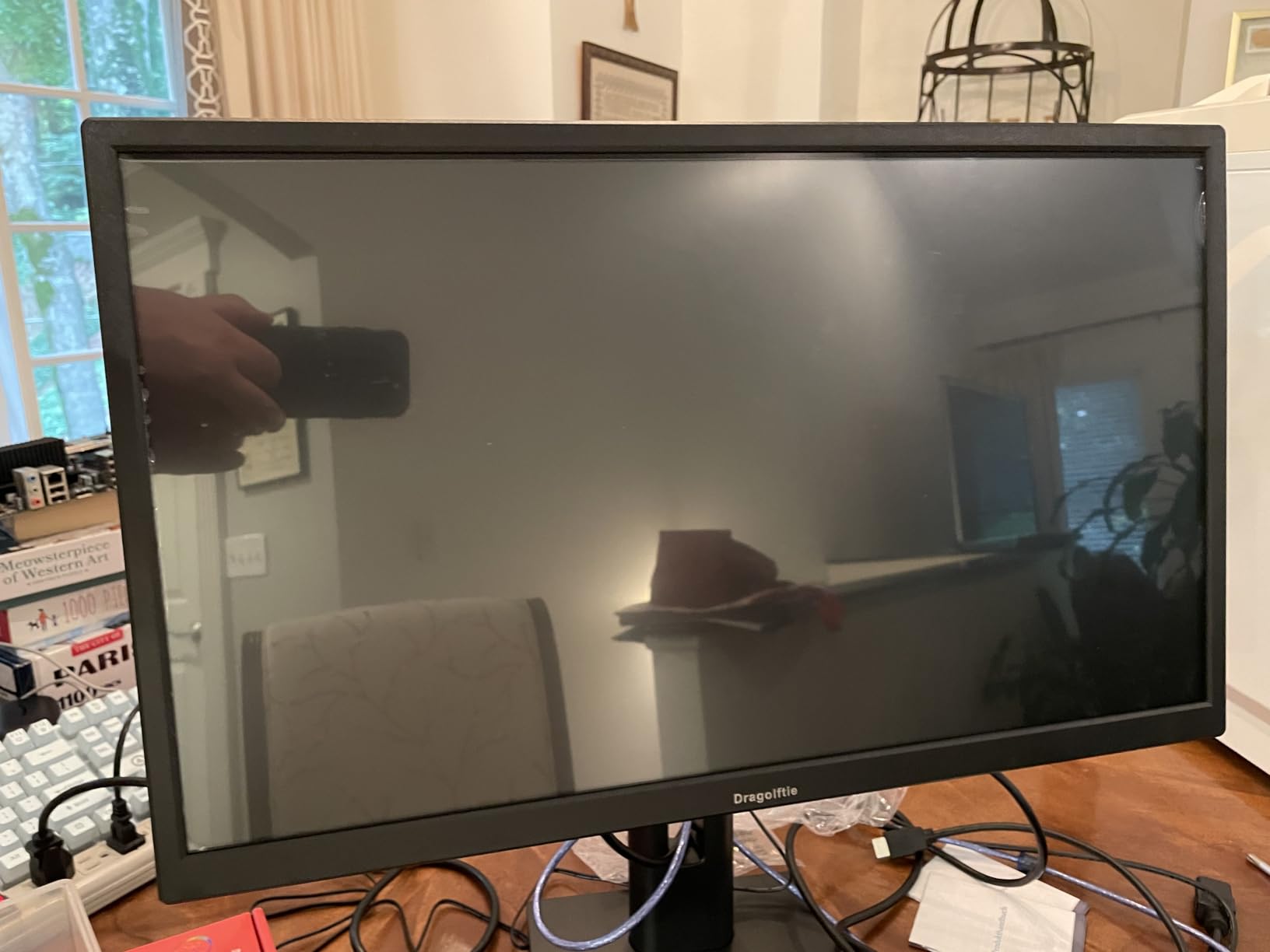
Be clear-eyed about the evidence, though. With 39 ratings this is the least-proven panel in the roundup, and that is exactly why it is the budget pick rather than a recommendation for a panel you cannot easily reach.
Touch also needs the Type-A to Type-B cable in addition to the video cable, and there is a long list of systems it will not work on: Apple devices, gaming devices, Linux, and XP are all unsupported for touch. That rules it out for a Raspberry Pi kiosk, since Raspberry Pi runs Linux.
One more setup note: the screen ships with a protective film that has to be peeled off before first use, with a folded corner to help you find it. Portrait mode has to be selected manually in display settings because there is no automatic rotation.
Who this suits for a home kiosk
This fits a shared counter or reception-style spot where more than one person of different heights uses the same screen, because the stand adjusts in every direction. The built-in speakers make it the pick if your kiosk needs audio, such as a timer, a recipe player, or a doorbell alert feed.
It also works well as a standard 21.5-inch Full HD touch display that happens to have a stand, so you are not locked into a kiosk build if you later want it on a desk.
Where it will frustrate you
It will not do touch on Linux, which rules out Raspberry Pi and most kiosk distributions. The thin review history also means you are relying on early feedback rather than a long record of long-term reliability, and that is a real consideration for a panel you cannot easily swap out.
Portrait rotation needs manual setting each time the display configuration changes, and the glossy surface is not ideal in a sunlit room. If you need Linux touch or a proven long-term panel, one of the higher-reviewed 24-inch options is the better bet.
How to Choose a Touchscreen Monitor for Your Home Kiosk
How big should a home kiosk screen be?
Start with how far away someone will stand, not with the size of your wall.
For a kitchen hub or hallway panel read at arm’s length, 15 to 19 inches is the working range. For a dashboard or calendar read from across a room, 21 to 24 inches is the sweet spot, because Full HD stays crisp at that size.
Above 27 inches, move to 4K or accept that small text will be hard to read. Below 15 inches, you are into switch-plate territory, which is a sourcing problem rather than a monitor problem.
Which touch technology should you pick?
Projected capacitive for a normal home build, infrared for a panel that takes heavy use or moisture, and avoid resistive unless you specifically need gloved or stylus operation and can live with single-touch. All seven monitors here are 10-point, so multi-touch is not a differentiator at this level.
Which computer should drive the display?
For a Home Assistant or general Linux build, a Raspberry Pi 4 or 5 with the bundled USB touch cable is the classic answer, and several panels here are confirmed working with Pi touch input. A small fanless mini PC is the upgrade if you want more headroom, faster page loads, or a Windows machine that also does other work.
On Windows, any of these panels works, though the ASUS and ViewSonic have the longest warranty coverage. On macOS, touch support is patchy: ViewSonic provides a vTouch driver for Macs, and one panel in this group explicitly does not support macOS touch at all. If your kiosk computer is a Mac, check that before buying anything.
For an Android dashboard, an Android box plus a Bluetooth or HDMI connection works, and the LG is the one panel here that runs without any computer at all thanks to its built-in webOS.
How do you keep the screen from sleeping?
This is the single most common frustration in home automation forums, so treat it as part of the build rather than an afterthought. Four steps cover most cases.
Lock the interface with kiosk-mode software. Fully Kiosk Browser is the tool most people in the Home Assistant community use, and it can be controlled remotely over MQTT or REST. There are free alternatives, and some of the setups people are running cost nothing.
Disable sleep, screensaver, and screen blanking in the host operating system, not just on the monitor. On Windows this is in the power and display settings; on Linux it is in the power management configuration.
Add a motion or presence sensor so the display wakes when someone approaches. This cuts power use and is the approach most home builders settle on.
Check the panel’s touch-to-wake behaviour before you finish. One monitor in this group cannot wake a sleeping host with a touch, and some examples will not come back from deep sleep at all.
Monitor or tablet: which should you use?
Home Assistant users overwhelmingly start with a cheap Fire tablet or Lenovo tab, and for a low dashboard that works well.
The argument for a proper monitor becomes strong when you want a wall-mounted panel above eye level, a size people can read from a distance, and a VESA mount. The argument against is touch responsiveness: a tablet has a faster, smoother touch layer and a far more capable processor for the same money, and it is easier to hide or remove when you do not want it on the wall.
The practical answer is that a tablet is the better first attempt and a monitor is the better final fixture. If you are not sure your project will survive contact with daily life, test it on a tablet before you cut a hole in a cabinet.
Cleaning and fingerprint maintenance
A capacitive screen at a home kiosk will collect fingerprints faster than any other surface in the room, and reviewers specifically note the absence of an anti-fingerprint coating on some panels.
A routine keeps it manageable: power down or lock the display, wipe with a microfibre cloth slightly dampened with water or a 70% isopropyl solution, and never spray liquid directly onto the screen. Avoid ammonia-based cleaners and anything abrasive. The sealed and flush-glass designs in this group are noticeably easier to keep clean because there is no bezel gap for grime to lodge in.
Should you consider a touchscreen monitor for elderly parents?
Large touch targets, clear labels, and no keyboard requirement make a home kiosk genuinely useful for older relatives checking the calendar, the weather, or a video doorbell feed. Two adjustments matter more than the panel choice: pick a size that can be read at their usual viewing distance, and avoid glossy screens that catch reflections, since glare is harder for older eyes to cope with. A 24-inch Full HD panel in a well-lit room is the safe starting point.
While you are planning the setup, a few other household maintenance tasks are worth writing down at the same time. Our guide to sharpening kitchen knives at home and our acne extraction tool guide both cover tools you will keep near the same room.
Frequently Asked Questions
What are the downsides of using a touch screen?
The main drawbacks are fingerprints, glare on glossy panels, and no physical keyboard fallback. Multi-touch zoom can also trigger accidentally on unattended kiosks, and some budget panels will not wake a sleeping computer with a touch.
How big is a kiosk screen?
For a home kiosk, 15 to 19 inches works at arm’s length, 21 to 24 inches reads well from across a room, and 27 inches or more needs 4K resolution to stay sharp. Most home builds settle on a 21.5-inch or 24-inch Full HD panel.
What is the cheapest touch screen monitor available?
Small capacitive touch panels under 20 inches are the lowest cost option, but most home builders spend more to reach 1080p at 21.5 inches or 24 inches, where the monitor is also light enough for a wall arm.
What is the best operating system for digital signage?
Linux with a Raspberry Pi or mini PC gives the most control and runs kiosk browsers well, and is the usual choice for Home Assistant dashboards. Windows works if you need existing software, and some monitors with built-in webOS run signage with no computer at all.
Can touch screens work with gloves?
Many capacitive panels respond to thin gloves but struggle with thick ones. Infrared touch panels handle gloves more reliably because they detect an interruption in a light grid rather than a change in capacitance, which is one reason to choose infrared for a workshop or utility panel.
What is the difference between consumer and commercial touch screens?
Commercial panels use sealed fronts, IK08 impact glass, IP65 dust and water resistance, and cooling designed for continuous duty, usually with three-year warranties. Consumer monitors are lighter, cheaper, and rated for shorter daily use, which is often enough for a home display.
What is an open-frame touch screen monitor?
An open-frame monitor is a bare panel with no bezel housing, built to be embedded into a cabinet door, wall recess, or custom kiosk enclosure so the screen sits flush. It looks built-in and is harder to damage, but it requires an accurate cutout and some assembly.
Why is 4K resolution better for kiosks?
A 4K panel packs more pixels into a larger screen, so text and dashboard labels stay sharp when the display is 27 inches or more and read from a distance. Below about 27 inches, 1920 x 1080 is already crisp and 4K adds cost without a visible benefit.
The Verdict on Home Kiosk Touchscreens in 2026
The ASUS VT229H is the best touchscreen monitor for kiosk use at home in 2026. It combines 10-point touch, a sharp 1080p IPS panel, a widely available 75 x 75 mm VESA mount, a three-year warranty with advance replacement, and far more owner reviews than anything else we looked at. It is the panel we would put on a wall and stop thinking about.
Pick the LG Smart Monitor Swing if you want a large 4K display that runs without a computer. Pick the CUNPU 24-inch for a lightweight, anti-glare smart home dashboard, and the ViewSonic TD2423D if the panel takes constant touching. For a flush-mounted build, the GreenTouch open frame is the only real option, and the ANGEL POS 17-inch wins on sealed glass at a countertop.
Whichever you choose, sort the software side first: lock the interface, disable sleep, and add a presence sensor. A home kiosk that behaves itself is worth far more than a slightly sharper panel.
While you are setting up the kitchen and hallway, our guide to trimming a dog’s nails safely at home is another task that goes better with the right setup in place.