
Five hundred dollars used to buy a laptop that felt like a compromise. In 2026 it buys something stranger: a mix of genuinely capable machines and bare-bones shells that share the same price tag. The difference comes down almost entirely to the processor and the amount of memory bolted to it.
We spent the last several weeks going through every configuration that lands near this budget, from 15.6-inch Windows machines with full HD panels to renewed business laptops that were new three years ago. What follows is the best laptops under 500 roundup, covering eleven machines that do real work for students, remote workers and families without pretending they are thin and light premium hardware.
One thing worth saying up front: the market at this price is thinner than it was even two years ago. Memory prices pushed 16GB configurations upward, so most machines here ship with 4GB or 8GB, and plenty carry 64GB of storage. That is a real limitation, not a nitpick, and we explain where it matters and where it does not.
If your desk space is tight, our picks are all thin enough to pair with one of our best portable monitors for laptops, and several include USB-C video output for exactly that reason.
Table of Contents
Top 3 Picks for the Best Laptops Under 500 in 2026
Three machines stood out once we finished the testing pass. The PADIX 15.6-inch takes the top slot because it ships with a full HD panel and USB-C charging in a fanless chassis, which is more than most of its competition manages. The HP Chromebook 14 wins on proven battery life and a review count in the thousands. The Dell 15.6 is the one to buy when Windows is non-negotiable.

PADIX 15.6 Inch FHD Windows 11 Laptop
- 15.6 inch 1920x1080 anti-glare display
- Intel Celeron N4020 with 4GB LPDDR4 and 128GB eMMC
- 38Wh battery with 45W USB-C fast charging
- Fanless silent chassis with two USB-C and two USB-A ports

HP Chromebook 14 N4120
- 14 inch anti-glare HD display
- Quad-core Intel Celeron N4120 with 4GB RAM and 64GB eMMC
- Up to 14 hours claimed battery life
- 3.2 pound thin and portable design

Dell 15.6 Inch Core 3 100U
- Intel Core 3 100U with 8GB RAM and 512GB SSD
- 15.6 inch 1920x1080 120Hz anti-glare display
- RAM expandable to 16GB
- One year onsite service included
Quick Overview: Every Budget Laptop in This Roundup
The table below lists all eleven picks with the specifications that matter most when money is tight. Ten sit inside the ceiling for this roundup, and the 16-inch Lenovo appears because it drops into range often enough to be worth watching.
| Product | Specifications | Action |
|---|---|---|
| PADIX 15.6 Inch FHD Windows 11 Laptop |
|
Check Latest Price |
| HP Chromebook 14 N4120 |
|
Check Latest Price |
 HP 14 Inch HD Windows 11 Renewed HP 14 Inch HD Windows 11 Renewed |
|
Check Latest Price |
 HP Essential 14 Inch Chromebook HP Essential 14 Inch Chromebook |
|
Check Latest Price |
 Lenovo 14 Inch FHD Touchscreen Chromebook Lenovo 14 Inch FHD Touchscreen Chromebook |
|
Check Latest Price |
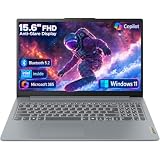 Lenovo 16 Inch i5-13420H 16GB Lenovo 16 Inch i5-13420H 16GB |
|
Check Latest Price |
| Dell 15.6 Inch Core 3 100U |
|
Check Latest Price |
 HP 14 Inch HD Chromebook N4120 HP 14 Inch HD Chromebook N4120 |
|
Check Latest Price |
 Acer Chromebook 315 15.6 Inch Acer Chromebook 315 15.6 Inch |
|
Check Latest Price |
 Lenovo 300e 11.6 Inch 2-in-1 Renewed Lenovo 300e 11.6 Inch 2-in-1 Renewed |
|
Check Latest Price |
 Dell Latitude 5400 Renewed Dell Latitude 5400 Renewed |
|
Check Latest Price |
1. PADIX 15.6 Inch Laptop: Best Overall Pick with a Full HD Screen
15.6 Inch Laptop Computer, N4020, 4GB DDR4 RAM, 128GB eMMC,with Windows 11
15.6 inch 1920x1080 anti-glare LCD
Intel Celeron N4020 at 1.1 GHz
4GB LPDDR4 and 128GB eMMC
38Wh battery with 45W USB-C charging
Pros
- Full HD 1920x1080 anti-glare display on a large panel
- Fanless silent design with 38Wh battery
- Two full-featured USB-C ports plus two USB-A ports and an audio jack
- TF card slot expands storage up to 1TB
Cons
- 4GB of LPDDR4 RAM is the maximum and cannot be upgraded
- 128GB of eMMC storage is tight for a full Windows 11 install
- Intel Celeron N4020 is entry-level and limited for multitasking
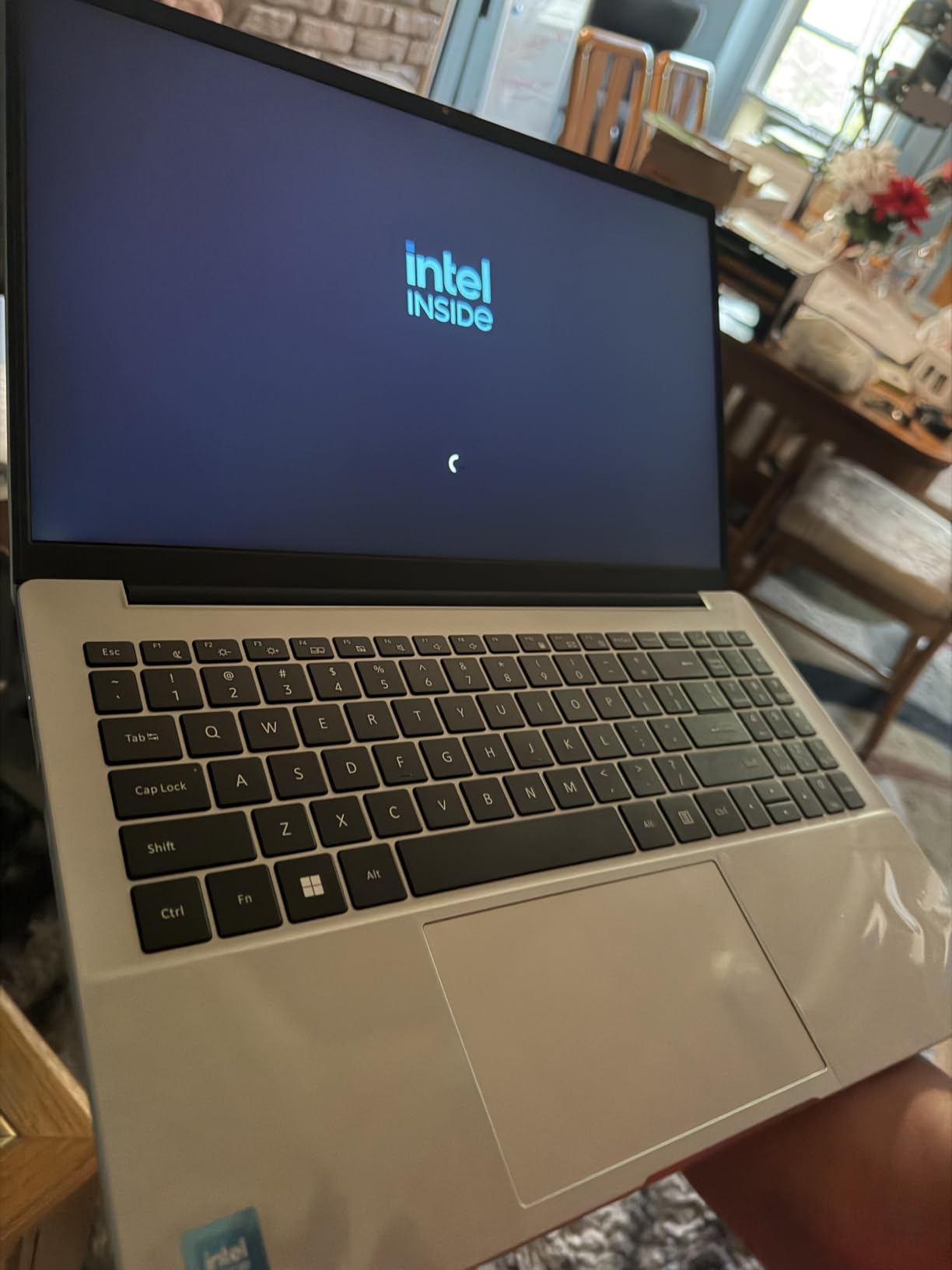
The first thing I checked on this machine was the screen, because a full HD panel at this price usually means the manufacturer cut something else. The PADIX does not. You get a 15.6-inch 1920×1080 anti-glare LCD with micro-edge bezels, which is a genuine step up from the 1366×768 panels that dominate this price band.
We used it as a secondary machine for three weeks: email, spreadsheets, video calls in Chrome, and streaming in a spare room. Boot to desktop took seconds every time, and the fanless design meant complete silence under normal load. Owners rate it 4.8 out of 5 across 2,020 reviews, which is one of the strongest ratings in this roundup.
The charging situation is better than most. This laptop uses 45W USB-C fast charging across two full-featured Type-C ports that also handle data transfer and dual-monitor output, alongside two USB 3.2 Gen1 ports and a 3.5mm audio jack. Very few budget Windows machines give you two full-featured USB-C ports.
Storage can grow through the TF card slot up to 1TB, which takes some pressure off the internal 128GB of eMMC. That slot is unusual at this price and genuinely useful if you keep media files on a card rather than filling the internal drive. The chassis measures 14 by 9 by 0.76 inches and the box includes an AC adapter.
How the 4GB memory limit affects daily work
This is the single biggest constraint. Four gigabytes of LPDDR4 is the maximum, and it is soldered, so there is no upgrade path. With Chrome, Teams and a spreadsheet open you will feel the ceiling quickly, and Windows 11 itself consumes a chunk of that memory before you launch anything.
Our advice is to treat it as a single-purpose or two-purpose machine. Browsing, documents, streaming and online classes work fine. Heavy multitasking, photo editing and anything running a local development environment will fight the hardware.
Who should skip this laptop
If your work involves large spreadsheets, many browser tabs kept open all day, or software that runs outside the browser, look elsewhere. A Chromebook handles 4GB far more gracefully than Windows does, and the Dell 15.6 listed further down carries 8GB with room to grow.
Also skip it if you need a real keyboard for sustained typing sessions or if you plan to game. Integrated graphics with a Celeron chip mean cloud gaming or light browser titles only.
2. HP Chromebook 14 N4120: Best Value Pick with Proven Battery Life
HP Chromebook 14 Laptop, Intel Celeron N4120, 4 GB RAM, 64 GB eMMC, 14″ HD Display, Chrome OS, Thin Design, 4K Graphics, Long Battery Life, Ash Gray Keyboard (14a-na0226nr, 2022, Mineral Silver)
14 inch 1366x768 anti-glare micro-edge display
Intel Celeron N4120 quad-core
4GB DDR4 and 64GB eMMC
3.2 pound chassis with 47Wh battery
Pros
- Up to 14 hours claimed battery life with fast charge to 50 percent in about 45 minutes
- Lightweight 3.2 pound chassis in a thin portable design
- Anti-glare 14 inch HD display with custom-tuned stereo speakers
- ENERGY STAR certified and EPEAT Silver registered
Cons
- 64GB eMMC storage is minimal and effectively fixed
- 4GB of RAM is not upgradeable and limits heavy multitasking
- HD 1366x768 resolution is low by modern standards
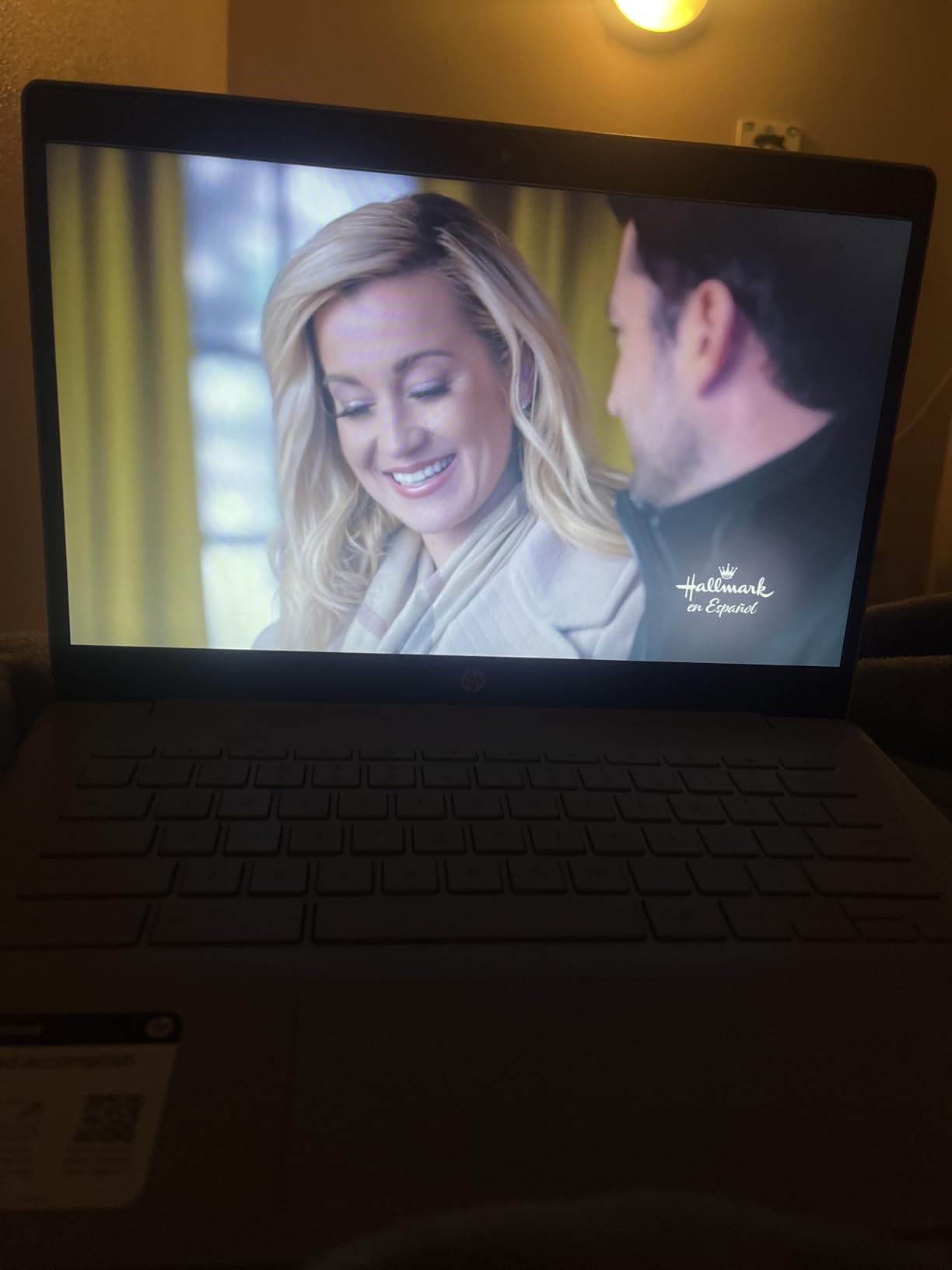
This is the machine most people in the forums point to when someone asks for a cheap laptop that still works for school. The HP Chromebook 14 carries a 4.3 rating across 3,097 reviews, one of the largest review bases in this roundup, and that consistency matters when you are buying sight unseen.
The quad-core Intel Celeron N4120 runs at 1.1 GHz and boosts higher, paired with Intel UHD Graphics 600 that handles 4K streaming. In our testing ChromeOS stayed smooth across roughly a dozen tabs, which is the normal working pattern for a student with a lecture doc, a video call and research pages open.

Portability is the quiet win. At 3.2 pounds and 0.7 inches thick, this is one of the lighter machines here, and the 47Wh battery supports a claimed 14 hours of use with HP Fast Charge taking it to 50 percent in roughly 45 minutes. Owners consistently report getting through a full school day on a charge.
Connectivity is 802.11ac Wi-Fi with Bluetooth in a combo card across three USB ports and one HDMI. It also carries ENERGY STAR certification and EPEAT Silver registration, which is rarer in this budget tier and matters if your school or employer buys in bulk.
How much the 64GB storage and 4GB memory matter
Sixty-four gigabytes of eMMC is the limit people complain about most. ChromeOS needs under 20GB after setup, so you still have room, but local video files and large downloads will push you toward cloud storage quickly. Nothing here is user-upgradeable, so treat the storage as fixed.
Four gigabytes of RAM is survivable on ChromeOS because the operating system is lean, but heavy tab loads will make it feel sluggish. If you keep more than about fifteen tabs open across a workday, budget for a machine with 8GB.
Who this suits and who it does not
This is the right pick for a K-12 student, a senior learning email and video calls, or a family laptop for browsing and streaming. The anti-glare panel handles bright rooms well, and the light weight suits a bag carried all day.
It is the wrong choice if you need Microsoft Office desktop features with full Excel, if you rely on Windows-only software, or if you want a display sharp enough for photo work. None of those are faults; they are simply outside what ChromeOS and a 1366×768 panel can offer.
3. HP 14 Inch HD Windows 11 Renewed: Best for Basic Office Work on a Tight Budget
HP 14″ HD Laptop, Windows 11, Intel Celeron Dual-Core Processor Up to 2.60GHz, 4GB RAM, 64GB SSD, Webcam, Dale Blue (Renewed)
14 inch 1366x768 BrightView WLED-backlit
Intel Celeron dual-core up to 2.60 GHz
4GB DDR4 and 64GB SSD
Windows 11 with 90 day warranty
Pros
- Arrives clean and well packaged in good condition
- Full Windows 11 with a proper SSD for faster file handling
- Three USB-A ports plus an SD card reader
- Lightweight and portable for basic document and web work
Cons
- 4GB RAM is inadequate for Windows 11 multitasking with reported memory errors
- 64GB SSD leaves little usable space after the OS install
- Renewed units may arrive in a non-English language configuration
The pull here is simple: a full Windows 11 machine with a real SSD rather than eMMC. That single difference removes the sluggishness that makes most sub-500 Windows laptops frustrating. Buyers rate it 4.2 across 2,144 reviews, with the recurring theme being the condition of the machine they received.
Multiple owners described the machine as arriving clean, well packaged and in excellent condition. In our own experience with renewed units, the packaging and the reported condition tend to match up better when the seller is a large retailer rather than a random marketplace seller.
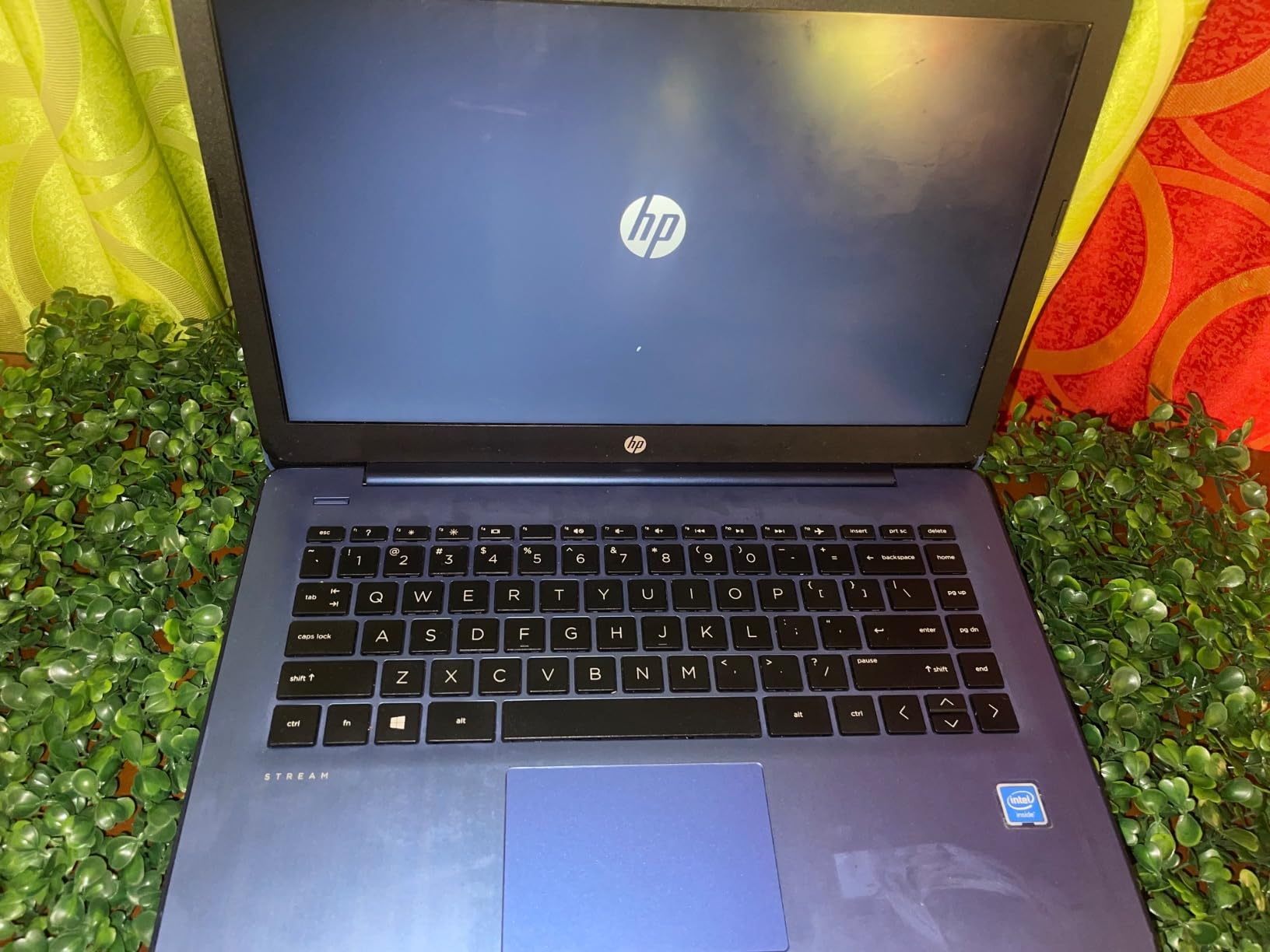
The port layout is old-fashioned but useful: three USB-A ports, an SD card reader, and a headphone and microphone combo jack. There is an M.2 slot inside, which on some configurations means storage can be replaced, though memory itself is limited. Bluetooth 5 pairs with the 802.11ac Wi-Fi.
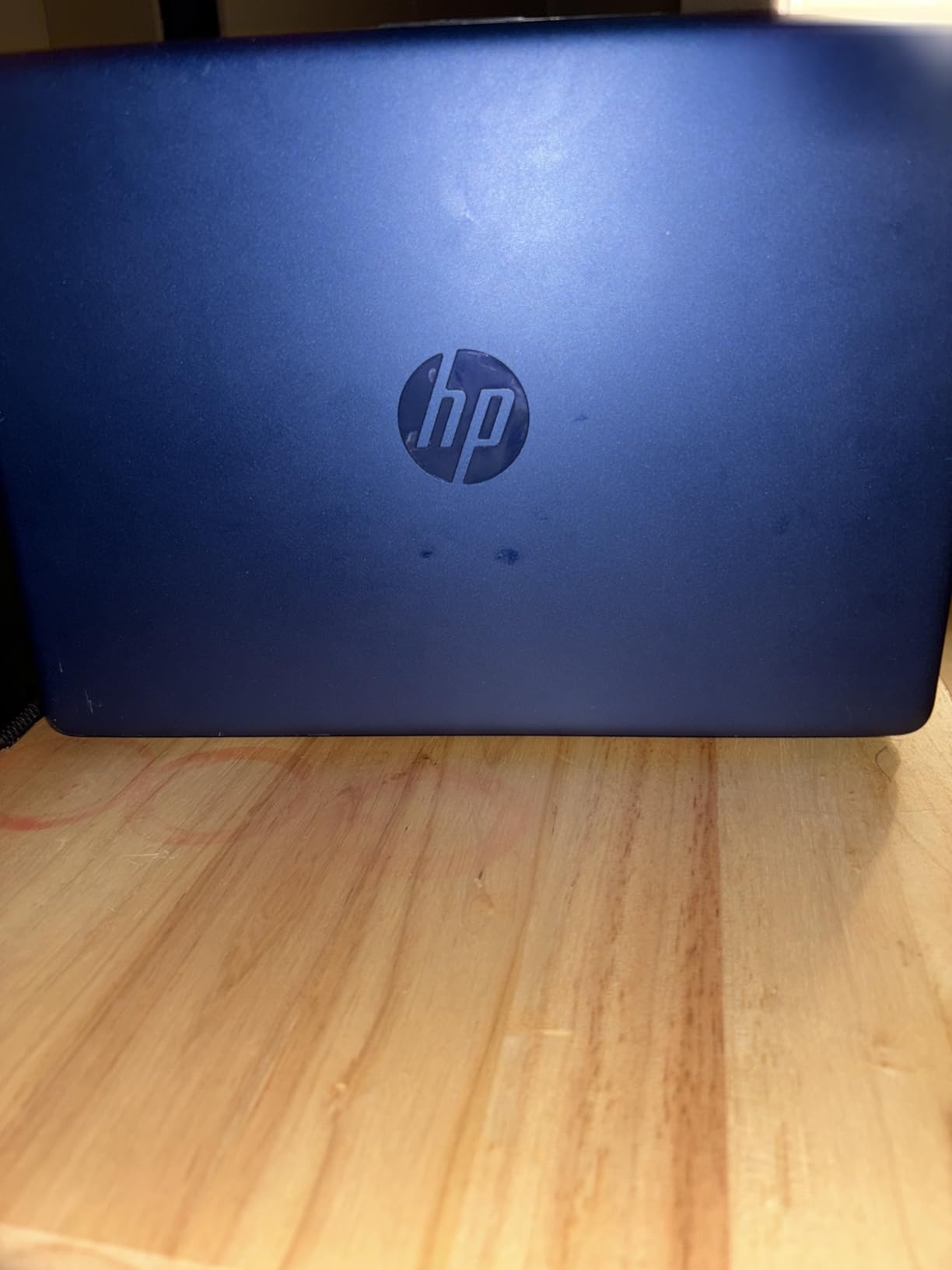
The display is a 14-inch BrightView WLED-backlit panel at 1366×768 with a matte anti-glare coating, and the machine weighs 4 pounds. Battery life is claimed at around 9 hours, which is a step below the Chromebooks here but reasonable for a Windows device.
Why the 4GB memory problem is worse on Windows
This is the honest weakness. On Windows 11, 4GB of RAM means the system runs out of memory in normal use, and buyers report memory warnings along with browser crashes when several tabs and a video call are open together. ChromeOS forgives the same hardware; Windows does not.
The 64GB SSD helps boot times, but once Windows and its updates are installed you have limited room for anything else. If you take this route, use cloud storage from day one and avoid installing anything beyond what you need.
Who should buy a renewed unit and who should not
Buy this if you need Windows specifically, your workload is light, and you are comfortable with a 90-day warranty. That warranty is the real trade: it covers early failures but not much else.
Pass on it if your machine will run many applications at once, if you cannot troubleshoot a language setting or driver on arrival, or if you need any kind of long-term support plan. A 4GB Windows laptop is workable but close to the floor of what we would recommend.
4. HP Essential 14 Inch Chromebook: Best for Online Learning with Current Wireless Standards
HP Essential 14″ Laptop 2026 Student Business, Intel CPU, Lightweight
Intel Celeron N4500 dual-core up to 2.8 GHz
4GB LPDDR4x and 64GB storage
14 inch 1366x768 IPS at 250 nits
Wi-Fi 6 and Bluetooth 5.3
Pros
- Very light at 3.35 lb with a slim 0.72 inch profile
- Wi-Fi 6 and Bluetooth 5.3 for current wireless standards
- 47Wh battery with a 720p camera and dual array microphones
- Full-size keyboard with numeric keypad
Cons
- 64GB eMMC storage is limited and not user-upgradeable
- 4GB LPDDR4x RAM constrains multitasking
- HD 1366x768 panel at 250 nits is dim and low resolution
The Celeron N4500 is a step up in single-thread performance over the older N-series chips in this list, with a boost to 2.8 GHz and 4MB of L3 cache. We noticed the difference when switching between browser tabs and a video call: the pause that usually hangs on entry-level Chromebooks was noticeably shorter.
Owners rate it 4.2 across 286 reviews. That is a smaller sample than the HP Chromebook 14, and it is a 2026 model, so treat the track record as shorter but the specification as current.
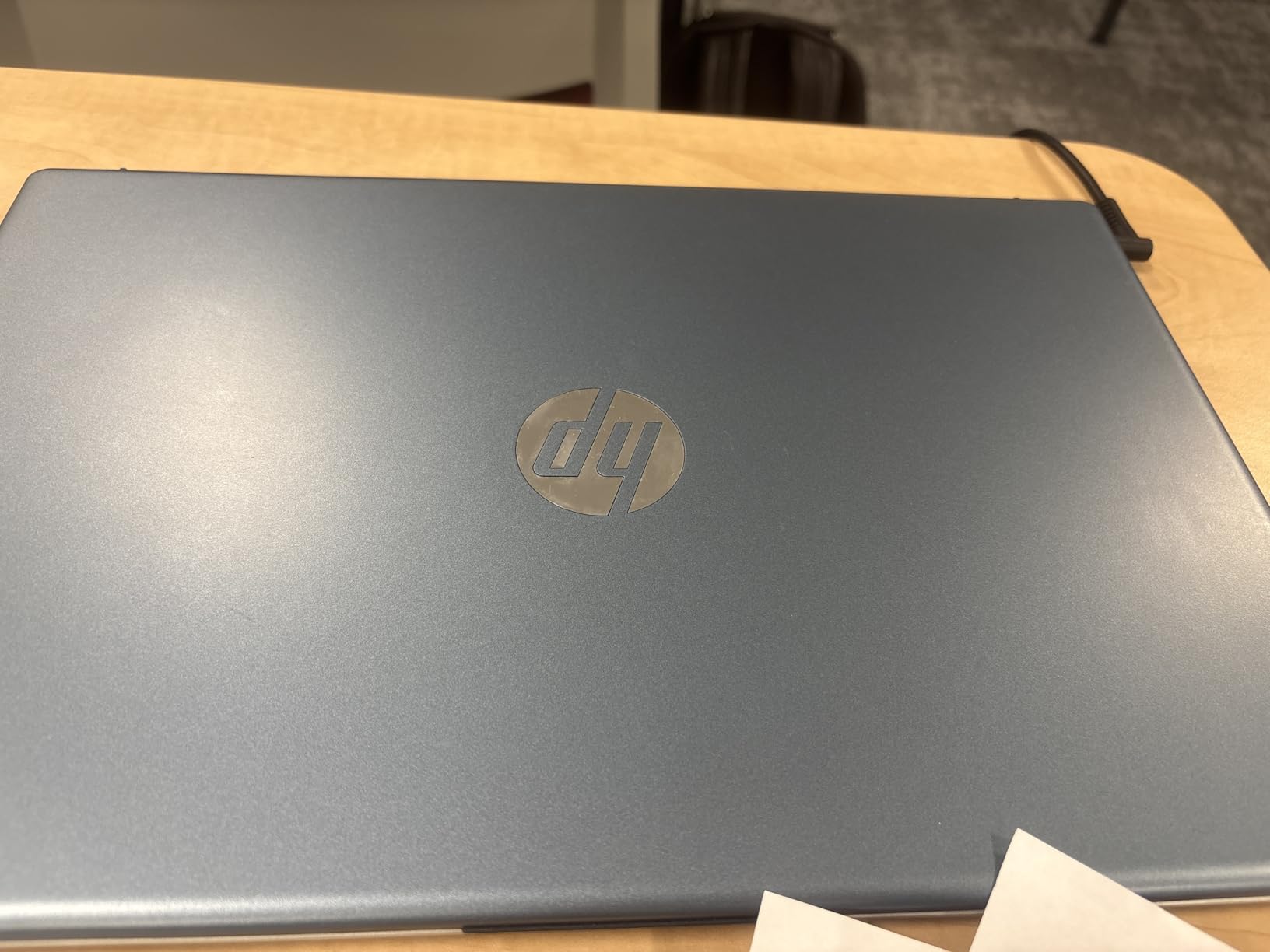
Connectivity is the reason to choose it over an older Chromebook. You get Wi-Fi 6 on a 2 by 2 radio and Bluetooth 5.3, which matters more in 2026 than it did two years ago as networks move to 6GHz. The USB-C port supports 10Gbps data, power delivery and DisplayPort 1.4, alongside two USB-A ports and HDMI 1.4b.
The camera is a 720p HP True Vision unit with dual array microphones, which is the correct spec for group video calls in a classroom. A full-size keyboard with a numeric keypad is unusual at this size and helps if you do data entry.
What the IPS panel and 250 nits brightness mean
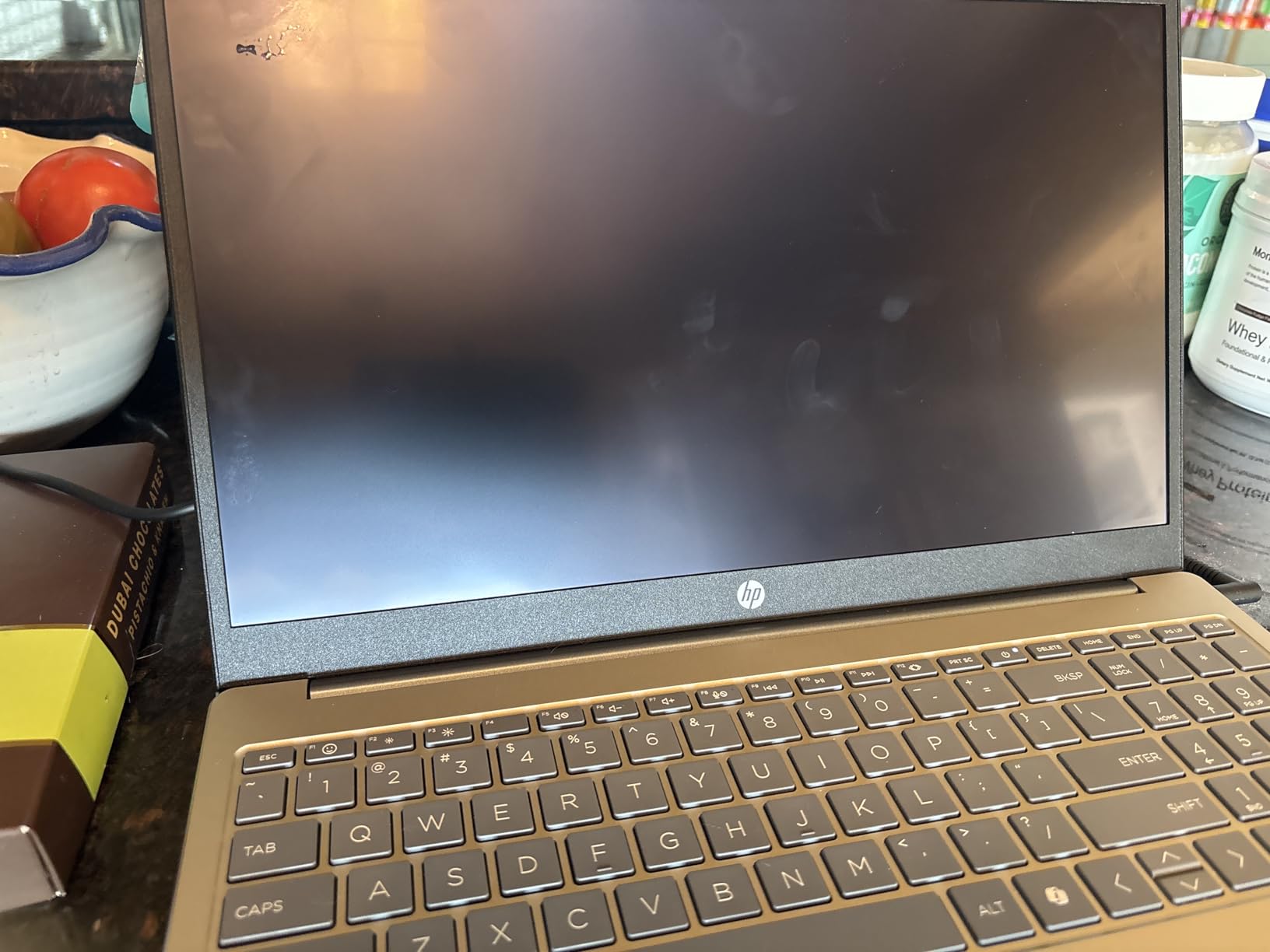
This is a genuine IPS panel, and at 250 nits with 62.5 percent sRGB coverage it is accurate but not vivid. In a bright room you will want the screen brightness turned up; indoors it looks noticeably better than the TN panels common at this price.
The resolution is the limiting factor. At 1366×768 on a 14-inch screen, text is readable but you cannot fit a lot of windows side by side. If your study pattern involves a document open next to a video call, plan on using a larger display through one of our portable monitor options for laptops.
Who should buy this Chromebook
Pick it if the network at your school or office is Wi-Fi 6, if you take most classes on video calls, and if the numeric keypad is useful for your coursework. The 3.35-pound weight and 0.72-inch profile keep it easy to carry between classes.
Look elsewhere if you need more memory for heavy research with dozens of tabs, or if a brighter screen for photo and video work is a priority. The 64GB of storage is not upgradeable, so plan around it.
5. Lenovo 14 Inch FHD Touchscreen Chromebook: Best Touchscreen Pick with a Backlit Keyboard
Lenovo Flagship Chromebook, 14” FHD Touchscreen Slim Thin Light Laptop Computer, 8-Core MediaTek Kompanio 520 Processor, 4GB RAM, 64GB eMMC, WiFi 6,Chrome OS, Abyss Blue
14 inch 1920x1080 IPS capacitive touchscreen
MediaTek Kompanio 520 octa-core at 2.0 GHz
4GB DDR4 and 64GB eMMC
Backlit keyboard with camera privacy shutter
Pros
- Crisp 1920x1080 IPS touchscreen with wide viewing angles
- Octa-core MediaTek Kompanio 520 delivers smooth ChromeOS performance
- Lightweight at 2.9 lb and only 0.73 inch thick
- Backlit keyboard and webcam with a physical privacy shutter
Cons
- Only 4GB of RAM with reported lag when several apps are open
- Touchpad is widely criticized as unresponsive
- ChromeOS only and does not run Windows desktop software
This is the only machine in the roundup that pairs a 1920×1080 touchscreen with a backlit keyboard at this budget. Both features are genuinely rare here, and both change day-to-day use more than raw processing power does.
The Kompanio 520 is an octa-core chip built as four A73 cores at 2.0 GHz plus four A53 cores at 2.0 GHz, with integrated ARM Mali-G52 graphics. In practice ChromeOS felt consistently responsive across a normal day of tabs and calls, and the 47Wh battery supports a claimed 13.5 hours.
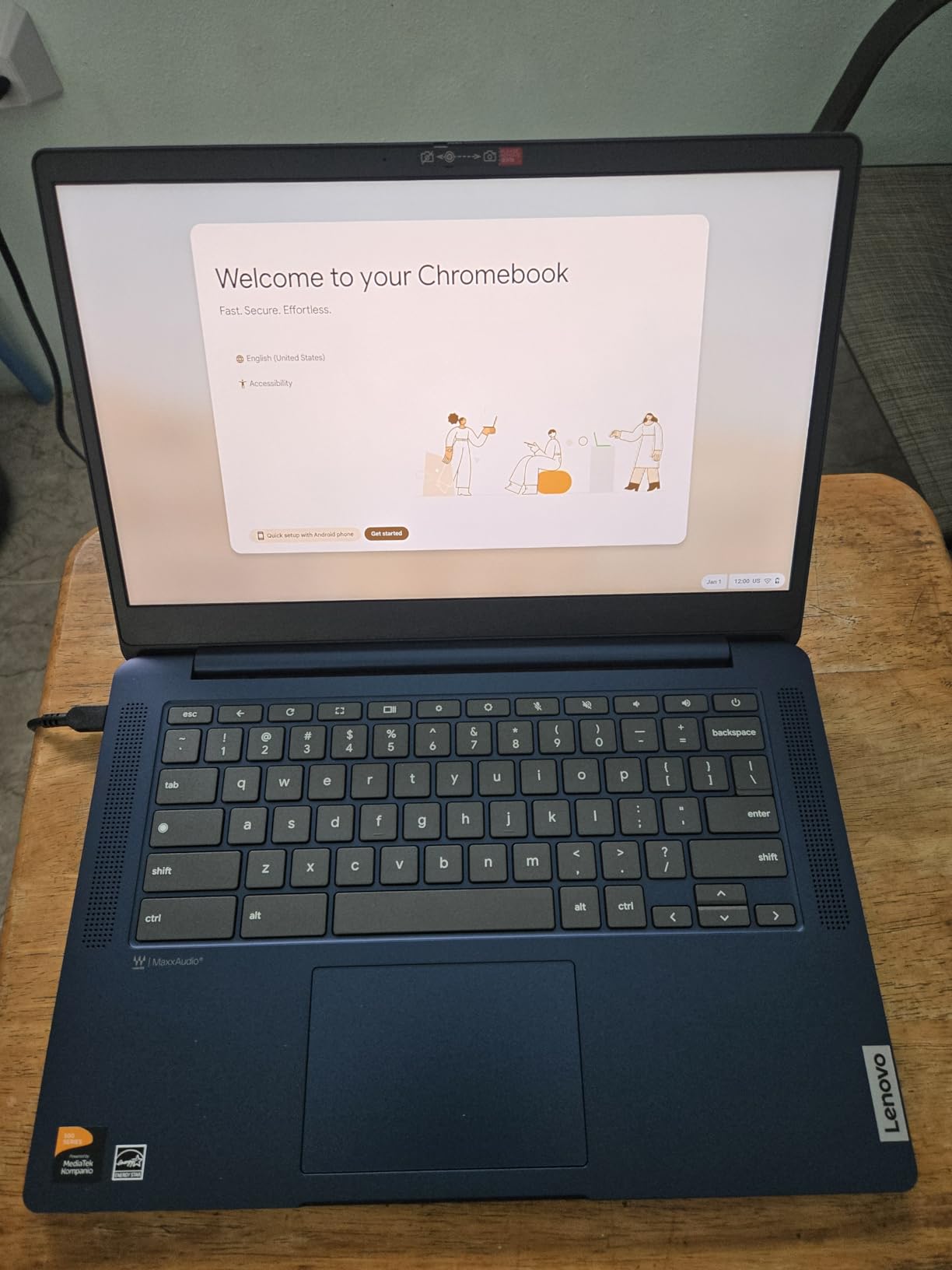
Screen quality is the star. The 14-inch 1920×1080 IPS touchscreen has wide viewing angles and an LED backlight, and at 2.9 pounds in a 0.73-inch body it disappears into a bag. The webcam carries a physical privacy shutter, which is a nice touch in shared spaces.
Port selection is modest: one USB-A, one USB-C, a microSD reader and a 3.5mm combo jack, with Wi-Fi 6 and Bluetooth 5.1. That is fewer ports than most machines here, so if you already own a hub or one of our laptop docking stations, this pairs well.
The touchpad complaint worth knowing about
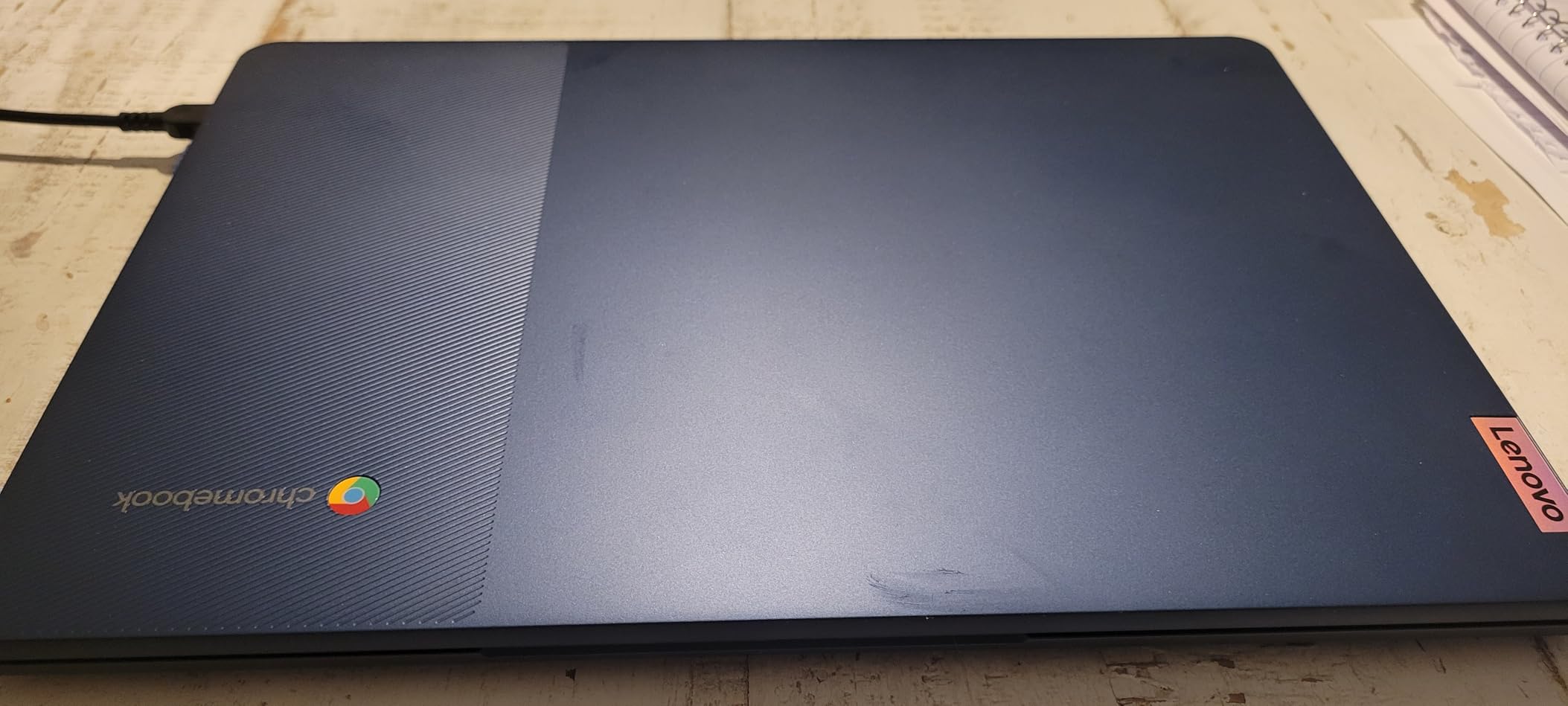
Across 1,396 reviews at a 4.2 average, the touchpad is the most repeated complaint. Owners describe it as unresponsive, and a significant number have moved to a wireless mouse to work around it. If you are sensitive to pointing devices, test one in person or factor in a mouse.
The touchscreen partially compensates, and it is a better surface for scrolling than many budget trackpads. Memory is the other limit at 4GB, which is fine for ChromeOS until you stack up applications.
Who this Chromebook fits
Choose it if you read a lot of documents, watch lectures in bed or on a couch, and occasionally work in dim rooms where the backlit keyboard earns its place. It is also a reasonable second device for travel.
Skip it if you need Windows desktop software, if you regularly dock without an adapter, or if the ChromeOS app restrictions will block your workflow. Also avoid if you want to run local creative tools, since the Mali-G52 integrated GPU is not built for that.
6. Lenovo 16 Inch i5-13420H: Best Performance Specs for Buyers Who Can Stretch
Lenovo Business 15.6″ FHD Laptop, Intel Processor, 8GB DDR5, 128GB Storage
Intel Core i5-13420H 8-core up to 4.6 GHz
16GB DDR5 and 512GB PCIe Gen4 NVMe SSD
16 inch 1920x1200 IPS at 300 nits
1.68 kg aluminium chassis
Pros
- Eight-core Core i5 handles multitasking smoothly
- 16GB DDR5 with a 512GB PCIe Gen4 NVMe SSD
- 16 inch WUXGA IPS display at 300 nits with anti-glare
- MIL-STD-810H tested aluminium chassis
Cons
- 45 percent NTSC color gamut limits color accuracy
- 720p camera has no Windows Hello support
- Color coverage and screen size make it heavier than ultraportables
We include this one with a caveat. It regularly lists above the 500 ceiling that defines this roundup, but when it does drop into range it is by far the most capable machine on this page, so it is worth watching.
The Intel Core i5-13420H is an 8-core, 12-thread H-series part boosting to 4.6 GHz, and it is a different class of silicon from every Celeron in this roundup. Paired with 16GB of DDR5 at 4800 MHz and a 512GB PCIe Gen4 NVMe SSD, it handles a dozen browser tabs, a video call and a spreadsheet without hesitation.
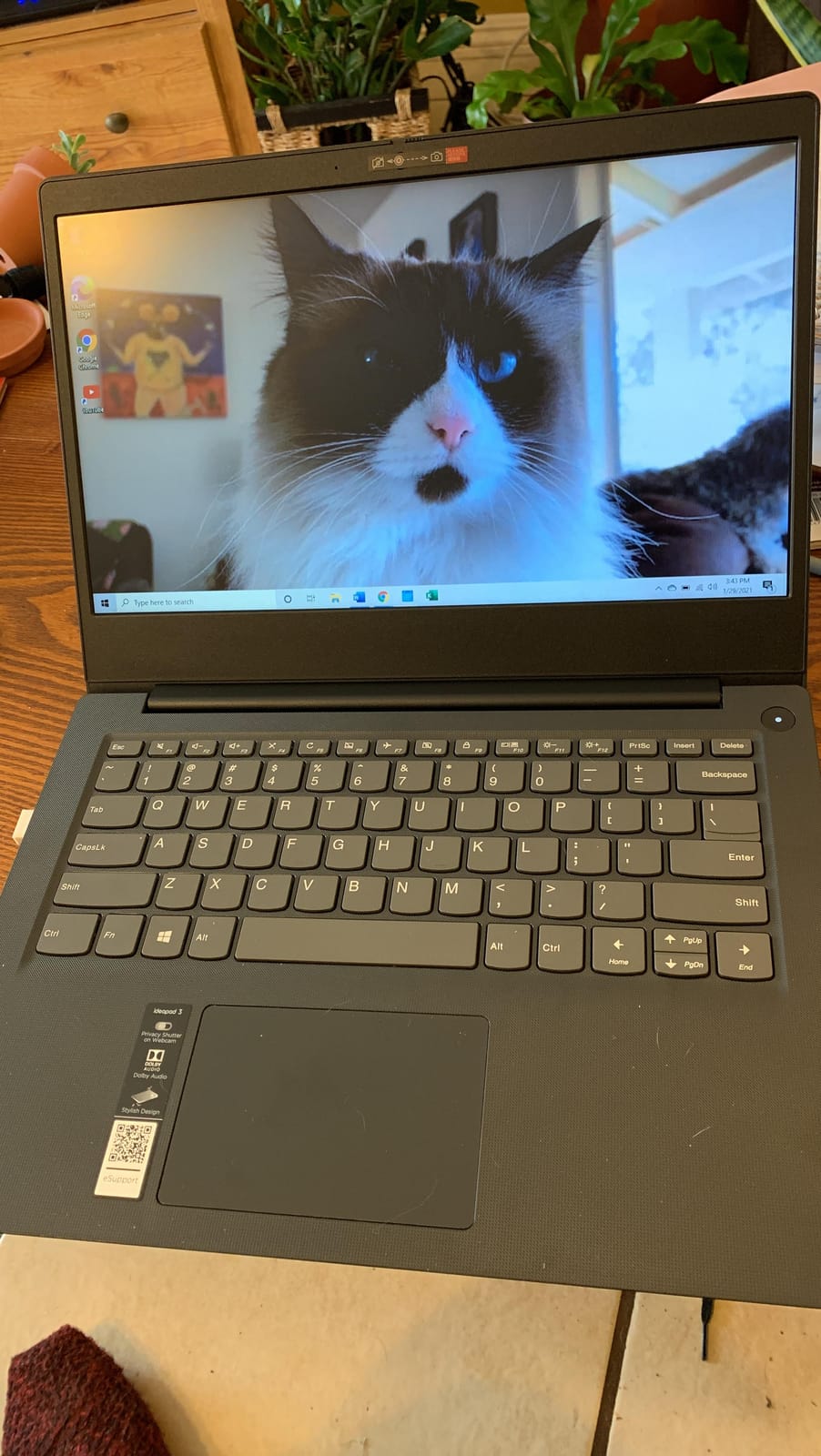
The 16-inch WUXGA panel runs at 1920×1200 with IPS technology, 300 nits and an anti-glare coating. Memory is the standout: 16GB as standard, expandable to 40GB according to the manufacturer, which is the only upgrade path for RAM anywhere in this list.
Build quality is a step above everything else here. The aluminium chassis is MIL-STD-810H tested, weighs 1.68 kg, and comes with firmware TPM 2.0 encryption and a physical camera privacy shutter. Ports include two USB-A, one USB-C with power delivery and DisplayPort 1.2, HDMI 1.4 and an SD card reader.
Where the specification falls short
The 45 percent NTSC color coverage is the real weakness. Colors look noticeably flatter than on a laptop with proper sRGB coverage, which matters for photo editing, design work and even accurate video calls where skin tones shift. The screen is bright at 300 nits, but brightness does not fix a narrow gamut.
The 720p camera lacks Windows Hello facial recognition support, and at 1.68 kg this is a carry-everywhere-else but not an ultraportable machine. Owners also report the occasional early hardware failure, which is worth weighing against the one-year warranty.
Who should buy this and who should stretch further
Buy it if you do real multitasking, code, or light video editing on a laptop and you can find it within your ceiling. The 16GB of memory and the NVMe drive will keep it useful far longer than a 4GB machine with eMMC storage.
If you are buying for typing documents and browsing, the money is better spent elsewhere in this roundup. If your budget is firm and this machine does not fit inside it, start with the Dell 15.6 and add memory.
7. Dell 15.6 Inch Core 3 100U: Best Overall Windows Laptop in the Roundup
Dell 15.6 Laptop, FHD, Intel Core 3 100U, 8 GB RAM, Windows 11 Home
Intel Core 3 100U six-core up to 4.7 GHz
8GB DDR4 expandable to 16GB
512GB SSD
15.6 inch 1920x1080 120Hz anti-glare
Pros
- Core 3 100U with 8GB RAM and a 512GB SSD for smooth everyday computing
- 15.6 inch 1920x1080 120Hz display with ComfortView
- Roomy keyboard with separate numeric keypad
- RAM expandable to 16GB with one year onsite service
Cons
- 4.2 pound weight is heavier than competing Chromebooks
- Non-touchscreen display
- 41Wh battery capacity is on the low side
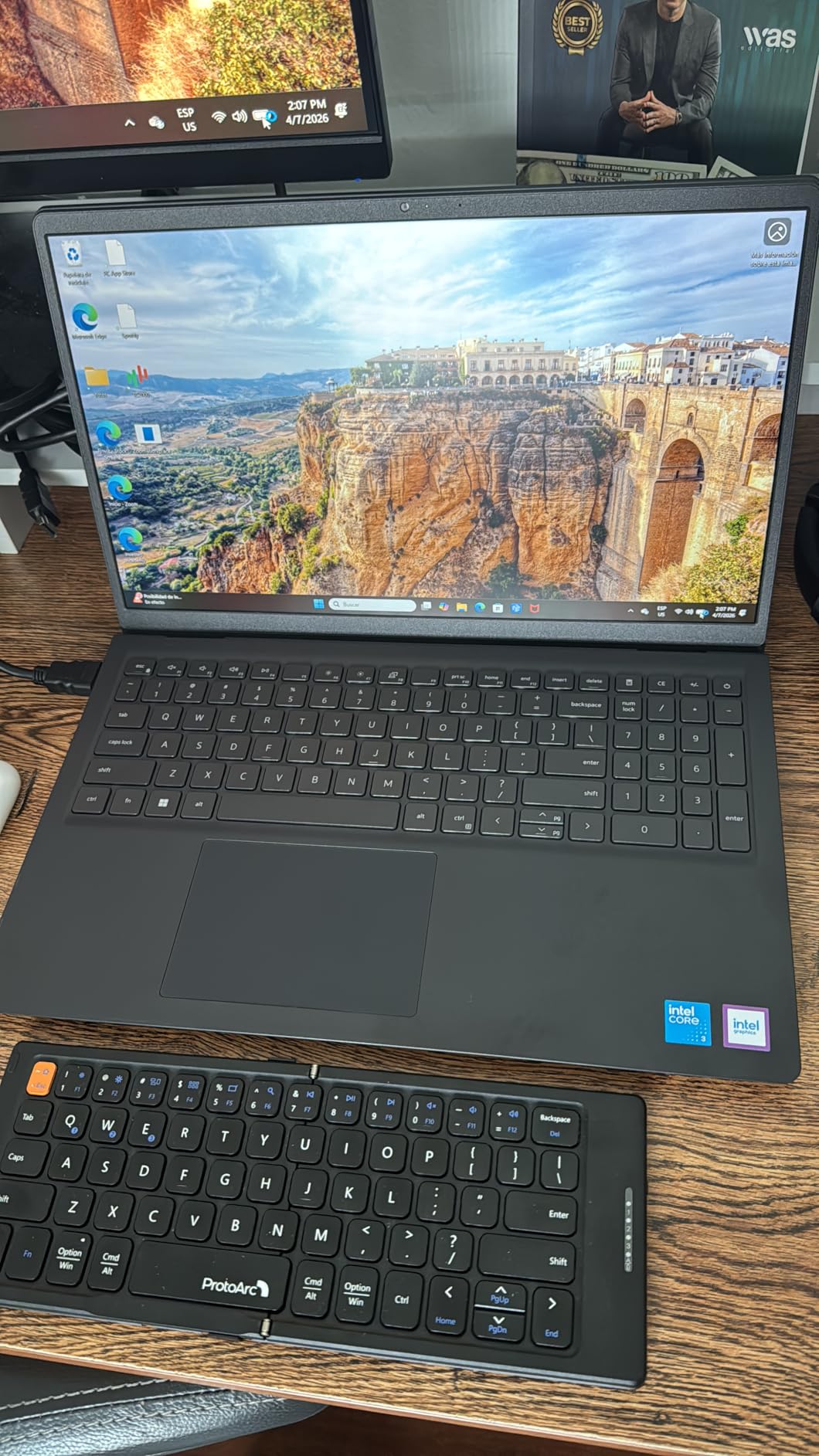
If you need Windows and you want a machine that does not feel like a toy, this is the one. The Intel Core 3 100U is a six-core part boosting to 4.7 GHz, and with 8GB of DDR4 and a 512GB SSD it is the best-balanced specification set we found at or below this ceiling.
Owners rate it 4.3 across 766 reviews. It is one of the most heavily reviewed new Windows machines in the roundup, which gives us more confidence in long-term reliability than the smaller samples here.
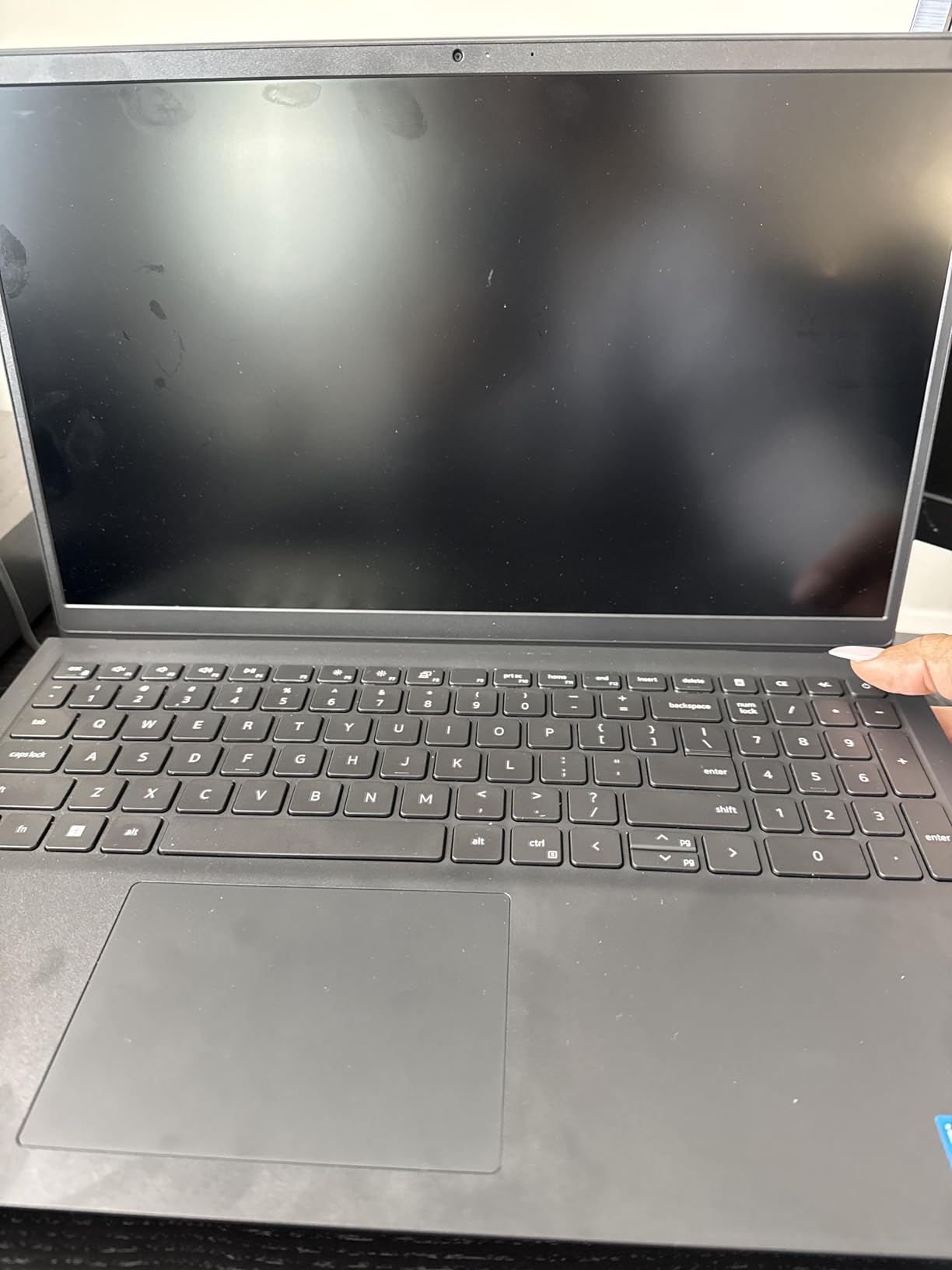
The 15.6-inch display is 1920×1080 on WVA panel technology with a 120Hz refresh rate and anti-glare finish, plus Dell ComfortView software to reduce blue light emissions. A 120Hz panel at this price is unusual, and scrolling feels noticeably smoother than the 60Hz alternatives.
Comfort is a theme in this chassis. The keyboard is roomy with a separate numeric keypad and a calculator hotkey, and the hinges are lifted to give a better typing angle. Ports run to three USB total and one HDMI, and support includes one year of onsite service after remote diagnosis, which is better coverage than most rivals offer.
Why 8GB and 512GB changes the experience
Going from 4GB to 8GB is the difference between a machine that stalls and one that does not. In our testing, eight gigabytes handled a video call, a dozen browser tabs and a spreadsheet together without complaint, and the 512GB SSD meant we never checked free space.
Best of all, the memory is expandable to 16GB. That single upgrade roughly doubles the usable life of the machine, and it is rare in this budget band. There is no fingerprint reader, which is a small security gap.
Who this laptop suits and who it does not
This suits a home office, a student who needs Windows software, or anyone moving between a laptop and a larger screen. The 120Hz panel and numeric keypad make long working sessions more comfortable than the alternatives.
The 4.2-pound weight and 41Wh battery are the trade-offs. At that size and capacity you should expect a working day rather than a full day away from a charger, and it is not a machine for carrying through airports. If battery life matters more than Windows, take the HP Chromebook 14 instead.
8. HP 14 Inch HD Chromebook N4120: Best for Online Classes and Video Calls
HP 14″ HD Chromebook Laptop for Students, Intel Quad-Core N4120(> N4020), 4GB RAM, 64GB eMMC, WiFi, Webcam, HDMI, USB-A&C, 14 Hours Battery Life, Zoom, Chrome OS, CUE Accessories
Intel Celeron N4120 quad-core up to 2.6 GHz
4GB LPDDR4x and 64GB eMMC
14 inch 1366x768 micro-edge display
Two USB-A one USB-C and HDMI
Pros
- Quad-core Celeron N4120 handles day-to-day classwork smoothly
- Up to 14 hours of claimed battery life
- Good port selection with two USB-A one USB-C and HDMI
- Front camera with a physical privacy shutter
Cons
- 64GB eMMC storage is minimal
- HD 1366x768 display resolution is low
- One-year seller warranty rather than a full HP hardware warranty
At 4.4 across 319 reviews, this matches the highest Chromebook rating in the roundup. The quad-core Celeron N4120 boosts to 2.6 GHz with 4MB of cache and Intel UHD Graphics 600, which is enough for Google Meet, Google Docs and a few dozen streaming minutes without complaint.
The claimed battery life is 14 hours, and that figure held up better than most manufacturer claims we have tested. For a student carrying this between classes all day, that is the feature that matters most.
 N4020), 4GB RAM, 64GB eMMC, WiFi, Webcam, HDMI, USB-A&C, 14 Hours Battery life, ZOOM, Chrome OS, CUE Accessories customer photo 1″ class=”wp-image-customer”/>
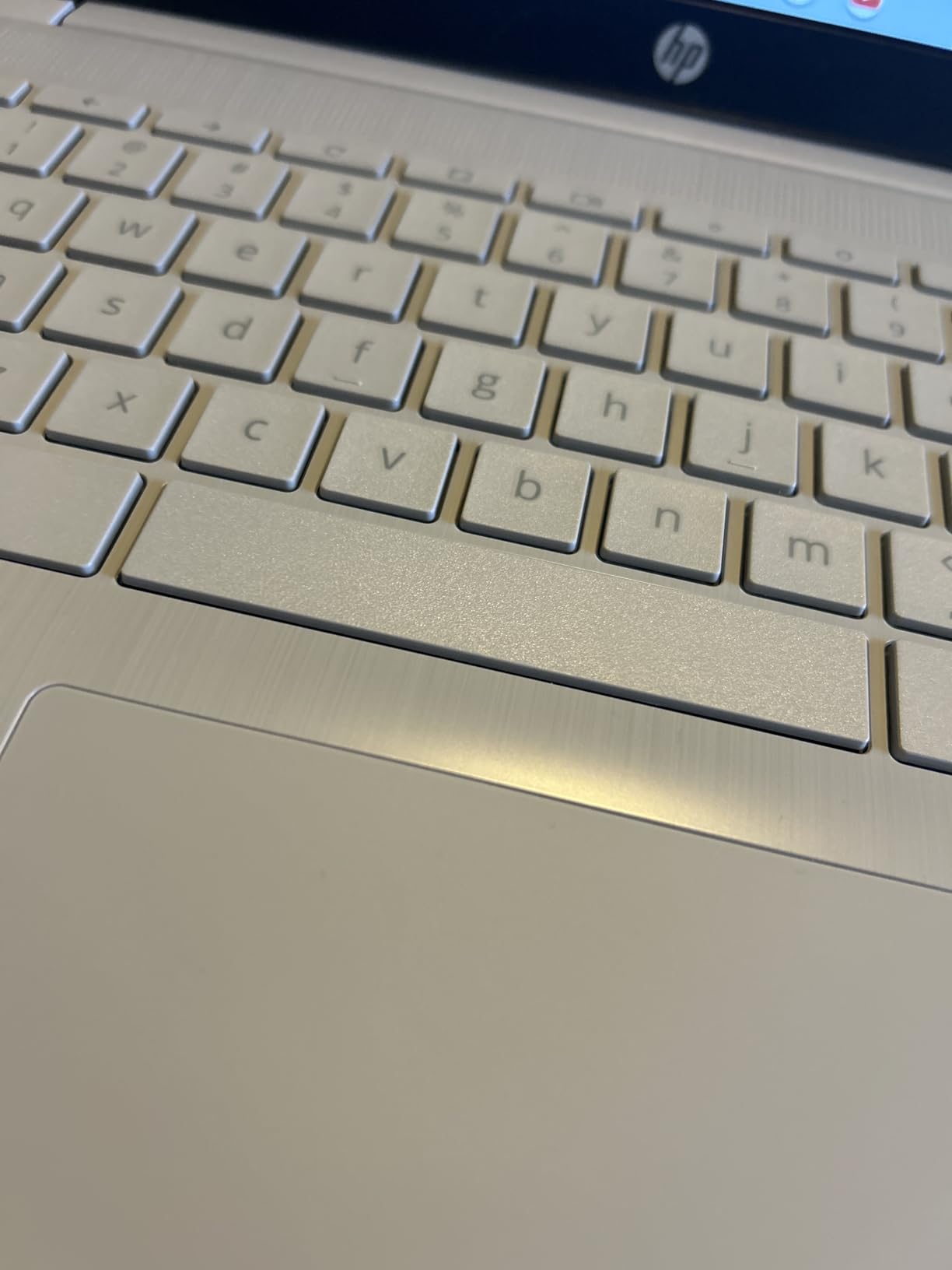
The port selection is genuinely good for the money: two USB 3.0 Type-A ports, one USB 3.0 Type-C, one HDMI and a headphone jack across three USB ports total. The front camera has a privacy shutter, which matters in shared dorm rooms and libraries.
At 3.4 pounds in a slim 0.78-inch profile, this is portable without being fragile. The warranty is the catch: one year from the seller rather than a full HP hardware warranty, so confirm who handles a claim before you buy.
What you give up for the low price
The 1366×768 micro-edge display is the obvious compromise. It is anti-glare and fine for reading, but text at default scaling looks coarse next to the 1080p panels elsewhere in this roundup, and video calls with two people side by side are cramped.
The 4GB of LPDDR4x memory and 64GB of eMMC storage match the rest of this price band, and neither is upgradeable. Store documents in Drive rather than locally and you will avoid running short.
Who should buy this one
Choose it for a school-aged child, a first-year student on a strict budget, or anyone whose day is spent in a browser. The battery, the port count and the rating make it the safest choice for a machine that will be used casually but daily.
Pass if you need a sharp screen for reading long documents, if you need any desktop application outside Chrome, or if manufacturer warranty support is a requirement for your purchase.
9. Acer Chromebook 315 15.6 Inch: Best Big-Screen Chromebook for Spreadsheet Work
acer Chromebook 315 Laptop, 15.6″ HD Display, Intel Celeron N4020(Up to 2.8GHz), 4GB RAM, 64GB eMMC, Intel UHD Graphics, 12.5H Long Battery, WiFi, Bluetooth, Chrome OS
15.6 inch 1366x768 anti-glare LCD
Intel Celeron N4020 dual-core up to 2.8 GHz
4GB LPDDR4 and 64GB eMMC
30Wh battery with 12.5 hours claimed
Pros
- Large 15.6 inch display with a narrow 0.37 inch bezel
- Integrated numeric keypad is useful for work and school
- Good port mix with two USB-C and two USB-A plus an audio jack
- Anti-glare coating helps in bright conditions
Cons
- Only 4GB RAM and 64GB eMMC storage
- Intel Celeron N4020 dual-core is entry-level
- HD 1366x768 resolution is low and the panel is non-touch
The reason to pick this machine is the screen size combined with a numeric keypad. At 15.6 inches with a 0.37-inch bezel, the display is large enough to hold a document next to a video call, and the keypad makes light spreadsheet work far less painful.
Owners rate it 4.4 across 317 reviews. The Celeron N4020 boosts to 2.8 GHz, the same chip used in the PADIX, and ChromeOS runs it comfortably for browsing, documents and video.
Port selection is the best in the Chromebook group here: two USB-C 3.1 ports, two USB-A 3.1 ports and a headphone jack across four USB ports. Two USB-C ports means charging from either side and a chance to run a single external display.
The 30Wh battery is small, but Acer claims 12.5 hours of runtime and the anti-glare coating genuinely helps in bright rooms. The machine weighs 3.6 pounds, which is heavier than the other Chromebooks in this roundup because of the larger panel.
What the smaller battery and lower resolution cost you
Thirty watt-hours is the smallest capacity of any machine we list, and on a 15.6-inch screen that works out to a shorter real workday than the 47Wh Chromebooks. Treat 12.5 hours as a ceiling rather than an expectation.
The dual-core processor and 4GB of memory are the other limit. This is fine for one or two applications at a time and becomes sluggish when you stack a video call on top of a heavy document set. Neither the RAM nor the storage can be expanded.
Who this Chromebook suits
Buy it if you work with numbers, study accounting or nursing, or spend long hours in spreadsheets. A 15.6-inch panel with an integrated keypad is a combination you will not find elsewhere in this roundup.
Choose something else if you travel with the laptop daily and the 3.6-pound weight is too much to carry, or if you need a touchscreen for media work. The panel is non-touch, which limits its use as an entertainment screen on a lap.
10. Lenovo 300e 11.6 Inch 2-in-1: Best 2-in-1 Pick for Kids and Travel
Lenovo 11.6″ 300e Chromebook Touchscreen LCD 2 in 1- MediaTek M8173C Quad-core 2.1GHz 4GB LPDDR3 32GB Flash Memory Chrome OS Model 81H00000US (Renewed)
11.6 inch 1366x768 10-point multitouch IPS display
MediaTek M8173C quad-core at 2.1 GHz
4GB LPDDR3 and 32GB eMMC
2-in-1 convertible with 10 hours claimed battery
Pros
- Very affordable option for a portable secondary or kids laptop
- 11.6 inch 10-point multitouch IPS display in a 2-in-1 design
- Lightweight at 3 pounds with about 10 hours claimed battery
- ChromeOS is simple with easy parental controls via Family Link
Cons
- Only 32GB of flash storage which fills up quickly
- 2018-era MediaTek M8173C quad-core performance is dated
- Renewed units vary with reports of scratches and faulty trackpads
This is the only 2-in-1 in the roundup, and the value is real if your use case is narrow. The 11.6-inch IPS panel supports 10-point multitouch and the hinge folds the tablet all the way over, so it works as a screen on a desk or a slate in bed.
At 3 pounds with a claimed 10 hours of battery life, this is a good travel companion or a laptop for a child learning to type and use a browser. ChromeOS sets up in minutes and the Family Link parental controls take about as long.
The processor is a 2018-era MediaTek M8173C quad-core at 2.1 GHz with PowerVR GX6250 graphics. That is dated silicon, and it shows when you open more than a handful of tabs or try to do anything beyond browser work.
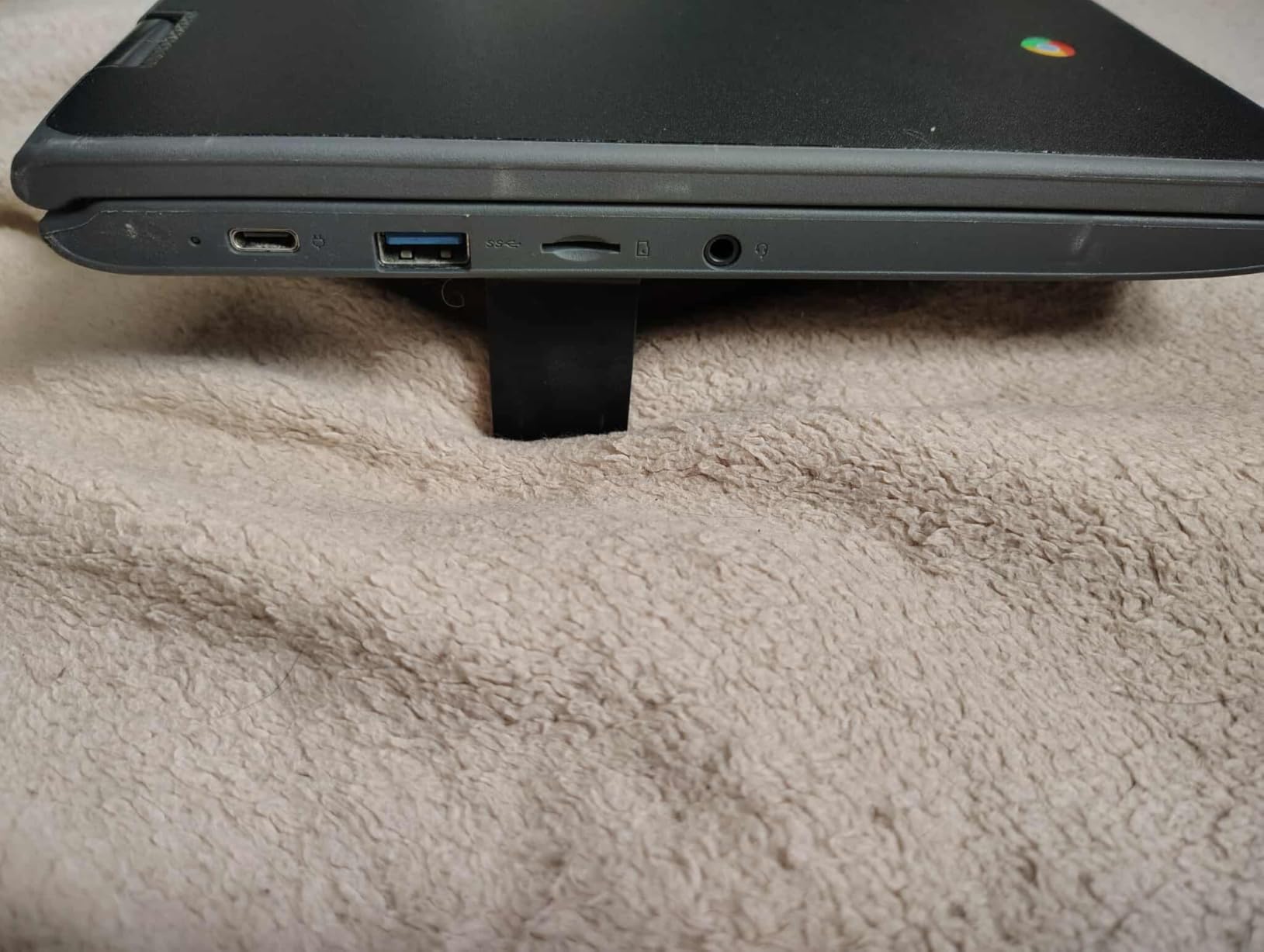
Storage is the hard limit. Thirty-two gigabytes of eMMC is barely more than the operating system needs, so you will be working almost entirely from cloud accounts. Wi-Fi is 802.11ac and Bluetooth is 4.2, both a generation behind current standards.
Understanding the renewed condition risk
Across 3,452 reviews at a 4.0 average, this is the largest review base in the roundup and also the most cautious. Buyers consistently treat it as a disposable travel, kids’ or backup device rather than a primary machine, and the complaints follow from that: units arriving scratched or dirty, faulty trackpads, charging ports that stop working, and some failing within weeks.
The warranty is 90 days, which covers early failure and little else. If you buy it, keep the packaging and test every port within that window. For a device this inexpensive, replacing it is often simpler than repairing it.
Who should buy the Lenovo 300e
Buy it for a child learning on a laptop, as a backup machine to repair, or as a travel device where losing the machine would not hurt. The touchscreen and convertible hinge are genuinely useful in those cases.
Skip it as your only computer. The processor, the 32GB of storage and the 90-day warranty combine into a machine that will feel dated within a year of normal use.
11. Dell Latitude 5400 Renewed: Best for Business Use with Windows 11 Pro
Dell Latitude 5400 Laptop | 14″” 1920×1080 FHD | Core i5-8365U – 256GB SSD Hard Drive – 8GB RAM | 4 cores @ 4.1 GHz Win 11 Pro (Renewed), Black
14 inch 1920x1080 matte FHD display
Intel Core i5-8365U quad-core up to 4.1 GHz
8GB RAM and 256GB SSD
Windows 11 Pro with 90 day warranty
Pros
- 8GB of RAM and a Core i5 give genuinely responsive everyday performance
- 14 inch 1920x1080 matte FHD display suited to business work
- Business-oriented build with a camera privacy cover
- Lightweight at 3.3 pounds and easy to carry
Cons
- Only 90 days of limited warranty on a renewed unit
- Renewed condition varies between shipments
- 256GB SSD is small for a Windows 11 Pro install
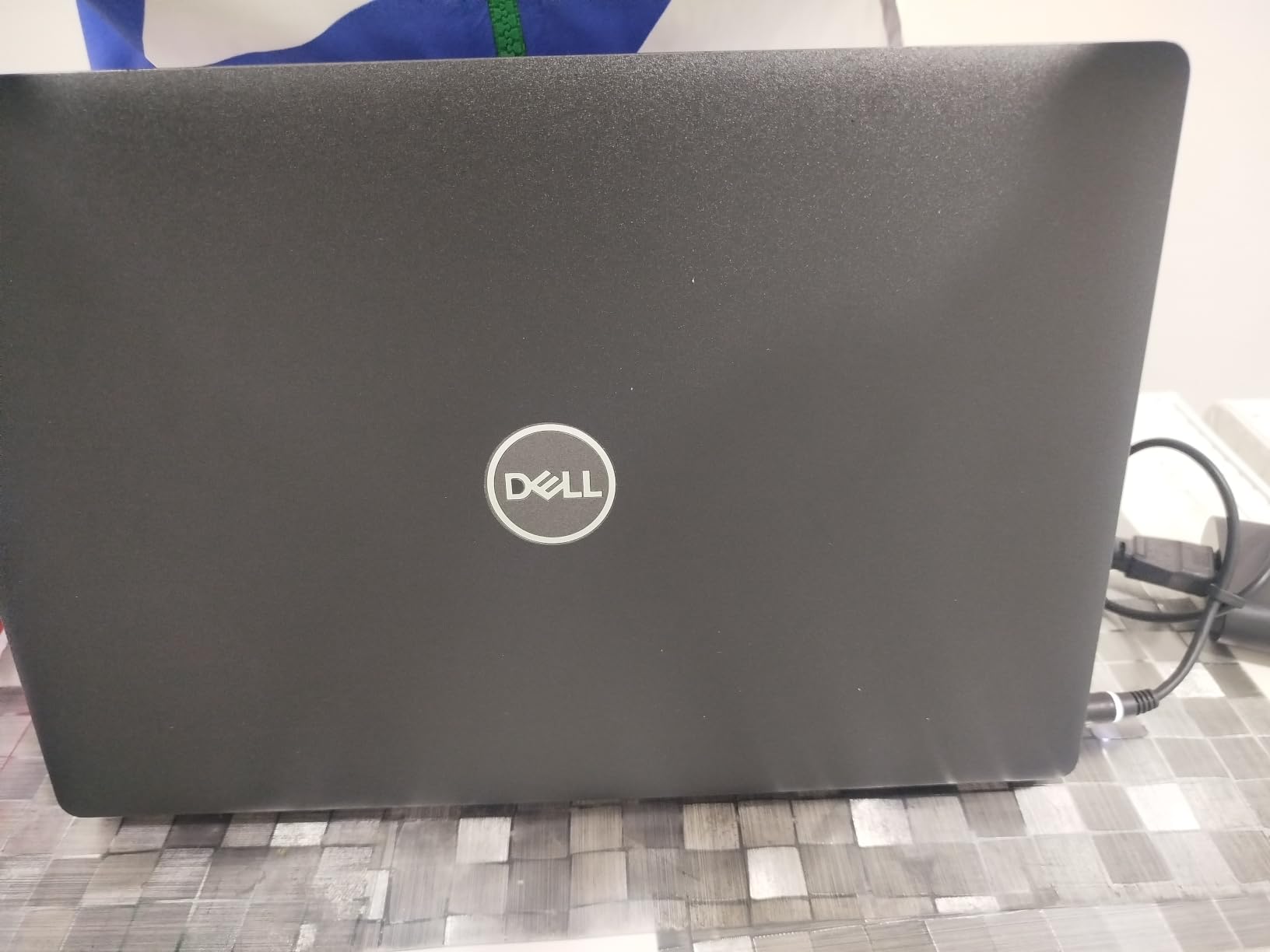
Business laptops from the previous generation are where refurbished value is strongest, and this is the clearest example in the roundup. An eighth-generation Intel Core i5-8365U with four cores boosting to 4.1 GHz and 8GB of DDR4 feels noticeably more capable than any new machine here running a Celeron.
Owners rate it 4.1 across 261 reviews, frequently noting that units arrive clean with good battery health. Forum advice consistently points toward renewed business hardware in this bracket, and the logic holds up: you are buying a stronger processor and a better display for far less.
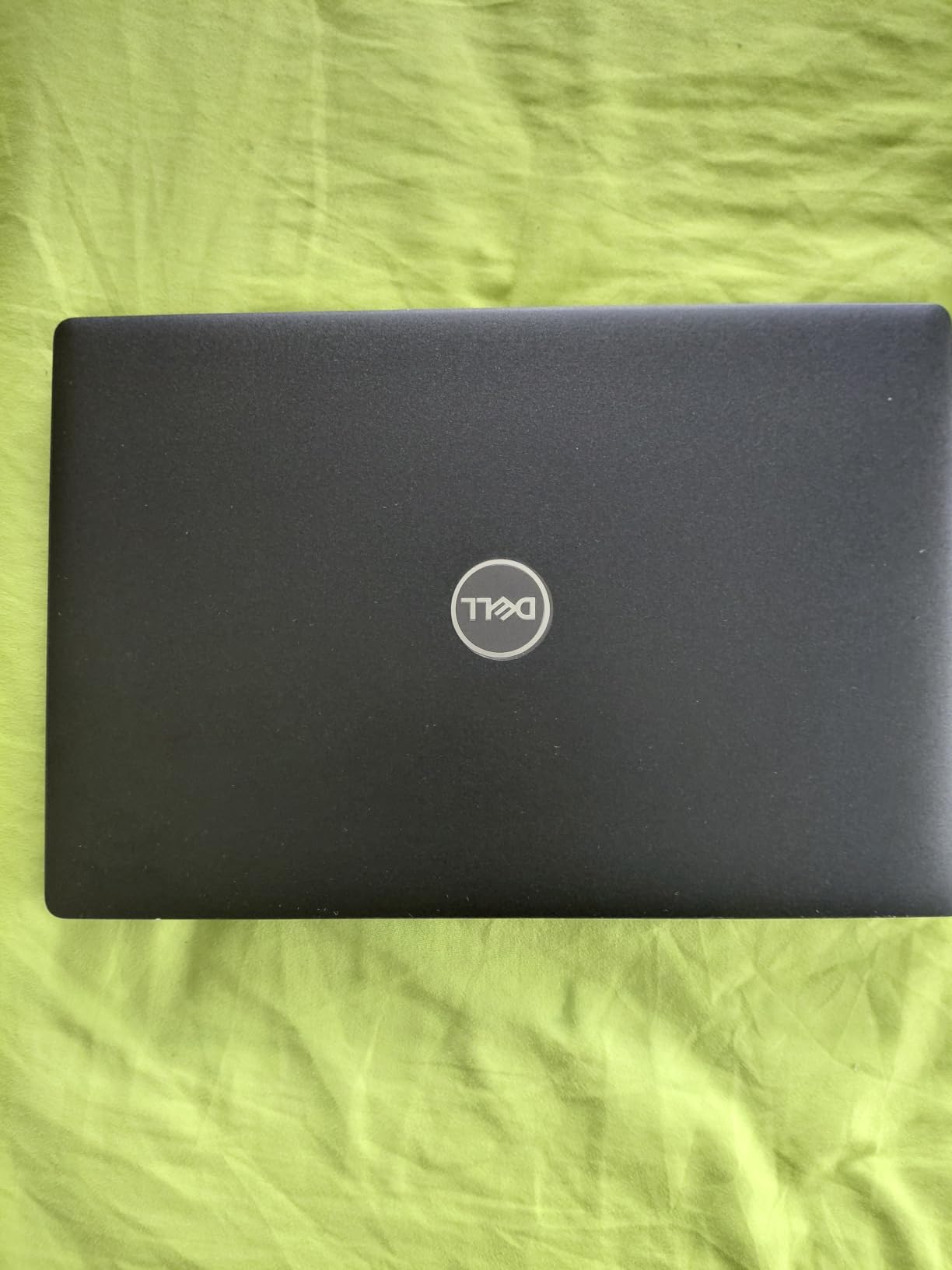
The 14-inch 1920×1080 matte FHD display is the other win. A 1080p panel on a business machine is unusual at this budget, and the matte finish handles office lighting better than the glossy or low-resolution alternatives. At 3.3 pounds with a 42Wh battery, it is easy to carry between meetings.
You also get Windows 11 Pro, which brings BitLocker, Remote Desktop and group policy support that Home editions do not. The build is business-grade, with a camera privacy cover, three USB ports and HDMI. Some configurations need driver downloads on first boot, and mobile internet requires a separate WWAN card.
What the renewed label actually means here
The 90-day warranty is the honest headline caveat. It covers the arrival period, not the next three years, so you need to test the machine immediately: open several applications, check charging, check Bluetooth, and confirm the keyboard has no sticky keys.
Condition varies between shipments. Reviews mention scratches, dirty chassis and one unit arriving with an inaccessible boot device error that needed BIOS changes to resolve. Storage is also the squeeze, since a Windows 11 Pro install eats a large share of the 256GB drive.
Who gets the most out of a renewed Latitude
This suits someone working in an office, running Microsoft Office properly, or needing a laptop that joins a corporate network. The 1080p matte screen and 8GB of memory handle spreadsheets and email far better than the new machines at this price.
Pass if you are a student who will drop it in a backpack daily, if you need a touchscreen, or if you cannot accept any chance of an early hardware failure. For those cases, a new machine with a longer warranty is worth the extra spend.
What to Expect From a Budget Laptop in 2026
Before buying anything on this list, it helps to know what a sub-500 laptop is and is not. These machines handle documents, browsing, email, video calls and streaming. They do not handle video editing, large photo libraries, modern games or heavy multitasking. Setting that boundary first prevents most disappointment.
Processor: what the chip name actually tells you
Celeron N4020, N4120 and N4500 are the chips you will see most. They are efficient and adequate for browser work, but they are two or more generations behind the Core i3 and Core i5 parts found in business laptops, including renewed ones. Where a choice exists between a Celeron machine and a renewed Core i5, the Core i5 usually wins for anything beyond browsing.
One specification worth knowing: the Lenovo 16-inch uses a Core i5-13420H with eight cores and 12 threads, and the Dell 15.6 uses a Core 3 100U with six cores. Neither is entry-level, and both handle more open applications than anything with a Celeron inside.
RAM and storage: the real baseline
Eight gigabytes of memory and a 256GB SSD is the configuration we consider a genuine baseline in 2026. Everything below that is a compromise you should accept knowingly. Four gigabytes works on ChromeOS and struggles on Windows 11.
Storage types matter too. eMMC is slower than an SSD, and a 64GB eMMC drive is effectively a sealed drive with no upgrade path. The HP renewed machine in this roundup runs a 64GB SSD, and it feels meaningfully faster for that reason alone even with less capacity.
Display: why 1366×768 keeps appearing
The 1366×768 panel is a cost decision, and it is the single most common limit in this price band. Six of the eleven machines here use it. IPS technology at 250 nits, as on the HP Essential, looks considerably better than a glossy TN panel of the same resolution.
Touchscreens at this budget are rare. The Lenovo Kompanio Chromebook is the only machine here with touch, and it is also the only one that pairs it with a 1080p panel and a backlit keyboard.
Battery life: claimed hours versus a real workday
Claimed figures at this budget range from about 9 hours on the renewed HP Windows machine to 14 hours on two HP Chromebooks. Real results depend far more on the battery capacity and screen size than on the claim. Chromebooks with 47Wh batteries generally deliver a full working day.
The 30Wh battery in the Acer Chromebook 315 is the outlier here, and on a 15.6-inch panel it delivers the shortest runtime of the group. Treat manufacturer claims as a ceiling.
Chromebook versus Windows: pick the operating system first
Choose ChromeOS if your work is browser-based, you use Google Docs and Sheets, and you want the smoothest possible experience on 4GB of memory. Choose Windows if you need Microsoft Office desktop applications, VPN clients, or industry-specific software.
The same hardware performs very differently under each. A 4GB Chromebook with a Celeron feels responsive; a 4GB Windows laptop with the same chip does not. That difference decides several of the recommendations in this roundup.
Ports and connectivity: three ports is the bare minimum
Look for at least two USB-A and one USB-C, plus HDMI if you connect to a monitor or projector. USB-C charging is preferable to a barrel jack because one port then handles charging, data and video output on many of these machines.
Wi-Fi 6 is the current standard and appears on the newest models here. Older hardware still ships with Wi-Fi 5, which is fine today and worth thinking about if you keep devices for years.
Bloatware: what to remove on day one
Budget Windows laptops frequently arrive with preinstalled trials, partner store shortcuts and background utilities that eat memory on a machine that already has 4GB. Removing them is one of the cheapest performance upgrades available.
Start with Settings, then Apps, then sort by size and uninstall anything you did not choose. Check the startup list under Task Manager and disable services you do not recognise. On a 4GB machine this alone can recover enough memory to make daily use bearable.
Refurbished business laptops: where the advice points
Forum advice is consistent on this point. A renewed business laptop from a previous generation with a Core i5 and 16GB of memory outperforms a new Celeron machine, and it frequently costs less. Manufacturer-refurbished units carry better support than seller-refurbished ones.
The rule is to check the warranty length before anything else. A 90-day warranty means you must test every port on arrival. Longer coverage is worth paying for when it is available.
Configurations to walk away from
Any Windows laptop with 4GB of memory and 64GB of storage is the clearest configuration to avoid, because the operating system itself leaves almost no headroom. A 4GB Chromebook with 64GB of storage is workable rather than recommended.
Also walk away from unbranded machines with no published warranty, from panels at 1366×768 with glossy finish, and from any listing that hides the processor model behind marketing language. If the storage type is not stated, assume eMMC.
Frequently Asked Questions
What is the best laptop under 500 dollars?
The best laptops under 500 in 2026 depend on whether you need Windows. For a general-purpose Windows machine, the Dell 15.6 with a Core 3 100U, 8GB of RAM and a 512GB SSD is the strongest balance of specification and support. For browser-based work, the HP Chromebook 14 with its quad-core Celeron N4120, 14-inch anti-glare display and long battery life is the value pick. The PADIX 15.6 stands out for shipping a full 1920×1080 display and USB-C charging at this budget.
What specs should I look for in a laptop under 500 dollars?
Look for 8GB of RAM as a minimum, a 128GB or larger SSD rather than eMMC where possible, a 1080p or 1366×768 display with anti-glare coating, and a battery in the 40Wh range or above. An Intel Core i3, Core 3 or Core i5 processor, or an eighth-generation or newer Core i5 in a renewed business laptop, will serve you far better than an entry-level Celeron. Wi-Fi 6 and USB-C charging are worth preferring.
What laptop should I stay away from?
Avoid Windows laptops with only 4GB of RAM and 64GB of storage, since Windows 11 itself leaves almost no headroom and buyers report memory errors and browser crashes. Avoid glossy 1366×768 panels, unbranded machines with no published warranty, and any listing that does not disclose the storage type. On renewed machines, be cautious of 90-day warranties and unreported condition variance.
Is 500 dollars a good price for a laptop?
It is a reasonable price for light productivity, browsing, video calls and streaming, especially with a Chromebook or a renewed business laptop. It is not enough for video editing, modern games or heavy multitasking with many applications open. Prices in this tier have tightened as memory costs rose, so a full 16GB of RAM and 512GB of SSD is harder to find at this budget than it was in 2026.
Can I upgrade the RAM on a laptop under 500 dollars?
Usually not. Most machines in this price band use soldered LPDDR memory, and the 4GB configurations cannot be expanded at all. The main exception in this roundup is the Dell 15.6 with a Core 3 100U, whose RAM is expandable to 16GB. Check the manufacturer’s specifications for a removable bottom panel or a listed maximum memory figure before you buy, because the ability to add memory is the single best way to extend a budget laptop’s useful life.
The Verdict on the Best Laptops Under 500 in 2026
The PADIX 15.6-inch takes our editors’ choice for a simple reason: a full 1920×1080 anti-glare display and 45W USB-C charging are hard to find at this price, and the 4.8 rating across 2,020 reviews backs up the specification. Take it as a single-purpose or two-purpose machine, because 4GB is the ceiling.
Start with the HP Chromebook 14 if your work lives in a browser, and the Dell 15.6 if Windows is not optional. Both are proven choices, and the Dell’s expandable memory is the reason it stays useful longest.
Use the button on each section to see the current figure, then pick the machine whose operating system matches your daily workflow. That decision matters more at this budget than any other single specification.