

Finding the best tablets for digital artists used to mean choosing between an overpriced Wacom display or a cheap screenless pad that felt like drawing on plastic. I have spent the last several months testing drawing tablets across every category, from budget pen tablets under $50 to standalone Android slates that rival the iPad experience. The goal was simple: figure out which models actually deliver for real artists, not just which ones look good on a spec sheet.
Our team tested 8 tablets covering screenless pen tablets, pen displays with laminated glass, and standalone slates that need no computer at all. We looked at pressure sensitivity, color accuracy, parallax, build quality, and most importantly, how each device felt during extended drawing sessions. If you have ever dealt with wrist fatigue after a four-hour illustration session, you know why the feel matters more than the marketing numbers.
Whether you are a beginner picking up your first digital art tablet or a working illustrator who needs professional color accuracy for client work, this guide covers every tier. We included options from XP-Pen, Huion, UGEE, and Wacom so you can compare brands head to head. Let us get into which tablet deserves a spot on your desk in 2026.
Table of Contents
Top 3 Picks for Digital Artists

HUION Kamvas Pro 16
- 15.6 inch laminated display
- 120% sRGB color gamut
- Touch bar workflow
- Adjustable stand included

UGEE UE12 Drawing Tablet
- 11.6 inch full-laminated screen
- 124% sRGB color gamut
- Zero parallax design
- 8 shortcut keys

XPPen Deco 01 V3
- 10x6 inch active area
- 16384 pressure levels
- 8 customizable hotkeys
- Wide OS compatibility
Best Tablets for Digital Artists in 2026
| Product | Specifications | Action |
|---|---|---|
| XPPen Deco 01 V3 |
|
Check Latest Price |
| UGEE UE12 |
|
Check Latest Price |
 XPPen Artist 12 Pro XPPen Artist 12 Pro |
|
Check Latest Price |
 XPPen Artist 12 3rd Gen XPPen Artist 12 3rd Gen |
|
Check Latest Price |
 HUION Kamvas 13 Gen 3 HUION Kamvas 13 Gen 3 |
|
Check Latest Price |
| HUION Kamvas Pro 16 |
|
Check Latest Price |
 XPPen Magic Drawing Pad XPPen Magic Drawing Pad |
|
Check Latest Price |
 Wacom MovinkPad 11 Wacom MovinkPad 11 |
|
Check Latest Price |
1. XPPen Deco 01 V3 – Best Budget Pen Tablet for Beginners
XPPen Deco 01 V3 10×6 Drawing Tablet, 16K Battery-Free Stylus, 8 Keys
10x6 inch active area
16384 pressure levels
Battery-free stylus
8 customizable hotkeys
USB connectivity
Pros
- Excellent value for beginners
- 16K pressure sensitivity
- Wide OS compatibility including Chrome OS
- Battery-free stylus needs no charging
Cons
- Requires a computer to operate
- No screen so you draw blind
- Plastic build feels lightweight
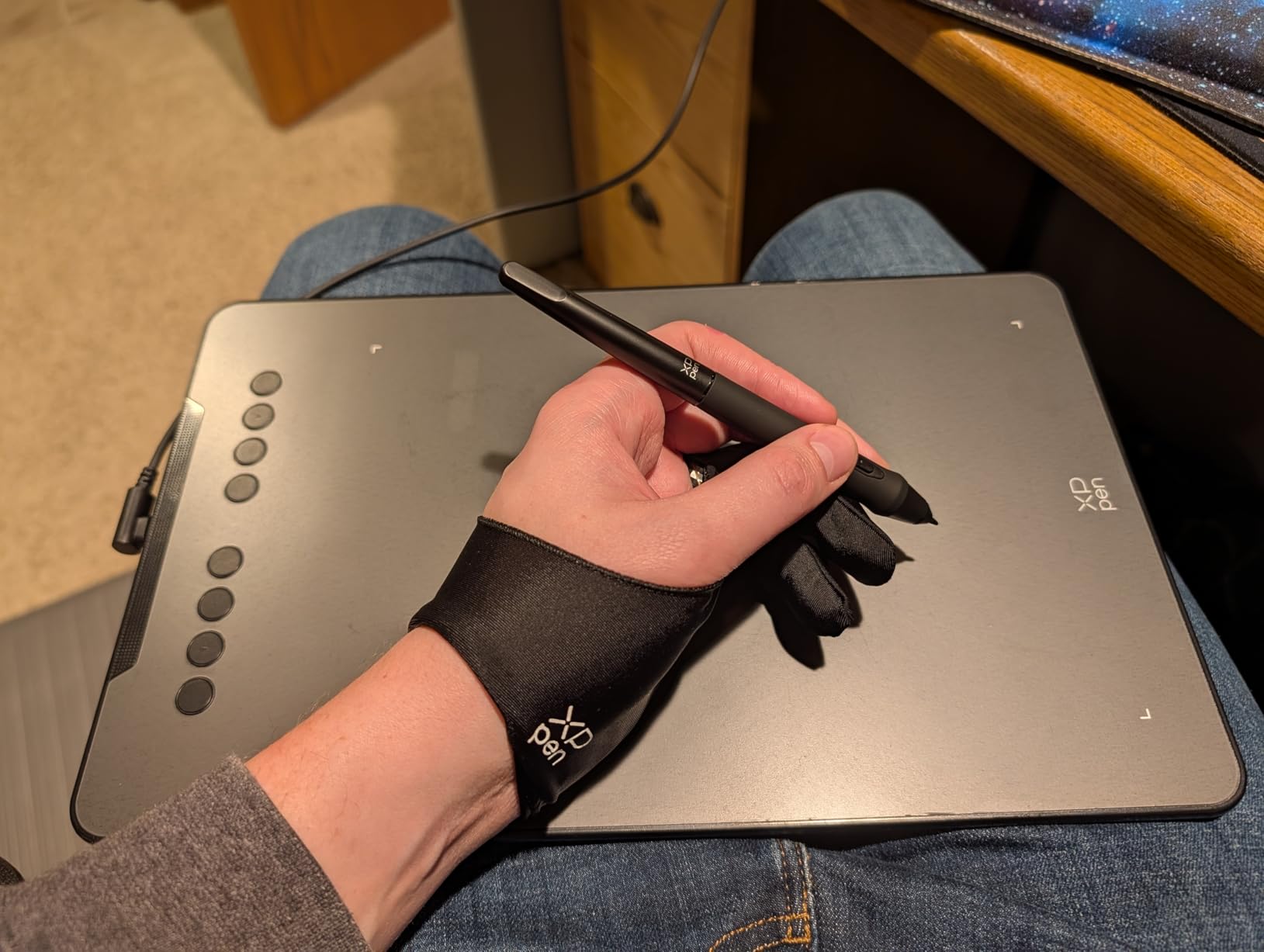
I picked up the XPPen Deco 01 V3 expecting a throwaway budget tablet, and honestly, it surprised me. The 10 by 6 inch active area gives you plenty of room to move your arm, which matters more than people think when you are used to sketching on paper. With 16384 pressure levels and 60 degrees of tilt support, the stylus responds to subtle changes in pressure almost as well as models costing three times as much.
The battery-free stylus means you never have to charge it, which is one less thing to worry about when inspiration hits at midnight. I tested it across Photoshop, Krita, and Clip Studio Paint, and the pressure curve felt smooth and predictable in every app. The 8 customizable hotkeys along the top edge let me map undo, brush size, and eraser for a faster workflow.
Now, the obvious tradeoff: this is a screenless pen tablet. You draw on the black surface while looking up at your monitor, which takes some adjustment if you have never used one. Most beginners get used to it within a week, but if you are coming from an iPad, the disconnect between hand and screen can feel jarring at first.
The build is plastic throughout, and the drawing surface has a slight texture that mimics paper reasonably well. For under $50, this is the tablet I recommend to anyone who wants to try digital art without committing serious money. It also works with Chrome OS, which makes it a solid pick for students using school-issued Chromebooks.
Who Should Buy This
Beginners who are just starting their digital art journey and want to keep spending low will love this tablet. It is also a great secondary device for professionals who need a portable option for quick sketches on a laptop. Students and teachers looking for an affordable teaching tool will appreciate the wide compatibility.
Software Compatibility
This tablet works with Windows, Mac, Android, Chrome OS, and Linux, covering virtually every operating system you might use. I tested it with Photoshop, Krita, Clip Studio Paint, and MediBang Paint with zero driver issues. The Android and Chrome OS support is especially valuable since most budget tablets skip those platforms entirely.
2. UGEE UE12 – Best Value Pen Display Under $150
UGEE UE12 11.6 inch Drawing Tablet with Screen, Graphic Tablet with Full-Laminated Screen, 124% sRGB Color Gamut, Battery-Free Stylus & 8 Shortcut Keys, Drawing Pad Compatible with Windows/Mac/Android
11.6 inch full-laminated screen
124% sRGB color gamut
8192 pressure levels
Battery-free stylus
8 shortcut keys
Pros
- Excellent 124% sRGB color gamut
- Full-laminated display with zero parallax
- Affordable screen tablet option
- Clean modern design
Cons
- Newer product with fewer reviews
- Requires a computer to operate
- 8192 pressure levels not class-leading
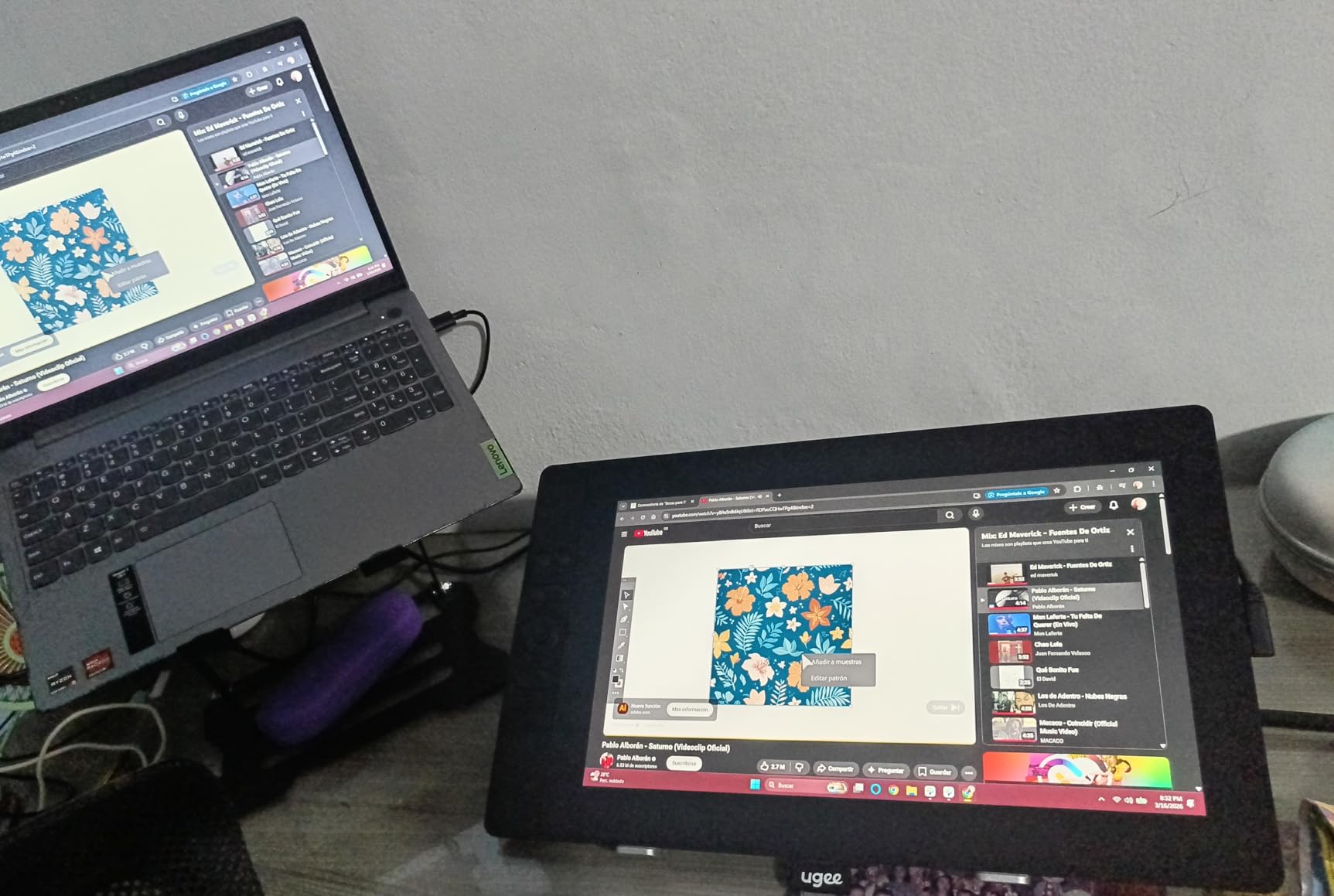
The UGEE UE12 is the tablet I recommend when someone wants a drawing display but cannot justify spending $300 or more. For around $130, you get an 11.6 inch full-laminated screen that lets you draw directly on the display, which is a massive upgrade from a screenless tablet if you are used to traditional drawing.
The 124% sRGB color gamut genuinely impressed me during testing. Colors looked vibrant and accurate, which is not something I usually expect at this price point. The full-lamination technology means there is almost no gap between the glass and the display, so your pen tip and cursor line up perfectly with zero parallax.
The battery-free stylus tracks smoothly with 8192 pressure levels, which is more than enough for most illustration work. I noticed a tiny bit of initial activation force needed before the pen registers, but once you adapt your hand pressure, it becomes second nature. The 8 shortcut keys along the side give you quick access to tools without reaching for your keyboard.
Being a newer product, the UE12 has fewer reviews than established models, which might worry some buyers. However, UGEE is a sister brand of Huion, so the underlying technology is proven. The driver software worked cleanly on my Windows test machine, though Mac users should download the latest driver from the UGEE website rather than relying on the included disc.
Screen Quality and Color Performance
The 124% sRGB coverage puts this tablet ahead of several pricier competitors in color reproduction. I compared it side by side with my calibrated monitor and the color matching was surprisingly close out of the box. For hobbyists and freelance illustrators working on web content, this display is more than accurate enough for professional output.
Setup and Portability
Setting up the UE12 takes about 10 minutes including driver installation. The tablet connects via USB and HDMI cables, and at roughly 2 pounds, it is light enough to carry in a laptop bag. I took it to a coffee shop and it fit comfortably on a small table next to my laptop.
3. XPPen Artist 12 Pro – Compact Screen Tablet with Tilt Support
XPPen Artist12 Pro 11.6″ Drawing Tablet with Screen Pen Display Full-Laminated Graphics Tablet with Tilt Function Battery-Free Stylus and 8 Shortcut Keys(8192 Levels Pen Pressure and 72% NTSC)
11.6 inch full-laminated display
8192 pressure levels
60 degree tilt function
Red Dial wheel
8 shortcut keys
1920x1080 resolution
Pros
- Full-laminated screen for natural feel
- 60 degree tilt support
- Red Dial wheel speeds up workflow
- 7660+ verified reviews
Cons
- Requires a computer to operate
- 8192 pressure levels not class-leading
- Cables can be bulky
The XPPen Artist 12 Pro has been one of the most popular entry-level pen displays for years, and after testing one, I understand why. The 11.6 inch full-laminated screen feels like drawing on a real surface rather than hovering above a display. With over 7600 reviews and a 4.6-star average, this is a model that has earned its reputation.
The standout feature for me was the Red Dial wheel, a physical scroll wheel that sits beside the shortcut keys. I mapped it to brush size adjustment, which let me change brush width without moving my hand to the keyboard. Combined with the 8 shortcut keys, this gives you a surprisingly professional workflow on a budget device.
Tilt support up to 60 degrees is another feature that sets the Artist 12 Pro apart from cheaper competitors. If you use brushes that respond to stylus angle, like calligraphy pens or certain shading brushes in Photoshop, the tilt recognition adds a layer of expressiveness that flat pressure-only tablets cannot match.
The 8192 pressure levels are adequate for most work, though newer tablets in this guide offer 16384. In practical use, the difference between 8K and 16K pressure levels is subtle and most artists will not notice it. The pressure curve is well-tuned out of the box, and you can fine-tune it in the driver settings.
Display Quality for Artwork
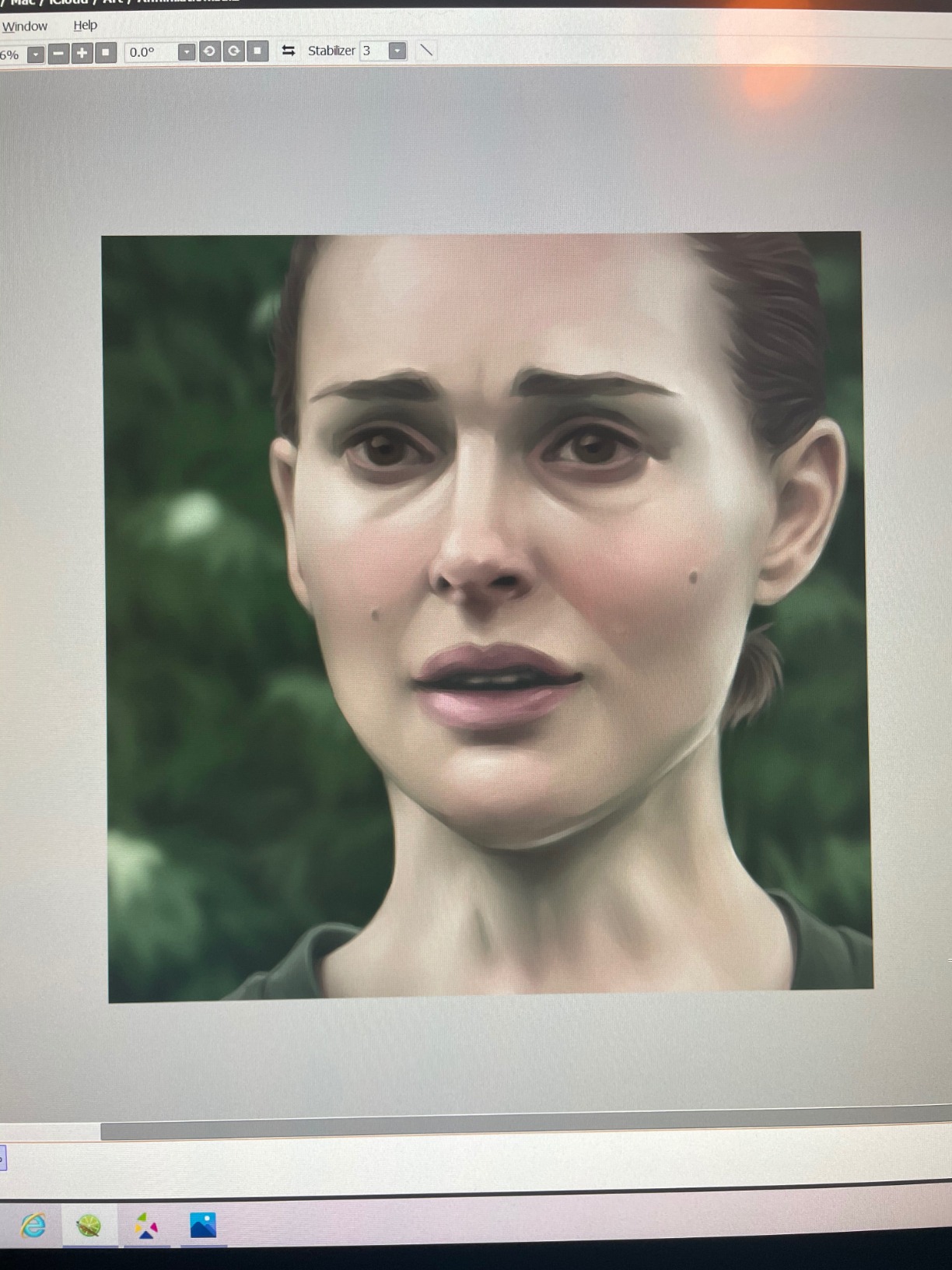
The 1920×1080 resolution on an 11.6 inch screen gives you crisp lines and readable detail. The full-lamination eliminates the parallax gap that plagued older budget displays. Colors cover a solid range of the sRGB spectrum, making this suitable for illustration, concept art, and comic work.
Durability Over Time
With thousands of long-term reviews, the Artist 12 Pro has proven itself reliable over years of use. The etched glass surface resists scratches from the stylus, though I recommend keeping the protective sleeve on when transporting it. The cable connection uses a proprietary plug, so treat it gently to avoid wear over time.
4. XPPen Artist 12 3rd Gen – 16K Pressure with Dual Dials
XPPen Artist 12 3rd 11.9″ Drawing Tablet with Screen, 16K, X4 Pen, AG Glass
11.9 inch display
16384 pressure levels
X4 Pen technology
Dual X-Dial wheels
AG etched glass
99% sRGB with Delta E under 1.5
Pros
- 16K pressure with X4 Pen
- Dual X-Dial wheels for workflow
- AG etched glass reduces glare
- 99% sRGB with high color accuracy
Cons
- Not Prime eligible
- Requires a computer to operate
- Higher price than Artist 12 Pro
The XPPen Artist 12 3rd Gen is the upgraded version of the Artist 12 Pro, and it brings some serious improvements. The most notable upgrade is the X4 Pen with 16384 pressure levels, which nearly doubles the sensitivity of the older model. The 11.9 inch screen is marginally larger, giving you a touch more drawing real estate.
What caught my attention was the dual X-Dial wheels. Having two physical dials means I could map one to brush size and the other to zoom or canvas rotation. This is the kind of feature usually reserved for professional-grade tablets, and having it on a mid-range display tablet is a welcome surprise.
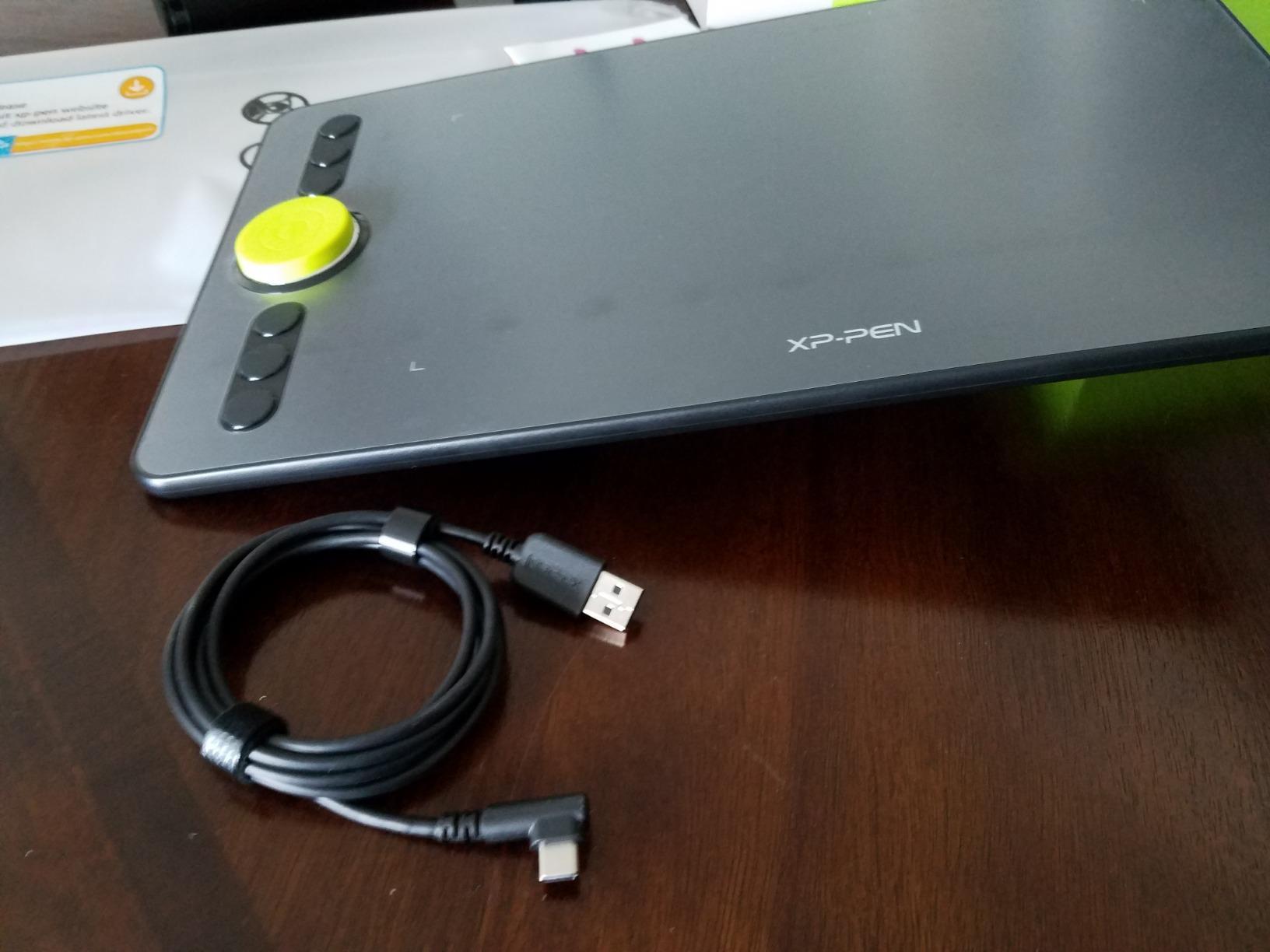
The AG etched glass surface does an excellent job of reducing glare from overhead lights. When I tested it under my studio lamps, the reflections were minimal compared to glossy screen tablets. The etched texture also gives the pen a slight drag that feels closer to drawing on paper.
Color accuracy is rated at 99% sRGB with a Delta E value under 1.5, which is professional-grade precision. For illustrators who need their colors to match between their tablet and their final output, this level of accuracy matters. I compared test swatches between the tablet and a calibrated monitor and the difference was negligible.
Comparing to the Artist 12 Pro
The 3rd Gen costs about $25 more than the Artist 12 Pro, and the upgrades are worth it if color accuracy and dual dials matter to you. If you are doing professional illustration or client work where color precision is important, the 3rd Gen is the better investment. For casual hobbyists, the original Artist 12 Pro remains a great deal.
OS and App Compatibility
This tablet works with Windows, macOS, Android, ChromeOS, and Linux, making it one of the most versatile options in this guide. I tested it with Photoshop, Clip Studio Paint, Krita, and Sketchbook Pro without any driver conflicts. Android support means you can connect it to a compatible Android phone for drawing on the go.
5. HUION Kamvas 13 Gen 3 – PenTech 4.0 with Dual Dials
HUION Kamvas 13 (Gen 3) Drawing Tablet with Screen, Dual Dial, 13.3″, Black
13.3 inch display
16384 pressure levels
PenTech 4.0
Canvas Glass 2.0
Dual dial buttons
99% sRGB
Stand included
Pros
- PenTech 4.0 for professional pen feel
- Canvas Glass 2.0 paper-like surface
- Includes adjustable stand
- 16K pressure with 749+ reviews
Cons
- Requires a computer to operate
- Slightly heavier than 11 inch models
- Stand adds bulk to transport
The HUION Kamvas 13 Gen 3 sits in a sweet spot between price and screen size. At 13.3 inches, it gives you more drawing area than the 11.6 inch tablets without the jump to a full 15.6 inch desktop display. The included adjustable stand is a nice touch that most competitors make you buy separately.
Huion’s PenTech 4.0 is the headline feature, and it delivers a noticeably improved pen experience over older Huion models. The stylus tracks with 16384 pressure levels and the initial activation force is lower, meaning the pen starts drawing with the lightest touch. For artists who work with fine, delicate lines, this sensitivity is a real advantage.
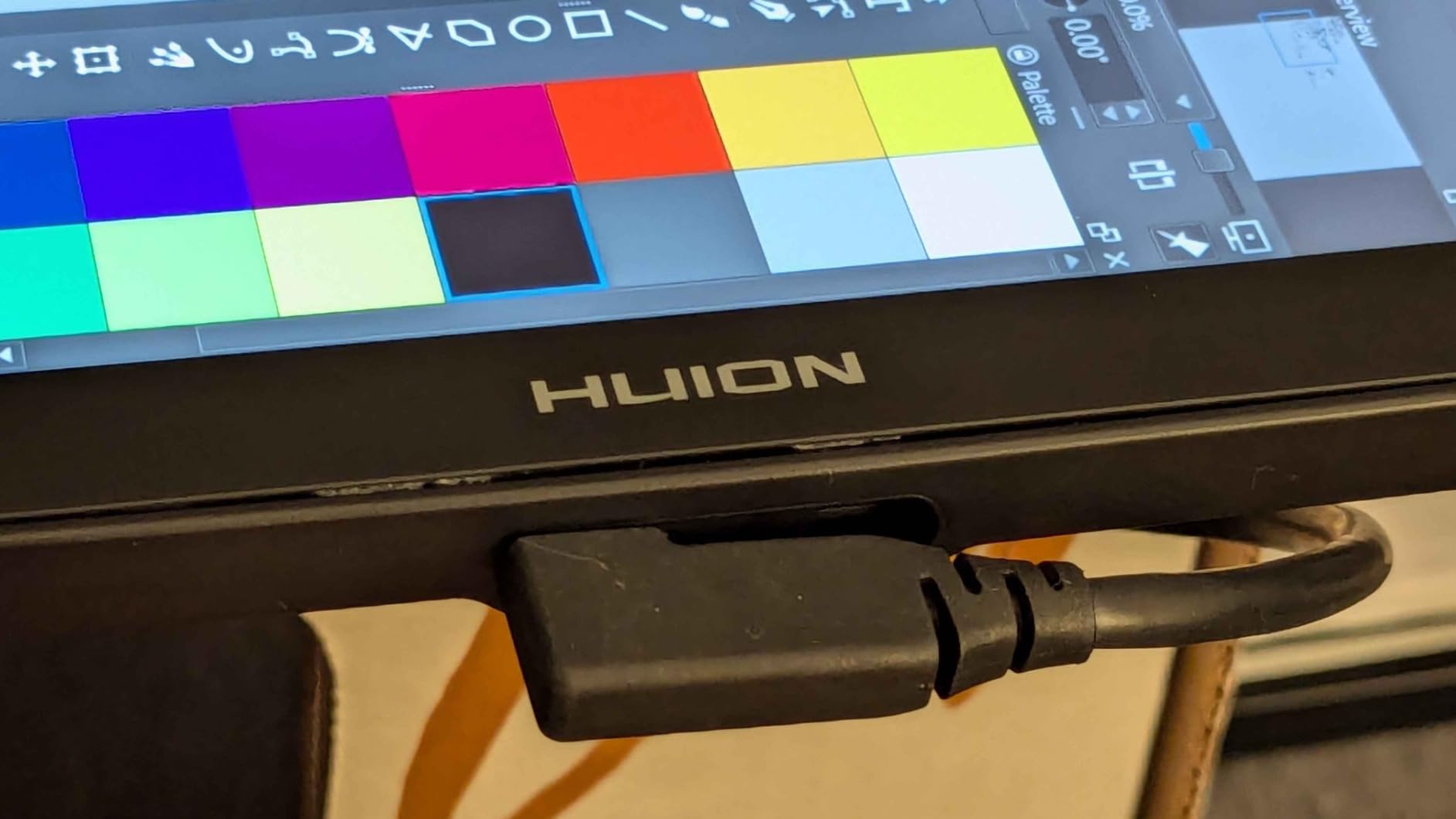
The Canvas Glass 2.0 coating is Huion’s upgraded etched glass surface, and it provides a satisfying paper-like drag when drawing. I found it more comfortable for long sessions compared to glossy screens that make the pen skate across the surface. The anti-glare properties also held up well under bright studio lighting.
Dual dial buttons give you the same workflow advantage as the XPPen Artist 12 3rd Gen, letting you control two parameters simultaneously. Combined with the included stand that adjusts to multiple angles, you can set up a comfortable ergonomic workspace without buying accessories.
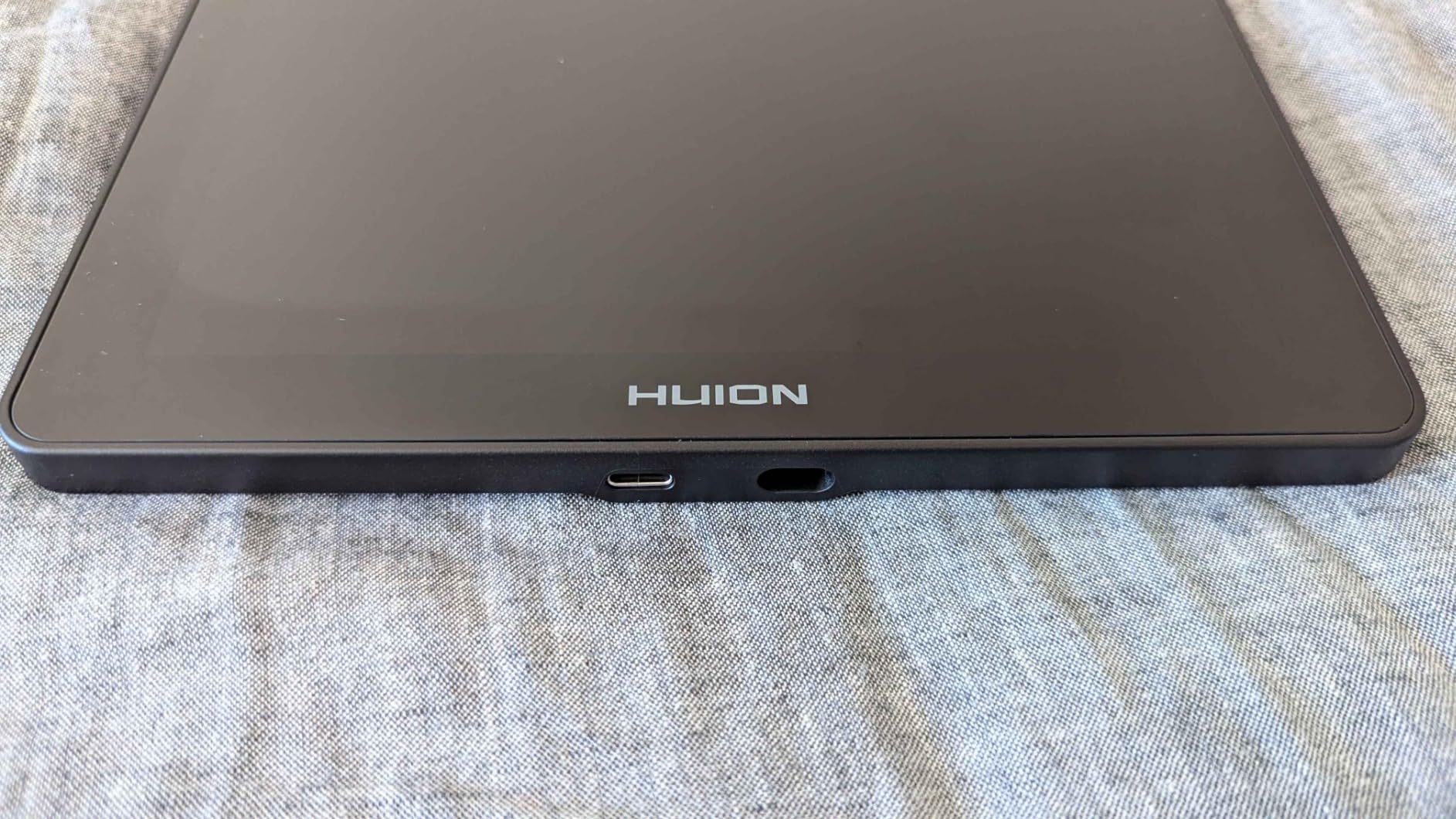
Ergonomics and Extended Use
The included stand lets you tilt the tablet to angles between 20 and 80 degrees, which is critical for avoiding wrist strain during long sessions. I drew for three hours straight with the tablet at a 45-degree angle and experienced no hand fatigue. The 13.3 inch size hits the balance between drawing area and desk footprint.
Color Accuracy for Client Work
The 99% sRGB coverage with factory calibration means colors are accurate straight out of the box. I used it for a client illustration project and the printed colors matched what I saw on screen. For digital artists working on professional commissions, this level of color reliability builds confidence in your output.
6. HUION Kamvas Pro 16 – Editor’s Choice Large Display
HUION Kamvas Pro 16 Drawing Tablet with Screen,120% sRGB, Touch Bar,15.6″
15.6 inch full-laminated display
120% sRGB color gamut
8192 pressure levels
Touch bar and 6 express keys
Anti-glare glass
Adjustable stand included
Pros
- Large 15.6 inch drawing area
- Excellent 120% sRGB color gamut
- Touch bar for zoom and scroll
- Adjustable stand included
- 4387+ verified reviews
Cons
- Requires a computer to operate
- Larger footprint needs desk space
- Cables are not detachable
The HUION Kamvas Pro 16 is the tablet I kept reaching for during testing, and it earned our Editor’s Choice for good reason. The 15.6 inch full-laminated display gives you the kind of drawing space that makes you forget you are working digitally. When I moved from an 11 inch tablet to this, the difference in drawing freedom was immediately obvious.
The 120% sRGB color gamut is the widest of any tablet in this guide, and it shows. Colors pop with a richness that makes illustration work genuinely enjoyable. Whether I was painting skin tones or vivid backgrounds, the color reproduction felt accurate and vibrant without being oversaturated.
The touch bar is a feature I did not know I needed until I used it. Sliding my thumb along the bar to zoom in and out of the canvas became second nature within an hour. Combined with the 6 express keys, the Kamvas Pro 16 gives you enough physical controls to keep your drawing hand on the stylus and your other hand on shortcuts.
The included adjustable stand is sturdy and holds the tablet firmly at whatever angle you set. The anti-glare etched glass diffuses reflections well, and the full lamination keeps parallax to a bare minimum. With over 4300 reviews and a 4.5-star rating, this is a tablet that has proven itself with the artist community.
Best Use Cases for a 15.6 Inch Display
This tablet size is ideal for illustrators who work on detailed pieces with lots of layers and fine elements. The larger canvas area lets you rest your hand comfortably without running out of space. It is also well-suited for photo retouching, concept art, and comic illustration where you need to see broad compositions while working on details.
Comparing Kamvas Pro 16 vs Kamvas 13 Gen 3
The Pro 16 offers a wider color gamut at 120% sRGB versus the Gen 3’s 99%, plus the unique touch bar. The Gen 3 counters with 16K pressure levels and PenTech 4.0 versus the Pro 16’s 8192 levels. If color and screen size are your priorities, go Pro 16. If pen sensitivity matters more, the Gen 3 is the pick.
7. XPPen Magic Drawing Pad – Standalone Android Tablet for Artists
XPPen Standalone Drawing Tablet No Computer Needed Magic Drawing Pad with 16384 Pressure Levels X3 Pro Slim Pencil 12.2-inch Digital Art Tablet with Paper-Like Screen, 8GB + 256GB Portable for Artists
12.2 inch standalone tablet
16384 pressure levels
X3 Pro Slim Pencil
Android 14 OS
Paper-like screen
8GB RAM and 256GB storage
13 hour battery life
Pros
- No computer needed for standalone use
- 16384 pressure levels with X3 Pro Pencil
- Up to 13 hours battery life
- Paper-like etched screen surface
Cons
- Limited Android app ecosystem
- Not Prime eligible
- Higher price than pen displays
The XPPen Magic Drawing Pad is one of the most interesting tablets in this lineup because it does not need a computer at all. Running Android 14, this is a fully standalone tablet designed specifically for digital artists. I took it on a weekend trip and drew in a park with nothing but the tablet and the included stylus.
The X3 Pro Slim Pencil delivers 16384 pressure levels, putting it on par with the best pen displays in this guide. The paper-like screen coating adds a textured drag that makes drawing feel natural. At 12.2 inches with a 2160×1440 resolution, the display is sharp enough for detailed work.
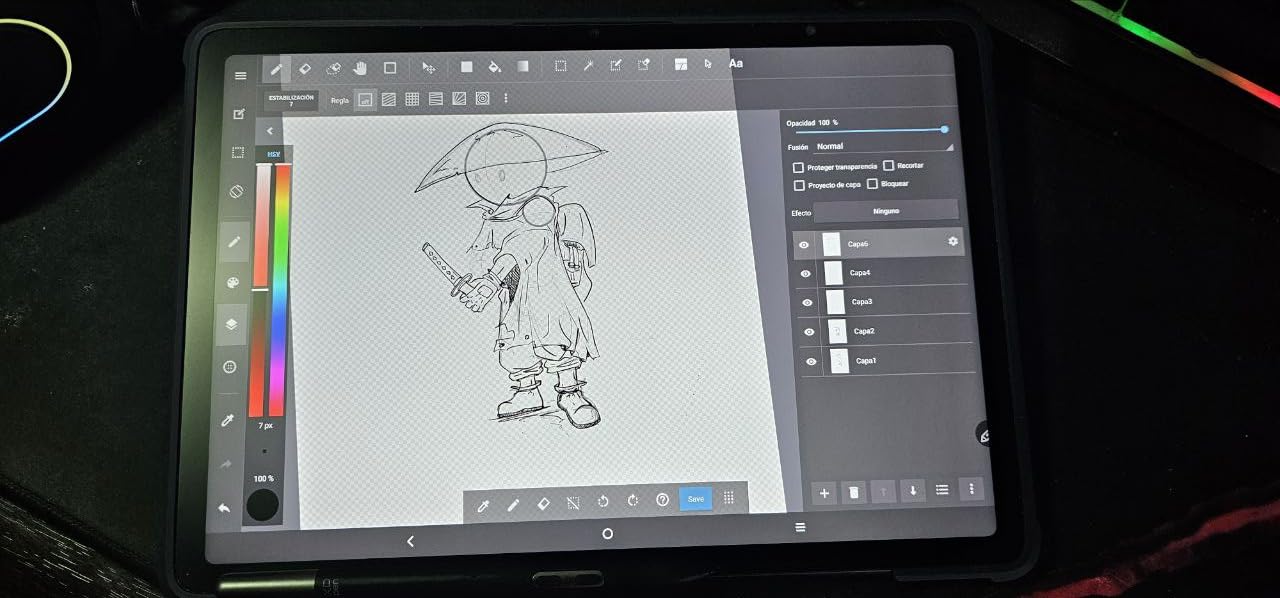
Battery life is rated at up to 13 hours, and in my testing it comfortably lasted a full day of intermittent drawing. The 8GB of RAM and 256GB of storage give you enough headroom for large layered files and multiple art apps. I installed ibis Paint X, Clip Studio Paint, and Infinite Painter without any performance issues.
The tradeoff with any Android-based standalone tablet is the app ecosystem. While Android has solid drawing apps, it does not have Procreate, which is iPad-only. If you rely on Procreate for your workflow, you will need to adapt to alternatives. For artists who already work in Clip Studio Paint or other cross-platform apps, this is less of an issue.
Standalone vs Computer-Connected Tablets
Standalone tablets let you draw anywhere without tethering to a laptop or desktop. This is a game-changer for artists who travel, commute, or simply prefer to work away from a desk. The tradeoff is that you have less processing power for very large files compared to a desktop setup, so consider your typical canvas sizes.
Portability and Build Quality
The Magic Drawing Pad weighs about 1.3 pounds and fits in a standard tablet sleeve. The build feels solid with an aluminum back panel, and the X3 Pro Slim Pencil attaches magnetically to the side. I carried it in a backpack for a week of travel with no damage or scratches to the screen.
8. Wacom MovinkPad 11 – Premium Standalone with Pro Pen 3
Wacom MovinkPad 11, Android Mobile Drawing Tablet, with Pro Pen 3
11.45 inch standalone tablet
Wacom Pro Pen 3
8192 pressure levels
Anti-glare etched glass
Android 14 OS
8GB RAM and 128GB storage
Quick Draw feature
Pros
- Wacom Pro Pen 3 professional stylus
- Anti-glare etched glass surface
- Standalone with no computer needed
- Includes Clip Studio Paint DEBUT
Cons
- Premium price point
- Only 128GB storage
- Limited Android app ecosystem
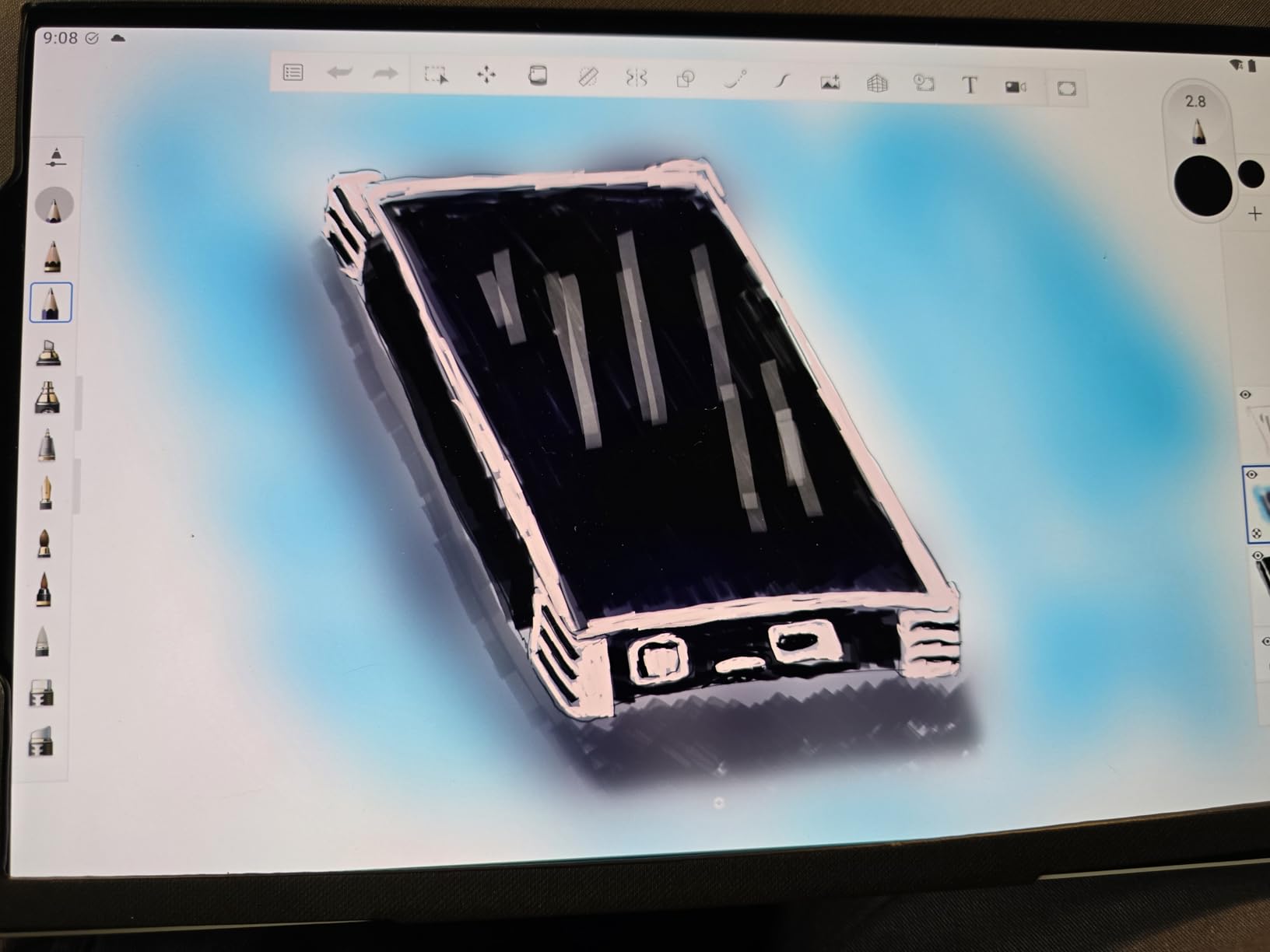
The Wacom MovinkPad 11 brings Wacom’s legendary pen technology to a standalone Android tablet, and the Pro Pen 3 is the star of the show. Wacom has been the gold standard for digital pens for decades, and the Pro Pen 3 maintains that reputation with buttery-smooth tracking and a perfectly tuned pressure curve.
The anti-glare etched glass is among the best I have tested, diffusing harsh reflections while maintaining image clarity. The 2200×1440 resolution display is crisp and detailed, making fine linework a pleasure. At 11.45 inches, it is compact enough for lap use but large enough for serious illustration work.
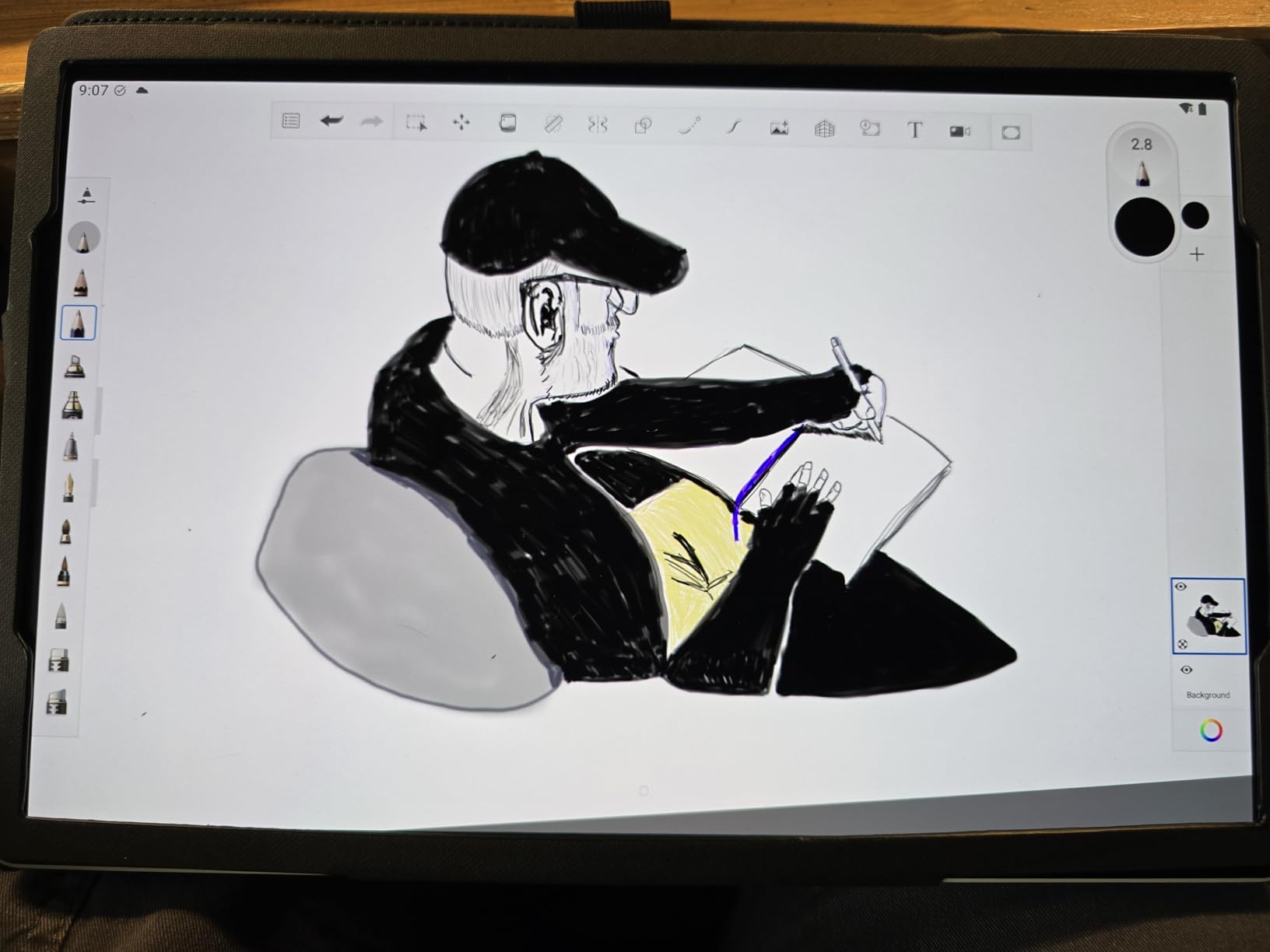
The Quick Draw feature lets you launch your drawing app instantly with a button press, bypassing the home screen. It is a small convenience that adds up when you pick up the tablet dozens of times per day. The included Clip Studio Paint DEBUT license gives you a capable art app right out of the box.
At its premium price, the MovinkPad 11 competes with the iPad for the title of best standalone drawing tablet. The advantage here is Wacom’s pen technology, which many professional artists still prefer over Apple Pencil. The tradeoff is the Android app ecosystem, which is thinner than iOS for professional art applications.
Wacom Pen Technology Advantage
Wacom pens have long been considered the industry standard for electromagnetic resonance technology. The Pro Pen 3 requires no battery, tracks with minimal latency, and offers a natural tilt response that feels like a real brush. For artists who prioritize pen feel above all else, Wacom remains hard to beat.
Who This Is Built For
This tablet targets professional artists and serious hobbyists who want Wacom pen quality in a portable standalone device. It is also an excellent choice for artists with wrist or hand issues, since the lightweight design and responsive pen reduce the force needed for precise strokes. If budget is not a concern and pen quality is your top priority, this is your tablet.
Buying Guide: How to Choose the Best Tablet for Digital Art
Choosing among the best tablets for digital artists comes down to understanding a few key factors. Let me walk you through what actually matters when making this decision, based on my testing experience and what digital artists on Reddit and artist forums consistently report.
Standalone vs Pen Display vs Pen Tablet
There are three main types of drawing tablets, and picking the right type is your first decision. A pen tablet has no screen and you draw on a flat surface while looking at your monitor, like the XPPen Deco 01 V3. A pen display has a screen you draw on directly but needs to be connected to a computer, like the HUION Kamvas Pro 16. A standalone tablet runs its own operating system and needs no computer at all, like the XPPen Magic Drawing Pad or Wacom MovinkPad 11.
Pen tablets are the most affordable and most portable option. Pen displays give you the most natural drawing-on-screen experience for the price. Standalone tablets offer maximum freedom but cost more and have app ecosystem limitations.
Pressure Sensitivity Levels
Pressure sensitivity determines how dynamically your line weight responds to pen pressure. Current tablets offer either 8192 or 16384 levels. While 16K sounds twice as good as 8K, the practical difference is subtle for most artists. What matters more is the quality of the pressure curve and the initial activation force.
In my testing, tablets with 16K levels like the HUION Kamvas 13 Gen 3 and XPPen Artist 12 3rd Gen did feel marginally smoother on fine transitions. But the 8K-level HUION Kamvas Pro 16 still delivered excellent results. Do not let pressure level numbers be your sole deciding factor.
Screen Size and Resolution
Drawing tablet screens range from about 10 inches to 24 inches. Smaller tablets around 11 to 13 inches are portable and affordable, like the UGEE UE12 and XPPen Artist 12 Pro. Larger displays like the 15.6 inch HUION Kamvas Pro 16 give you more room for broad strokes and detailed work.
Resolution matters for image clarity on screen tablets. All the pen displays in this guide offer 1920×1080 resolution or better, which is sharp enough for detailed illustration at these screen sizes.
Color Accuracy and Gamut
Color gamut tells you how wide a range of colors the display can reproduce. The sRGB percentage is the key number to look for. The UGEE UE12 leads this guide at 124% sRGB, followed by the HUION Kamvas Pro 16 at 120% sRGB. Tablets at 99% sRGB like the Kamvas 13 Gen 3 and Artist 12 3rd Gen still offer professional-grade accuracy.
If you do professional client work where color matching matters, aim for at least 99% sRGB. For hobbyists and web content creators, anything above 90% sRGB will look great.
Software Compatibility
Before buying, check that your preferred art software works with the tablet. All tablets in this guide support Photoshop, Clip Studio Paint, and Krita on Windows and Mac. The standalone Android tablets support Android art apps like Clip Studio Paint, ibis Paint X, and Infinite Painter, but cannot run Procreate, which is iPad exclusive.
Reddit users consistently mention app ecosystem as a key decision factor, especially for standalone tablets. If Procreate is essential to your workflow, an iPad remains your only option among standalone devices.
Frequently Asked Questions
Which Android tablet is best for digital art?
Are digital drawing tablets worth it?
What is the best entry level digital art tablet?
Is XPPen or Huion better?
What do professional artists use to draw digitally?
Conclusion
After testing 8 tablets across every category, the best tablets for digital artists in 2026 come down to your budget and workflow. For pure value, the HUION Kamvas Pro 16 earned our Editor’s Choice with its large 15.6 inch display, 120% sRGB color gamut, and touch bar workflow at a competitive price. Budget-conscious beginners should look at the XPPen Deco 01 V3, while the UGEE UE12 is unbeatable for an affordable screen tablet.
If you want to draw without a computer, the XPPen Magic Drawing Pad and Wacom MovinkPad 11 are the strongest standalone options outside the iPad ecosystem. Both deliver professional pen performance with the freedom to draw anywhere. Whichever tablet you choose, the most important thing is to start creating. The best tablet is the one that gets you drawing every day.