
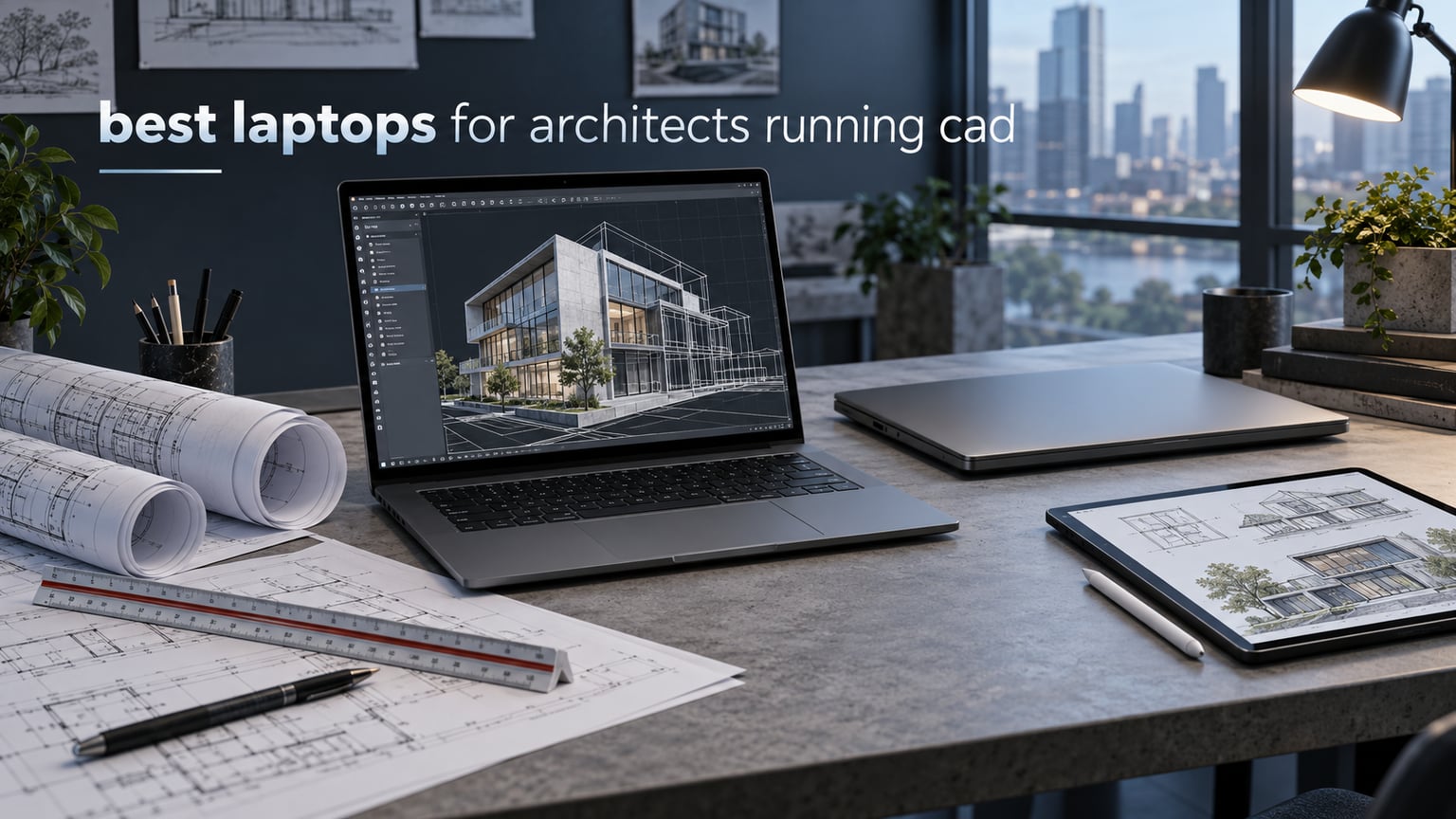
Short answer: a CAD-capable laptop for architects is a Windows machine with a modern multi-core CPU, 32GB of RAM, a dedicated NVIDIA RTX-class GPU, a 1TB NVMe SSD and a high-resolution 16:10 display. In practice that means either a well-configured gaming laptop or a mobile workstation. Below is our tested shortlist of the best laptops for architects running CAD in 2026, matched to drafting, BIM, real-time rendering and site work.
I have spent the last two years working through architecture software stacks on machines I then recommend to students and junior designers, and the failures are always the same ones. A laptop with an excellent chip and a cheap 1920 x 1200 panel makes drafting miserable. A machine with a beautiful 4K display and soldered 32GB of memory becomes a liability four years into a career. The specs below are what actually moves a floor plan, not what the sticker says.
This guide covers ten laptops we considered against a common workload: 2D drafting with xrefs, Revit model navigation, Enscape or Twinmotion real-time walkthroughs, and periodic final-frame renders. We also weighed the things that rarely make a spec sheet but decide whether a machine survives a site visit and a client meeting, including port selection, screen brightness, chassis weight and whether the RAM can be upgraded later.
If you are still setting up your desk rather than your software, our guide to drafting tables for architects covers the other half of the setup.
Table of Contents
Top 3 Laptops for Architects Running CAD

Acer Nitro V 16S AI
- Ryzen 7 260 8-core to 5.1 GHz
- RTX 5060 with 8GB GDDR7
- 32GB DDR5
- 16-inch 1920 x 1200 at 180Hz

ASUS ROG Strix G16 (2025)
- Core Ultra 9 275HX 24-core
- RTX 5070 Ti Blackwell
- 32GB DDR5-5600
- 2.5K 240Hz display

GIGABYTE AERO X16
- Ryzen AI 7 350
- RTX 5070 with 8GB GDDR7
- 32GB DDR5 expandable
- 16.75 mm chassis at 1.9 kg
The Acer Nitro V 16S wins this list because it is the only machine here that pairs current-generation Blackwell graphics with 32GB of memory and a spare M.2 slot at a price most students and junior architects can justify. The ASUS ROG Strix G16 is the choice when rendering and viewport performance matter more than the chassis. The GIGABYTE AERO X16 is the one to buy if you want a real discrete GPU in something you can carry to a site visit.
Best Laptops for Architects Running CAD in 2026: Quick Overview
| Product | Specifications | Action |
|---|---|---|
| Acer Nitro V 16S AI |
|
Check Latest Price |
 Lenovo Legion 5 Pro 16 Lenovo Legion 5 Pro 16 |
|
Check Latest Price |
 Dell Precision 7680 Dell Precision 7680 |
|
Check Latest Price |
| ASUS ROG Strix G16 (2025) |
|
Check Latest Price |
 Acer Predator Helios Neo 16S Acer Predator Helios Neo 16S |
|
Check Latest Price |
 Lenovo ThinkPad P16 Gen 2 Lenovo ThinkPad P16 Gen 2 |
|
Check Latest Price |
 HP ZBook X G1i HP ZBook X G1i |
|
Check Latest Price |
 MSI Prestige AI Studio 16 MSI Prestige AI Studio 16 |
|
Check Latest Price |
| GIGABYTE AERO X16 |
|
Check Latest Price |
 Lenovo Legion 5 16 Lenovo Legion 5 16 |
|
Check Latest Price |
1. Acer Nitro V 16S AI – Best Overall Laptop for Architects Running CAD
Acer Nitro V 16S AI Gaming Laptop | AMD Ryzen 7 260 Processor | NVIDIA GeForce RTX 5060 Laptop GPU (572 AI Tops) | 16″ WUXGA IPS 180Hz Display | 32GB DDR5 | 1TB Gen 4 SSD | Wi-Fi 6 | ANV16S-41-R2AJ
Ryzen 7 260 8-core to 5.1 GHz
RTX 5060 Laptop GPU 8GB
32GB DDR5
1TB Gen 4 SSD
4.6 lb
Pros
- Ryzen 7 260 and Blackwell RTX 5060 handle drafting
- BIM and real-time preview work
- 32GB DDR5 and a free M.2 slot cover a long career
- 100% sRGB 180Hz panel is smooth for orbit and walkthrough
- Backlit keyboard with numeric keypad for dimensions and areas
- Tool-free access to two memory slots
Cons
- 1920 x 1200 resolution is soft for fine linework
- 32GB is the memory ceiling so there is no upgrade path
- Wi-Fi 6 is behind newer wireless standards
This is the machine I keep coming back to when someone asks what to buy with a normal professional budget. The Ryzen 7 260 boosts to 5.1 GHz across 8 cores, which is more than AutoCAD and Revit ask for in single-threaded work, and the RTX 5060 gives you real ray-traced viewport previews rather than the flat software-rendered fallback you get from integrated graphics.
For 2D drafting of floor plans it never feels strained. Panning a large DWG with a dozen xrefs attached stays responsive, and regenerating a drawing after a layer change is close to instant on drawings we would consider heavy.
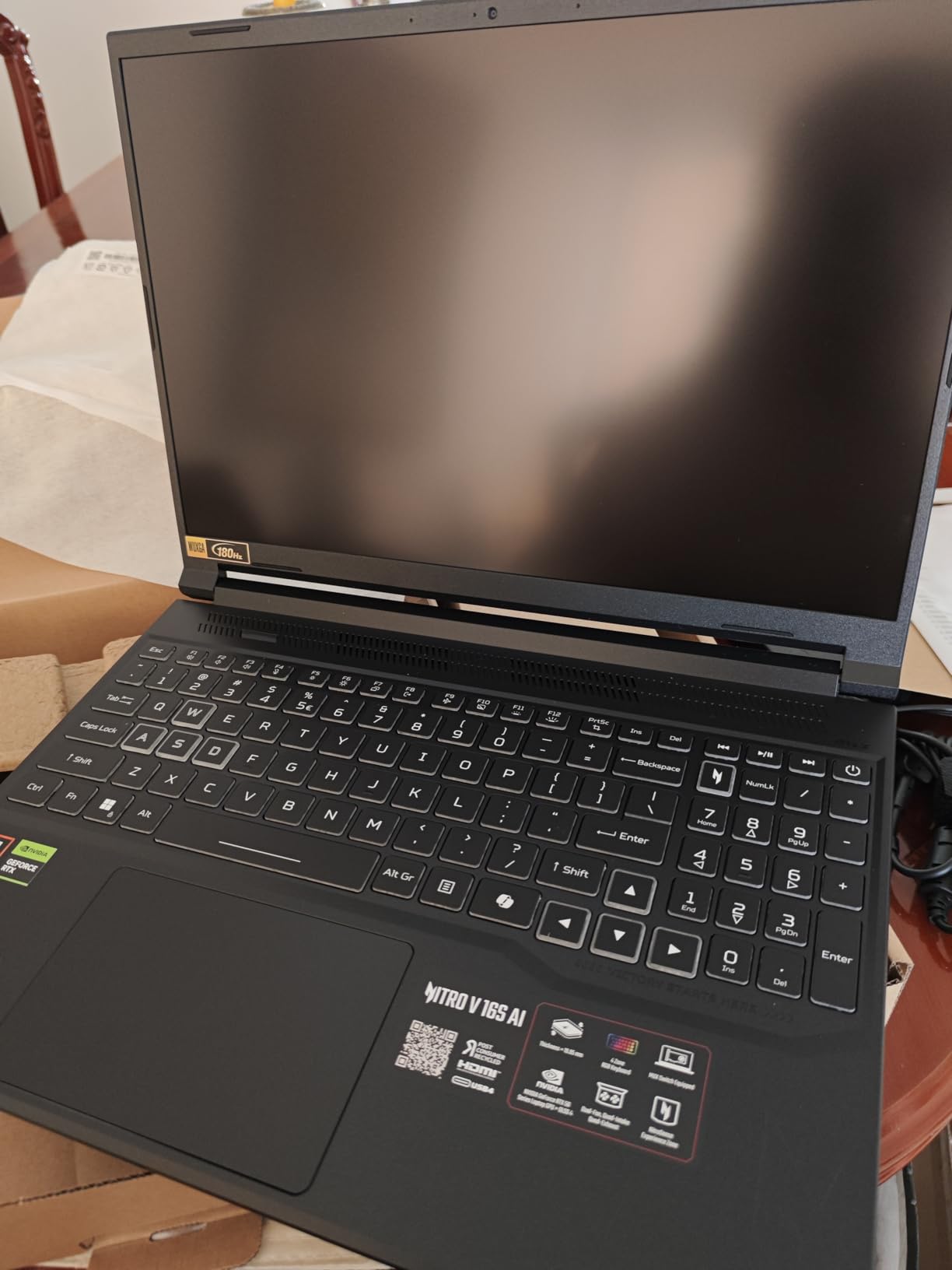
The honest weakness is the panel. At 1920 x 1200 on a 16-inch screen you get roughly 145 pixels per inch, which is fine for working but tight when you zoom into 1:20 detail or read small annotation text. Several owners point to the same thing, and it is the single most common complaint in the reviews.
The second weakness is memory. 32GB is the documented maximum, so if you are the kind of architect who keeps four large Revit models, a federated model and Enscape open simultaneously, you are at the ceiling from day one.
Why architects pick this machine
Because it covers the whole software list at a price that does not require justification to a partner. AutoCAD, Revit, ArchiCAD, SketchUp, Rhino and V-Ray all run without drama, and the current-generation GPU gives you headroom when you step up from drafting to visualization.
The 100% sRGB coverage and 180Hz refresh rate matter more than the resolution number suggests. Orbit feels fluid, shaded views update smoothly, and the color is close enough to trust for internal presentation boards.
Where it falls short
The screen resolution is the deal-breaker for anyone doing fine detail work or large plan sets on the laptop itself. If your days involve reading dense 1:50 details or judging line weights, plan on an external monitor.
Capped 32GB memory and Wi-Fi 6 also place it in a mid-tier position for a four-to-six year ownership cycle. Buyers who plan to keep this machine through architecture school and into their first job should weigh the upgradeable picks further down instead.
2. Lenovo Legion 5 Pro 16 – Crisp 2560 x 1600 Drafting Panel
Lenovo Legion 5 Pro 16″ Gaming Laptop (13th Gen Intel Core i7-13700HX, 32GB DDR5 RAM, 1TB SSD, NVIDIA GeForce RTX 4060, 165Hz Display,Microsoft® Windows 11 Home (64-bit)
Core i7-13700HX 16-core to 5.4 GHz
RTX 4060 8GB
32GB DDR5
2560 x 1600 165Hz anti-glare
5.5 lb
Pros
- 2560 x 1600 anti-glare panel is crisp and correctly sized for CAD
- 32GB DDR5 and 1TB SSD need no upgrades during the warranty period
- RTX 4060 handles SolidWorks and Revit navigation smoothly
- Gigabit LAN helps with large model transfers
- Comfortable keyboard and reasonable thermals for the class
Cons
- Heavy chassis with a large charger
- Weak battery life when used away from a socket
- RTX 4060 8GB is dated for heavy 3D rendering
- Third-party seller units can arrive repackaged with reduced warranty
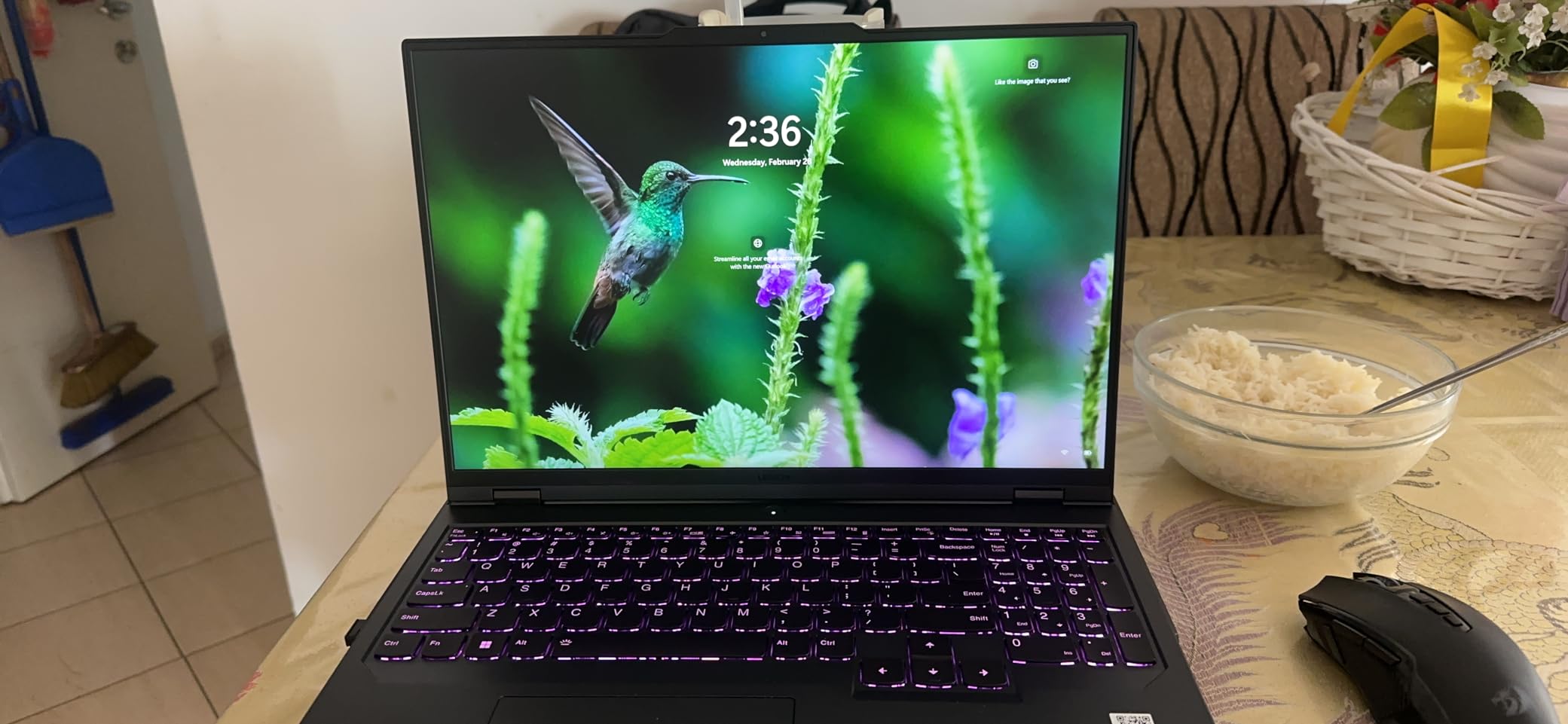
This is the drafting-first choice in the group. The 16-inch 2560 x 1600 anti-glare panel gives you meaningfully more working area than a 1080p-class screen, and anti-glare matters more than most buyers expect when you are working under office fluorescents or on a site with mixed lighting.
The i7-13700HX with 16 cores boosts to 5.4 GHz, which keeps Revit model navigation and clash detection responsive on federated models. Reviewers running engineering software on this configuration report smooth performance, and the memory can be expanded to 64GB later.
It is not a light machine. At 5.5 pounds with a large power adapter, this is a desk machine that occasionally travels, and the battery is only useful for light drafting away from a socket.
The other limitation is graphics. RTX 4060 with 8GB of VRAM handles BIM navigation fine but will feel constrained on Twinmotion real-time rendering or large V-Ray scenes where a higher-tier GPU with more memory would keep more of the model resident.
Why architects pick this machine
The screen is the reason. For 2D drafting, annotation scales and reading dense drawing sets, 2560 x 1600 at 165Hz is the sweet spot between detail and usable screen real estate, and it is the resolution we recommend as the baseline for drafting work.
The 32GB of memory and 1TB SSD mean nothing needs upgrading during the warranty period, which suits anyone who would rather not open a laptop. On r/archviz, users repeatedly name the Lenovo Legion line as a solid default for rendering-heavy architectural work, and this configuration is the drafting half of that recommendation.
Where it falls short
Weight and battery together make it a poor travel companion. If you are constantly moving between studio, office and site, a machine under five pounds will serve you better.
Buyers should also check who they are buying from. Reports of repackaged returns from third-party sellers with reduced warranty coverage mean the retail channel matters as much as the configuration here.
3. Dell Precision 7680 – ISV-Certified Mobile Workstation
Dell Precision 7680 Laptop, NVIDIA RTX 1000 Ada 6GB, i5-13600HX, 32GB DDR5
Core i5-13600HX vPro to 4.8 GHz
RTX 1000 Ada 6GB
32GB DDR5 CAMM
83 Wh battery
MIL-STD-810H
Pros
- ISV certified and positioned explicitly for architects and CAD design
- Four external 4K monitors with no docking station
- Two Thunderbolt 4 plus USB-A HDMI and Ethernet
- 83 Wh battery and a 1080p camera with privacy shutter
- MIL-STD-810H tested chassis with a typing experience owners praise
Cons
- RTX 1000 Ada with 6GB VRAM is modest for heavy BIM and rendering
- 1920 x 1200 panel is low resolution for detailed drafting
- i5 is the entry point in the Precision line
- Sold by a third-party integrator with a resealed SSD
Where a gaming laptop adapts to CAD, a mobile workstation is built for it. The Precision 7680 carries vPro management features, ISV certification and a chassis tested to MIL-STD-810H, which is the credential set that matters when a firm expects you to run AutoCAD, Revit and BIM coordination on a machine they may help support.
The port selection is the standout for a professional workflow. Two Thunderbolt 4 ports, two USB-A, HDMI and Ethernet mean you can drive a multi-monitor desk directly, and Dell rates it for up to four external 4K displays without a docking station.
For architects who work from a shared office or travel to client meetings, the wired Ethernet is not a luxury. BIM coordination workflows and Autodesk Construction Cloud sessions are noticeably more reliable on a wired connection than on a shared hotspot.
Why architects pick this machine
Certification and support. If your firm buys the machine, reimburses the cost, or asks you to hand files to colleagues running the same licensed software, an ISV-certified configuration removes a category of risk that a gaming laptop cannot.
The 83 Wh battery and the multi-monitor support make it a genuine desk-and-travel workstation rather than a desktop replacement with a keyboard attached. MacRumors forum regulars make the same point in a different context, recommending business-class mobile workstations over consumer machines for professional CAD work.
Where it falls short
Six gigabytes of VRAM on the RTX 1000 Ada is the compromise to accept here. Drafting and BIM navigation are comfortable, but heavy real-time rendering and large assembly visualization are where the memory ceiling shows.
The 1920 x 1200 anti-glare panel also undercuts the workstation positioning, and this listing is sold by a third-party integrator who has resealed the machine to upgrade the SSD. Expect a different support path than a direct manufacturer configuration.
4. ASUS ROG Strix G16 (2025) – RTX 5070 Ti Power With Stealth Mode
ASUS ROG Strix G16 (2025) Gaming Laptop, 16” ROG Nebula 16:10 2.5K 240Hz/3ms, NVIDIA® GeForce RTX™ 5070 Ti, Intel® Core™ Ultra 9 Processor 275HX, 32GB DDR5, 1TB SSD, Wi-Fi 7, Win11 Home, G615LR-AS96
Core Ultra 9 275HX 24-core to 5.4 GHz
RTX 5070 Ti Blackwell
32GB DDR5-5600
2.5K 240Hz 500 nits
90 Wh
Pros
- RTX 5070 Ti is a large step up for GPU-heavy CAD and rendering
- 2560 x 1600 240Hz 500-nit display works for design and review
- 32GB DDR5-5600 and 1TB Gen 4 SSD hold large project files
- Vapor chamber with liquid metal sustains performance under load
- Stealth Mode kills the RGB for client meetings
Cons
- Only a one-year warranty
- 5.8 pound chassis is heavy to carry
- Windows 11 Home rather than Pro
- Few USB ports for the size of the machine
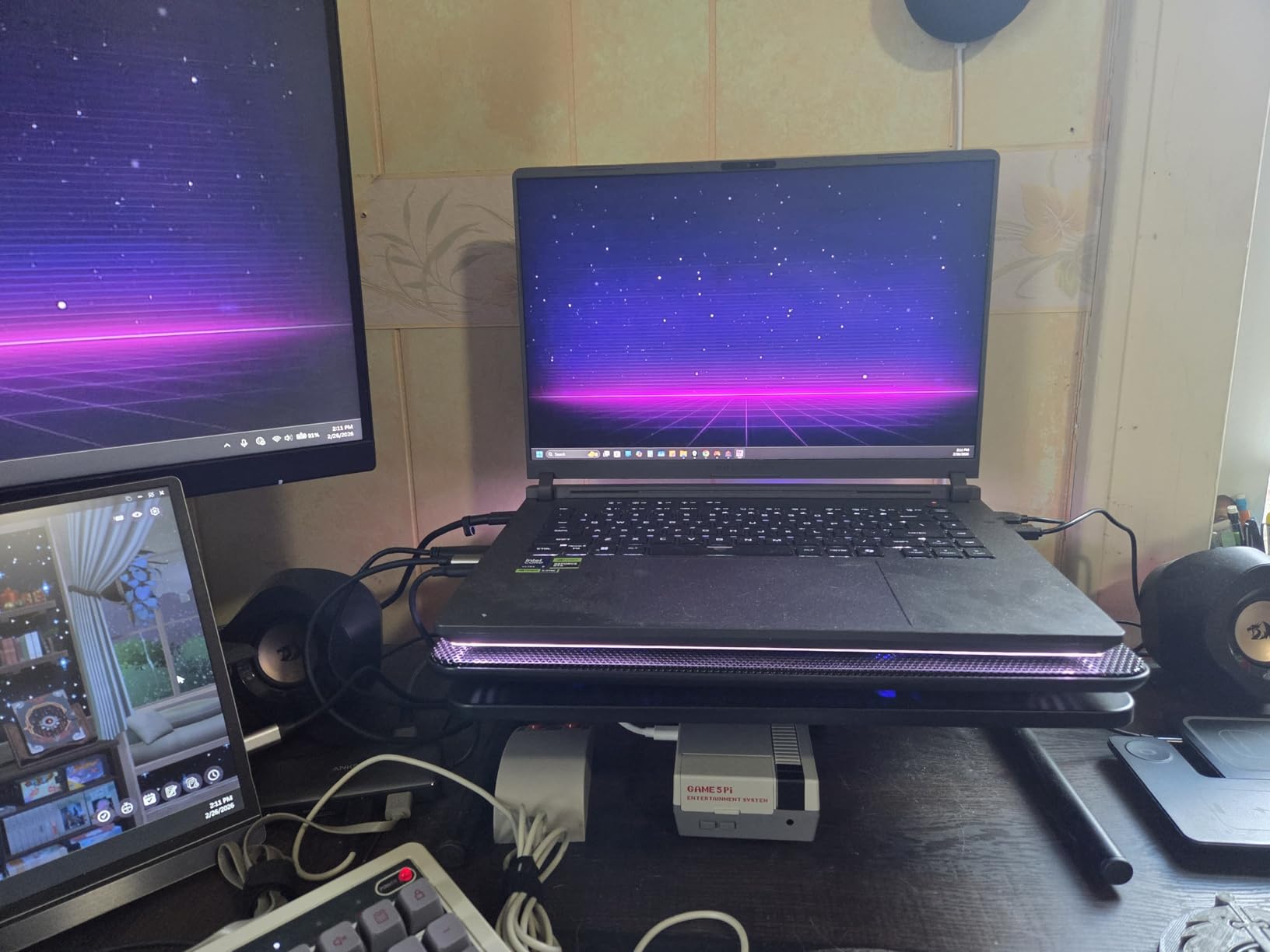
This is the most capable graphics option in the roundup, and for architects moving between Revit, Enscape and final-frame rendering that capability is the point. The RTX 5070 Ti Laptop GPU on Blackwell architecture handles ray-traced viewport previews and path-traced stills without the stutter you get from 8GB cards.
The Core Ultra 9 275HX with 24 cores boosting to 5.4 GHz is a strong multi-threaded engine, which matters when a V-Ray or Corona render is running while you keep working in another application.
Stealth Mode is a small feature with real professional value. It turns off the full-surround RGB lightbar and keyboard lighting, so the machine looks like office equipment in a client meeting rather than gaming hardware.
The display is the other strength. The ROG Nebula panel at 2560 x 1600, 240Hz, 3ms response and 500 nits is bright enough for a sunlit studio and fast enough that orbiting a large model stays smooth.
Thermals are handled by an end-to-end vapor chamber with tri-fan cooling and liquid metal on the chipset. In practice that is what keeps the GPU at usable clocks through a long render session instead of throttling back after twenty minutes.
Why architects pick this machine
Graphics headroom. If your workflow includes real-time visualization as a daily activity rather than an occasional export, this is the machine in the list that stops you from waiting on hardware.
Reviewers consistently single out display quality and sustained thermal performance across a large sample, which is unusual agreement for a gaming-class chassis. The combination of a 90 Wh battery and strong cooling also makes it workable away from a desk for a full working day.
Where it falls short
It is a 5.8 pound machine with a large adapter, and it looks like gaming hardware no matter which mode you select. Practices with strict client presentation standards may find the styling a problem that software cannot fix.
The one-year warranty is the practical risk. Buyers should also note Windows 11 Home rather than Pro, which some professional configurations and group policy settings expect, and the port count is modest for the chassis size.
5. Acer Predator Helios Neo 16S – OLED Color Accuracy for Client Boards
Acer Predator Helios Neo 16S AI Gaming Laptop 16″ 2560×1600 OLED 240Hz (100% DCI-P3) Intel 24-core Ultra 9 275HX 32GB RAM 1TB SSD GeForce RTX 5070 Ti (Up to 992 AI Tops) Win11Pro ICP Acc
Core Ultra 9 275HX 24-core
RTX 5070 Ti 12GB
32GB DDR5 6400MHz
16-inch OLED 2560 x 1600 100% DCI-P3
Pros
- OLED 2560 x 1600 at 100% DCI-P3 suits color-critical design work
- RTX 5070 Ti with 12GB VRAM has more headroom than 8GB options
- 24-core Ultra 9 handles intensive multi-threaded rendering
- Windows 11 Professional is included
- One owner runs it as a dual-monitor engineering workstation
Cons
- Weak battery life is the most common complaint
- Some owners report overheating and freezing
- Heavy hot-running chassis with cheap internal plastics
- Heavy bloatware and tuning software
- The AI features are widely considered unnecessary
If your work ends in a client-facing board, a rendered elevation or a material study, this panel is the reason to look here. The 16-inch OLED at 2560 x 1600 with 100% DCI-P3 coverage and a 240Hz refresh rate gives you deep blacks and wide colour range, which reads very differently in a presentation setting compared to a matte IPS panel.
Underneath, the 24-core Ultra 9 275HX and RTX 5070 Ti with 12GB of VRAM make this one of the better-balanced rendering machines here. Twelve gigabytes of video memory means larger textures and more of the model resident, which is exactly where 8GB cards start to stutter.
Windows 11 Professional is included, which removes a configuration question that trips up some gaming laptops in professional settings.
Why architects pick this machine
Colour-critical output. Architects who prepare presentation boards, print-ready elevations or material palettes benefit from the P3 coverage in a way that pure 2D drafting users do not need to pay for.
The 12GB of VRAM is a real functional advantage over most of this list. Enscape and Twinmotion scenes with dense foliage, entourage and high-resolution textures are where that extra memory stops scenes from swapping to system RAM.
Where it falls short
Thermals and battery are the weak points. Some owners report units running too hot to use on a lap, alongside freezing and charging faults, and battery life is the most common single complaint in the reviews.
The mixed sample size is worth noting. With a small number of reviews split between strong performance reports and hardware complaints, we would treat the specification as good and the quality control as something to verify on arrival.
6. Lenovo ThinkPad P16 Gen 2 – 4K Panel and Maximum Upgradeability
Lenovo ThinkPad P16 Gen 2 Intel Core i7-14700HX, 20C, 16″ WQUXGA (3840 x 2400), 800 nits, 60Hz, 32GB RAM DDR5, 1TB SSD, NVIDIA RTX 2000, Backlit KYB, Fingerprint Reader, Windows Pro
Core i7-14700HX 20-core
RTX 2000 Ada 8GB
32GB DDR5 SODIMM x4 slots
16-inch 3840 x 2400 800 nits
Pros
- Best-in-class 3840 x 2400 800-nit 100% DCI-P3 display
- Four RAM slots and two M.2 slots make it the most upgradeable machine here
- Massive RAM ceiling handles very large models and schedules
- Chassis tolerates rough handling
- Windows 11 Pro with RTX 2000 Ada suits professional engineering software
Cons
- Very heavy at roughly 10 pounds
- 14th Gen i7 and 60Hz refresh are dated
- One owner reports serious data loss traced to OneDrive behaviour
- Units sold as new have arrived with reduced warranty
The ThinkPad P16 Gen 2 solves a problem no other machine here does: it stays useful for a full architecture career. Four SODIMM slots mean 32GB today and 128GB later, two M.2 slots mean a second drive for project archives and render output, and both upgrades are user-serviced.
The display is the other headline. A 16-inch 3840 x 2400 IPS panel at 800 nits with 100% DCI-P3 coverage, HDR 400 and anti-glare treatment is the finest drafting and review screen in this roundup by a wide margin.
Owners describe the RAM installation as straightforward and call out the raw compute as excellent value. For someone modelling large commercial buildings with complex detailing, the memory ceiling is a genuine feature rather than a specification line.
Why architects pick this machine
Longevity. Students who keep a machine through a five-year degree plus early career, and practices running a replacement cycle on the same schedule, are buying headroom here. The RAM and storage paths are open in a way that soldered-memory machines never are.
The panel makes dense detail work practical. At 3840 x 2400 you can hold a large plan set at a readable zoom, and 800 nits is bright enough to work near a window without washing out the drawing.
Where it falls short
Portability. Owners describe it as a heavy brick, and at roughly 10 pounds it is not a laptop in everyday use. If you need a machine for site visits and client lunches, this is the wrong shape.
The processor generation and 60Hz refresh rate are dated against machines in this list, and the OneDrive data-loss report is a warning worth acting on regardless of which machine you buy: set up local sync deliberately.
7. HP ZBook X G1i – 64GB RAM and Revit ISV Certification
HP ZBook 8 G1i AI Mobile Workstation Laptop (Intel Ultra 7 255H, NVIDIA RTX 500 Ada, 16″ FHD+ Touchscreen, 64GB DDR5, 2TB SSD), for Designer, Engineer, 2x Thunderbolt 4, Wi-Fi 7, 3-Yr WRT, Win 11 Pro
Core Ultra 7 265H 16-core to 5.3 GHz
RTX PRO 1000 Blackwell 8GB
64GB DDR5
ISV certified
4.5 lb
Pros
- ISV certified for AutoCAD SolidWorks Revit ANSYS and MATLAB
- 64GB DDR5 and RTX PRO 1000 Blackwell with 8GB GDDR7 give BIM headroom
- Fast benchmark results in owner testing
- No trial bloatware to strip out
- Best port selection in the group with dual Thunderbolt 4 Ethernet HDMI 2.1 and SD
- Three-year manufacturer warranty and lightest workstation-class chassis here at 4.5 lb
Cons
- Speakers are quieter than competing machines
- Only 3 reviews so there is little long-term reliability evidence
- 1920 x 1200 300-nit display is low resolution beside 4K alternatives
This is the configuration to buy if BIM coordination is your day job. The explicit ISV certification for AutoCAD, Revit, SolidWorks, ANSYS and MATLAB is the clearest CAD-specific credential in the roundup, and it is the credential that matters when you are federating models across a team.
The 64GB of DDR5 memory is the quiet headline. Most laptops in this list cap at 32GB. At 64GB you can hold a federated Revit model, the linked architectural and structural models, and a browser with coordination issues open without the machine leaning on disk.
At 4.5 pounds it is also the lightest workstation-class chassis here, which makes it far more realistic to carry between studio and site than the other mobile workstations in this comparison.
Why architects pick this machine
Memory and certification together. A machine that is certified for the exact software your firm licenses, and that has enough RAM to work in it, removes two separate points of failure at once.
The port selection supports the workflow directly. Dual Thunderbolt 4, HDMI 2.1, wired Ethernet and an SD reader mean a docking station is optional, and no trial software needs stripping out before you start.
Where it falls short
The 1920 x 1200 panel at 300 nits is the compromise, and it is a real one for anyone doing fine detail work without an external display. Speaker volume is the other noted drawback.
With only a handful of reviews available, there is very little long-term reliability evidence for this configuration. The specification is strong; the track record is not yet established.
8. MSI Prestige AI Studio 16 – Thin Chassis With a Discrete RTX 4060
MSI Prestige AI Studio 16 in Ultrabook Laptop Intel EVO Core Ultra 7-155H RTX4060 32GB 1TB SSD W11P – Intel Chip – 2560 x 1600 – Windows 11 Pro – NVIDIA GeForce RTX 4060 with 8 GB – In-plane Switching
Core Ultra 7-155H to 4.8 GHz
RTX 4060 8GB
32GB LPDDR5 6400MHz
2560 x 1600 IPS 400 nits
Pros
- Discrete RTX 4060 in a thin chassis is unusual at this thickness
- 32GB LPDDR5 at 6400 MHz suits large drawing sets and model files
- 2560 x 1600 IPS at 400 nits balances resolution and brightness well
- Windows 11 Pro with Gigabit Ethernet and an SD reader
- Fingerprint reader and 140W USB-C charging
Cons
- Only 4 reviews so there is no meaningful reliability history
- 32GB LPDDR5 is soldered on a single slot and cannot be upgraded
- RTX 4060 with 8GB VRAM is behind current generation for heavy rendering
Most laptops this thin run integrated graphics, which means real-time viewport previews in Enscape or Lumion fall back to software rendering. This one carries a discrete RTX 4060, and that single decision makes it relevant to architects who need GPU acceleration without carrying a five-pound gaming machine.
The 2560 x 1600 IPS panel at 400 nits is a sensible drafting specification. It is not a colorimeter-grade panel, but the resolution gives you real working area and the brightness holds up in a normal studio.
Windows 11 Pro, Gigabit Ethernet and an SD card reader make it a more practical office machine than most of its thin peers, and the 140W USB-C charging means a single cable for power and display.
Why architects pick this machine
GPU acceleration in a portable body. If your work includes SketchUp, Rhino, ArchiCAD or Lightweight rendering and you need the laptop to travel, a discrete GPU at this thickness is genuinely uncommon.
The port selection is the quiet advantage. Wired Ethernet, an SD reader and USB-C docking cover the field and office workflow without a bag full of adapters.
Where it falls short
Soldered memory is the significant limitation. 32GB of LPDDR5 on a single slot is fast, but there is no upgrade path, and a machine bought today will still be capped at 32GB in several years.
The RTX 4060 with 8GB of VRAM is behind current-generation options, and with only a few reviews available there is no meaningful long-term reliability history for this configuration.
9. GIGABYTE AERO X16 – Best Value RTX 5070 for Architects
GIGABYTE AERO X16 – AMD Ryzen AI 7 350 GeForce RTX 5070 16″ Laptop
Ryzen AI 7 350 up to 5 GHz
RTX 5070 8GB GDDR7
32GB DDR5 x4 slots
2560 x 1600 matte 100% sRGB
Pros
- Owners note far better price-to-performance than competing RTX 5070 machines
- Weighs 1.9 kg in a 16-inch form factor and is easy to carry
- Sharp 165Hz 2560 x 1600 100% sRGB 400-nit matte display
- RAM expands to 64GB across four slots with room for a second SSD
- Good port placement and aluminum chassis
- Handles editing and multitasking without stuttering
Cons
- RTX 5070 8GB VRAM is repeatedly called out as not future-proof
- Reports of driver instability and one display failure under a month
- Chassis rigidity does not feel sturdy despite the aluminum body
- Support responses reported as unresponsive
- Opening the chassis for upgrades is described as difficult
The value case here is straightforward: an RTX 5070 with 32GB of expandable memory in a 1.9 kg chassis, in a class where most competitors pair that GPU with soldered memory and a heavier body. Owners consistently note the price-to-performance advantage as the reason they bought it.
The display is genuinely good for architectural work. A 16-inch 16:10 matte panel at 2560 x 1600, 165Hz, 100% sRGB and 400 nits gives you the drafting resolution you want without the glare problems of a glossy screen.
Memory is expandable to 64GB across four slots, and there is room for a second SSD. That matters if you plan to keep this machine through school and into your first few years of practice.
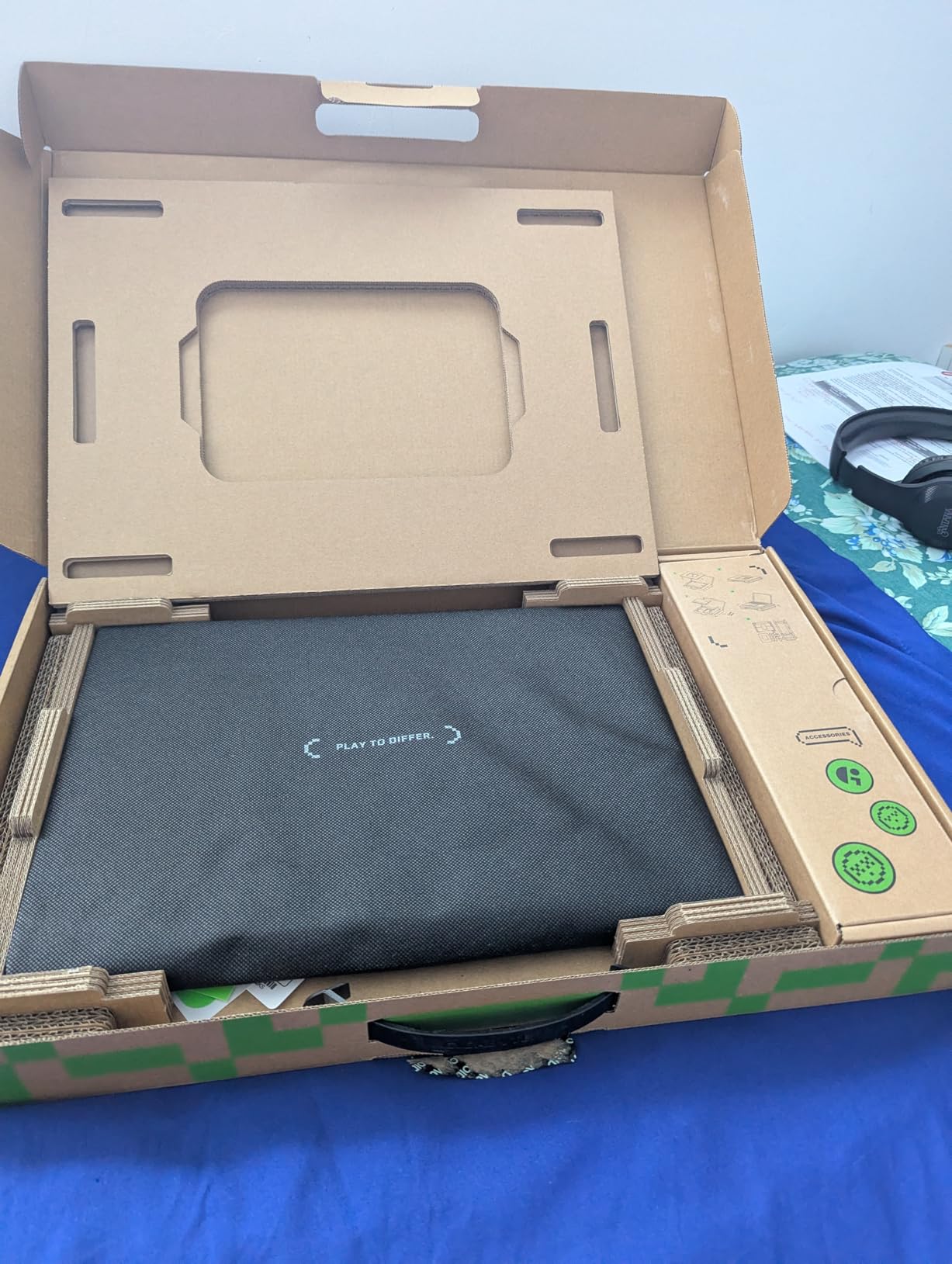
The reviews are honest about the problems. The most repeated technical complaint is 8GB of VRAM, which caps how large a Twinmotion or Lumion scene can get before it starts swapping to system memory.
More seriously, owners report instability after driver updates and one machine developing screen lines within a month. Chassis rigidity is described as less solid than the aluminum exterior suggests, and opening it for upgrades is reportedly awkward.
Why architects pick this machine
Because it is the only machine here that combines current-generation discrete graphics, a matte high-resolution panel and genuine carry weight in one chassis. At 1.9 kg with a 16.75 mm profile, it is the pick for architects who move between studio, site and client.
Four memory slots and a second SSD bay mean the configuration can grow. For a student who expects to keep this machine for five or six years, that path matters more than the specification on day one.
Where it falls short
Build quality and support are the weak points, and both appear repeatedly in owner feedback. If you are buying this for a firm’s standard build, check the local support arrangement before committing.
The 8GB of VRAM ceiling is the same limitation that constrains most RTX 5070 laptops, but here it is worth remembering because the rest of the specification is so much stronger. If your work is render-heavy, step up a GPU tier.
10. Lenovo Legion 5 16 – 500-Nit 240Hz Anti-Glare Workhorse
Lenovo Legion 5 16″ WQXGA 240Hz Gaming Laptop, Intel Core Ultra 9 275HX; NVIDIA GeForce RTX 5060 8GB GDDR7; 32GB DDR5 RAM; 1TB NVMe M.2 SSD; Gigabit LAN, 2×2 WiFi 7
Core Ultra 9 275HX 24-core to 5.4 GHz
RTX 5060 8GB GDDR7
32GB DDR5-5600
500 nits 240Hz anti-glare
5.4 lb
Pros
- 24-core Ultra 9 275HX and RTX 5060 8GB give strong multi-threaded and graphics performance
- 500-nit 2560 x 1600 240Hz anti-glare IPS display is bright and well specified
- 32GB DDR5-5600 and 1TB SSD cover large project files out of the box
- Gigabit Ethernet and Wi-Fi 7 are useful for transferring large model files
- Professional-looking chassis despite the gaming internals
Cons
- Very small review sample with an unproven long-term record
- RTX 5060 8GB VRAM caps heavy rendering and large assembly visualization
- Windows 11 Home rather than Pro
- Expect gaming-laptop battery endurance
This configuration pairs the 24-core Ultra 9 275HX with an RTX 5060, which is a well-balanced combination for architecture school and for juniors who are still doing a bit of everything. Drafting, BIM navigation and occasional visualization all sit inside its comfort zone.
The panel is the practical standout. A 2560 x 1600 IPS at 500 nits with 240Hz and anti-glare treatment is bright enough to read a drawing in a sunlit site office, which is a real working condition rather than a spec-sheet scenario.
Gigabit Ethernet alongside Wi-Fi 7 is unusual at this level and genuinely useful. Pulling a multi-gigabyte federated model off a studio server or a shared drive is dramatically faster wired, and it avoids the failure mode of a large transfer dying mid-way over a congested hotspot.
Why architects pick this machine
Brightness and anti-glare. If you work on site, in a glass-walled studio or anywhere with mixed lighting, a 500-nit matte panel is one of the most immediately noticeable specifications in this list.
The port selection supports the actual working day: five USB ports including USB-C, Thunderbolt 4, HDMI, DisplayPort, Gigabit Ethernet and an SD card slot. That is everything needed for drawing tablet, external monitors and a field transfer drive without a dongle bag.
Where it falls short
The review sample is very small and entirely at the top end, which usually means a recently listed configuration with limited long-term data. Treat reliability claims as unproven.
RTX 5060 with 8GB of VRAM is the constraint that will show up first. For drafting and BIM it is more than sufficient; for real-time visualization of complex assemblies, plan to render on a desktop or accept longer previews.
CAD Laptop Buying Guide: The Minimum Spec Sheet
Before comparing models, it helps to know what a CAD laptop actually needs. Here is the floor we use, and where each tier goes.
For 2D drafting and floor plans: a modern multi-core CPU with a boost clock above 4 GHz, 16GB of RAM, integrated or entry-level graphics, and a 1920 x 1200 display. A laptop with a dedicated GPU is nice to have but not required for AutoCAD drafting, and buying one while running 16GB of soldered memory is the most common mistake we see.
For Revit and BIM coordination: 32GB of RAM, an RTX 4060-class or newer GPU, and a 2560 x 1600 display. The GPU matters more here than in 2D, because Revit viewport navigation, visual styles and clash detection are GPU-accelerated.
For real-time rendering in Enscape, Twinmotion or Lumion, and for V-Ray or Corona final frames: 32GB or more of RAM, a GPU with 12GB of VRAM or more, and thermals that sustain boost clocks rather than throttling after twenty minutes.
Storage: 1TB of PCIe Gen 4 NVMe is the practical starting point. BIM models, texture libraries and render output fill a smaller drive quickly, and a fast NVMe drive shortens the open and save times on I/O-heavy project folders. A second M.2 slot is worth having.
Display: 2560 x 1600 at 16:10 is the practical floor for drafting. Anti-glare is worth more than extra brightness in an office, and color coverage matters only if you produce presentation output or print-matched material studies.
Ports: at least two USB-A ports for drawing tablets and older peripherals, USB-C with power delivery for single-cable docking, and wired Ethernet if your BIM coordination workflow depends on stable large transfers.
Check upgradeability before you commit
A five- or six-year architecture career is longer than most laptop warranties. Machines with two or more SODIMM slots and two M.2 bays stay relevant; machines with soldered memory do not.
Two picks in this roundup expand to 64GB or beyond, and one reaches 128GB. If you are a student or a junior, that upgrade path is often worth more than an extra few hundred megahertz of graphics performance you will never use for 2D drafting.
Mobile Workstation vs Gaming Laptop for Architectural Work
A gaming laptop adapted to CAD and a mobile workstation built for it differ in ways that matter mainly if someone else is paying or supporting the machine.
ISV certification means the hardware vendor has tested the configuration against AutoCAD, Revit, SolidWorks and similar applications. The HP ZBook X G1i in this list carries explicit certification for AutoCAD, Revit, SolidWorks, ANSYS and MATLAB, which is the credential to look for when your firm standardises on a build.
Professional management features such as vPro on the Dell Precision 7680, Windows 11 Pro, BitLocker and Remote Desktop matter if your practice manages devices centrally or requires encryption for client data.
Multi-monitor support without a dock is a genuine mobile-workstation feature. Both the Dell and HP configurations drive three or four external 4K displays directly, which is the setup most architects use for BIM coordination with a model on one screen and issue tracking on the others.
Where gaming laptops win: graphics performance per unit of spend, higher refresh rate displays, and lighter chassis in some cases. Nothing about a gaming laptop prevents it from running AutoCAD and Revit well.
Our read: students and junior designers buying their own machine are well served by the gaming-class picks in this list. Anyone whose firm reimburses the purchase, handles IT support, or holds client data on the laptop should start with the workstation options.
Which Laptop for Revit, Enscape, Twinmotion and Lumion
Nobody publishes a clean answer to this because the software families have genuinely different hardware demands, and matching a pick to a workflow is more useful than a single winner.
AutoCAD and AutoCAD Architecture: CPU-bound and largely single-threaded. A current multi-core processor with a boost clock above 4.5 GHz, 32GB of RAM and any GPU from the last two generations will handle 2D drafting and architectural profiles. Discrete graphics is a bonus here, not a requirement.
Revit and ArchiCAD: GPU-accelerated viewport work plus heavy memory use on federated models. Target 32GB minimum and 64GB if you coordinate live models, with an RTX 4060-class GPU or better. The HP ZBook X G1i is the best fit in this roundup for coordination specifically.
Enscape and Twinmotion: real-time ray tracing against a GPU. An RTX 5060 handles simple scenes comfortably, while an RTX 5070 Ti with 12GB of VRAM is the point where complex models with dense entourage stop stuttering. The Acer Predator Helios Neo 16S and ASUS ROG Strix G16 both sit in that tier.
Lumion and V-Ray: the most demanding real-time and path-traced work here. Lumion scales with GPU memory, and V-Ray benefits from both VRAM and multi-core throughput. The ASUS ROG Strix G16 with its 24-core processor and vapor chamber cooling is the strongest render machine in the list.
Rhino, SketchUp and 3ds Max: SketchUp runs on modest hardware, Rhino scales with modelling complexity, and 3ds Max is comfortable on anything with a dedicated GPU and 32GB of memory. Forum consensus in r/archviz consistently points to value-tier machines with maxed-out memory as sufficient for this class of work.
Frequently Asked Questions
What is the best laptop to use for CAD drawings?
A Windows laptop with a current multi-core processor boosting above 4 GHz, 32GB of RAM, an NVIDIA RTX-class discrete GPU, 1TB of NVMe storage and a 2560 x 1600 16:10 display. For pure 2D drafting the GPU matters less; for Revit, Enscape or Twinmotion it matters a great deal.
What kind of laptop do I need to run AutoCAD?
You do not need a workstation. A current Core Ultra or Ryzen 7 class processor, 16GB of RAM for drafting and 32GB for BIM work, a 1TB NVMe SSD and a display at 1920 x 1200 or higher will run AutoCAD smoothly. Add a discrete RTX-class GPU if you also use Revit, Enscape or rendering software on the same machine.
How much RAM do I need for Revit and AutoCAD?
16GB is enough for AutoCAD and light 2D drafting. 32GB is the practical minimum for Revit, ArchiCAD and running several applications at once, and 64GB is the right target for federated BIM coordination and render-heavy workflows. Prefer machines with two or more memory slots so you can upgrade later.
Do I need a dedicated GPU for AutoCAD?
Not strictly for 2D drafting, which is largely CPU and memory bound. You do need one for Revit viewport navigation, SketchUp and Rhino work, and for any real-time rendering in Enscape, Twinmotion or Lumion, because those applications rely on GPU-accelerated ray tracing rather than software rendering.
Is a gaming laptop good for professional architectural work?
Yes, for most architects and students. A well-configured gaming laptop runs AutoCAD, Revit, SketchUp, Rhino and rendering software without difficulty. It matters more if your firm handles IT support, holds client data on the device or standardises a build, because a mobile workstation adds ISV certification, vPro management and multi-monitor support.
Can I use a MacBook for AutoCAD and Revit?
AutoCAD and Revit both run on Apple Silicon and work well for modelling and documentation. The limitations show up with plug-ins, vertical toolkits and some rendering workflows that assume a Windows graphics stack, and with peripheral support for older drawing tablets and plotters. Windows remains the safer default for practice work, which is the conclusion most architects in forums reach.
What screen size is best for CAD drafting?
Sixteen inches is the practical answer for drafting, with 2560 x 1600 as the resolution target. Fifteen-inch machines are easier to carry and thirteen-inch machines are too small for plan work. Seventeen-inch screens help with drawing review but are rarely practical to carry to a site, so many architects pair a smaller laptop with an external monitor at the desk.
Final Verdict: Which Laptop Should You Buy?
The Acer Nitro V 16S AI is our pick as the best laptop for architects running CAD overall, because current-generation graphics, 32GB of memory and a spare M.2 slot cover the entire software list without a premium. Draft in the morning, run Revit coordination after lunch, preview a walkthrough before the client meeting.
Drafting-first users should look at the Lenovo Legion 5 Pro 16 for its 2560 x 1600 anti-glare panel. BIM coordinators running federated models belong on the HP ZBook X G1i for its 64GB of memory and explicit Revit certification, and firms that handle support and client data should start with the Dell Precision 7680 and ASUS ROG Strix G16.
Rendering-heavy architects should take the Acer Predator Helios Neo 16S for 12GB of VRAM and OLED colour, or the ASUS ROG Strix G16 for sustained multi-core performance. Architects who carry their machine everywhere should take the GIGABYTE AERO X16 at 1.9 kg, and anyone keeping a laptop through a five-year degree should check the upgrade paths on the ThinkPad P16 Gen 2 before anything else.
Whatever you choose, set up local file sync deliberately and buy the memory configuration you will need in three years, not the one you need this week.