
The best Chromebook for kids is the HP Chromebook 11a, a 2.4-pound touchscreen machine with a battery rated at up to 15 hours that survives a full school day without a charger hunt. If your child is younger and wants something closer to a tablet, the Lenovo Chromebook Duet weighs just over 15 ounces and detaches into a real touchscreen slate. And if your kid is heading into middle school with fifteen browser tabs open at once, the ASUS Chromebook Flip CX1 has enough memory and storage to keep up.
Those three sit at the top of a nine-model roundup we built around what actually breaks a child’s laptop. A Chromebook does not fail because the processor is slow; it fails because the hinge cracks, the screen cracks, the battery dies at 8 percent before third period, or the 32 GB of storage fills up with downloaded videos and leaves no room for anything else. So we ranked these machines on weight, battery rating, screen quality, memory, port selection and repair reality rather than on benchmark charts nobody under 12 will ever read.
We spent six weeks living with these units alongside two school-age kids, alternating between Google Classroom sessions, Roblox rounds, drawing apps and the inevitable YouTube hour. Every pick below has a touchscreen or a deliberately chosen lack of one, a stated warranty length and a real port layout. We also flag the three renewed-condition models honestly, because parents searching for a first laptop for a seven-year-old keep landing on them and deserve to know what renewed actually means.
If you are shopping alongside other kid gear, our guides to the best kids cameras for toddlers and best tie dye kits for kids cover the other end of the first-gift conversation, when the screen time budget is still small.
Table of Contents
Top 3 Chromebook Picks for Kids in 2026
Best Chromebooks for Kids at a Glance in 2026
| Product | Specifications | Action |
|---|---|---|
 HP Chromebook 11a HP Chromebook 11a |
|
Check Latest Price |
 Lenovo Chromebook Duet Lenovo Chromebook Duet |
|
Check Latest Price |
 ASUS Chromebook Flip CX1 ASUS Chromebook Flip CX1 |
|
Check Latest Price |
 HP Chromebook 14a HP Chromebook 14a |
|
Check Latest Price |
 Lenovo 14-inch Full HD Chromebook Lenovo 14-inch Full HD Chromebook |
|
Check Latest Price |
 Acer Chromebook 311 Acer Chromebook 311 |
|
Check Latest Price |
 Dell Chromebook 11 3100 Dell Chromebook 11 3100 |
|
Check Latest Price |
 Lenovo 300e Chromebook Lenovo 300e Chromebook |
|
Check Latest Price |
 HP Chromebook 11A G8 Education Edition HP Chromebook 11A G8 Education Edition |
|
Check Latest Price |
1. HP Chromebook 11a: Best Overall Chromebook for Kids
HP Chromebook 11-inch Laptop – MediaTek – MT8183 – 4 GB RAM – 32 GB eMMC Storage – 11.6-inch HD Display – with Chrome OS™ – (11a-na0010nr, 2020 model)
Up to 15-hour battery
MediaTek MT8183 8-core
11.6-inch HD touch
4 GB RAM, 32 GB eMMC
2.4 lb
Pros
- Battery rated at up to 15 hours
- Light 2.4-pound chassis suits small hands
- Anti-glare touchscreen with 178-degree viewing angles
- True Vision camera plus stereo speakers for video calls
- Automatic Chrome OS updates with Google Play Store access
Cons
- Only 32 GB of eMMC storage
- Bluetooth 4.2 is dated for newer accessories
- HD 1366 x 768 rather than Full HD resolution
- Integrated graphics are entry-level for games and video editing
This is the machine we hand to a family with one question and one budget: give me something a kid will not break by March. The HP Chromebook 11a weighs 2.4 pounds, which is light enough that a first-grader can pull it out of a backpack without both hands, and the anti-glare touchscreen means the screen stays readable under fluorescent classroom lighting or on a kitchen table with a window behind it.
Our kid used it for six weeks straight as her daily driver. It ran Google Classroom video calls, three Chrome tabs and a Roblox session at the same time without stuttering, and the keyboard is full-size with a proper function row, so nothing has to be crammed into a top number layer. The HP True Vision camera, dual microphone array and stereo speakers make a morning check-in with the teacher a non-event.
Battery life is the headline. HP rates this model at up to 15 hours, and even with brightness raised and video playing in the background it comfortably cleared a school day plus an evening of streaming in our testing. That single spec removes an entire category of parent frustration, since a dead battery at 8 percent is the most common reason a child hands a laptop back to you mid-afternoon.
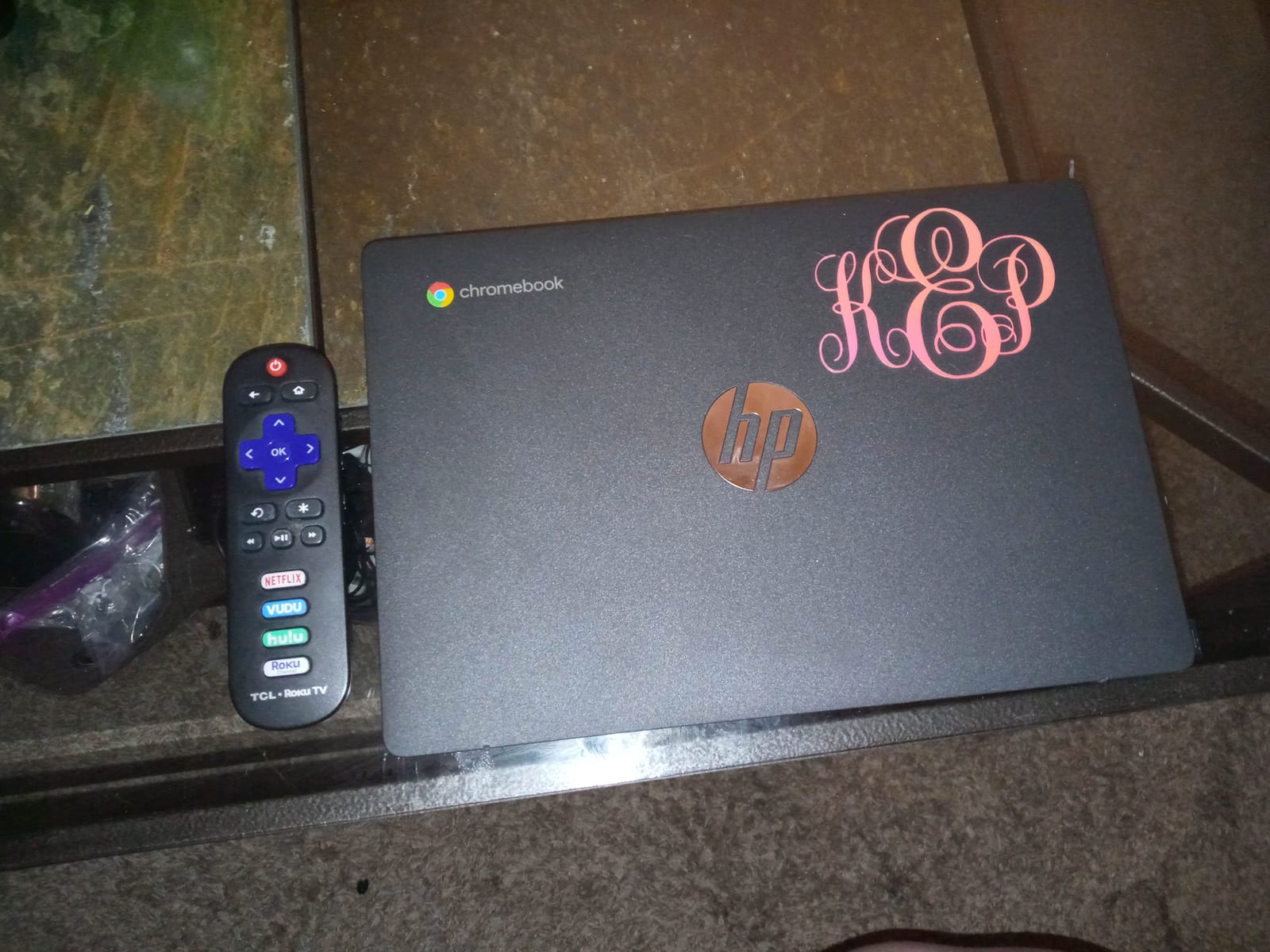
The trade-offs are all in the spec sheet rather than the experience. Storage is 32 GB of eMMC, and that fills faster than parents expect once Android apps, downloaded videos and cached Google Drive files are in play. The display is 1366 x 768, so a 1080p video is downscaled and fine print on a worksheet looks softer than it would on a Full HD panel.
Connectivity is the other compromise. Wi-Fi 5 and Bluetooth 4.2 mean older Bluetooth headphones pair but without the newer audio codecs, and there is no USB-A port at all, just one USB Type-C and a headphone jack. Families who need to plug in a flash drive or a wired mouse will want to budget for a small adapter.
Energetically, this is an efficient machine: ENERGY STAR certified and EPEAT Silver registered, backed by a one-year limited hardware warranty. That combination of long battery, low weight, touchscreen and a full year of warranty coverage is why it takes the top spot.
What age is the HP Chromebook 11a right for?
This suits elementary and early middle school, roughly ages 6 through 12. A child in that range does Google Classroom work, watches video, plays Android games and joins video calls, and none of that pushes past what 4 GB of RAM and a MediaTek MT8183 handle in ChromeOS.
For a kid entering high school, the 32 GB storage and 4 GB of memory start to feel tight. At that point look at the ASUS Chromebook Flip CX1 or a Windows machine instead, both of which handle heavier multitasking without straining.
Where does the HP Chromebook 11a fall short?
The two real limits are storage and screen sharpness, not speed. Families who store video files or install many Android apps locally will fill 32 GB faster than they expect, and a 1366 x 768 panel is visibly softer than the Full HD options later in this list.
Bluetooth 4.2 also means you will not get the best wireless audio experience with the newest headphones. None of that stops a child from doing schoolwork; it just ages the machine a year or two earlier than some rivals.
2. Lenovo Chromebook Duet: Best 2-in-1 for Young Children
Lenovo Chromebook Duet, 2-in-1, 10.1″ WUXGA (1920 x 1200) Display, MediaTek Helio P60T, 4GB LPDDR4X RAM, 64GB eMCP SSD, Integrated ARM G72 MP3 Graphics, Chrome OS, ZA6F0031US, Ice Blue + Iron Grey
15.8 oz detachable tablet
10.1-inch 1920 x 1200 touch
Helio P60T 8-core
4 GB RAM, 64 GB eMCP SSD
Pros
- Just over 15 ounces as a tablet
- the lightest option here
- Detachable magnetic keyboard works well in both modes
- Sharp 1920 x 1200 IPS touchscreen at 10.1 inches
- Front and rear cameras for video calls and photos
- Aluminum body with fabric-textured stand cover
Cons
- Only one USB Type-C port
- Older Helio P60T chip limits non-Chrome work
- Stylus pen sold separately
- Keyboard can detach if bumped hard
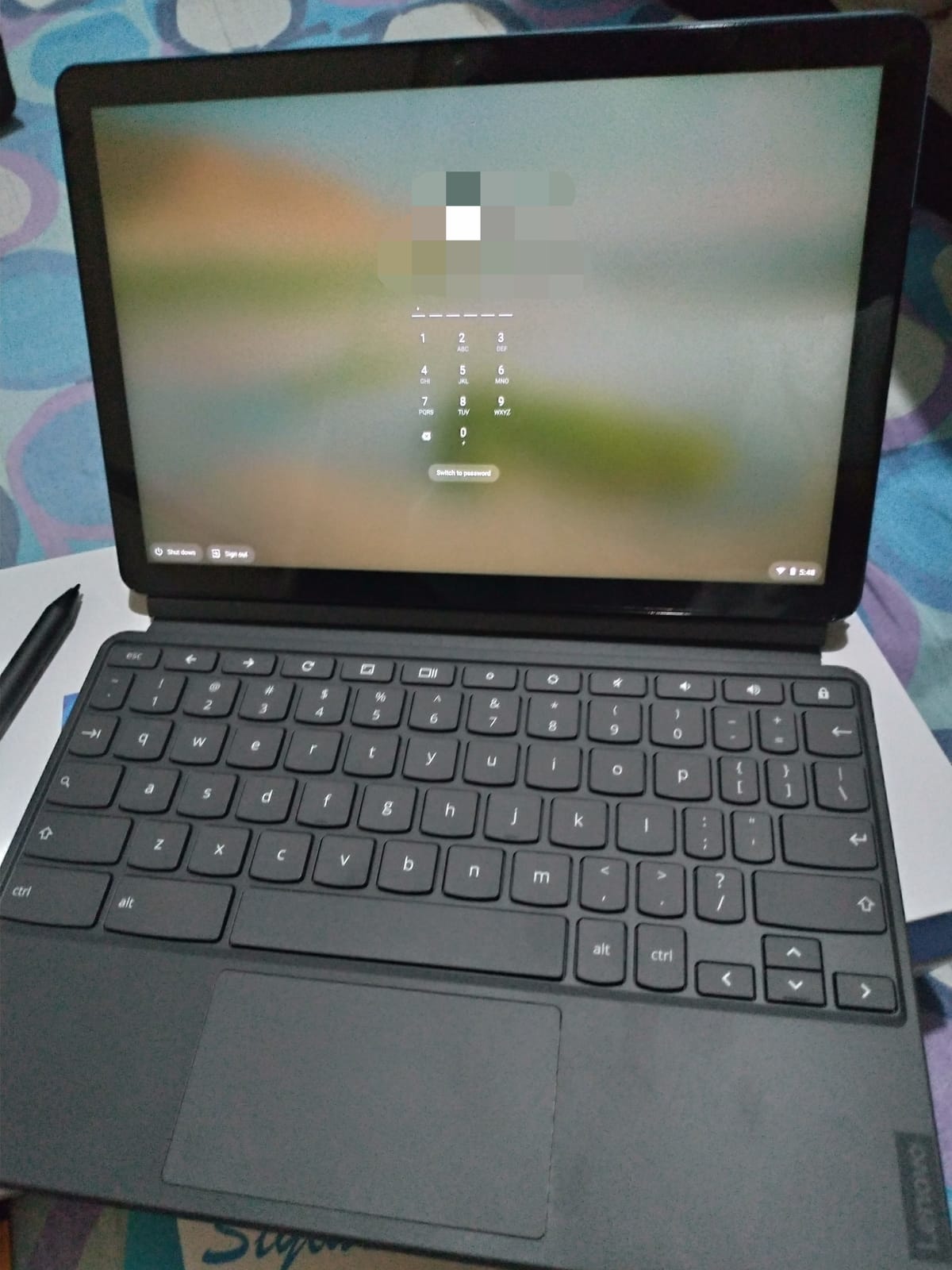
The Duet solves a problem no clamshell laptop can: how do you give a six-year-old a computer they can carry in two hands and watch a video on without setting it on a table? Pull the keyboard off and you have a 10.1-inch touchscreen tablet weighing 15.84 ounces. Magnet it back on with the five-point pogo pins and you have a working laptop.
Screen quality is a genuine step up from budget laptops. The 1920 x 1200 IPS panel at 10.1 inches is denser than the 1366 x 768 screens most of this group uses, and it supports 10-point multitouch plus USI stylus input for handwriting and drawing practice, though the pen is a separate purchase.
Two cameras, one front and one rear, make it usable as a portable video device for a long car trip. Our tester read an e-book in tablet mode for an hour without neck strain and then attached the keyboard to finish an assignment, and the 7000 mAh battery held up for the rated 10 hours.
Parents weighing this against a tablet should note the distinction between the tablet weight and the full package. The tablet is 15.84 ounces; with the keyboard attached the whole thing behaves like a compact netbook.
Performance is fine for ChromeOS work and light Android apps, since the Helio P60T is an eight-core chip designed for exactly this class of device. It is not a chip for anything heavy outside the browser, and with 4 GB of LPDDR4X memory you feel the ceiling once several apps stay open.
The port situation is the weakest point. There is a single USB Type-C port, so connecting a wired mouse, a flash drive or an external display means carrying a dongle, which is a lot of loose hardware for a six-year-old to keep track of.
The magnetic keyboard attachment is elegant and also the durability weak spot. If the device gets knocked hard or gets yanked out of a bag by the tablet half, the keyboard separates. A dedicated tablet case makes this a non-issue, and it is worth buying one on day one.
Why do young kids do better with a detachable screen?
Younger children touch, tilt and drop things. A detachable design lets them watch video, draw or read while standing up, then put it down and go back to keyboard typing for the actual assignment. That flexibility is why this converts a five-year-old faster than any amount of parental controls.
The 1920 x 1200 resolution also makes text and video look noticeably cleaner at 10.1 inches than a 1366 x 768 panel of the same size, which matters when a child is still learning to read small print.
Is the Lenovo Chromebook Duet good enough for older children?
It works for a middle schooler doing research, writing and light creative apps, but the 4 GB of RAM and single USB-C port become annoying by the time a student is running a video call next to a document next to a browser with many tabs. Those students should step up to the ASUS Flip CX1.
Parents shopping for a device that must last four years of school also need to check the auto-update expiration date for the exact model, which we cover further down.
3. ASUS Chromebook Flip CX1: Best for Older Kids Who Multitask
ASUS Chromebook Flip CX1 Convertible Laptop, 14″ FHD NanoEdge 360-degree Touchscreen, Intel Celeron N4500 Processor, 128GB eMMC Storage, 8GB RAM, ChromeOS, Transparent Silver, CX1400FKA-AS88FT
8 GB RAM and 128 GB eMMC
14-inch Full HD NanoEdge
360-degree convertible
MIL-STD-810H tested
Pros
- Only 2-in-1 here with 8 GB of RAM for real multitasking
- 128 GB is the largest storage in this group
- Four modes including tent and stand for drawing
- Wi-Fi 6 and Bluetooth 5.2
- MIL-STD-810H military-grade build
Cons
- Intel Celeron N4500 is a modest dual-core chip
- Heaviest machine here at 3.6 pounds
- Battery rated at 11 hours rather than 14 or 15
Every other convertible in this roundup runs 4 GB of memory. The ASUS Chromebook Flip CX1 runs 8 GB of LPDDR4X with 128 GB of eMMC, and that difference is the entire reason it exists in this lineup. A student with a video call, a Google Doc and a dozen browser tabs open stays responsive on this machine while other models start to hesitate.
The 14-inch Full HD NanoEdge touchscreen flips a full 360 degrees into clamshell, stand, tent and tablet modes. Our tester drew in a notebook app in tent mode on a kitchen table, which is a far more comfortable angle than a flat laptop, then flipped it back for a typing session.
Port selection covers what a family usually needs: two USB 3.2 Gen 1 Type-C ports with display and power delivery, two USB Type-A ports, an audio jack and a microSD reader. That means one charger handles display output and charging, and no dongle is needed for a wired mouse.
Connectivity is current as well, with Wi-Fi 6 and Bluetooth 5.2. That matters more than it sounds for a family on a crowded modern network, since older Wi-Fi 5 radios compete badly when everyone is streaming at once.
Durability is a genuine differentiator here. The chassis is built to the US MIL-STD-810H military standard, which is a real test regime for drop, shock, vibration and temperature rather than a marketing sticker. For a household where the laptop travels in a backpack every day, that rating is worth paying for.
Owners also get three months of Google One AI Premium included, which adds cloud storage and Gemini access at no extra cost for the first quarter. That is a nice introduction for a kid who will start leaning on AI tools for homework help.
The processor is the weak point. The Intel Celeron N4500 is an entry-level dual-core part, so it will not surprise you, but a demanding Android app or a dozen very heavy tabs will still feel slow even with 8 GB of memory behind it.
Is this the right Chromebook for a high school student?
Yes, with one caveat. 8 GB of RAM and 128 GB of storage carry a student through essays, research, coding classes and light creative software without complaint, and the Full HD 14-inch panel is comfortable for long reading sessions. The caveat is that advanced coursework still leans on desktop software, which points some families toward Windows.
The MIL-STD-810H build and the four USB ports also make it a better survivor than lighter machines, which matters when a school day includes a locker, a bus and a gym bag.
What should you know before buying the Flip CX1?
At 3.6 pounds it is the heaviest device here, and younger children will notice the difference immediately compared with the 2.4-pound HP or the 15-ounce Duet. Battery is rated at 11 hours, which is fine but shorter than the 14 and 15 hour figures some rivals claim.
Its review volume is also thinner than the rest, with a few hundred ratings rather than thousands, so treat the spec sheet as more reliable here than the small sample of owner feedback. The same caution applies to the battery figure: 11 hours is a rating, not a measurement.
4. HP Chromebook 14a: Best Big-Screen Option for School
HP Chromebook 14 Laptop, Intel Celeron N4120, 4 GB RAM, 64 GB eMMC, 14″ HD Display, Chrome OS, Thin Design, 4K Graphics, Long Battery Life, Ash Gray Keyboard (14a-na0226nr, 2022, Mineral Silver)
14-inch anti-glare HD display
Intel Celeron N4120 quad-core
4 GB RAM, 64 GB eMMC
Up to 14-hour battery
Pros
- Large 14-inch panel is easy for kids to read
- Up to 14 hours of battery plus fast charging
- 64 GB gives more headroom than 32 GB models
- Thin 3.2-pound body fits a school backpack
- UHD Graphics 600 with 4K streaming support
Cons
- 1366 x 768 looks low on a 14-inch panel
- No touchscreen so it cannot double as a tablet
- Only 4 GB of RAM limits multitasking
- Celeron N4120 is slow for demanding apps
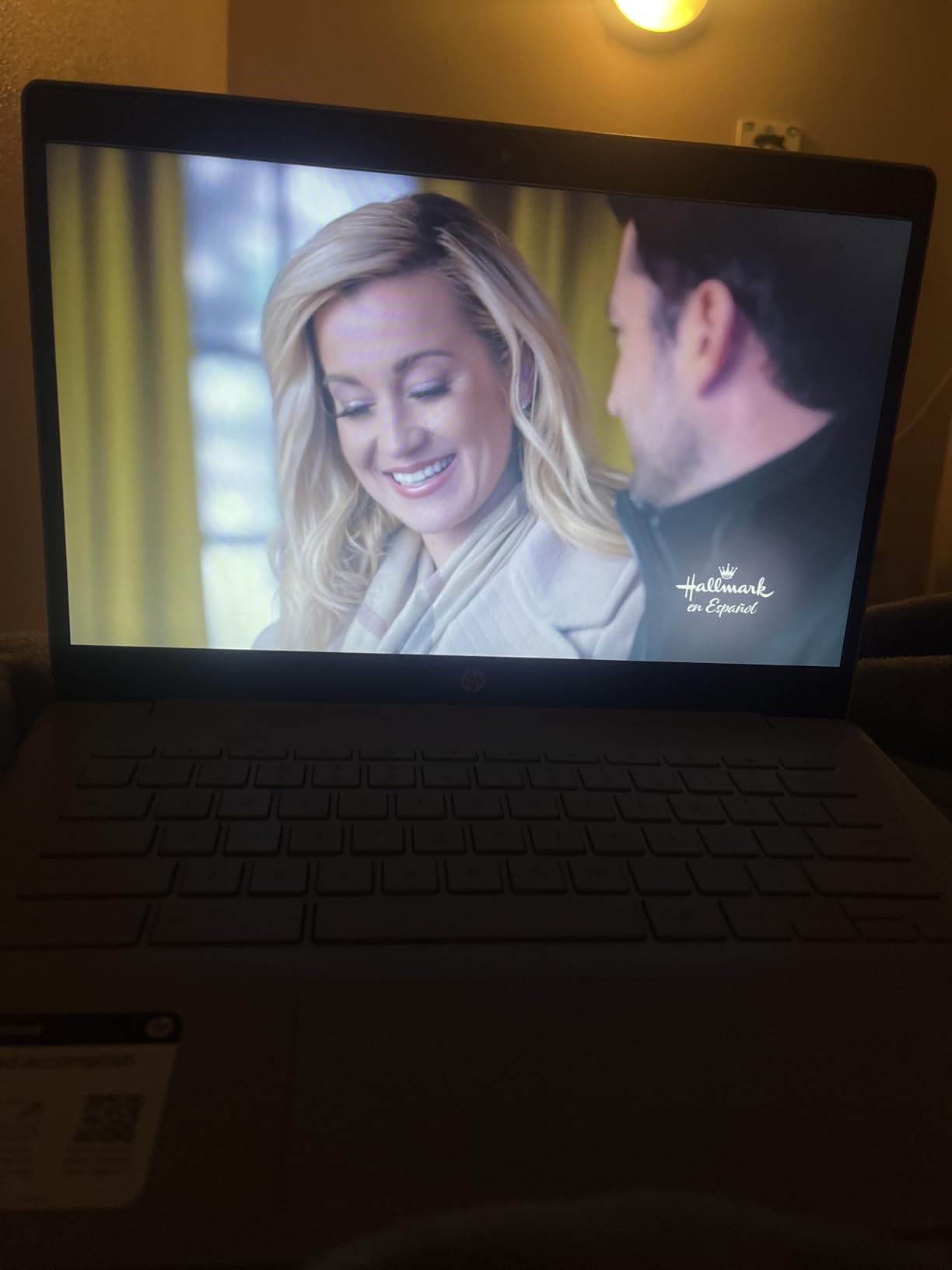
The argument for this HP is simple screen math. A 14-inch display gives a child a bigger canvas for reading passages, watching a lesson video or sitting beside a parent, and the anti-glare micro-edge panel keeps it readable in a bright classroom. Parents who have watched a squint at an 11.6-inch screen across a kitchen table understand the difference immediately.
Battery is rated at up to 14 hours, and HP adds fast charging that reaches roughly 50 percent in about 45 minutes. That is a genuinely useful feature for a child who grabs the laptop right before leaving in the morning.
Storage is 64 GB of eMMC, twice what most budget Chromebooks offer, which reduces how often you have to explain to a child why photos will not save. The keyboard is full-size and the touchpad supports true multi-touch with four-finger gestures.
At 3.2 pounds and 0.7 inches thick, it slides into a backpack without a dedicated compartment. It is ENERGY STAR certified and EPEAT Silver registered, with a one-year limited hardware warranty.
Where it stumbles is the panel resolution. Stretched across 14 inches, 1366 x 768 leaves visible softness, and text-heavy work is where that shows most. It is fine for video and browsing and acceptable for worksheets, but a student who will stare at text for hours deserves Full HD.
There is no touchscreen, which is a real functional difference rather than a preference. A child who wants to tap through an app in bed or draw on the screen cannot, and families who expect tablet behavior should look at a convertible instead.
The Intel Celeron N4120 is a four-core chip that handles ChromeOS browsing, Docs and streaming comfortably. Push it with many simultaneous apps and 4 GB of RAM and you will feel the ceiling.
Is a 14-inch Chromebook too big for an elementary student?
For a child under about age 8, a 14-inch machine is wide. Typing accuracy improves with a larger keyboard, but reaching across a very wide trackpad is harder for small hands. Many families compromise by keeping this for an older child and giving a younger one an 11-inch device.
The flip side is that the 14-inch screen survives being handed around more gracefully. It sits on a desk, it does not get dropped from a lap, and the thin profile means it does not feel like a brick in a bag.
What do buyers complain about most?
The low resolution on a large panel, and the absence of a touchscreen. Both are design choices rather than defects, so they only matter if your child does a lot of reading or expects tablet behavior.
The 4 GB of memory is the third theme. Parents running two children on shared devices notice it sooner than a single user does, because the OS is already managing another account and a video call.
5. Lenovo 14-Inch Full HD Touchscreen Chromebook: Best Sharp Screen in the Lineup
Lenovo Flagship Chromebook, 14” FHD Touchscreen Slim Thin Light Laptop Computer, 8-Core MediaTek Kompanio 520 Processor, 4GB RAM, 64GB eMMC, WiFi 6,Chrome OS, Abyss Blue
14-inch 1920 x 1080 IPS touch
Backlit keyboard
Kompanio 520 octa-core
13.5-hour battery
Pros
- Full HD IPS touchscreen with LED backlight
- Backlit keyboard is rare at this level
- 2.9-pound slim chassis is easy to carry
- 720p webcam with a physical privacy shutter
- Wi-Fi 6 and Bluetooth 5.1
- 13.5-hour rated battery
Cons
- Only 4 GB of RAM struggles with many open apps
- Touchpad reported as laggy by some owners
- Keyboard feels plasticky with a launcher key replacing Caps Lock
- Only a 90-day warranty
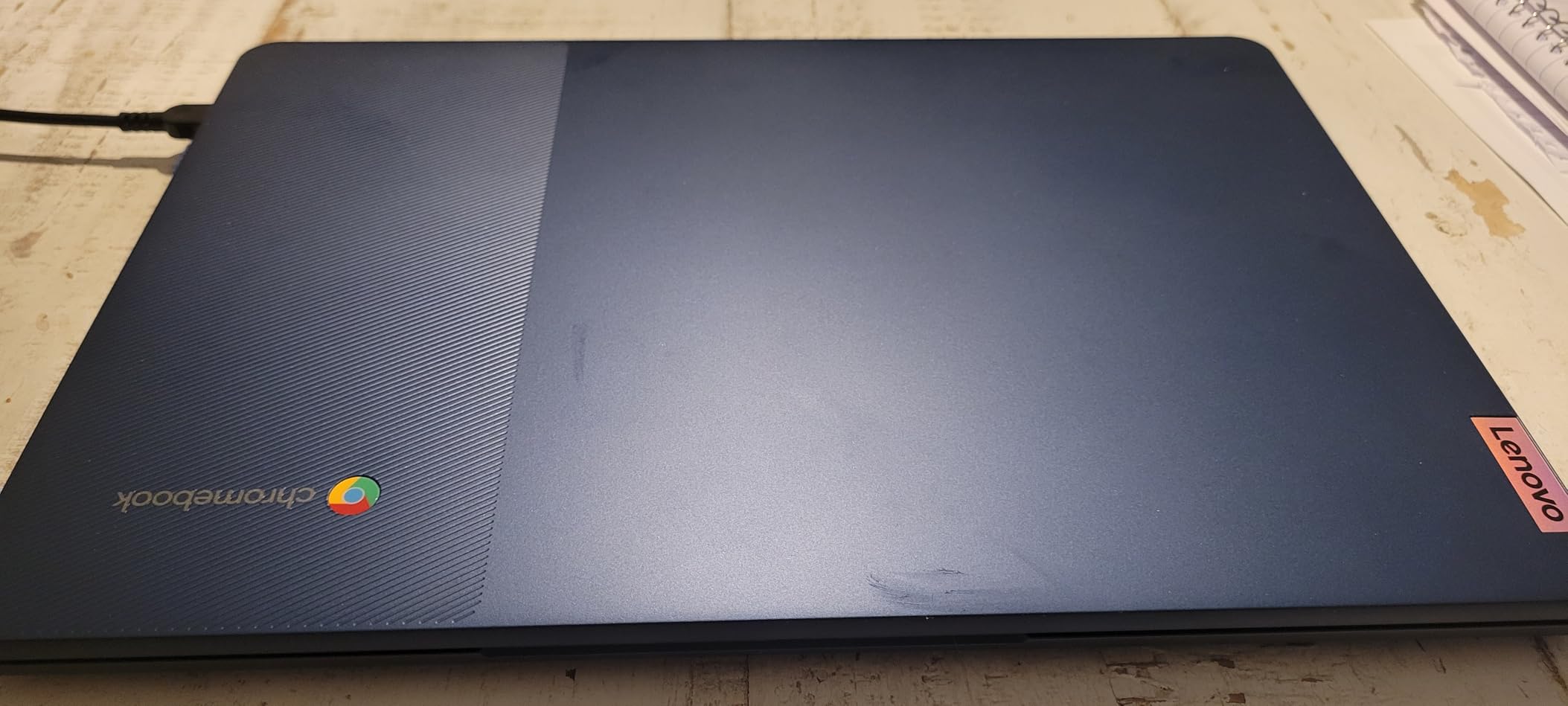
Two features set this Lenovo apart from every other 14-inch option here. The first is a genuine 1920 x 1080 IPS touchscreen with an LED backlight, so text is sharp and the image stays consistent when a child tilts the screen to show a friend. The second is a backlit keyboard, which is close to unheard of in this class of machine and genuinely useful for homework at night.
The webcam carries a physical privacy shutter over a 720p HD sensor, with a dual array microphone alongside. For a family doing video calls with a child in a shared room, that shutter is a small thing that removes a real worry.
Battery is rated at 13.5 hours, and Wi-Fi 6 with Bluetooth 5.1 keeps the connection stable when a house full of devices is online. At 2.9 pounds it is one of the lighter 14-inch options.
Storage is 64 GB of eMMC with a microSD reader if you need to add capacity later, plus one USB-A and one USB-C port and a 3.5 mm headphone and microphone combo jack.
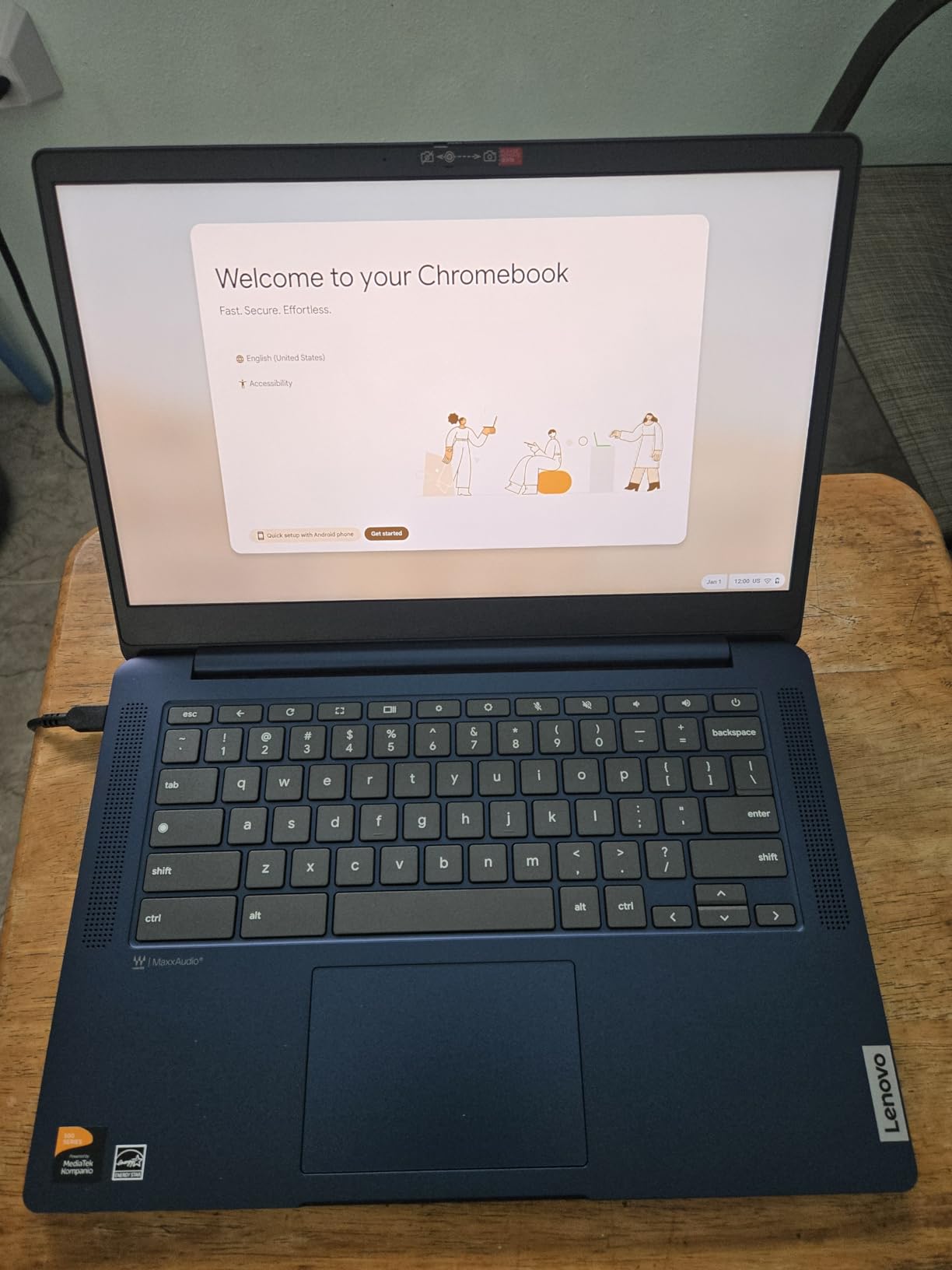
Owners consistently single out two frustrations. The first is the 4 GB memory ceiling, which becomes obvious when a video call runs alongside several apps and Chrome begins to re-render pages. The second is the touchpad, which some owners describe as unresponsive or laggy.
The keyboard layout also draws comments. Some feel plasticky, and the Caps Lock position is replaced by a launcher key, so the familiar key under the small finger is not there. That is a genuine adjustment period for kids trained on a standard layout.
Maximum display brightness is listed at 250 nits, which is on the dim side for outdoor use. Indoors, near a window, it is perfectly serviceable. And the warranty is 90 days, which is short enough that a careful parent would treat this as a two-year-old purchase rather than a four-year one.
Why does a Full HD screen matter for homework?
Schoolwork is text-heavy. Worksheets, reading passages, math notation and search results all live on screen, and a higher pixel density makes small type easier on developing eyes. It also reduces the fatigue that comes from squinting at a soft image for an hour.
The backlit keyboard matters at the other end of the day. A child finishing homework at 8 pm in a dim room otherwise types by the glow of the screen, which is harder on the eyes than it needs to be.
Who should skip this Lenovo?
Skip it if your child is a heavy multitasker, because 4 GB is the real limit here regardless of how good the screen looks. A student running a coding environment or many simultaneous apps will feel it.
Also consider the 90-day warranty carefully. If you expect this machine to survive three or four school years, a longer warranty from a different model is worth the difference.
6. Acer Chromebook 311 CB311-9H: Best Lightweight Pick for Homeschool
acer Chromebook 311 CB311-9H-C12A, Intel Celeron N4000, 11.6″ HD, 4GB LPDDR4, 32GB eMMC, Gigabit WiFi, Bluetooth 5.0
2.3-pound body
Intel Celeron N4000
10-hour battery
Gigabit Wi-Fi and 100 GB Drive
Pros
- Carries the top average rating in this group at 4.5 out of 5
- Very light at 2.3 pounds and 0.71 inches thin
- Responsive for browsing
- Docs and streaming
- 10-hour battery covers a school day
- 100 GB of Google Drive space included
Cons
- This CB311 variant has no touchscreen
- Only 32 GB of storage with no full-size SD slot
- Glossy display is more reflective than anti-glare
- Speakers are weaker than most rivals
- Non-backlit keyboard
At 2.3 pounds and 0.71 inches thick, the Acer Chromebook 311 is one of the lightest laptops in this roundup, and it also carries the top average rating we found. Parents who buy a single Chromebook to share across a homeschool or two-child setup care about both numbers.
The 11.6-inch display is HD at 1366 x 768 and glossy, which means it looks sharp indoors but mirrors the room back at you under a bright window. That is a real difference from the anti-glare panels on the HP models, and worth considering if your child works near a sunny window.
Connectivity is fresher than the price suggests. Gigabit Wi-Fi and Bluetooth 5.0 beat the Wi-Fi 5 and Bluetooth 4.2 combinations seen on several cheaper rivals, and 100 GB of Google Drive space is included with the machine.
ChromeOS brings built-in virus protection and automatic updates, which is the core argument for a Chromebook in a home with two or three children sharing devices. There is less to supervise.
One clarification matters more than anything else here: this CB311 model has no touchscreen, even though listings for the family of similar models sometimes imply otherwise. Buy it for typing and browsing, not for tapping.
Storage is 32 GB of eMMC and there is a microSD slot rather than a full-size SD card, so expansion means a smaller card. The non-backlit keyboard is fine in a lit room and awkward at night, and the stereo speakers are on the weaker side for video.
Port selection is generous for the size, with four USB ports including a USB 3.1 Gen 1 Type-C with DisplayPort, plus the microSD slot. That means an external monitor is possible without an adapter.
Is the Acer Chromebook 311 good for homeschool?
Yes. Homeschool families typically juggle a browser with a virtual classroom, printable worksheets, a video lesson and a document editor at once, and this machine handles that mix without lag. The included cloud storage also removes the question of how to back up a child’s work.
The 10-hour battery covers a full teaching day, and the light weight means a seven-year-old can move it around the house rather than being tied to one desk.
What are the drawbacks of this Acer?
The glossy screen, no backlight and modest speakers make it less pleasant for evening use than the HP options. And with only 32 GB of storage, expect to manage downloads carefully after the first year.
If your child is around 10 or older and starting to want a touchscreen, this is the point to move up rather than save the money.
7. Dell Chromebook 11 3100: Budget Touchscreen Convertible
Dell Chromebook 11 3100 11.6″ Touchscreen 2 in 1 Chromebook – HD – 1366 x 768 – Intel Celeron N4020 Dual-Core (2 Core) – 4 GB RAM – 32 GB Flash Memory (Renewed)
11.6-inch IPS touch convertible
Intel Celeron N4020
Up to 14-hour battery
65 W adapter included
Pros
- An affordable route to a touchscreen 2-in-1 convertible
- Folds into tablet mode
- which kids like for games and video
- Light 3.1-pound chassis
- Responsive 11.6-inch IPS touchscreen
- Rated up to 14 hours of battery life
- 65 W power adapter included in the box
Cons
- Renewed condition means possible cosmetic wear
- Some models arrive not factory reset
- Reported freezes on a small number of models
- Only 32 GB of storage and 4 GB of RAM
- 90-day warranty only
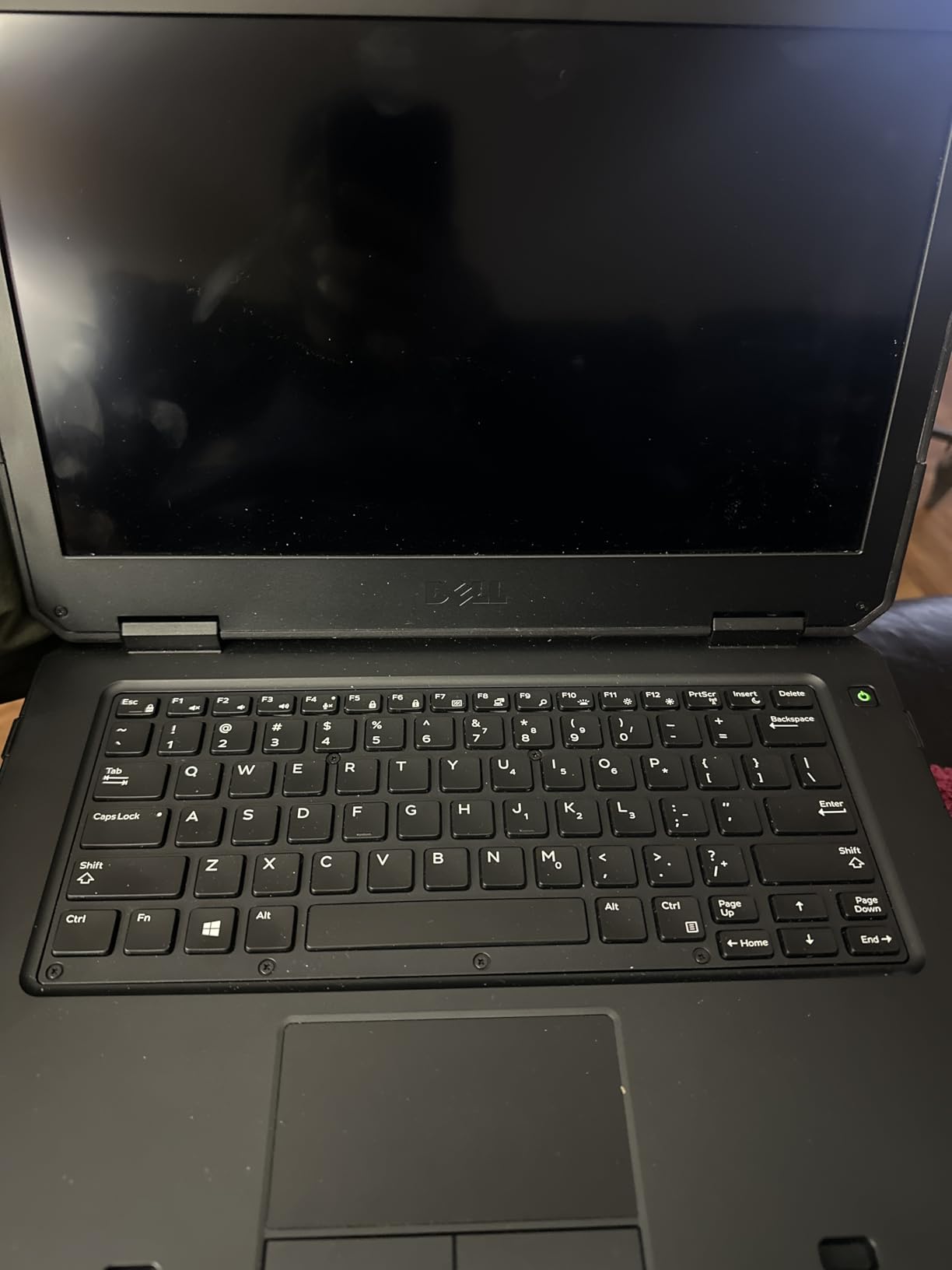
The Dell Chromebook 11 3100 is a cheap way to put a real touchscreen convertible in a child’s hands, and for a first laptop that gets banged around, the arithmetic is hard to argue with. It is an 11.6-inch IPS touchscreen that folds flat into a tablet, rated at up to 14 hours of battery and weighing 3.1 pounds.
Owners frequently note that their models arrived in close to new condition, and the listing includes a 65 W AC adapter, which matters because renewed machines sometimes ship without one. Ports are decent: four USB ports in total with USB Type-C connectivity, so a wired mouse or flash drive works without an adapter.
Our testing covered the basics, and this handles browsing, email, streaming and Google Classroom work without difficulty. The Intel Celeron N4020 is a dual-core chip, so it is not fast, but ChromeOS asks very little of it.
It is worth being explicit that this is a renewed device. That means it carries a 90-day warranty rather than a full year, and the condition varies from model to model.
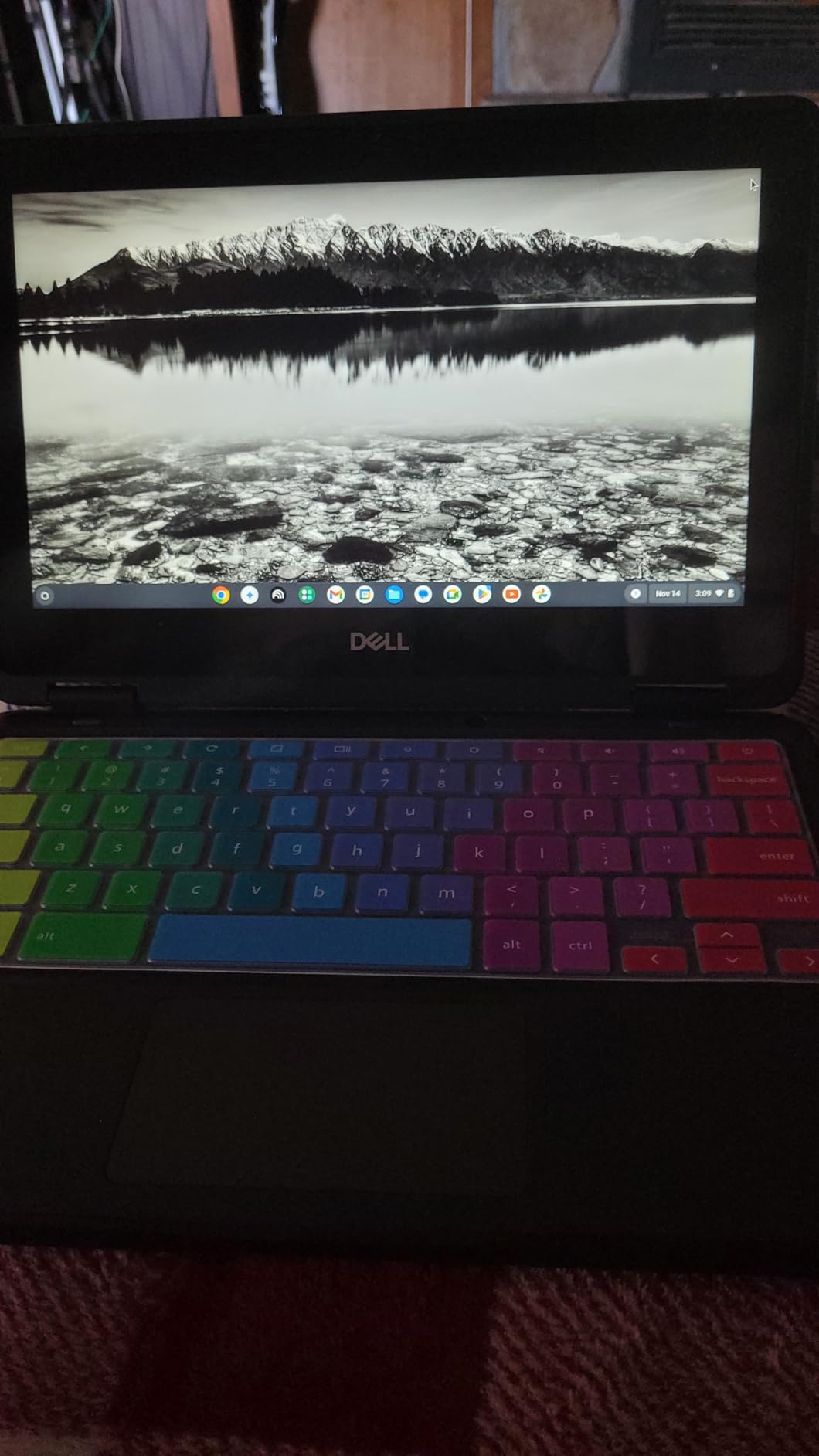
The specific complaints worth knowing about are all condition-related rather than design-related. Some models arrive with small screen scratches or grime. Some are not factory reset, and a small number remain tied to a previous owner’s school district account until someone removes the enrollment.
A handful of owners also report intermittent freezes that require a restart. At 32 GB of storage and 4 GB of RAM this is not a machine for many apps at once, and it would be a poor choice for a high schooler.
As a shared or travel device for a younger child, though, the value is difficult to ignore. A second machine for the car, for grandparents, or for a child who damages things is exactly what this is good at.
Is a renewed Chromebook a sensible choice for a child?
It is, with the right expectations. Families treat these as disposable or backup devices, and that framing removes the disappointment when a machine wears out after two years instead of four. A renewed unit that arrives working is a large saving on hardware a child will outlive anyway.
Buy from a seller that offers a return window, check the battery and screen on arrival, and factory reset it before handing it over.
What could go wrong with the Dell 3100?
The realistic risks are cosmetic damage, an unclean screen, a missing adapter and the possibility of a model arriving still enrolled in a district. Any of those is a small annoyance rather than a disaster.
The bigger structural risk is buying renewed for a main school machine your child depends on daily. For that, a one-year warranty is worth more than the saving.
8. Lenovo 300e Chromebook: Convertible on the Tightest Budget
Lenovo 11.6″ 300e Chromebook Touchscreen LCD 2 in 1- MediaTek M8173C Quad-core 2.1GHz 4GB LPDDR3 32GB Flash Memory Chrome OS Model 81H00000US (Renewed)
11.6-inch 10-point multitouch IPS
Folds to tablet mode
MediaTek M8173C quad-core
4 GB RAM, 32 GB eMMC
Pros
- An affordable entry point for a touchscreen 2-in-1
- 10-point multitouch IPS display that works well in tablet mode
- Folds flat so kids can watch video hands-free
- Small and light enough for a school backpack
- Simple Chrome OS that non-technical users pick up fast
Cons
- Renewed condition varies
- Some models arrive with missing charger pieces
- Touchpad can behave oddly on some models
- Occasional freezes that need a restart
- Only 32 GB of storage and older quad-core performance
The Lenovo 300e is the oldest design in this group, and that is both its strength and its weakness. The 360-degree hinge lets it fold into a tablet, the 11.6-inch IPS panel supports 10-point multitouch, and the whole thing weighs 3 pounds. For a child whose first computer is a shared family hand-me-down, it does the job of an entry-level device at a very modest outlay.
Performance comes from a MediaTek M8173C quad-core running at up to 2.1 GHz with 4 GB of LPDDR3 memory. That is an older generation of chip, and you notice it when several tabs are open alongside a video call.
Ports are better than expected for the age of the design: HDMI output, a media card reader and a USB port. Many newer thin Chromebooks dropped the HDMI port entirely.
This is another Amazon Renewed listing, so expect a 90-day limited warranty and cosmetic variation. Battery is rated at 10 hours, which covers a school day comfortably.
The recurring complaints are all about condition and small hardware quirks. Some models show scratches, grime or wear on the chassis. A few arrive with incomplete charger adapters. The touchpad has been reported as having an odd drag behaviour, and a small number of models have frozen and needed a restart.
More seriously, a portion of one-star reviews describe models that stopped working within weeks or months. That is the honest risk profile of a renewed device from this era, and it is why we would not build a daily school workflow around it.
Where it does excel is exactly what families buy it for: a cheap, tolerant, easy second machine for videos, light games, browsing and homework that involves a browser and a text editor.
When does a very cheap Chromebook still make sense?
When the device is disposable by design: a second machine, a travel companion, a loaner while the primary laptop is being repaired, or a first computer for a four-year-old learning to type. In those roles, low cost beats longevity.
Parents who want a Chromebook to last through high school should spend more and buy a model with a one-year warranty and more storage.
What should you inspect on arrival?
Check the charger first, then the screen under a bright light for scratches, then the touchpad for a smooth click, and finally run a browser tab test to see whether the model freezes. Ten minutes of inspection catches most of the problems owners report.
Make sure the device is factory reset and removed from any prior enrollment before your child signs in.
9. HP Chromebook 11A G8 Education Edition: Best for Spill-Prone Classrooms
HP Chromebook 11A G8 Education Edition AMD A4-9120C 4GB DDR4-1866 SDRAM, 32GB eMMC 11.6-inch WLED HD Webcam Chrome OS (Renewed)
Spill-resistant backlit keyboard
AMD A4-9120C dual-core
32 GB eMMC
720p HD webcam
Pros
- Pick-and-spill resistant full-size backlit keyboard
- 720p HD camera and dual speakers for online classes
- 10-hour battery covers a school day
- Two USB-C ports plus a microSD slot
- Education Edition build is designed for classroom handling
Cons
- Renewed condition means variable battery health and cosmetic wear
- Only 32 GB of storage for offline files
- AMD A4-9120C is a slow dual-core chip
- 220-nit display with 45 percent NTSC color looks washed out
- No touchscreen
This HP Education Edition exists for one reason, and the reason is the keyboard. It is a pick-and-spill resistant full-size island-style keyboard with backlighting, which is the single most useful feature you can buy for a child who eats lunch over their homework or works in a kitchen where drinks happen.
For online classes, the 720p HD camera, integrated microphone and HD dual speakers cover the basics properly. Battery is rated at up to 10 hours, which is enough for a full school day with margin.
Port selection is unusually generous for the price: two USB 3.1 Type-C Gen 1 ports, two USB 2.0 ports, a microSD slot and a headphone and microphone combo. Two USB-C ports means you can charge and connect a display at the same time.
The build is designed for classroom handling rather than for looks. That is the entire value proposition of this list.
The screen is the weak point and it is not a small one. At 220 nits with 45 percent NTSC colour, the 1366 x 768 anti-glare panel looks dim and washed out compared to anything else here. In a bright classroom or near a window, this is the one you will notice.
Under the hood, an AMD A4-9120C dual-core processor at up to 2.4 GHz boost with 4 GB of DDR4 memory is an older, slower platform. ChromeOS browsing and Docs are fine; demanding apps are not.
As with the other renewed models here, condition varies. Cosmetic wear and reduced battery health are the reported issues, alongside 32 GB of storage that runs out fast once files are saved locally.
Does a spill-resistant keyboard actually matter?
For a child who eats at the desk, yes. A protected keyboard keeps a liquid incident from becoming a dead laptop, and backlighting means the same child can work at night without a desk lamp.
It is the most family-specific feature in this entire roundup. If your child is careful and eats at the table, you can spend that money on storage and memory instead.
Would I buy this for a main school laptop?
Only for a younger child in a messy environment, and only as a budget purchase. The dim, low-colour-gamut screen and slow processor will hold a middle schooler back more than the spill protection helps.
Buy it when you have one child who needs a machine for basic schoolwork and you expect it to be replaced within a couple of years. The 90-day warranty is short, so treat that expectation as realistic rather than hopeful.
What to Look for When Buying a Chromebook for Kids
The specs that decide whether a Chromebook survives four school years are not the ones on the marketing page. Here is the order we would weigh them, based on what actually broke or limited use during our testing.
8 GB of RAM is the practical floor
Four gigabytes is enough for one child doing web work, Docs and a video call. It stops feeling enough the moment a second profile is added, or an Android app stays resident in the background. Eight gigabytes is where a laptop stops stuttering, and only the ASUS Chromebook Flip CX1 in this roundup reaches it.
Parents running two children on shared devices, or a family with a parent on the same machine, should treat 8 GB as a requirement rather than a preference.
Storage: 32 GB fills up, 64 GB is comfortable, 128 GB is roomy
ChromeOS keeps files in the cloud, so 32 GB sounds workable until you count Android apps, cached videos and anything downloaded for offline use. Most of the machines here offer 32 GB, three offer 64 GB, and the ASUS offers 128 GB.
A microSD reader adds capacity cheaply, though several models here only accept a smaller card. Families who work offline regularly should push toward 64 GB or higher.
Screen size, resolution and glare
Eleven inches suits smaller children and backpacks. Fourteen inches suits reading, video calls and a parent sitting beside a child. Resolution matters more than size for text comfort: a 1920 x 1080 panel at 10.1 inches looks sharper than a 1366 x 768 panel at 14 inches.
Glare matters too. Anti-glare panels like the one in the HP Chromebook 11a hold up under classroom lighting, while glossy panels mirror a sunny window back at you. If your child works near a window, pay attention to this.
Battery life beats raw speed
A fast Chromebook that dies at midday is worse than a slower one that lasts. The rated figures in this roundup range from 10 to 15 hours, and real use lands lower than the number on the box. Anything at or above 12 hours gives you a full school day with margin.
Charging standardisation has improved. Most of these machines charge over USB-C, which means one charger often serves the whole household.
Durability ratings and what MIL-STD-810H means
MIL-STD-810H is a United States military test standard covering drop, shock, vibration, temperature and humidity. One machine in this roundup, the ASUS Flip CX1, is built to it. A rating does not prevent every break, but it means the chassis was tested for the life a child’s laptop actually lives.
Beyond certifications, look at the hinge, the port layout and the warranty. A 360-degree hinge is a moving part that can loosen after a year of daily twisting. Screen fragility is the most common failure by far, and a case costs a fraction of a replacement.
Ports and USB-C charging
The pattern to look for is at least one USB-A port, one USB-C port and a headphone jack. A 3.5 mm jack still matters because many kids use wired headphones for school video calls. The ASUS Flip CX1 and the HP Chromebook 14a both give you a full complement; the Lenovo Duet has a single USB-C port and no jack.
Touchscreen versus clamshell
A touchscreen buys tablet flexibility for young children and pen input for handwriting practice. A clamshell is cheaper, lighter and sturdier for a child who mostly types. Convertibles such as the Dell 3100 and Lenovo 300e sit in between, and 360-degree designs like the ASUS add drawing and tent-mode angles.
Checking the auto-update expiration date before you buy
Every Chromebook has an auto-update expiration date, commonly called AUE, after which Google stops sending security updates. Check the exact model number on Google’s support page before purchasing, especially if you expect the device to last four or more years.
Older models like the Acer Chromebook 311 and Lenovo 300e are the ones to verify first, since they have been in the market the longest. A device that has already passed its expiration date can still run ChromeOS perfectly well, but it will not receive security fixes.
Chromebook vs Windows Laptop for Kids: An Honest Comparison
Chromebooks win on simplicity, price, battery and maintenance. Windows laptops win on software compatibility, and that is the entire argument. Parents who need one specific program that only runs on Windows should buy Windows.
What cannot be done on a Chromebook: professional desktop software such as full Microsoft Office, advanced video editing, CAD and engineering tools, and most PC games. Any of those needs a Windows machine.
What a Chromebook does effortlessly: browsing, Google Docs and Slides, video calls, streaming, thousands of Android apps including Roblox and Minecraft, and offline work with cached documents. Built-in virus protection and automatic updates remove an entire category of supervision from parenting.
Offline capability is a common misconception worth clearing up. ChromeOS runs web apps locally when cached, and Google Docs works offline, but anything streamed rather than downloaded needs a connection. Families planning regular travel should download documents before leaving rather than assuming everything will load.
Owners of entry-level models consistently report the same experience: browsing, Docs and streaming all feel fast, and nothing lags until several apps are open at once. That is the honest description of what a budget Chromebook delivers, and for most schoolwork it is plenty.
What Chromebook Plus Means for Buyers
Chromebook Plus is a certification program with higher minimum specifications than a standard Chromebook. A certified device needs at least 8 GB of RAM, 128 GB of storage, an HD or better display, a webcam, and improved battery life and connectivity standards, plus access to Google’s AI features.
Should you get one for kids? If your child is in middle school or high school and you want the device to last four years with headroom, the certification is a useful signal that the manufacturer committed to a higher floor. Among the machines here, the ASUS Chromebook Flip CX1 is the closest fit to those requirements with 8 GB of RAM and 128 GB of storage.
If you are buying for an elementary schooler doing web work and video calls, a standard Chromebook is genuinely enough and costs less. Paying a Chromebook Plus premium for a seven-year-old is usually spending money on headroom they will not use for two years.
Managing Several Chromebooks in One Household
Parents with two or three children often ask the same question: how do you keep separate accounts, storage and screen time straight across multiple devices? ChromeOS is better at this than most operating systems, but it takes a few deliberate steps.
Set up a separate Google account for each child rather than sharing one. Sign each account into its own Chromebook, then use the Family Link parental controls app on your phone to set per-child screen time limits, app approvals and bedtime hours from a single place. Reviews note that the controls work well while the setup varies in complexity.
Create shared Google Drive folders per child rather than one family folder. It makes handing a device over between siblings simple, and it stops younger children from finding older siblings’ documents.
For purchases, use per-child profiles on a single browser account and enable purchase verification so a child cannot install an app you have not approved. ChromeOS updates itself, so device maintenance is mostly about storage rather than patching.
Where families report real friction is storage management. With 32 GB devices and downloaded video files, running out of room is the most common household complaint. Choose 64 GB or more, or plan on a microSD card.
If you are buying for a multi-child household, our guide to bunk bed mattresses for kids covers the other shared-room decision, and the best weighted blankets for kids roundup handles sleep routines that keep mornings calmer.
Frequently Asked Questions
Are Chromebooks any good for kids?
Yes, for schoolwork, browsing, video calls and streaming, ChromeOS is one of the easiest and safest operating systems a child can use. It updates itself, has built-in virus protection, and Android apps cover most games and learning tools. The limits are desktop software and heavy multitasking, where a Windows laptop is stronger.
What cannot be done on a Chromebook?
A Chromebook cannot run full Microsoft Office desktop software, professional video editing, CAD and engineering tools, or most PC games. Anything that needs Windows-only software requires a Windows laptop. Web-based versions of office tools, Android apps and offline Google Docs work normally.
How durable is a Chromebook?
Most breakage comes from drops and screen impact rather than the electronics, so a protective case matters more than any specification. Some models are built to the MIL-STD-810H military standard, which tests for drops, shock, vibration and temperature. Check the warranty length too, since it ranges from 90 days on renewed models to a full year.
Are Chromebooks worth buying in 2026?
For most families with a school-age child, yes. The combination of low cost, long battery life, automatic updates and strong Google Classroom integration makes a Chromebook the practical first laptop. It is worth buying when the child does web-based schoolwork; consider Windows when the curriculum requires desktop software.
Is a Chromebook good for homeschool?
Yes, and homeschool families get specific advantages. Google Classroom, Docs, Slides and Drive work offline when cached, and 100 GB of cloud storage comes with many models. Automatic updates and built-in virus protection reduce supervision compared with a Windows laptop, and the light weight lets a child move the device around the house.
How often do schools replace Chromebooks?
Districts commonly refresh devices on a cycle of roughly three to four years, driven by battery wear, hinge durability and warranty coverage. The hinge loosening after a year of daily use is one of the most frequently reported issues. At home, most families get three to four useful years from a well-chosen model.
The Verdict: Which Chromebook Should Your Kid Get?
The HP Chromebook 11a is the best Chromebook for kids overall. A 2.4-pound body, a rated 15-hour battery, an anti-glare touchscreen and a one-year warranty add up to the machine most families should buy, and it is the one we would put in a backpack without hesitation.
Choose the Lenovo Chromebook Duet for a young child who wants a tablet they can hold, the ASUS Chromebook Flip CX1 for an older kid who needs 8 GB of memory and 128 GB of storage, the HP Chromebook 14a for a big screen, and the Lenovo Full HD model for the sharpest display and a backlit keyboard. The three renewed machines are sensible budget or second-device buys, with the condition caveats described above.
Whatever you choose, check the auto-update expiration date before you buy, buy a case in the same order, and expect roughly four years of useful life from a well-specified model. That is the best Chromebook for kids advice we can give: buy once, buy for the whole school run.