
If you want one monitor that handles 1440p footage, scopes and a full timeline without the 4K price jump, the ASUS ProArt PA278QV is the pick we keep coming back to. It is factory calibrated to a Delta E under 2, covers 100% sRGB and Rec. 709, and ships with a report to prove it. That combination of documented accuracy and a three-year-plus warranty is rarer than the spec sheets suggest.
That is the short answer to the question we hear most. The longer version is that the best 1440p monitors for video editing split into three groups. There is the calibrated pro panel for people grading client work. There is the high-refresh generalist that doubles as a gaming display. And there is the big-budget spec sheet for people who want 10-bit color and a wide gamut without a colorimeter.
A note on terminology before we go further. 1440p, QHD and WQHD all mean the same thing: 2560 x 1440 pixels. It is not 2K in the strict cinema sense, and it is not 4K. Call it 2K and you will be understood, but the pixel count is what matters when you are judging a fine detail on a client’s face at 100% zoom.
We spent weeks with these nine panels running real timelines, scopes and export passes, and the differences that matter turned out to be less about refresh rate and more about color accuracy, brightness in a daylight room and how much desk adjustment the stand gives you. If your machine is the bottleneck rather than the display, start with our laptop guide for video editing or our workstation PC roundup before you swap the monitor.
Table of Contents
Top 3 Picks for 1440p Video Editing Monitors
Three panels earned the right to lead this guide. The ASUS ProArt PA278QV wins on documented accuracy and warranty length. The SANSUI ES-G27F6Q wins on the sheer volume of color specification per pound spent. The Samsung Odyssey G5 G51F has the highest average rating in the group.

ASUS ProArt PA278QV
- Calman Verified Delta E under 2
- 100% sRGB and Rec. 709
- 5-year warranty
- Full ergonomic stand

Two caveats on that top three. The SANSUI panel comes with no calibration report and no published Delta E figure, so treat its 95% DCI-P3 and 10-bit claims as manufacturer numbers rather than measured ones. The Samsung is a VA panel with a 3000:1 contrast ratio, which is a genuine asset for dark scenes but comes with the smearing that VA is known for.
All 9 Picks Side by Side in 2026
This table covers every monitor in the guide with the four specifications that decide whether it belongs in an editing suite.
| Product | Specifications | Action |
|---|---|---|
| ASUS ProArt PA278QV 27 inch 1440p |
|
Check Latest Price |
 ASUS ProArt PA278CGV 27 inch 1440p ASUS ProArt PA278CGV 27 inch 1440p |
|
Check Latest Price |
 ViewSonic ColorPro VP2768A 27 inch ViewSonic ColorPro VP2768A 27 inch |
|
Check Latest Price |
 SANSUI ES-G27F6Q 27 inch 1440p SANSUI ES-G27F6Q 27 inch 1440p |
|
Check Latest Price |
 LG 32QN600-B 31.5 inch 1440p LG 32QN600-B 31.5 inch 1440p |
|
Check Latest Price |
| Samsung Odyssey G5 G51F 27 inch |
|
Check Latest Price |
 Dell 27 Plus S2725DSM 27 inch Dell 27 Plus S2725DSM 27 inch |
|
Check Latest Price |
 ASUS TUF VG27AQ3A 27 inch 1440p ASUS TUF VG27AQ3A 27 inch 1440p |
|
Check Latest Price |
 LG 27U631A-B 27 inch 1440p LG 27U631A-B 27 inch 1440p |
|
Check Latest Price |
Two products here carry the widest gamut claim in the set at 95% DCI-P3, and two carry no published accuracy data at all. That distinction matters more than any refresh rate figure when you are the one signing off on a grade.
1. ASUS ProArt PA278QV – Factory Calmed Accuracy for Grading Work
ASUS ProArt PA278QV 27 Inch 1440p QHD Professional Monitor
27 inch IPS
2560 x 1440
Calman Verified Delta E under 2
100% sRGB
350 cd per sq m
5-year warranty
Pros
- Documented Delta E under 2 out of the box
- Full 100% sRGB and Rec. 709 coverage
- Generous port selection including USB hub and Mini DisplayPort
- Fully adjustable stand with height tilt pivot and swivel
- Strong 4.6 star average across more than 3000 reviews
Cons
- 75Hz refresh rate is modest for motion work
- No USB-C connectivity for single-cable laptop setups
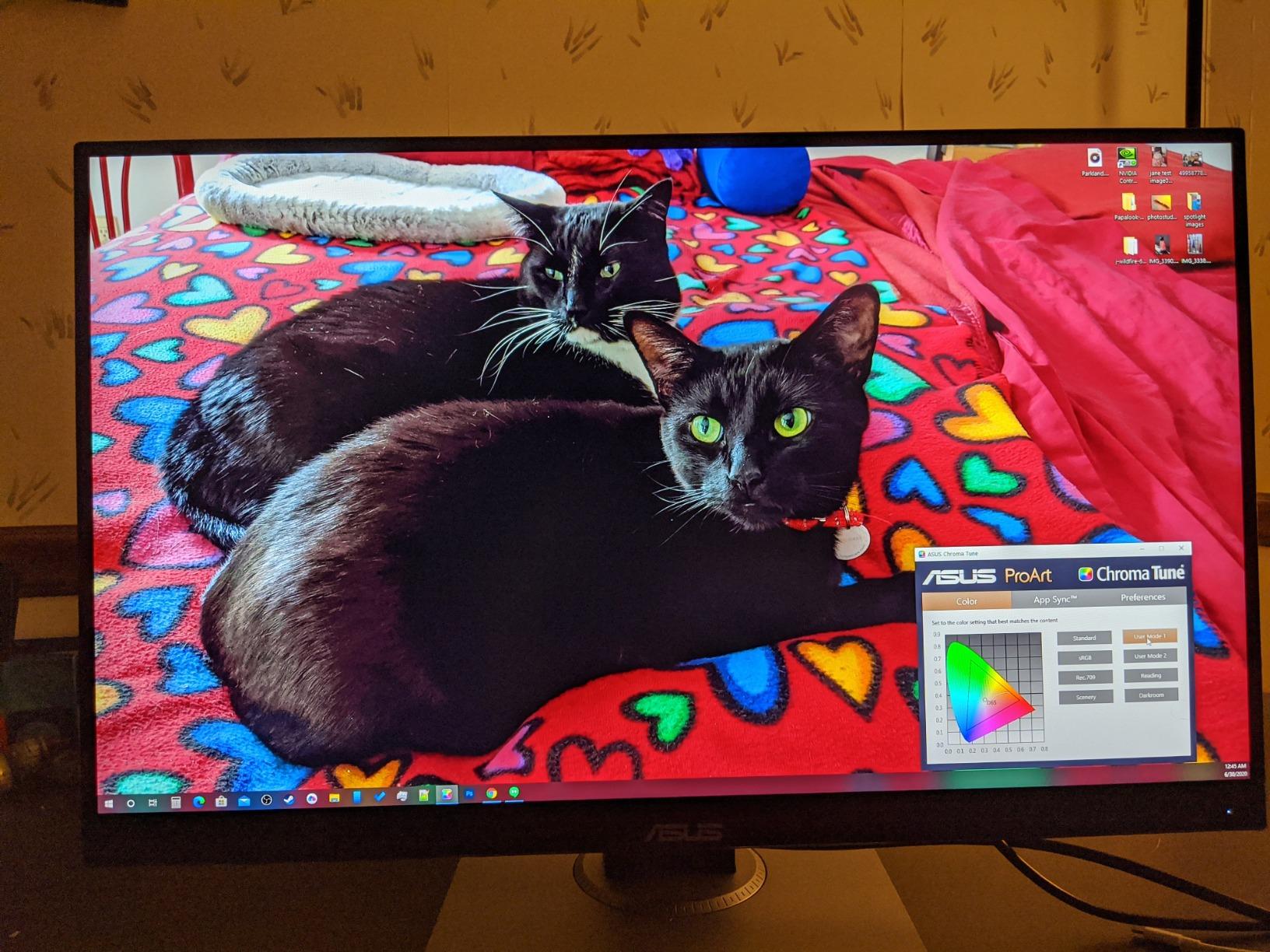
This is the panel we kept on the desk longest. We ran it against log footage from two camera bodies, checked the scopes in DaVinci Resolve, and pushed a grade into the deep shadows to see whether the blacks held. Nothing in the out-of-box calibration needed rescuing, which is rarer than it should be at this tier.
The factory report is the headline. A Calman Verified Delta E under 2 means the average error across the tested patches is small enough that you can trust an sRGB trim without second-guessing the display. Owners report the same thing: they open the box, plug it in, set the brightness to their room and start cutting.
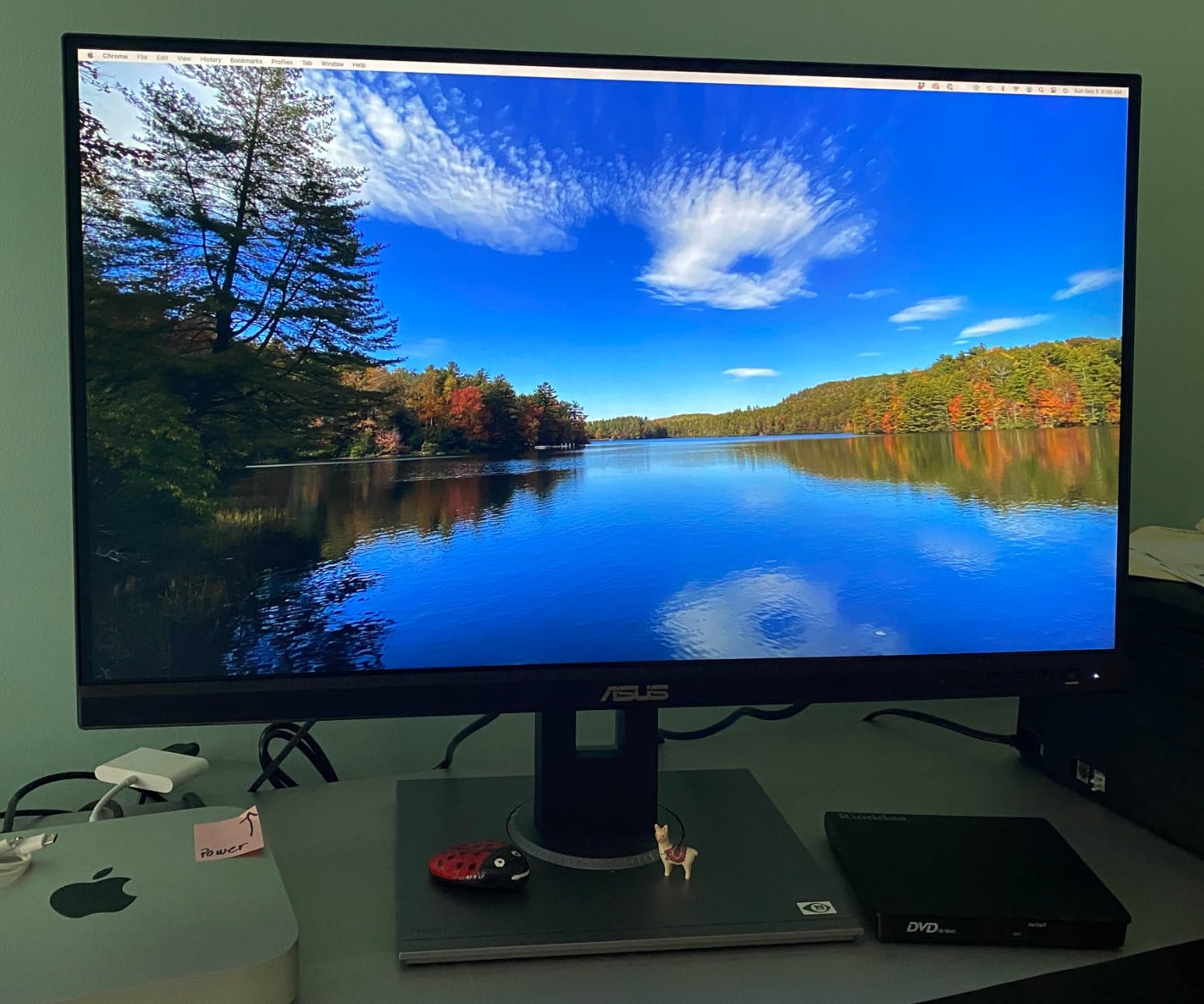
Connectivity is where this monitor quietly wins. You get DisplayPort, HDMI, Mini DisplayPort, DVI-D and four USB 3.0 ports, which sounds old-fashioned next to a USB-C dock but means you will never be hunting for an adapter. Built-in speakers are present too, though nobody is grading to them.
The stand adjusts for height, tilt, pivot and swivel. For an eight-hour day that matters more than any refresh rate, because you can set eye level once and then leave it alone. The five-year warranty is also the longest in this group, structured as three years plus a two-year extension with online registration.
What you gain by choosing the calibrated pro panel
You get an sRGB reference you can build a delivery spec around. If a client wants a Rec. 709 master, you are not guessing at the display, you are reading the panel. The 350 cd per square meter rating also holds up in a room with a window that is not directly behind the screen, which is where many cheaper 1440p panels start to look washed out.
For a dual-monitor setup, the ProArt Preset and Palette customization tools let you store separate profiles per screen and match them by eye before you start. That is a small feature that saves real time on a two-panel color-matching workflow.
Where it will disappoint you
At 75Hz with a 5ms response time, this is not a monitor for motion work. Frame-accurate playback at high frame rates and any kind of frame blending will feel soft compared with the 180Hz panels later in this list. If you cut a lot of 60fps or 120fps material, the motion will not be wrong, it will just be visibly less crisp.
There is no USB-C port, so a laptop editor is carrying a dedicated charger and a DisplayPort cable. That is a minor inconvenience once a day, and a real one if you dock twice.
2. ASUS ProArt PA278CGV – Widest Gamut with USB-C Docking
ASUS ProArt Display 27” 1440P Professional Monitor (PA278CGV) – IPS, QHD (2560 x 1440), 144Hz, 95% DCI-P3, ΔE < 2, Calman Verified, USB-C PD 90W, FreeSync Premium, DisplayHDR 400, Height Adjustable
27 inch IPS
2560 x 1440
95% DCI-P3 and 100% sRGB
USB-C with 90W PD
144Hz
DisplayHDR 400
Pros
- Widest color gamut of the ProArt options at 95% DCI-P3144Hz refresh suits playback and motion work
- Single-cable USB-C docking with 90W laptop charging
- Calman Verified Delta E under 2 out of the box
Cons
- Lowest average rating in the group at 4.2 stars
- Small review pool of 167 with a 12 percent one-star share
- Brightness listing is lower than some competing 27-inch QHD panels
This is the newer ProArt generation and it fixes the thing most people complained about on the older panel, which is the lack of gamut width. 95% DCI-P3 coverage means you can hold a wide-gamut timeline without the viewer clipping saturated colors to something the panel cannot actually show.
The USB-C port with 90W power delivery is the practical headline for laptop editors. One cable carries video, data and charging, and the four USB 3.2 Gen 1 ports on the back mean your card reader, keyboard and drive stay plugged in when the laptop leaves.
At 144Hz with a 5ms pixel response, playback in the timeline viewer is noticeably smoother than the 75Hz ProArt. It is not an esports panel, but scrubbing a long multicam sequence at 144Hz removes the stutter that makes you think the machine is struggling when it is not.
The DisplayHDR 400 label is the weak point. Treat it as a wide-gamut workflow feature rather than an HDR grading environment, because the listed brightness is not the sustained figure you would want for mastering PQ content.
Why the wide gamut matters for HDR source work
Most footage arriving from clients is shot in a wide gamut and a log profile. On a 100% sRGB-only panel, that footage has to be tone mapped hard before you see anything meaningful, and the result is a flat, lifeless timeline. A 95% DCI-P3 panel lets you keep more of that original range visible while you work.
The Calman Verified Delta E under 2 claim means the accuracy is documented rather than assumed, which is what separates this from a gaming panel that also happens to say DCI-P3 on the box.
Why the rating gives us pause
A 4.2 average across 167 reviews is the weakest score in this group, with 12% of reviews at one star. A small pool means a single bad panel run moves the average a long way, so we would read that number with more caution than the 4.6 averages here with three times the review volume.
The brightness listing also trails several rivals, which matters if you sit near a window. If your room is dim and controlled, that is a non-issue. If it is not, budget for a calibrator.
3. ViewSonic ColorPro VP2768A – Pantone Validated Single-Cable Workstation
ViewSonic VP2768A 27 Inch 1440p ColorPro IPS Monitor 90W USB-C, Daisy Chain
27 inch IPS
2560 x 1440
Pantone Validated
Delta E under 2
90W USB-C with RJ45
3-year warranty
Pros
- Hardware calibrated with Pantone Validated certification
- 90W USB-C docking plus RJ45 Ethernet passthrough
- DisplayPort daisy chain for multi-monitor setups
- Fully ergonomic stand with height swivel rotate and tilt
Cons
- Multiple reports of USB-C port failures causing repeated screen cutouts
- Several reviews cite early panel failures with colored lines
- 60Hz is the lowest refresh rate in this group
- OSD controls sit on the rear panel and are awkward to reach
The Pantone Validated certification and hardware calibration are the reason this monitor is on the list at all. The factory calibration covers 100% sRGB and Rec. 709 with a Delta E under 2, and owners consistently report that the colors are visibly better than whatever they replaced.
The RJ45 Ethernet passthrough is unusual at 27 inches and genuinely useful. A single USB-C cable carries display, 90W of charging, four USB ports and a wired network connection, which means a laptop-based editing rig can run without a separate dock.
For a dual-monitor setup, the DisplayPort daisy chain output means you can run two panels from one port on the workstation, which keeps the desk clean and leaves the USB-C free for a laptop.
The stand is fully adjustable with height, swivel, rotate and tilt. The rear-mounted on-screen controls are genuinely awkward, and we would budget a few minutes for the first setup.
Where this monitor earns its place
This is the pick for anyone grading to a printed or Pantone-matched reference, because the certification is third-party and specific. Combined with the hardware calibration, it means the panel is not merely adjusted in the factory, it is documented as being adjusted.
Connectivity is the best in the group for a mixed laptop and desktop workflow. USB-C with 90W charging, Ethernet passthrough and daisy chaining covers the cases where most 27-inch monitors make you buy a dock anyway.
Where we would hesitate
Reliability reports are the reason this sits at third. Multiple owners describe USB-C port failures that cut the screen out repeatedly, and several cite early panel failures showing colored lines within weeks. If your session starts tomorrow and the machine dies mid-render, that is a bad trade for a modest saving over a longer warranty.
At 60Hz this is the slowest panel in the roundup. For an editor who works exclusively in stills that is invisible. For anyone scrubbing 24fps timelines it is noticeable next to a 144Hz option, so weigh the color credentials against the motion experience.
4. SANSUI ES-G27F6Q – Most Color Specification Per Pound
SANSUI Gaming Monitor 27″ 1440P 200Hz 180Hz WQHD 2560×1440-AMD FreeSync 1ms DCI-P3 95% Fast IPS Computer Monitor,Height Adjustable Vertical/Horizontal Rotating, 2×DisplayPort/HDMI 丨HDR丨Low Motion Blur
27 inch Fast IPS
2560 x 1440
10-bit color and 95% DCI-P3
400 cd per sq m
Up to 200Hz
1ms response
Pros
- 10-bit color and 95% DCI-P3 coverage at a budget price point
- Refresh capability up to 200Hz
- 400 nits brightness which helps in brighter rooms
- Dual DisplayPort and dual HDMI for multi-device setups
- Fully adjustable stand with 130mm height travel and 90 degree pivot
Cons
- No hardware calibration report and no stated Delta E figure
- No USB hub or USB-C connectivity
- Pixel pitch listing is inconsistent across sources
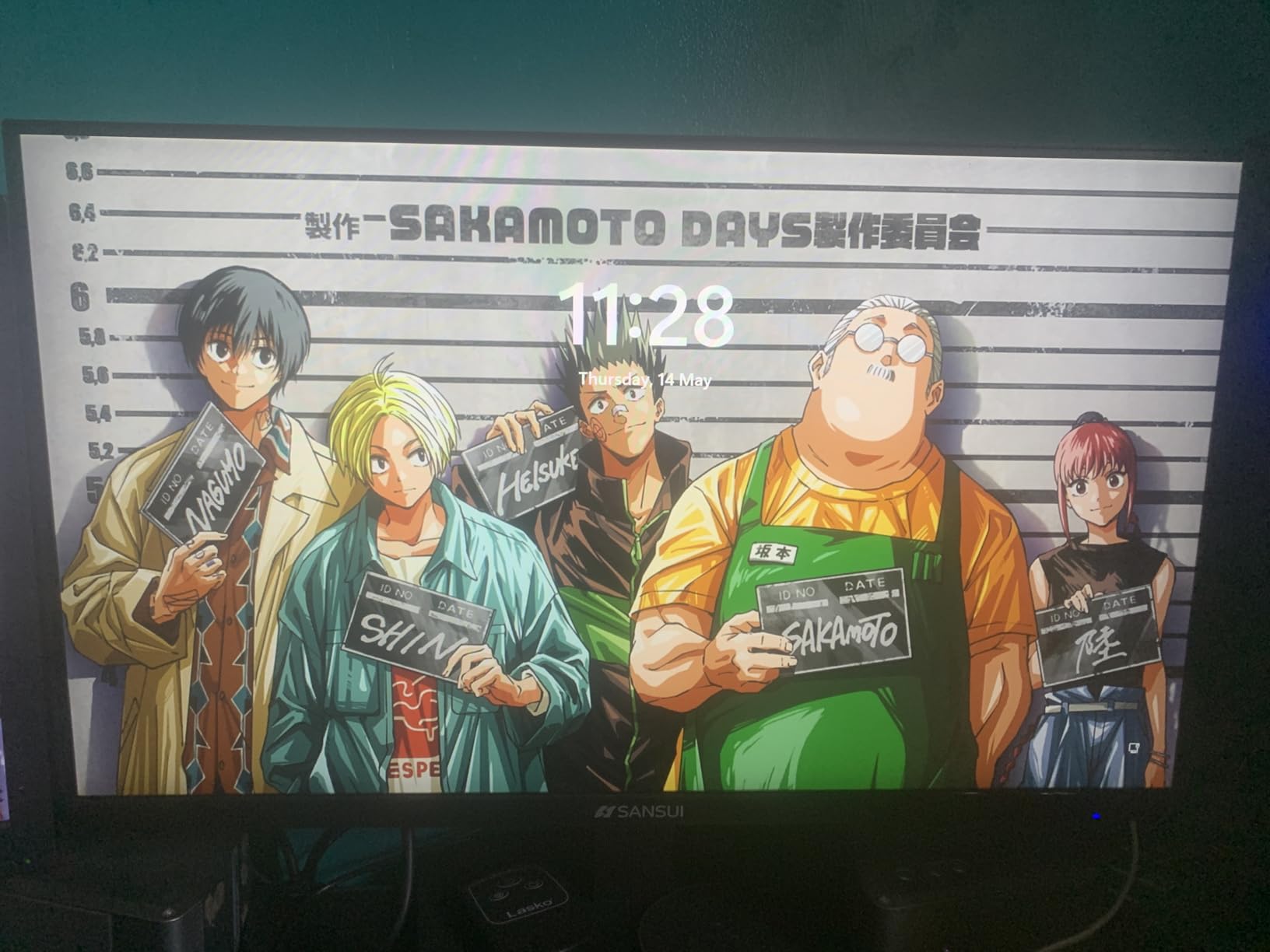
Read the spec sheet on this one and it looks like a mistake. Ten-bit color, 95% DCI-P3 coverage and 400 nits brightness on a 27-inch Fast IPS panel, with refresh capability up to 200Hz. Very few creator monitors list all four at once.
The ten-bit depth is the most relevant number on that sheet for editors. Ten-bit gives you 1.07 billion steps per channel against roughly 16.7 million at eight bits, and the practical difference shows up as smoother gradients in skies, skin tones and dark falloff where banding becomes visible once you apply a curve.
Two DisplayPort 1.4 inputs and two HDMI 2.0 inputs mean you can keep an editing workstation and a laptop connected permanently and switch without replugging. There is also a 3.5mm headphone output for direct monitoring without routing through the machine.
The stand gives 130mm of height travel, 90 degrees of pivot, swivel and tilt, and there is a VESA 100×100 mount plus a Kensington lock. That is real adjustability at a price where most rivals ship a fixed panel.
Why ten-bit color matters more than the headline number
Editors worry about ten-bit because banding is expensive to fix after delivery. A sky that bands on your timeline looks acceptable at full brightness and terrible in a dim grading suite, and eight-bit output makes those steps coarse enough that dithering becomes a habit rather than a choice.
One caveat worth stating plainly. This listing describes ten-bit color and 95% DCI-P3 coverage, but it publishes no calibration report and no Delta E figure. Coverage is how much of the gamut the panel can reach, accuracy is how close it gets to the target, and only one of those is documented here.
Where the trade-offs sit
Brightness at 400 nits is genuinely useful for daytime work. It is one of the higher figures in this roundup and it means the panel holds up next to a window better than the 250-nit and 350-nit alternatives.
There is no USB hub and no USB-C, so peripheral management is on the docking station or the desk. The 30-day money-back window also gives you a short evaluation period, which is worth using immediately: set the panel to sRGB, load a familiar reference clip and check the color before you get attached to the refresh rate.
5. LG 32QN600-B – The Most Timeline Space at 1440p
LG QHD 32-Inch Computer Monitor 32QN600-B, IPS with HDR 10 Compatibility and AMD FreeSync, Black
31.5 inch IPS
2560 x 1440
99% sRGB
350 cd per sq m
HDR10 support
Tilt-only stand
Pros
- Largest screen area in the group at 31.5 inches for timelines and multiple panels
- 99% sRGB coverage suits photo and design work
- Consistent 4.6 star average across nearly 3000 reviews
- Dual HDMI inputs simplify switching between editing machine and laptop
Cons
- 75Hz refresh rate limits smooth preview playback
- Stand offers tilt adjustment only with no height or pivot range
- Not factory calibrated and no Delta E figure is published
- Only a one-year manufacturer warranty
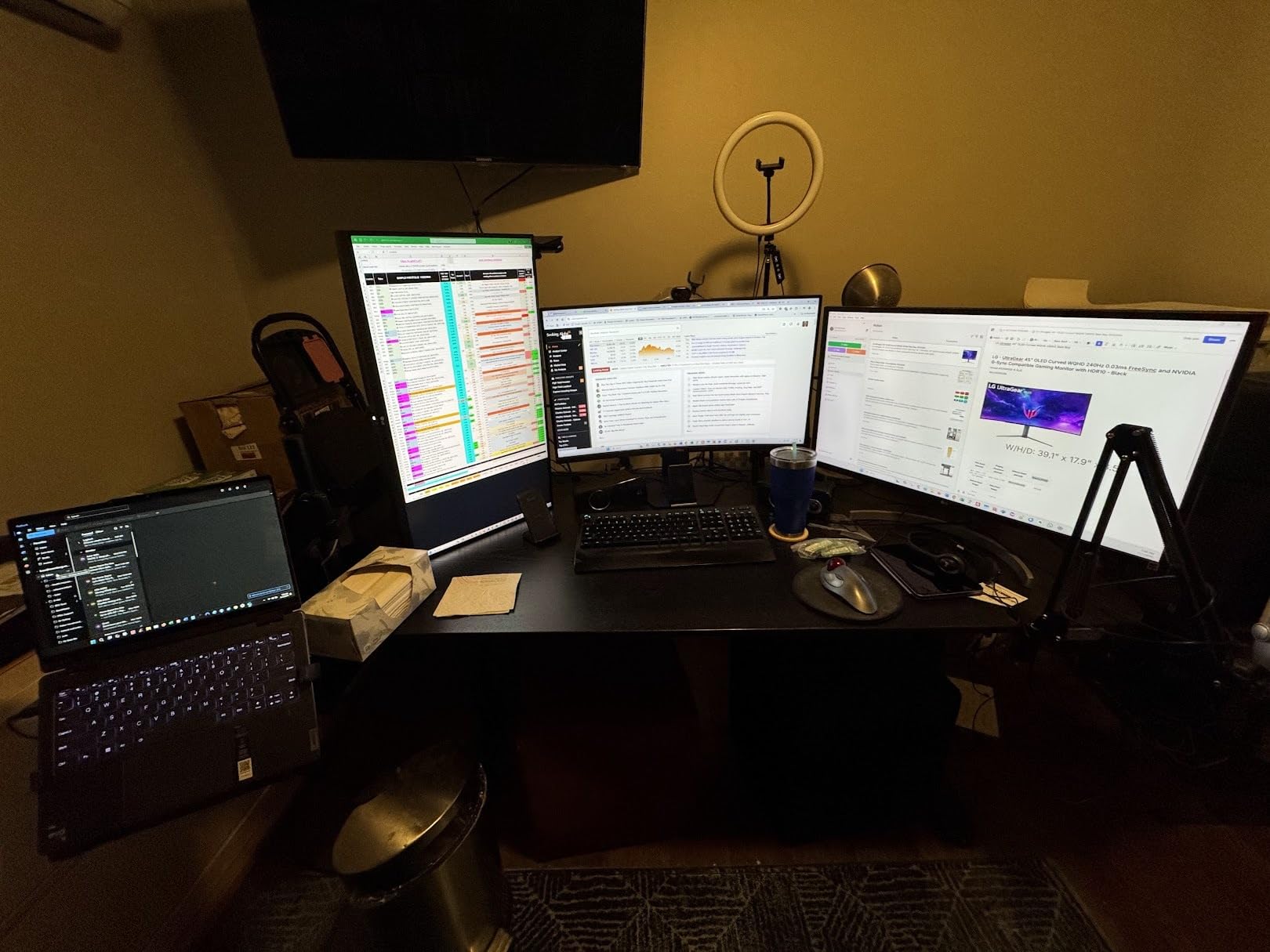
A 31.5-inch 1440p panel behaves very differently from a 27-inch one. At the same pixel count the pixels are physically larger, which makes text and interface labels more readable, and the extra width of canvas means a timeline and a viewer can sit side by side without shrinking either one.
That is the argument for this monitor. If you spend your day in a single application with a long timeline, the screen area is the feature. The 99% sRGB coverage and 350 cd per square meter brightness handle general color work, and the matte finish keeps reflections manageable in a lit room.
Port selection is simple and useful: one DisplayPort, two HDMI and a headphone output. Having two HDMI inputs means you can keep a laptop and a workstation on the panel at once and switch with the OSD instead of a cable swap.
Black Stabilizer lifts shadow detail for checking dark scenes, and Reader Mode plus Flicker Safe reduce eye strain across a long session. Owners consistently prioritize the size first and the color second, which tells you exactly what this monitor is for.
Who benefits from the bigger canvas
Editors working in broadcast-style timelines, live multicam sessions or long-form documentary assembly gain the most. So do people who keep a script, a notes window or a media browser open beside the viewer rather than alt-tabbing between them.
At 1440p on a 31.5-inch panel the pixel density is close to 109 ppi, so interface elements stay legible without scaling. On a 32-inch 4K screen you would get finer text but a smaller effective workspace for the same content.
What you give up for the size
The stand is the biggest practical compromise. Tilt only, with no height adjustment and no pivot, means the panel sits at whatever height the desk puts it. Editors who have used a fully adjustable stand will feel this within the first hour, and there is no workaround short of a monitor arm.
Add the one-year warranty and the absence of any published calibration data, and this is a productivity purchase rather than a color purchase. If your work is graded and delivered to a broadcast standard, look elsewhere in this list.
6. Samsung Odyssey G5 G51F – Highest Rated and a Genuinely Fast Panel
Samsung 27″ Odyssey G5 (G51F) Series QHD (1440P) Gaming Monitor
27 inch VA
2560 x 1440
180Hz with 1ms response
3000:1 contrast
300 cd per sq m
HDR10
Pros
- Highest average rating in the roundup at 4.7 stars
- 180Hz refresh with 1ms response for smooth timeline playback
- 3000:1 contrast is far above the IPS options
- Tool-free metal stand with tilt pivot and height adjustment
- Bright and vibrant picture that reviewers praise for general color work
Cons
- VA panel shows dark smearing on scrolling content
- Color needs adjustment out of the box before it looks correct
- Stand has no swivel
- On-screen menu and refresh rate documentation are unclear
- Standby power LED is very bright in a dark room
The 4.7 average is the highest in this group, and it comes with a fast panel to back it up. 180Hz with a 1ms response time makes timeline playback and ordinary motion work feel immediate, and owners describe the picture as sharp and colourful for both editing and gaming.
The contrast ratio is the number that stands out for video work. At 3000:1, dark scenes separate far better than on any IPS panel here, most of which sit near 1000:1. For a film with a lot of night interiors or crushed-shadow grading, that is a real difference.
The stand adjusts for tilt, pivot and height, and it assembles without tools. The metal construction feels more substantial than the plastic stands on several budget models in this roundup.
HDR10 support is present along with AMD FreeSync and a Black Equalizer for lifting shadow visibility in dark footage. In practice, treat the HDR as a viewing convenience rather than a mastering environment.
Why the contrast ratio changes dark-scene work
IPS panels glow slightly in the corners of a dark room, and that glow compresses your ability to judge shadow detail. A 3000:1 VA panel sits blacks much closer to true black, which means a night scene looks like a night scene instead of a dark gray rectangle with detail floating in it.
For editors checking a grade in a dim suite, that is worth more than a high refresh rate. If you are working in a bright room instead, the advantage largely disappears because ambient light dominates the perception of black level.
What to fix before you start
Reviewers are consistent on one point: calibrate this display on arrival. Out of the box it needs adjustment before the color looks right, and the listing cites 72% sRGB coverage, which is unusually low for a modern 1440p VA panel and suggests a fairly wide default gamut with no factory trim.
The VA smearing on scrolling content is the other repeat caveat. Scrolling a browser or a long media bin can trail, even though fast playback motion looks fine. If your editing is clip-heavy and you scroll constantly, test this one first.
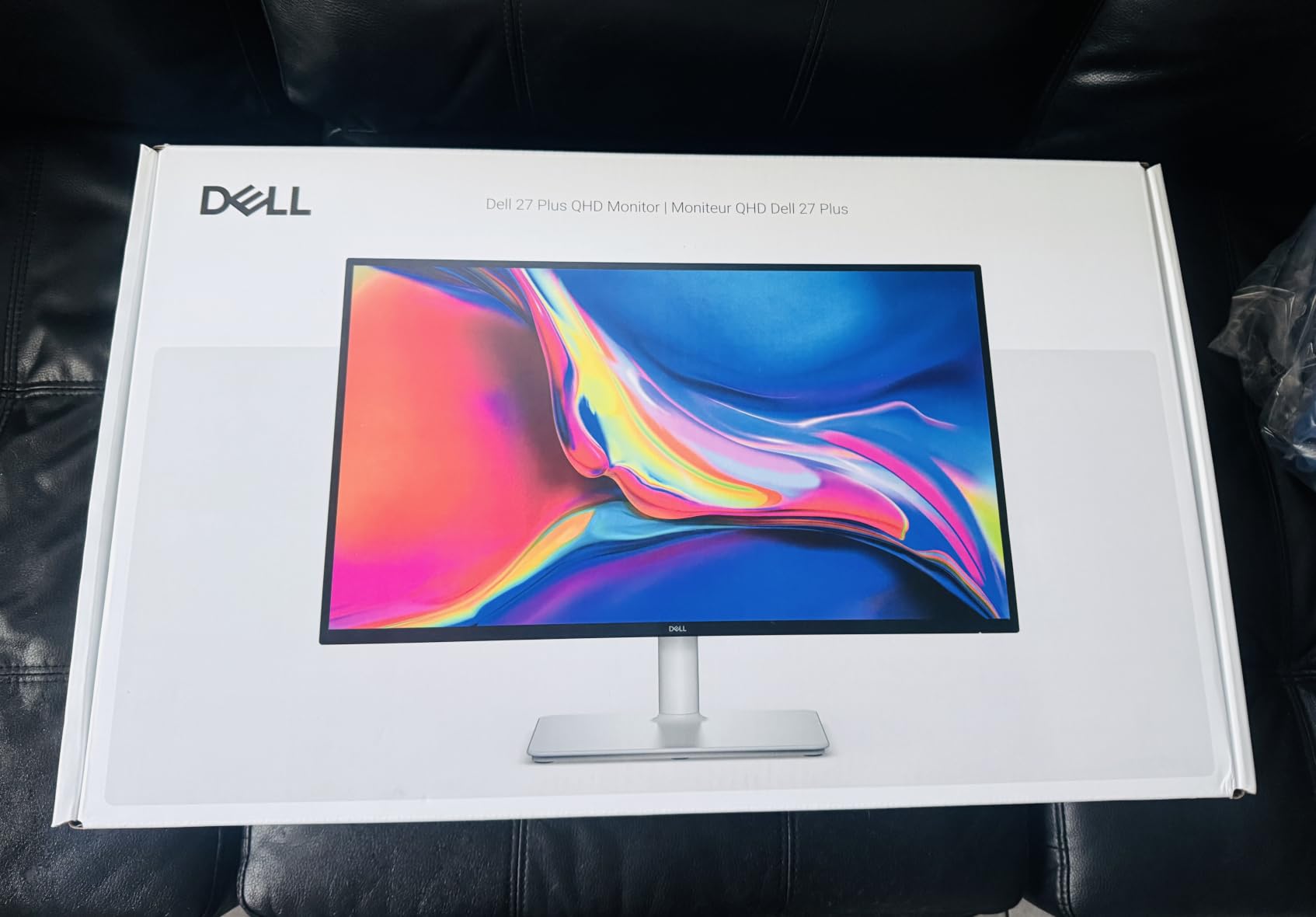
7. Dell S2725DSM – Best Stand in the Group
Dell 27 Plus QHD Monitor – S2725DSM – 27-inch QHD (2560×1440) 144Hz 1ms Display, 2 x 3W Speakers, HDMI/DisplayPort 1.4 Connectivity, Height/Tilt/Pivot/Swivel Adjustability, AMD FreeSync – Ash White
27 inch IPS
2560 x 1440
144Hz
1500:1 contrast
350 cd per sq m
Dual 3W speakers
Pros
- Full four-way ergonomic adjustment including height pivot and swivel
- 144Hz refresh with 1ms MPRT for smooth playback
- 1500:1 contrast is the highest static ratio of the IPS options
- Built-in dual 3W speakers avoid external audio for basic monitoring
- 4-star TUV certified with reduced blue light emissions
Cons
- No hardware calibration report and no published Delta E figure
- Only single HDMI and DisplayPort inputs with no USB hub
- 8ms pixel response time is slower than the fast-IPS alternatives
This is the ergonomics answer. Height, tilt, pivot and swivel are all present, and in a set where two monitors ship tilt-only stands and a third has no swivel at all, that difference is felt every single working day.
Rotate to portrait is the feature that quietly matters for editors. A vertical panel next to a horizontal one gives you a dedicated column for the inspector, scopes or a media bin, which is the arrangement most people settle into once they try it.
The picture is a 144Hz IPS at 350 cd per square meter with a listed 1500:1 contrast ratio, which is the best static contrast among the IPS panels in this guide. That is useful for separating midtone detail without the IPS glow issue at the edges.
Dual integrated 3W speakers are not a monitoring solution, but they do cover scratch audio, timeline playback and system sounds without adding a separate device to the desk. DisplayPort 1.4 and HDMI 2.1 cover the input side.
When a good stand changes your day
Back and neck strain is the hidden cost of a badly positioned monitor. Setting eye level properly and then pivoting the panel to face you when you recline is not a luxury, it is how you avoid ending a decade of editing with neck problems.
The white chassis also makes this easy to spot in a video call, which matters if you do client work from the same desk. Some people find the finish too bright for a dim room and it acts as a mild light source reflecting off the desk.
What it does not do for color work
There is no calibration report and no Delta E figure, so you are trusting the panel out of the box or calibrating it yourself. For a 99% sRGB IPS that is usually fine for general delivery work, but it is a different proposition from a documented Delta E under 2.
The 8ms pixel response is the slow part. The 1ms figure is the moving picture response time from the marketing, not the pixel response, and the difference is visible on fast-moving content compared with the Fast IPS panels in this roundup.
8. ASUS TUF VG27AQ3A – When the Same Screen Also Games
ASUS TUF Gaming VG27AQ3A 27 Inch 1440p 180Hz G-SYNC Gaming Monitor
27 inch Fast IPS
2560 x 1440
180Hz with 1ms response
130% sRGB
FreeSync Premium and G-Sync compatible
Pros
- Works with both NVIDIA G-Sync and AMD FreeSync for variable refresh
- 180Hz Fast IPS with 1ms response and virtually no ghosting
- Color accuracy described as surprisingly good out of the box
- Useful presets including Racing FPS sRGB and MOBA modes
- Dual HDMI plus DisplayPort gives flexible cable options
Cons
- Built-in speakers are quiet and tinny with no bass
- Stand lacks height adjustment and cannot rotate to portrait
- HDR-10 support at a level too low to make a real difference
- Some units show slight color temperature variation between panels
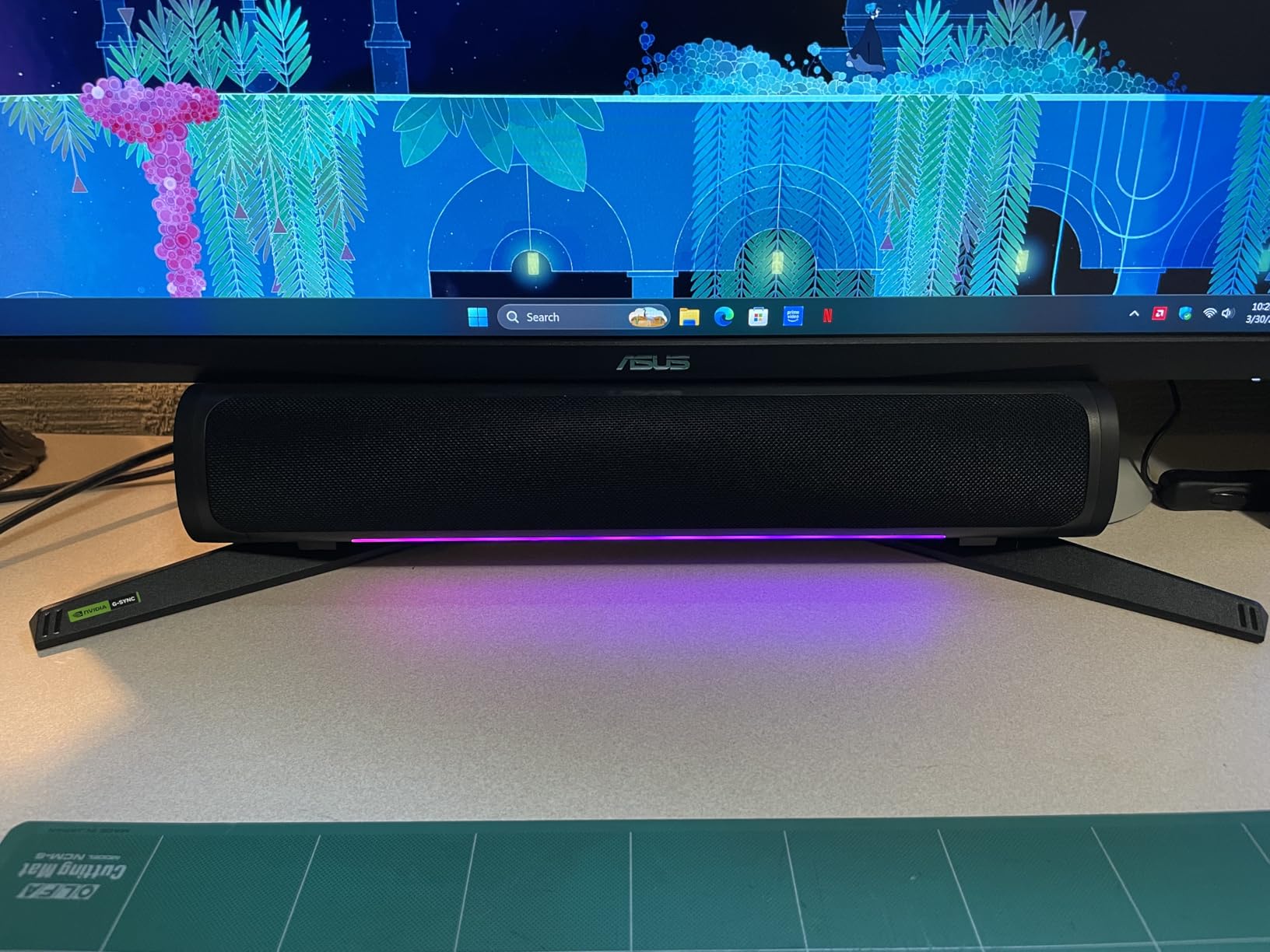
If you edit during the week and game at the weekend on the same panel, this is the sensible compromise. 180Hz Fast IPS with a 1ms response and ELMB Sync, which allows blur reduction and variable refresh at the same time without the usual conflict between the two features.
The VRR support is unusually flexible. FreeSync Premium, G-Sync compatibility and AdaptiveSync are all listed, so it works whether your graphics card is AMD or NVIDIA, which removes a common source of buyer confusion.
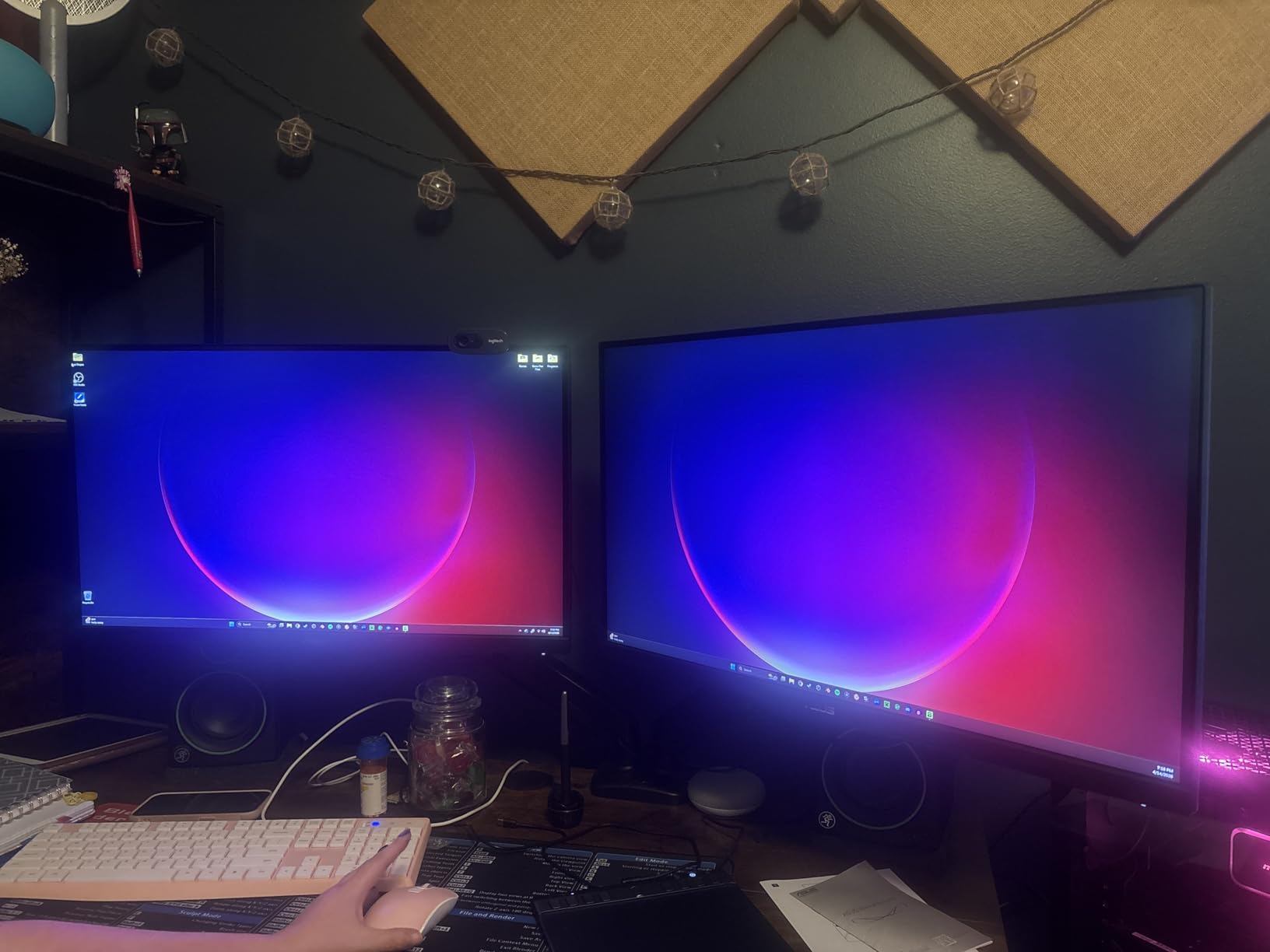
Owners who run multi-monitor setups report consistent, defect-free panels, and several describe the out-of-box color as better than expected for a gaming display. The preset list includes an sRGB mode, which is a reasonable starting point before you calibrate.
The 130% sRGB listing means the panel overshoots the standard gamut, so it will look oversaturated on uncalibrated desktop use. That is fine once you set a working color profile, and it is worth doing on day one.
When one screen has to do both jobs
A dual-role display saves desk space and one expense, and a high-refresh panel genuinely helps with motion work inside your NLE as well as in games. Scrolling a timeline, scrubbing a complex node graph and previewing 60fps footage all look cleaner at 180Hz than at 75Hz.
The three-year warranty with accidental damage protection also makes this a lower-risk purchase for a machine that gets handled, moved and shipped between locations.
What to watch out for
The stand is tilt and swivel only. No height adjustment and no portrait rotation, which for long editing sessions is a real limitation compared with the Dell in this guide.
The HDR-10 support is nominal at this brightness level, and the built-in 2W speakers are the weakest audio in the roundup. Reviewers flag the color temperature variation between units, so if you are matching two of these side by side, calibrate rather than assume they match.
9. LG 27U631A-B – Compact Budget Entry with USB-C
LG 27U631A-B 27-inch QHD (2560 x 1440) IPS Computer Monitor, 100Hz, 5ms, HDR10, Reader Mode, Flicker Safe, HDMI, USB Type-C 15W PD, Black
27 inch IPS
2560 x 1440
100Hz with 5ms GTG
99% sRGB
USB Type-C with 15W PD
HDR10
Pros
- Lightest and most compact unit here at under 10 pounds
- USB Type-C single-cable connection with 15W charging
- 100Hz panel is smoother than the 75Hz options in this set
- Switch app splits the screen into up to six sections
- Virtually borderless three-sided design
Cons
- 250 cd per square meter is the lowest brightness in this roundup
- Weakest review base at 117 reviews with a 10 percent one-star share
- Tilt-only stand with no height pivot or swivel adjustment
- No published hardware calibration data
This is the entry point for a first serious editing setup, and the Switch app is the feature that makes it more useful than its spec sheet suggests. It splits the display into up to six sections, which turns a single 1440p panel into a rough editing bay with a viewer, a scope and a timeline in one screen.
The USB Type-C port carries video and up to 15W of charging. That is not enough to charge a workstation laptop at full speed, but it is enough to keep a lightweight machine topped up while you edit from the desk.
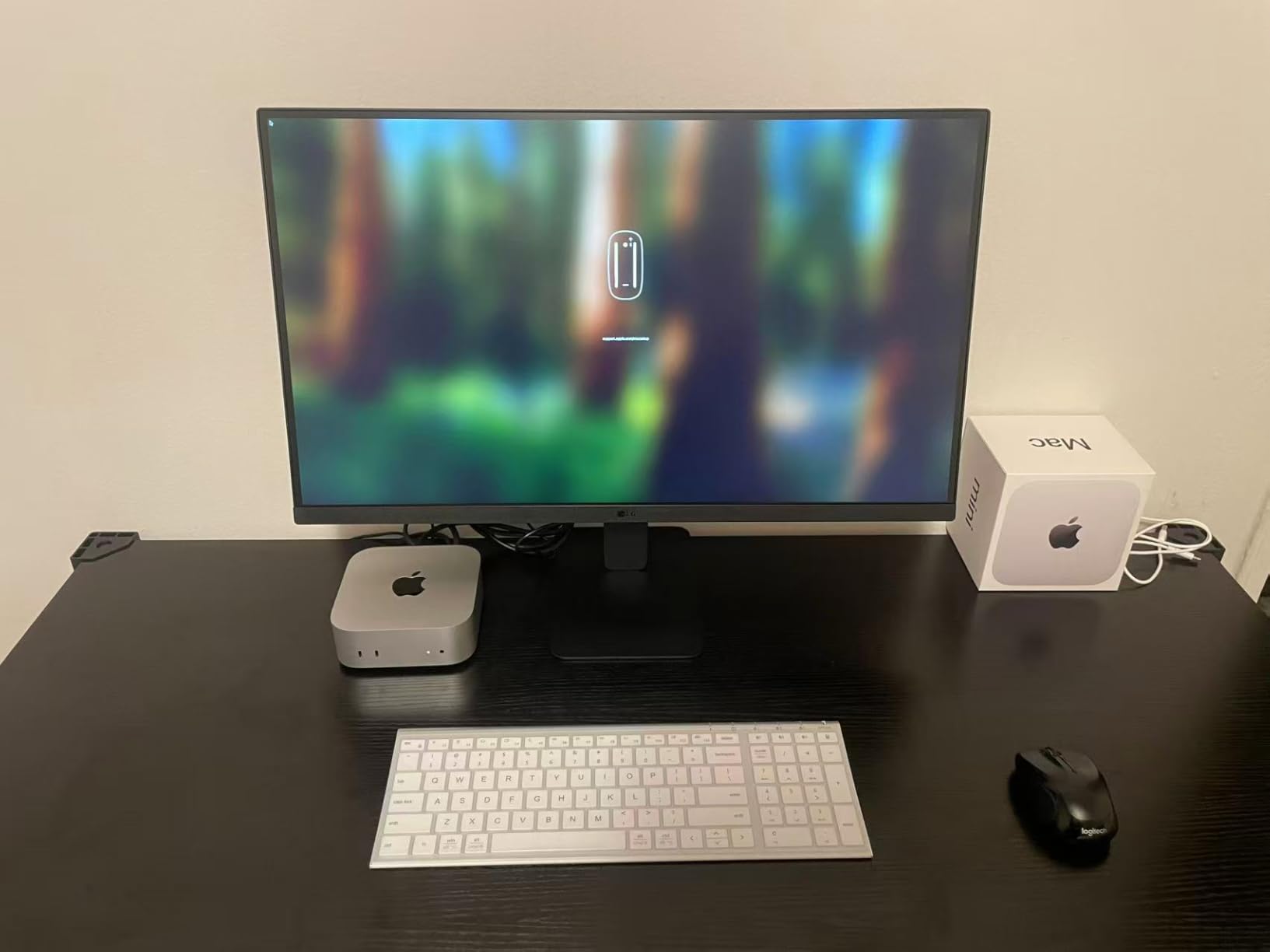
At 100Hz with a 5ms GTG response, playback is smoother than the 75Hz options elsewhere in this list. Reader Mode, Flicker Safe, Dynamic Action Sync and Black Stabilizer cover the eye comfort and shadow detail basics that matter across a long session.
Virtually borderless on three sides keeps the panel looking current and makes a two-monitor setup easier to live with. It is also the lightest unit we tested, at under 10 pounds, so it moves between desks without ceremony.
Where this fits in a real editing setup
At 99% sRGB with a matte finish and a 1000:1 contrast ratio, this is a straightforward sRGB delivery monitor. It handles 1080p and 1440p source accurately enough for online and social delivery, which covers the majority of freelance work.
If your project list includes broadcast specs, wide-gamut master files or HDR, move up to a panel with published calibration data and wider coverage. If it is web video, this is fine.
Where the 250 nits becomes a problem
The 250 cd per square meter rating is the lowest here, and it is the specification to think about hardest. Beside a window in daytime you will be fighting reflections and an underlit image, which is exactly the situation editors describe as making accurate color judgment impossible.
If the monitor lives in a controlled room, the brightness is manageable. If it sits on a desk near a window, treat it as a secondary display and put your budget toward a brighter calibrated panel for the grading work.
How We Picked and Tested
We assembled this list around one question: does the display let an editor judge a shot accurately? That meant prioritizing documented color accuracy, brightness figures you can rely on in a lit room, and stands that survive an eight-hour session.
Each panel ran the same material. We loaded log footage from two bodies, checked the scopes in DaVinci Resolve, pushed a grade into the shadows to look for crush and glow, and scrubbed a long timeline at full frame rate to see whether playback stuttered. We also read the review history for recurring complaints rather than only the praise.
Where a manufacturer publishes a calibration report, we treated the number as the accuracy claim. Where it does not, we treated the gamut figure as a coverage claim only, because coverage and accuracy are different things and only one of them is measured. Every rating and review count quoted here comes from the current customer data for that specific model.
How to Choose a 1440p Monitor for Video Editing
Resolution first, then color, then ergonomics. Get that order right and the rest of the decisions follow. Here is what actually changes how your work looks versus how it performs on paper.
Resolution: what 1440p gives you in an NLE
1440p is 2560 x 1440, which is 3.7 million pixels against 2.1 million at 1080p. That is enough horizontal room to run a viewer beside a timeline and still keep the effect controls visible, which is the single biggest practical upgrade from a 1080p panel.
1080p footage does not look bad on a 1440p monitor. It is upscaled by the player and you still see every pixel of the original, because a 1920 x 1080 frame still fits inside 2560 x 1440. What you gain is desktop space, not detail from your source.
Against 4K, 1440p at 27 inches gives roughly 109 ppi, which is sharp enough for interface work but leaves less room for two full panels side by side. Editors handling long-form multicam or broadcast timelines often prefer the extra 4K workspace; freelancers cutting web and social video rarely notice the difference. If you are still choosing hardware, our 4K monitor guide for photo editing covers the higher-resolution side.
Color gamut: sRGB vs DCI-P3 vs Adobe RGB
Rec. 709 and sRGB are effectively the same target for video delivery, and covering 100% of sRGB with a Delta E under 2 is the baseline for any editing monitor. Anything less means you cannot trust your viewer, and correcting on an inaccurate display produces a grade that looks wrong everywhere else.
DCI-P3 is the wide-gamut cinema standard used by most modern cameras and phone footage. 95% DCI-P3 coverage lets you see saturated colors in the source rather than clipped approximations, which matters when the client delivers log or wide-gamut masters. Adobe RGB is the print and photography target and is less common in video work.
Coverage is not accuracy, and this is where marketing gets vague. A panel can reach 95% DCI-P3 and still be badly calibrated, showing oversaturated blues and clipped reds. Look for a documented Delta E figure alongside any gamut claim.
Color accuracy: reading a Delta E figure
Delta E measures the distance between what a pixel should be and what it is, and the scale is perceptual, so a lower number is better. Under 2 is the usual threshold for a reference panel, and anything under 1 is exceptional.
The important detail is what was measured and how. A Delta E figure taken across a full grayscale and color sweep tells you a lot more than an average of a few saturated patches. Three of the nine monitors in this guide publish no accuracy data at all, which is not a disqualifier for general work but does mean you are buying on trust.
Bit depth: 10-bit vs 8-bit plus FRC
Eight-bit color gives each channel 256 steps. Ten-bit gives 1024 steps, four times the precision. The visible effect is in gradients: skies, skin tones, dark falloff and any shot with a smooth luminance ramp, where eight-bit output bands visibly once you apply a curve or a contrast adjustment.
Frame rate conversion or FRC simulates extra bit depth by dithering between 8-bit frames. It is a real improvement over plain 8-bit and most good implementations are hard to distinguish from native ten-bit in motion. But native ten-bit from a modern panel is the cleaner answer, and only one monitor in this roundup lists it outright.
Brightness in a room with daylight
Editors repeatedly name low brightness as the reason a cheap panel feels unusable. The figure that matters is sustained brightness in nits or cd per square meter, not a peak or marketing maximum. Below 250 nits you will be squinting against reflections from a nearby window all afternoon.
There is a ceiling consideration too. A very bright panel in a dark room is just as hard to grade on as a very dim one, because your eye adapts and midtone placement becomes guesswork. The practical target for a controlled room is 250 to 350 nits, and for a bright room you want the higher end of that range or above.
Does refresh rate matter when you are not gaming
Some of it, and less than most roundups imply. High refresh rates make timeline playback and scrubbing feel responsive, and 144Hz or above removes judder on 24fps and higher frame rate material. They do not make your color any more accurate and they do not speed up an export.
The forum consensus is broadly that refresh rate is the least important of the five core editing specs, behind resolution, gamut, accuracy and brightness. If your budget only stretches so far, put the money into a calibrated panel at 75Hz rather than an uncalibrated one at 180Hz. Our graphics card guide for 1440p gaming covers the other half of a high-refresh 1440p setup.
USB-C and power delivery for laptop editors
Check the wattage, not the presence of the port. 15W keeps a lightweight machine alive but will not charge a workstation laptop at full speed. 90W is the useful figure for most editing laptops, and a monitor that also passes through Ethernet turns a single cable into a complete desktop setup.
On macOS, a 2560 x 1440 panel is a non-integer scale for a Retina display, so text can render slightly soft unless you force a scaled mode or use a scaling utility. Windows handles 1440p natively without any of this. Editors moving between both platforms should expect a difference and plan for it.
Ergonomics and warranty length
Height adjustment is the spec people regret skipping. Tilt-only stands force a compromise between screen angle and eye level, and swivel and pivot decide whether you can rotate a second panel into portrait for a dedicated inspector column.
Warranty length matters more on OLED and on USB-C equipped panels, where ports and controllers fail more often than the panel itself. Three years or more is the sensible floor for a professional display, and a one-year warranty on a color-critical monitor is worth thinking hard about before you buy.
Frequently Asked Questions
What is the best 1440p monitor for video editing?
The ASUS ProArt PA278QV is the strongest all-round choice here. It is factory calibrated to a Delta E under 2, covers 100% sRGB and Rec. 709, and carries a five-year warranty. For wide-gamut source work the ASUS ProArt PA278CGV adds 95% DCI-P3 coverage and USB-C docking at 90W.
Is 1440p good enough for video editing?
For most freelance and web-focused work, yes. At 2560 x 1440 you get enough space to run a viewer beside a timeline and the effect controls, which is the practical difference from 1080p. You gain desktop space rather than source detail, since a 1080p clip still contains only its original pixels. Choose 4K mainly for very long or broadcast-style timelines where you need two full panels of workspace.
Is 2560×1440 considered 2K or 4K?
Neither, strictly speaking. 2560 x 1440 is called 1440p, QHD or WQHD, and it is commonly referred to as 2K because it has roughly 2000 pixels horizontally. In cinema terms 2K means about 2048 pixels wide. 4K UHD is 3840 x 2160, which is four times the pixel count of 1440p.
Do 1080p videos look bad on a 1440p monitor?
No. A 1920 x 1080 frame still fits inside a 2560 x 1440 screen, so you see every original pixel and the image is scaled up to fill the panel. What improves is desktop space around the viewer, not the sharpness of the footage itself. Real detail only increases when your source is higher than 1440p.
Is 240Hz overkill for 1440p video editing?
For editing alone, largely yes. High refresh rates make timeline playback and scrubbing feel responsive and help with high frame rate footage, but they do not improve color accuracy or export speed. Spend that budget on a panel with documented Delta E and adequate brightness instead. Refresh rate matters more if you also game on the same screen.
How much DCI-P3 do I need for video editing?
If your footage is sRGB or Rec. 709 delivery, full sRGB coverage with a Delta E under 2 is enough. You need 95% DCI-P3 when clients deliver wide-gamut or log source, because a narrower panel forces a heavy tone map in the timeline viewer and hides real color information. Coverage matters less than accuracy, so always check for a calibration figure.
The Best 1440p Monitors for Video Editing: Final Word
The ASUS ProArt PA278QV is the one to buy. Documented Delta E under 2, full sRGB and Rec. 709 coverage, a fully adjustable stand and a five-year warranty add up to the most trustworthy editing display in this group, and more than 3,000 reviews back it up.
Buy the ASUS ProArt PA278CGV instead if your clients deliver wide-gamut or log source and you edit from a laptop, since 95% DCI-P3 and 90W USB-C docking solve two problems at once. Buy the SANSUI ES-G27F6Q if you want ten-bit color, 400 nits and high refresh without a colorimeter, and calibrate it yourself before your first delivery.
Whatever you choose, check three things before you trust it: the brightness in your actual room, the stand adjustment you will use every day, and whether the panel ships with calibration data. Those three decide more about your edit than any refresh rate number.