
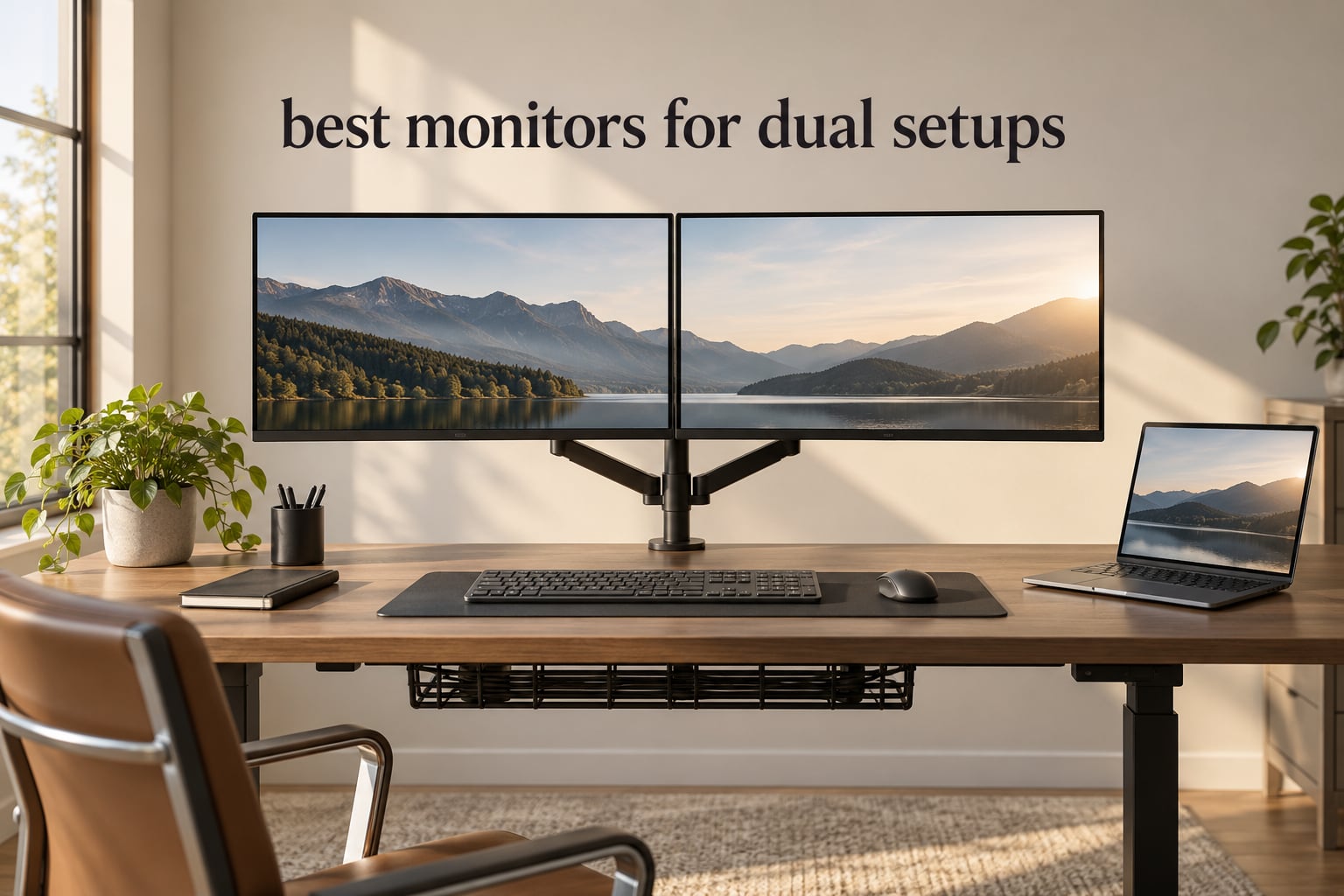
A dual monitor setup is the cheapest productivity upgrade most people never make. Two screens let you keep a spreadsheet, a code editor, a video call and a chat window open at the same time instead of alt-tabbing between them, and that constant window switching is where hours quietly disappear.
But picking two monitors is not the same job as picking one. Panel type, bezel width, port layout and stand adjustability all matter twice as much when two panels sit next to each other, and a mismatch that is invisible on a single screen becomes obvious the moment they are side by side. This guide covers the best monitors for dual setups we would actually put on a desk, plus the matching rules, docking options and setup habits that make two screens feel like one workspace.
We spent 2026 comparing eight panels across the sizes, resolutions and refresh rates that matter for a two-screen desk, from 15.6-inch portable folds to a 34-inch 200Hz ultrawide. Every pick below earns its place for a specific job, and the buying guide at the end covers the questions buyers ask most, including whether two monitors have to be the same model and whether a second screen costs you frames per second.
Table of Contents
Top 3 Picks for Dual Setups in 2026
If you want the short list first, these three cover the widest range of needs. One gives you two screens from a single cable, one is the text-crisp productivity panel, and one is built for high refresh gaming.

VisionOwl Dual 15.6 Inch 1080p
- Two 15.6-inch IPS panels
- Single USB-C cable
- Folds flat to 0.7 inch


Quick Overview – All 8 Monitors Side by Side
Here is the full lineup at a glance. Every panel in this list works as a primary or secondary screen in a two-monitor desk, and the mix spans portable folds, 27-inch 1440p and 4K panels, and two 34-inch ultrawides that replace a dual setup entirely.
| Product | Specifications | Action |
|---|---|---|
| VisionOwl Dual 15.6 Inch 1080p |
|
Check Latest Price |
| Dell S2725QS 27-inch 4K 120Hz |
|
Check Latest Price |
| SANSUI 34-Inch Curved 3440×1440 |
|
Check Latest Price |
 Samsung ViewFinity S50GC 34-inch Samsung ViewFinity S50GC 34-inch |
|
Check Latest Price |
 Acer Nitro KG271U 27-inch QHD Acer Nitro KG271U 27-inch QHD |
|
Check Latest Price |
 Upperizon 16-inch 2K Portable Upperizon 16-inch 2K Portable |
|
Check Latest Price |
 Dell S2722DC 27-inch WQHD USB-C Dell S2722DC 27-inch WQHD USB-C |
|
Check Latest Price |
 LG 27UP650K-W 27-inch 4K UHD LG 27UP650K-W 27-inch 4K UHD |
|
Check Latest Price |
1. VisionOwl Dual 15.6 Inch 1080p Foldable – Two Screens From One Cable
VisionOwl Portable Monitor Dual 15.6 Inch 1080P FHD 107% sRGB Foldable Second Screen, USB-C HDMI HDR Stacked Travel Monitor for Laptop MacBook PC PS5 Xbox, VESA Mountable, Built-in Kickstand
Dual 15.6-inch 1080p IPS panels
One USB-C cable for both screens
3.5 lb and 0.7 inch folded
Pros
- Instant dual-screen from a single USB-C cable
- Folds flat to 0.7 inch and weighs 3.5 lb
- Full-metal chassis with 360-degree fold
- All cables and a sleeve case included
Cons
- Very weak built-in speakers
- No automatic brightness
- DisplayLink driver needed on macOS
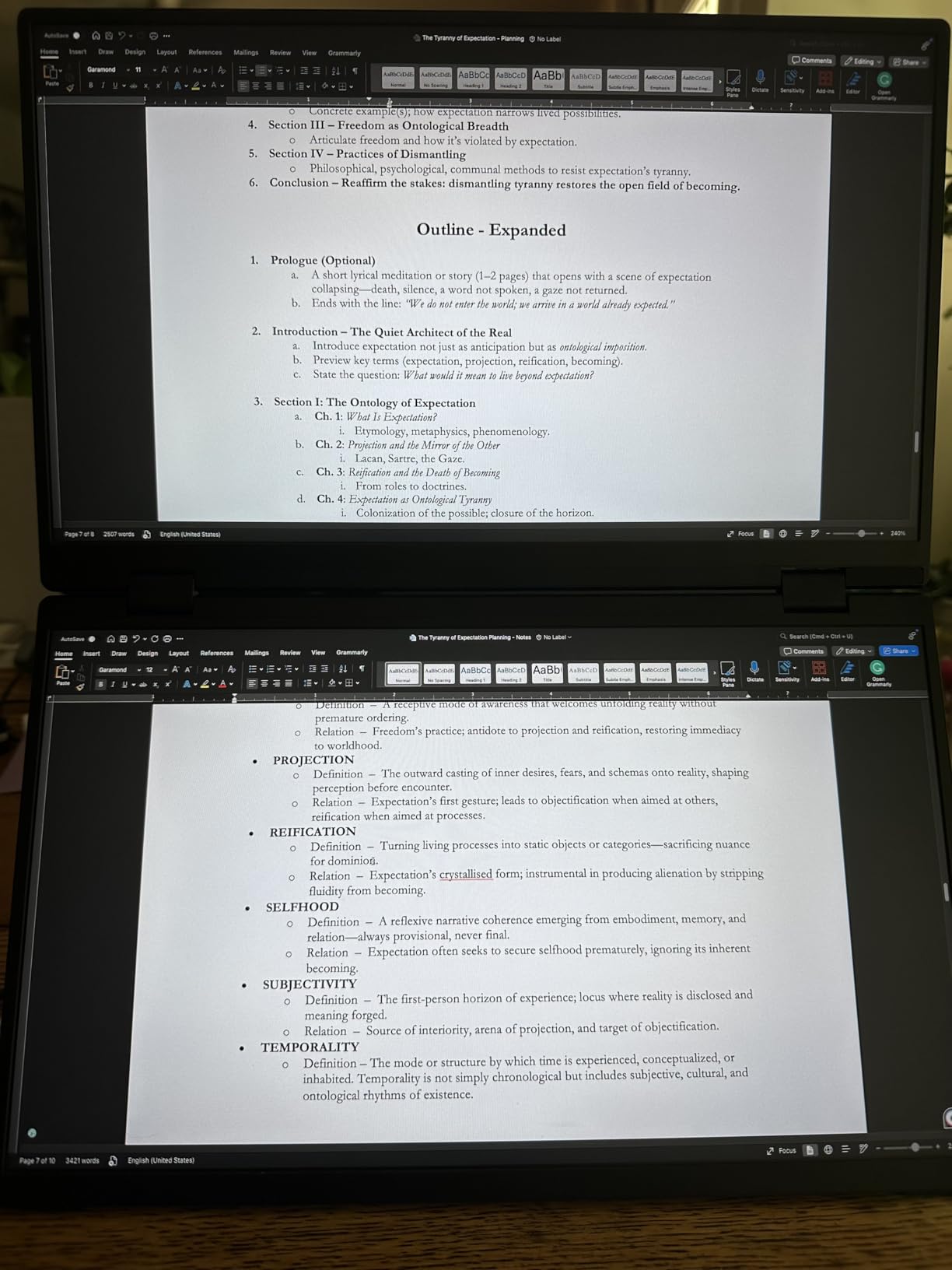
This is the panel that changed how I think about dual setups. Instead of two separate monitors, it is two 15.6-inch 1080p IPS screens hinged into a single folding chassis, and both are powered and driven from one USB-C cable. For a laptop user that is the whole argument: one port, one cable, two screens.
I carried it between a desk and a kitchen table over two weeks of working from different rooms. At 3.5 pounds and 0.7 inch folded it lives in a laptop bag without thinking about it, and the 120-degree kickstand holds a stable angle on anything from a dining table to a lap desk.
The technical details are unremarkable on paper and that is the point. You get 1920×1080 at 60Hz with 3ms response on an IPS matte panel, 300 cd brightness and 107 percent sRGB coverage. That is not a gaming panel and it is not pretending to be one.
It works because of DisplayLink. Windows uses the Microsoft-certified driver, while macOS users install the official driver first. Once that is done the pair behaves like a normal extended desktop, and you drag windows across the fold exactly as you would between two separate panels.
Why it works so well for a dual setup
The vertical stack is the quiet advantage. Two 15.6-inch panels stacked give you roughly the height of a 27-inch screen with a second document list above it, which suits long documents, code and reference material more than a side-by-side pair of the same size would.
It also removes the alignment problem entirely. There is no second stand to line up, no height mismatch, and no bezel gap to worry about because the two panels meet at a hinge.
Where it falls short
The speakers are poor, so plan on headphones or external audio. Our picks for desktop bookshelf speakers cover the audio upgrade if you want sound that fills the room rather than the desk. There is also no automatic brightness, which means manual adjustment when you move between a bright window and a dim room.
And it stacks vertically rather than sitting side by side, so if you want documents beside each other rather than above, this is not the shape you want. Full cable set and sleeve case are in the box, so nothing extra is needed to get started.
2. Dell S2725QS 27-inch 4K 120Hz – The Productivity Workhorse
Dell 27 Monitor S2725QS, 4K UHD IPS, 120Hz, 5ms, FreeSync Premium
27-inch 3840x2160 IPS at 120Hz
350 cd with 1500:1 contrast
FreeSync Premium
Pros
- 4K sharpness at 120Hz refresh
- VESA 100x100 and fully adjustable stand
- 1500:1 contrast with 99 percent sRGB
- Usable built-in speakers for meetings
Cons
- No USB-C and no USB hub
- No headphone output
- Some ghosting in fast shooters
Two of these side by side gives you 8K of horizontal workspace, and that is the single best argument for 4K in a dual setup. Text is crisp at default scaling, spreadsheets show far more columns, and the 120Hz refresh rate makes scrolling and window dragging feel current rather than dated.
The IPS panel covers 99 percent sRGB at 1500:1 contrast with 350 cd brightness, which is enough for photo review, design work and long editing sessions. ComfortView Plus handles the blue light side of long days, and the matte finish keeps a lit room from turning the screen into a mirror.
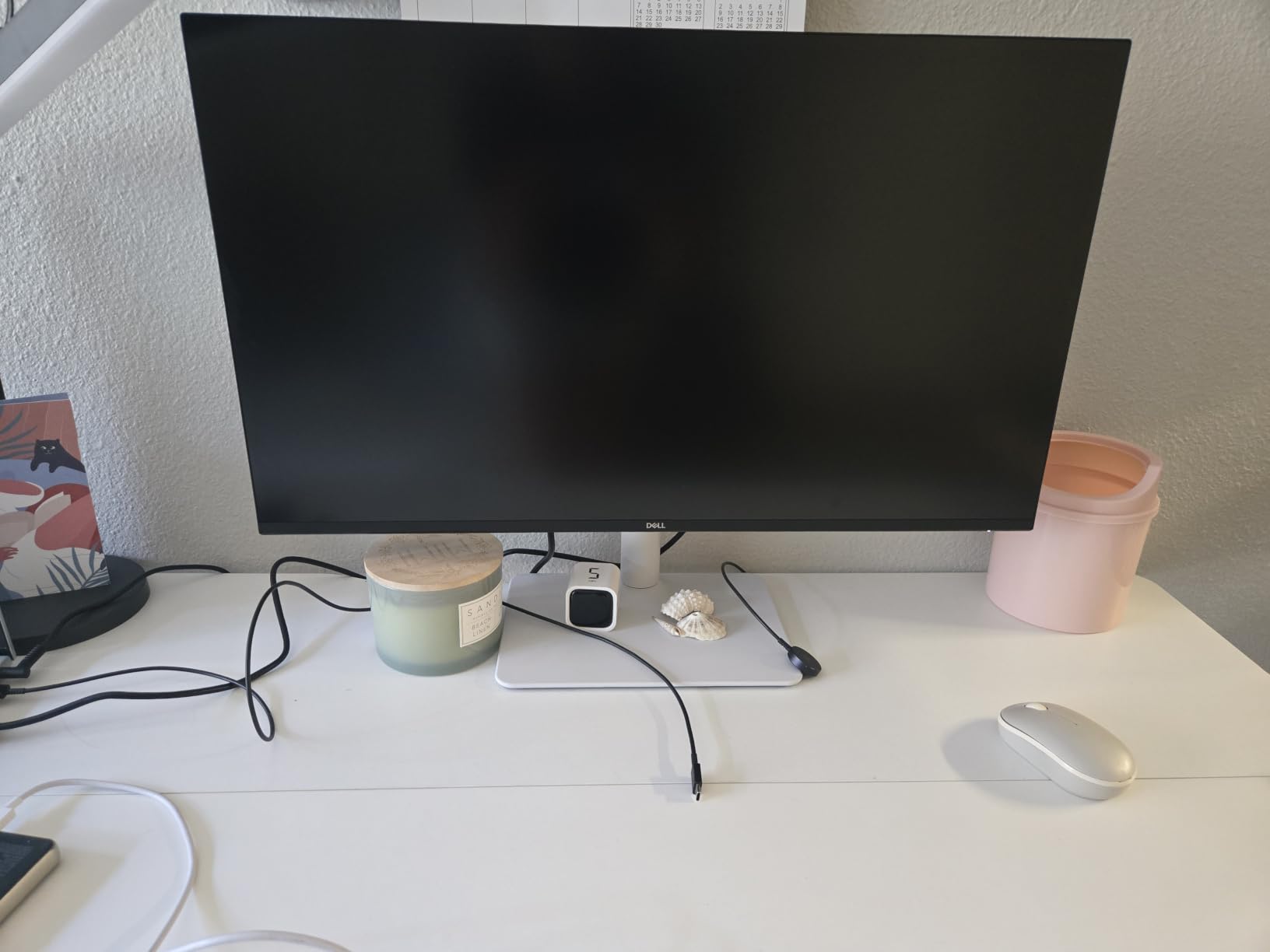
For a two-monitor desk the mounting story matters more than usual, and this one handles it well. VESA 100×100 means you can put both panels on a single dual monitor arm, and the stand still gives you height, tilt, swivel and pivot if you would rather not mount. Our guide to monitor arms for dual monitors covers the clamping and clearance issues worth checking first.
Two HDMI 2.1 ports and one DisplayPort 1.4 give you room to connect a desktop and a laptop without a switch. The re-engineered built-in speakers are genuinely usable for calls and casual media, which matters more in a shared office than most spec sheets admit.
What to check before you buy a pair
Your graphics output has to carry 3840×2160 at 120Hz, or Windows will quietly fall back to 60Hz. DisplayPort 1.4 on a discrete GPU handles it comfortably, and a laptop with USB-C DisplayPort Alt Mode or Thunderbolt usually does too.
GPU load is also worth thinking about. Two 4K panels at 120Hz ask more of an integrated graphics chip than one does, so check that your machine can drive both outputs before committing.
Where it falls short
There is no USB-C, which rules out single-cable laptop charging, and no built-in USB hub for peripherals. There is also no 3.5mm headphone output, so audio comes from the speakers or the PC itself.
Reviewers report visible ghosting in fast first-person shooters, and HDR support is basic. A small but vocal group also reports early panel failures, so keep the packaging for the first month.
3. SANSUI 34-Inch Curved 3440×1440 200Hz – Gaming First
SANSUI 34-Inch Curved Gaming Monitor UWQHD 3440 x 1440P 200Hz Ultrawide
34-inch 3440x1440 Fast VA at 200Hz
1500R curved panel
DisplayPort 1.4 and HDMI 2.1
Pros
- 200Hz refresh with 1ms response at 3440x1440
- DisplayPort and HDMI both drive full refresh
- Crosshair and sniper-scope gaming tools
- FreeSync with no reported tearing
Cons
- Tilt-only stand with no height adjustment
- Colours wash out off-axis
- No built-in speakers
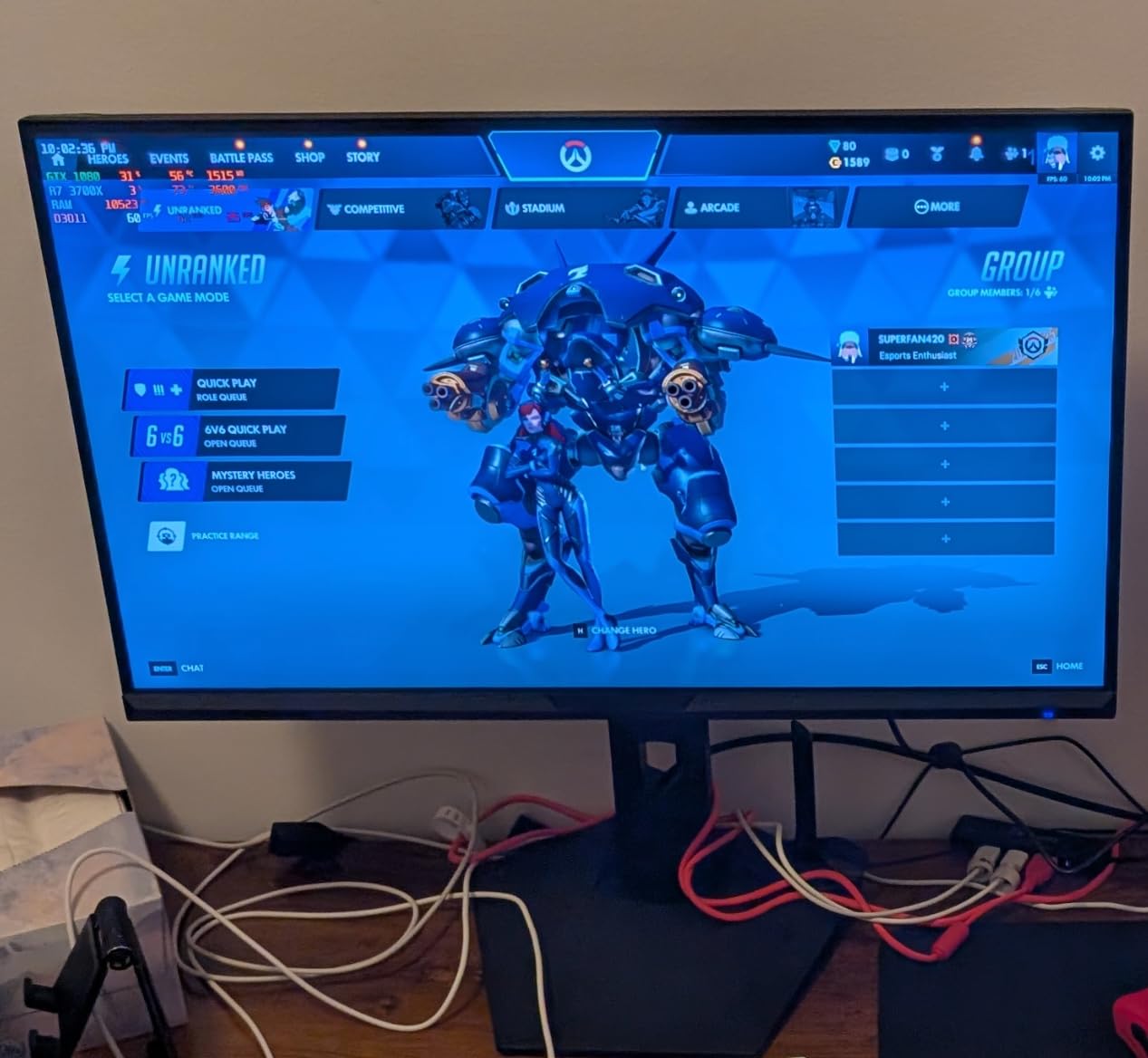
This is the one to buy if your primary screen runs games. 3440×1440 at 200Hz with a 1ms response time on a Fast VA panel is a spec sheet that would have looked exotic a few years ago, and FreeSync support means frames stay clean without paying for a G-Sync module.
The 1500R curve is gentle enough that text stays readable but curved enough to pull the edges of a racing game into view. Owners consistently report no noticeable tearing once FreeSync is enabled, which is the whole point of the refresh rate.
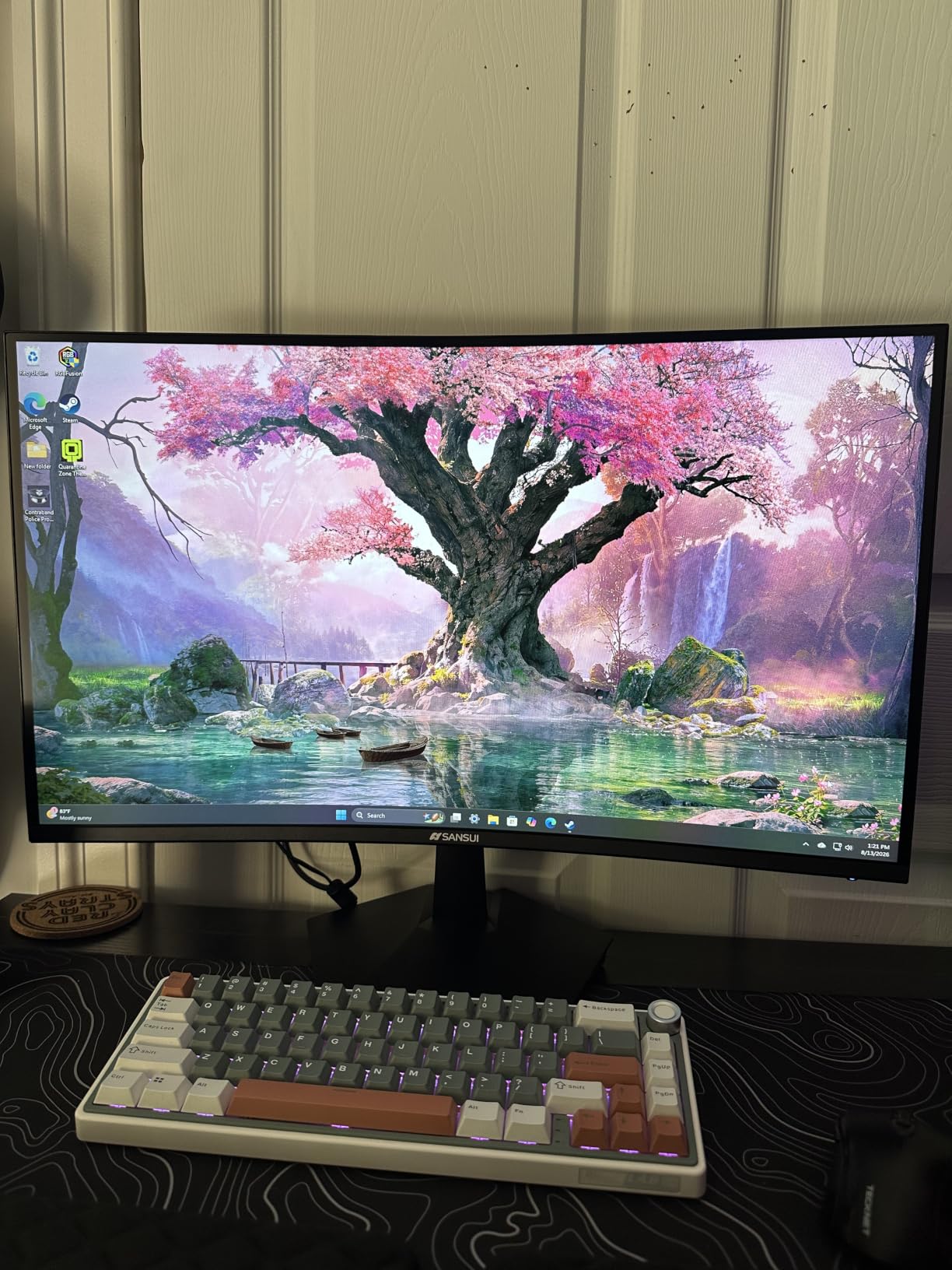
Both DisplayPort 1.4 and the two HDMI 2.1 inputs support the full refresh rate, so you are not forced onto one cable type. PIP and PBP let you run a second source alongside the game, which is handy for chat, a system monitor or a video call.
Brightness sits at 300 cd with 3000:1 contrast and colour coverage listed at 130 percent sRGB and 96 percent DCI-P3. For a gaming panel that is a wide enough range to handle light video work on the same machine.
Why it pairs well with a second screen
At 34 inches this is already close to a dual setup in one panel, so the natural pairing is a smaller secondary screen for chat, mail and monitoring. The Fast VA blacks also make it a good match for an IPS secondary, since dark scenes on one screen and documents on the other do not fight each other.
Crosshair, sniper scope, blue light reduction and PQ modes are handled in the on-screen menu rather than in a separate app, which is faster than most gaming software.
Where it falls short
The stand offers tilt only. No height, no swivel, no pivot, so plan on a riser or a VESA 100×100 arm, both of which this panel supports.
Reviewers also report washed-out picture off-axis until brightness and sharpness are tuned in the menu. There are no built-in speakers, only a 3.5mm output, and a minority of buyers report units failing to power on within a year, so warranty service matters here.
4. Samsung ViewFinity S50GC 34-inch Ultra-WQHD – One Panel Instead of Two
SAMSUNG 34″ ViewFinity S50GC Series Ultra-WQHD Monitor, 100Hz, 5ms, HDR10, AMD FreeSync, Eye Care, Borderless Design, PIP, PBP, LS34C502GANXZA, 2023, Black
34-inch 3440x1440 VA at 100Hz
3000:1 contrast
PIP and PBP at native resolution
Pros
- One bezel-free panel replaces a twin monitor desk
- Picture-by-picture runs two sources at full resolution
- 3000:1 VA contrast gives deep blacks
- Ambient light sensor with Eye Saver Mode
Cons
- VA colour shifts off-axis
- Fixed stand with no height adjustment
- 100Hz limits fast gaming
If the idea of two monitors is really about screen width, this panel delivers it without the middle bezel. At 3440×1440 across 34 inches you can hold two full-width application windows or three side by side, and there is no gap running down the middle of your work.
Picture-by-picture is the quiet feature here. It shows two sources at native resolution rather than shrinking one into a corner, so a laptop and a desktop can share the panel properly. Picture-in-picture does the simpler job of resizing a second source into a corner.
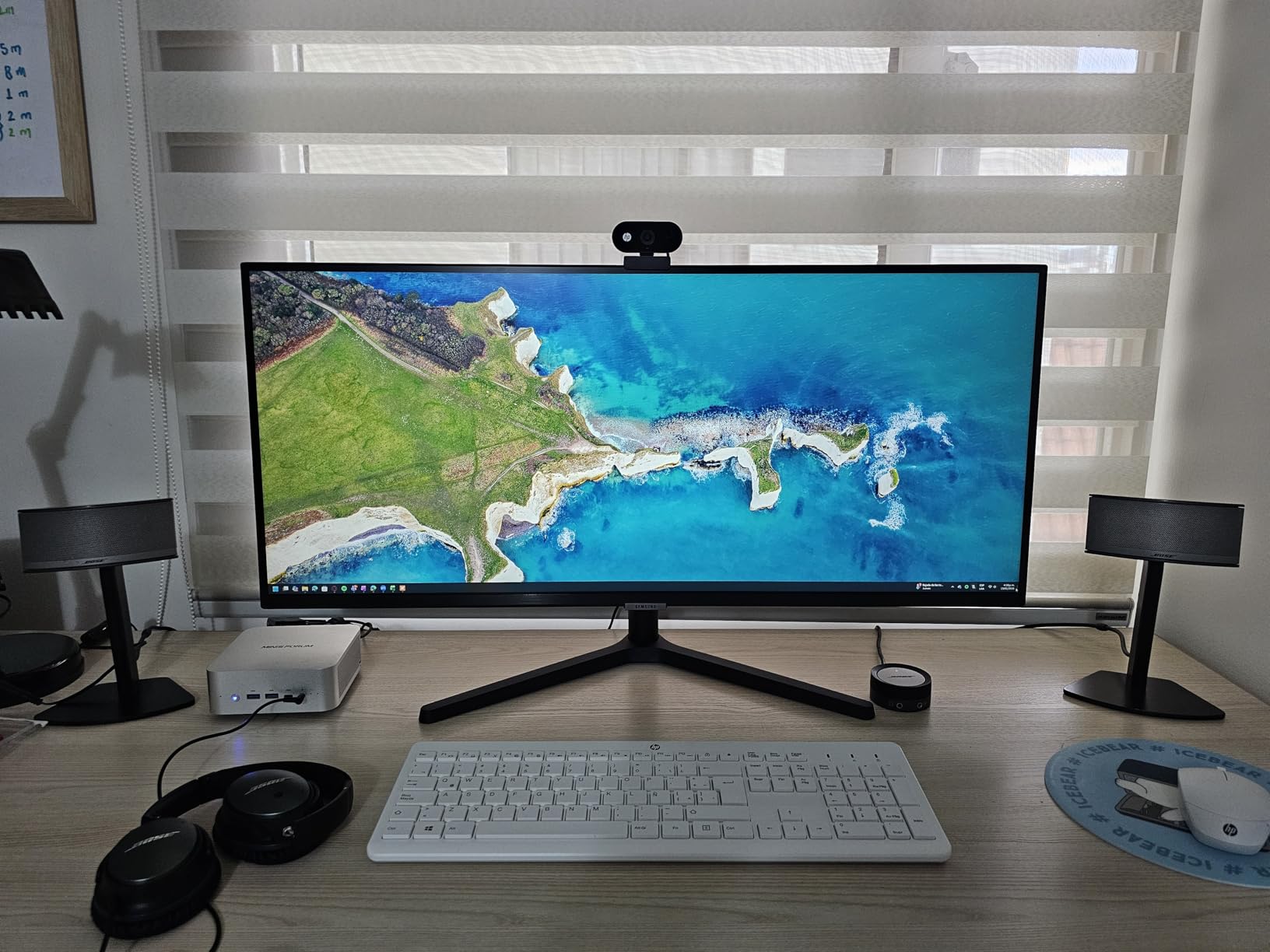
Users who move from twin 27-inch panels to this one rarely go back, and the reason shows up in spreadsheet and code work where column width is the bottleneck. The ambient light sensor adjusts brightness on its own, which pairs with Eye Saver Mode and Flicker Free for long sessions.
Two HDMI 2.2 ports and DisplayPort 1.2 handle multiple sources, and the bezel-free design looks close to gapless when it sits next to another panel.
When one panel beats two
The screen is 32.1 inches wide, so you need desk depth and a clear viewing position roughly 30 inches away. It works well on a deep desk where two 27-inch panels would not fit side by side.
HDR10 support is present, and the 3000:1 VA contrast gives blacks that flat IPS ultrawides simply cannot reach, which is why this panel suits film and photo work as much as it suits spreadsheets.
Where it falls short
VA panels shift colour and wash out at sharp off-axis angles, so this one wants to be viewed head-on rather than angled toward a second viewer. The stand has no height adjustment and sits fairly high, which is why owners often move it to an arm.
The 100Hz refresh rate is modest next to the gaming panels in this list, and switching sources through the joystick menu is reported as slow.
5. Acer Nitro KG271U 27-inch QHD 180Hz – The Budget Matched Pair
Acer Nitro 27in QHD 2560×1440 IPS 180Hz Gaming Monitor KG271U N3bmiipx
27-inch 2560x1440 IPS at 180Hz
0.5ms GTG response
DCI-P3 95% with HDR10
Pros
- 180Hz QHD IPS at a budget price point
- Zero-frame bezel narrows the gap between two panels
- DCI-P3 95% colour coverage
- DisplayPort cable included
Cons
- Flimsy stand with no height adjustment
- 250 cd brightness needs HDR in bright rooms
- HDMI tops out at 144Hz
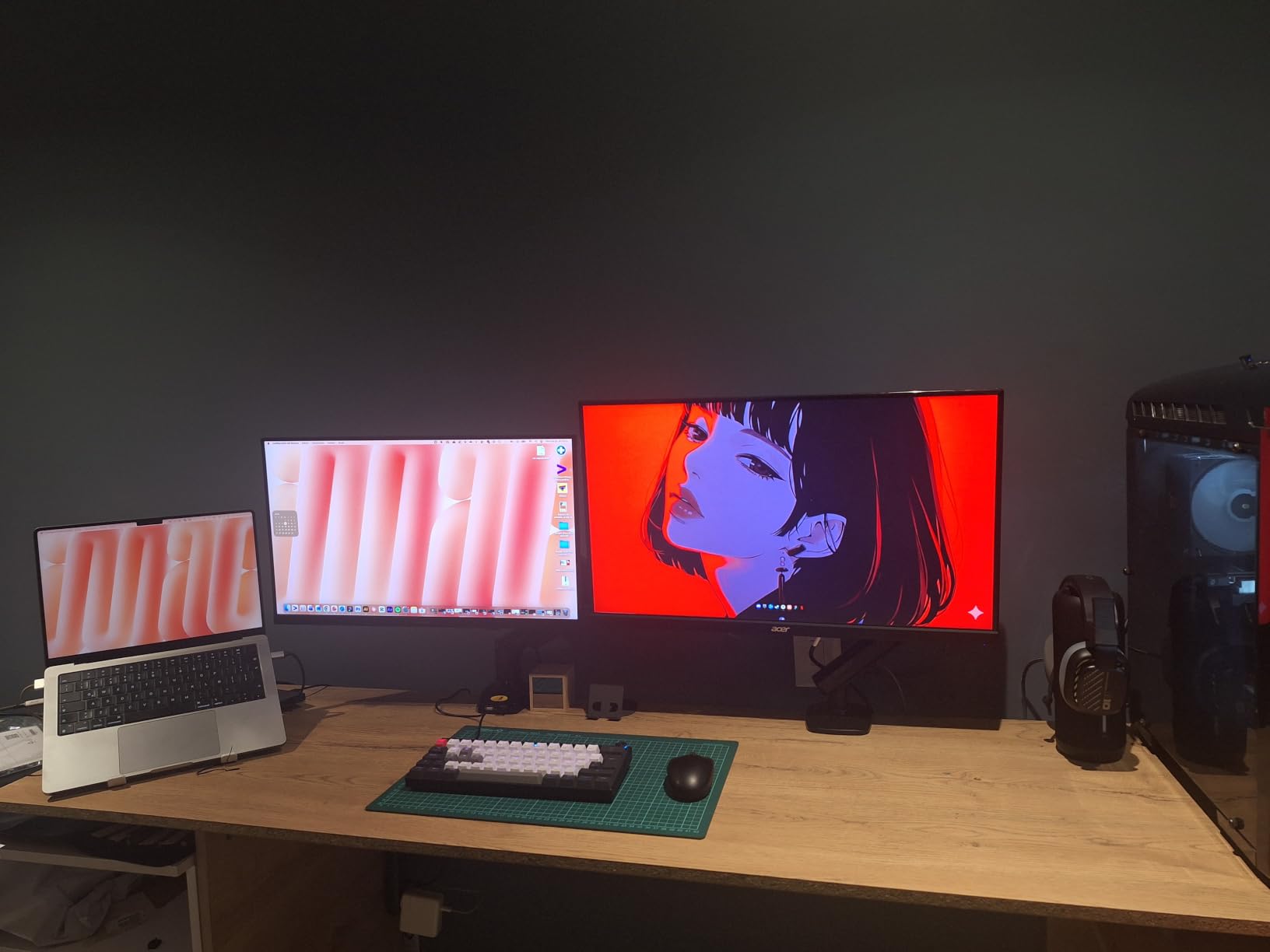
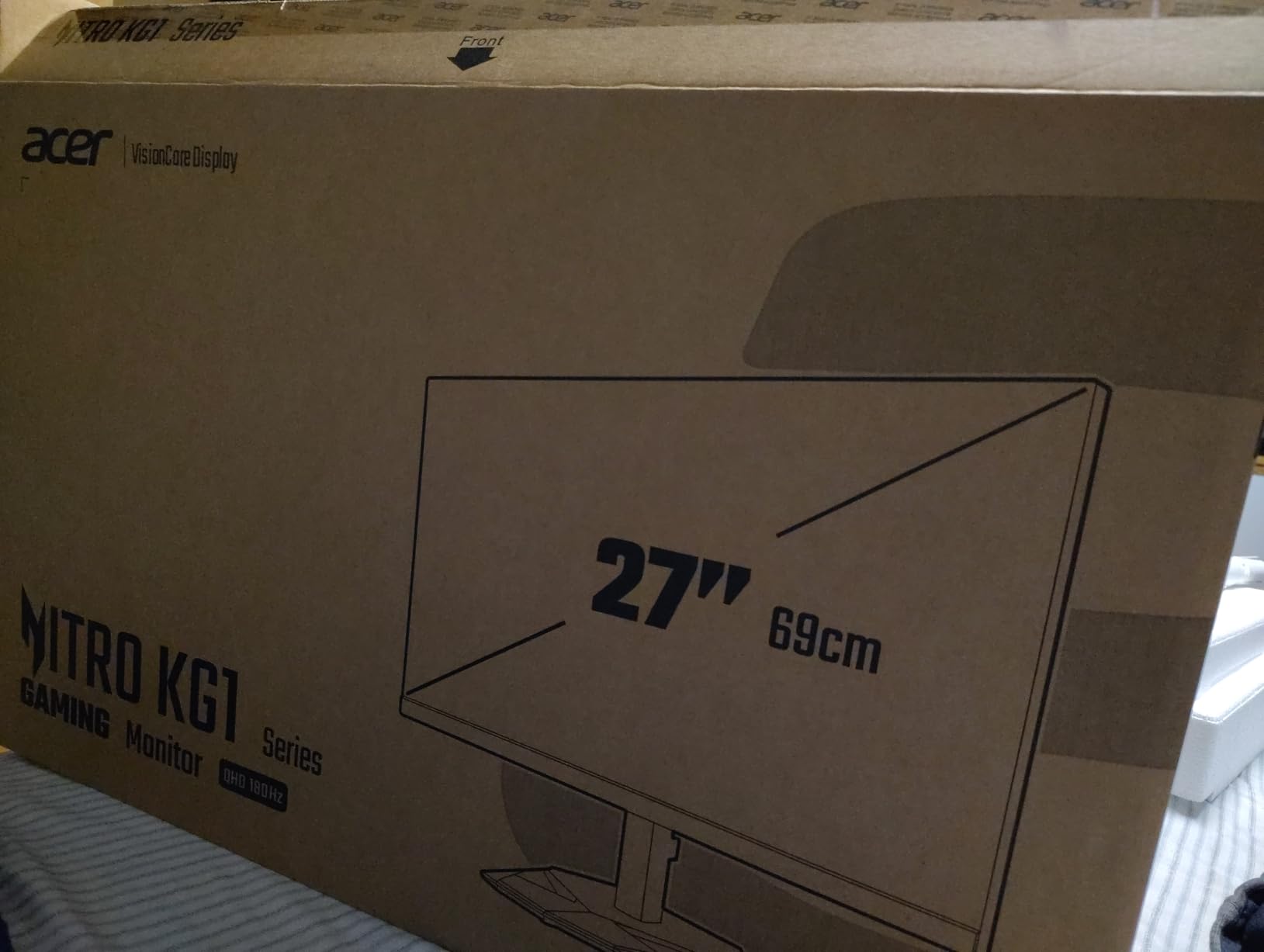
Owners of this panel consistently describe buying two and putting them on arms, which is the strongest endorsement a budget monitor can get in a dual setup guide. 2560×1440 at 180Hz with a 0.5ms response time is a lot of performance for the money, and the IPS panel keeps text clean for work between gaming sessions.
The zero-frame bezel is the detail that matters most when you buy two. It narrows the visible gap between side-by-side panels, which is otherwise the first thing that makes a two-monitor desk look improvised.
Up to 180Hz arrives over DisplayPort, while HDMI reaches 144Hz, so use DisplayPort for your main gaming screen. A DisplayPort cable is included in the box.
DCI-P3 95% coverage gives colour that is vivid without being wildly off, and HDR10 support is a genuine step above what entry-level IPS panels usually offer. There is no noticeable flickering at normal brightness settings.
Why two of these work so well
Matching panels mean identical colour, brightness and refresh behaviour, so nothing looks out of place when a window crosses the border. That alone removes the most common complaint we found about mismatched pairs.
Both at 1440p also keeps GPU load manageable, which is why this pairs sensibly with a mid-range graphics card in a two-monitor system.
Where it falls short
The stand is flimsy and offers no height adjustment, so an arm or a riser is close to essential here. Brightness of 250 cd can feel low in a well-lit room unless HDR mode is active.
Built-in speakers are mediocre, some units show light bleed at the corners, and pushing overdrive hard causes visible overshoot around moving objects.
6. Upperizon 16-inch 2K Portable – For Laptops That Travel
Upperizon Portable Monitor 16 inch 2K QHD 2560X1600 145% sRGB, 144Hz USB-C, 120Hz HDMI, Travel Monitor for Laptop MacBook PC Surface PS5 Xbox, External Display with Kickstand & Speaker VESA Compatible
16-inch 2560x1600 at 16:10
144Hz over USB-C
1.6 lb with VESA mounting
Pros
- 2.5K 16:10 panel gives more vertical room than 16:9
- Weighs 1.6 lb with a built-in kickstand
- VESA-compatible for a permanent arm position
- 145 percent sRGB and 100 percent DCI-P3
Cons
- 144Hz only over USB-C
- 10ms response time
- Needs Thunderbolt or DisplayPort Alt Mode
The 16:10 aspect ratio is the reason to look at this panel rather than any other 15.6-inch portable. You get 2560×1600 of resolution, so there is genuinely more vertical room for documents and code than a 16:9 screen of the same size gives you, and at 400 cd it stays readable in a bright room.
At 1.6 pounds with an aluminium chassis and a 0 to 180 degree kickstand, it moves between a laptop bag and a desktop arm without any fuss. The VESA-compatible mounting pattern means you can clamp it into the same arm as your main monitor and turn a hot desk into a permanent dual setup.
Colour coverage of 145 percent sRGB and 100 percent DCI-P3 at 1200:1 contrast is unusually good for a portable panel, so it doubles as a light photo and video reference screen. Low blue light and flicker-free modes cover long reading sessions.
It runs 144Hz over USB-C and 120Hz over HDMI. Plug-and-play with no drivers, but full function needs a Thunderbolt 3, 4 or 5 source or DisplayPort Alt Mode.
How we used it as a second screen
Clamped to the same arm as a 27-inch panel, the 16:10 shape fills the space beside it far better than a 15.6-inch 16:9 screen would. The result is a compact two-screen desk that folds away completely when you pack up.
A sleeve, two USB-C cables, an HDMI cable and a power adapter are all in the box, so there is nothing to buy separately.
Where it falls short
At 10ms response it is not built for competitive shooters, even at 144Hz. The refresh rate also depends on the port, so a laptop without Thunderbolt or Alt Mode limits you to HDMI at 120Hz.
Compared with a 4K portable panel the pixel density is lower, which is noticeable when you move text-heavy work between it and a 4K desktop display.
7. Dell S2722DC 27-inch WQHD USB-C – Docking Built In
Dell S2722DC Monitor – 27-inch WQHD (2560×1440) 75Hz 4Ms Display, AMD FreeSync, Built in Speaker, USB Type-C Connectivity, Height/Pivot/Swivel/Tilt Adjust – Platinum Silver
27-inch 2560x1440 IPS at 75Hz
USB-C with 65W power delivery
USB 3.2 Gen1 hub
Pros
- Single USB-C cable charges a laptop and drives the display
- Height tilt swivel and pivot stand
- Matte 99 percent sRGB IPS panel
- Quick-access USB Type-A hub port
Cons
- 75Hz refresh rate is modest
- 4ms response time is slow for gaming
- No DisplayPort listed in the specifications
USB-C with 65W power delivery is the feature that makes this panel interesting in a dual setup. One cable to the laptop handles video, data and charging at the same time, which on a two-screen desk removes two or three cables per machine.
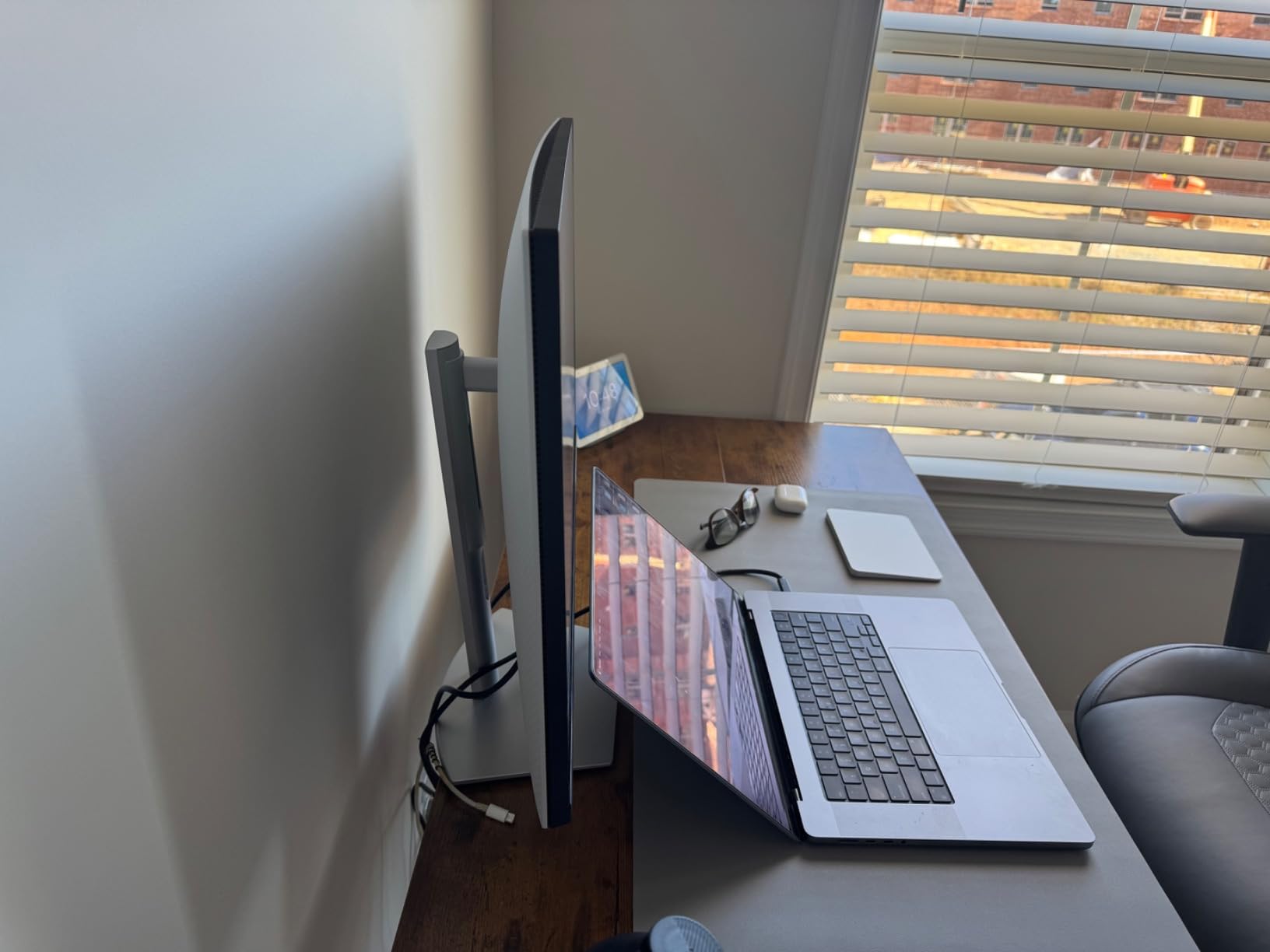
The stand is the other reason it works well here. Height, tilt, swivel and pivot means you can raise one panel to match the top edge of the other when the two are different models, which is exactly the alignment problem buyers hit when mixing screens.
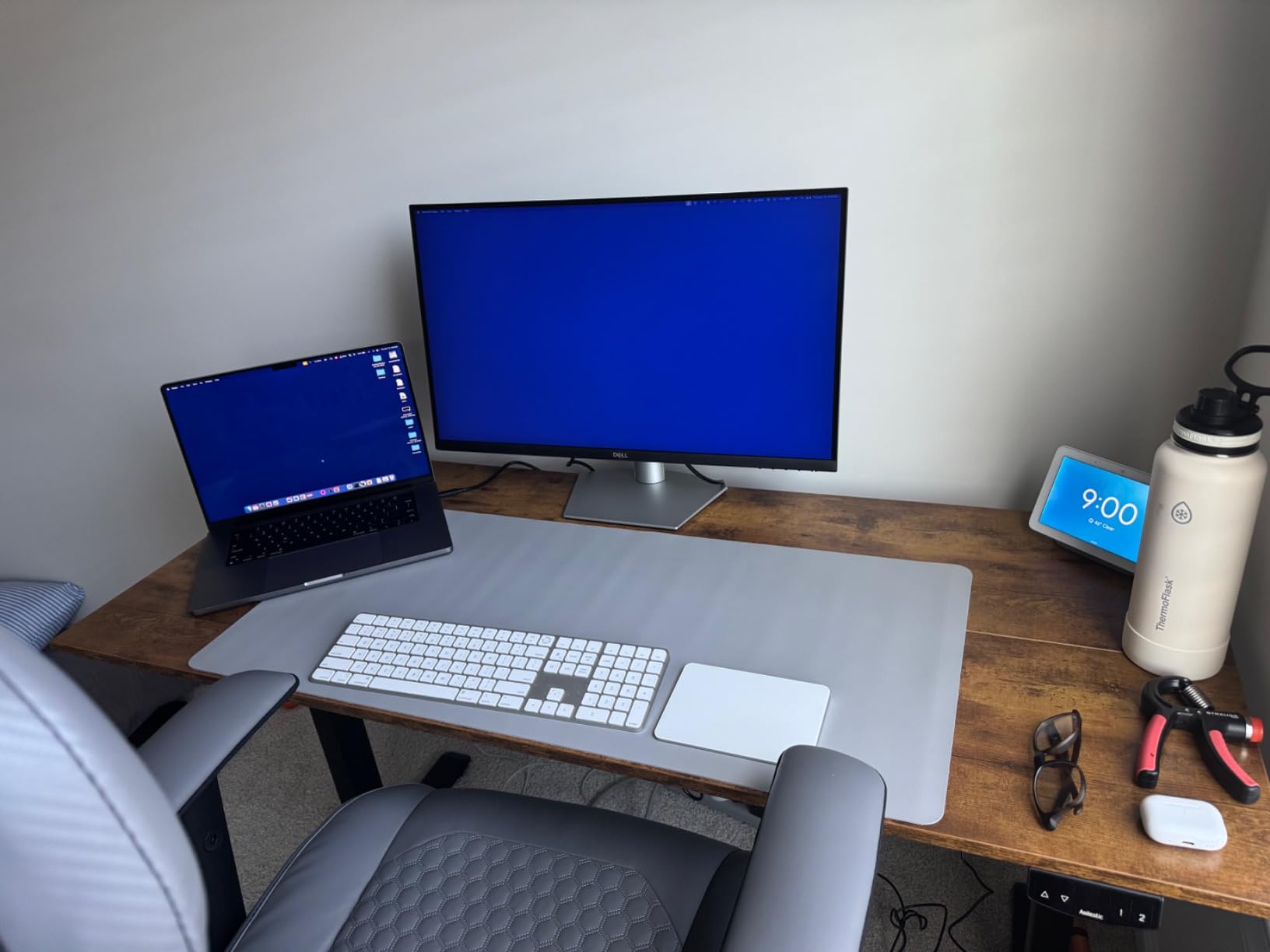
Connectivity runs HDMI, USB 3.2 Gen1 and USB Type-C, and there is a quick-access Type-A port on the chassis for a keyboard or receiver. The matte IPS panel covers 99 percent sRGB at 350 cd brightness with 1000:1 contrast, and FreeSync is supported.
Three years of warranty coverage is the longest in this group, which matters when two purchases go wrong instead of one.
When a docking monitor makes sense
If you run a laptop and a desktop in the same dual setup, putting the USB-C panel on the laptop side means one cable does everything. Owners of this panel consistently highlight the reduction in desk clutter over the raw specification numbers.
The USB hub also means a permanently plugged keyboard and mouse can sit on the monitor side rather than the PC side, which tidies up a shared desk considerably.
Where it falls short
At 75Hz with 4ms response this is not a gaming panel. No DisplayPort daisy-chain or multi-stream output is listed in the specifications, so you cannot chain a second screen through it.
65W is enough for many ultraportables but not for every workstation laptop under load, so check your machine’s charging requirement before committing to it as your only power source.
8. LG 27UP650K-W 27-inch 4K UHD – Colour Accurate and Simple
LG 27UP650K-W 27-inch Ultrafine 4K UHD (3840 x 2160) IPS Computer Monitor, 60Hz, 5ms, DisplayHDR 400, Reader Mode, Flicker Safe, HDMI, DisplayPort, Tilt/Height/Pivot Adjustable Stand, White
27-inch 3840x2160 IPS at 60Hz
DisplayHDR 400 at 400 cd
95 percent DCI-P3 coverage
Pros
- Sharp 4K text with excellent matte anti-glare
- 400 cd brightness with DisplayHDR 400
- Height tilt and pivot adjustable stand
- Two HDMI and DisplayPort inputs with cables included
Cons
- No USB-C and no USB hub
- No built-in speakers
- 60Hz refresh and 5ms response
At 400 cd brightness and 95 percent DCI-P3 coverage, this is the most colour-capable 4K panel in the group. Owners use it for photo and video work, and the matte anti-glare coating handles ambient light better than glossier 4K panels in a bright room.
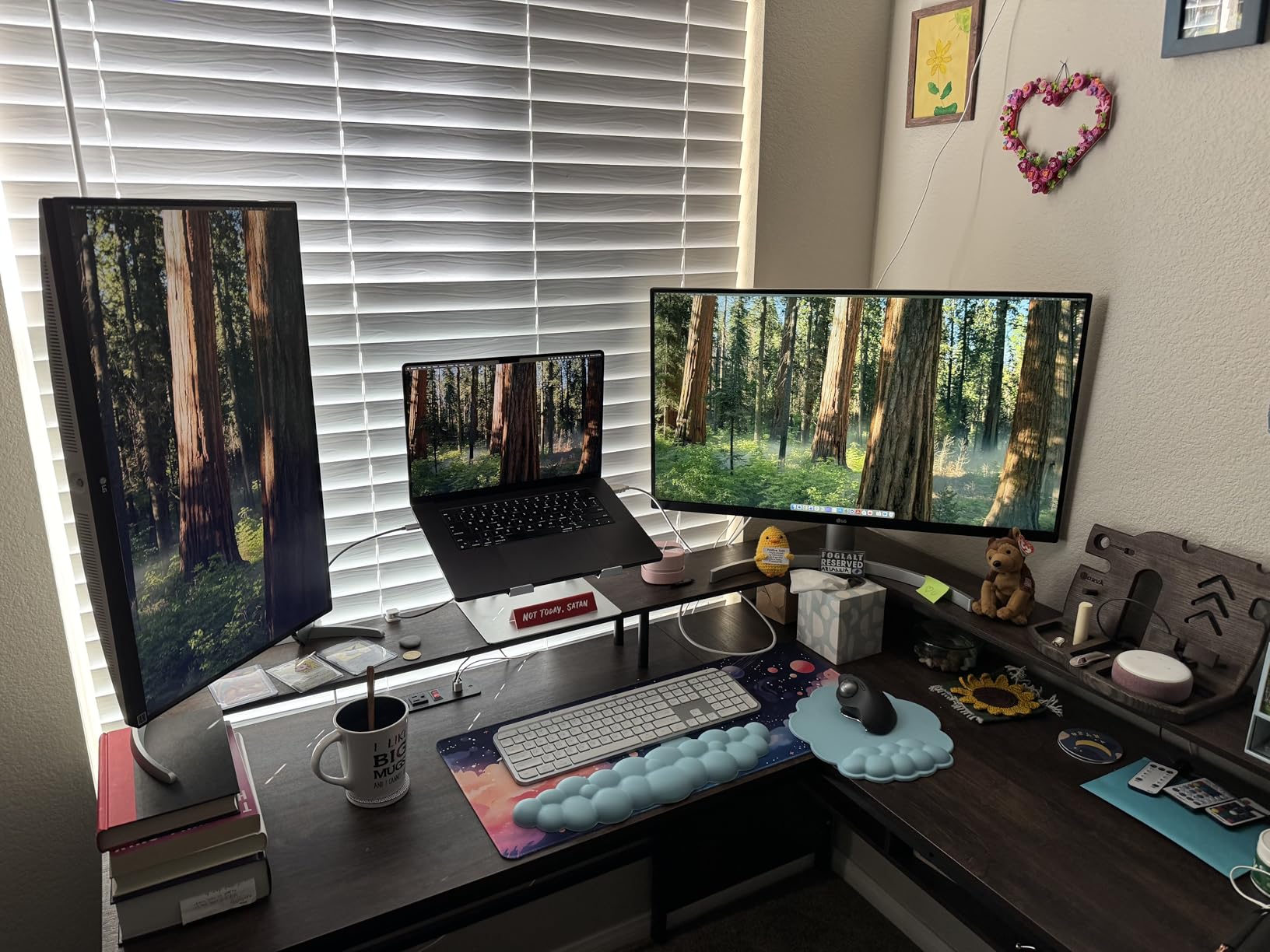
The stand adjusts for height, tilt and pivot, which is enough to line two of these up properly at their top edges. The joystick-style on-screen control sits on the front lip where you can reach it without leaving the screen.
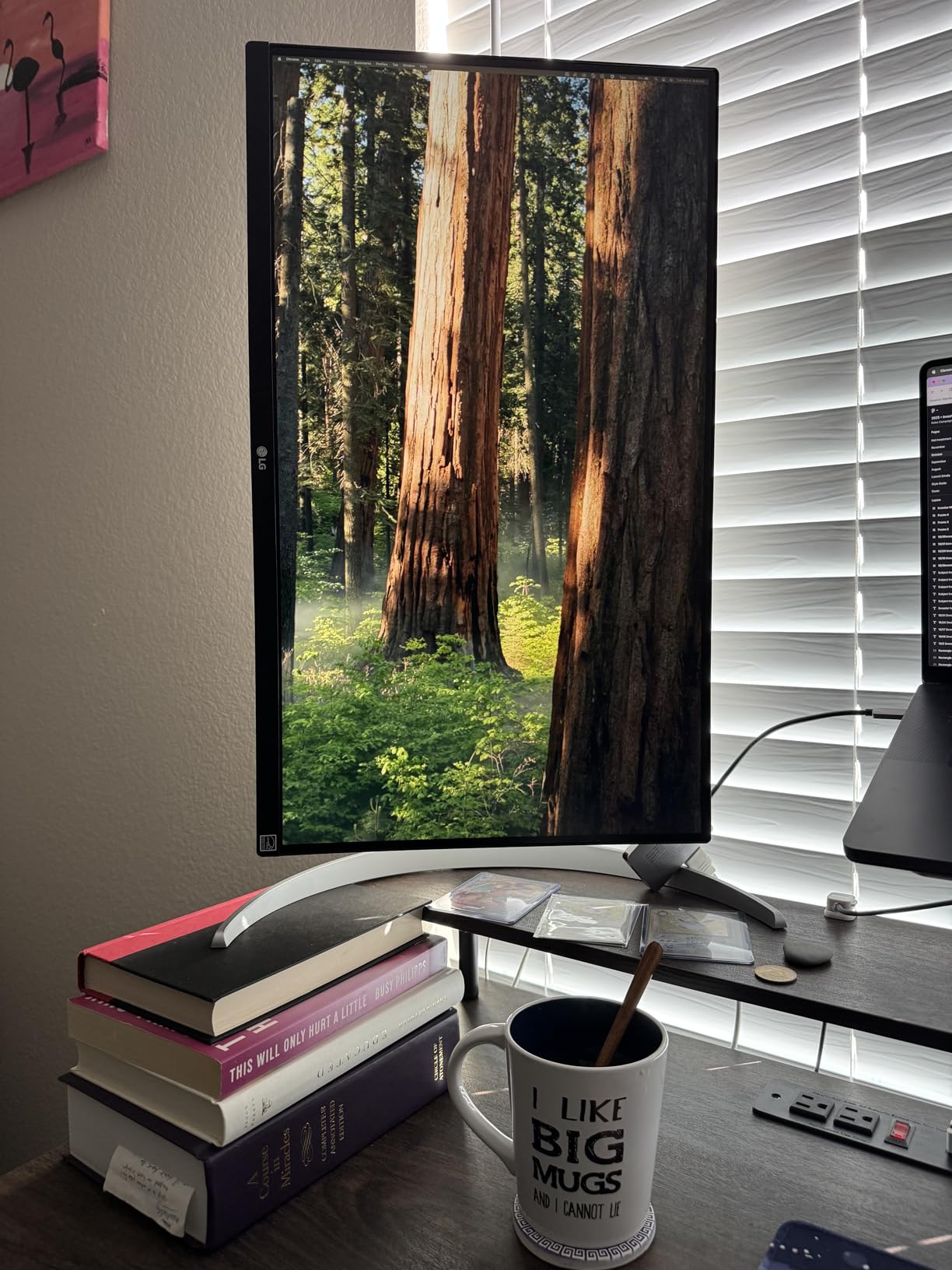
Two HDMI ports and DisplayPort inputs let a desktop and a laptop connect at the same time, and cables for both come in the box. The Switch app splits the display into up to six sections and switches inputs from one menu.
DisplayHDR 400 with Black Stabilizer means dark scenes in video are visible without an external setup, and the panel is a comfortable all-rounder for a desk that does colour work by day and documents by night.
Where this panel fits a two-screen desk
Pair it with a faster secondary screen for communication and documents. At 60Hz this is a deliberate stillness for reading, while a high refresh panel beside it handles whatever needs motion.
The VESA pattern is standard, so it works with the same dual monitor arm as the other 27-inch panels here.
Where it falls short
This HDMI and DisplayPort version has no USB-C and no USB hub, so it cannot charge a laptop or take peripherals. There are no built-in stereo speakers either.
A 60Hz refresh rate and 5ms response are unremarkable for gaming, some units arrive with transit damage such as a cracked panel, and a quarter-inch black outline around the panel reduces how much benefit the thin bezel gives you in a multi-screen layout.
How to Choose a Monitor Pair for a Dual Setup
Start with the second screen’s job, not with a brand. If it holds documents, chat and monitoring windows all day, a 60Hz 4K panel with a matte finish is the right spend. If it is a second gaming screen, refresh rate and response time matter more than resolution.
Size is the next decision. Two 27-inch panels need at least 48 inches of desk width to sit side by side without overlapping, which is the constraint forum buyers hit most often. A 27-inch and a 24-inch pair fits comfortably on a smaller desk, and a 34-inch ultrawide with a 24-inch or 27-inch side screen is the most efficient use of depth.
Resolution should usually match across the pair. Two panels at the same resolution produce identical window sizes and text, so a window dragged across the border does not change scale. Mismatched resolutions force a scaling choice and produce inconsistent text sizes.
Panel type decides how different the two screens will look next to each other. IPS gives the most consistent colour and viewing angles, which is why both screens being IPS avoids the mismatch people complain about most. VA offers much higher contrast and deeper blacks but shifts colour off-axis. TN is the fastest and the least accurate, and is rarely the right answer for a productivity second screen.
Stand adjustability is the feature people overlook and then wish they had checked. Height adjustment is what lets you align the top edges of two different monitors. Pivot matters if you plan to run one screen in portrait for documents or code.
Finally, think about ports. USB-C with power delivery turns each monitor into a docking station, which is the single biggest quality-of-life upgrade for a laptop-based dual setup. Check the wattage against your laptop’s charging requirement before you commit.
Do Dual Monitors Need to Be the Same Model?
No, and you do not need matching size either. Any two monitors work as a dual setup. What matters is that the resolution matches so window sizes stay consistent, and that both panel types behave similarly so the two screens do not look visibly different side by side.
Matching resolution is the part most advice gets right. Two panels at 2560×1440, even from different brands, produce near-identical window dimensions and text size, so dragging a window across the border is invisible. Two panels at different resolutions will not scale identically, and that is where most frustration comes from.
Matching size is optional. A 27-inch and a 24-inch pair at the same resolution is a very common setup among forum users precisely because it fits a normal desk. The cost is a physical height difference, which you solve with a riser, a monitor arm or by aligning the top edges rather than the centres.
Matching panel type is the one that shows up in photos. An IPS next to a VA produces different blacks, different colour temperature and different off-axis behaviour, and on a wide desk with both screens in view that difference is obvious. If you must mix, keep both panels on the same brightness level and match colour temperature in the on-screen menu.
What you give up by mixing models is warranty simplicity and support. Two panels from one brand with matching warranty terms are easier to service, and a manufacturer-matched 2-pack adds a guarantee that the two units are matched for colour and brightness.
Does a Second Monitor Reduce Gaming FPS?
No. Adding a second monitor does not reduce gaming frame rate in any meaningful way. Both screens are driven by the same graphics output, and the cost of driving a second display is negligible compared with what the game itself is doing.
The one real exception is variable refresh rate. If the two panels run at different refresh rates or use different adaptive sync implementations, some setups make the game target the lower of the two. Running the game on the higher refresh panel and keeping the second screen at a fixed rate avoids the problem entirely.
Users frequently report a perceived frame rate drop after adding a second monitor, but in almost every case the cause is an application running on the new screen. A video call, a browser with many tabs or a game running in borderless window mode will take frames, and the drop disappears when you close it.
If you want to test this yourself, play the same scene on one screen, then enable the second screen with nothing running on it, then open a heavy application on it. That isolates the variable in under a minute.
Mixed Refresh Rates and Mixing HDMI With DisplayPort
Mixed refresh rates are fine. A 120Hz panel and a 60Hz panel can sit on the same machine with each running at its own rate, and the desktop stays smooth on the fast screen.
One caveat worth knowing: on Windows, when variable refresh rate is active on one display, some titles will sync to the lowest refresh rate across your monitors. The fix is simple. Set variable refresh rate to application-controlled on the gaming panel and turn it off on the second, or run the game in fullscreen on the display you want.
Mixing HDMI and DisplayPort is also fine on any modern graphics card. The connection type does not need to match between the two monitors. Both DisplayPort and HDMI carry digital audio and video, and the operating system treats them as separate outputs.
The difference shows up in maximum refresh rate and resolution, not in compatibility. A DisplayPort 1.4 output can carry 4K at 120Hz or 1440p at 180Hz, while an HDMI 2.0 output tops out lower at those resolutions. Check the port on your graphics card before you pick panels, and use the cable that supports the refresh rate you want.
Matched 2-Pack or Two Individual Monitors?
A matched 2-pack guarantees the two panels were calibrated together, so brightness, colour temperature and white point line up. It is the lowest risk choice if both screens will be used side by side at the same time.
Two individual monitors give you more choice. You can pick a better primary panel and a cheaper secondary, take advantage of different refresh rates, or wait and buy the second screen later when your desk or your needs change. Forum buyers often start with one monitor and add the second six months later.
The practical difference in a mismatch is brightness and colour temperature rather than resolution. Two uncalibrated panels from different batches can look noticeably different, and that is the single most common complaint we found about mismatched pairs.
A middle path is buying two identical models from the same batch yourself. Ask the seller to confirm the batch or lot number if it matters to you, and calibrate both with a colourimeter on first setup, which takes about fifteen minutes and removes the mismatch entirely.
Whichever route you take, check the desk width before committing. Two 27-inch panels need roughly 48 inches of desk width side by side, and 27-inch plus 24-inch needs closer to 44 inches.
Dual Monitors vs Ultrawide – Which Is Right for You?
Two 16:9 monitors give you a wide desktop with a bezel down the middle and independent refresh rates. An ultrawide gives you one continuous surface with no bezel, one refresh rate and one panel to position.
Choose two monitors when you want different roles per screen, when one of them handles fast motion, when you want to dedicate a panel to a video call, or when your desk is wide but shallow. Choose an ultrawide when your desk is deep, when you dislike the middle seam, or when you mostly work in one wide application.
Neither is automatically better for neck health. That argument assumes two monitors force you to twist, which is only true when they are badly positioned. Two screens placed symmetrically about your head centre are no worse than one wide screen, and often better, because neither panel forces your eyes to track to the far corners.
A 34-inch 1440p ultrawide stands roughly the same physical height as a 27-inch 16:9 panel, which is the geometry that makes a 27-inch the natural side-screen match for one.
The one real argument for the ultrawide is desk management. Two monitors need two stands or an arm, two sets of cables and a wider surface. One ultrawide needs one of each. If your desk space is the constraint rather than your workflow, that can outweigh the bezel.
Setting Up Your Dual Monitor Desk
Get the geometry right first. Place the two screens symmetrically about the centre of your chair, with each one angled slightly inward, and the top edge of each panel at or just below eye level. If you are pairing different sizes, align the top edges rather than the centres.
Set the viewing distance at roughly an arm’s length, which for a 27-inch panel means 60 to 70 cm and for a 34-inch panel closer to 80 cm. Screens placed too close cause more eye strain than screens placed slightly far, and no panel type fixes that.
Use the 20-20-20 rule. Every 20 minutes, look at something 20 feet away for 20 seconds. It reduces the dry-eye and focus strain that comes with a full day of two screens more reliably than any blue light filter.
Set both displays to the same scaling. On Windows, log in once per display profile and set each monitor to the recommended scale, otherwise a window dragged between them changes size. On macOS, use the native resolution on each panel rather than a scaled mode.
Calibrate brightness and colour temperature side by side. Open a grey image or a colour test pattern on both screens, put them next to each other and adjust until they match. Even without a colourimeter, matching black level and white point removes most of the visible seam.
Install window management software before you need it. PowerToys Fancy Zones on Windows and Rectangle on macOS let you define zones, snap windows into them and move them between screens with a shortcut, which is what makes a two-screen desk feel organised rather than crowded.
Finally, sort the cables. Two monitors, two machines and a dock is easily eight cables, and a monitor arm with a channel hides most of them. Our picks for dual monitor arms cover clamp clearance, which is the number one problem when fitting arms to a thick or curved desktop.
Frequently Asked Questions
Are dual monitor setups worth it?
Yes, for anyone who juggles two or more full applications at once. Two screens remove constant window switching, keep reference material and communication apps visible next to your main work, and the effect is strongest for coding, spreadsheets, video calls and trading. If your work is a single document at a time, the gain is much smaller.
What is the best monitor for dual screens?
It depends on the job. For a laptop user who wants two screens from one cable, the VisionOwl dual 15.6-inch fold is the most convenient option. For text-heavy office and coding work, the Dell S2725QS gives 4K sharpness at 120Hz. For gaming, the SANSUI 34-inch runs 3440×1440 at 200Hz. For replacing two monitors with one panel, the Samsung ViewFinity S50GC is the value ultrawide.
What size monitor is best for a dual monitor setup?
Two 27-inch panels need at least 48 inches of desk width. A 27-inch and 24-inch pair needs closer to 44 inches and is the most efficient use of desk space for most people. On a small desk, use a 24-inch or 25-inch pair. On a deep desk, a 34-inch ultrawide with a 24-inch or 27-inch side screen leaves more depth for the main panel.
Can you use any monitors for dual monitor setup?
Yes. Any two monitors can be used together as long as your computer has a second video output through HDMI, DisplayPort or USB-C. Matching resolution keeps window sizes consistent, and matching panel type keeps colours looking the same, but neither is required for the setup to work.
Do dual monitors need to be the same model?
No. Two monitors from different brands work fine. Match the resolution so window sizes and text stay identical when a window crosses the border, and avoid pairing IPS with VA if you want both screens to look the same, since VA panels have deeper blacks and shift colour off-axis.
Does a second monitor reduce gaming FPS?
No. Driving a second display costs almost nothing. The one exception is variable refresh rate: if it is enabled across both screens, some titles sync to the lowest refresh rate on the desk. Set variable refresh rate to application-controlled on the gaming panel and disable it on the second screen to avoid this.
Can you mix HDMI and DisplayPort for two monitors?
Yes. There is no requirement for the two connections to match. DisplayPort generally supports higher resolution and refresh rate combinations, such as 4K at 120Hz, while HDMI 2.0 reaches lower ceilings, so choose the port and cable that match the refresh rate you want on each panel.
The Verdict on the Best Monitors for Dual Setups in 2026
The best monitors for dual setups in 2026 depend less on the panels themselves than on the desks they land on. Our pick for most people is the VisionOwl dual 15.6-inch fold, because one USB-C cable giving you two screens removes the two problems that trip people up: cable clutter and alignment.
For a fixed desk, the Dell S2725QS gives you 4K sharpness at 120Hz, and pairing two of them on a dual arm is the strongest productivity configuration in this list. Gamers should start with the SANSUI 34-inch at 200Hz and add whatever secondary screen suits their chat and monitoring needs.
Whichever route you take, match the resolution, keep both panels on the same brightness, and set the second screen’s job before you buy. That is the difference between a two-monitor desk that feels twice as productive and one that feels like two screens arguing with each other.