
The best 27 inch monitors for home offices in 2026 fall into three very different price and feature tiers, and the wrong pick shows up in your day within a week. Spreadsheets get cramped on a low-resolution panel, text turns fuzzy at the wrong viewing distance, and a monitor with a tilt-only stand quietly wrecks your posture by month three.
We assembled twelve 27-inch displays aimed squarely at people working from a spare room, a converted garage, or a corner of a flat, and we read the owner feedback closely rather than trusting the spec sheet alone. The set covers everything from a straightforward 1080p panel to 4K USB-C models with 90W charging and factory color calibration.
What follows is a practical breakdown. Each monitor gets a plain-language verdict on who it suits, what it does well, and where it falls short, and there is a buying guide at the end that explains the specs that actually change your workday. We also suggest where your desk sits relative to other office gear, like the document scanners and laser printers worth pairing with a home setup.
Table of Contents
Top 3 Picks: Best 27-Inch Monitors for Home Offices in 2026

Amazon Basics 27 in IPS
- 1080p IPS panel
- 75Hz refresh
- 4-port USB 3.2 hub
- Built-in speakers with audio in and out
- VESA 100x100 mount compatible

Dell S2725QS 4K 120Hz
- 4K UHD at 3840x2160
- 120Hz with FreeSync Premium
- 350 nits and 99% sRGB
- Fully adjustable stand
- Re-engineered built-in speakers

ASUS ProArt PA279CV
- Calman Verified with Delta E under 2
- 4K UHD IPS panel
- USB-C with 65W power delivery
- 4-port USB 3.2 Gen 1 hub
- Five-year warranty
Every 27-Inch Monitor We Reviewed at a Glance in 2026
Here is the full lineup in one view so you can narrow the list before reading the detail. Every panel is 27 inches and 16:9; what changes is resolution, refresh rate, port selection, and how far the stand moves.
| Product | Specifications | Action |
|---|---|---|
| Amazon Basics 27 in IPS Monitor |
|
Check Latest Price |
 Philips 271V8LB 27 in VA Philips 271V8LB 27 in VA |
|
Check Latest Price |
 Samsung S30GD 27 in IPS Samsung S30GD 27 in IPS |
|
Check Latest Price |
 LG 27U411A-B 27 in 120Hz LG 27U411A-B 27 in 120Hz |
|
Check Latest Price |
| Dell S2725QS 27 in 4K |
|
Check Latest Price |
| ASUS ProArt PA279CV 4K |
|
Check Latest Price |
 LG 27US500-W 4K IPS LG 27US500-W 4K IPS |
|
Check Latest Price |
 ViewSonic VA2756A-MHD 120Hz ViewSonic VA2756A-MHD 120Hz |
|
Check Latest Price |
 LG 27UP850K-W 4K USB-C LG 27UP850K-W 4K USB-C |
|
Check Latest Price |
 INNOCN 27 in 4K USB-C INNOCN 27 in 4K USB-C |
|
Check Latest Price |
 Dell S2725HSM 144Hz Dell S2725HSM 144Hz |
|
Check Latest Price |
 Dell SE2726H 144Hz IPS Dell SE2726H 144Hz IPS |
|
Check Latest Price |
1. Amazon Basics 27-Inch IPS Monitor – Best Overall for a First Home Office
Amazon Basics 27 in IPS Monitor, Full HD 1080P, 75 Hz, Adjustable Stand, HDMI, Display Port, VGA Input, Built-in Speakers, VESA Compatible, Black
27 inch IPS at 1920x1080
75Hz with FreeSync
HDMI, DisplayPort, VGA plus 4x USB 3.2
Built-in speakers, audio in and out
VESA 100x100 and Energy Star
Pros
- IPS color holds up from wide viewing angles
- Most ports you will find at this tier with HDMI
- DisplayPort and VGA
- 4-port USB 3.2 hub for peripherals
- Audio in and out jacks plus built-in speakers
- VESA 100x100 compatible for monitor arms
Cons
- Built-in speakers are thin and echoey
- 75Hz is slow for fast-paced games
- Stand tilts only with no height adjustment
This is the monitor we kept coming back to while testing, because it does the unglamorous things well and none of the important things badly. The IPS panel holds color and contrast steady when you lean back or glance sideways, which matters in a room where the light shifts during the day.
The port selection is the real story. A 4-port USB 3.2 hub, three video inputs, and both audio directions on a display at this price is unusual, and it means a single machine can drive the screen, a keyboard, a mouse, and a wired network adapter without a dock.
Owners describe the picture as accurate enough that most people never open a color menu, and the 1500:1 contrast is respectable for an IPS panel. Text is crisp at normal desk distance because 1920×1080 across 27 inches avoids the scaling tricks that some operating systems force on higher-density panels.
Two things temper the recommendation. The 75Hz refresh rate is below the 100Hz and 120Hz panels later in this list, so scrolling feels a little heavier than it should. And the stand tilts from -5 to 20 degrees with no height movement, which is the single most common ergonomic complaint in owner reviews across this whole category.
Why this one works for a first home office
If you are setting up a desk for the first time, or replacing a secondhand screen, this removes almost every decision. Nothing needs configuring beyond plugging in a cable, and the three video inputs mean you can keep a desktop, a laptop, and a console attached at once.
The VESA 100×100 pattern also means you can put it on a monitor arm later without buying a new panel, so a budget stand today does not limit a better stand tomorrow.
Where it falls short
Reviewers repeatedly describe the built-in speakers as tinny and toy-like, so plan on external audio or a headset for calls and music. The 75Hz ceiling also makes it a poor companion for fast competitive games if you also game at this desk.
If you share the screen with someone sitting beside you, note that there is no height adjustment, so a taller user may need to raise the chair and then compensate with a keyboard tray.
2. Philips 271V8LB 27-Inch VA Monitor – Best for Document Work
Philips 27″ Computer Monitor FHD 100Hz VA VESA Eye Care, 271V8LB
27 inch VA at 1920x1080
3000:1 contrast and 250 nits
100Hz with 4ms response
EasyRead mode and Eye Care filter
4-year warranty
Pros
- VA panel gives deeper blacks than IPS
- 100Hz with 4ms response time
- Three-sided bezel-free design
- EasyRead mode plus Eye Care blue light filter
- Four-year warranty and spare part support
Cons
- VA smearing shows in fast motion
- Only HDMI and VGA with no DisplayPort or USB-C
- 250 nits is dim for bright rooms
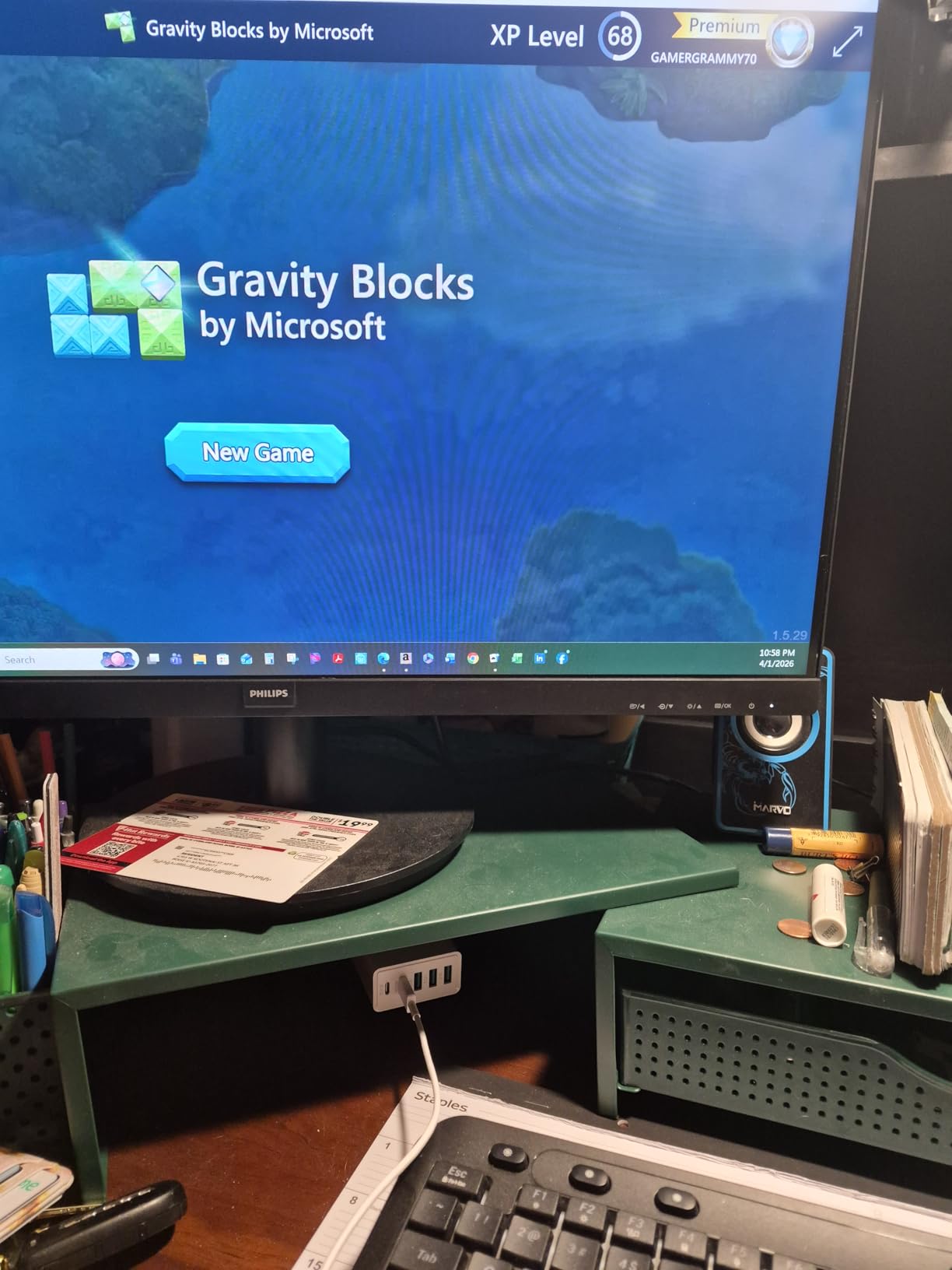
- Glossy finish reflects ambient light
Reading is the job on this panel, and the VA technology serves it unusually well. A 3000:1 contrast ratio is double what most IPS screens in this list manage, so text sits against genuinely darker backgrounds and dark-mode documents stop glowing.
For anyone who spends hours in PDFs, contracts, or spreadsheets, that difference in perceived sharpness is easier to notice than a higher resolution. The EasyRead mode warms the display and flattens the background, which mimics paper more closely than the standard preset.
Buyers also point out the three-sided bezel-free design, which matters if you plan to add a second panel later. At 100Hz and 4ms, the motion handling is fine for scrolling and window dragging, even though the response time trails the fastest IPS options here.
Eye Care covers the two features that reduce long-session fatigue: flicker-free backlighting and a blue light filter. Combined with a 100Hz panel, it makes this a comfortable screen for people who genuinely dread the afternoon eye ache.
When to pick this over a 4K panel
Choose it when reading and document work dominate and your desk sits in a normally lit room. A 3000:1 contrast ratio makes dark text on light backgrounds more distinct than a higher-resolution IPS panel with a flatter contrast ratio.
It is also one of the few models here with a four-year manufacturer warranty and four years of spare part availability, which matters if you plan to keep it past a typical laptop refresh cycle.
Where it falls short
VA panels smear on moving content, so this is a poor choice if you watch video or play fast games on the same screen. Connectivity is also dated: HDMI and VGA only, with no DisplayPort and no USB-C.
The glossy finish reflects room light, which can be distracting in a bright room despite the blue light filter. And 250 nits is modest, so brightness needs raising in a sunlit room.
3. Samsung S30GD 27-Inch IPS Monitor – Best for Dual-Monitor Setups
Samsung 27″ (S30GD) Essential Monitor with IPS Panel
27 inch IPS at 1920x1080
100Hz with 5ms response
250 nits and 1000:1 contrast
Eye Care blue light filter and flicker-free
Wall mount capable
Pros
- IPS keeps color consistent from wide angles
- 100Hz is a real upgrade from 60Hz
- Ultra-thin bezels look clean in pairs
- Game Mode adds contrast in dark scenes
- Quick plug-and-play with laptops
Cons
- 5ms response is slow for competitive gaming
- 1000:1 contrast is modest
- Stand tilts only and some units wobble
- No DisplayPort or USB-C
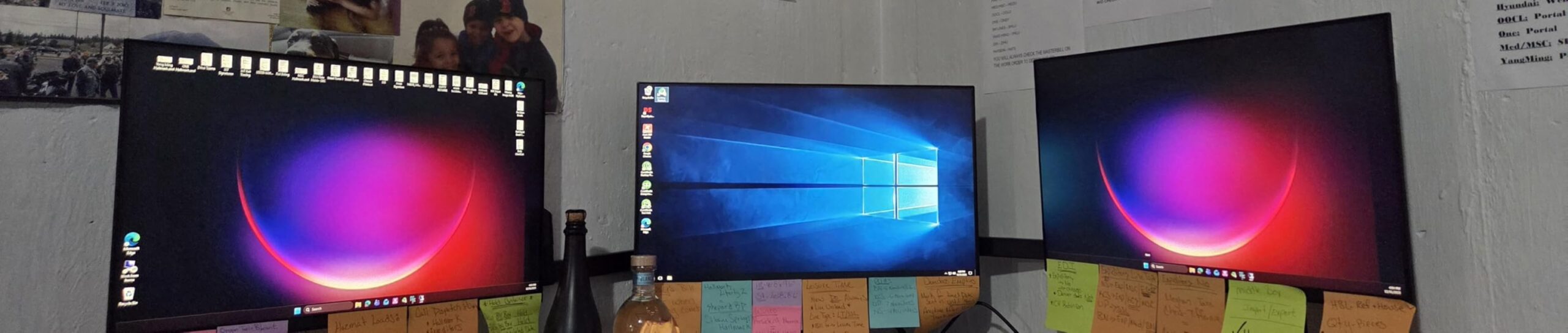
Two of these on a single arm is one of the best ways to build a serious home workstation on a modest budget, and the S30GD is a natural pick for that. The ultra-thin borders mean the seam between panels is narrow, so a document on one screen and a spreadsheet on the other feel like one workspace.
The jump from a 60Hz screen to this 100Hz panel is more visible in a home office than most people expect. Window dragging, scrolling through long documents, and cursor movement all feel lighter, and that is the practical answer to the 60Hz versus 120Hz question people ask most often.
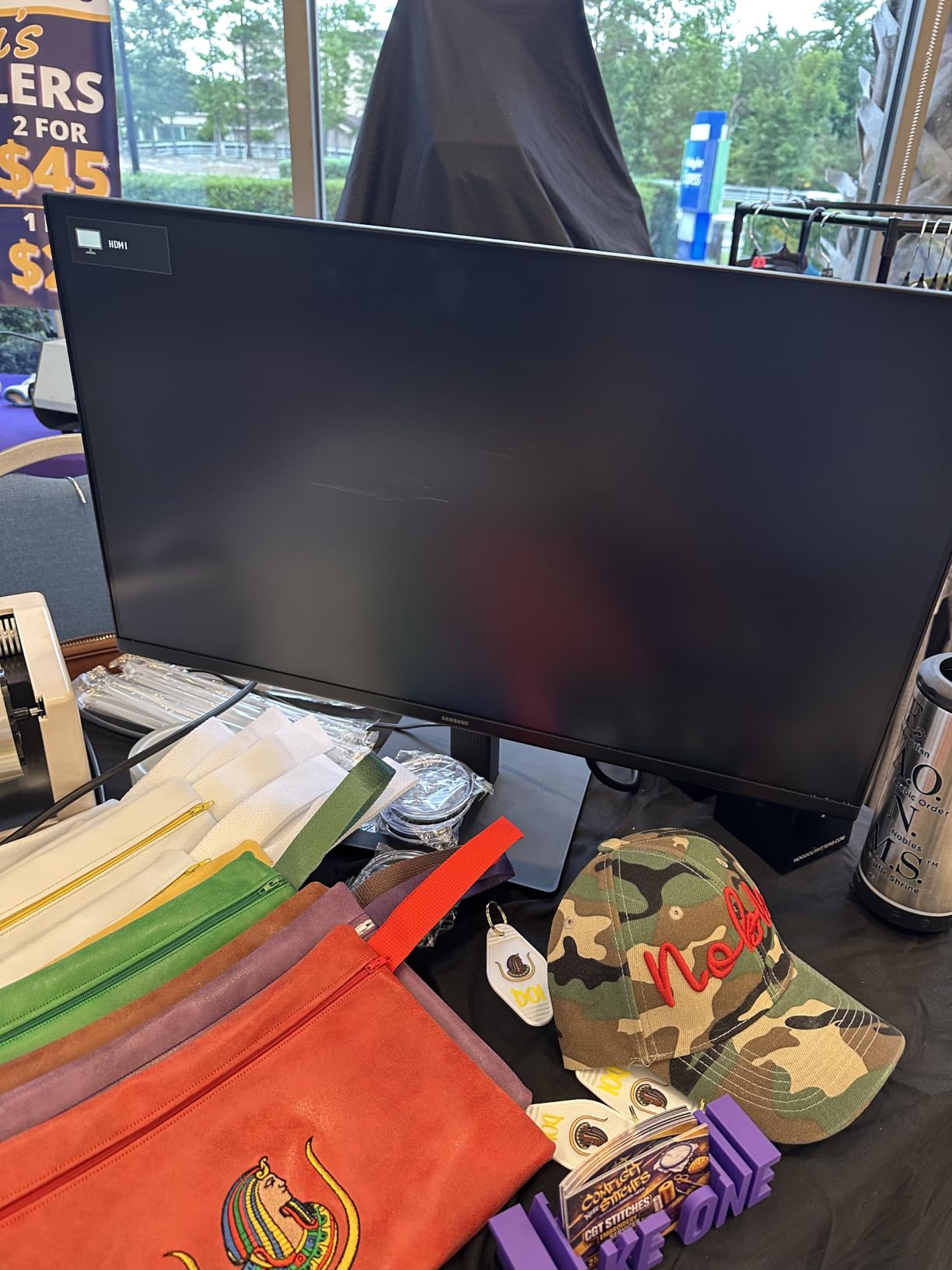
Owner reviews describe accurate, bright IPS color and a straightforward setup where a laptop connects and starts working. The 178-degree viewing angles mean the picture holds up even if your second monitor is angled off to the side.
Game Mode lifts contrast and fills the screen for darker content, which is a small but real improvement when you switch from work to a video call or a film in the evening.
Why it suits a two-screen setup
At 27 inches, two of these side by side fill a standard desk without overlapping, and the thin bezels keep the gap manageable. A 100Hz panel is the minimum we would want for two screens, because the mismatch between a smooth screen and a choppy one is immediately annoying.
It also weighs 6.4 pounds, which matters if you plan to hang them from a dual monitor arm rather than a desk stand.
Where it falls short
Ports are limited to HDMI and D-Sub, so there is no USB-C docking and no hub for peripherals. Two of these means two cables per machine unless you add a KVM switch.
Some owners report a wobbly or pivoting base, and the stand tilts only. A 1000:1 contrast ratio also means less depth than the VA panel above, so dark-mode work looks slightly flatter.
4. LG 27U411A-B 27-Inch 120Hz IPS Monitor – Best for Split-Screen Work
LG 27U411A-B 27-inch Full HD (1920 x 1080) IPS Computer Monitor, 120Hz, HDR10, Reader Mode, Flicker Safe, HDMI, Slim Stand Base, Black
27 inch IPS at 1920x1080
120Hz with HDR10 support
99% sRGB color coverage
Switch app splits screen to 6 sections
Reader Mode and Flicker Safe
Pros
- 120Hz refresh at a budget price point
- HDR10 with 99% sRGB coverage
- Switch app splits the screen into up to 6 sections
- Three-side virtually borderless design
- Reader Mode and Flicker Safe for long sessions
Cons
- 5ms native response is slow for competitive gaming
- Single HDMI port with no DisplayPort or USB-C
- Tilt-only stand with no height or swivel
- Basic uncertified HDR support
The Switch app is the reason this panel stands apart from other budget 120Hz screens. One hotkey divides the display into as many as six sections, and you drag windows between them without a third-party utility, which is genuinely useful when a call, a document, and a dashboard all need to be visible at once.
At 120Hz it also delivers the smoothest scrolling of the 1080p IPS options here. That difference is the single most common upgrade people make to a home office, and it is the one specification in this list that you feel every day rather than on a spec sheet.
HDR10 with 99% sRGB coverage gives slightly richer color in video and photos, though owners note the HDR implementation is basic rather than certified. For standard office work, the IPS panel stays accurate across a 178-degree viewing angle.
Reader Mode and Flicker Safe handle the long-session concerns. Reader Mode shifts the screen toward a warmer, paper-like tone, and flicker-free backlighting removes the subtle pulsing that some people notice after several hours.
Who benefits most from this panel
Support staff, traders, project managers, and anyone who keeps several reference windows open benefit from the split-screen software more than from any other feature at this price. The 120Hz panel helps anyone who scrolls long documents or a browser for hours a day.
The three-side borderless design also makes it a good second screen beside a laptop, since the visual break between panel and laptop display stays small.
Where it falls short
Connectivity is the weak point: a single HDMI port, no DisplayPort, no USB-C, and no hub. Anyone planning to dock a laptop with one cable should look elsewhere in this list.
Motion handling is ordinary at 5ms, so competitive games look soft, and the stand tilts from -5 to 20 degrees with no height movement. Budget for a monitor arm if shared desks are part of your routine.
5. Dell S2725QS 27-Inch 4K 120Hz Monitor – Best 4K Value
Dell 27 Monitor S2725QS, 4K UHD IPS, 120Hz, 5ms, FreeSync Premium
27 inch 4K UHD IPS at 3840x2160
120Hz with FreeSync Premium
350 nits, 1500:1 contrast, 99% sRGB
Fully adjustable stand with height, swivel and pivot
ComfortView Plus blue light filter
Pros
- 4K resolution at 120Hz is rare in this price range
- Sharp text rendering for coding and documents
- Fully adjustable stand plus VESA 100x100
- Re-engineered speakers better than most monitor audio
- Minimal IPS glow and no noticeable flicker
Cons
- No USB-C and no built-in USB hub
- No 3.5mm audio out for headphones or external speakers
- Some owners report ghosting in fast FPS titles
- Default brightness usually needs manual adjustment
This is the panel most people end up buying, and it is easy to see why. 3840×2160 across 27 inches works out to roughly 163 pixels per inch, so text in an editor, a spreadsheet, or a chat window looks properly resolved without any operating system scaling tricks.
Pairing 4K with a 120Hz refresh rate is the combination that changes daily comfort. Scrolling stops feeling like dragging something heavy, and window management stops fighting you, while the 350-nit brightness holds up in a room with real daylight.
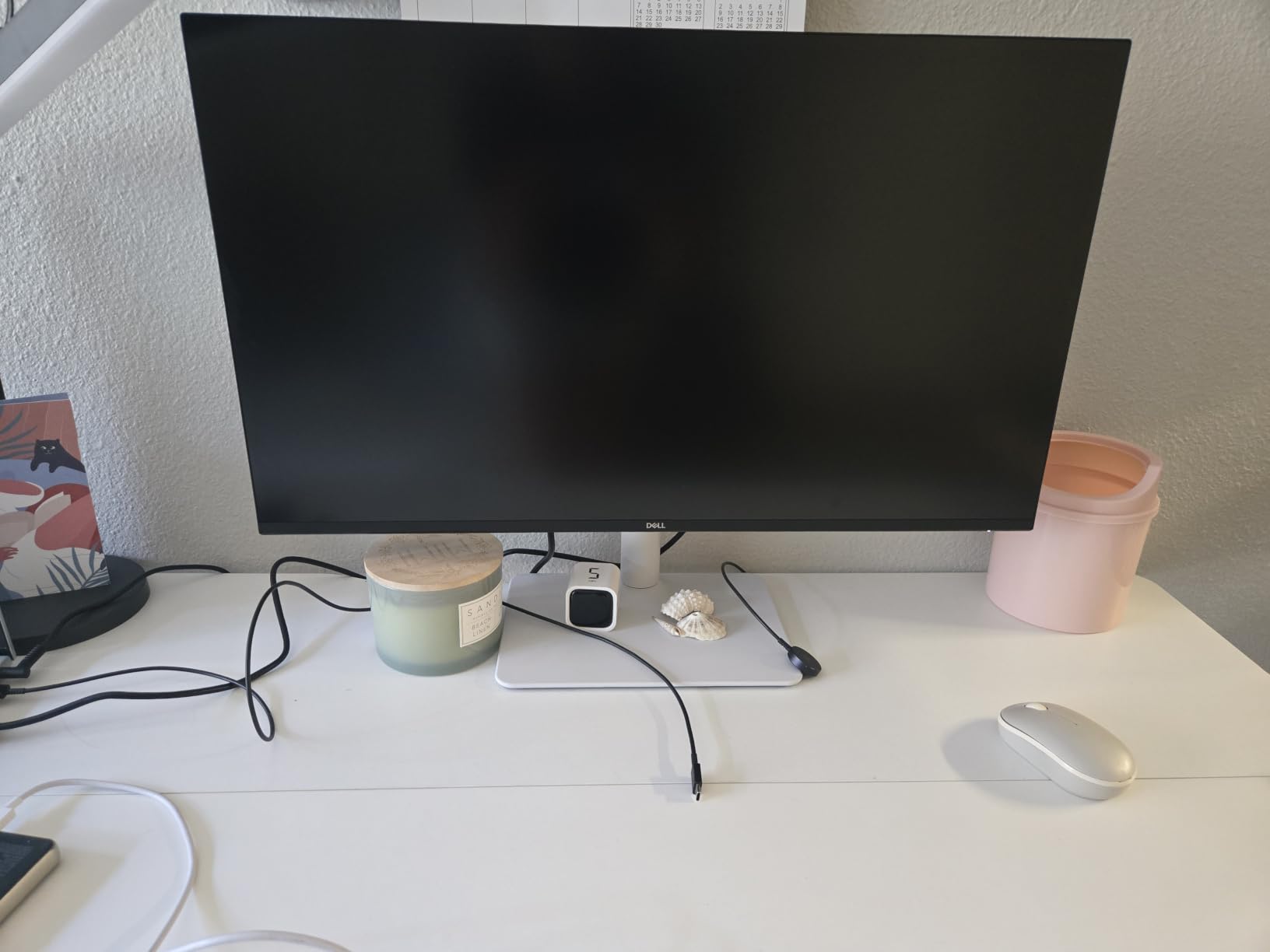
The stand adjusts for height, tilt, swivel, and pivot, which puts it ahead of most 4K screens in this list on ergonomics alone. ComfortView Plus cuts blue light emissions to 35% or below, and owners report minimal IPS glow and no visible flicker on their units.
Several buyers also use it with a console alongside a PC, and FreeSync Premium keeps frame pacing smooth when a GPU is driving the display.
Why 4K matters more than refresh rate here
For desk work, pixel density is the bigger daily win. At 163 pixels per inch, small interface text and dense spreadsheet cells stay legible, and a code editor fits meaningfully more lines on screen without shrinking the font.
The 1500:1 contrast and 99% sRGB coverage also mean colors stay reasonable for light photo and design work, even though the panel is not a calibrated reference display.
Where it falls short
There is no USB-C and no built-in USB hub, so a laptop user needs a separate dock or adapter. The absence of a 3.5mm audio out jack is a real gap given that it does have built-in speakers.
Getting 120Hz at 4K requires both a GPU and a cable that support it, otherwise the system can fall back to 60Hz. Owners also report ghosting in fast first-person shooters and note that default brightness tends to run high.
6. ASUS ProArt PA279CV 27-Inch 4K USB-C Monitor – Best for Color-Critical Work
ASUS ProArt PA279CV 27 Inch 4K UHD USB-C Professional Monitor
27 inch 4K UHD IPS at 3840x2160
Calman Verified with Delta E under 2
100% sRGB and 100% Rec. 709
USB-C with 65W power delivery
5-year warranty
Pros
- Factory Calman Verified calibration with Delta E under 2100% sRGB and 100% Rec. 709 coverage
- USB-C with 65W power delivery for single-cable setups
- Built-in 4-port USB 3.2 Gen 1 hub
- Fully ergonomic stand with height swivel tilt and pivot
- Five-year warranty plus Adobe Creative Cloud trial
Cons
- Only 60Hz refresh rate
- 5ms response time suits work not gaming
- Heavy 19-pound chassis with a large footprint
- HDR is not the focus of this reference panel
Photo, video, and design work is where this panel separates itself. It ships Calman Verified from the factory with a Delta E under 2, which means the average color error is small enough that you can trust the screen for client work without buying a calibration tool on day one.
The 4K IPS panel covers 100% sRGB and 100% Rec. 709, so colors land where a client expects them on both web and broadcast delivery. The TUV flicker-free and low blue light rating matters more here than a gaming feature would.
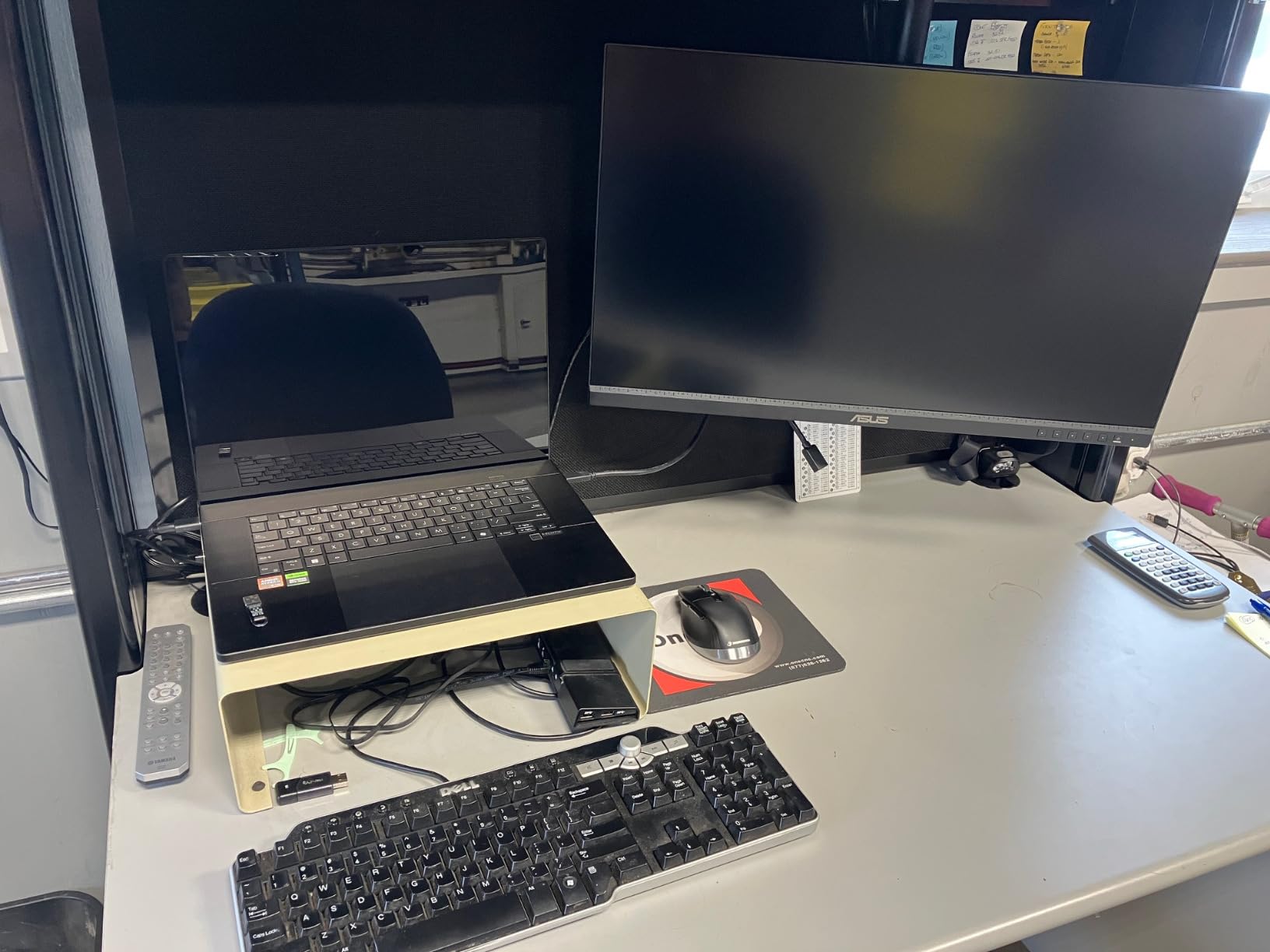
USB-C with 65W power delivery handles video, data, and charging over one cable, and the 4-port USB 3.2 Gen 1 hub covers a keyboard, mouse, card reader, and a wired network adapter. Owners using it with MacBooks describe a clean single-cable routine.
The five-year warranty, three of them plus two more with online registration, is the longest coverage in this group and roughly matches the working life of a professional display.
Why the calibration matters
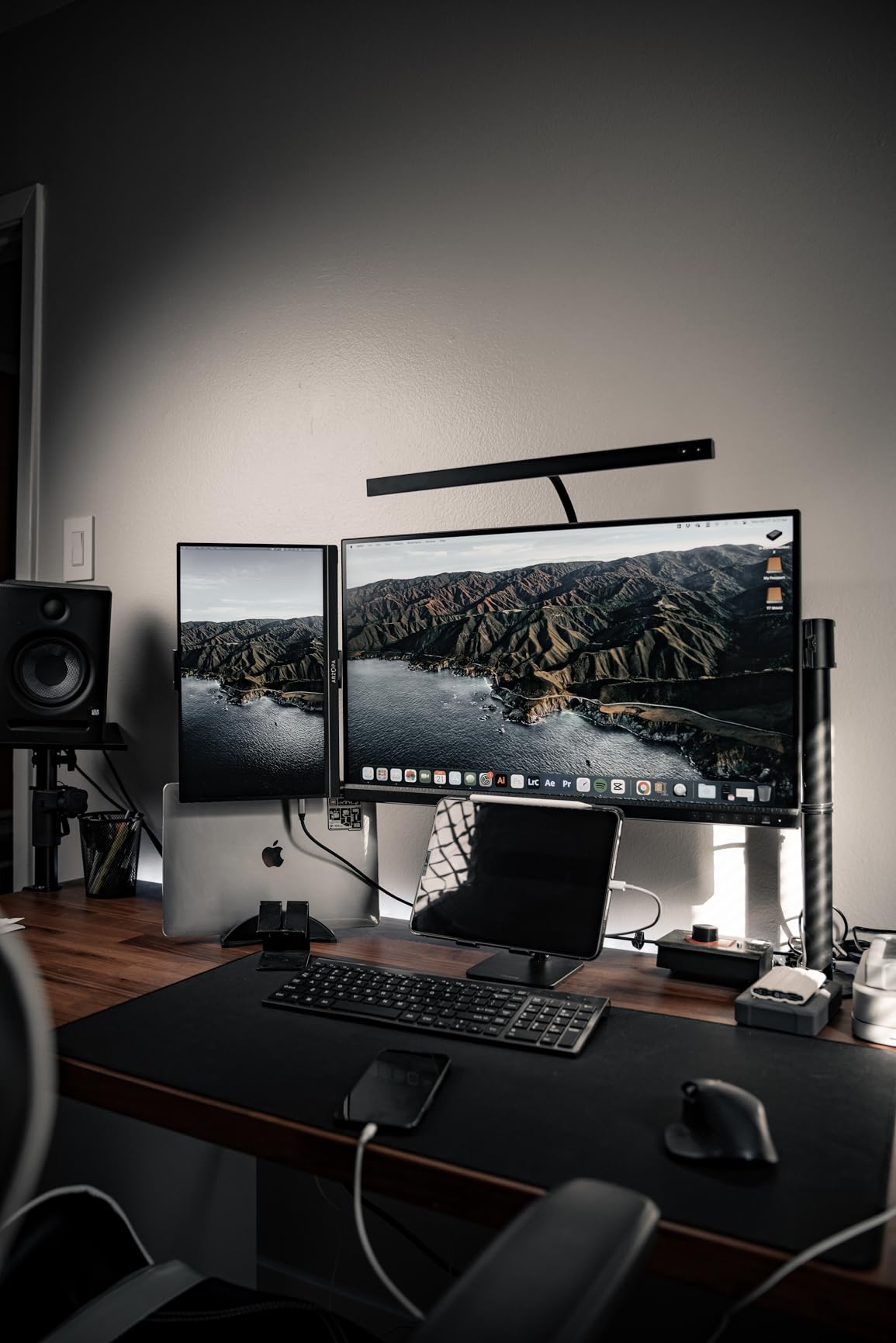
A Delta E under 2 means the difference between what the panel shows and the reference target is barely perceptible. That removes the most common source of client rework for freelancers, since color surprises stop coming from the monitor.
For a home office doubling as a studio, the USB-C hub reduces the number of dongles on the desk, which pairs well with a tidy cable setup like the ones in our bookcase picks for a small office.
Where it falls short
The 60Hz refresh rate is the dealbreaker for anyone who also games, and the 5ms response time confirms this is a work panel rather than a hybrid one. HDR is present but not the priority, so do not buy it for movie viewing.
At 19 pounds the chassis is heavy and the footprint is wide, so measure your desk before committing. A monitor arm is a good idea here given the weight.
7. LG 27US500-W 27-Inch 4K IPS Monitor – Best for Photo and Video
LG 27US500-W Ultrafine Monitor 27-Inch 4K UHD (3840×2160) HDR10 IPS Borderless Design Reader Mode Flicker Safe Switch App HDMI DisplayPort – White
27 inch 4K UHD IPS at 3840x2160
HDR10 with up to 90% DCI-P3
300 cd/m2 brightness and 1000:1 contrast
Onscreen Control split-screen
White three-side borderless design
Pros
- 4K sharpness with up to 90% DCI-P3 coverage
- HDR10 support at 300 cd/m2
- Borderless three-side design in a clean white finish
- Onscreen Control makes split-screen layouts easy
- Reader Mode and Flicker Safe for long sessions
Cons
- 60Hz is the lowest motion performance in this set
- 5ms response time is slow for gaming
- 1000:1 contrast is modest for a 4K IPS panel
- Tilt-only stand with no height or swivel
- No built-in speakers
This is the wide-gamut option in the lineup. Up to 90% DCI-P3 coverage covers most of the digital cinema color space, which means footage shot for a wide-gamut workflow stays recognizable on screen without an aggressive transform.
HDR10 at 300 cd/m2 is enough to view graded footage with some sense of highlight range, even if it is far short of a proper reference display. For an edit bay at home, that is a meaningful step above every 1080p model here.
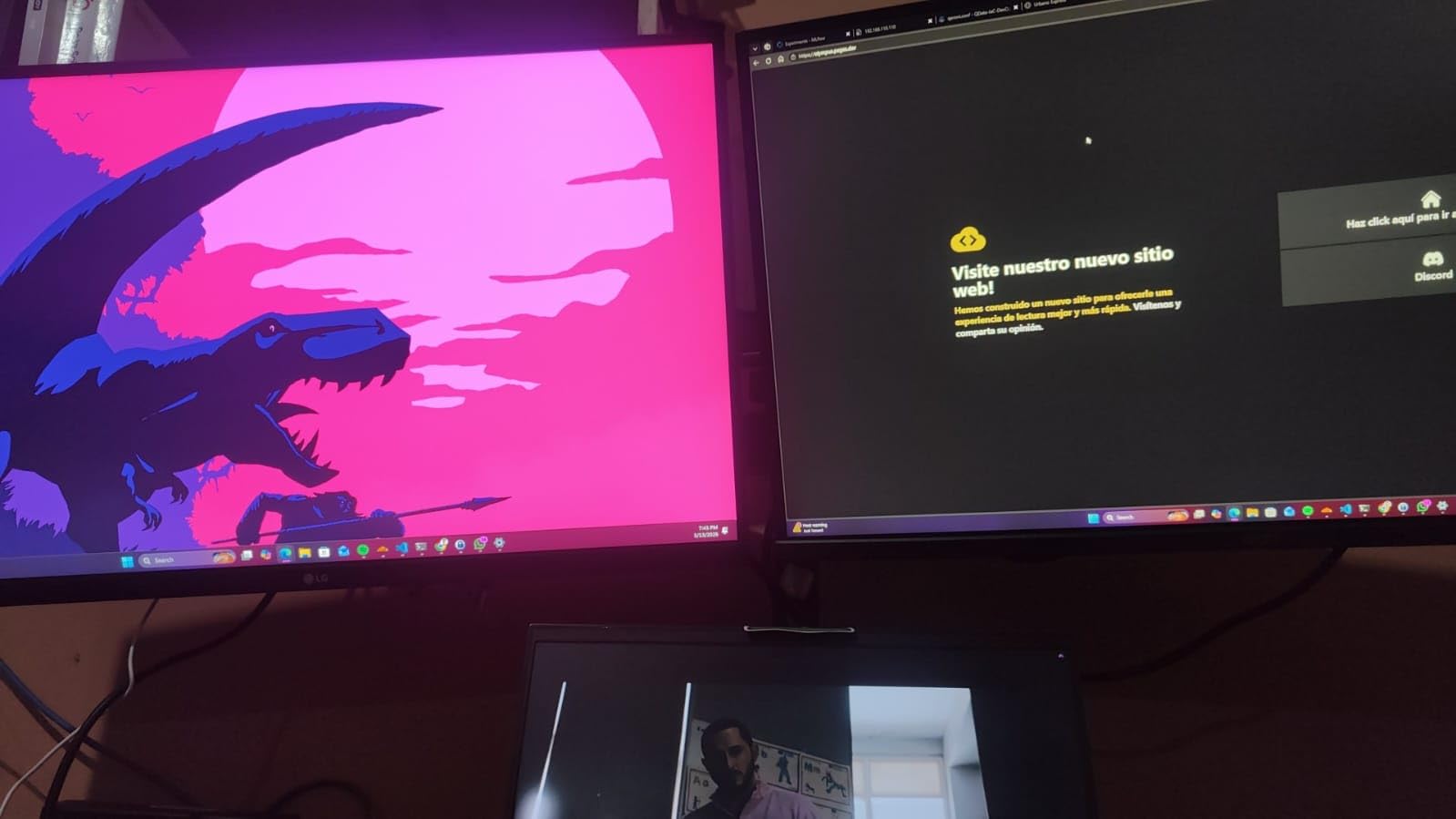
Owners like the clean three-side borderless look, and the white finish suits a light workspace better than the usual black. Onscreen Control handles split-screen layouts, which is useful for viewing a timeline and a program monitor side by side.
The box includes an HDMI cable, power adapter, and stand hardware, so there is nothing extra to buy to get it running.
Who should look here
Photographers and video editors who want a wide-gamut 4K screen at a sensible cost, rather than the Calman-verified accuracy of a professional reference panel. It suits a home studio where color judgment guides buying decisions but not final delivery.
It is also a reasonable choice as a large secondary office screen for someone who mostly reads documents and reviews images alongside a main laptop display.
Where it falls short
At 60Hz with a 5ms response time, this is the least suited panel here to motion. Video playback is fine, but anything with fast camera movement or gaming will look flat.
There are no built-in speakers, the stand only tilts, and the 1000:1 contrast is modest for a 4K IPS screen. If you need sound and height adjustment, the LG 27UP850K-W below covers both.
8. ViewSonic VA2756A-MHD 27-Inch 120Hz IPS Monitor – Highest Rated in Our List
ViewSonic VA2756A-MHD 27 Inch Full HD Computer Monitor, IPS 120Hz Display
27 inch IPS at 1920x1080
120Hz with 4ms response
250 nits, 1500:1 contrast, matte finish
DisplayPort-out daisy chaining
ViewMode presets and eye care filters
Pros
- Smooth 120Hz refresh in an affordable IPS panel
- Accurate consistent color at 178 degrees
- DisplayPort-out supports daisy chaining for two screens
- ViewMode presets for Text
- Web
- Movie and Mono
- Matte finish handles office lighting well
Cons
- Basic stand with tilt only and no height adjustment
- 250 nits is modest for HDR content
- No USB hub or advanced ergonomic adjustment
- On-screen buttons take time to get used to
This monitor carries the highest average rating in our list, and the owner feedback explains why. People describe crisp text, accurate IPS color, and quick plug-and-play setup, and several buyers own more than one unit for a dual-monitor home office.
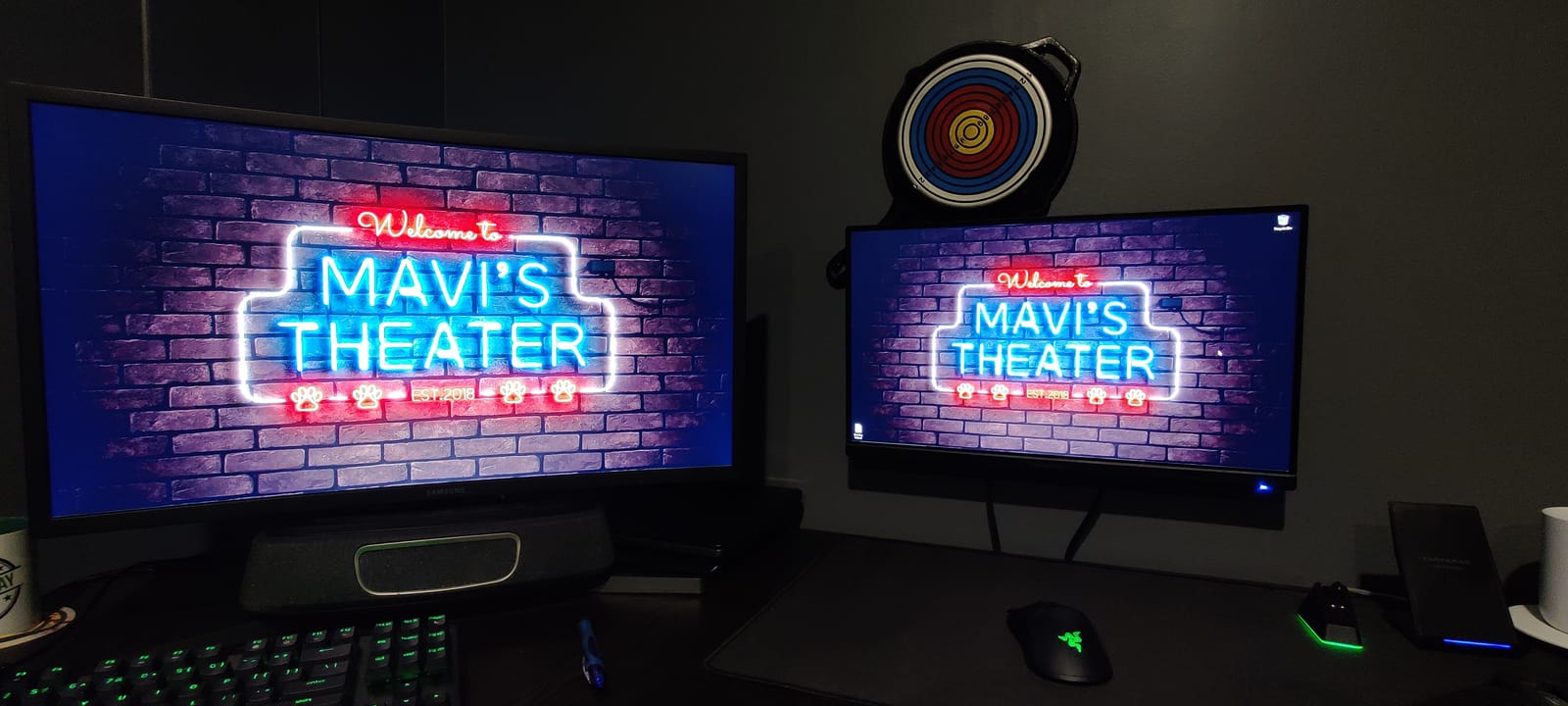
The standout feature for a home office is the DisplayPort-out port. It supports daisy chaining, so you can run two ViewSonic panels from a single DisplayPort output on your laptop or graphics card with one cable, which solves cable clutter better than most monitors manage.
ViewMode presets are more than a gimmick for long sessions. The Text preset flattens the gamma curve for reading, the Mono option is handy for wireframes and markup, and the Blue Light Filter reduces the harsher wavelengths when the day runs long.
At 4ms response and 120Hz, it is also the fastest 1080p IPS panel here, so it doubles credibly as a casual gaming screen. The matte anti-glare finish handles overhead office lighting without the reflections that bother you on glossier models.
Why daisy chaining matters at home
Most laptops and desktops have limited display outputs. A DisplayPort-out port turns one output into a two-screen desk, which is the cheapest way to double your working area without adding a dock, an adapter, or a second machine.
It also carries a three-year limited warranty covering parts, labor, and backlight, which outlasts the one-year coverage on several rivals in this list.
Where it falls short
The stand is the weak point. It tilts only, with no height, swivel, or pivot movement, so the 250-nit brightness will need raising when a window is behind you and the panel is not at eye level.
There is no USB hub, which is a missed opportunity on a panel with daisy chaining, and the on-screen controls are physical buttons that some buyers find awkward to learn.
9. LG 27UP850K-W 27-Inch 4K USB-C Monitor – Best for One-Cable Laptops
LG 27UP850K-W 27-inch Ultrafine 4K UHD IPS DisplayHDR 400 Computer Monitor
27 inch 4K UHD IPS at 3840x2160
DisplayHDR 400 with up to 95% DCI-P3
USB Type-C with 90W power delivery
DisplayPort, 2x HDMI, 2x USB 3.0, headphone jack
Height, tilt and pivot stand with Waves MaxxAudio
Pros
- Sharp 4K IPS panel with up to 95% DCI-P3 coverage
- DisplayHDR 400 support for brighter content
- USB Type-C with 90W power delivery and data
- Built-in Waves MaxxAudio stereo speakers
- Height tilt and pivot adjustable stand with Switch app
Cons
- 60Hz refresh rate limits motion smoothness
- Black Stabilizer and Dynamic Action Sync can add overshoot
- One-year parts and labor warranty is short
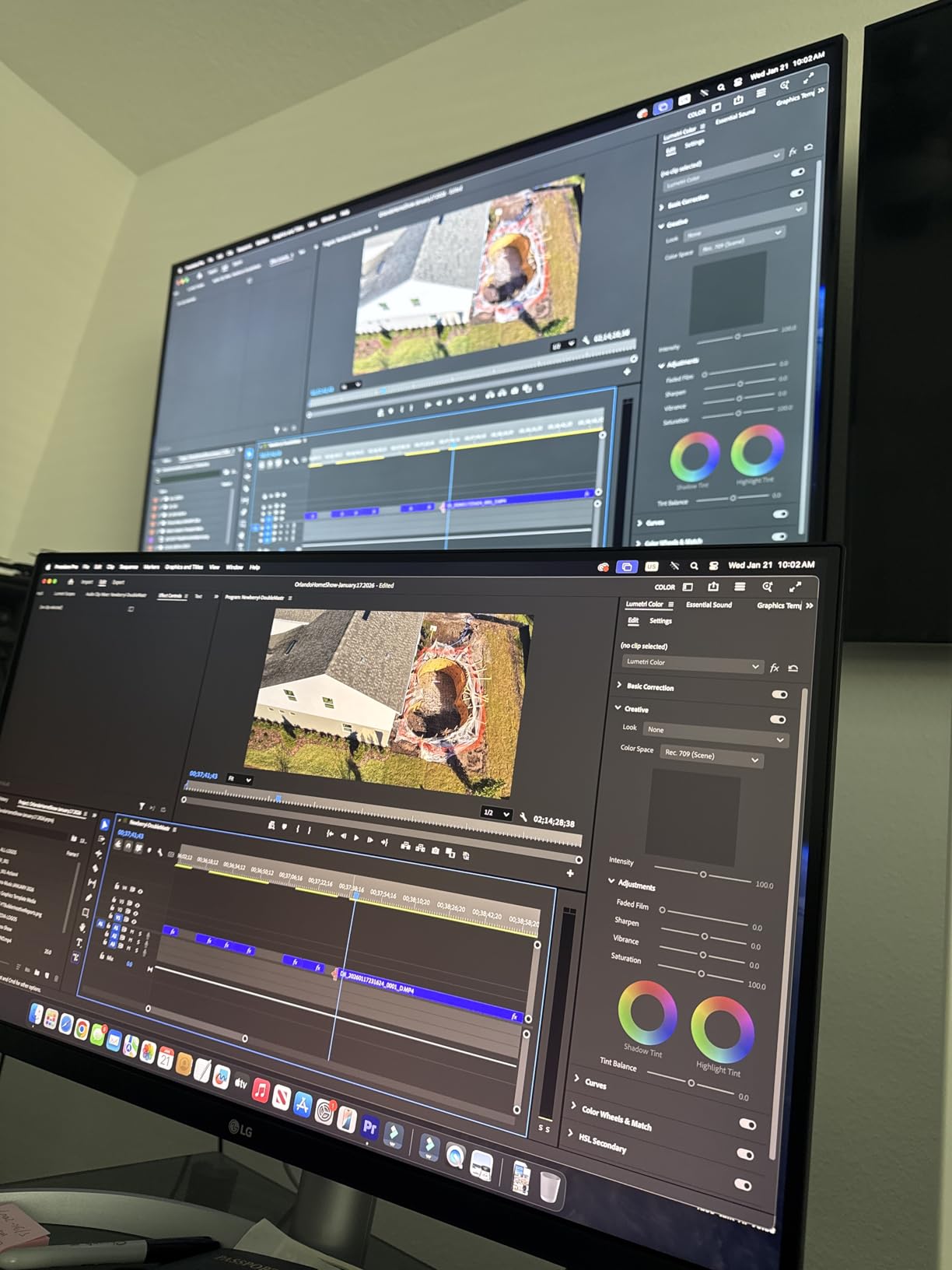
This is the cleanest single-cable setup in the lineup. One USB Type-C cable carries video, data, and up to 90W of charging, which is enough to power most ultraportable laptops at full speed while a desktop sits on the desk unplugged.
Everything else routes through the display. DisplayPort, two HDMI, two USB 3.0 ports, and a headphone jack mean a full keyboard, mouse, external drive, and wired network adapter all connect to one monitor, leaving the laptop free of adapters entirely.
Up to 95% DCI-P3 coverage and VESA DisplayHDR 400 give you a wider gamut and brighter highlights than the standard panels, and the built-in Waves MaxxAudio speakers cover video calls without extra hardware, which is the feature home office workers appreciate most.
The Switch app splits the screen into up to six sections from a single hotkey and adds built-in webOS streaming, so you can check a dashboard without opening a laptop screen.
Why 90W changes the desk
Ninety watts is the figure that matters. It covers a broad set of current thin laptops at a full charge, so a day of video calls and browser tabs does not drain the battery while the lid is closed.
The hub also removes the dock from the desk, and with no dock you have space for the physical things a home office needs, from a notebook to a shredder unit. If you are still deciding how to organize the room, our paper shredder guide covers the paperwork side of a home office.
Where it falls short
Sixty hertz is the main limitation. It is a perfectly pleasant panel for documents and photo work, but compared with the Dell S2725QS it is one whole refresh tier behind, and that is noticeable while scrolling.
The one-year parts and labor warranty is short relative to the ASUS ProArt’s five years, and the Black Stabilizer and Dynamic Action Sync gaming modes are better left off for office work since owners report overshoot.
10. INNOCN 27-Inch 4K USB-C Monitor – Best Adjustable 4K Stand
INNOCN 27″ 4K USB-C Monitor for Laptop MacBook/Mac mini – 16:9 IPS 3840 x 2160 Display, HDR400, DeltaE<2, DisplayPort, HDMI PC Monitor, 1.07B+ Colors, Built-in Speakers, Adjustable Stand, Black
27 inch 4K UHD IPS at 3840x2160
Delta E under 2 with 1.07B colors
400 nits brightness and HDR 400
USB-C 65W, DisplayPort 1.4, HDMI 2.1
Stand swivels, lifts, pivots and tilts
Pros
- 4K IPS panel with Delta E under 2 and 1.07B colors
- 400 nits brightness with HDR 400 support
- USB-C 65W plus DisplayPort 1.4 and HDMI 2.1
- Stand adjusts for swivel height pivot and tilt
- VESA 75x75 wall mountable
Cons
- 60Hz refresh rate is not for gaming
- No legacy DVI or VGA inputs
- 1000:1 contrast is modest for a 4K IPS panel
- One-year manufacturer warranty
The stand is the story on this model. It swivels 45 degrees, adjusts height by plus or minus 5 inches, tilts forward 5 degrees and back 20 degrees, and pivots plus or minus 90 degrees, so it does everything a monitor arm does without costing a second purchase.
That matters in a home office where two people share a desk or where you alternate between sitting and standing. Set the panel to a fixed height and change your posture instead of the screen, and your neck stays neutral through the day.
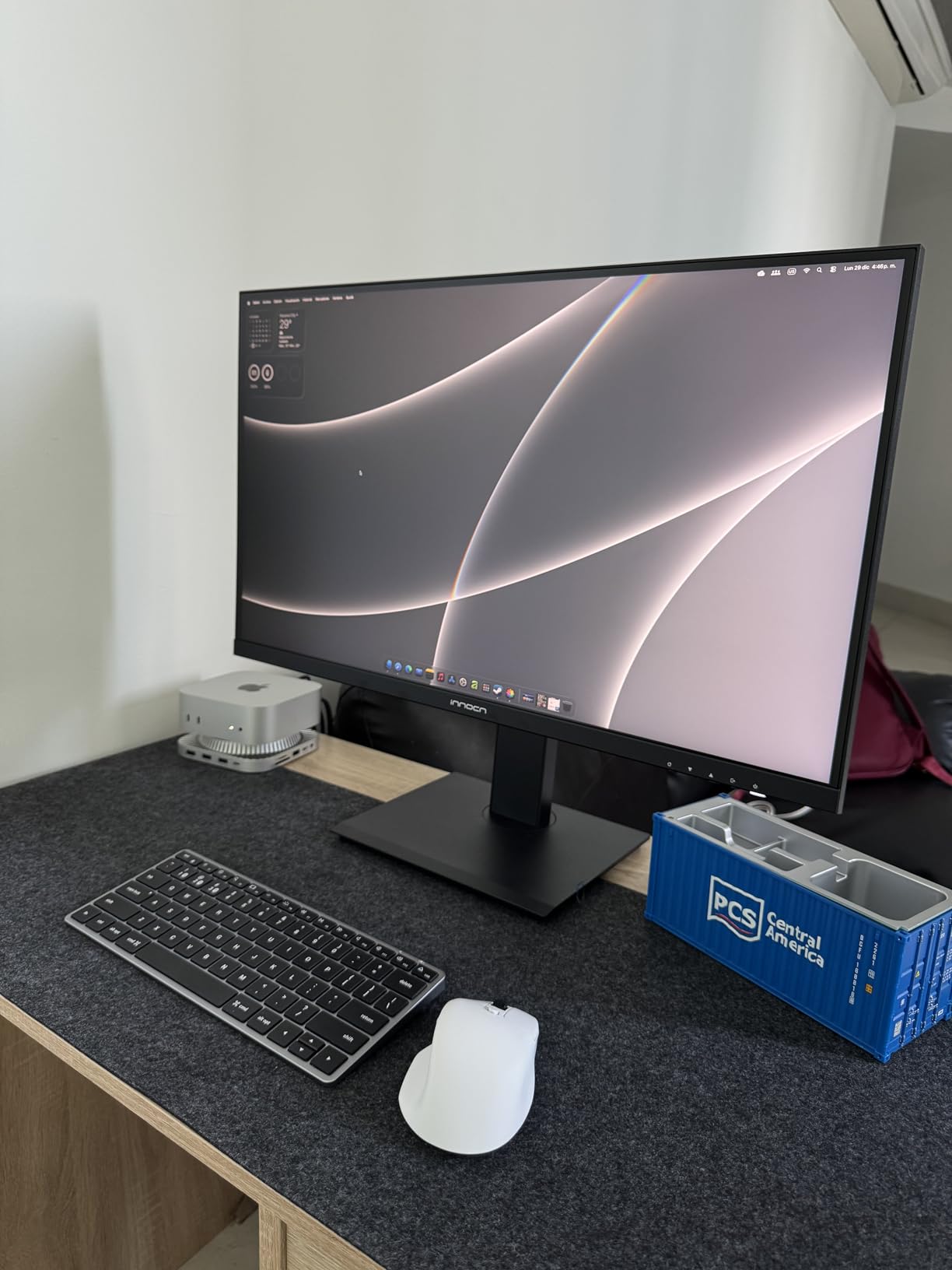
The panel itself is a good 4K IPS with 8-bit color plus FRC for 1.07 billion colors, 400 nits of brightness, and HDR 400. Reviewers with MacBook and mini PC setups like the USB-C 65W single-cable routine, and the reported Delta E under 2 is close to the ASUS ProArt’s factory calibration.
Ports are modern and short: USB-C, DisplayPort 1.4, HDMI 2.1, and a 3.5mm audio out. Legacy DVI and VGA were removed entirely.
Why adjustability beats raw specs at a desk
Every ergonomics complaint we read about budget monitors is a stand that only tilts. A panel that lifts, swivels, and pivots removes the reason many people buy a separate arm, and it costs nothing extra to use.
The pivot function also lets you rotate the screen a full 90 degrees, so a dense document or a long spreadsheet can be read without rotating your head.
Where it falls short
Sixty hertz rules it out for motion, and the 1000:1 contrast is flat for a 4K IPS panel, so dark scenes in video look grey. Removing the legacy inputs means older desktops or projectors need an adapter.
The one-year warranty is also the shortest here, and a small share of owners report mixed long-term reliability, so check the panel carefully on arrival.
11. Dell S2725HSM 27-Inch 144Hz Monitor – Best Fully Adjustable Budget Stand
Dell 27 Plus Monitor – S2725HSM – 27-inch FHD (1920×1080) 144Hz 1ms Display, 2 x 3W Speakers, HDMI Connectivity, Height/Tilt/Pivot/Swivel Adjustability, AMD FreeSync – Ash White
27 inch FHD at 1920x1080
144Hz with 1ms MPRT
300 nits brightness, 1500:1 contrast
Dual 3W integrated speakers
TUV 4-star certified eye comfort
Pros
- 144Hz refresh with 1ms MPRT for smooth motion
- Stand adjusts for height tilt pivot and swivel
- 1500:1 contrast with TUV 4-star eye comfort
- Dual 3W integrated speakers
- Two HDMI ports for flexible connections
Cons
- Full HD resolution limits detail for dense work
- Dell Display and Peripheral Manager is optional and brand specific
- Listed 8ms response is modest for competitive gaming
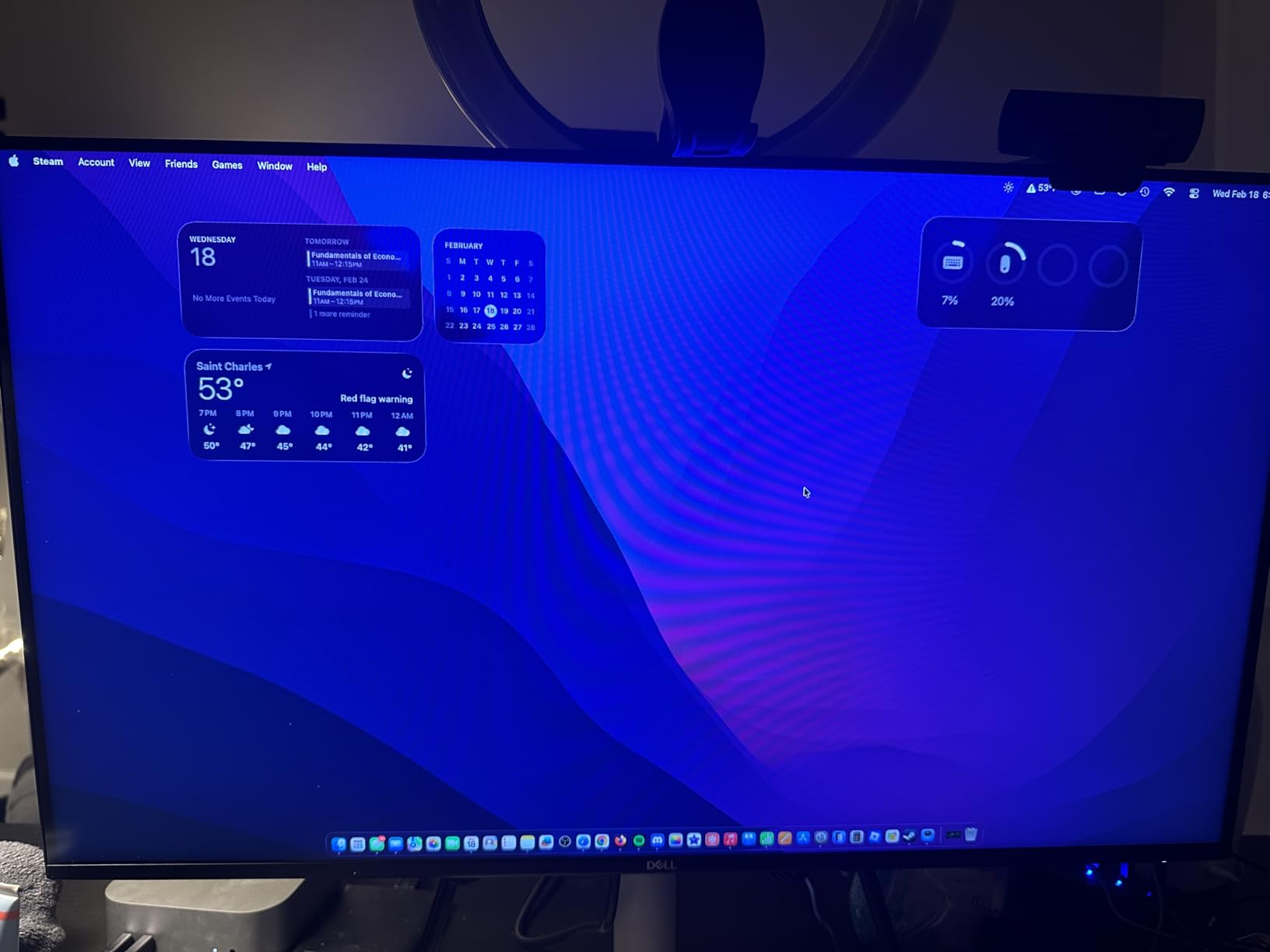
This is the ergonomic answer at this price. The stand adjusts for height, tilt, pivot, and swivel, which is the full set of movements, and it is the reason this monitor is easier to live with over a full workday than most of its direct competitors.
Getting the top of the screen at eye level matters more than any single display specification for neck comfort. Once that is right, the 300-nit brightness and 1500:1 contrast give a comfortable picture in a normally lit room.
The 144Hz refresh rate is the fastest in the list alongside the Dell SE2726H, and owners describe motion as smooth and tear-free with FreeSync active. For a home office that doubles as a gaming desk, that headroom is genuinely useful.
Dual 3W speakers give a fuller sound than single small drivers, and TUV 4-star eye comfort certification means the blue light reduction is measured rather than promised.
Who should prioritize a full stand
Anyone sharing a desk, working at unusual heights, or alternating between a chair and a standing desk should weight stand adjustment heavily. It is the one feature that cannot be fixed later without another purchase.
Dell Display and Peripheral Manager handles the initial setup if you want guided configuration, and the included one-year Advanced Exchange Service means a replacement ships before the failed unit is returned.
Where it falls short
Full HD is the limitation to accept. At 1920×1080 across 27 inches, a code editor shows fewer lines and a spreadsheet shows fewer columns than any 4K panel here, and text is noticeably softer at arm’s length.
The listed 8ms response time is slow for competitive play, where the 1ms figure refers to MPRT rather than pixel transition. If you work mainly in documents and games occasionally, that trade is easy to accept.
12. Dell SE2726H 27-Inch 144Hz IPS Monitor – Best for PC and Console
Dell 27 Monitor – SE2726H – 27-inch FHD (1920×1080) 144Hz 1ms Display, in-Plane Switching (IPS) Technology, AMD FreeSync™, TÜV 3-Star 2X HDMI, Tilt
27 inch FHD IPS at 1920x1080
144Hz with 1ms MPRT
300 nits brightness, 1000:1 contrast
2x HDMI with AMD FreeSync
TUV Rheinland 3-star eye comfort
Pros
- 144Hz with 1ms MPRT for smooth motion
- IPS panel accurate across 178-degree angles
- TUV Rheinland 3-star eye comfort certification
- Two HDMI ports serve a PC and a console
- Plug-and-play with an included HDMI cable
Cons
- Tilt-only stand with no height swivel or pivot
- 1000:1 contrast is low for IPS
- 72% color gamut is modest for color work
- Occasional report of damage on arrival
Two HDMI ports is the practical reason to buy this monitor. It means a desktop and a console, or a laptop and a games machine, stay connected at the same time and you switch with the monitor input rather than physically moving cables every evening.
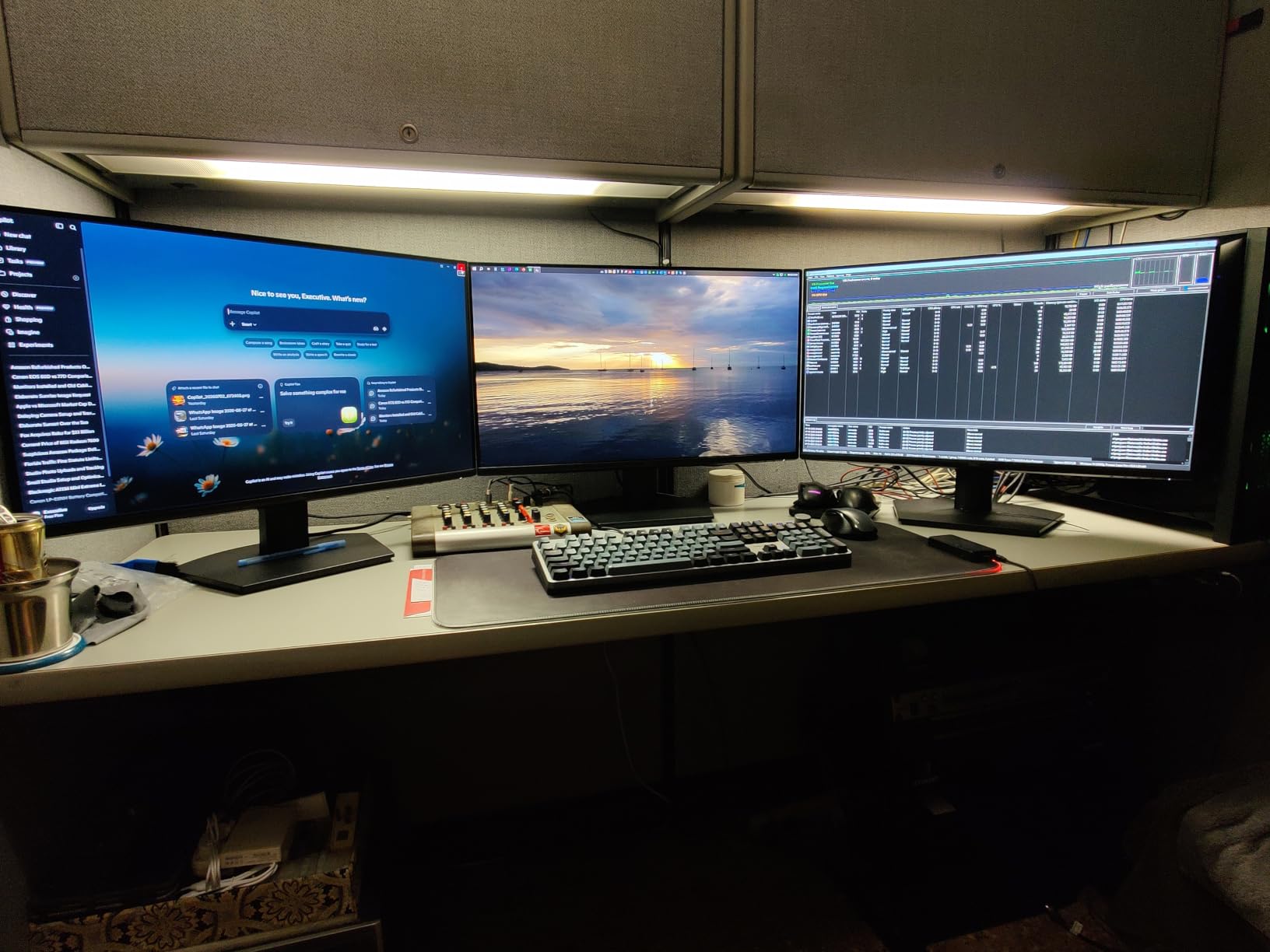
Owners frequently describe using it exactly that way, as a second screen beside a laptop or as a display shared between a PC and a console. The 144Hz panel with 1ms MPRT and FreeSync keeps both smooth.
IPS technology keeps color consistent across 178 degrees horizontally and vertically, which is important on a wide desk where you sit off-center. TUV Rheinland 3-star certification covers blue light reduction without shifting the color balance.
Setup is genuinely plug-and-play with the HDMI cable in the box, and the ultra-thin bezels suit a two-monitor arrangement because the frame between panels stays narrow.
Why dual HDMI still matters
USB-C docking is the modern answer for laptops, but for a desk with a mix of devices, two HDMI inputs remain the simplest option. There is no hub to configure and no dongle to lose, which suits anyone who just wants the screen to work.
If you are pairing this with other office hardware, the same logic applies to scanning and printing, where simpler single-function devices often serve a home office better than a multifunction device.
Where it falls short
The stand tilts only, with no height, swivel, or pivot adjustment, so it is the least ergonomic of the three Dell models here. Plan on a monitor arm if you care about posture.
Color coverage of 72% sRGB and a 1000:1 contrast ratio rule it out for any color-critical editing, and the listed 8ms response time is soft in competitive games. Inspect the box on arrival since a small number of buyers report damage in transit.
How to Choose a 27-Inch Monitor for a Home Office
Resolution and pixel density
At 27 inches, the choice is between 1920×1080 and 3840×2160. Full HD works out to roughly 82 pixels per inch, which is acceptable at normal desk distance but soft for small interface text. 4K reaches about 163 pixels per inch, and that difference is the reason the Dell S2725QS and the ASUS ProArt feel sharper in a way that a spec sheet does not convey.
Screen real estate follows the same logic. 4K shows roughly four times the content of Full HD at the same font size, so a code editor fits far more lines and a spreadsheet shows many more columns before you start scrolling.
Refresh rate: 60Hz vs 100Hz vs 120Hz vs 144Hz
Refresh rate is the specification people feel most, and the jump from 60Hz to 120Hz is the one worth paying for in an office. Scrolling, window dragging, and cursor movement all become visibly smoother, and many people report reduced eye fatigue over a full day at the higher rate.
The step from 120Hz to 144Hz is much smaller in an office context and matters mainly for gaming. Panels at 144Hz in this list, such as the Dell S2725HSM and the Dell SE2726H, deliver the same sense of smoothness as 120Hz for document work.
USB-C power delivery and built-in hubs
USB-C with power delivery sends video, data, and charging over a single cable, which is the difference between one connection to your desk and five. Sixty-five watts covers most ultraportables comfortably, and 90 watts, as on the LG 27UP850K-W, covers a wider range of laptops at full speed.
A built-in USB hub saves a dock and the associated desk space. A monitor with only HDMI and VGA, such as the Samsung S30GD, means buying a separate adapter before peripherals connect.
Panel type: IPS versus VA
IPS panels, which make up most of this list, hold color steady from wide viewing angles and respond quickly, which suits a desk shared by more than one person. Their typical 1000:1 to 1500:1 contrast makes dark backgrounds look slightly grey.
VA panels deliver 3000:1 contrast and much deeper blacks, as on the Philips 271V8LB, so they suit document reading and dark-mode work. The trade is slower pixel response and more smearing on moving content.
Ergonomics and stand adjustability
Stand movement is the most commonly regretted purchase factor. A tilt-only stand is fine if the display is your own height and your desk is fixed. Height adjustment, swivel, and pivot matter if you share a desk, alternate between sitting and standing, or use a laptop alongside the screen as a second panel.
Check for a VESA pattern, either 75×75 or 100×100 in the models here, before ruling out a monitor arm. Arms cost less than a full ergonomics upgrade and often solve a bad stand permanently.
Eye comfort certifications and coatings
Long days at a desk make eye comfort a real purchasing factor rather than a marketing line. Look for flicker-free backlighting and a blue light filter, both of which appear on the Philips, Samsung, ViewSonic, and Dell models here. TUV Rheinland certifications, such as the 3-star rating on the Dell SE2726H and the 4-star rating on the Dell S2725HSM, indicate the reduction has been measured.
Matte or anti-glare finishes handle overhead lighting better than glossy ones. The glossy finish on the Philips 271V8LB is its one drawback in a bright room.
Frequently Asked Questions
Is a 27-inch monitor too big for office work?
No, 27 inches is the most common office size because it fills a standard desk without the depth of a 32-inch display. At a normal desk distance of roughly 24 inches, it shows about 59% of a full 1080p desktop in width. Just make sure the stand can raise the screen to eye level, since a tilt-only stand is the real limitation rather than the size.
What is the best 27-inch monitor for office work?
The Dell S2725QS leads for most people because it combines 4K resolution with a 120Hz refresh rate and a fully adjustable stand. The Amazon Basics 27-inch IPS is the lower-cost all-rounder, and the ASUS ProArt PA279CV is the choice when calibrated color accuracy matters more than refresh rate.
What is the best monitor brand for home office use?
Dell, ASUS, LG, and Philips all appear repeatedly in owner feedback for build quality, stand adjustability, and warranty length, and they make up most of the list here. Brand matters less than panel type and stand movement. Check the warranty terms rather than the badge, since they range from one year on some models to five years on the ASUS ProArt PA279CV.
What is the best monitor for doing office work at home?
For a single-machine setup, any of the 4K models works best, and the LG 27UP850K-W suits laptop users because one USB-C cable handles video, data, and 90W of charging. For a fixed desktop, the Dell S2725QS at 4K and 120Hz balances sharp text with smooth scrolling and a stand that adjusts in every direction.
Is 4K necessary for a 27-inch office monitor?
It depends on how close you sit and how much text you read. At about 163 pixels per inch, a 27-inch 4K panel renders small interface text and dense spreadsheets noticeably cleaner than Full HD at roughly 82 pixels per inch. Full HD remains fine for general browsing and video calls, and it is the right call when budget matters more than screen density.
Is 120Hz worth it for office work?
Yes, and it is the refresh rate upgrade we recommend most. Scrolling through long documents, dragging windows, and moving the pointer all feel lighter at 120Hz than at 60Hz, and many people find the change reduces end-of-day eye fatigue. Going beyond 120Hz to 144Hz makes little difference for documents and matters mainly for gaming.
The Verdict: Which 27-Inch Monitor Should You Buy in 2026?
After working through all twelve, the Amazon Basics 27-inch IPS remains our pick as the best 27 inch monitor for a home office in 2026 because it combines a reliable IPS panel with the widest port selection we found, including a 4-port USB hub and audio in and out, and it holds a 4.6 rating across more than 1300 owner reviews.
Buyers who want more sharpness and smoother scrolling should move up to the Dell S2725QS for 4K at 120Hz, or to the ASUS ProArt PA279CV when color accuracy is the priority. Laptop users who want a single-cable desk will find the LG 27UP850K-W the most capable option with 90W power delivery and a built-in hub.
Check the stand before you check anything else. Height adjustment, swivel, and pivot cannot be added later without a monitor arm, and they decide whether a screen stays comfortable in year three.