
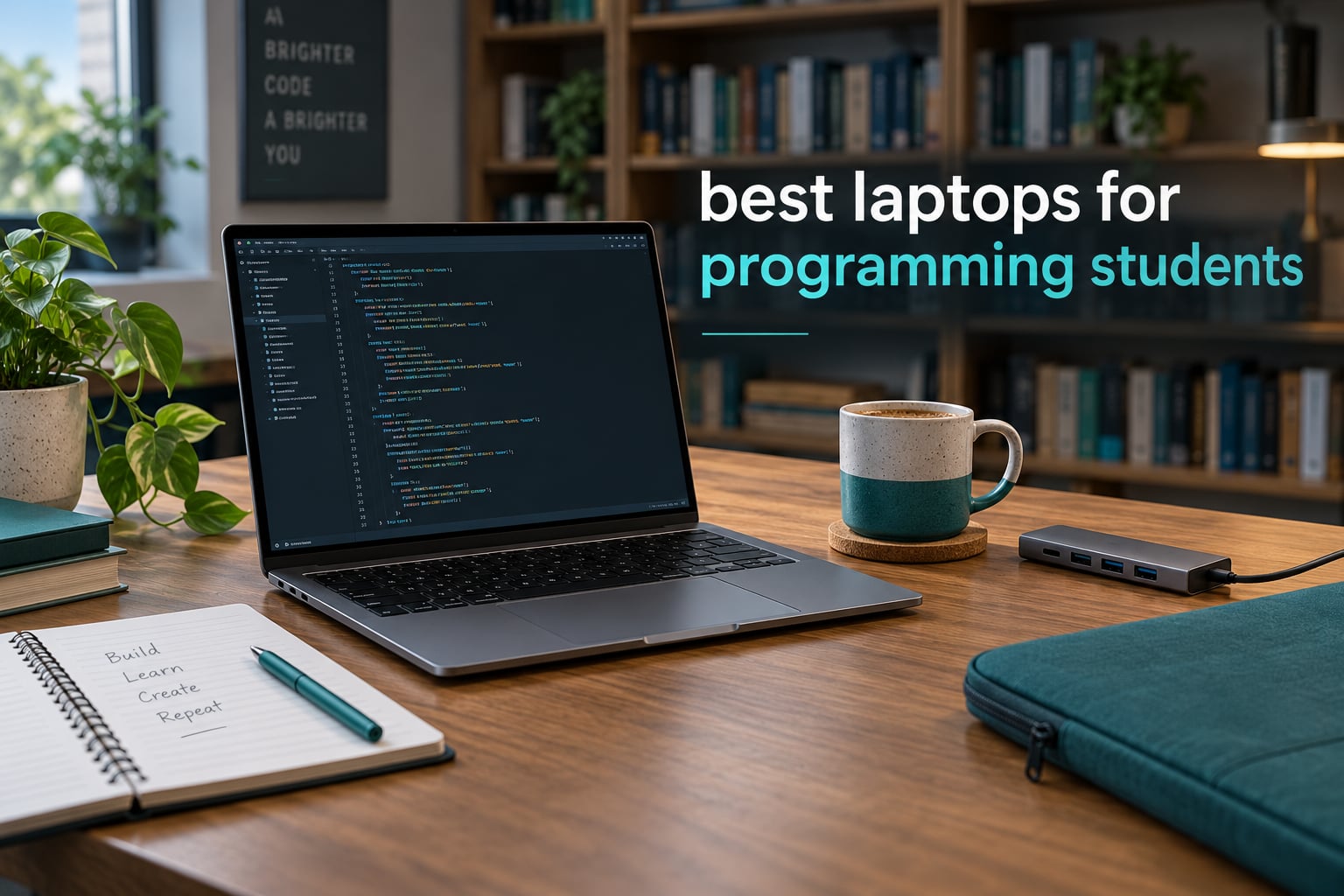
Best laptops for programming students, short version: the HP Pavilion 15 is the one to beat in 2026. Its 12th-gen Core i7 with 10 cores, 16 GB of RAM and a 512 GB NVMe SSD cover the whole first-year CS workload for far less than any premium machine here.
That said, “best” depends on what you study. A student writing iOS code needs a Mac. A student running containers all day needs upgradeable memory. A student carrying a laptop across campus for four years cares about weight and battery more than peak compile speed. I compared 12 machines on exactly those axes, and every one of them clears the floor of 16 GB RAM and 512 GB storage.
If you are still building a general study setup rather than a coding rig, our college laptop guide covers the non-programming priorities. For coding specifically, the rules are tighter, and this roundup explains every pick below.
Table of Contents
Top 3 Picks for Programming Students in 2026
All 12 Picks at a Glance in 2026
| Product | Specifications | Action |
|---|---|---|
 HP Pavilion 15 HP Pavilion 15 |
|
Check Latest Price |
 Lenovo V15 Lenovo V15 |
|
Check Latest Price |
 Acer Swift Go 14 Acer Swift Go 14 |
|
Check Latest Price |
 Lenovo IdeaPad 1i Lenovo IdeaPad 1i |
|
Check Latest Price |
 Acer Aspire Go 15 Acer Aspire Go 15 |
|
Check Latest Price |
 Lenovo IdeaPad Slim 3i Lenovo IdeaPad Slim 3i |
|
Check Latest Price |
 HP 255 G10 HP 255 G10 |
|
Check Latest Price |
 MacBook Air 13 M5 MacBook Air 13 M5 |
|
Check Latest Price |
 MacBook Pro 14 M5 MacBook Pro 14 M5 |
|
Check Latest Price |
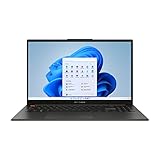 ASUS VivoBook S 15 OLED ASUS VivoBook S 15 OLED |
|
Check Latest Price |
 Lenovo ThinkBook 16 Gen 7 Lenovo ThinkBook 16 Gen 7 |
|
Check Latest Price |
 Dell Inspiron 15 3535 Dell Inspiron 15 3535 |
|
Check Latest Price |
1. HP Pavilion 15 – Best Overall Laptop for Programming Students
HP Pavilion 15 Laptop, 12th Generation Intel Core i7-1255U Processor, 16 GB RAM, 512 GB SSD, 15.6″ Full HD Display, Windows 11 Pro, Fingerprint Reader, Wi-Fi & Bluetooth, HD Webcam (15-eg2025nr 2022)
Core i7-1255U with 10 cores
16 GB DDR4-3200
512 GB NVMe SSD
15.6 in FHD IPS display
Pros
- 10 cores handles IDEs
- browsers and light virtual machines
- 16 GB and 512 GB are the right baseline for a degree
- Fingerprint reader is rare at this level
- Full-size keyboard with numeric keypad
Cons
- No keyboard backlight
- Glossy BrightView finish shows glare
- Memory is not user-upgradable
The Pavilion 15 is the machine most of my student friends are already using, and it is the one I recommend most often. The 12th-gen Core i7-1255U is a 10-core chip, which means VS Code, a browser with 40 tabs, WSL2 and a Postgres container can all run at once without the machine stuttering.
Storage is a 512 GB PCIe NVMe M.2 drive, so boot and project load times are genuinely quick. Memory comes as two 8 GB DDR4-3200 modules, which is the correct 16 GB baseline for coursework through at least the first two years.
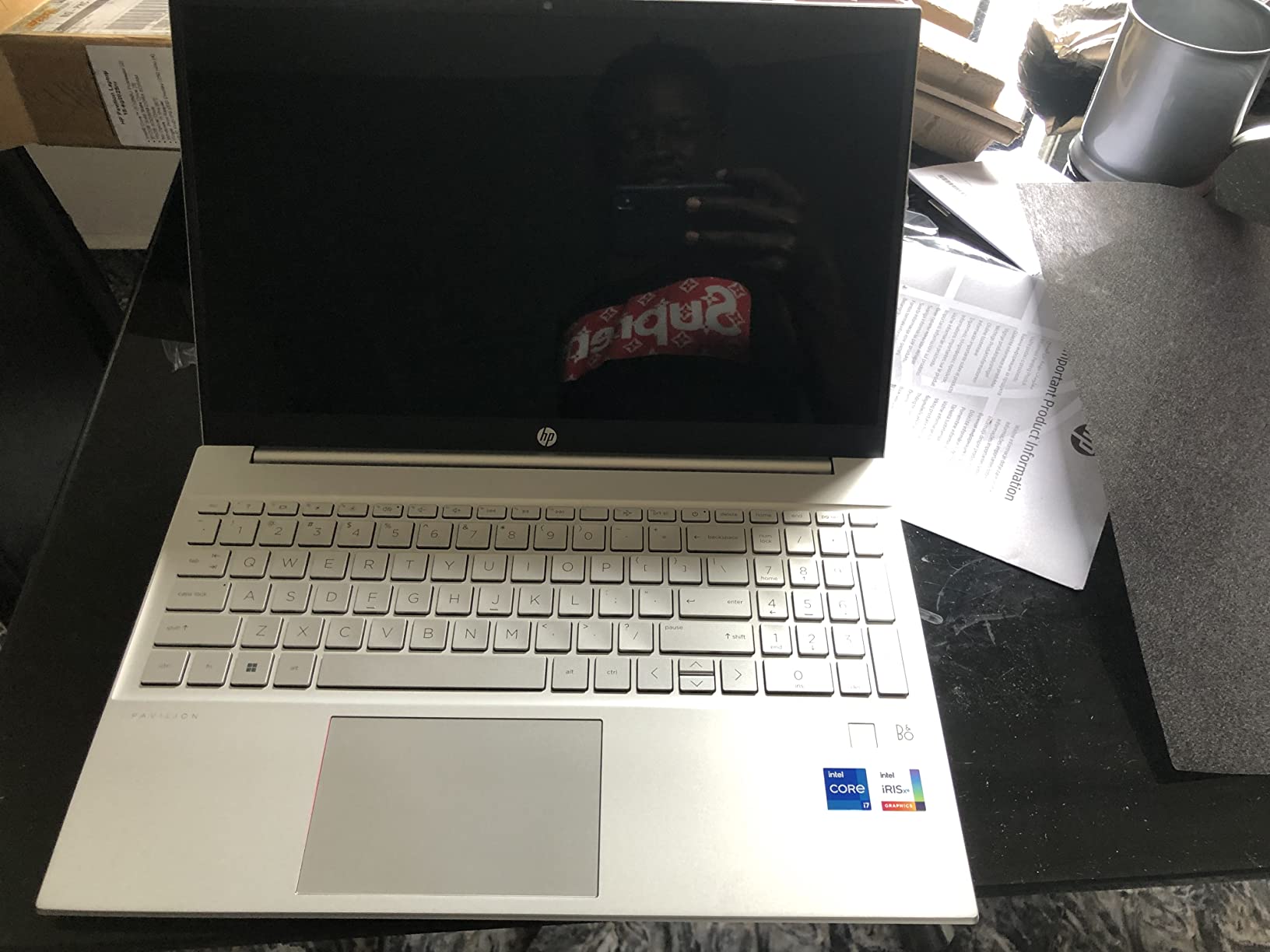
Windows 11 Pro is a quiet differentiator here. Pro gives you Remote Desktop, BitLocker and group policy, which all show up in lab work and internship machines that IT departments lock down.
The most repeated criticism across 613 reviews is the missing keyboard backlight. A smaller number describe battery drain and a few hard drive or screen failures on units a year or more old, so treat this as a four-year machine with a warranty in hand.
Is the HP Pavilion 15 fast enough for real coursework?
Yes, for the overwhelming majority of a CS degree. Web frameworks, Python, Java, C, databases and light machine learning notebooks all run comfortably on 10 cores with 16 GB of memory. Compile times on large Java or C++ projects stay well inside what the compiler itself costs.
The limit is GPU work. Intel Iris Xe is integrated graphics, so training a neural network locally or running a CUDA workload means renting compute elsewhere.
Who should skip the Pavilion 15?
Skip it if you plan to run several virtual machines or Kubernetes clusters, since the 16 GB is fixed and cannot be raised. The glossy BrightView panel also produces glare in bright rooms, which is uncomfortable for long evening sessions.
Students doing iOS work should look at the Mac options instead. And if you type at night in a dim room, the missing backlight will bother you daily rather than occasionally.
2. Lenovo V15 – Best Budget Laptop for Programming Students
Lenovo V15 Laptop, 15.6″ FHD Display, AMD Ryzen 5 5500U Hexa-core Processor (Beat Intel i7-1065G7), 16GB RAM, 512GB SSD, HDMI, RJ45, Numeric Keypad, Wi-Fi, Windows 11 Pro, Black
Ryzen 5 5500U with 6 cores and 12 threads
16 GB high-bandwidth RAM
512 GB NVMe SSD
RJ45 Ethernet
Pros
- 16 GB RAM handles many tabs and apps at once
- 512 GB NVMe drive is quick to boot and load
- Real Ethernet port plus numeric keypad at this price
- Windows 11 Pro supports VMs and remote work
Cons
- Ryzen 5000 series is an older generation
- LPDDR4 memory is fixed and not upgradeable
- No backlit keyboard listed
The V15 is the value pick in this roundup, and reviewers treat it as a dependable workhorse. The Ryzen 5 5500U gives 6 cores and 12 threads with turbo up to 4.0 GHz, which is enough for full-stack web work, shell scripting and class assignments without complaint.
The port selection is the surprise. An RJ45 Ethernet jack on a portable laptop is genuinely useful in a lecture hall with unreliable Wi-Fi, and the numeric keypad is convenient for entering data in labs.
Buyers consistently praise the combination of 16 GB of RAM and a fast NVMe drive at this price tier. 72 percent of reviews are five-star, which is a strong signal for a machine that is meant to be carried and used rather than admired.
Two things temper the recommendation. The LPDDR4 memory is soldered, so 16 GB is what you get for the life of the machine, and the 5000-series chip is no longer current generation.
Does the Ryzen 5 5500U hold up for a full CS degree?
For most courses, yes. The practical gap between this chip and a current-generation Core Ultra or Ryzen 7 shows up in long compile chains and heavy container workloads rather than in everyday editing and debugging.
If your course involves compiling a large C++ codebase on every build, or running three or more virtual machines at once, spend up and move to an eight-core chip such as the Ryzen 7 7730U.
Which students get the most from the V15?
This one fits students who write web and back-end code, use a Linux terminal daily, or need wired networking. Ethernet plus HDMI plus two USB-A ports means fewer dongles in a bag.
It suits first-year students on the tightest budget who want the spec floor met without paying for a premium chassis. It does not suit anyone who needs to grow the memory later.
3. Acer Swift Go 14 – Best Lightweight Laptop for a CS Degree
Acer Swift Go Intel Evo Thin & Light Premium Laptop 14″ 1920×1200 100% sRGB Touch Screen Display Intel Core i7-1355U Intel Iris Xe 16GB LPDDR5 512GB Gen 4 SSD SFG14-71T-72QV
Core i7-1355U with 10 cores
16 GB LPDDR5
512 GB Gen 4 SSD
2.8 pounds with aluminum chassis
Pros
- Very light at 2.8 pounds with a metal chassis
- 1920x1200 IPS panel at 120 Hz
- Two Thunderbolt 4 ports with 100W charging
- 1440p QHD webcam with noise reduction
Cons
- 16 GB of LPDDR5 is soldered on the board
- Slows under sustained heavy workloads
- Touchscreen does not fold into tablet mode
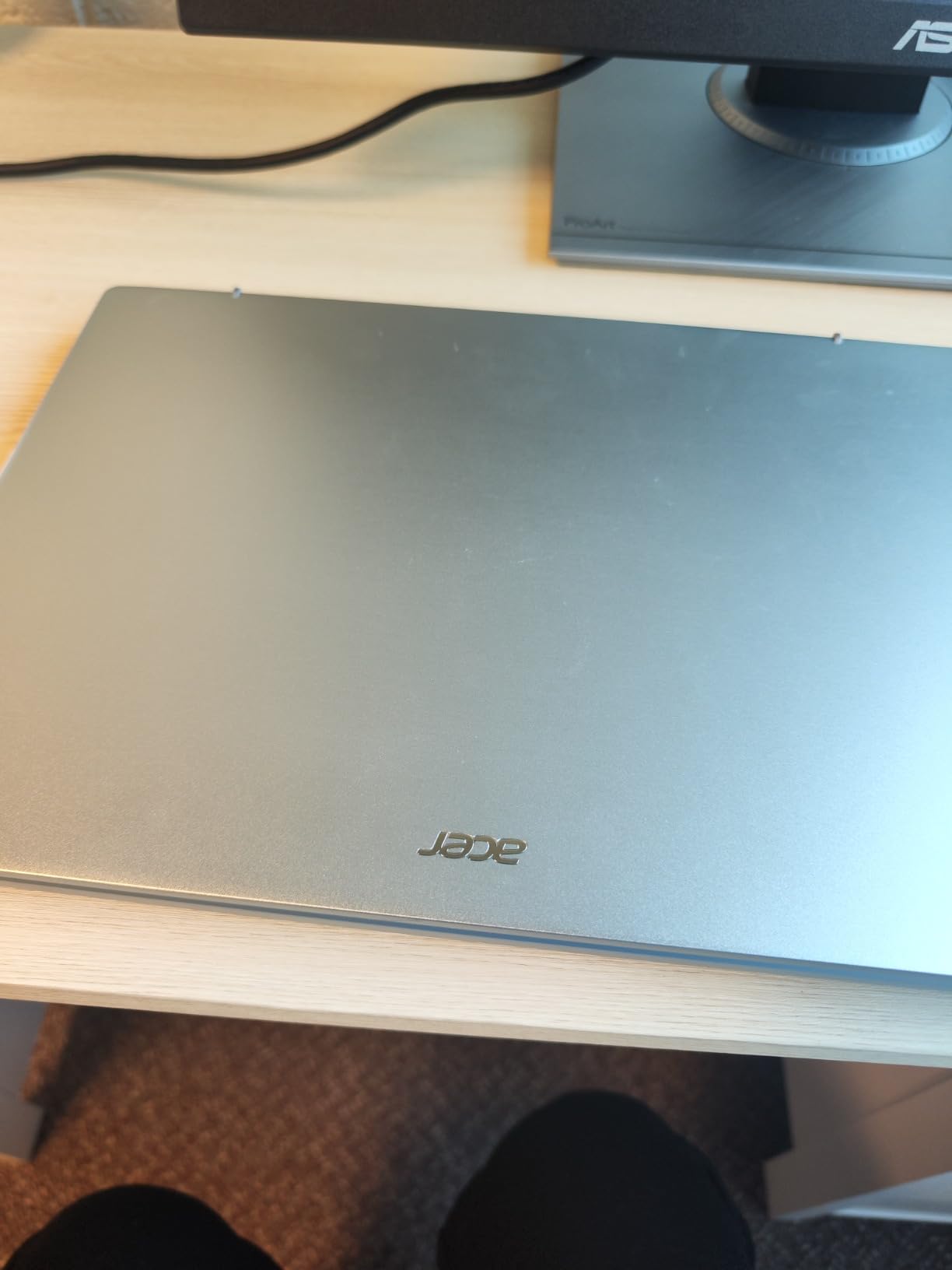
The Swift Go 14 weighs 2.8 pounds and feels far more substantial than that number suggests, thanks to an aluminum chassis. That matters more than any spec for students who carry a laptop between buildings all day, and reviewers repeatedly compare it favourably with machines costing much more.
Under the hood you get a Core i7-1355U with 10 cores turboing to 4.8 GHz, 16 GB of LPDDR5 and a 512 GB PCIe Gen 4 SSD. Editors, browsers and virtual machines stay responsive.
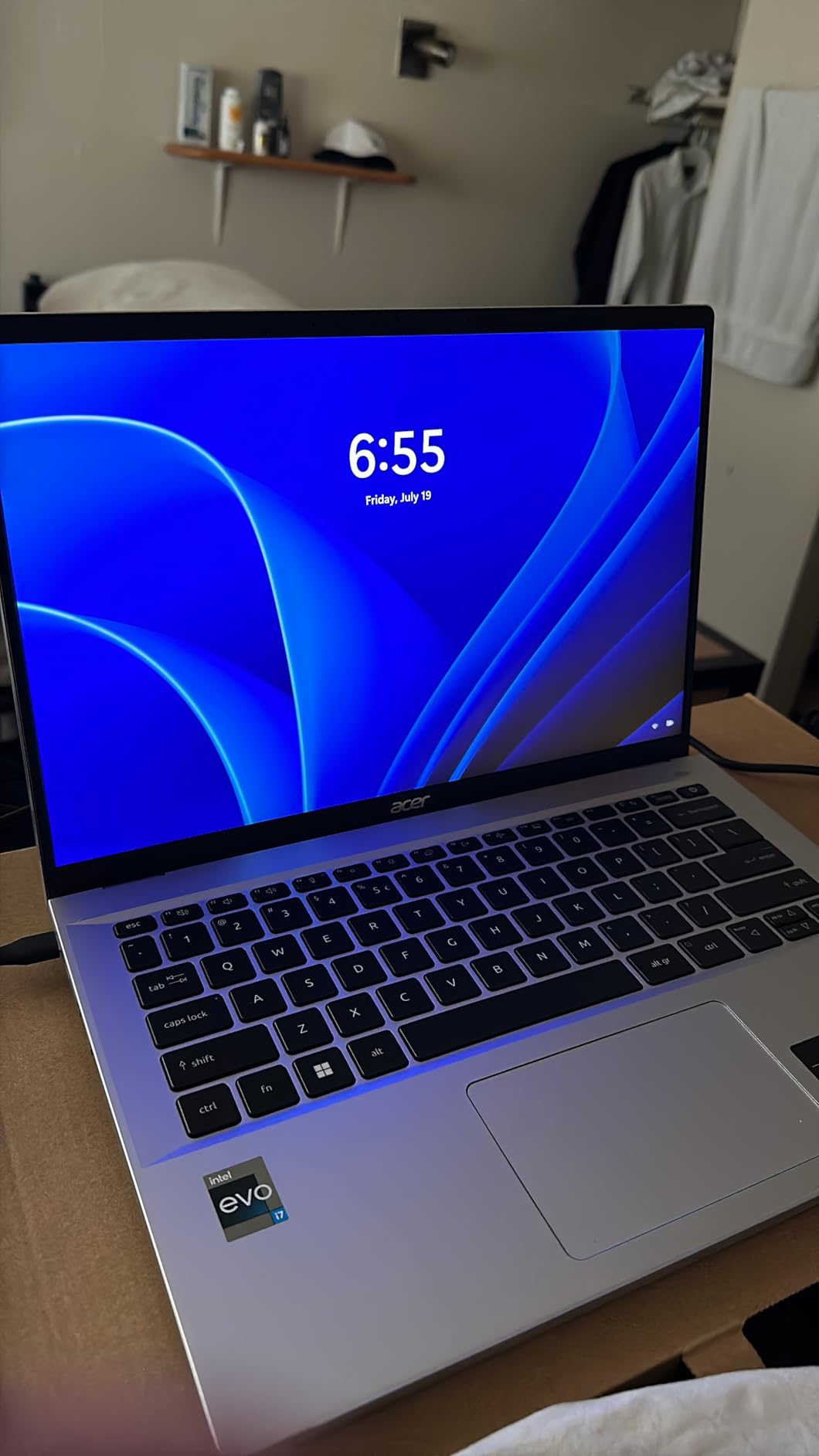
The 14-inch 1920×1200 touchscreen runs at 120 Hz, which makes scrolling documentation and reading long code files noticeably easier on the eyes than a 60 Hz panel. Two Thunderbolt 4 ports with 100W power delivery also mean one cable for charging and external displays.
One undocumented detail is worth knowing. Several owners fitted extra SSDs into a second M.2 slot hidden behind the fans, which turns a sealed machine into a genuinely expandable one.
Is soldered memory a problem on a four-year machine?
It is a real constraint, so think about it before you buy rather than after. The 16 GB is fixed at the factory and cannot be raised later, which caps how many virtual machines and containers you can run in year three.
For a student who writes web and mobile code without running many services at once, 16 GB is still comfortable. For systems and DevOps students, pair the light build with a plan to use cloud machines for heavy work.
Who is the Swift Go 14 built for?
It suits students who prioritise portability and screen quality: light-build web developers, mobile students, and anyone who wants a panel that is comfortable for a full day of reading and writing code.
It is a poor fit for sustained heavy rendering or large local model work, where several owners report it slowing considerably. It also suits people who need video calls, since the 1440p camera and noise reduction are unusually good for a laptop.
4. Lenovo IdeaPad 1i – Best Big-Screen Value Pick
Lenovo IdeaPad 1i Laptop, 15.6″ FHD Touchscreen, Intel Core i5-1235U Processor, 16GB RAM, 512GB SSD, Webcam, HDMI, Wi-Fi 6, Windows 11 Home, Blue
Core i5-1235U with 10 cores
16 GB DDR4 across two slots
512 GB NVMe SSD
65 Wh battery
Pros
- Ten cores and 12 threads feel fast for daily work
- Two memory slots with 16 GB fitted
- Anti-glare touchscreen helps in bright rooms
- 65 Wh battery and light weight for class days
Cons
- 45 percent NTSC colour coverage is low for design work
- 16 GB is the listed memory maximum
- Some units reported blue-screen crashes
The IdeaPad 1i gives you a 15.6-inch anti-glare touchscreen at a price where most machines ship a glossy panel. Owners frequently single out the speakers as unusually good for a laptop, which matters in group study sessions.
The Core i5-1235U provides 10 cores and 12 threads with turbo up to 4.4 GHz. Paired with 16 GB of DDR4 across two slots and a 512 GB NVMe drive, it covers IDEs, containers and heavy browser use.
Port selection is generous for the tier: USB-C, two USB-A ports, HDMI 1.4 and an SD card reader. That last one is genuinely handy for a photography or embedded systems module.
The 65 watt-hour battery is one of the larger cells in this roundup, and owners describe battery life as adequate rather than exceptional. Keyboard feel and key travel are praised, along with the numeric keypad.
Is the low colour coverage a problem for coding?
Not for most students. The 45 percent NTSC panel is dim and washed out, which shows in photo, video or design work, but reading code in a bright library is handled by the anti-glare coating.
If your degree includes graphics, UI design or colour-critical coursework, choose a wider-gamut panel instead. The Acer Swift Go 14 and the ASUS VivoBook S 15 both handle that far better.
What should you know before buying the IdeaPad 1i?
The memory maximum is 16 GB, so the two slots do not buy you headroom beyond that. A smaller number of buyers also reported defective units and slow seller support, so keep the return window in mind.
Also check that your unit ships with the right keyboard layout and power cord, which some buyers flagged as inconsistent. For a student who wants a large screen and a comfortable keyboard on a budget, this remains a strong pick.
5. Acer Aspire Go 15 – Best for Eight-Core Performance on a Budget
Acer Aspire Go 15 AI Ready Laptop | 15.6″ FHD (1920 x 1080) IPS Display | AMD Ryzen 7 7730U | AMD Radeon Graphics | 16GB DDR4 | 512GB PCIe Gen4 SSD | Wi-Fi 6 | Windows 11 Home | AG15-42P-R9FW
Ryzen 7 7730U with 8 cores
16 GB DDR4 upgradable to 32 GB
512 GB Gen 4 SSD
Full-function USB-C
Pros
- Eight cores and 16 threads for compiling and VMs
- Memory upgradeable to 32 GB over the degree
- Fast Gen 4 SSD with room for a second M.2 drive
- Wi-Fi 6 and HDMI 2.1 connectivity
Cons
- Integrated Radeon graphics
- 300 nit display is dim for long sessions
- 3.9 pounds is heavy for a 15.6-inch laptop
Core count is the quiet advantage here. The Ryzen 7 7730U gives 8 cores and 16 threads, which is genuinely useful when you are compiling a large project, running a database, a frontend dev server and a container set simultaneously.
Unlike most machines in this price range, the 16 GB of DDR4 is upgradeable to 32 GB. For a student keeping a laptop for four to five years, that single fact matters more than any generation number on the chip.
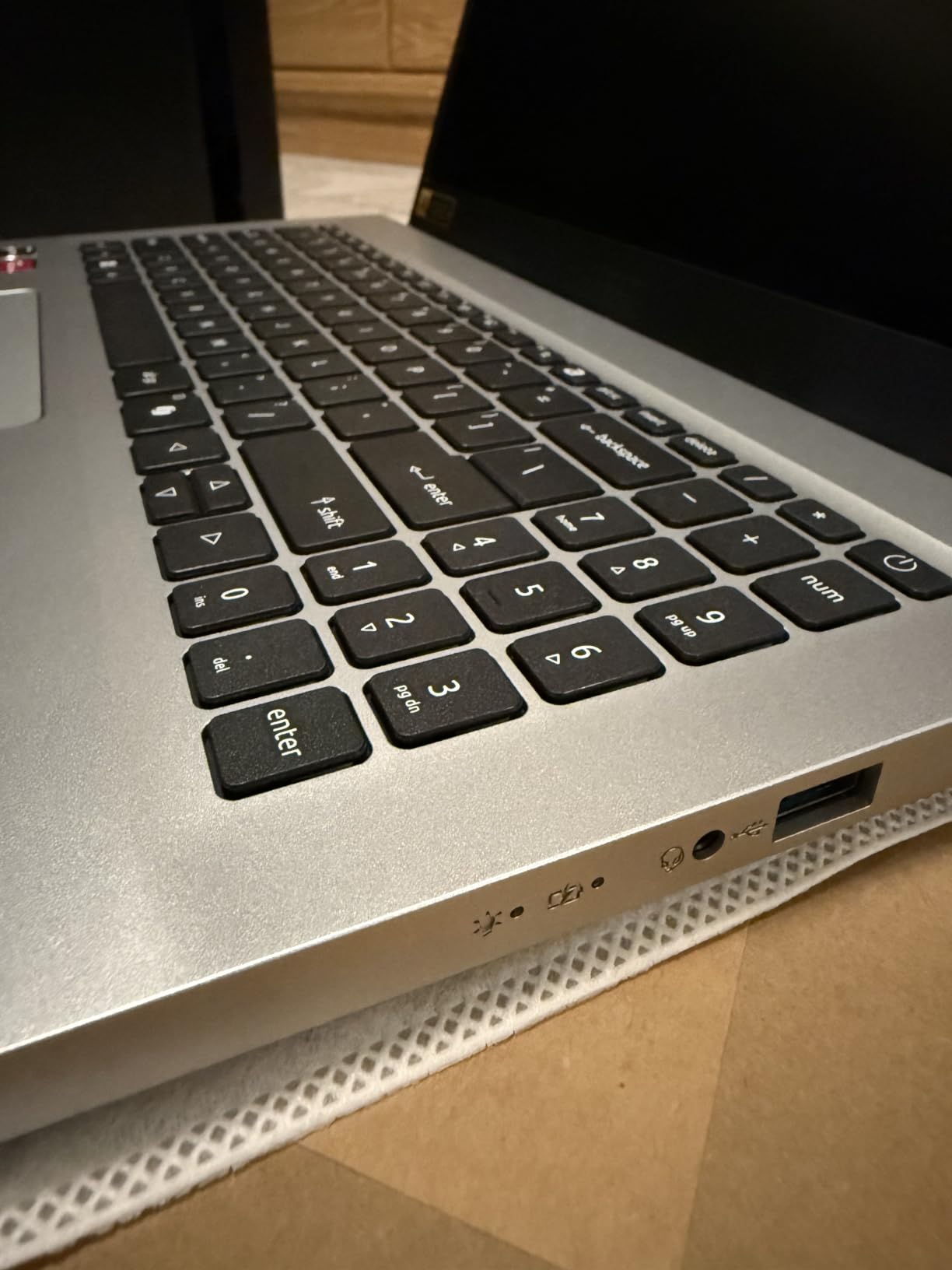
The 512 GB PCIe Gen 4 SSD is fast and can be expanded with a second M.2 drive. Connectivity rounds out with a full-function USB-C port, HDMI 2.1 and Wi-Fi 6, plus four USB ports in total.
Reviewers rate it as a balanced, smooth everyday machine. The most valued traits are the eight-core chip, the upgradable memory and the fast drive; the panel brightness and lack of discrete graphics draw the criticism.
Do I need a dedicated GPU for programming?
No, unless your work involves GPU-accelerated training or graphics programming. Most programming coursework, including web, back-end, systems and data work, runs entirely on CPU and integrated graphics.
This is the most common mistake students make, buying a gaming machine they never game on. If your course touches machine learning, use cloud GPUs for training and buy CPU headroom instead.
Is the Aspire Go 15 too heavy for campus life?
At 3.9 pounds it is one of the heavier machines here, and a chunk of that is the 15.6-inch panel. If you are on the move all day, the Swift Go 14 at 2.8 pounds is the more sensible carry.
The trade is fair: you give up portability to get eight cores and upgradeable memory. For a student who mostly works from a desk in a dorm or library, that is a good exchange.
6. Lenovo IdeaPad Slim 3i – Best for Battery Life on a Student Budget
Lenovo IdeaPad Slim 3i, 15.6” FHD Display, Intel Core i5-1335U, 16GB RAM, 512GB SSD, 1920×1080 px, Fingerprint Reader, Windows 11 Home, Arctic Grey
Core i5-1335U processor
16 GB LPDDR5
512 GB SSD
8 to 10 hours after tuning power
Pros
- Eight to ten hours of real battery after tuning
- Backlit keyboard with numeric keypad
- 16 GB paired with a Core i5 is rare at this price
- Fingerprint reader included
Cons
- Some units broke after a short drop
- Lowest average rating in this group
- Backlit keyboard brightness is modest
Battery life is the reason to look at this machine. Owners report eight to ten hours after adjusting power settings, which covers a full day of lectures without hunting for a socket.
One owner describes running it as a genuine work machine with Nmap, VS Code, VirtualBox, Python and Office 365 open together without trouble. The Core i5-1335U with 16 GB of LPDDR5 is a capable developer pairing.
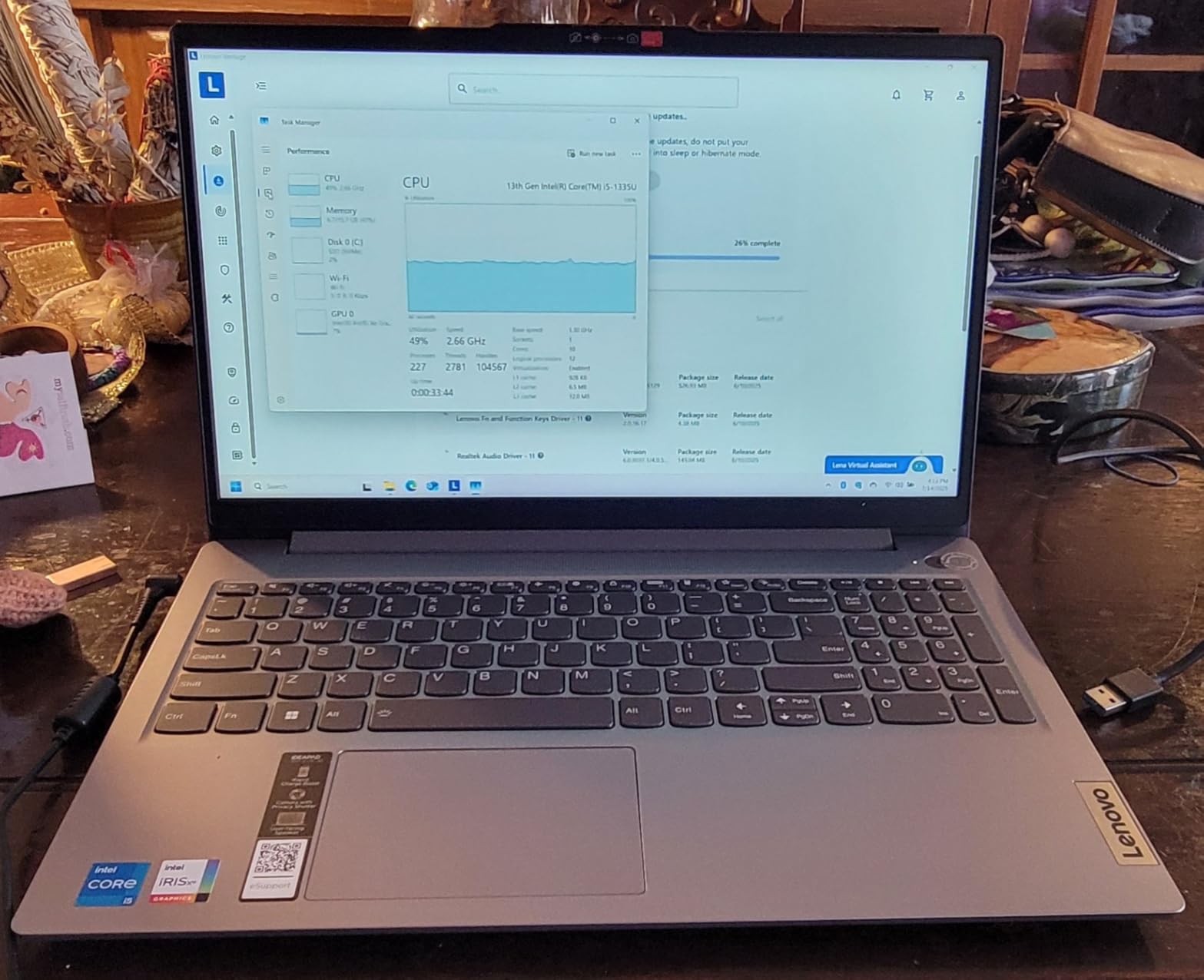
It also has a backlit keyboard with a numeric keypad and a fingerprint reader, a combination several cheaper machines in this list skip. The 15.6-inch anti-glare panel at 60 Hz is fine for office-style code.
The 4.0 average rating is the weakest in this roundup, and the reason is durability. Owners report units that broke after a short drop and described the build material as too cheap.
Is build quality a real risk on this model?
It is worth weighing. Around 11 percent of reviews are one-star, and those reviews cluster around physical failures and build feel rather than performance. If you expect to carry a laptop in a backpack daily for four years, treat that as a genuine risk.
A protective sleeve and a small hardware insurance policy cost far less than replacing a machine mid-degree. Business-line laptops elsewhere in this list are built to a stricter standard for that reason.
Who should still buy the Slim 3i?
A student who studies on battery more than they travel, and who does not need more than 16 GB of memory. The backlit keyboard and long runtime make late-night library work far more pleasant.
It is a weaker match for someone who plans to run many virtual machines, since the LPDDR5 memory is fixed. For that use case, the HP 255 G10 or Aspire Go 15 with upgradeable memory makes more sense.
7. HP 255 G10 – Best Upgradeable Laptop for Programming Students
HP 255 G10 15.6″ FHD Business Laptop, AMD Ryzen 7 7730U, 16GB RAM, 512GB PCIe SSD, Numeric Keypad, Webcam, Wi-Fi 6, HDMI, Windows 11 Pro, Black
Ryzen 7 7730U with 8 cores
16 GB DDR4 up to 64 GB
512 GB PCIe SSD
Windows 11 Pro
Pros
- Memory upgradeable to 64 GB over the degree
- 8 cores and 16 threads for multi-app work
- Light at 3.3 pounds for a 15.6-inch business laptop
- Owners report Linux runs cleanly
Cons
- No backlit keyboard
- 250 nit display is dim and washed out
- Casing feels cheaply built to some reviewers
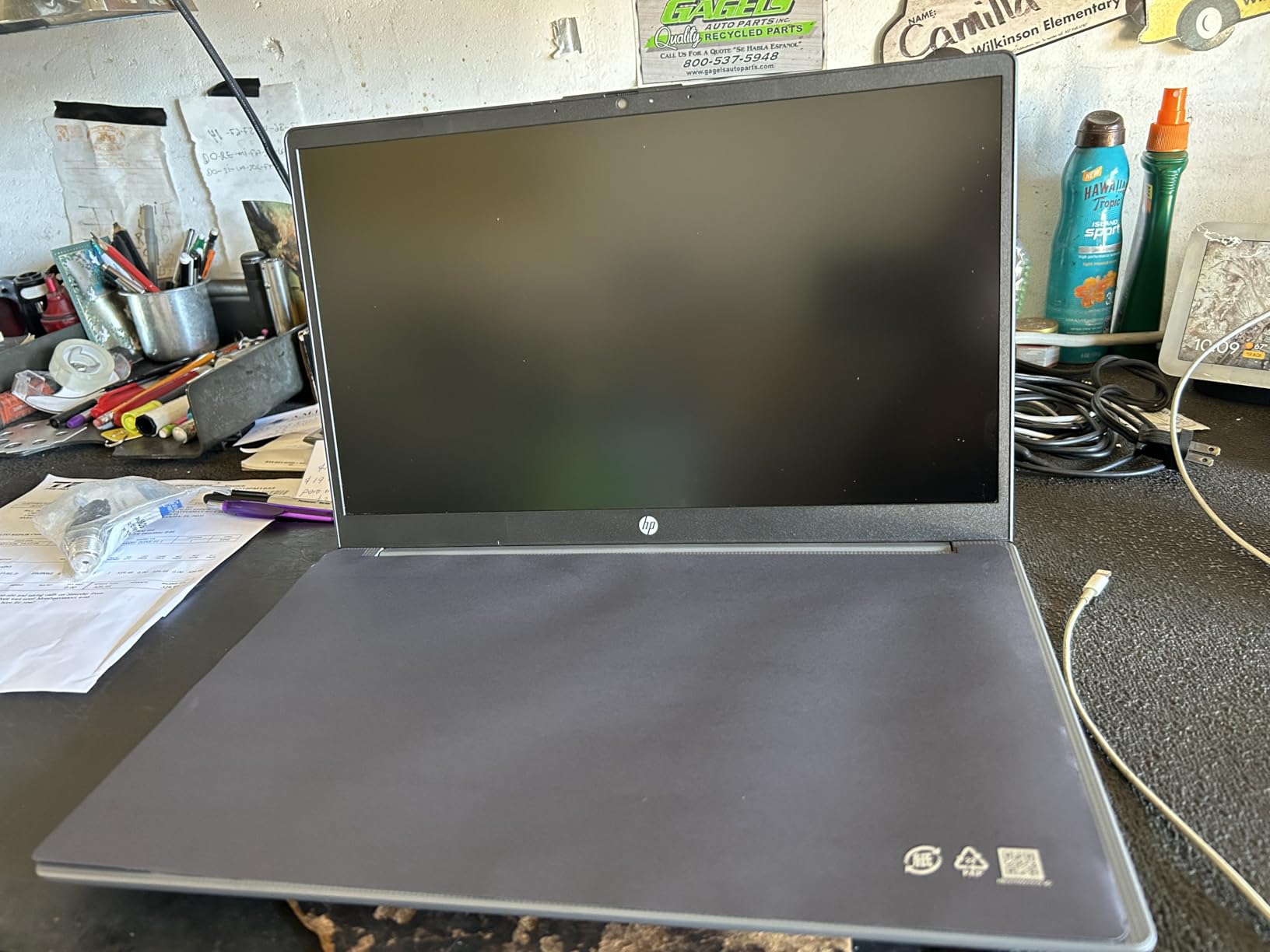
The HP 255 G10 is the pick for students who plan to keep one laptop through an entire degree. It carries 16 GB of DDR4 across two slots that accept up to 64 GB, which no other machine in this list can honestly claim.
That upgradability changes how you should think about the purchase. You can start at 16 GB today, add 32 or 64 GB in year two when container workloads grow, and keep the same chassis the whole way through.
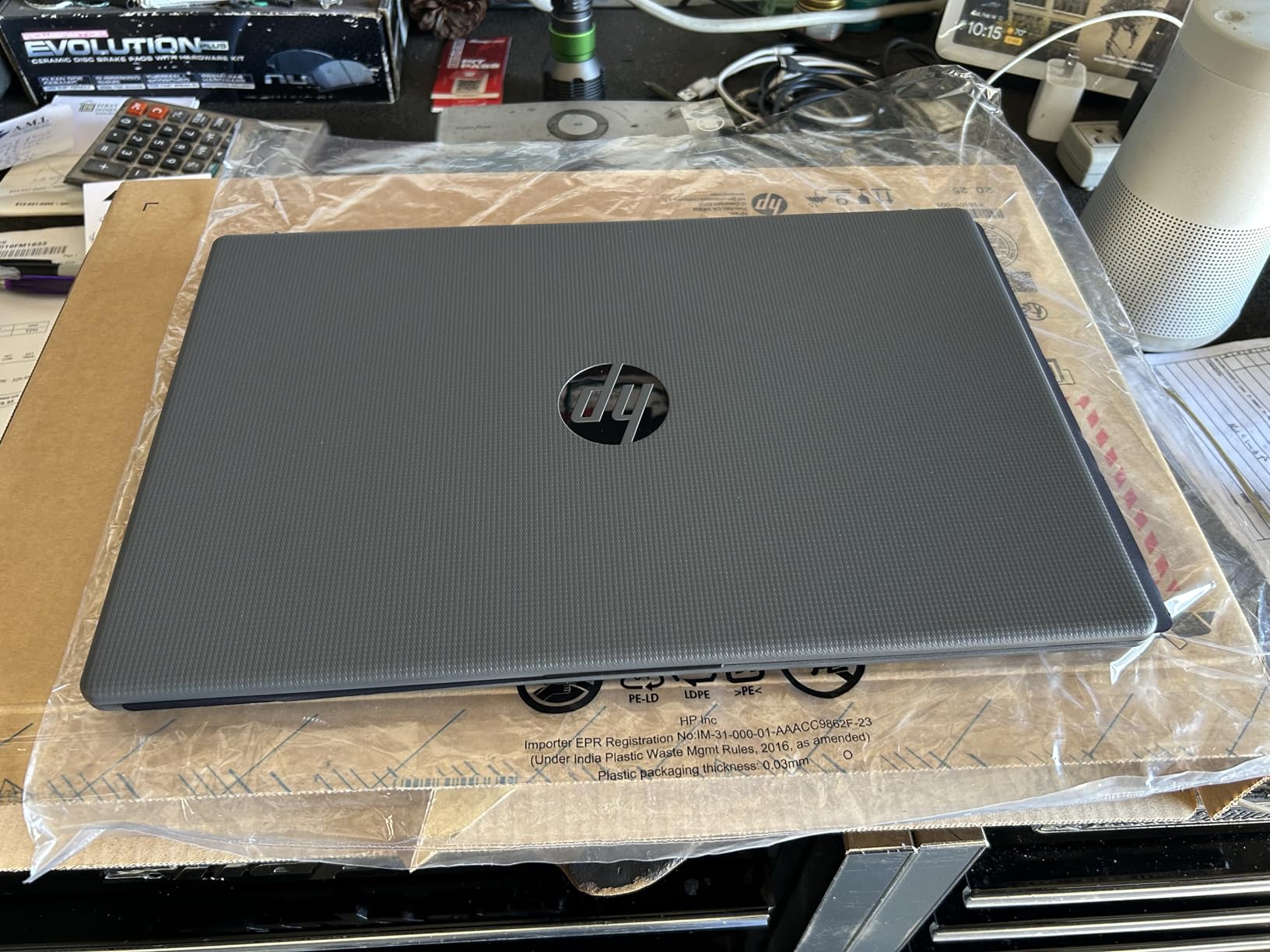
The Ryzen 7 7730U gives 8 cores and 16 threads with 16 MB of L3 cache, described by owners as rock solid for multi-application work. Windows 11 Pro adds Remote Desktop and single sign-on for lab machines.
Linux compatibility is a repeated theme in the reviews. Several owners installed Linux and reported clean operation, which makes this a practical dual-boot choice for systems students.
Why does upgradeable memory matter more than it used to?
Because soldered memory is a permanent decision. When a laptop has no RAM slots, the configuration you choose on day one is the one you live with for four or five years, and you cannot trade up.
Student forums make this point constantly: buying 16 GB on a sealed machine to save money now is often the mistake that forces a replacement mid-degree. Memory is the one upgrade that reliably extends a machine’s useful life.
What are the compromises on the 255 G10?
The dominant complaint is the missing backlit keyboard, called out by owners as the single biggest gap. The 250 nit, 45 percent NTSC anti-glare panel is also dim, though the anti-glare coating helps in bright rooms.
Port selection is solid for the class: two SuperSpeed USB-A ports, one USB-C, HDMI and a headphone jack. It supports external monitors, and one owner added a second monitor and an external SSD with no special drivers.
8. MacBook Air 13 M5 – Best Premium Laptop for Programming Students
Apple 2026 MacBook Air 13-inch Laptop with M5 chip: Built for AI, 13.6-inch Liquid Retina Display, 24GB Unified Memory, 1TB SSD, 12MP Center Stage Camera, Touch ID, Wi-Fi 7; Sky Blue
Apple M5 chip with Neural Engine
24 GB unified memory
1 TB SSD
Up to 18 hours claimed battery
Pros
- 24 GB unified memory and 1 TB SSD give real headroom
- Up to 18 hours of claimed battery
- Silent fanless design in study spaces
- 2.71 pounds makes it the most portable machine here
Cons
- Costs far more than every Windows option here
- Only two Thunderbolt 4 ports
- Some Windows software is unavailable natively
If your course touches iOS, the MacBook Air 13 M5 with the M5 chip is the only sensible answer, because Xcode does not run on Windows. What makes it work for everyone else is the rest of the package: 24 GB of unified memory, a 1 TB SSD, and a claimed 18-hour battery.
Owners describe the 24 GB and 1 TB configuration as future-proof for five to six years of use, which matters when the machine has to survive a whole degree. One owner ran local AI models through LM Studio on this configuration and reported it staying cool.
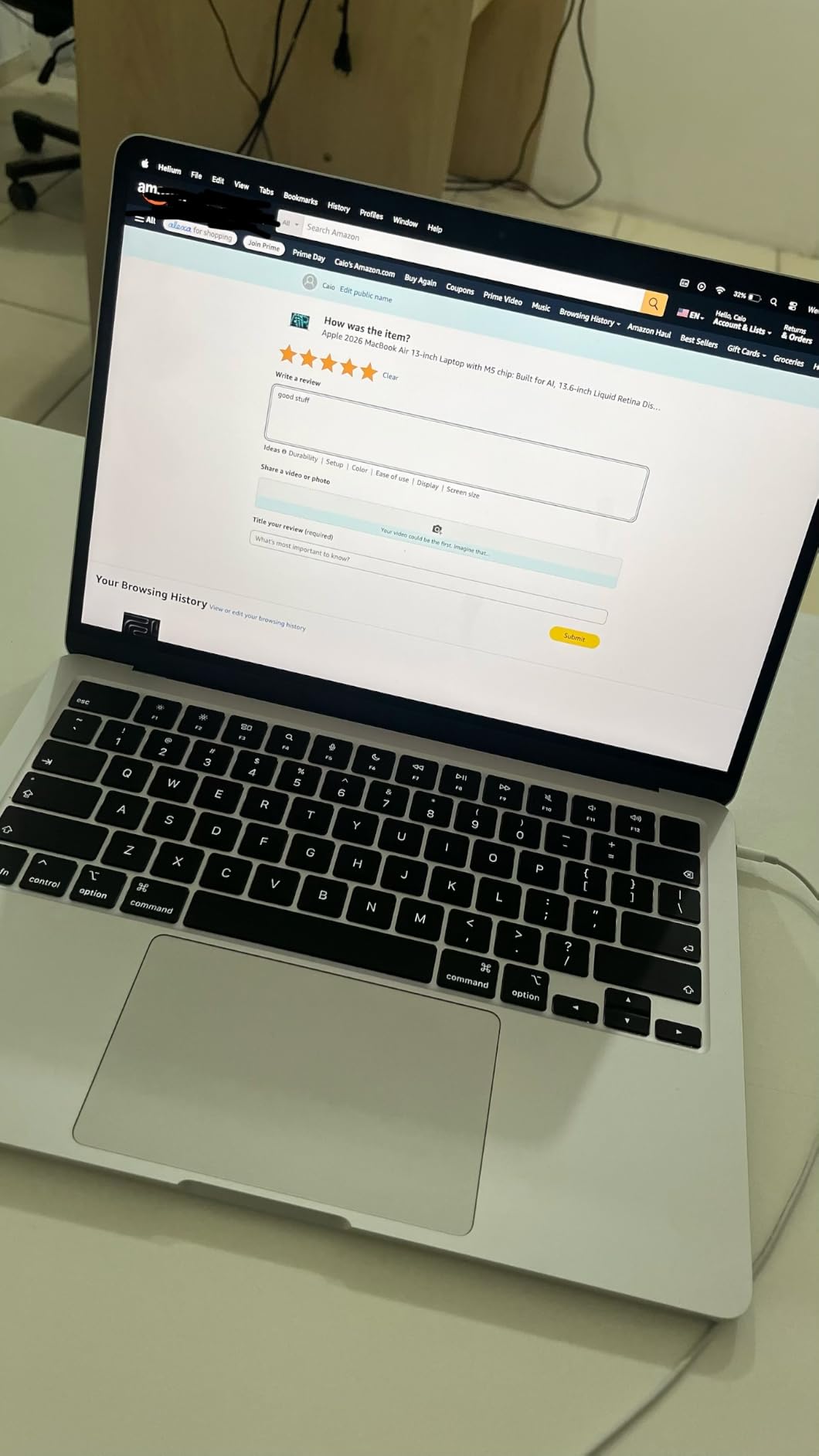
At 2.71 pounds it is the most portable machine in this roundup, and the fanless design means it is completely silent. That matters in a library or during an online assessment where background noise counts against you.
91 percent of reviews sit at five stars. The recurring reservation is price and port count, since two Thunderbolt 4 ports often mean carrying a dock.
Is Apple Silicon safe for a course that requires x86 tooling?
Mostly, but not entirely. The M5 chip runs ARM64 binaries natively and translates older x86-64 software transparently, so most toolchains, editors and Docker images work as expected.
The risk is narrow but real. Some specialised lab tooling, older binaries in course Docker images, or embedded toolchains built only for x86 can fail or run slowly under translation. Check your course requirements before committing.
Is macOS more expensive in software than Windows?
For most student work, no. The major IDEs, package managers, terminals and container tools are free or free tier on macOS. Some Windows-only utilities and enterprise tools are simply unavailable, which is the more common complaint.
Forum threads often raise repair cost rather than software cost as the real concern on any Mac. Weigh that risk against the four-year value of the machine before deciding.
9. MacBook Pro 14 M5 – Top Rated Pick for Heavy Development Workloads
Apple 2025 MacBook Pro Laptop with Apple M5 chip with 10‑core CPU and 10‑core GPU: Built for AI, 14.2-inch Liquid Retina XDR Display, 24GB Unified Memory, 1TB SSD Storage; Silver
M5 with 10-core CPU and 10-core GPU
24 GB unified memory
1 TB SSD
Liquid Retina XDR at 1600 nits
Pros
- Highest rating in this roundup across 425 reviews
- 24 GB and 1 TB configuration is the most generous here
- Liquid Retina XDR display is easy on the eyes for long sessions
- Full port selection including HDMI and SDXC
Cons
- The most expensive machine here by a wide margin
- Only supports two external displays
- M5 Pro and M5 Max variants cost considerably more
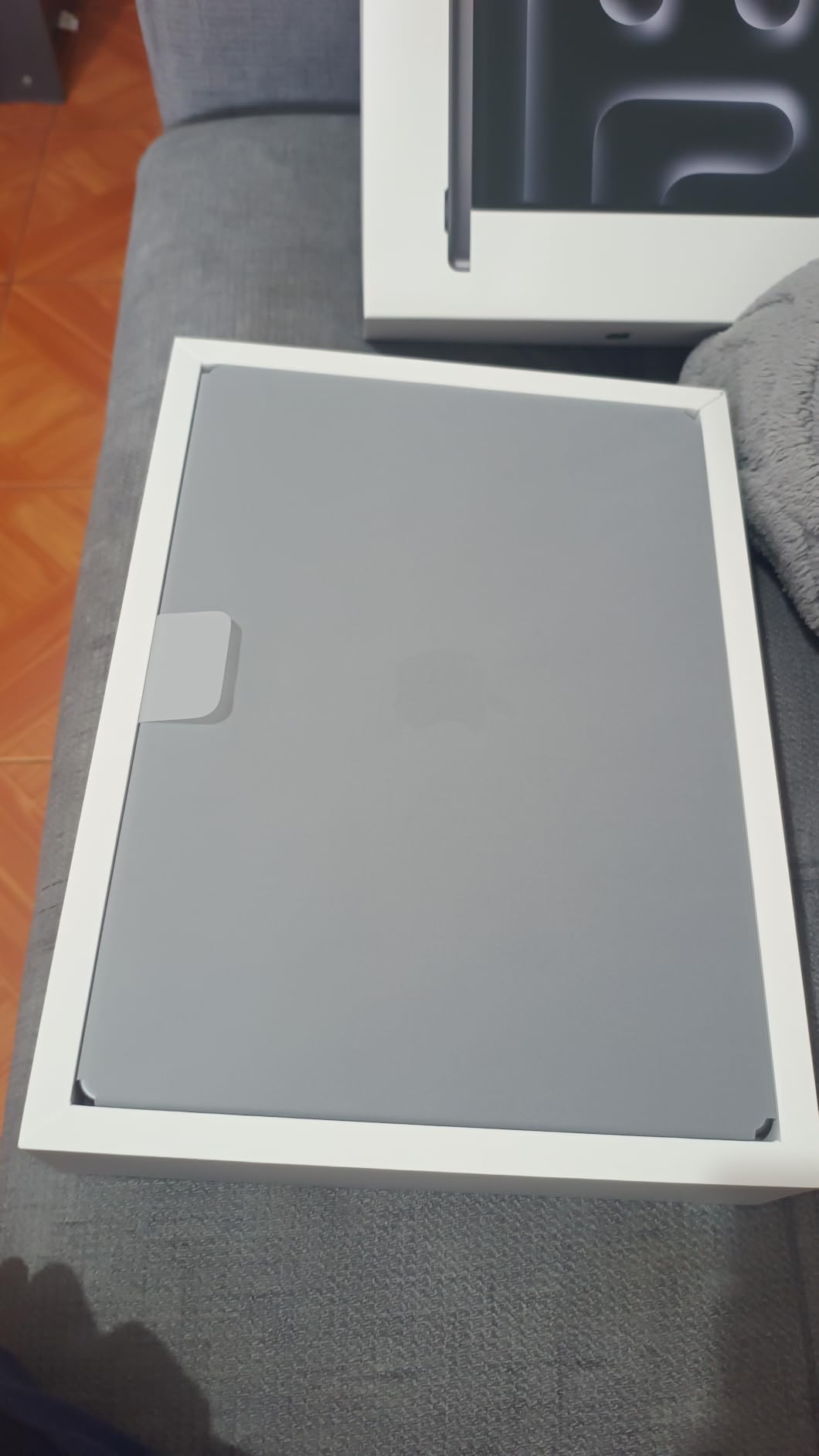
The MacBook Pro 14 with the M5 chip carries the highest average rating in this roundup at 4.8 stars across 425 reviews, with 92 percent of those at five stars. That is the strongest signal of owner satisfaction anywhere in this list.
The specification that matters for a student is the memory. 24 GB of unified memory with a 1 TB SSD is the most generous pairing here, and reviewers point to it directly when explaining why they expect the machine to hold up for years.
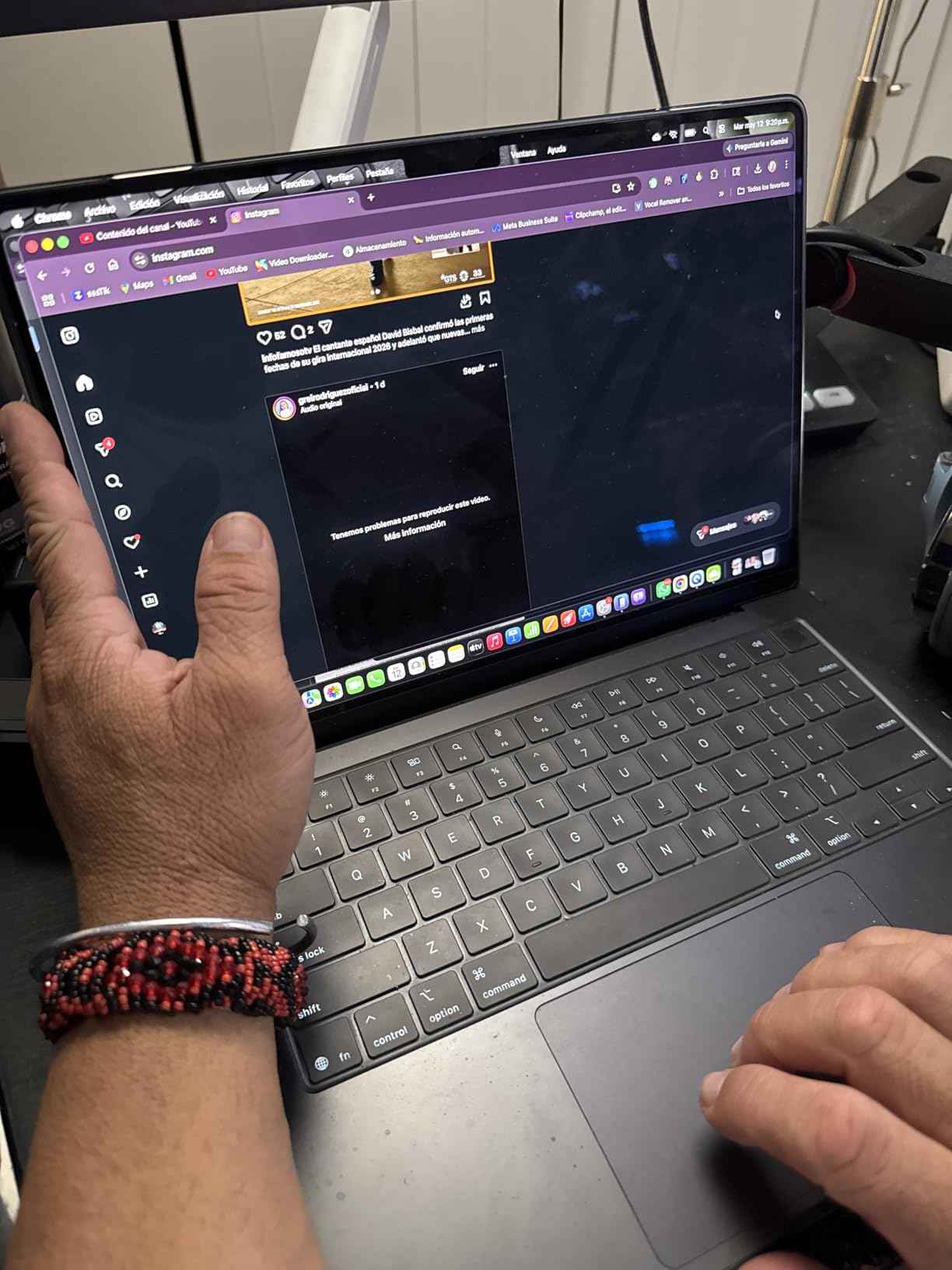
The Liquid Retina XDR display reaches 1600 nits peak and 1000 nits sustained. Compared with the 250 to 300 nit panels on the budget picks in this roundup, the difference is obvious after a few hours of reading code in the evening.
Port selection is the best on any Mac: three Thunderbolt 4 ports, MagSafe 3, an SDXC card slot and HDMI. Performance is identical on battery and on the charger, which removes a variable when you are away from campus all day.
When does the extra spend actually pay off?
When you run large builds, multiple containers, local models or demanding video and design work alongside development. The 10-core GPU with a Neural Accelerator in each core is built for exactly those tasks.
For ordinary coursework, the MacBook Air covers the same ground at a lower cost. Paying the difference is justified by workload, not by the badge.
What about repair cost over a four-year degree?
This is the concern student forums raise most often about any Mac, and it deserves a straight answer. Damage outside warranty is expensive to fix, and Apple parts and labour are priced well above the Windows alternatives.
Against that, the machine holds value better than most Windows laptops and the ten-core GPU gives real headroom for local AI work. Get a case, keep the receipt, and check your institution’s coverage.
10. ASUS VivoBook S 15 OLED – Best Display for Long Coding Sessions
ASUS VivoBook S 15 OLED Laptop, 15.6” 2.8K 120Hz Display, Intel Evo Platform, Intel Core i9-13900H CPU, 16GB RAM, 1TB SSD, Windows 11 Home, Midnight Black, K5504VA-ES96
Core i9-13900H with 14 cores
16 GB LPDDR5
1 TB NVMe SSD
2.8K 120Hz OLED at 600 nits
Pros
- Fastest x86 chip here with 14 cores and 20 threads
- 2.8K 120Hz OLED with 100 percent DCI-P3 is the best panel in the group
- 1 TB NVMe plus 16 GB covers large toolchains
- Thunderbolt 4 with power delivery
Cons
- Only two USB-A ports
- 16 GB of LPDDR5 is soldered
- Reports of early hardware failures
The VivoBook S 15 OLED pairs the fastest x86 processor in this roundup with the best display. The Core i9-13900H provides 14 cores and 20 threads turboing to 5.4 GHz, which shortens compile and container workloads noticeably.
The 15.6-inch 2880×1800 OLED at 120 Hz covers 100 percent DCI-P3 with HDR True Black 600. Owners single it out as the standout feature for long coding sessions, where a sharp, bright, high-contrast panel genuinely reduces eye strain.
Memory and storage are 16 GB of LPDDR5 and a 1 TB M.2 NVMe drive, with two M.2 slots available for expansion. Reviewers report no lag with many apps and browser tabs open alongside video calls.
Read the review count before you commit. With only 42 reviews the sample is small, and a few owners report early hardware failures, odd behaviour around the charger, and two units arriving with dead screens.
Is a 2.8K OLED screen worth it for programming?
It is the nicest to work on and it shows after a full day of reading code and documentation. The high contrast and 600 nits brightness make text crisp in a bright room in a way the 250 nit panels in this list cannot.
OLED panels have a burn-in history with static UI elements like taskbars, and a bright glossy surface reflects more than a matte one. For a four-year machine, that is a real consideration rather than a dealbreaker.
Who should buy this machine?
Students who want desktop-class CPU performance in a portable body, and who care about display quality more than upgradeability. The soldered 16 GB is the main constraint on long-term flexibility.
Port selection is limited, with two USB-A ports and one Thunderbolt 4 port, so budget for a hub if you use an external display and peripherals regularly.
11. Lenovo ThinkBook 16 Gen 7 – Best Business-Featured Pick for a Four-Year Degree
Lenovo ThinkBook 16 Gen 7 Business Laptop, 16″ FHD+ Anti-Glare, AMD Ryzen 5 7533HS (> Intel i7-1255U), Fingerprint, Ethernet, IST Computer Customized 16GB/32GB/64GB DDR5, 512GB/1TB/2TB SSD, Win 11 Pro
Ryzen 5 7533HS with 6 cores
16 GB DDR5 configurable higher
16-inch 1920x1200 anti-glare display
Pros
- Memory configurable to 32 GB or 64 GB of DDR5
- 16-inch anti-glare display is easy on the eyes
- MIL-STD-810H durability rating
- Ethernet TPM 2.0 and three-monitor support
Cons
- Runs hot and fans get loud quickly
- One owner reports weak battery life
- Reseller support described as unreachable
The ThinkBook 16 is the pick when a laptop has to survive a degree. It is built to MIL-STD-810H military standards and ships with a fingerprint reader, TPM 2.0, a webcam privacy shutter and Windows 11 Pro with BitLocker.
Memory and storage are configurable, which is unusual in this tier. You can order 32 GB or 64 GB of DDR5 and storage up to 2 TB, so the machine can be sized for the whole degree in one purchase.
The 16-inch WUXGA 1920×1200 anti-glare panel at 300 nits is larger than most competitors, and the anti-glare finish is the right choice for long study sessions under fluorescent lighting.
Connectivity is genuinely business-class: RJ-45 Ethernet, HDMI 2.1 up to 4K at 60Hz, two USB-C, two USB-A and an SD card reader, with three-monitor expansion. The Ryzen 5 7533HS gives 6 cores and 12 threads.
Who is this machine actually for?
It suits students who work in fixed locations, plug into Ethernet, and want a large screen for reading documentation side by side with an editor. Around 40 percent of memory is consumed by the system out of the box, so configure carefully.
It suits people who want Windows 11 Pro features such as BitLocker and Remote Desktop, and who will keep one machine for years.
What about thermals, battery and support?
These are the three honest drawbacks. One owner reports the machine running hot with loud fans quickly, and another reports weak battery life. Reseller support is described as essentially unreachable after a hardware failure, which is worth factoring in.
Verify the warranty terms before buying, and check how much RAM the system reserves out of the box so you do not pay for capacity you cannot use.
12. Dell Inspiron 15 3535 – Best Budget Pick with Peripherals in Mind
Dell Inspiron 15 3535 15.6″ Touch Screen FHD Business Laptop, AMD Ryzen 5 7530U Processor (Beats i7-1165G7) 16GB RAM 512GB PCIe SSD USB-C,WI-FI, Bluetooth, HDMI, Win11 Carbon Black
Ryzen 5 7530U with 6 cores
16 GB DDR4-3200
512 GB PCIe NVMe SSD
Backlit keyboard
Pros
- 16 GB DDR4 plus 512 GB NVMe is a solid developer baseline
- Backlit keyboard unlike several cheaper picks
- USB-C USB-A HDMI and SD card reader
- Bluetooth 5.3 and a backlit keyboard at this tier
Cons
- One M.2 slot and a 16 GB memory limit
- Supports only a single external display
- No Ethernet port
The Inspiron 15 3535 stands out for the small things students notice daily. It includes a backlit keyboard at a price where several rivals drop it, plus an SD card reader and three USB ports, so a mouse and an external drive need no dongle.
Internally it is a familiar and capable budget combination. The Ryzen 5 7530U provides 6 cores and 12 threads boosting to 4.5 GHz, paired with 16 GB of DDR4 at 3200 MHz and a 512 GB PCIe NVMe SSD.
The 56 watt-hour battery is generous for the class, and the anti-glare 15.6-inch touchscreen handles bright rooms better than the glossy panels found on cheaper machines.
Reviewers value the specification pairing of 16 GB and a 512 GB drive as the right developer baseline, and 68 percent of reviews sit at five stars.
What are the upgrade limits on this Inspiron?
There is one available M.2 slot and the memory tops out at 16 GB, so storage can be swapped but not added, and RAM cannot grow. Plan your coursework around 16 GB if you choose this machine.
It also supports a single external display only, which matters if you plan to run a laptop screen and a monitor together for pair programming.
Is the missing Ethernet port a problem?
Occasionally. It matters on campus networks with unreliable Wi-Fi, or if you work with large repository syncs over a wired connection. The Lenovo V15 and the ThinkBook 16 both include a real Ethernet jack if that is your situation.
Otherwise this is a sensible, well-equipped budget machine for a first-year student who wants the spec floor met and a comfortable keyboard at night.
Laptops to Avoid for Programming Students
This question comes up constantly and no major roundup answers it, so here is the short version. The machines to stay away from are the ones that cannot be fixed later, and that means memory and storage first.
Anything with 8 GB of RAM. A single modern IDE, a browser with a handful of tabs and a local server will exhaust it. You will spend four years swapping to disk, and no amount of fast silicon fixes that.
128 GB of storage or less. Node modules, Docker images, Android SDK components and course repositories fill that space quickly. Aim for 512 GB minimum, ideally 1 TB if you can.
Sealed 16 GB machines when you can afford slots. Two machines in this roundup carry soldered LPDDR5. That is acceptable at a student price, but understand that your configuration choice is permanent for the life of the laptop.
Glossy, dim, low-colour panels. A 250 nit glossy TN-style screen causes real eye strain over a long evening. Prefer anti-glare IPS at 300 nits or better, as the IdeaPad 1i, Aspire Go 15 and ThinkBook 16 provide.
Ryzen 3000 and 8th-generation Intel chips. They still run an editor, but thermal limits make sustained compiles and container work frustrating. This roundup deliberately starts at Ryzen 5000 and 12th-generation Intel.
Gaming laptops sold to non-gamers. A dedicated GPU you never use adds weight, heat and fan noise in lecture halls without improving compilation speed. Integrated graphics handle programming fine.
Heavily used consumer machines. Forum threads keep recommending used business ThinkPads and Latitudes as a budget route, and that advice is sound. A used machine with a known service history beats an unknown ex-corporate laptop with a failing drive.
How to Choose a Laptop for Programming
A programming laptop is any machine with a modern multi-core CPU, at least 16 GB of RAM and a 512 GB SSD. Those three specs decide how fast code compiles and how many tools you can run at the same time, and everything else is preference.
1. Processor. Look for at least 6 cores and 12 threads, and prefer current generation. Single-core speed governs how responsive your editor and compiler feel, while core count determines how well parallel builds and containers scale.
2. RAM. 16 GB is the floor and 24 GB to 32 GB is better if you can extend it later. The workload mapping is simple: web development 16 GB, back-end with databases 24 GB, Docker and Kubernetes 32 GB, machine learning 32 GB or more.
3. Storage. 512 GB minimum, and check whether it uses an M.2 slot you can replace. A second drive slot, as on the Aspire Go 15 and the ASUS VivoBook S 15, gives you room to add capacity later.
4. Memory upgradability. This is the decision students regret most. Two memory slots, as on the HP 255 G10 and the IdeaPad 1i, mean you can grow. Unified memory on a Mac and soldered LPDDR5 elsewhere mean you cannot, so treat that as a permanent choice for a four-year machine.
5. Display. A 16:10 or 1920×1200 panel shows more code vertically than 16:9. Aim for 300 nits or higher with an anti-glare finish. For long sessions, the OLED on the VivoBook S 15 is the best panel in this roundup by a clear margin.
6. Battery, weight and ports. Weight decides whether the laptop comes to class at all. The Swift Go 14 at 2.8 pounds and the MacBook Air at 2.71 pounds are the easiest daily carries here, and the heavier machines suit desk-based study. Keep at least one USB-A port for debug hardware and external drives.
7. Operating system. iOS development and Xcode require a Mac. Courses built on Visual Studio and .NET require Windows. Linux work runs on anything, and Windows machines with WSL2 cover most server-side tooling. Match the OS to your course requirements before matching anything else, because this choice cannot be changed later.
Weight is a lifestyle factor, not a spec. Laptops that are too heavy simply do not leave the bag, and a machine you carry is worth more than a faster one you leave at home. If you are still weighing general-purpose options, our college laptop picks break down the trade-offs differently.
How long should it last? Plan for four to five years, which means buying the fastest configuration you can justify rather than the cheapest. Memory and storage are the two things that age a machine, and both are upgradeable on the right laptop. Total cost of ownership also includes accessories: a case, a second charger and a dock add up, and out-of-warranty repairs are far cheaper on business-line machines than on premium ultrabooks.
Frequently Asked Questions
Which laptop is best for programming and coding students?
The HP Pavilion 15 is our top pick, with a 12th-gen Core i7, 16 GB of RAM and a 512 GB NVMe SSD at an entry-level price. Students who need iOS tools should choose the MacBook Air 13 M5, while those running many containers benefit from a machine with upgradeable memory such as the HP 255 G10.
How much RAM do I need for programming?
Sixteen gigabytes is the minimum for web development, most coursework and Android or iOS builds. Twenty-four gigabytes suits back-end work with databases, 32 GB covers Docker and Kubernetes workflows, and machine learning coursework needs 32 GB or more. If the memory is soldered, buy the larger configuration now because you cannot add it later.
What laptop should I stay away from for coding?
Avoid any machine with 8 GB of RAM or 128 GB of storage, both of which run out of room within a year. Steer clear of glossy low-brightness panels that cause eye strain, older Ryzen 3000 or 8th-generation Intel chips, and sealed machines with soldered memory if your budget allows upgradeable slots instead.
How do I choose a laptop for coding?
Start with three specs: a modern multi-core processor, at least 16 GB of RAM and a 512 GB SSD. Then check memory upgradability, since soldered memory makes your configuration permanent for years. Next pick the operating system your course requires, with Xcode demanding a Mac and Visual Studio demanding Windows. Finish with screen quality, weight and battery life for your daily routine.
Do I need a discrete GPU for programming?
No, unless your coursework involves GPU-accelerated machine learning or graphics programming. Web, back-end, systems and most data work run fine on integrated graphics. Buying a gaming laptop for its dedicated GPU adds weight, heat and fan noise without improving compile times, so spend that budget on memory and a faster processor instead.
Is a MacBook good for programming students?
A MacBook is the only option for iOS development because Xcode requires macOS. For everything else, the Apple Silicon chips run ARM64 tools natively and translate older x86-64 software transparently, though specialised x86-only course tooling can be an issue. Weigh the higher purchase price against repair costs and strong resale value before deciding.
Conclusion
The best laptops for programming students in 2026 come down to one clear winner and three sensible alternatives. Buy the HP Pavilion 15 if you want the most-reviewed, best-balanced developer laptop without paying premium money, and add the Lenovo V15 if the budget is tighter.
Choose the Acer Swift Go 14 when you carry your laptop everywhere, the HP 255 G10 or Acer Aspire Go 15 when you want memory you can upgrade later, and the MacBook Air 13 M5 or MacBook Pro 14 M5 when your course involves iOS work or heavier local compute. Whichever you pick, buy the fastest configuration your budget allows, because this machine has to last you through the whole degree.