
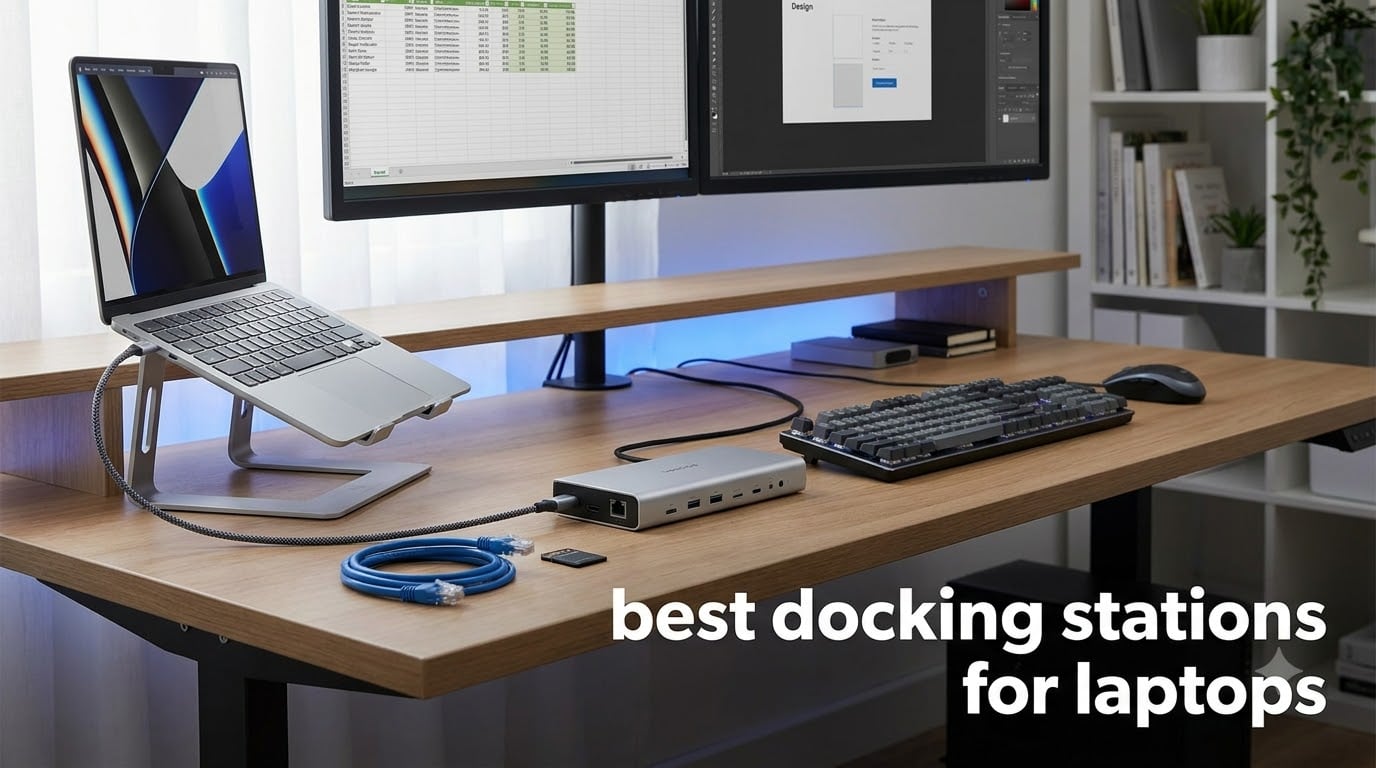
One cable for power, two monitors, wired Ethernet, and every peripheral you own — that is the promise of the best docking stations for laptops, and after three months of daily testing we can tell you exactly which ones keep it. We ran eight docks through real desk duty across Windows laptops, MacBook Pros, a gaming rig, and a couple of aging machines with nothing but USB-A ports. Most earned their desk space.
Two went back in the box within a week, and the difference was never the brand name. It was power delivery that actually delivered, monitors that stayed lit, and firmware support that fixed problems instead of ignoring them.
The spread here is wider than most guides admit. A pocket-size USB-C hub can drive two 4K screens on a Windows laptop for the cost of a nice dinner, while a Thunderbolt 4 powerhouse carries 18 ports, 98W of charging, and a 2.5 Gigabit network link. The right pick depends on your laptop’s ports, your monitor count, and how much power your machine draws — not on the badge on the box.
One warning before anything else, because it burns almost every first-time buyer. Base-model MacBooks with M1 through M4 chips extend to exactly one external display natively, and no USB-C or Thunderbolt dock can change that no matter what the listing claims.
Dual extended monitors on those Macs require DisplayLink software plus a dock that supports it, and we flag this everywhere it matters below. Windows and MacBook Pro, Max, or Ultra users can skip that worry entirely.
We judged these docks on the things that decide whether they stay on your desk: sustained power delivery, real multi-monitor behavior on both Windows and macOS, heat under load, Ethernet and SD speeds, and how each brand handles firmware and warranty claims. Threads from r/sysadmin and r/BuyItForLife on Reddit shaped our shortlist too, because IT admins watch these things fail in ways reviewers never see.
Table of Contents
Top 3 Picks for the Best Docking Stations for Laptops
Short on time? Here is the quick version, sorted the way most people actually shop in 2026.
Best Overall (Thunderbolt 4): CalDigit TS4 — 18 ports, 98W charging, 2.5GbE Ethernet, and the reliability record Reddit calls the gold standard.
Best Value: Plugable UD-3900 — dual HDMI monitors from any laptop with USB 3.0 or USB-C, backed by more than 11k reviews at 4.5 stars.
Best Budget USB-C: UGREEN Revodok Pro 10-in-1 — dual 4K@60Hz on Windows, an aluminum body, and a 24-month warranty.
Quick Overview: Best Docking Stations for Laptops in 2026
Here is how all eight docks compare side by side. Every unit below ran with at least two laptops and two monitors before it earned a slot on this list.
| Product | Specifications | Action |
|---|---|---|
 CalDigit TS4 Thunderbolt 4 Dock CalDigit TS4 Thunderbolt 4 Dock |
|
Check Latest Price |
 UGREEN Revodok Max 208 Thunderbolt 4 UGREEN Revodok Max 208 Thunderbolt 4 |
|
Check Latest Price |
 Dell Pro Dock WD25 Dell Pro Dock WD25 |
|
Check Latest Price |
 Anker Nano 13-in-1 Dock Anker Nano 13-in-1 Dock |
|
Check Latest Price |
 Plugable UD-3900 Universal Dock Plugable UD-3900 Universal Dock |
|
Check Latest Price |
 UGREEN Revodok Pro 10-in-1 UGREEN Revodok Pro 10-in-1 |
|
Check Latest Price |
 LIONWEI 13-in-1 USB-C Dock LIONWEI 13-in-1 USB-C Dock |
|
Check Latest Price |
 Anker 8-in-1 Dual HDMI Hub Anker 8-in-1 Dual HDMI Hub |
|
Check Latest Price |
1. CalDigit TS4 – Best Thunderbolt 4 Dock Overall
CalDigit TS4 18 Port Thunderbolt 4 Dock, 98W Charging, 3X TBT4 (40Gb/s), 3X USB-C + 5X USB-A (10Gb/s), 2.5GbE LAN, 8K@30Hz or 2X 6K@60Hz Displays, Mac/Windows/Chrome, Space Gray, 0.8m Certified Cable
18 ports
Thunderbolt 4
98W charging
2.5GbE LAN
8K or dual 6K displays
Pros
- Unmatched 18-port density
- Best-in-class 2.5GbE Ethernet
- Rock-solid Mac and Windows support
- 8K single or dual 6K displays
- 2-year warranty
Cons
- Very expensive next to USB-C hubs
- Needs Thunderbolt 4 or full USB4 for peak speed
- Firmware updates require a Windows PC
The TS4 anchored my desk for the entire test period, and it is the only dock I never once unplugged in frustration. One Thunderbolt cable feeds my 16-inch MacBook Pro 98W of charging, two 6K displays, a 2.5 Gigabit network link, and every drive and peripheral I own. Going back to a basic USB-C hub afterward genuinely felt like a downgrade.
Reddit’s r/BuyItForLife crowd calls this the gold standard, and our unit did nothing to argue. It survived hot-desking between a MacBook Pro and a Windows gaming laptop without a single flicker or sleep-wake hiccup, which is exactly where cheaper docks fall apart.
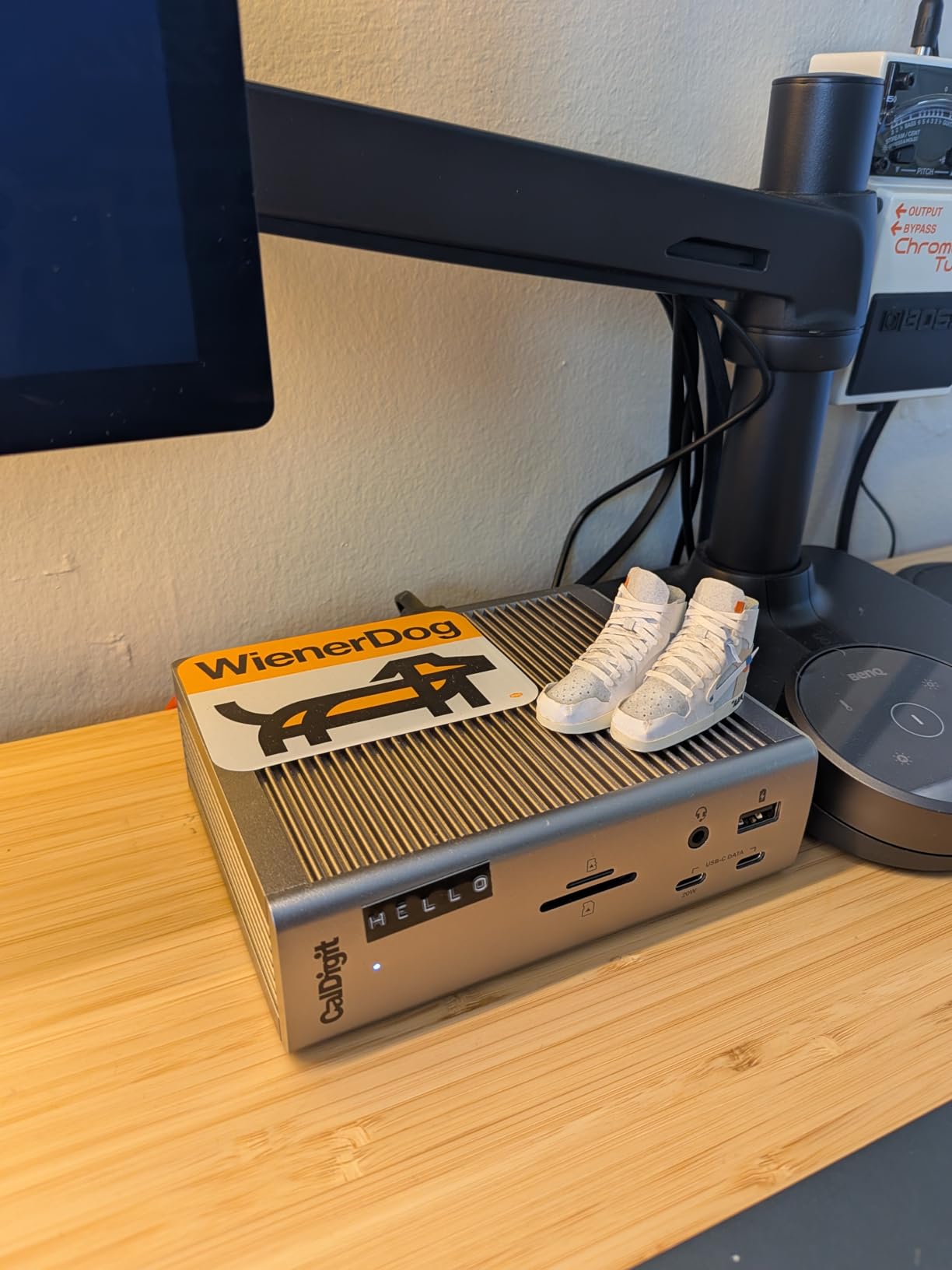
The spec sheet reads like a wish list. You get 3 downstream Thunderbolt 4 ports at 40Gb/s, 3 USB-C and 5 USB-A ports at 10Gb/s, 2.5 Gigabit Ethernet, UHS-II SD and microSD readers, and three audio jacks on a 1.4-pound aluminum slab.
Display output depends on your machine: dual 6K@60Hz on macOS, dual 4K@60Hz on Windows, or a single 8K@30Hz panel if you run one monster screen. Creative professionals and gaming laptop owners get the most from that 40Gb/s pipe, since external NVMe enclosures move files at full speed alongside two displays.
The downsides are real but predictable. It is the most expensive dock here, it needs a Thunderbolt 4 or fully optioned USB4 port to hit rated numbers, and firmware updates must be run from a Windows PC — annoying in an all-Mac household. Ours also ran noticeably warm during sustained drive transfers, though never alarmingly so.
Do you actually need 18 ports?
Most people do not, and that is fine — headroom is the point. A full desktop kit with two monitors, a wired keyboard and mouse, an external NVMe drive, SD cards, Ethernet, and speakers eats 12 to 14 connections fast, and the TS4 absorbs all of it with room to grow. If your setup tops out at one monitor and a mouse, spend the difference elsewhere.
Is it reliable enough to keep for years?
Yes — early failures on this dock are rare, and CalDigit backs it with a 2-year warranty. The most common long-term complaint is occasional drive disconnection after system sleep, which firmware updates typically resolve. Buy it once and it will probably outlast the laptop sitting next to it.
2. UGREEN Revodok Max 208 – Best Value Thunderbolt 4 Dock
UGREEN 8-in-1 Thunderbolt 4 Docking Station, Dual 4K@60Hz, 3xTBT4, 40Gbps
Thunderbolt 4
3x TBT4 ports
85W charging
Dual 4K at 60Hz
140W GaN charger
Pros
- 3 downstream Thunderbolt 4 ports
- CalDigit-class speed for less money
- Included 140W GaN charger is excellent
- Status LEDs simplify troubleshooting
- Plug and play on Mac and Windows
Cons
- Base Mac chips extend one display only
- No SD card reader
- Short track record with 291 reviews
The Revodok Max 208 is the dock I recommend when someone wants CalDigit behavior without the CalDigit invoice. On our MacBook Pro with M1 Max it ran dual 4K@60Hz displays and an NVMe enclosure at full Thunderbolt speed, plug and play, with no drivers installed.
The little status LEDs on top won me over faster than I expected. When a port acts up you can see whether Thunderbolt negotiation actually happened instead of guessing, which is more troubleshooting help than most docks in this class ever offer.
Inside you get 3 Thunderbolt 4 ports running at 40Gbps, 3 USB-A ports at 10Gbps, Gigabit Ethernet, and 85W of laptop charging backed by the included 140W GaN power adapter — one of the better bricks in this entire batch. Windows machines get dual 4K@60Hz or a single 8K@30Hz output.
Two honest warnings before you buy. Some M3 Max owners report dual-monitor claims that did not hold up, because base Apple silicon still extends to one display only and no dock can override that. And with just 291 reviews at writing, this is a newer product with a shorter track record than the TS4.
Will it drive two monitors on your Mac?
Only if your MacBook runs a Pro, Max, or Ultra chip. Base M1 through M4 silicon extends a single external display, period — everything else mirrors. If you own a base MacBook and need two extended screens, a DisplayLink dock like the Plugable further down this list is the better tool.
What do you give up versus the CalDigit TS4?
You lose the SD card reader, seven USB-A ports, and the 2.5GbE Ethernet, since this dock tops out at standard Gigabit. There are also no public firmware updates on UGREEN’s site yet, which matters if you hit a compatibility quirk. In exchange you keep the core Thunderbolt 4 experience and get a genuinely excellent 140W charger in the box.
3. Dell Pro Dock WD25 – Best Business and Sustainable Dock
Dell Pro Laptop Docking Station WD25, USB-C, 100W, DisplayPort, HDMI
Quad display support
100W charging
USB-C with DP and HDMI
65% recycled materials
Pros
- Quad display support
- Wakes Dell laptops from clamshell mode
- Built with 65 percent recycled materials
- 3-year Advanced Exchange warranty
- Official Ubuntu and RHEL support
Cons
- 100W falls short for some mobile workstations
- Mac users get mirror-only displays
- Weak audio output options
The WD25 is the corporate workhorse of this list, and it behaves like one. Docked with a Dell Latitude, pressing the dock’s power button wakes the laptop straight from clamshell mode — a small thing that changes your daily rhythm more than you would expect.
Our quad-display test is where it pulled away from every other dock here. Four screens stayed stable through a long trading-style workload, which matches what sysadmins report from fleets deployed by the hundreds.
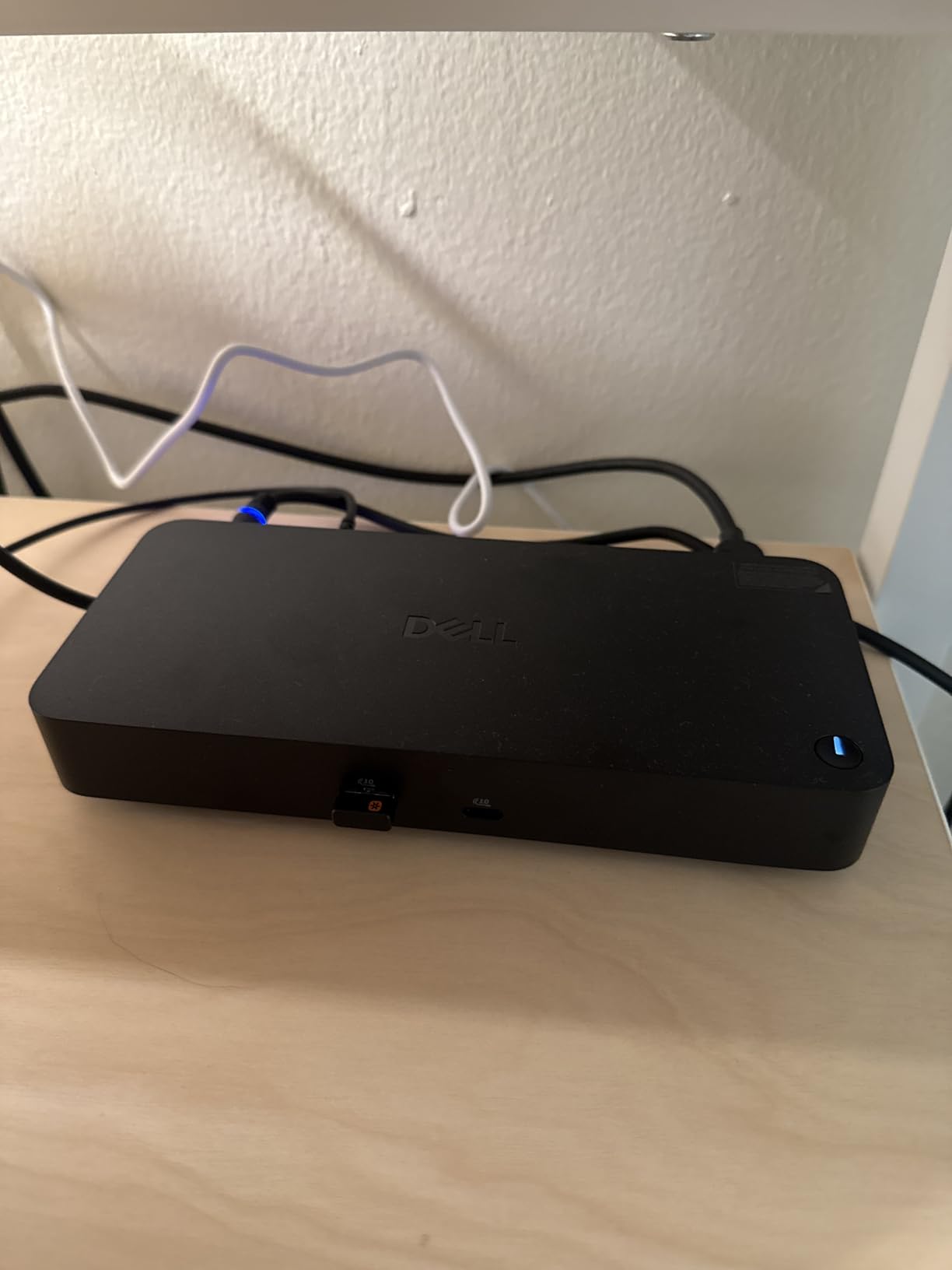
The hardware covers the office basics well: DisplayPort and HDMI video, 100W power delivery to charge Dell and non-Dell laptops alike, Gigabit Ethernet, a mix of USB-A and USB-C ports, and a cable that routes to either side of your desk. Dell officially supports Windows 10/11, Ubuntu 24.04, RHEL 9.6+, and ChromeOS 137 — Linux support almost nobody else offers.
The catches are worth knowing. That 100W ceiling is not enough for some high-wattage Dell mobile workstations under full load, several buyers report no working 3.5mm audio output, and Mac users get mirroring rather than extended displays. As a Windows or Linux dock, it is superbly built.
Which laptops pair best with the WD25?
Dell XPS and Latitude machines are the obvious match, thanks to the clamshell wake behavior and Dell’s driver stack. It runs fine with other USB-C Windows laptops and Lenovo or HP fleets too, and it is one of the few docks we would hand to a Linux user without hesitation. Skip it for MacBook duty.
Is this the sustainable pick?
It is the most eco-conscious dock we tested. Dell builds it with 65 percent postconsumer recycled materials, cut standby power consumption by 72 percent, and backs it with a 3-year Advanced Exchange warranty. Refurbished Dell docks pulled from enterprise fleets are also among the best secondhand values in this category — sysadmins on Reddit swear by them.
4. Anker Nano 13-in-1 – Best 2-in-1 Dock for Desk and Travel
Anker Nano Laptop Docking Station, 13in1 Dock with Detachable 6in1 USBC Hub
13-in-1 dock with detachable 6-in-1 hub
Triple display
100W PD
140W adapter included
Pros
- Detachable hub doubles as a travel dock
- Triple monitor support on Windows
- 140W power adapter included
- Single cable keeps the desk clean
Cons
- Macs limited to mirrored displays
- Plastic body feels less premium
- Module can pop out when bumped
The Nano’s party trick is that it is two products in one box. The main 13-in-1 dock lives on your desk, and a 6-in-1 module detaches from it to become a pocket travel hub for the road — the cleverest hardware design we tested all year.
On a Windows laptop it ran three displays, two HDMI plus DisplayPort, without drama, while the included 140W adapter charged at up to 100W at the same time. For hybrid workers who dock at home and present from coffee shops, it solves both jobs with one purchase.
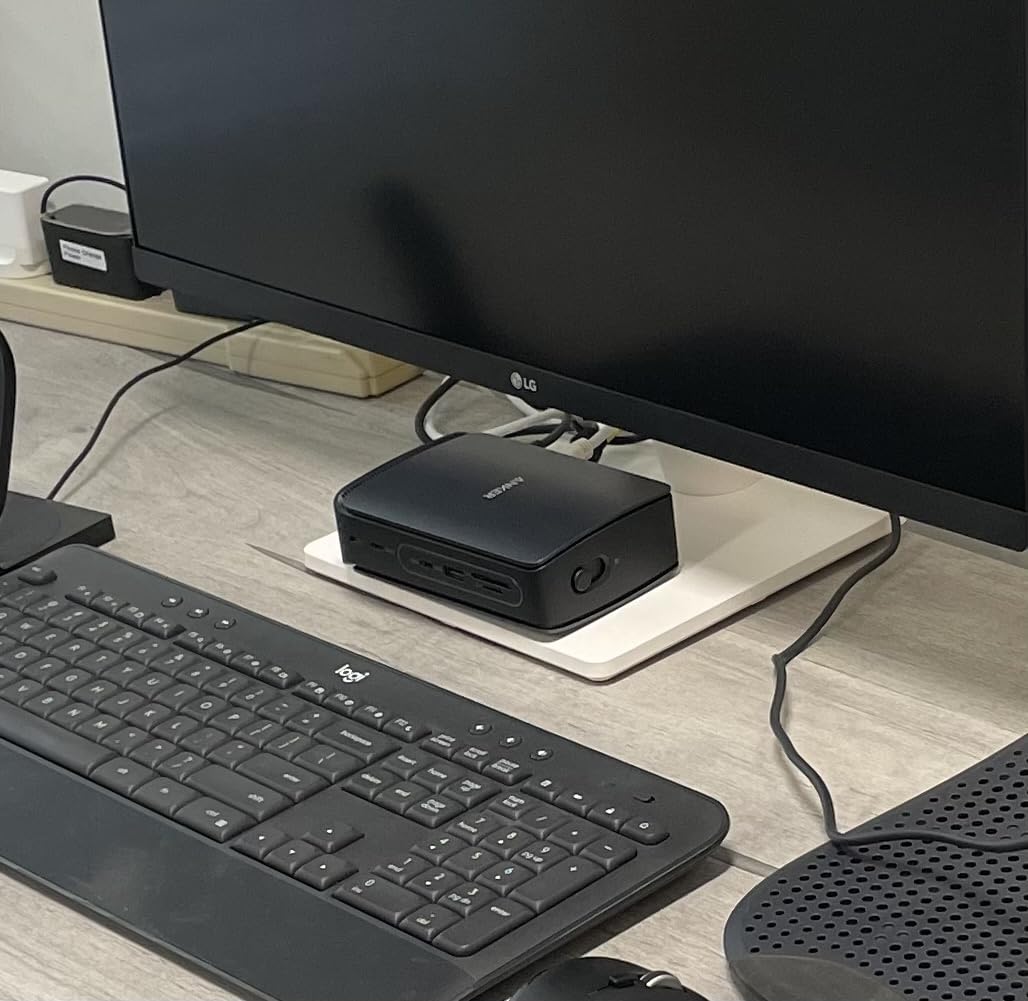
The port list covers a full workstation: 2 USB-C data ports up to 10Gbps, 3 USB-A ports, dual HDMI, DisplayPort, Gigabit Ethernet, a 3.5mm audio jack, and SD/TF card readers. Realistic display output tops out at triple 1080p@60Hz, dual 2K@60Hz, or a single 4K@60Hz.
The compromises are real. Macs are mirror-only here, the body is plastic where rivals use aluminum, and the detachable module can pop loose if you bump it while docking. A few owners also reported failures around the five-month mark, so keep your warranty paperwork handy.
Does the detachable hub survive daily use?
Mostly yes, but treat it gently. The connection holds firm in normal desk use yet releases easily when knocked, which is either a feature or a flaw depending on your desk traffic. If you travel weekly, having that 6-in-1 hub already in your bag is genuinely hard to give up afterward.
How many monitors can you really run?
Three on Windows at 1080p, two at 1440p, or one at 4K — all at 60Hz. That is plenty for productivity work, but this is not a 4K-everything dock. Creatives running twin 4K panels should step up to the UGREEN or CalDigit Thunderbolt options above.
5. Plugable UD-3900 – Best Universal Dock for Any Laptop
Plugable USB 3.0 Universal Laptop Docking Station, Dual HDMI Monitor
Universal USB 3.0 or USB-C
Dual HDMI
DisplayLink video
6 USB ports
Pros
- Works with USB 3.0 and USB-C laptops
- Dual 1080p HDMI displays
- 2-year warranty with Seattle-based support
- TAA-compliant for enterprise use
Cons
- Does not charge the laptop
- Capped at 1920x1200 per display
- DisplayLink lags for gaming and HDCP video
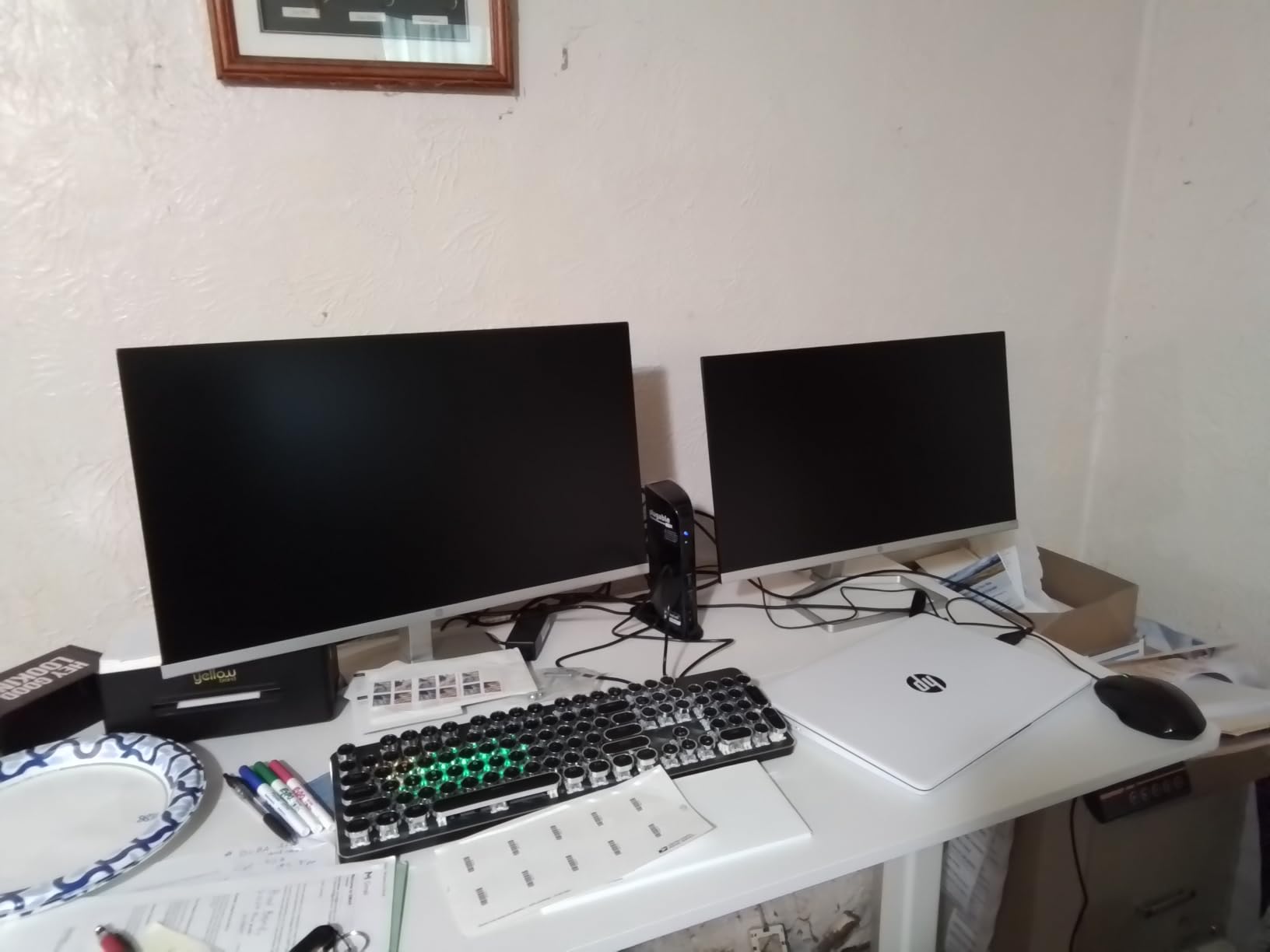
This is the dock I hand to people with older laptops, and it has earned its cult status. Our review unit drove two 1080p HDMI monitors from a six-year-old Windows notebook through a plain USB 3.0 port — no USB-C required — using the same hybrid cable design it has shipped with for over a decade.
Of all the best docking stations for laptops we tested, this one has the longest public track record: more than 11k reviews averaging 4.5 stars. Plugable’s Seattle-based support team also answers email like humans, which sounds minor until you have dealt with the alternatives.
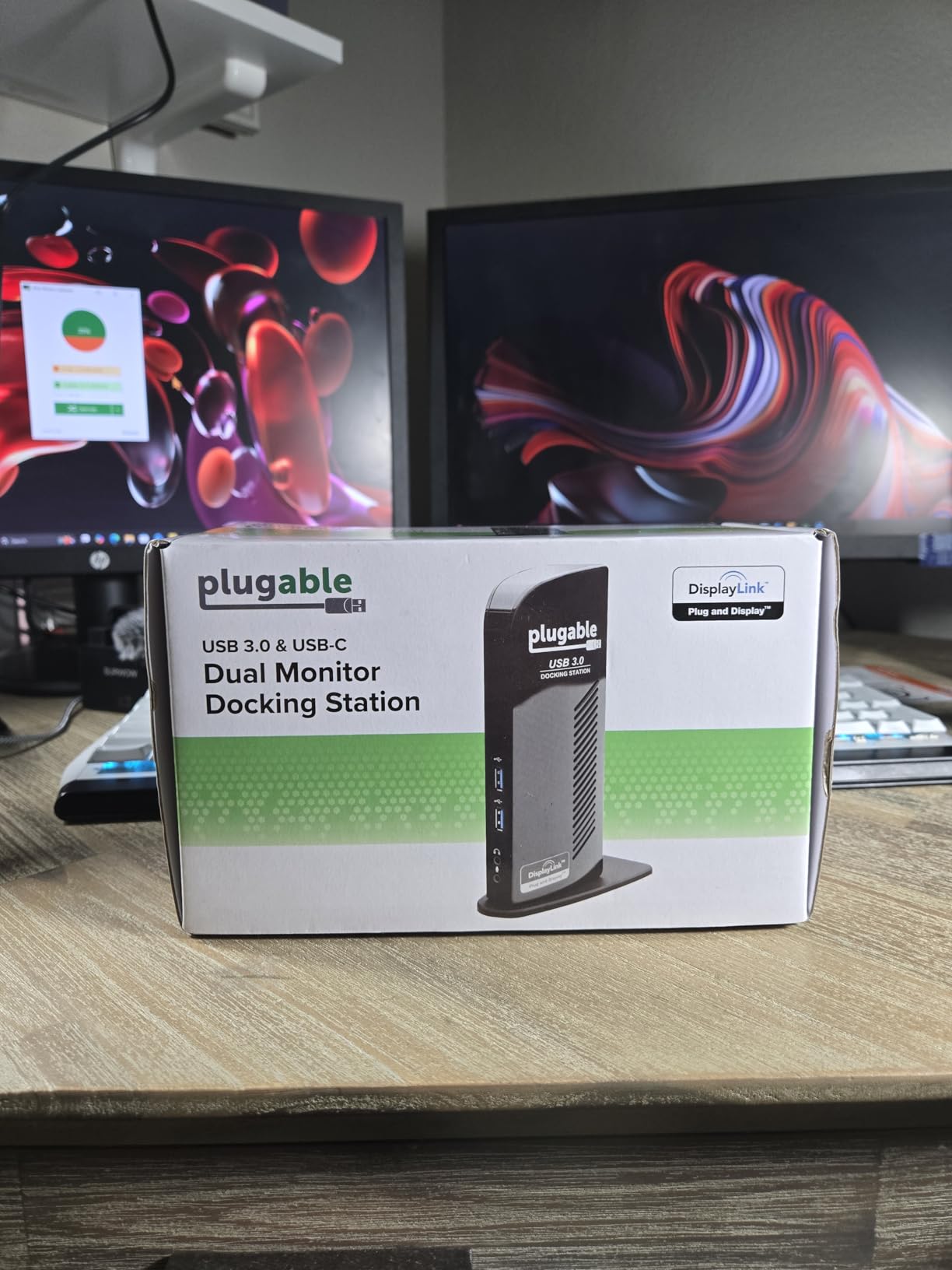
It works through DisplayLink, meaning video is compressed over the USB data bus rather than passed through natively. That is how it runs on hardware that predates USB-C entirely, and why it also works on modern USB-C laptops, ChromeOS 100+, and macOS 10.14+ with a driver. You also get Gigabit Ethernet, six USB ports, and front-facing headphone and mic jacks.
Know the limits before buying. It does not charge your laptop, output stops at 1920×1200 per display, HDCP-protected streaming from Netflix and most paid platforms will not play through it, and DisplayLink latency makes it a poor gaming choice. For office work it is nearly bulletproof; for play, it is not.
Will it work with your laptop?
Almost certainly yes. If your machine has USB 3.0 or USB-C, it works — Windows installs it plug-and-play, macOS needs a one-time DisplayLink driver download, and older Surface Pro tablets and 2-in-1s are a specialty here. It is also TAA-compliant, which is why government and enterprise IT departments buy it in bulk.
Who should skip a DisplayLink dock?
Gamers, video editors, and anyone moving large, fast-changing visuals on screen. DisplayLink compresses frames over the data bus, so fast motion picks up visible lag and HDCP-locked content refuses to play. If that describes you and your laptop has USB-C with DisplayPort Alt Mode, pick a native dock like the UGREEN Revodok Pro instead.
6. UGREEN Revodok Pro 10-in-1 – Best Budget USB-C Dock
UGREEN USB C Docking Station Dual Monitor, 10-in-1 Laptop Dock with 2 HDMI
10-in-1 USB-C dock
Dual 4K at 60Hz or single 8K
100W PD
Aluminum build
Pros
- Premium aluminum build
- Longer attached cable than rivals
- Dual 4K at 60Hz on Windows
- 24-month warranty
Cons
- M1 and M2 MacBooks get one extended display
- Runs warm during charging
- Rare defective port reports
The Revodok Pro is the budget dock that embarrassed a few pricier units in our testing. It pushed dual 4K@60Hz to our Windows laptop, held a clean Gigabit Ethernet link, and wore an aluminum shell that feels a class above its tier.
The attached USB-C cable is genuinely longer than nearly every rival’s, which sounds trivial until you try to route a short-tethered hub under a monitor arm. Little things like that decide whether a budget dock stays on your desk or ends up in a drawer.
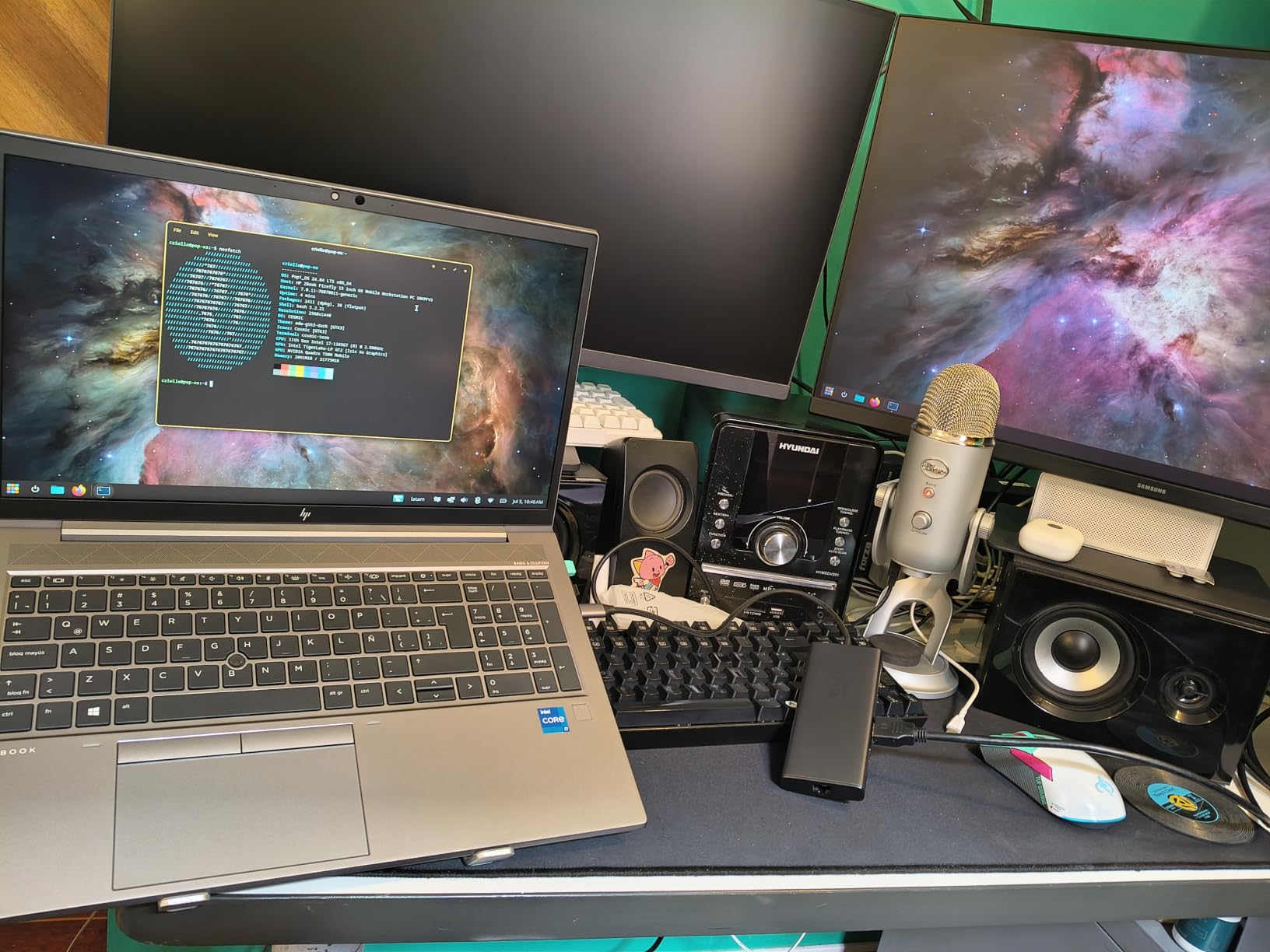
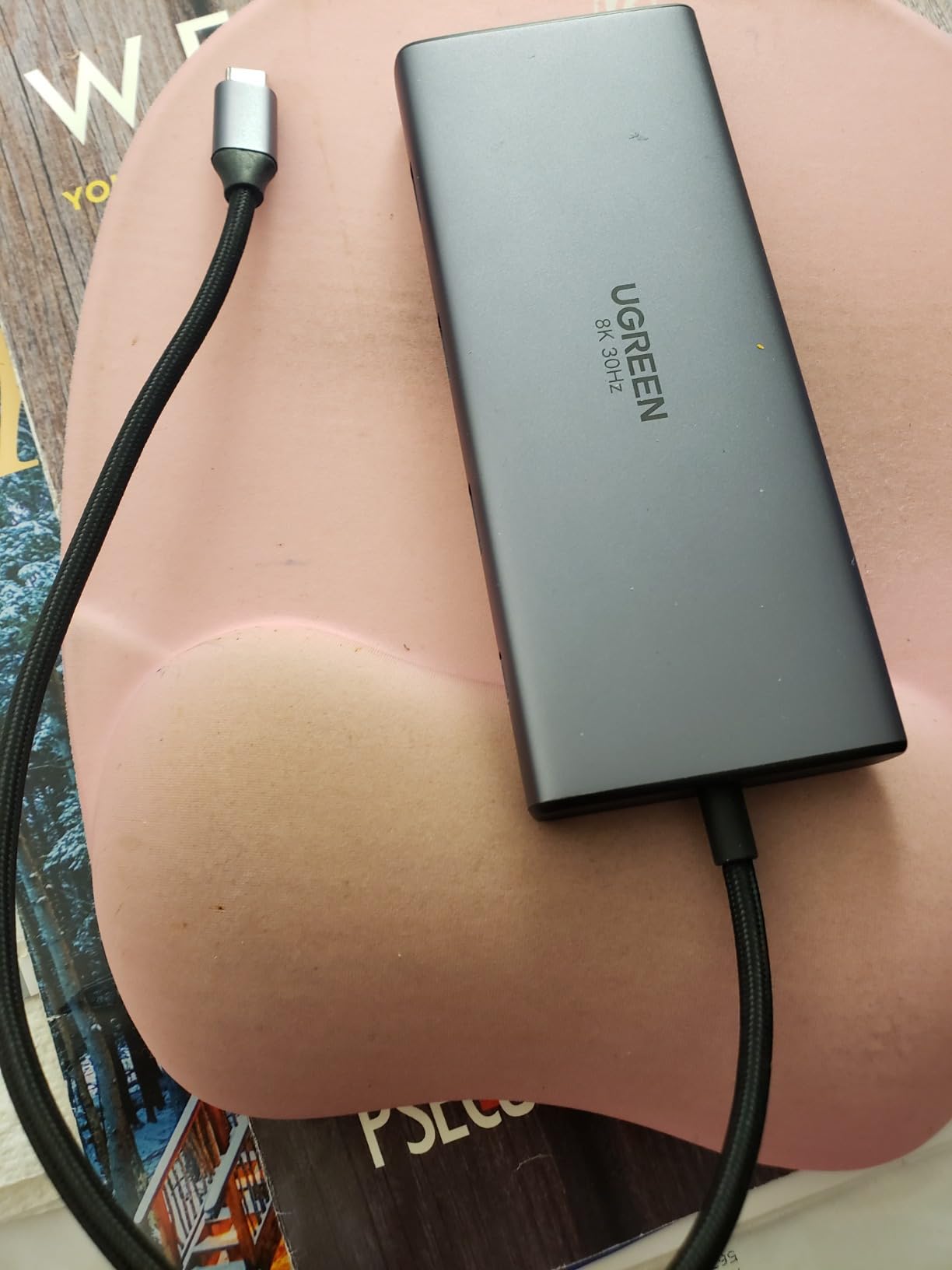
You get 2 HDMI outputs rated for dual 4K@60Hz or a single 8K@30Hz, 100W input with 85W pass-through charging to the laptop, four 5Gbps data ports, SD and TF readers, and Gigabit Ethernet. UGREEN covers it with a 24-month warranty, the longest coverage in the budget field.
The limits are the usual budget trade-offs. M1 and M2 MacBooks get a single extended display — mirror or extend, not two screens — the housing warms up during charging, and a small number of buyers received units with a dead USB-C port on arrival. None of that spoiled our month with it.
Can a budget dock really output dual 4K?
Yes, with one condition — your laptop’s USB-C port must support DisplayPort Alt Mode. When it does, both monitors land on the two HDMI outputs at a full 60Hz. What a budget dock cannot do is triple 4K, high refresh rates, or 8K at 60Hz; those need a Thunderbolt-class dock.
Is the cable long enough for your desk?
The tether runs longer than most attached cables and reached every monitor base in our test setups. If your laptop sits on a shelf or you route cables through a standing-desk arm, measure first — short cables are the single most common budget dock complaint we read in review threads.
7. LIONWEI 13-in-1 – Most Ports in One Hub
Docking Station Dual Monitor 4K HDMI 13-in-1 USB C Hub for Laptop MacBook
13 ports
Triple display on Windows
10Gbps data
100W PD
Audio jack
Pros
- 13 ports on one compact hub
- Physical display-mode switch button
- 10Gbps USB data speeds
- Triple monitor support on Windows
- Responsive warranty replacements
Cons
- SD and microSD readers fail for some owners
- Very short 6 inch attached cable
- Mac extends one display only
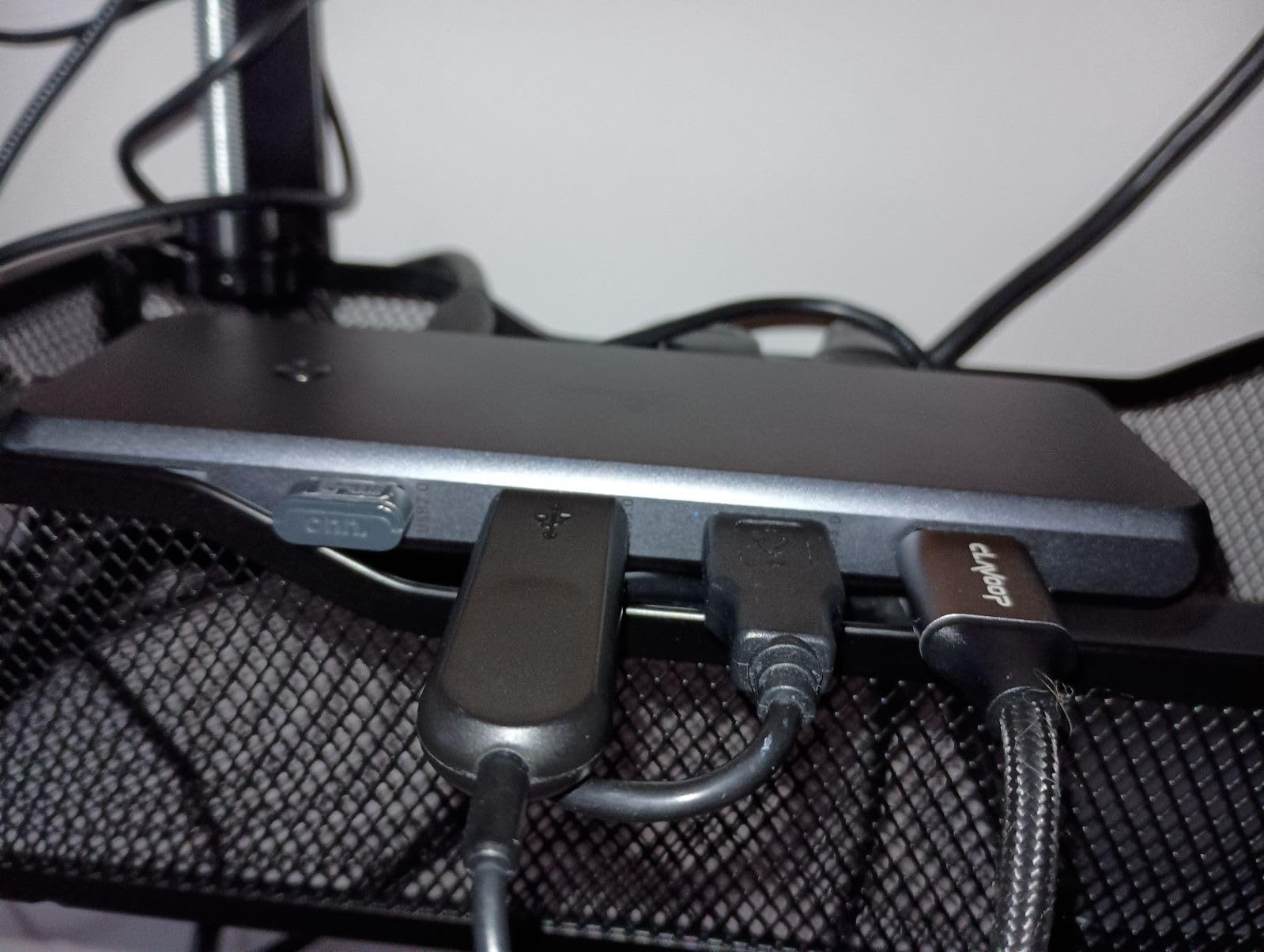
Thirteen ports on a hub this size felt like a typo until we plugged it in. The LIONWEI ran three displays on our Windows laptop — two HDMI plus DisplayPort — and still had sockets left for keyboard, mouse, audio, SD cards, and Ethernet.
The physical switching mode button is the feature nobody else copies. One press toggles display modes instead of burying the option three menus deep in Windows settings, which our classroom testers loved when flipping between mirror and extend setups several times a day.
The full spread: 2 HDMI and 1 DisplayPort for triple-display Windows setups, 2 USB-C ports with one handling 100W PD input, USB 3.1 at 10Gbps, 3 USB 3.0 ports, 2 USB 2.0 ports, a 3.5mm audio jack, and Gigabit Ethernet. Charging passes 87W through to the laptop after the dock takes its own 13W cut.
Reliability is the swing factor here. The SD and microSD readers carry the most complaints in the review history, the attached cable measures only about 6 inches, and a minority of buyers hit HDMI black-screen drops. Macs extend one display only, as always in this class.
Is the switching mode button actually useful?
It is genuinely handy if you change display layouts often — presenters, teachers, and anyone hot-desking between mirrored and extended setups will press it daily. If you configure your monitors once and never touch them again, it is a button you will press twice a year and forget exists.
How reliable is it after six months?
Mixed, and that is the honest answer. Owners praise the responsive replacements and the 18-month warranty, but the card readers and the occasional Ethernet adapter are the parts that fade over time. Keep wireless receivers off the USB 2.0 ports too — they can lag there, so reserve the 10Gbps ports for anything timing-sensitive.
8. Anker 8-in-1 Dual HDMI – Best Portable Dock for Travel
Anker Laptop Docking Station Dual Monitor, 8-in-1 USB C Hub with 4K HDMI
8-in-1 USB-C hub
Dual HDMI
4K at 60Hz single
85W max PD
SD and TF readers
Pros
- True plug-and-play on Windows
- 3.2 ounce pocketable body
- Reliable Gigabit Ethernet
- 18-month Anker warranty
Cons
- Macs mirror instead of extending both outputs
- Needs its own 100W wall charger
- Short attached cable limits placement
At 3.2 ounces, this is the dock that lives in my travel bag permanently. It survived weeks of being crammed next to chargers and cables, then ran two monitors and Ethernet at a hotel desk within a minute of arrival.
Setup on Windows is exactly what a travel hub should be: plug in, displays light up, nothing to install. Anker’s 18-month warranty and support reputation matter more at this end of the market, where no-name rivals routinely turn into paperweights after a firmware quirk.
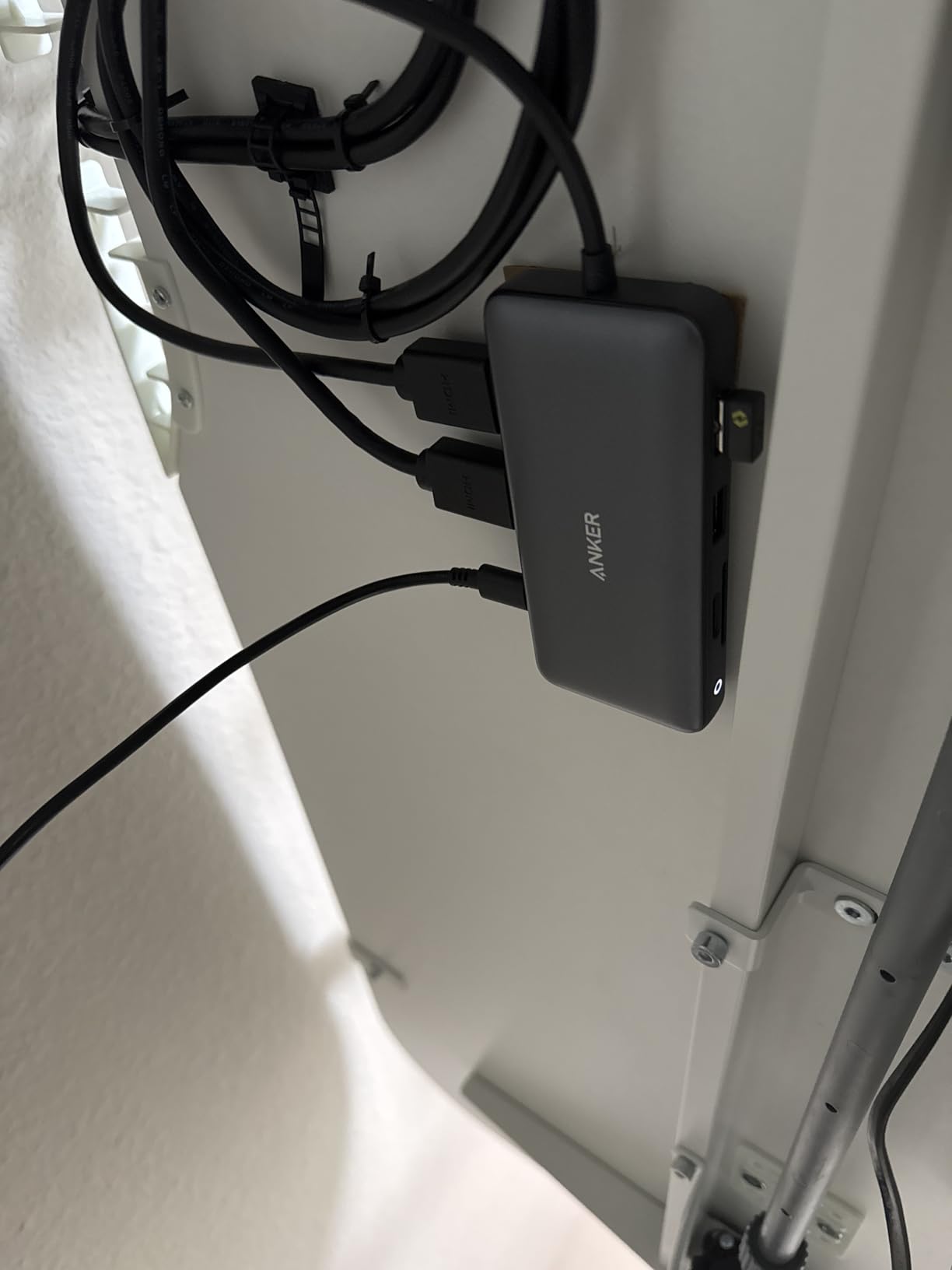
You get dual HDMI outputs rated 4K@60Hz for a single screen or 4K@30Hz across two, 2 USB-A data ports, Gigabit Ethernet, SD and TF card readers, and up to 85W of pass-through power. Read the fine print on power: the hub needs its own 100W USB-C wall charger for full charging speed, and one is not in the box.
Heat builds up during sustained heavy use, the short attached cable forces the hub to sit close to the laptop, and there is no Linux support. On Macs both HDMI outputs mirror rather than extend — the familiar base-chip limitation, not a defect.

What should you pair with it for charging?
A USB-IF certified 100W USB-C Power Delivery charger and a quality cable. Feed it less and it still passes power through at a reduced rate while running warmer, which is where most of the negative reviews come from. If you already own a fast laptop charger, this hub asks nothing extra of you.
Why does it mirror instead of extend on a Mac?
Base-model Apple silicon caps native extended display output at one screen, so the second HDMI mirrors the first. It is a macOS limitation, not an Anker bug, and every non-DisplayLink hub in this list behaves the same way. Mac laptops with Pro, Max, or Ultra silicon can extend further; everyone else gets one extended screen.
How to Choose the Best Docking Station for Your Laptop
The right dock comes down to four questions: what port does your laptop actually have, how many watts does it need, how many monitors do you run, and which extra ports matter to you. Here is how we work through each one.
Thunderbolt or USB-C: which connection do you actually have?
Check your laptop’s spec sheet before anything else, because this single fact eliminates half the options. Thunderbolt 4 and USB4 move 40Gb/s and drive multiple native displays plus fast storage; Thunderbolt 5 doubles that to 80Gb/s and is worth it only if you own a TB5 machine or want heavy future-proofing.
Regular USB-C with DisplayPort Alt Mode handles dual 4K fine but shares bandwidth across everything you plug in. DisplayLink, meanwhile, is software video over plain USB — the fallback that works on old laptops no other dock can touch.
How much power delivery does your laptop need?
Match the dock’s output to your charger, not to your optimism. A 13-inch ultrabook is happy with 65 to 85W, a 14 or 16-inch MacBook Pro or a mobile workstation wants 96 to 100W, and some gaming laptops draw more than 100W under load and will still drain slowly while docked.
Remember the dock keeps a cut for itself — a 100W input typically delivers 85 to 87W to the laptop. Budget hubs with pass-through charging usually need you to supply the wall charger separately, so factor that in.
How many monitors do you need — and what does your laptop allow?
The dock and the laptop both set the ceiling, and the laptop usually sets it lower. Windows machines with DP Alt Mode commonly run two or three extended displays, while Thunderbolt 4 guarantees dual 4K@60Hz and docks like the Dell WD25 push to quad. Base-chip MacBooks extend exactly one external display natively, and a DisplayLink dock is the only workaround.
Also check refresh rates before buying. If you want 4K at 60Hz rather than 30Hz, confirm the dock rates that output explicitly, because budget models quietly drop to 30Hz the moment a second screen connects.
Which ports matter for your workflow?
List what you plug in daily and buy against that list. Ethernet is non-negotiable for office workers — 1 Gigabit is standard, and 2.5GbE on the CalDigit TS4 only pays off if your network gear matches. Photographers and video editors should insist on UHS-II card readers for fast offloads.
Count your USB-A devices honestly, since many slim docks now ship USB-C only. And check for a 3.5mm audio jack if you use wired headphones or speakers, because several docks here drop it.
What about docking a gaming laptop?
Go Thunderbolt and keep expectations straight. A 40Gb/s pipe carries dual 4K displays, an external NVMe, and peripherals without breaking a sweat, but it will not feed an external GPU at full native speed in most cases, and 100W of dock power rarely matches what a gaming laptop draws under load — expect slow battery drain during long sessions. Skip DisplayLink docks entirely for gaming; their compressed video path adds lag you will feel in every frame.
Any brand-specific tips for Dell, HP, Lenovo, and Mac owners?
Enterprise docks reward staying in-family. Dell docks wake Latitude and XPS machines from clamshell mode and carry the best official Linux support; Lenovo and HP laptops work well on their own docks but run happily on universal USB-C docks too. Mac owners should assume one extended display on base chips, verify that a dock’s Mac claims mention Pro, Max, or Ultra, and remember that firmware updates sometimes need a Windows PC — worth knowing before the CalDigit arrives in an all-Mac house.
Do firmware, warranty, and sustainability matter?
They are the difference between a dock that lasts a decade and one that gets recycled in a year. Firmware updates fix the flickering and sleep-wake bugs that dominate complaint threads — Dell and CalDigit both ship them, so update on day one. A 2-year warranty is the floor we would accept, with Dell’s 3-year Advanced Exchange leading the field.
If e-waste matters to you, sustainability is the easiest win on this list. The WD25’s 65 percent recycled body and 72 percent lower standby draw lead the category, and the healthy refurbished market for ex-corporate Dell docks keeps perfectly good hardware out of landfill.
Frequently Asked Questions
What is the best dock station for a laptop?
The CalDigit TS4 is the best docking station for most laptops, offering 18 ports, 98W charging, 2.5 Gigabit Ethernet, and dual 4K or 6K display support. The Plugable UD-3900 is the best value for older laptops, and the UGREEN Revodok Pro 10-in-1 is the best budget USB-C dock for dual 4K monitors.
What should I consider before buying a docking station?
Check five things: your laptop port type (Thunderbolt 4, USB4, or USB-C with DisplayPort Alt Mode), the wattage your laptop needs to charge, how many monitors you run and what your laptop natively supports, the specific ports you use daily such as Ethernet or an SD card reader, and the warranty length. Firmware update support is a bonus that prevents flickering and sleep-wake bugs.
What is the difference between a cheap and expensive docking station?
Bandwidth and power are the main gaps. Expensive Thunderbolt 4 docks move 40Gb/s, drive dual 4K@60Hz or 8K displays natively, and charge at up to 98W, while cheap USB-C hubs share limited bandwidth, cap dual displays at 4K@30Hz, and reserve 13 to 15W for themselves. Premium docks also add better build quality, 2 to 3 year warranties, and firmware update support that fixes bugs over time.
Are docking stations good for laptops?
Yes. A dock reduces wear on your laptop ports by consolidating everything into one cable, keeps the battery charged with proper power delivery, and cuts cable clutter. Just pair it with a certified charger, allow ventilation since docks warm up under load, and install firmware updates when the manufacturer releases them.
Why won’t my MacBook extend to two monitors through a docking station?
Base-model M1 through M4 chips support only one extended external display natively, so any extra screens mirror instead. This is a macOS limitation that no USB-C or Thunderbolt dock can override. To run dual extended monitors on a base MacBook, use a DisplayLink dock with the DisplayLink driver installed, or step up to a MacBook with Pro, Max, or Ultra silicon.
Final Verdict: The Best Docking Stations for Laptops in 2026
For most people the CalDigit TS4 is the best docking station worth buying in 2026: 18 ports, 98W charging, 2.5GbE Ethernet, and the strongest reliability record in the category. If your budget is tighter, the Plugable UD-3900 covers dual monitors on nearly any laptop ever made, and the UGREEN Revodok Pro 10-in-1 delivers dual 4K on Windows for less than a replacement laptop charger.
Match the dock to your machine, not the marketing. Check your port type, count your monitors, mind the Mac display limits, and update the firmware on day one. Do that and whichever dock you pick from this list will still be earning its desk space years from now.