
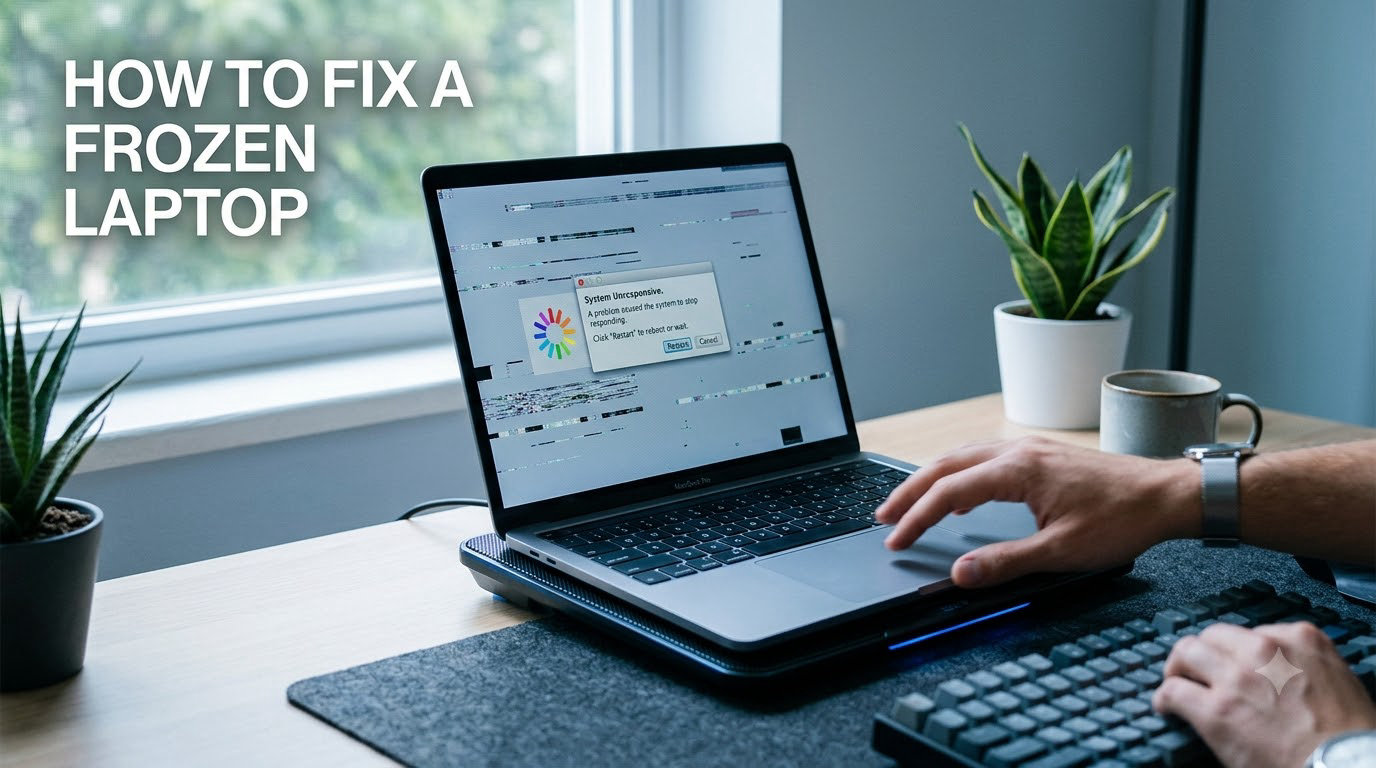
Picture this: you are halfway through a critical document, and your laptop screen goes completely still. The cursor will not move. The keyboard does nothing. Even Ctrl+Alt+Delete feels dead. If you have ever searched frantically for how to fix a frozen laptop, you are in very good company.
Our team has spent years troubleshooting unresponsive laptops across Windows and Mac systems. The truth is that roughly 90% of freezes resolve with a simple restart, and almost every freeze has a fixable root cause. In this guide, I will walk you through every step from the quickest emergency fixes to the deeper diagnostics that stop random freezing for good.
Learning how to fix a frozen laptop matters because the right approach can save your unsaved work, protect your data from corruption, and tell you whether you are dealing with a minor software hiccup or a failing hard drive. Let us start with understanding the enemy before we fight it.
Table of Contents
Why Your Laptop Freezes in the First Place
Most frozen laptop problems trace back to a handful of causes. Knowing which one applies to your situation makes the fix much faster. Here are the most common culprits our team sees over and over.
Software and Resource Issues
Resource exhaustion is the single biggest cause of laptop freezing. When your RAM fills up and your CPU hits 100%, the operating system simply cannot keep up with your inputs. A single runaway program, too many browser tabs, or background apps fighting for memory can bring everything to a halt.
Outdated or conflicting drivers are another frequent offender. Your display driver, graphics card, and chipset drivers communicate directly with the operating system, and when that communication breaks down, the screen can lock up entirely. A recent Windows update that installs a buggy driver is a classic trigger.
Malware and viruses can also freeze your laptop by consuming resources or corrupting system files. Some malicious programs deliberately lock your system as part of a scam tactic.
Hardware and Environmental Issues
Overheating is the top hardware-related cause. When internal temperatures climb too high, your laptop triggers thermal throttling to protect its components. If the heat keeps rising, the system shuts down or freezes to prevent permanent damage. Blocked vents, a failing fan, or dried-out thermal paste all contribute.
A failing hard drive or defective RAM can cause random freezes that seem to have no pattern. As drives age and develop bad sectors, or as memory sticks degrade, your system may lock up unpredictably. These freezes often get worse over time.
Peripheral conflicts can also freeze a laptop. A faulty USB device, a bad external monitor cable, or even a damaged dongle can send signals that confuse the operating system into locking up.
Quick Diagnosis: What Type of Freeze Do You Have?
Before you start troubleshooting, take 10 seconds to identify what kind of freeze you are dealing with. This simple diagnosis points you toward the right fix immediately.
Occasional program freeze: One application stops responding but you can still move the mouse and switch to other windows. This is usually a single app issue. Jump to the Task Manager section.
Complete system freeze: Nothing responds at all. The mouse is stuck, keyboard does nothing, and the screen is static. Start with the immediate fixes below.
Startup freeze: Your laptop freezes during boot, often on the logo screen or the lock screen. This points to driver conflicts, corrupt system files, or hardware failure. Head to Safe Mode.
Random intermittent freezes: Your laptop freezes every few minutes or a few times a day with no obvious trigger. This usually means overheating, failing RAM, or a degrading hard drive. Check the hardware sections.
Gaming or video freeze: Freezing only happens during graphics-intensive tasks. Thermal throttling, a display driver issue, or insufficient RAM are the likely suspects.
How to Fix a Frozen Laptop: Immediate Steps
When your laptop freezes, these are the steps to try in order, starting with the least destructive. Work through them one at a time.
1. Wait 60 seconds. Sometimes a freeze is temporary as the system processes a heavy task. Give it a minute before doing anything drastic. The disk activity light can tell you if the system is still working underneath.
2. Try the keyboard shortcut to open Task Manager or Force Quit. On Windows, press Ctrl+Shift+Esc to open Task Manager directly, or Ctrl+Alt+Delete to access the security screen. On Mac, press Command+Option+Esc to bring up the Force Quit Applications window.
3. Check your peripherals. Unplug every USB device, external monitor, and dongle. Sometimes a faulty peripheral causes the freeze, and removing it instantly restores control.
4. End the unresponsive program. In Task Manager or Force Quit, select the frozen app and choose End Task or Force Quit. If the system responds after that, you have found your culprit.
5. Perform a soft restart. If the system is usable, restart normally through the Start menu or Apple menu. A clean restart clears memory and closes conflicting processes.
Here is a quick reference of keyboard shortcuts you should keep handy.
Windows: Ctrl+Shift+Esc (Task Manager), Ctrl+Alt+Delete (security menu), Windows Key+Tab (task view), Alt+F4 (close active window).
Mac: Command+Option+Esc (Force Quit), Command+Control+Power (restart), Command+Option+Command+Power (quit all apps and restart), Control+Eject (restart dialog).
When Ctrl+Alt+Delete and Nothing Else Works
This is the scenario that terrifies people most. Forum users describe the panic when the keyboard goes completely dead and no shortcut responds. Here is exactly what to do.
Step 1: Hold the power button down for 10 to 15 seconds. This forces a hard shutdown. The screen will go dark and the laptop will power off completely. It bypasses the operating system entirely.
Step 2: If that does not work, hold the power button for a full 30 seconds. Some laptops, especially gaming models from MSI, Dell, and Lenovo, require a longer hold. Keep the button pressed until the machine is completely off.
Step 3: Unplug the charger and disconnect all peripherals. Remove every USB device and external connection. If your laptop has a removable battery, take it out. For laptops with internal batteries, skip to the next step.
Step 4: Perform a power drain. With the battery removed and charger unplugged, hold the power button for 30 seconds. This drains residual charge from the capacitors. Wait 2 to 3 minutes, then reconnect power and turn the laptop back on.
Step 5: For internal battery laptops, try the reset hole. Many modern Dell, Lenovo, and HP laptops have a tiny pinhole reset button on the bottom. Insert a paperclip, hold for 10 seconds, then power on normally.
Be aware that a hard reset can cause data loss for any unsaved work. The operating system does not get a chance to write data cleanly to disk. However, if nothing else works, this is your safest option because leaving a frozen system running risks worse corruption.
Using Task Manager and Activity Monitor
Task Manager on Windows and Activity Monitor on Mac are your most important diagnostic tools. They show you exactly what is consuming your resources so you can stop the problem at its source.
Opening and Reading Task Manager on Windows
Press Ctrl+Shift+Esc to open Task Manager. If you see the simplified view, click More Details at the bottom to expand it. The Processes tab shows every running app and background service with live CPU, Memory, Disk, and Network usage.
Look for any process consuming an unusually high percentage. If a single app is using 80% or more of your CPU or memory, that is your freeze culprit. Right-click it and select End Task. On Windows 11, the layout is cleaner but the logic is identical.
The Performance tab gives you a broader view. Check your Memory usage here. If it is consistently above 85%, you are running low on RAM and need to close programs or add memory. The Disk section shows drive activity. If it sits at 100% constantly, your drive may be failing or overwhelmed by background indexing.
The Startup tab lists programs that launch automatically when you boot. Disable anything you do not need running at all times. Too many startup programs compete for resources from the moment you log in.
Using Activity Monitor on Mac
Open Activity Monitor from Applications, then Utilities, or search for it in Spotlight. The CPU tab shows process names with their percentage impact. Click the % CPU column header to sort by highest usage.
Select any process eating excessive CPU and click the X button in the toolbar to force quit it. Check the Memory tab and look at the Memory Pressure graph at the bottom. If it shows red, your Mac is running critically low on memory. The Disk tab shows read and write activity for identifying drive problems.
Activity Monitor also has a built-in search bar, which helps when a specific app name appears in the process list and you want to isolate it quickly.
Fixing Browser-Specific Freezes
Browsers are heavy resource consumers, and a single tab can freeze your entire laptop. If your freezes happen while browsing, these steps address the most common causes.
Chrome, Edge, and Firefox all have their own internal task managers. In Chrome, press Shift+Esc to open the Browser Task Manager. In Edge, press Shift+Esc as well. In Firefox, type about:processes in the address bar. These tools show which specific tab or extension is consuming the most memory.
Clear your browser cache and cookies regularly. Accumulated cache data can grow to several gigabytes and slow browsing to a crawl. In Chrome, go to Settings, then Privacy and security, then Clear browsing data. Select cached images and files and clear them.
Disable hardware acceleration if browser freezes persist. Hardware acceleration offloads rendering to your graphics card, but if your GPU driver is unstable, this can cause crashes. Find this setting under Settings, System in Chrome and Edge, or under the Performance section in Firefox.
Trim your extensions. Each extension runs in the background and consumes memory. Remove any extension you have not used in the last month, especially ad blockers and tab managers that can conflict with modern sites.
Free Up RAM and Disk Space
When your laptop runs low on memory or storage, freezing becomes inevitable. Here is how to give your system the breathing room it needs.
Freeing Up Disk Space on Windows
Open Settings, then System, then Storage. Turn on Storage Sense to let Windows automatically clean temporary files. Click on your drive to see what is consuming space. Large categories include Temporary Files, Apps, and Previous Windows installations.
Run Disk Cleanup by searching for it in the Start menu. This built-in tool removes temporary files, system logs, old update files, and recycle bin contents. Click Clean up system files for a deeper scan that targets leftover Windows update data, which can occupy 10 or more gigabytes.
Keep at least 15% of your drive free. If your SSD is nearly full, the system has nowhere to write temporary files and performance collapses. Move large media files to an external drive or cloud storage.
Managing RAM and Virtual Memory
Closing unused programs is the quickest way to free RAM. But you can also adjust virtual memory settings on Windows. Search for Advanced System Settings, go to the Advanced tab, and under Performance click Settings. In the Virtual Memory section, you can let Windows manage the page file size automatically or set a custom size.
If your laptop has 8GB of RAM or less and you regularly freeze, upgrading to 16GB will make a dramatic difference. Modern browsers and applications are memory-hungry, and 8GB is no longer comfortable for most users.
Freeing Space on Mac
Open Apple Menu, then About This Mac, then Storage, then Manage. macOS shows recommendations including optimizing storage, emptying trash automatically, and reducing clutter. Review the Documents section for large files you can remove.
Check your Downloads folder, which often accumulates gigabytes of installer files and attachments. Delete what you no longer need.
Scan for Malware
Malware can freeze your laptop by consuming system resources or by corrupting critical files. A thorough scan rules out malicious causes.
On Windows, open Windows Security and go to Virus and threat protection. Click Scan options and choose Microsoft Defender Offline scan. This restarts your laptop and scans before Windows fully loads, catching malware that hides from standard scans. The offline scan takes about 15 minutes.
For a second opinion, download Malwarebytes and run a free scan. It catches adware and potentially unwanted programs that Windows Defender sometimes misses. I recommend running Malwarebytes alongside Defender as a regular habit.
On Mac, malware is less common but growing. Use Malwarebytes for Mac or the built-in tools in newer macOS versions. If your Mac freezes and runs hot with no obvious cause, a malware scan is worth the time.
Watch for scareware. Some malware deliberately freezes your screen and displays a fake warning claiming your computer is infected. These are scams. Never call the phone number or pay anything. A hard reset followed by a legitimate malware scan handles these.
Stop Overheating From Killing Performance
Overheating is one of the most overlooked causes of laptop freezing. When your processor hits its thermal limit, it either slows down dramatically or freezes to protect itself.
Check your laptop temperatures using free tools. On Windows, Core Temp or HWMonitor show real-time CPU temperatures. On Mac, use the free app Macs Fan Control or the built-in Activity Monitor to check process load. If your CPU is running above 90 degrees Celsius during normal tasks, you have an overheating problem.
Clean your vents and fan. Turn off the laptop, unplug it, and use compressed air to blow dust out of the exhaust vents. Hold the fan still with a toothpick so it does not spin, because spinning too fast can damage the bearings. Do this every few months.
Use your laptop on hard, flat surfaces. Soft surfaces like beds, couches, and laps block the intake vents underneath. A simple laptop stand or cooling pad improves airflow dramatically. Cooling pads with built-in fans can lower temperatures by 5 to 10 degrees.
If overheating persists after cleaning, the thermal paste between your CPU and heatsink may have dried out. This is a more advanced repair that involves disassembling the laptop. If you are not comfortable doing this yourself, a repair shop can repaste the CPU for a reasonable cost.
Avoid pushing your laptop during heat waves or in hot rooms. Ambient temperature directly affects how well your laptop can cool itself.
Update Your Drivers and Windows 11 System Files
Outdated drivers and corrupt system files are leading causes of laptop instability. Keeping them current prevents many freezes before they start.
Run Windows Update
Open Settings, then Windows Update, and click Check for updates. Install everything available, including optional driver updates. On Windows 11, click Advanced options, then Optional updates to find driver updates that do not install automatically.
Windows 11 has specific freezing issues related to display drivers and power management. If you recently upgraded to Windows 11 and started experiencing freezes, check for a graphics driver update from your manufacturer’s website rather than relying solely on Windows Update. NVIDIA, AMD, and Intel all offer driver downloads directly.
Update Drivers Through Device Manager
Right-click the Start button and open Device Manager. Expand categories like Display adapters, Network adapters, and Sound controllers. Right-click each device and select Update driver, then Search automatically for drivers. If Windows does not find an update, visit the manufacturer’s website for the latest version.
If a recent driver update caused your freezing problem, you can roll it back. In Device Manager, right-click the device, select Properties, go to the Driver tab, and click Roll Back Driver.
Repair System Files With SFC and DISM
Corrupt system files cause random freezes and crashes. Windows includes two powerful repair tools.
Open Command Prompt as administrator. Type sfc /scannow and press Enter. This System File Checker scans all protected system files and replaces corrupted ones with cached copies. It takes 10 to 15 minutes.
If SFC finds errors it cannot fix, run DISM. In the same command prompt, type DISM /Online /Cleanup-Image /RestoreHealth and press Enter. This tool repairs the Windows image that SFC relies on. Run SFC again afterward to catch any remaining issues.
Keeping Mac Updated
On Mac, open System Settings, then General, then Software Update. Install all available macOS updates. These include important security and stability fixes. For third-party app updates, open the App Store and check the Updates section.
Boot Into Safe Mode to Isolate the Problem
Safe Mode starts your laptop with only essential drivers and services. If your laptop does not freeze in Safe Mode, you know the problem is caused by a third-party driver, startup program, or service.
Entering Safe Mode on Windows 11
Hold Shift while clicking Restart from the Start menu. When the blue recovery screen appears, click Troubleshoot, then Advanced options, then Startup Settings, then Restart. After the reboot, press 4 or F4 to enter Safe Mode. Press 5 or F5 for Safe Mode with Networking if you need internet access.
If your laptop is completely frozen and you cannot reach the Start menu, force it off by holding the power button. Turn it back on, and as soon as the Windows logo appears, hold the power button again to interrupt boot. Repeat this twice. On the third start, Windows enters the Automatic Repair environment. From there, navigate to Advanced options and Startup Settings to reach Safe Mode.
Entering Safe Mode on Mac
Shut down your Mac completely. Turn it on and immediately press and hold the Shift key. Release Shift when you see the login window. Safe Mode appears in the top right corner of the screen.
On Macs with Apple Silicon (M1, M2, M3 chips), press and hold the power button until you see the startup options screen. Hold Shift and select Continue in Safe Mode.
What to Do in Safe Mode
Once in Safe Mode, uninstall any recently added software or drivers that may have triggered the freezing. Run a malware scan. Check if the freezing persists. If Safe Mode runs smoothly, gradually re-enable startup programs and drivers one at a time until the freeze returns. That tells you exactly which program is the culprit.
Use System Restore to Roll Back Changes
If your laptop started freezing after a recent change, a Windows update, a new driver, or a software installation, System Restore can roll your system back to a stable state.
Search for Create a restore point in the Start menu. Click System Restore, then Next. Choose a restore point from before your freezing problems began. Windows shows you what programs and drivers will be affected. Confirm and let the process complete. Your personal files are not affected, but recently installed apps and drivers may be removed.
System Restore only works if you have restore points enabled. To make sure they are active going forward, in the System Protection tab, select your drive, click Configure, and turn on protection. Windows will create automatic restore points before significant changes.
On Mac, the equivalent is Time Machine. If you have an external Time Machine backup, you can restore your entire system to a date before the freezing started. Restart your Mac, hold Command+R to enter Recovery Mode, and select Restore From Time Machine Backup.
How to Prevent Your Laptop From Freezing Again
Fixing a freeze is only half the battle. A simple maintenance routine keeps your laptop running smoothly and prevents most freezes from happening.
Weekly Maintenance
Restart your laptop at least once a week. Many people close their laptop lid and never restart, which means background processes accumulate over days. A weekly restart clears memory and resets services.
Run a quick malware scan. A five-minute Windows Defender quick scan catches problems early. Clear your browser cache and close browser tabs you no longer need.
Check for Windows or macOS updates and install them. Updates include stability patches that fix known freezing bugs.
Monthly Maintenance
Run Disk Cleanup or empty your trash and Downloads folder. Remove programs you installed but no longer use. Review your browser extensions and disable or remove ones you have not touched.
Check Task Manager startup items and disable anything unnecessary. Open Task Manager, go to the Startup tab, and right-click programs you do not need running at boot.
Check your free disk space. If it is dropping below 15%, move files to external or cloud storage immediately.
Quarterly Maintenance
Clean your laptop vents with compressed air. Inspect the fan for visible dust buildup. Check your CPU temperatures with a monitoring tool during normal use.
Run SFC and DISM scans on Windows to catch corrupt system files early. Update all your drivers from manufacturer websites.
Review what is running in the background. Over months, programs accumulate background services that eat resources quietly.
Recovering Unsaved Work After a Freeze
If you lost work during a freeze, you may be able to recover it. In Microsoft Word, Excel, and PowerPoint, open the app and check the Recovered Documents or AutoRecover folder. These apps save backup copies every few minutes by default.
In Google Docs, Sheets, and Slides, your work is saved automatically to the cloud. Open the web app and check Version History for your latest changes.
In Chrome and Edge, restart the browser and it will offer to restore your previous tabs. Firefox does the same through its Session Restore feature.
Protect Your Data Going Forward
Enable automatic saving in every application that supports it. Save critical work to cloud storage like OneDrive, Google Drive, or iCloud so it syncs continuously. Set up regular backups using File History on Windows or Time Machine on Mac. When freezes happen, your data stays safe.
When to Seek Professional Help
Most laptop freezes have a software cause and respond to the steps in this guide. But some freezes signal hardware failure that requires professional diagnosis.
If your laptop freezes constantly even after you have done clean Windows reinstalls, updated all drivers, run SFC and DISM, tested your RAM, and cleaned your cooling system, the problem is likely hardware. A failing motherboard, a dying GPU, or a degrading CPU can all cause persistent freezing that no software fix will solve.
Watch for SMART warnings about your hard drive. If Windows or a tool like CrystalDiskInfo reports disk health issues, back up your data immediately and replace the drive. A failing SSD or hard drive will only get worse.
If your laptop shows a Blue Screen of Death with specific error codes, note them down. Error codes like MEMORY_MANAGEMENT point to RAM failure, while DRIVER_IRQL_NOT_LESS_OR_EQUAL indicates a driver or hardware issue. A repair technician can run hardware diagnostics to pinpoint the exact component.
For Mac users, Apple Diagnostics can detect hardware failures. Hold the D key during startup on Intel Macs, or press and hold the power button then press Command+D on Apple Silicon Macs. If Apple Diagnostics finds a hardware issue, contact Apple Support or an authorized service provider.
FAQ
How do I get my laptop to unfreeze?
How do I unfreeze my laptop when Ctrl+Alt+Delete doesn’t work?
What to do if my laptop screen is unresponsive?
What button unfreezes a computer?
What causes a laptop to suddenly freeze?
Why does my laptop keep freezing and how do I fix it?
How to force restart an unresponsive laptop?
Should I be worried if my computer freezes?
Wrapping Up
Learning how to fix a frozen laptop comes down to working through fixes from simplest to most complex. Start by waiting, then use keyboard shortcuts to end the frozen program, and escalate to a hard reset only when nothing else responds. From there, address the root cause by managing resources, scanning for malware, updating drivers, and keeping your system clean.
The preventive maintenance routine in this guide will stop most freezes before they happen. Restart weekly, clean your vents quarterly, and keep at least 15% of your disk free. If freezes persist despite every fix, have a professional check your hardware before a component failure catches you off guard.
Your laptop does not have to freeze forever. Follow these steps, and you will have a responsive, reliable machine for the long haul.